
【2D横版游戏开发】godot+c#实现玩家动画
前言
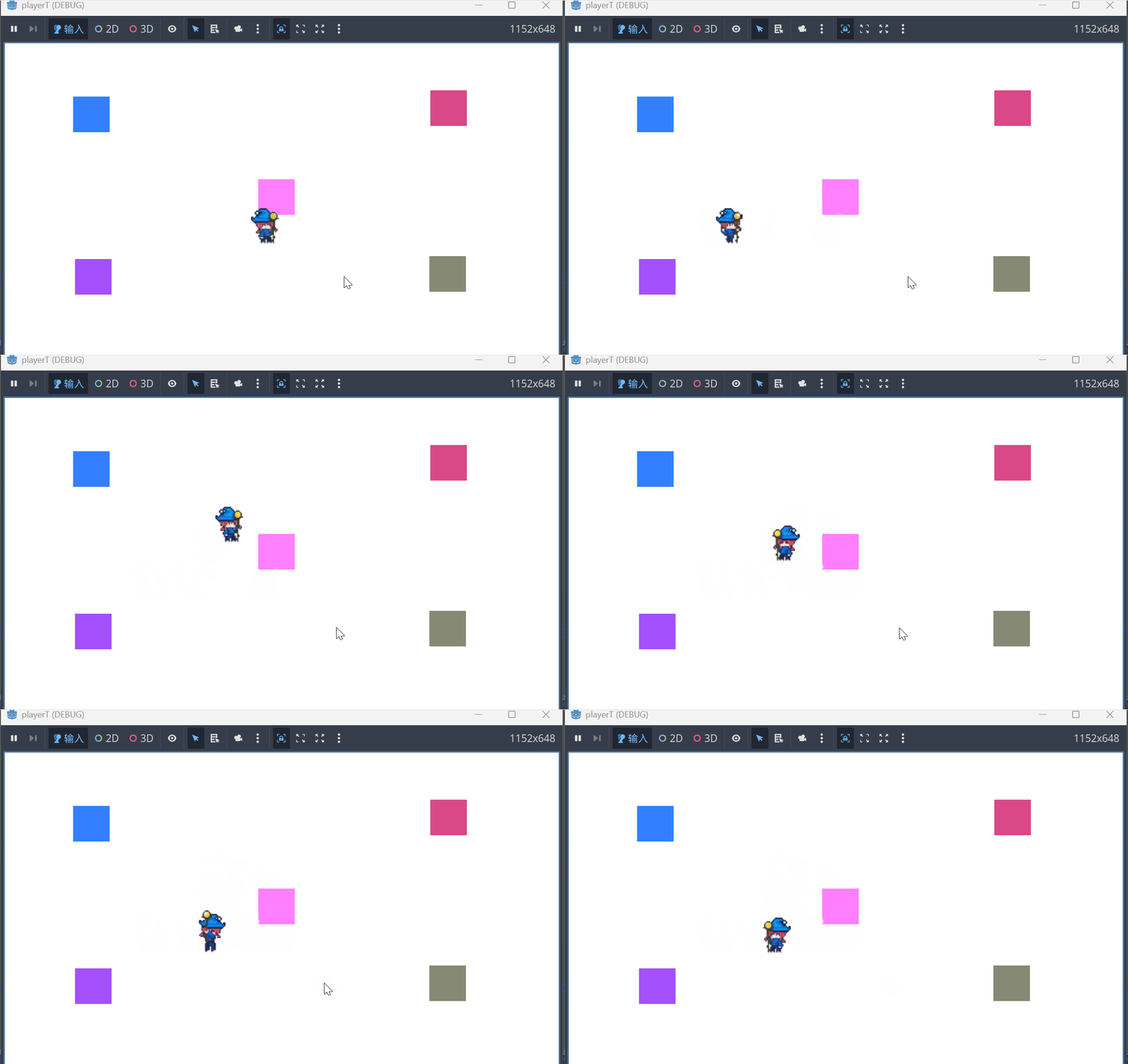
在前一个文章,我们实现了玩家的基础移动,那么这次我们来实现玩家的动画,实现行走,攻击,跳跃状态。效果如下
素材
首先,我们先下载一个素材
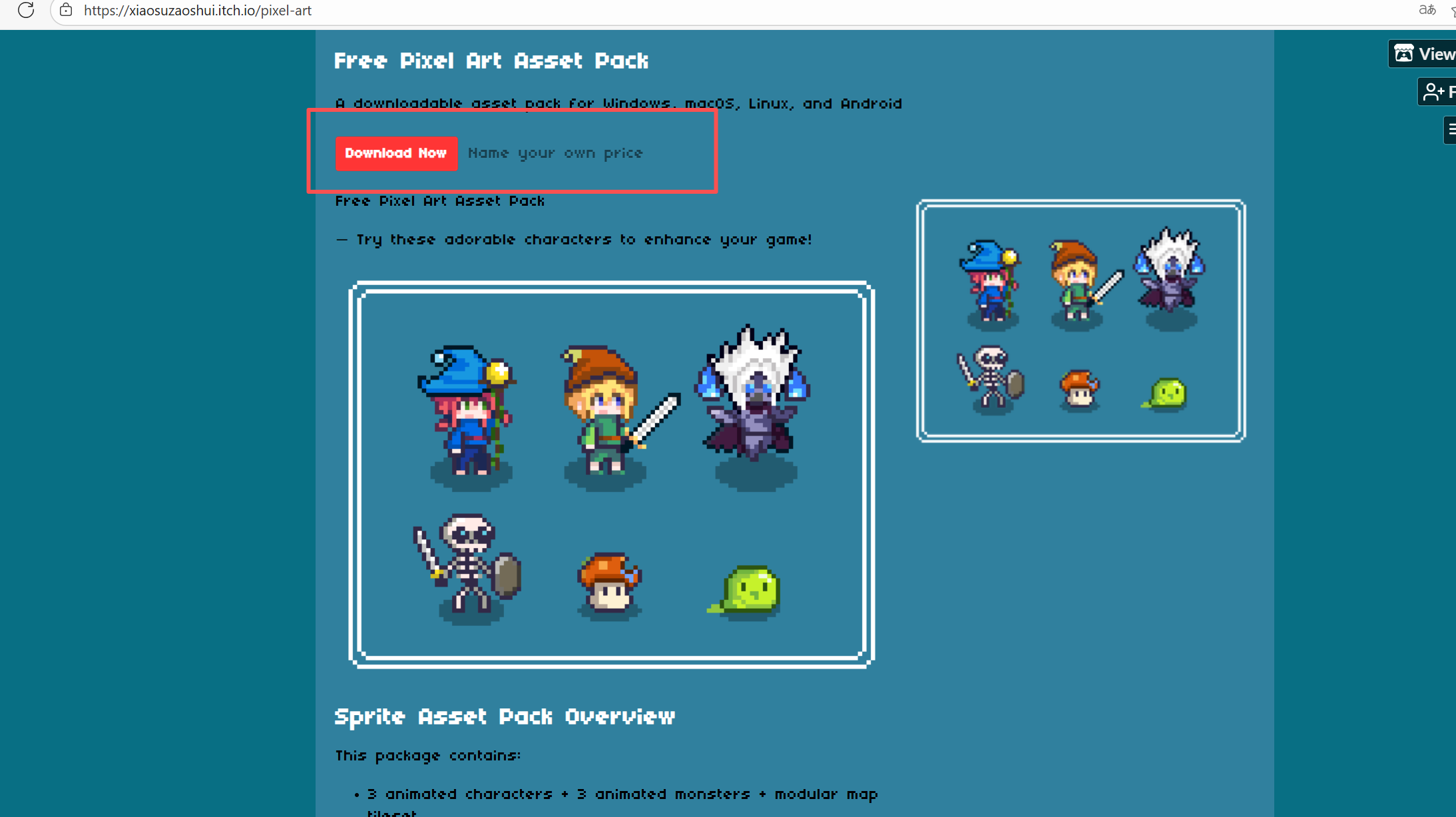
- 打开之后如下,点击
Download Now
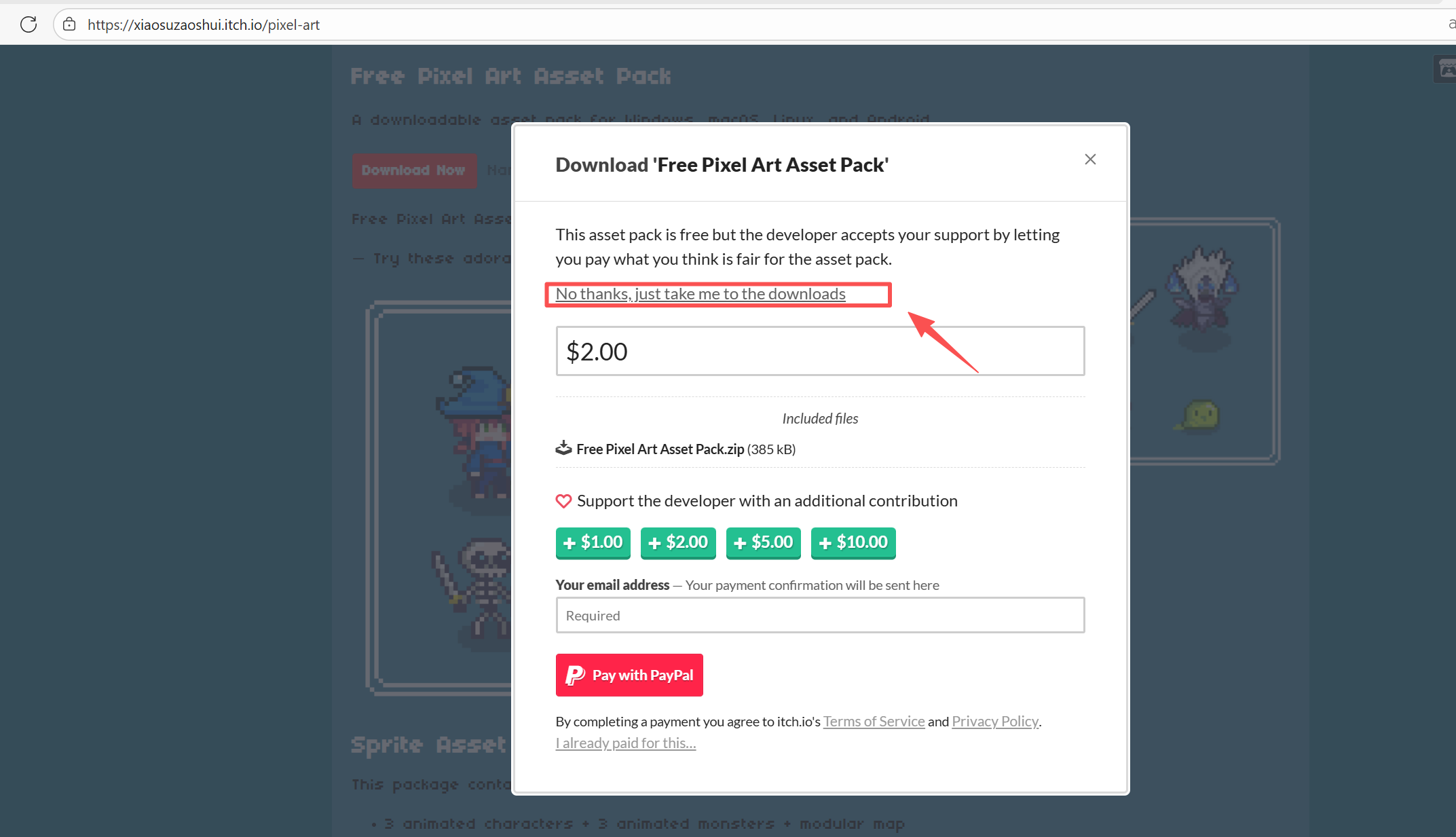
- 里面有一个
No thanks, just take me to the downloads,点击它下载
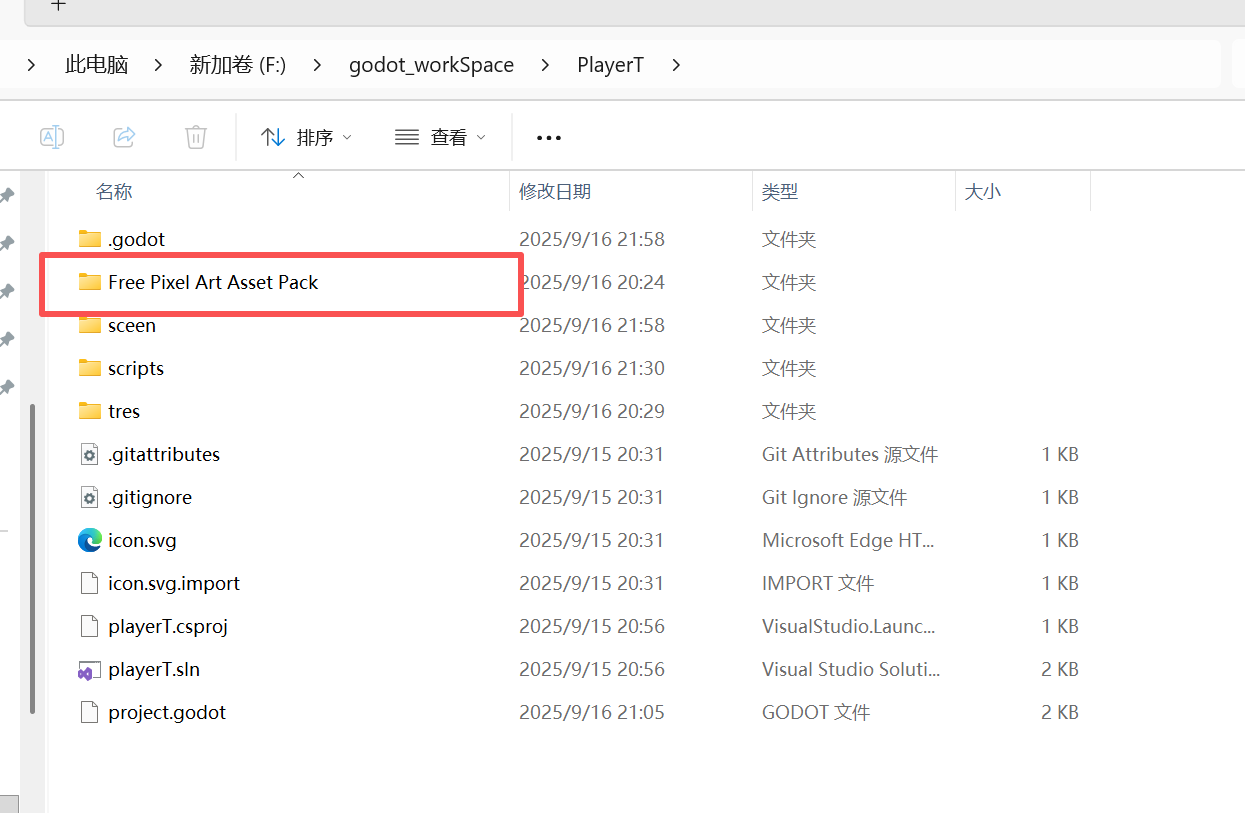
- 然后把素材解压到自己游戏项目的根目录即可
动画创建
首先,先对我们之前的玩家角色进行改造在Player节点下新增
AnimatedSprite2D子节点,然后点击该子节点检查器有一个Animation的Sprite Frame属性,在它右键新增,并点击新增的Sprite Frame属性
注意:请把我们之前的Sprite2D节点删除
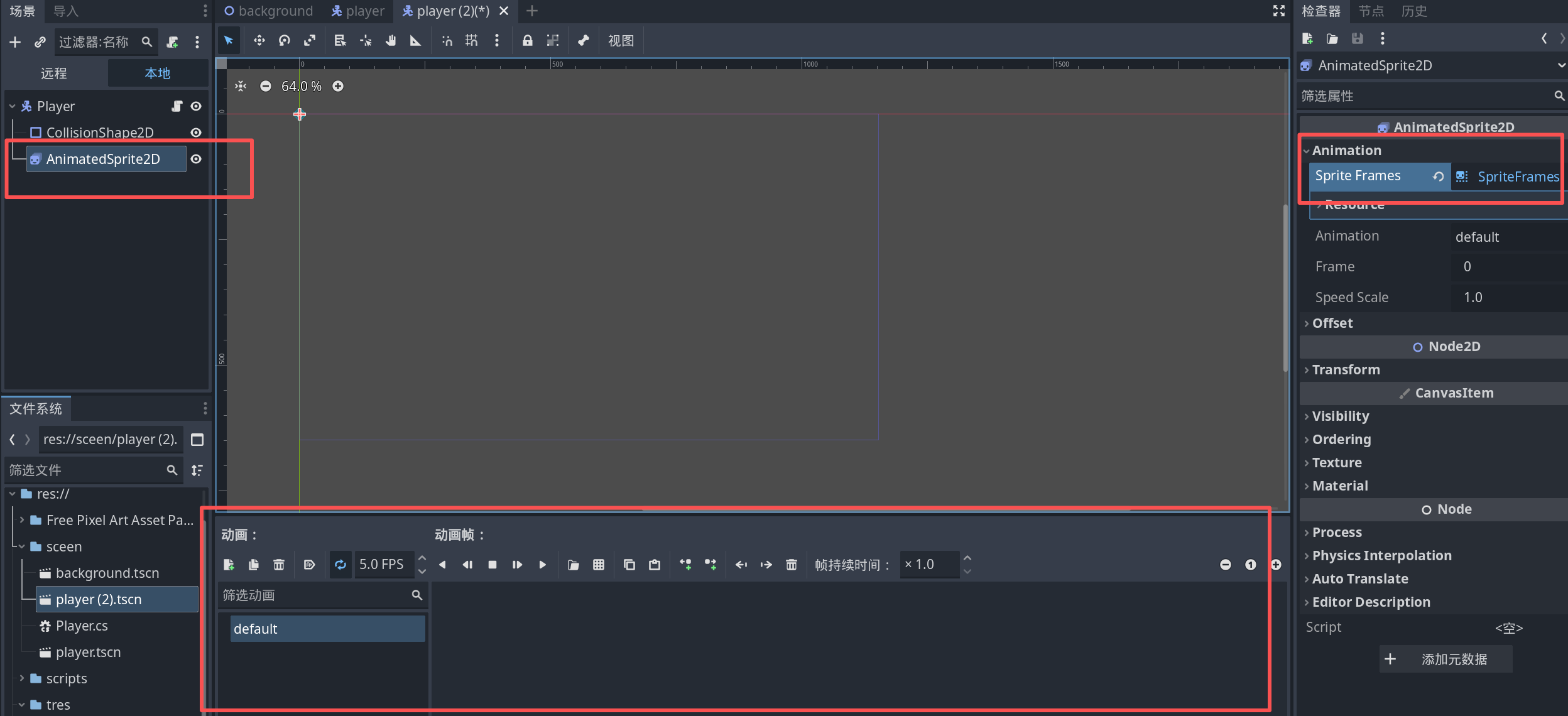
点击之后中下方会出现一个
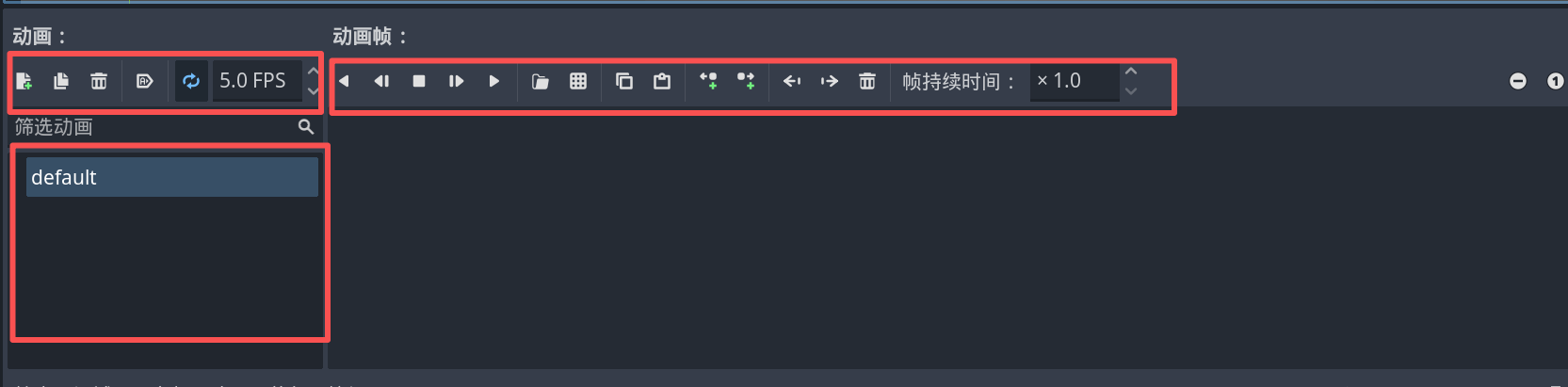
动画面板
其中左边部分,上部分分别是
新增动画:要实现不同的玩家操作展示不一样的画面,我们需要新增不同的动画,如攻击,受伤,待机等
复制动画:对已有的动画进行复制,可以减少操作
删除动画:顾名思义,删除已有动画
加载自动播放:进入动画默认播放,一般只有待机动画才开启
动画循环:因为动画有固定的帧数,播放完如果不选中,就直接停止播放动画了
5.0FPS:这个指动画播放速度,数字越大播放越快
左边下面的动画列表,可以分别点击动画进行命名
其中右边部分分别是
靠左部分:分别代表逐帧播放,还是直接播放,播放可以看到动画效果
从文件添加帧:从文件中找图片资源,添加帧
从精灵表添加帧:针对图片资料对图片进行分割添加帧,我们接下来需要用这个功能添加
再右边有复制帧粘贴帧左边插入空白帧右边插入空白帧删除帧等就不多赘述。顾名思义
对于第一个default动画,我们点击它重命名
idle,待机,然后我们点击从精灵表添加帧找到我们的图片资源,这里我找的是Free Pixel Art Asset Pack/characters/Characters/Wizard/Wizard这个是法师角色,如果更喜欢剑士角色,可以找到Kinght
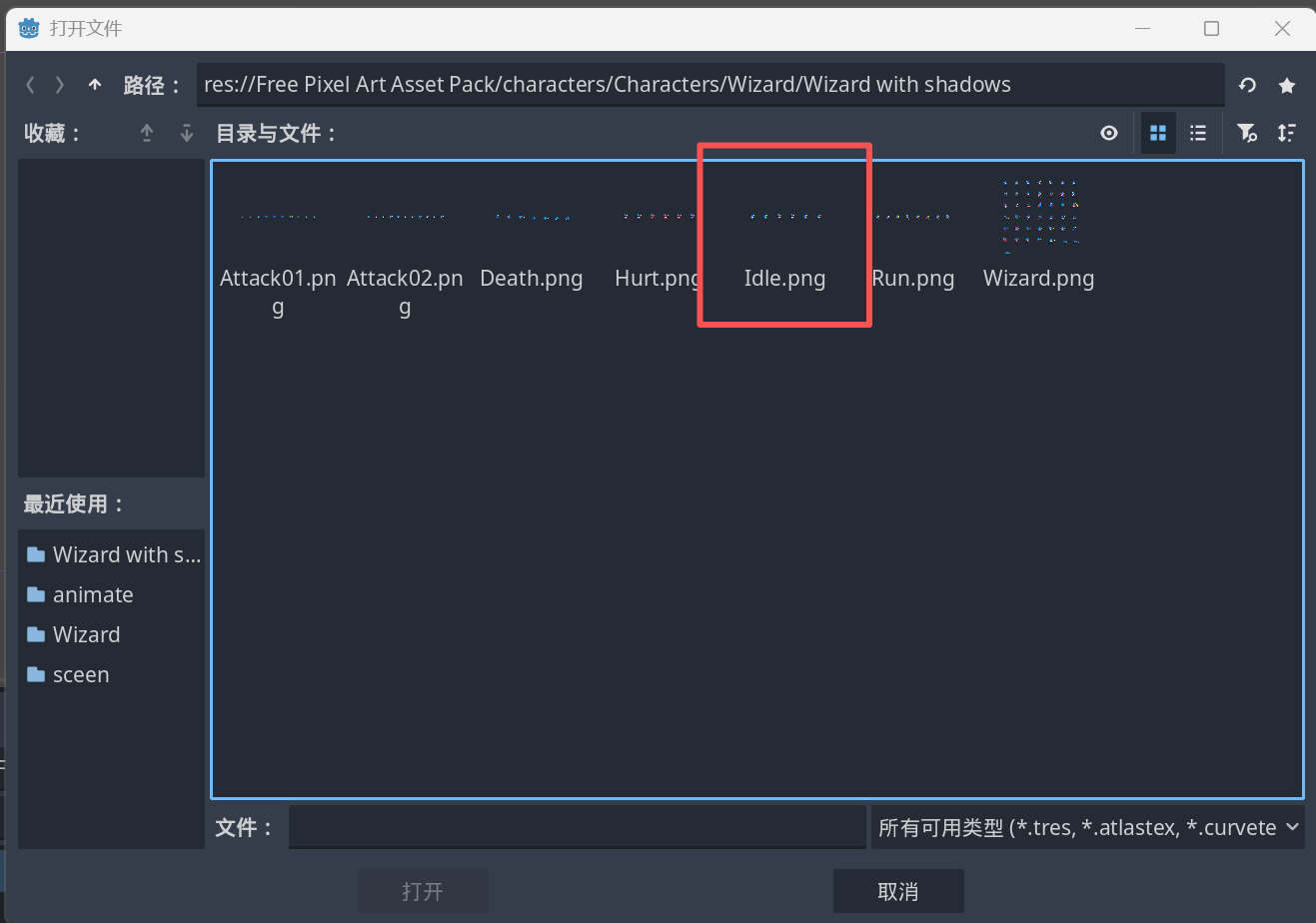
找到里面的
Idle.png图片,然后点开,会看到图片被分割成了4 * 4
右边的操作我们会看到有水平和垂直,它代表的是我们水平和垂直需要分割成几份,分割成几份,我们需要看精灵图水平和垂直各占几个角色,如当前图片是一行六排,因此垂直设置1,水平设置6,其他属性保持不变
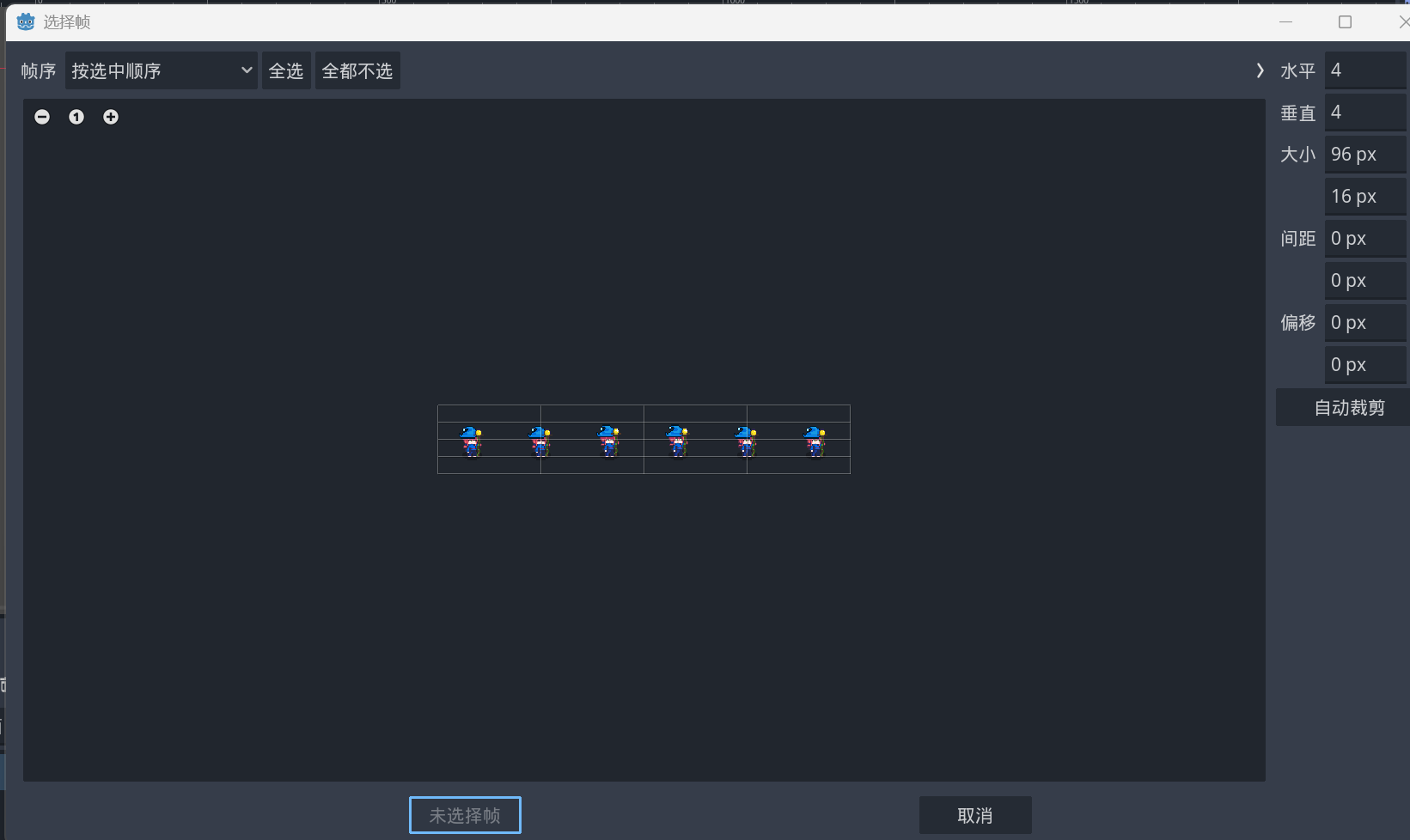
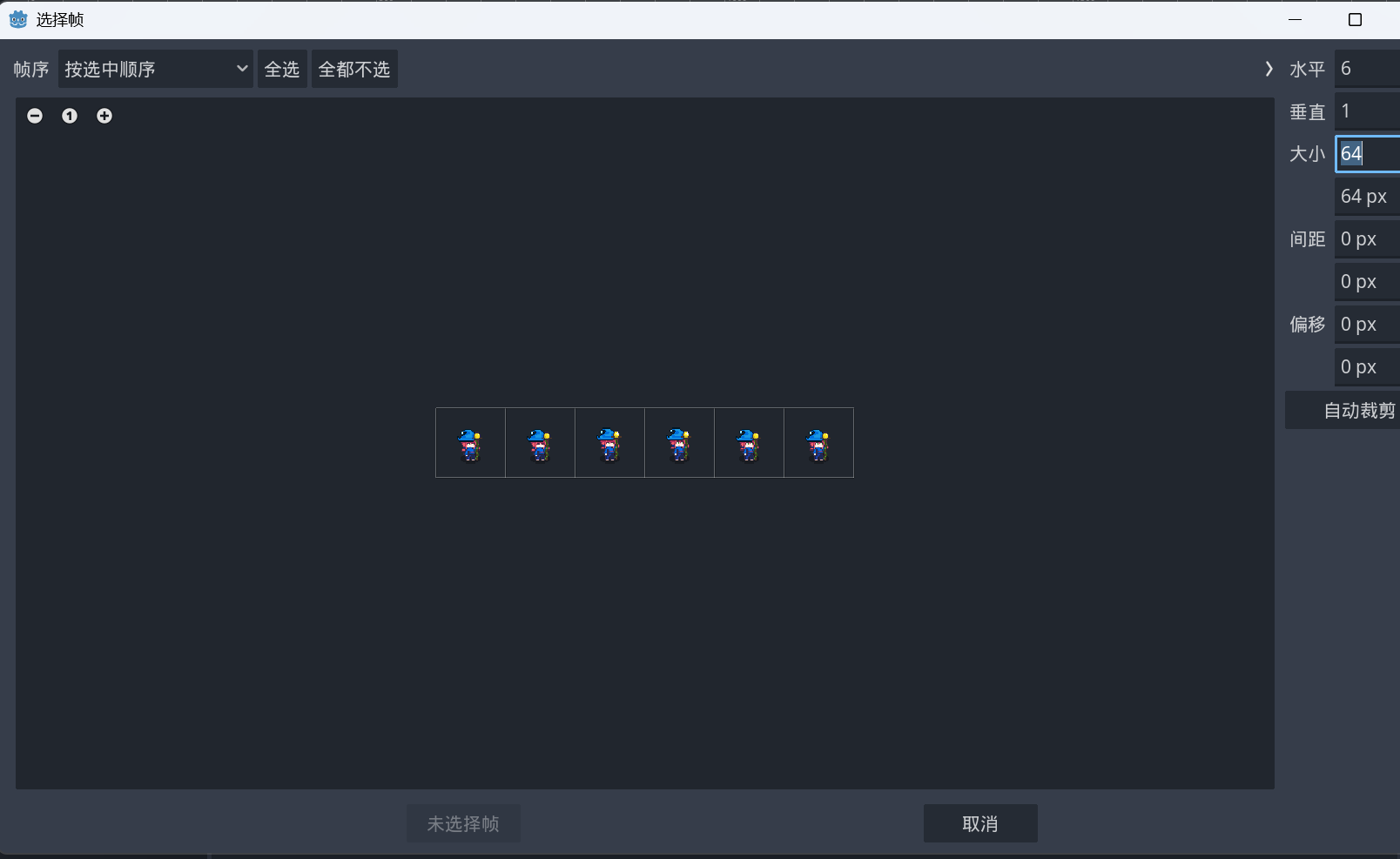
然后从左到右依次点击,注意这里会有标数字,代表不同的图片播放的顺序
然后点击添加即可
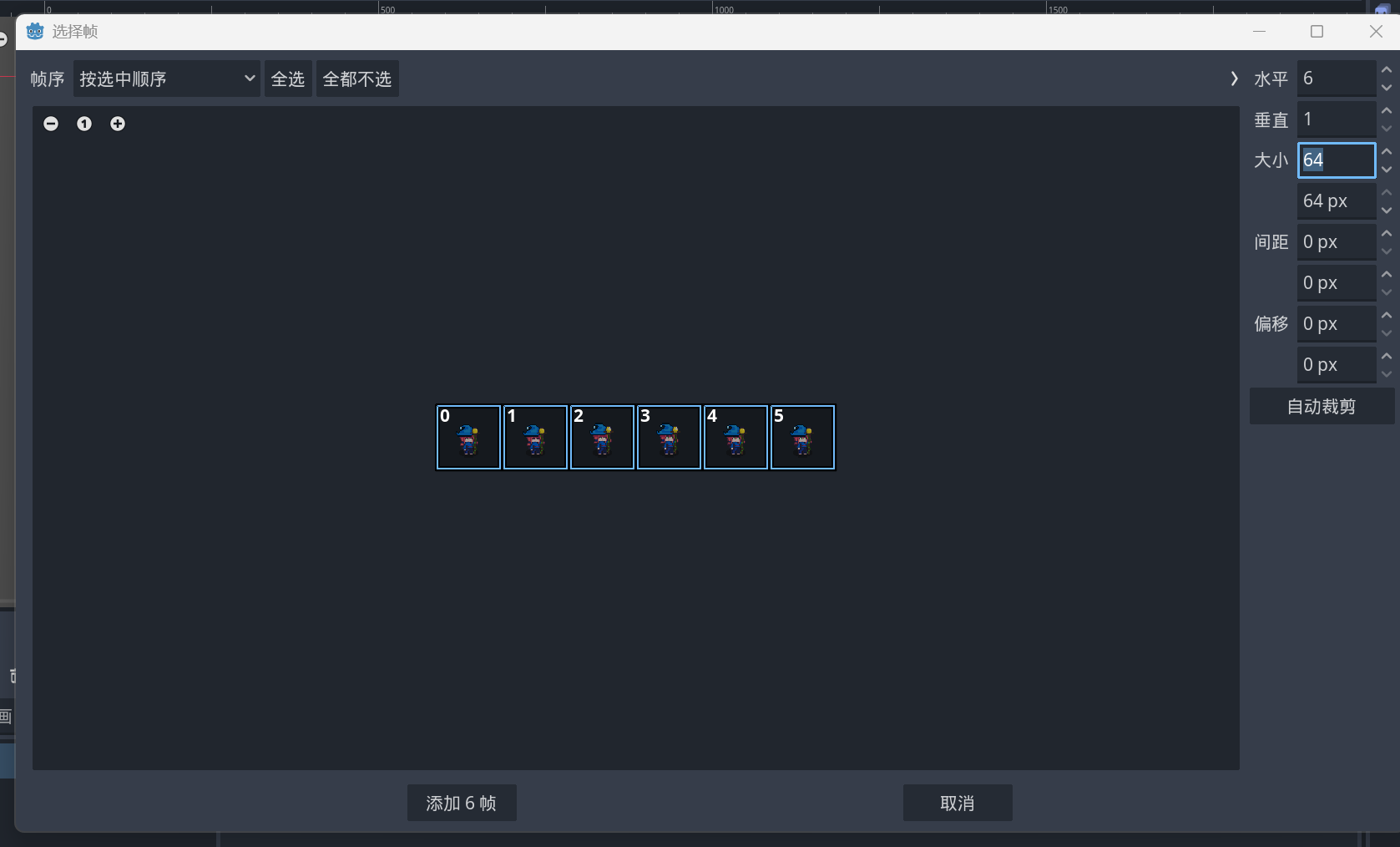
按照如下,idle我们勾选
加载自动播放,和循环动画
按照如上方法找到run.png和attack.png
分别添加行走和攻击
只不过
行走只打开循环动画
攻击加载自动播放和循环动画都不勾选
如果有兴趣,可以把死亡和受伤动画也一起加上,不要忘记改名称
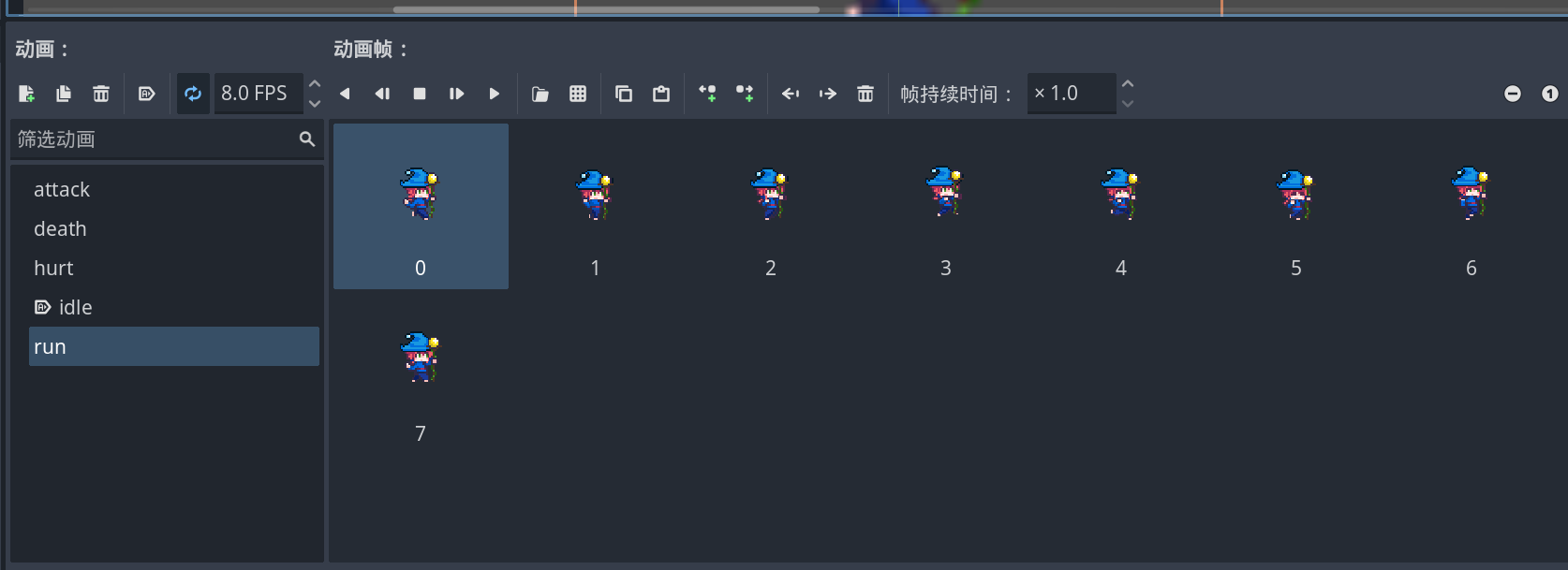
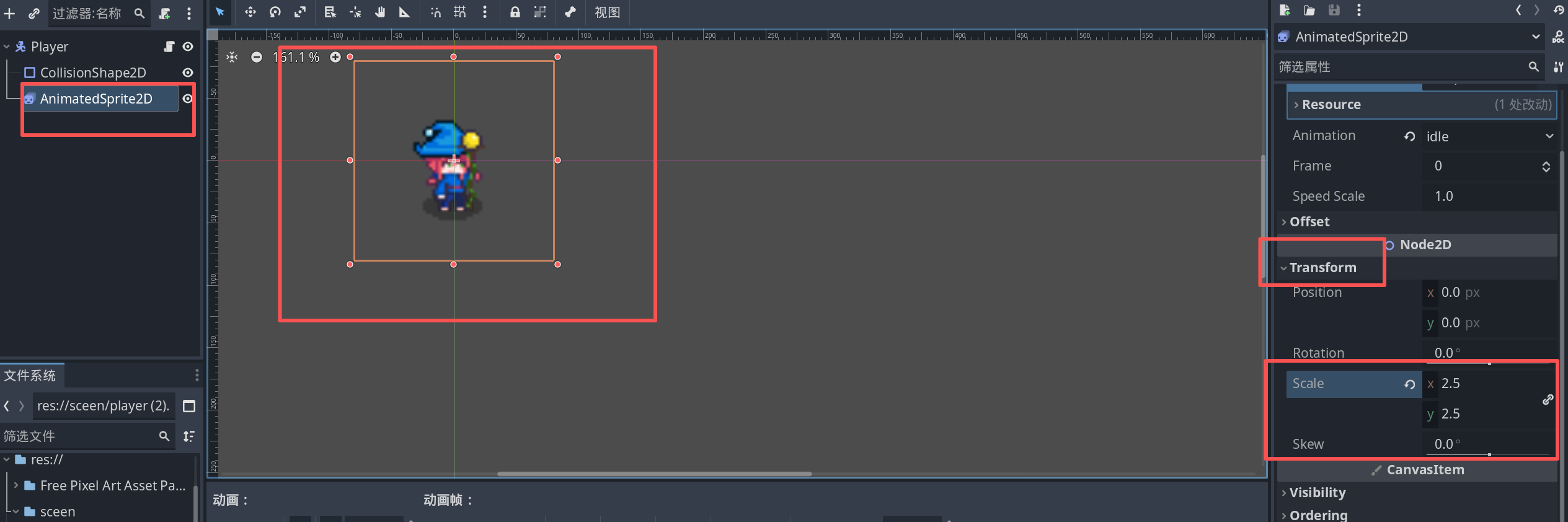
如果这个时候拖到背景场景,会发现人物很小
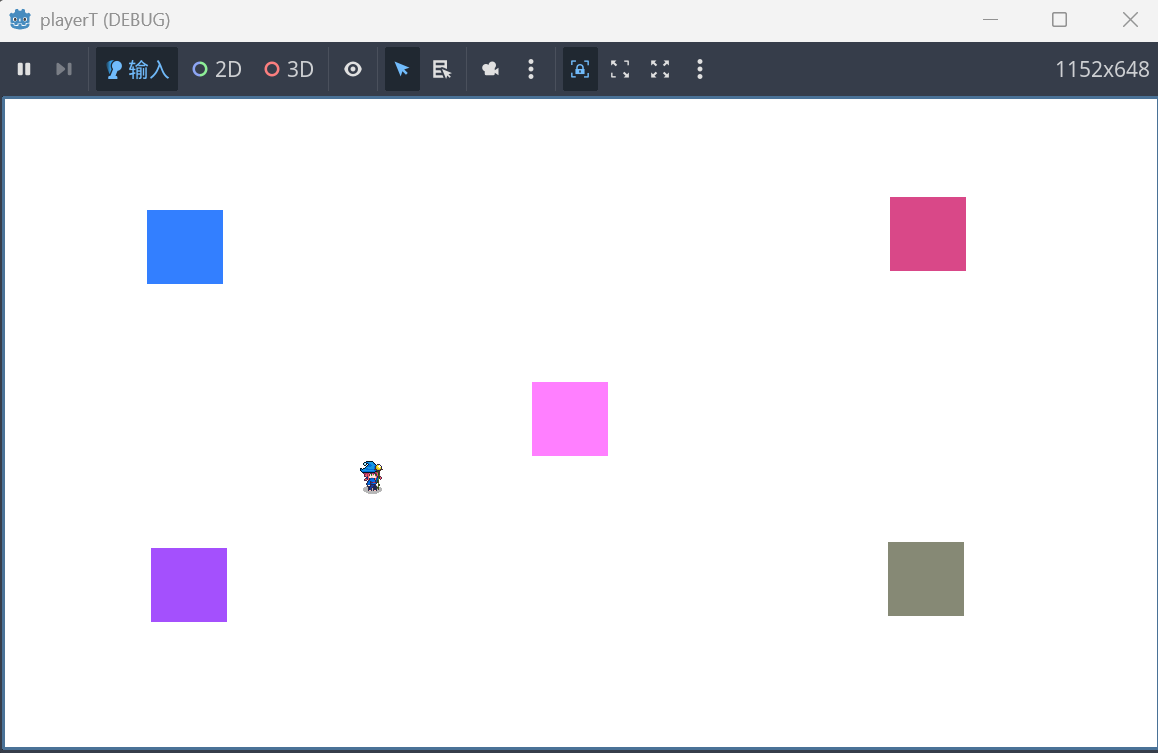
因此,我们选中
AnimatedSprite2D节点,然后找到Transform的scale属性,如我设置2.5倍
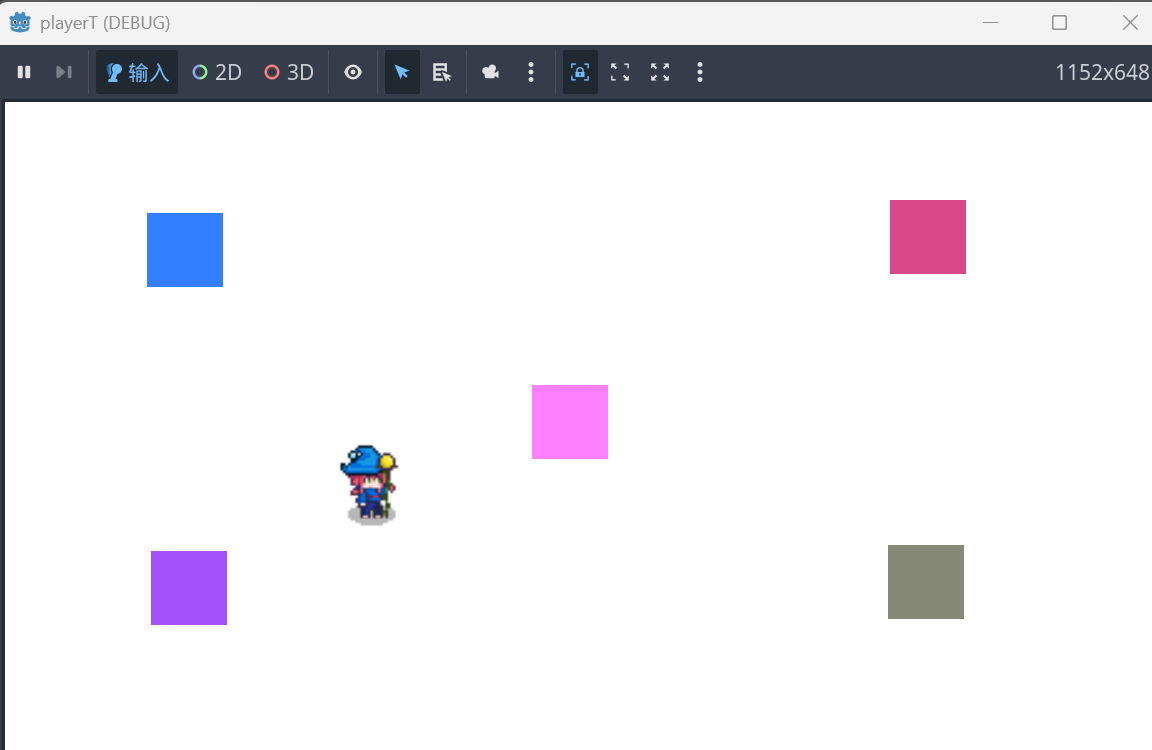
再次启动
输入映射修改
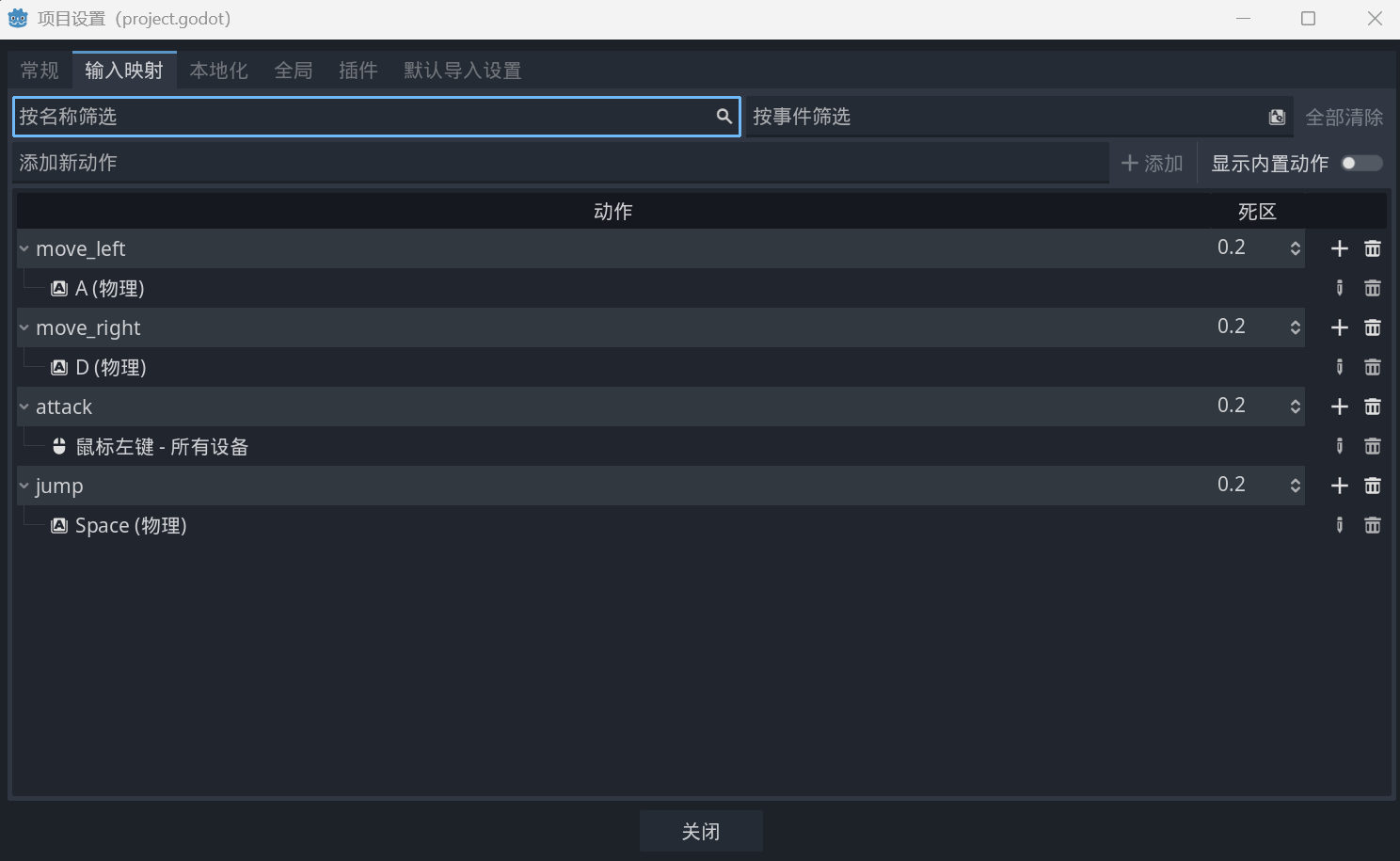
为了适配我们的攻击,跳跃,我加了两个输入映射,
鼠标左键作为攻击,空格作为跳跃,详情添加方式,请参照我上一个文章
注意:我后续计划以2D横版进行开发,因此我把上下移动给去掉了
脚本编写
在我的脚本代码中,我有播放动画,播放动画需要播放我们前面动画的命名
Player.cs代码
using Godot;
using System;

public partial class Player : CharacterBody2D
{
    [Export] public float Speed = 300.0f;
    [Export] public float JumpVelocity = -400.0f;
    [Export] public float DoubleJumpVelocity = -300.0f;
    [Export] public float GroundFriction = 0.2f;
    [Export] public float AirResistance = 0.05f;
    [Export] public float Gravity = 1000.0f;
    [Export] public AnimatedSprite2D AnimatedSprite;

    private enum PlayerState { Idle, Moving, Attacking, Jumping, Falling }
    private PlayerState _currentState = PlayerState.Idle;
    private int _jumpCount = 0;
    private const int MAX_JUMPS = 2;
    private bool _wasOnFloor = false;

    // 添加一个标志来跟踪攻击动画是否已完成
    private bool _attackAnimationFinished = false;

    public override void _Ready()
    {
        base._Ready();

        if (AnimatedSprite != null)
        {
            AnimatedSprite.AnimationFinished += OnAnimationFinished;
        }
    }

    public override void _PhysicsProcess(double delta)
    {
        Vector2 direction = GameInputEvent.MovementInput();
        bool justLanded = !_wasOnFloor && IsOnFloor();
        _wasOnFloor = IsOnFloor();

        // 应用重力
        if (!IsOnFloor())
        {
            Velocity = Velocity with { Y = Velocity.Y + Gravity * (float)delta };
        }
        else
        {
            _jumpCount = 0;
        }

        // 处理攻击 - 只有在非攻击状态且在地面时才能发起攻击
        if (GameInputEvent.IsAttacking() && _currentState != PlayerState.Attacking && IsOnFloor())
        {
            _currentState = PlayerState.Attacking;
            _attackAnimationFinished = false;
            AnimatedSprite.Play("attack");
        }

        // 处理跳跃 - 不能在攻击状态下跳跃
        if (GameInputEvent.IsJumping() && _currentState != PlayerState.Attacking)
        {
            if (IsOnFloor() || _jumpCount < MAX_JUMPS)
            {
                _jumpCount++;
                Velocity = Velocity with { Y = _jumpCount == 1 ? JumpVelocity : DoubleJumpVelocity };
                _currentState = PlayerState.Jumping;
                AnimatedSprite.Play("idle");
            }
        }

        // 处理水平移动和摩擦
        HandleHorizontalMovement(direction, delta);

        // 状态处理
        HandleState(direction);

        MoveAndSlide();
    }

    private void HandleHorizontalMovement(Vector2 direction, double delta)
    {
        if (IsOnFloor())
        {
            if (direction != Vector2.Zero)
            {
                float targetSpeed = direction.X * Speed;
                Velocity = Velocity with { X = (float)Mathf.Lerp(Velocity.X, targetSpeed, 0.2f) };
            }
            else
            {
                Velocity = Velocity with { X = Velocity.X * (1 - GroundFriction) };
                if (Mathf.Abs(Velocity.X) < 1.0f)
                {
                    Velocity = Velocity with { X = 0 };
                }
            }
        }
        else
        {
            if (direction != Vector2.Zero)
            {
                float targetSpeed = direction.X * Speed;
                Velocity = Velocity with { X = (float)Mathf.Lerp(Velocity.X, targetSpeed, 0.1f) };
            }
            else
            {
                Velocity = Velocity with { X = Velocity.X * (1 - AirResistance) };
            }
        }
    }

    private void HandleState(Vector2 direction)
    {
        switch (_currentState)
        {
            case PlayerState.Attacking:
                // 检查攻击动画是否已完成
                if (_attackAnimationFinished)
                {
                    TransitionFromAttack(direction);
                }
                break;

            case PlayerState.Jumping:
                if (Velocity.Y >= 0)
                {
                    _currentState = PlayerState.Falling;
                    AnimatedSprite.Play("idle");
                }
                break;

            case PlayerState.Falling:
                if (IsOnFloor())
                {
                    _currentState = direction == Vector2.Zero ? PlayerState.Idle : PlayerState.Moving;
                    AnimatedSprite.Play(direction == Vector2.Zero ? "idle" : "run");
                }
                break;

            case PlayerState.Moving:
                if (direction == Vector2.Zero)
                {
                    _currentState = PlayerState.Idle;
                    AnimatedSprite.Play("idle");
                }
                else if (!IsOnFloor())
                {
                    _currentState = Velocity.Y < 0 ? PlayerState.Jumping : PlayerState.Falling;
                    AnimatedSprite.Play("idle");
                }
                else
                {
                    // 确保面向正确方向
                    AnimatedSprite.FlipH = direction.X < 0;
                }
                break;

            case PlayerState.Idle:
                if (direction != Vector2.Zero)
                {
                    _currentState = PlayerState.Moving;
                    AnimatedSprite.FlipH = direction.X < 0;
                    AnimatedSprite.Play("run");
                }
                else if (!IsOnFloor())
                {
                    _currentState = Velocity.Y < 0 ? PlayerState.Jumping : PlayerState.Falling;
                    AnimatedSprite.Play("idle");
                }
                break;
        }
    }

    private void TransitionFromAttack(Vector2 direction)
    {
        if (IsOnFloor())
        {
            _currentState = direction == Vector2.Zero ? PlayerState.Idle : PlayerState.Moving;
            AnimatedSprite.Play(direction == Vector2.Zero ? "idle" : "run");
        }
        else
        {
            _currentState = Velocity.Y < 0 ? PlayerState.Jumping : PlayerState.Falling;
            AnimatedSprite.Play("idle");
        }
    }

    private void OnAnimationFinished()
    {
        // 检查当前播放的动画是否是攻击动画
        if (AnimatedSprite.Animation == "attack")
        {
            _attackAnimationFinished = true;
        }
    }
}
GameInput.cs代码(输入映射)
using Godot;
using System;

public class GameInputEvent
{
    public static Vector2 direction;

    public static Vector2 MovementInput()
    {
        if (Input.IsActionPressed("move_left"))
        {
            direction = Vector2.Left;

        }
        else if (Input.IsActionPressed("move_right"))
        {
            direction = Vector2.Right;
        }
        else
        {
            direction = Vector2.Zero;
        }
        return direction;
    }

    public static bool IsAttacking()
    {
        return Input.IsActionJustPressed("attack");
    }

    public static bool IsJumping() {
        return Input.IsActionJustPressed("jump");
    }

    public static bool isMove()
    {
        return direction != Vector2.Zero;
    }
}
配置并启动
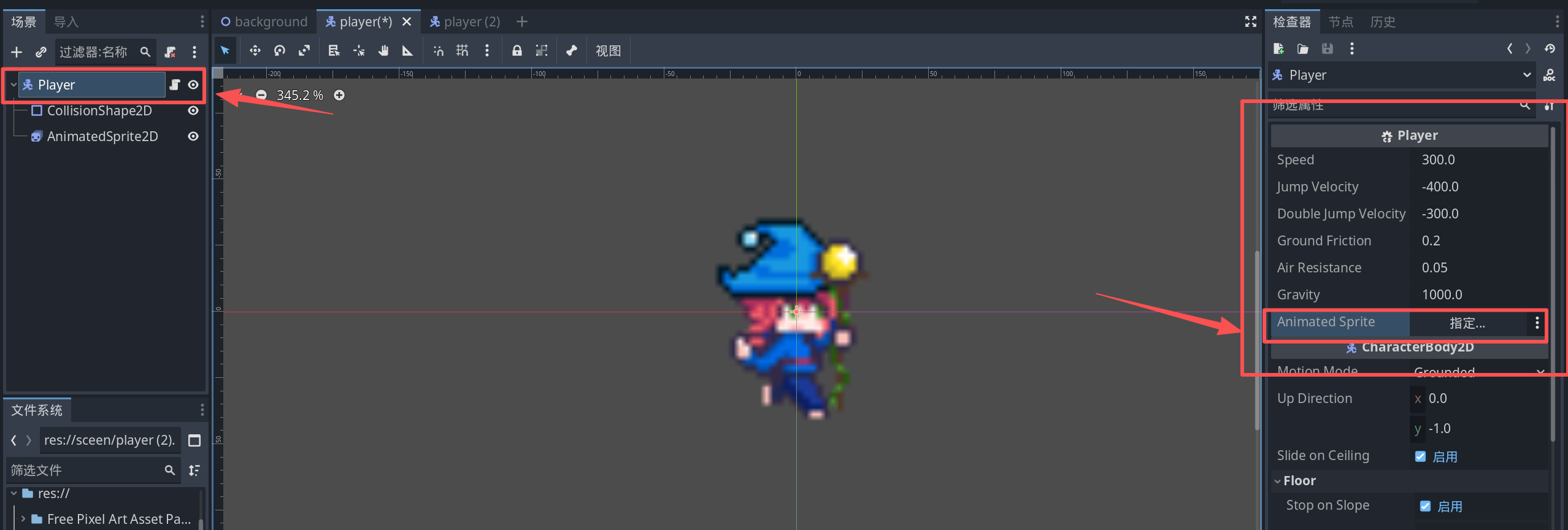
代码写好之后,记得编译一下,因为我使用了
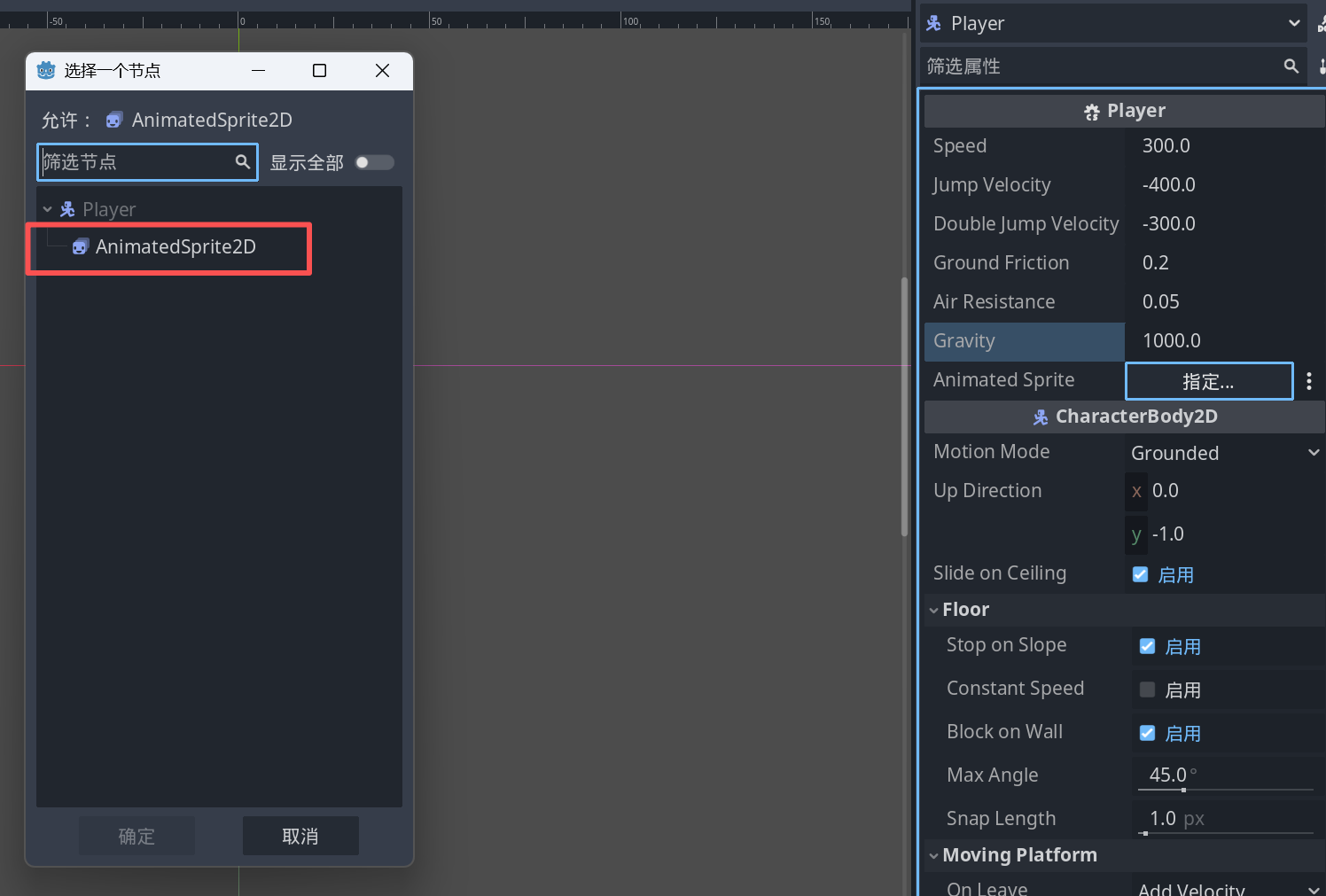
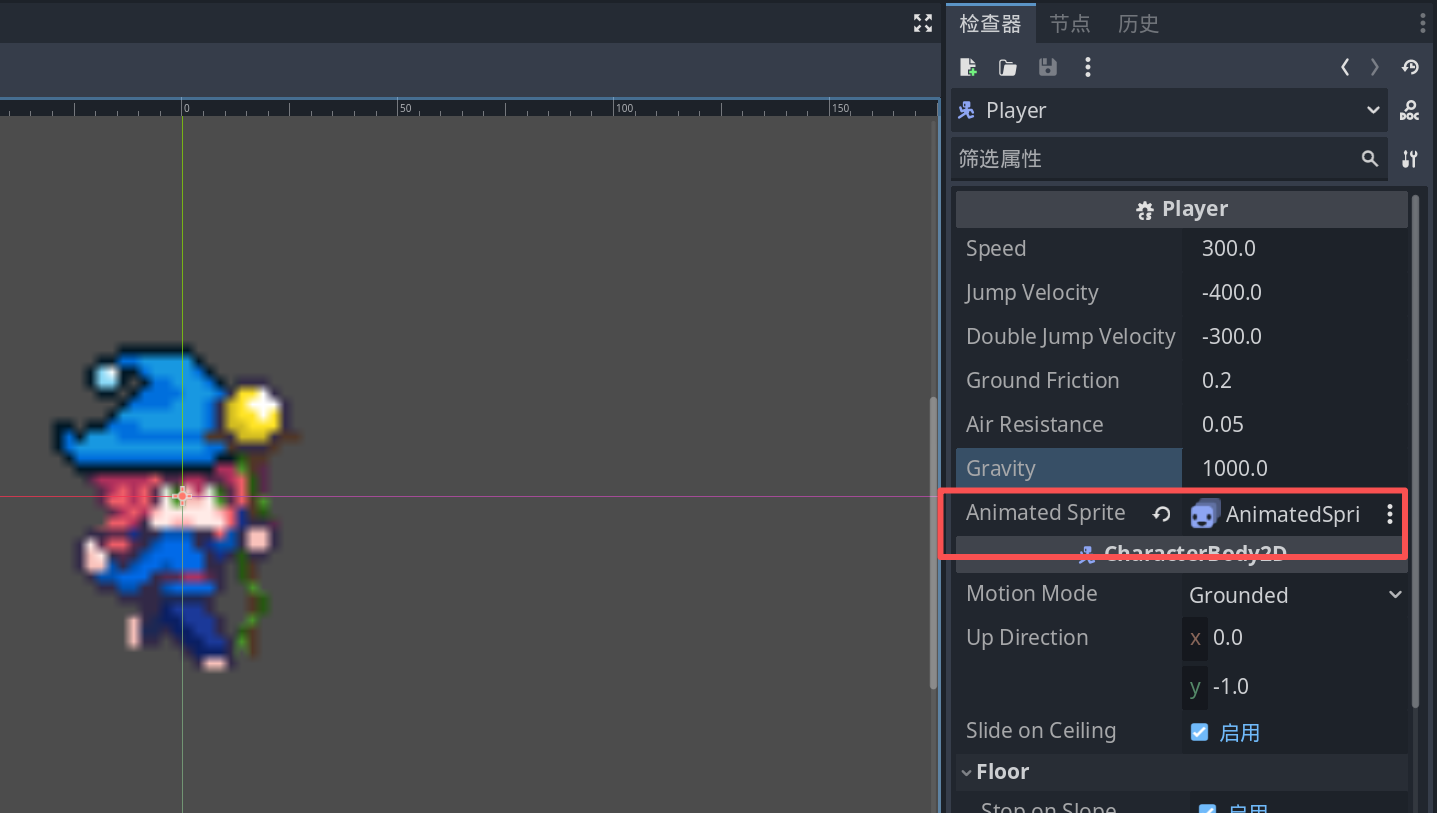
Export属性,在代码中,该代码的意思是可以让我们在检查器中设置需要的属性值,我的代码需要引用动画,需要告诉它是哪个动画,默认是空的,因此我们需要点击主节点,因为主节点才有挂载我们的Player.cs脚本,点击它选中我们的AnimateSprite2D节点
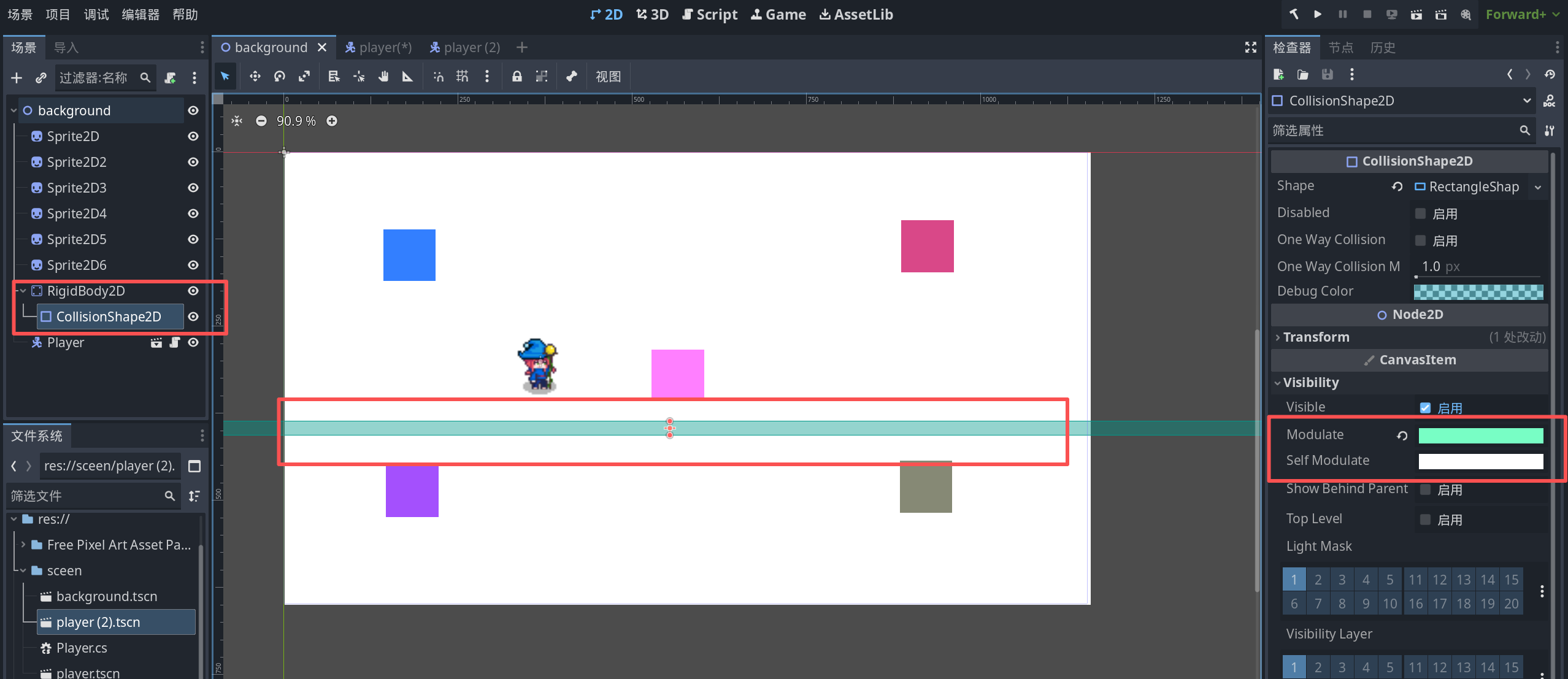
需要注意的是,我们因为有跳跃,并且加入了重力检测,所以,我们需要有一个碰撞体来接住玩家,我在背景场景新建了
staticBody2D节点,然后在里面添加了方形碰撞体,如我演示的图片,为了更清楚看到它,我修改了颜色,改变了长度并调整位置如下
然后启动我们的游戏就可以正常的实现玩家播放待机,攻击和进行跳跃了
结语
如上我使用godot+c#实现玩家动画播放
更多推荐
 11
11 0
0- 0


 已为社区贡献3条内容

所有评论(0)