

In this tutorial we will see how to download Linkedin learning courses with a simple cli tool. Just a quick setup and you will be able to download videos and courses.
Prerequisites
We will need Python3.
- Python 3
Now, what's next?
Open your terminal or command line and download a python package from PyPi called llvd which stands for Linkedin Learning Video Downloader
$ pip install llvd
If you have multiple versions of python installed in your system, use pip3 instead.
$ llvd --help
If the above command does not fail, you can continue with the tutorial
To download a course:
- Log in to the Linkedin Learning app.
-
Search for any course.

-
Navigate to the course of your choice.
-
Copy its slug.
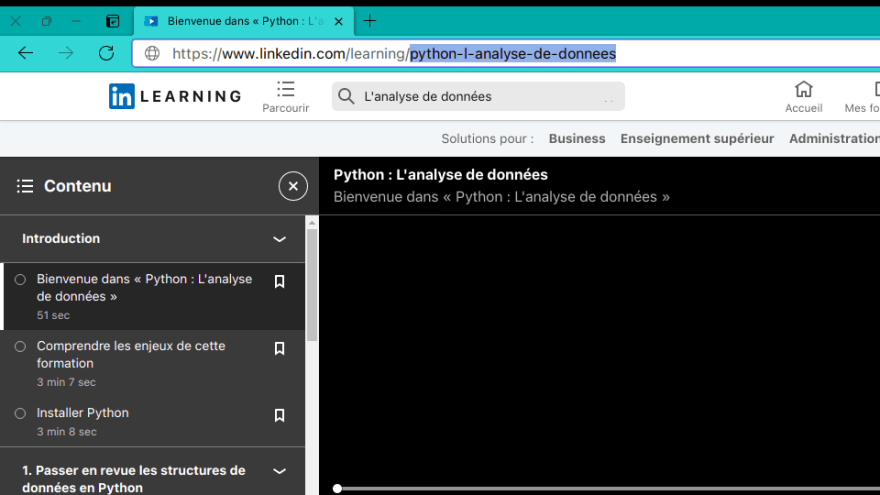
- Open your terminal or command line.
- Copy the command given below and replace
course-slugwith your copied course slug and run it
$ llvd -c "course-slug" -r 720
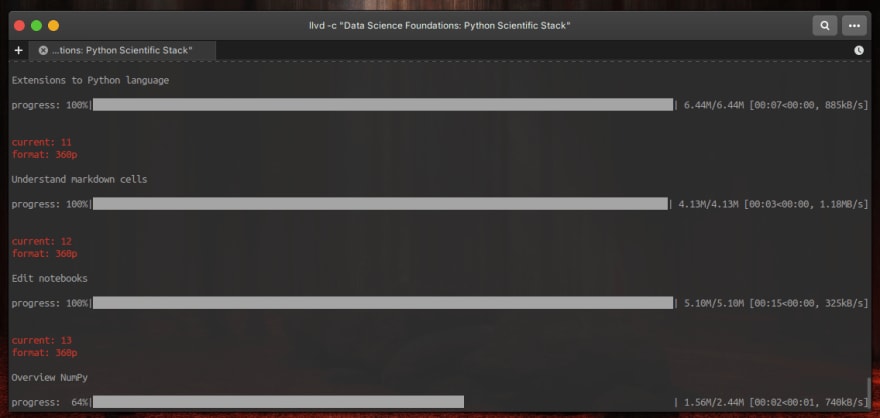
llvd creates separate folders for each course you download, groups all videos by chapters, and renames all downloaded videos with video names so that they will be ordered properly.
To download a course you have to specify its name (-c flag ).
How it looks like in action
Available features with this tool
- Cookie-based authentication
- Download a course and all its exercises
- Group videos by chapters
- Ability to download video subtitles(by specifying
--captionflag) - Ability to resume failed downloads
- Option to choose video format (360p, 540p, 720p) using
-rflag
Cookie-based Authentication
- Click on the options in google chrome (top right with 3 vertical dots).
-
After this, click on more tools followed by Developer Tools (you can also reach here by using the keyboard combination —
ctrl+shift+I). -
Now once you’ve gained access to the developer tools, navigate to the Application tab, and copy the value of two cookies from there named
li_atandJSESSIONIDrespectively. -
Create a cookies.txt file to a place you want to download your courses then paste in the values of
li_atandJSESSIONIDas shown below.
  li_at=xxxxx
  JSESSIONID="ajax:xxxxxx"
$ llvd -c "course-slug" -r 720 --cookies
Download the course with subtitles
Use the --caption flag to download videos with subtitles
$ llvd -c "course-slug" -r 720 --caption
or
$ llvd -c "course-slug" -r 720 -ca
Wrapping up
If you liked this tutorial you might as well head over to Github and leave a star to this awesome open source project llvd
Thanks for reading 😊!



 已为社区贡献3966条内容

所有评论(0)