
Ant Media’s WebRTC iOS SDK lets you build your own iOS application that can publish and play WebRTC broadcasts with just a few lines of code.
In this doc, we’re going to cover the following topics.
Run the Sample WebRTC iOS app
Publish Stream from your iPhone
Play Stream on your iPhone
P2P Communication with your iPhone
Develop a WebRTC iOS app
How to Publish
How to Play
How to use DataChannel
Run the Sample WebRTC iOS App
Download the WebRTC iOS SDK
WebRTC iOS SDK and WebRTC Android SDK’s are free to download. You can access them through this link on antmedia.io. If you’re an enterprise user, it will be also available for you to download in your subscription section in your “my account” page. Anyway, after you download the SDK, you can just unzip the file and open the project with Xcode.
Install Dependency
Open your terminal and go to the directory where the reference project resides and run pod install . If you are not familiar with pods, visit cocoapods.org for documentation and installation.
This install the Starscream packet for WebSocket connections.
Open and Run the Project in Xcode
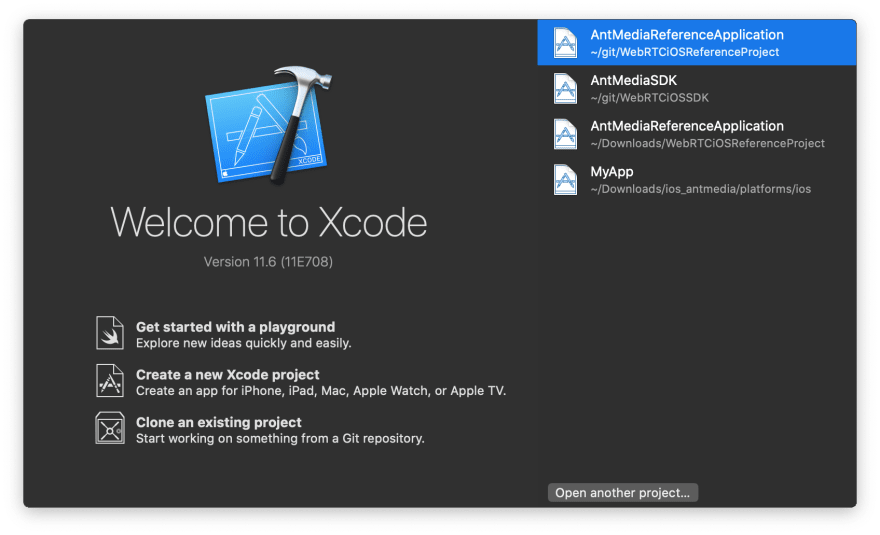
Open the Xcode in your MacOS and Click the Open Another Project if you don’t see the Sample Project in your list.
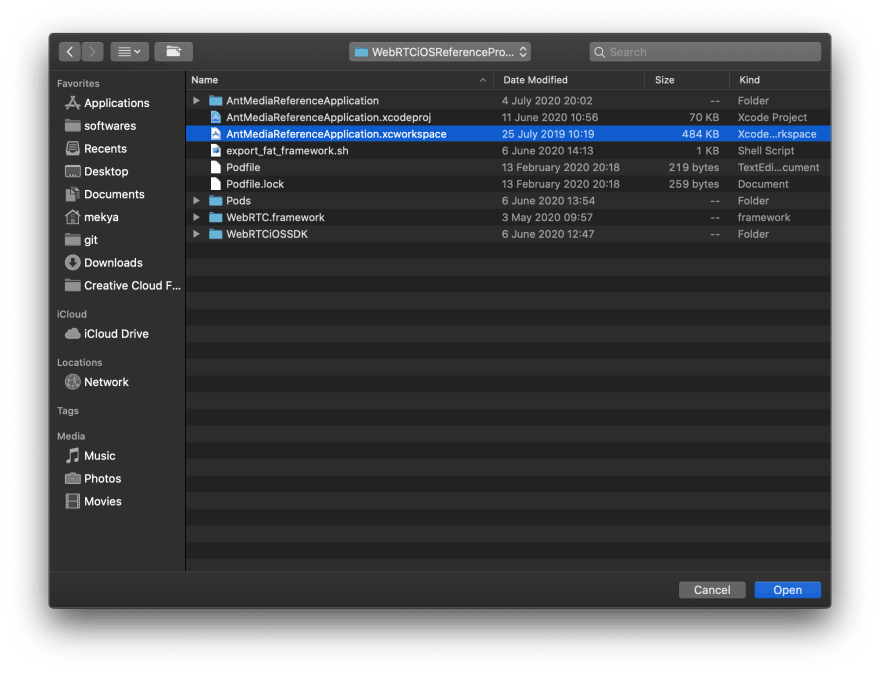
Go to the directory where you download and unzip the iOS SDK. Open the AntMediaReferenceApplication.xcworkspace file
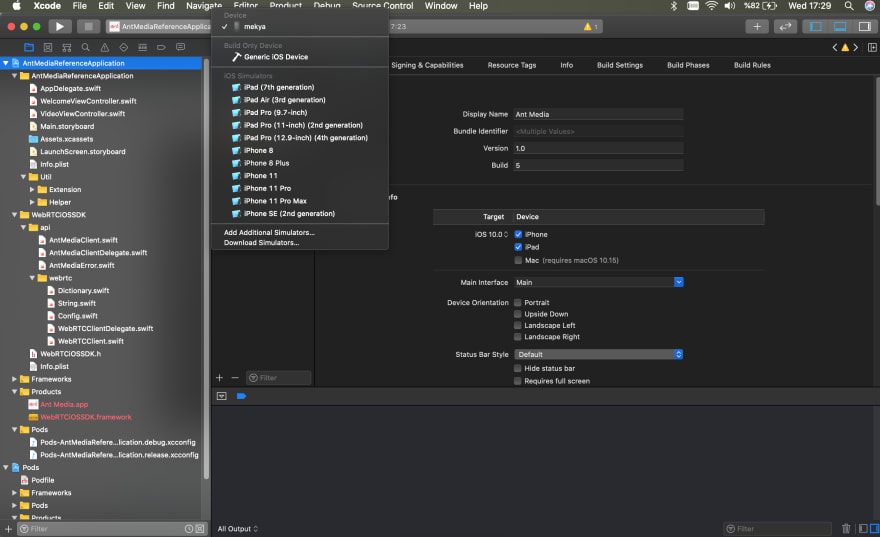
After project is opened, connect your iPhone to your Mac and choose your iPhone in Xcode as shown below.
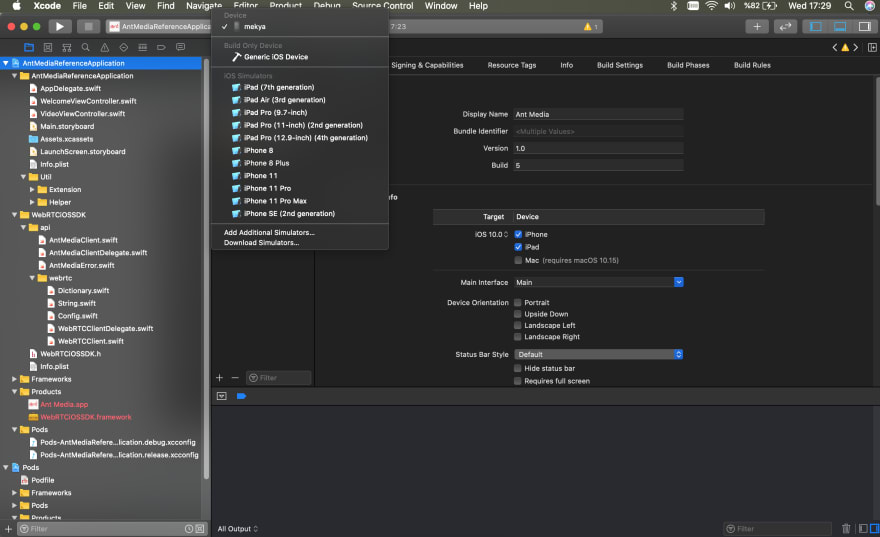
Click Run button on the top left of the Xcode. Then the project is going to be built and deployed to your iPhone.
Publish Stream From Your iPhone
Tap Publish button and then Tap Set Server IP under the connect button in your iPhone.
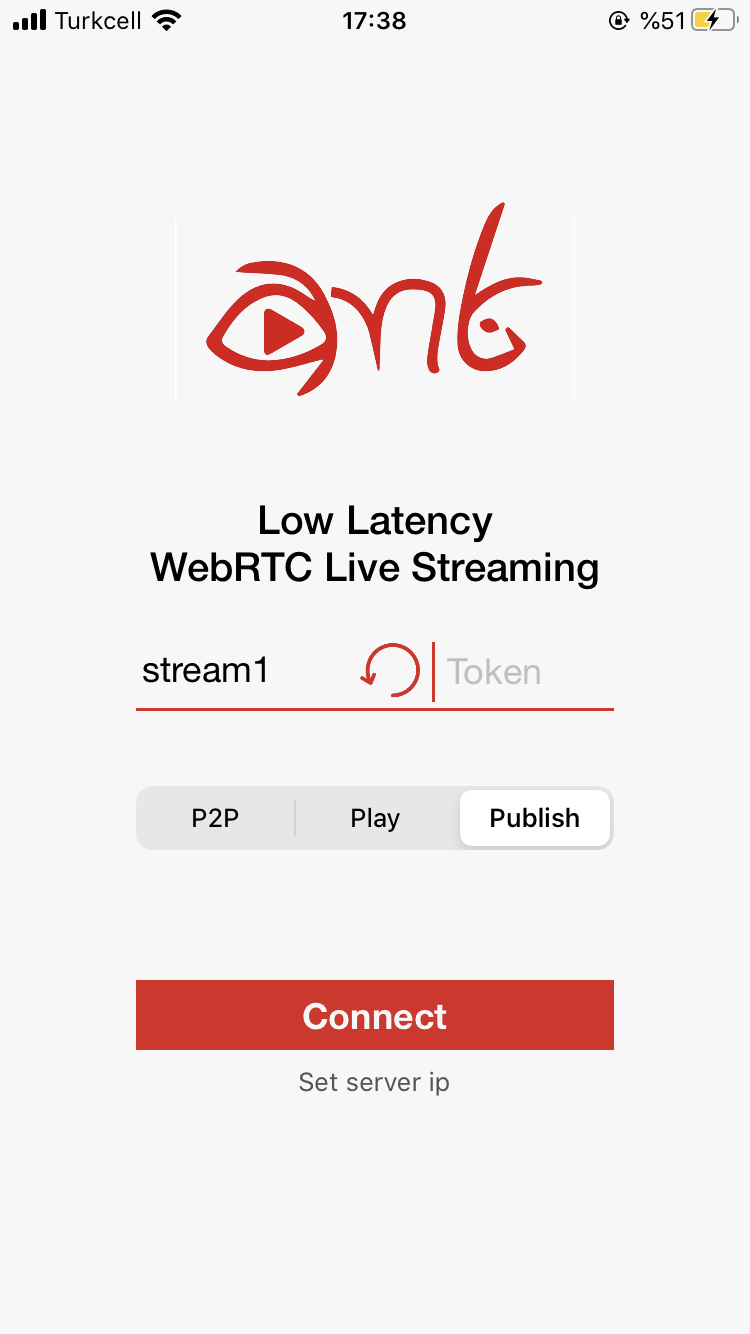
Write Your Ant Media Server’s full WebSocket URL and tap Save button. Its format is like this
ws://192.168.7.25:5080/WebRTCAppEE/websocket
If you install SSL to Ant Media Server, you can also use
wss://your_domain_address:5443/WebRTCAppEE/websocket.
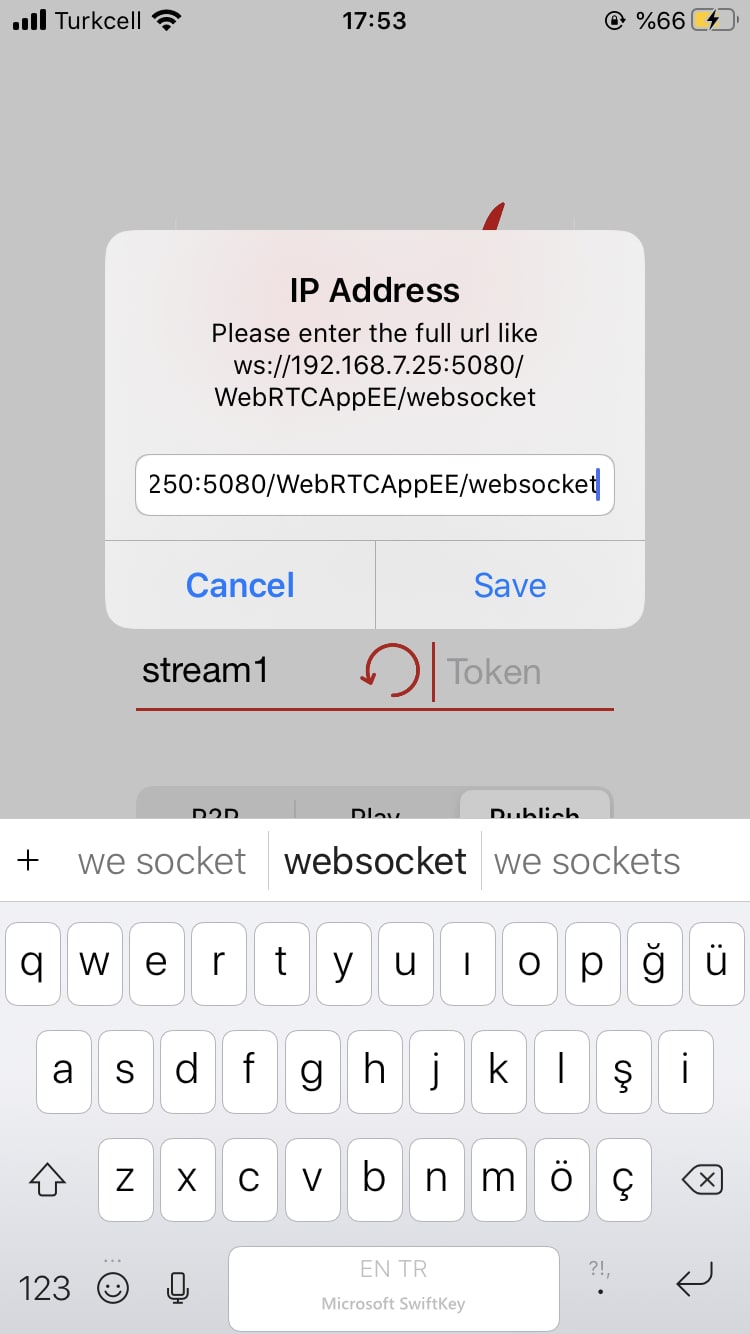
Set the stream id to anything else then ‘stream1’ and Tap ‘Connect’ button on the main screen. Then it will ask you to access the Camera and Mic. After you allow the Camera and Mic access, stream will be published on Ant Media Server.
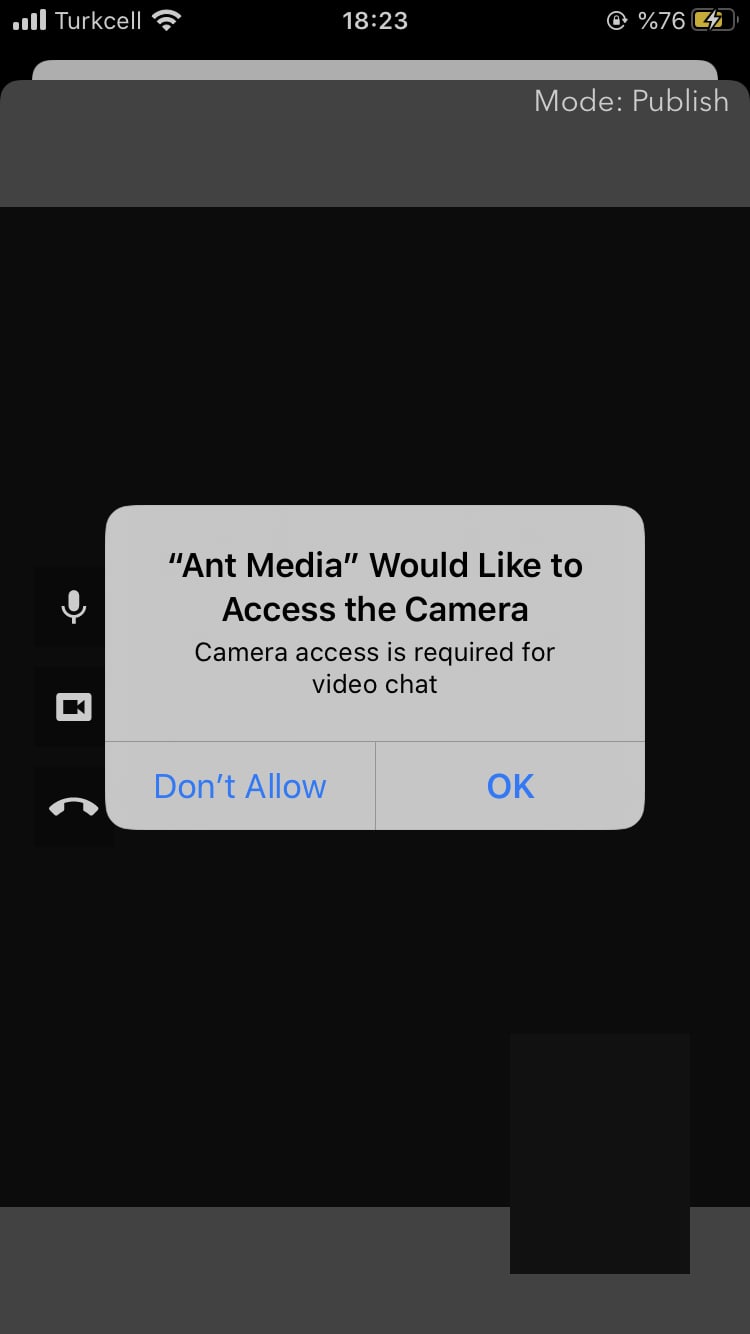
Then it will start Publishing to your Ant Media Server. You can go to the web panel of Ant Media Server(http://server_ip:5080) and watch the stream there. You can also quickly play the stream via https://your_domain:5443/WebRTCAppEE/player.html
Play Stream On Your iPhone
Playing stream on your iPhone is almost the same as Publishing. Before playing, make sure that there is a stream and it is being published to the server with same stream id in your textbox (You can quickly publish to the Ant Media Server via
https://your_domain:5443/WebRTCAppEE). For our sample, stream id is still “stream1” in the image below. Then you just need to tap ‘Play’ button and tap ‘Connect’ button.
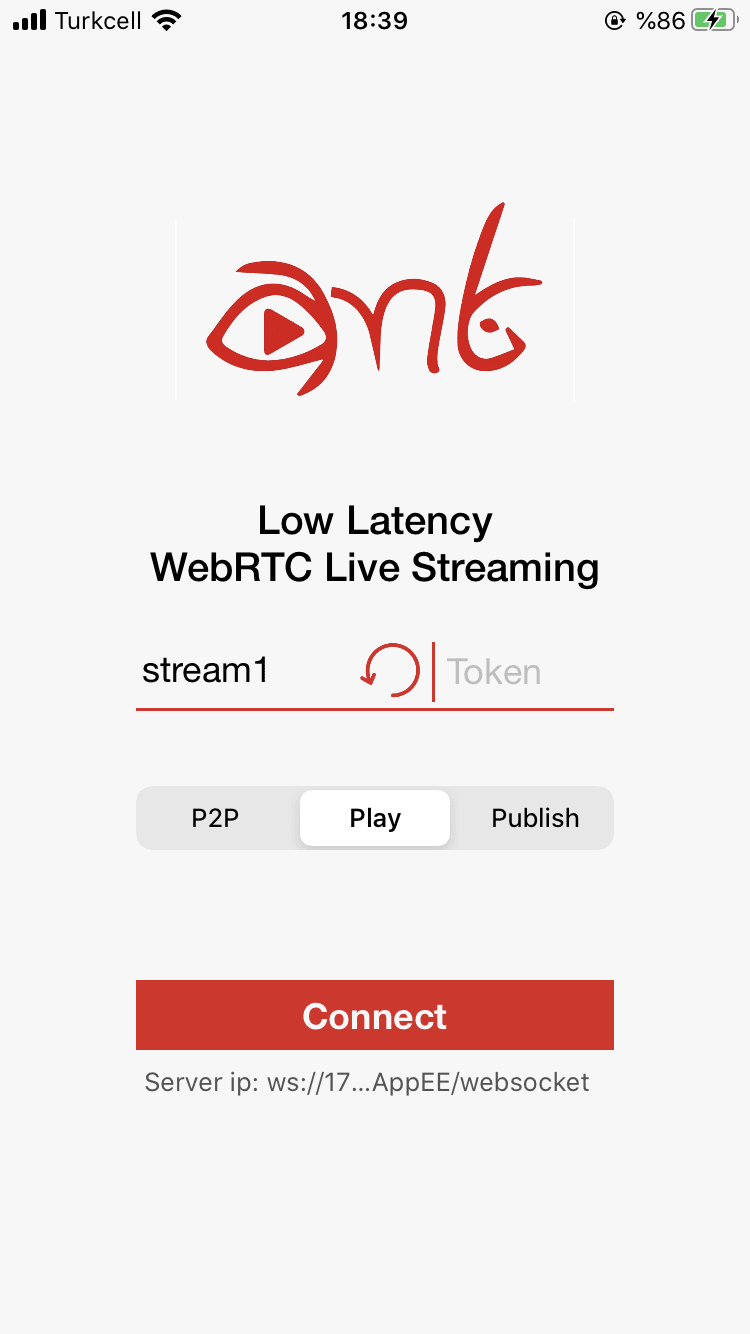
After tapping ‘Connect’ button, stream will start playing.
P2P Communication With Your iPhone
WebRTC iOS SDK also supports P2P communication. As you guess, just tap ‘P2P’ and then ‘Connect’ button.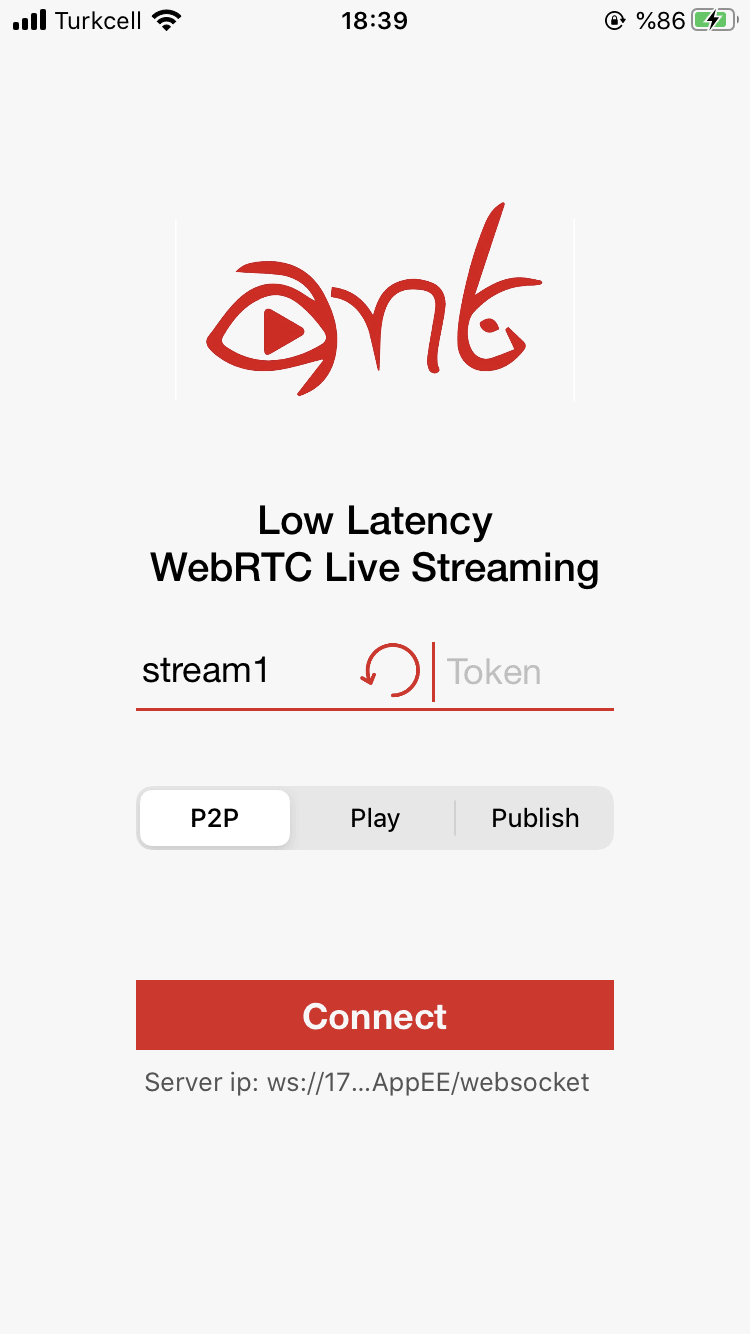
When there is another peer is connected to the same stream id via Android, iOS or Web, then P2P communication will be established and peers can talk to each other. You can quickly connect to the same stream id via https://your_domain:5443/WebRTCAppEE/peer.html
Develop a WebRTC iOS app
We highly recommend using the sample project to get started with your application. Nevertheless, it’s good to know the dependencies and how it works. Now we’re going to tell how to create a WebRTC iOS app from scratch by using WebRTC iOS SDK. Let’s get started.
Create Xcode Project
Open Xcode and create a project. Choose the Single View App from the templates.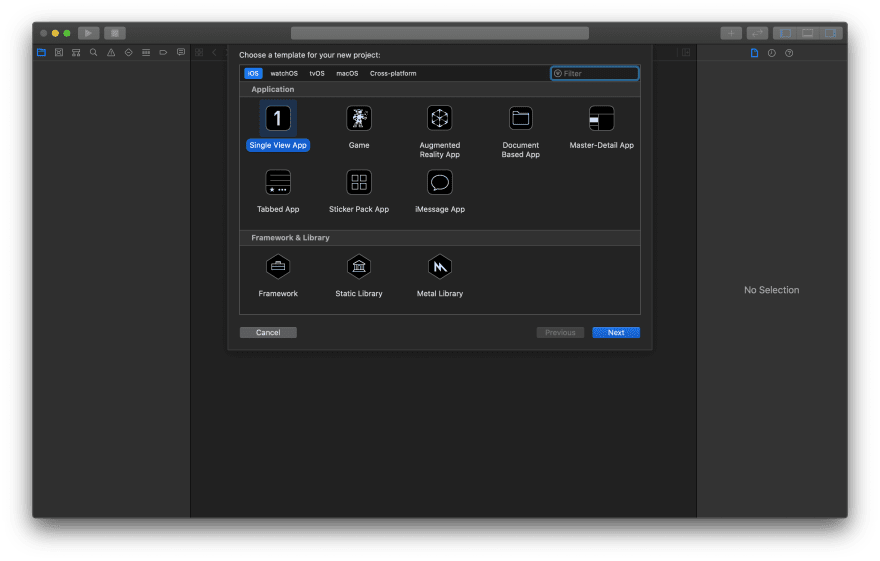
Name your project as ‘WebRTCiOSApp’ below
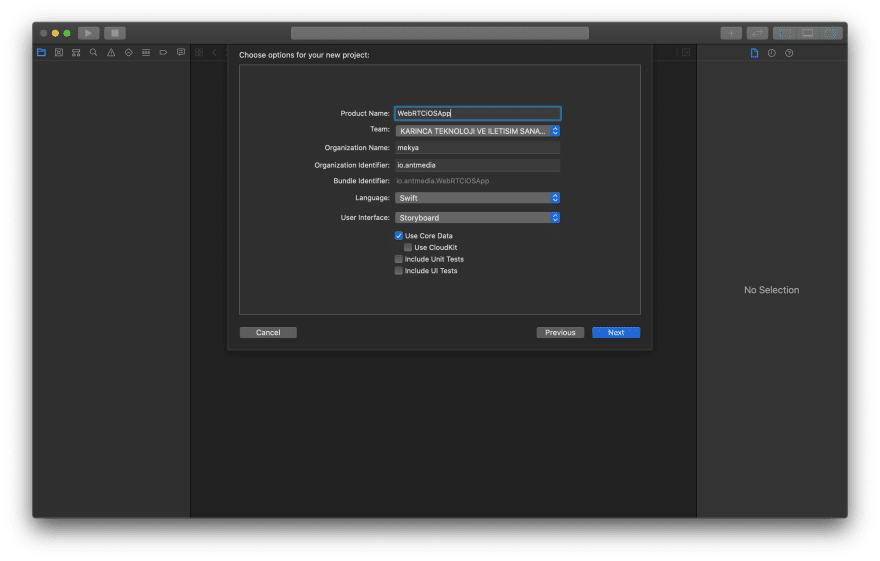
Open your terminal and go to the directory where you create your project and make the pod installation. You can learn more about pods on cocoapods.org
Podfile should be created after running pod init. Open thePodfile, paste the following and save it.
Run the following command for pod installation
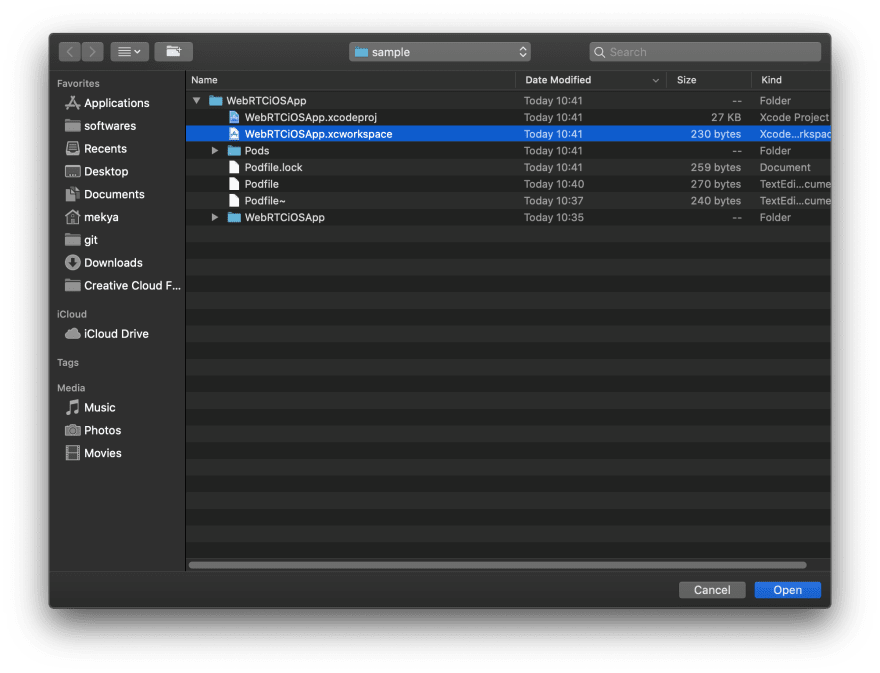
Close the Xcode project and open the WebRTCiOSApp.xcworkspace in Xcode
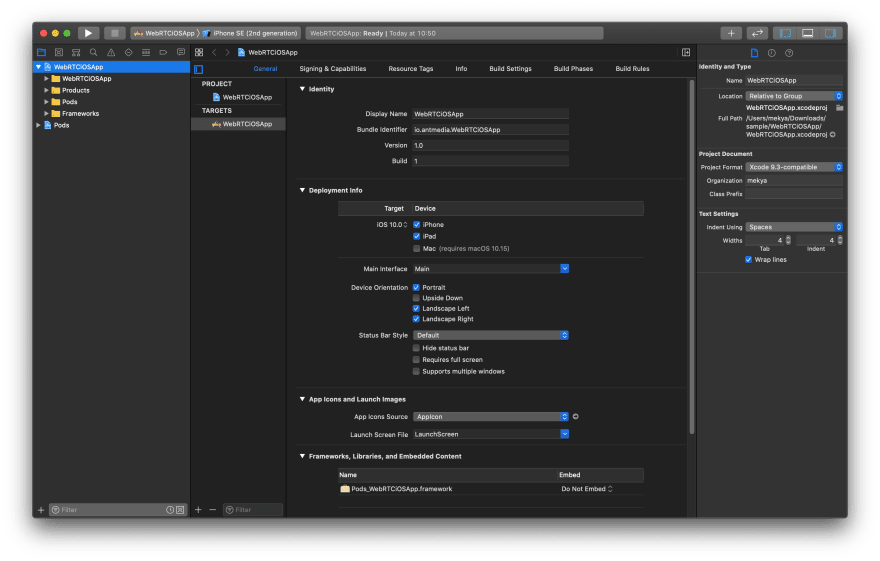
Make the Project Target to iOS 10
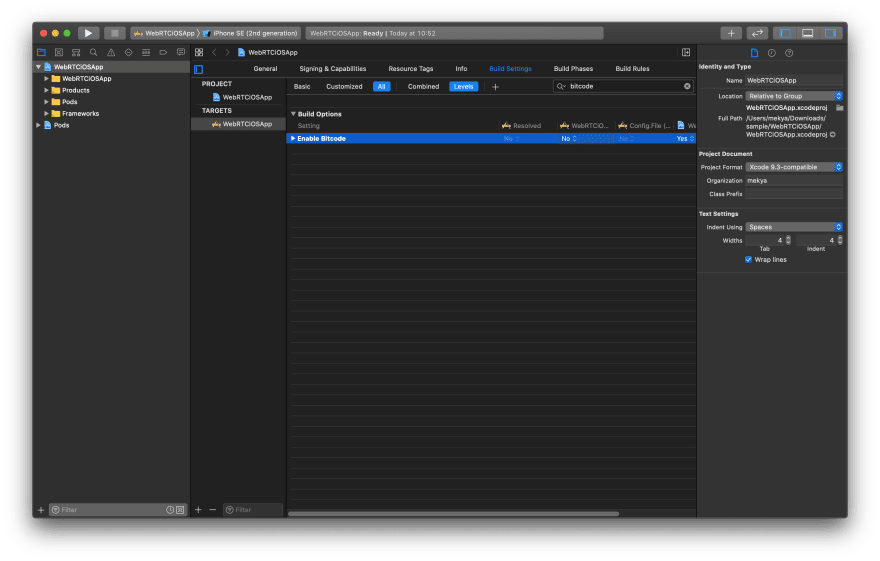
Disable bitcode
Copy WebRTC.framework and WebRTCiOSSDK.framework folders to your projects directory.
WebRTC.Framework: is directly available underWebRTCiOSReferenceProject
WebRTCiOSSDK.Framework: is the binary framework version of WebRTC iOS SDK. It’s created after running ./export_fat_framework.sh in WebRTCiOSReferenceProject directory. Then it will be ready under Release-universal directory. Alternatively, you can import source code of WebRTC iOS SDK to your project directly.
Embed WebRTC.framework and WebRTCiOSSDK.framework to your projects.
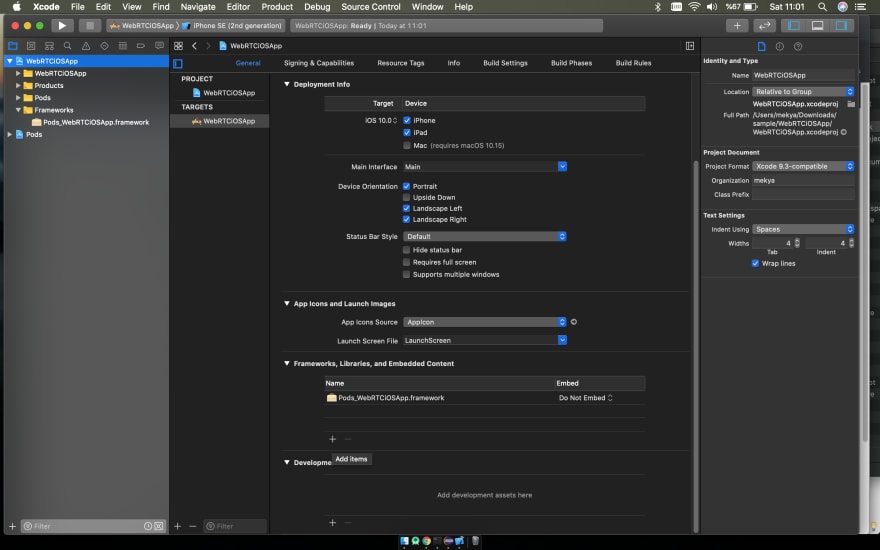
Choose ‘Add Others’ in the coming windows at the bottom left and select Add Files. Then add WebRTC.framework and WebRTCiOSSDK.framework. After it’s done, it should be shown like below.
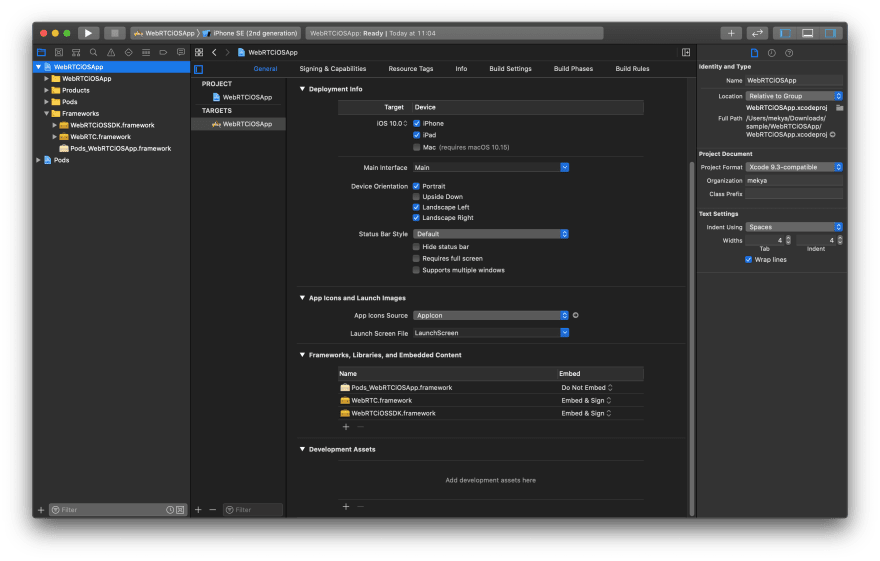
Try to build and run the app. If you get some errors like some methods are only available in some iOS versions. Use @available annotation. You can get more info about this on this post
How to Publish
Create a UIView and add a Button to your StoryBoard. This is just simple iOS App development, we don’t give details here. You can get lots of tutorials about that on the Internet.
Add Mic and Camera Usage Descriptions
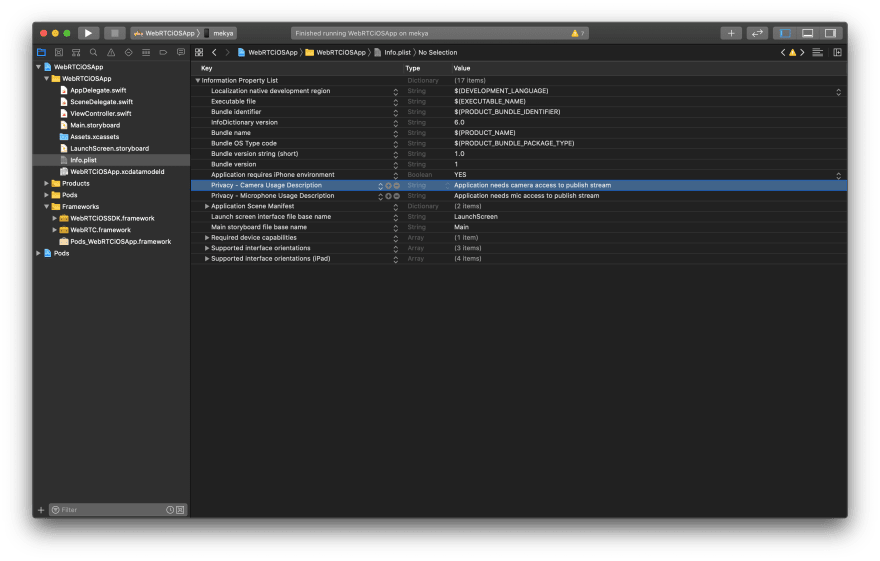
It’s now time to write some code. Initialize webRTCClient in ViewController
Add the following codes to viewDidLoad() method.
Implement the delegate in your ViewController. Xcode helps you for implementation.
ViewController should look like below. After you run the Application, it will start publishing with streamId: ‘stream123’ to your server.
How to Play
Playing a Stream is simpler than Publishing. We just need to change some codes in viewDidLoad(). As a result, following code snippets just plays the stream on your server with streamId: ‘stream123’. Make sure that, before you try to play, you need to publish a stream to your server with having stream id ‘stream123’
How to use Data Channel
Ant Media Server and WebRTC iOS SDK can use data channels in WebRTC. In order to use Data Channel, make sure that it’s enabled both server side and mobile. In order to enable it for server-side, you can just set the enableDataChannel parameter to true in setOptions method.
After that, you can send data with the following method of AntMediaClient
When a new message is received, the delegate’s following method is called.
There is also data channel usage example exist in the Sample project.
Lastly, if you need to know more about all methods and delegates in WebRTC iOS SDK, please visit the WebRTC iOS SDK Reference



 已为社区贡献3966条内容

所有评论(0)