
Flutter动画库animations实战指南:让你的应用交互更流畅
·
在移动应用开发中,流畅的动画是提升用户体验的关键。Flutter官方推出的animations动画库,以Material Design规范为核心,提供了开箱即用的高级过渡效果。无论是页面跳转、元素切换,还是细节交互,都能通过简洁的API实现专业级动画效果。本文将通过代码实战+效果演示,带你玩转这一宝藏库!
为什么选择animations库
- 官方出品:Flutter团队维护,兼容性有保障
- 开箱即用- 封装复杂动画逻辑,开发者专注业务
- 高性能- 基于物理的动画曲线,过渡自然流畅
- Material Design规范- 完美遵循谷歌设计语言
安装
flutter pub add animations
四大核心动画类型解析
-
Container transform 容器转换动画
适用场景:元素形态变化的无缝衔接(如卡片展开为详情页)。
特点:通过容器形状、尺寸的平滑过渡,强化用户操作的连续性。 -
Shared axis 共享轴模式
适用场景:导航切换、同层级页面跳转(如底部Tab切换)。
特点:通过X/Y/Z轴的同步运动,营造空间逻辑一致性,支持horizontal、vertical、scaled三种模式。 -
Fade through(淡入淡出穿透)
适用场景:无强关联元素的过渡(如列表刷新)。
特点:当前元素渐隐→新元素渐显,柔和且避免视觉跳跃。 -
Fade 简单渐隐
适用场景:弹窗出现/消失、全屏加载
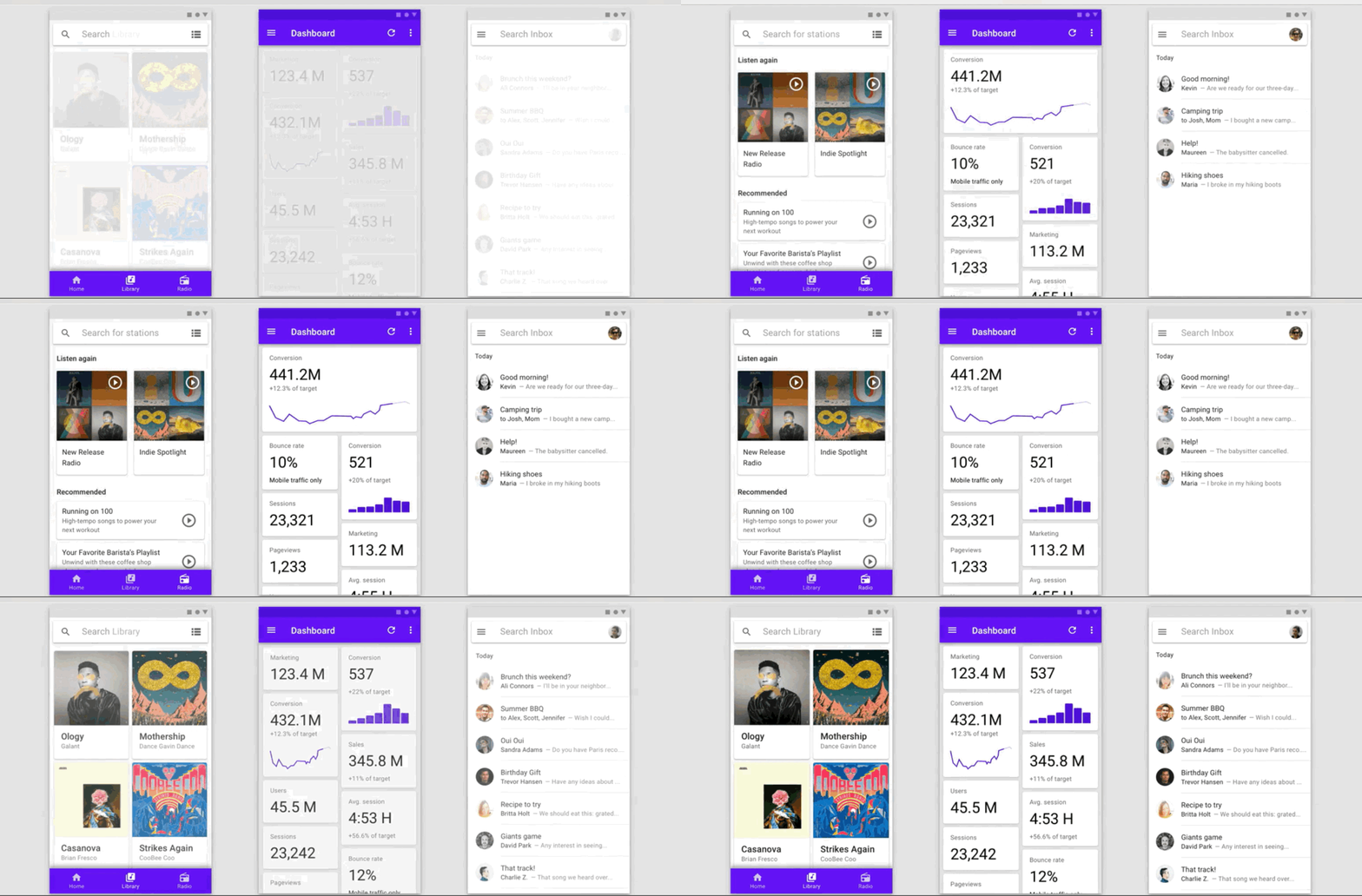
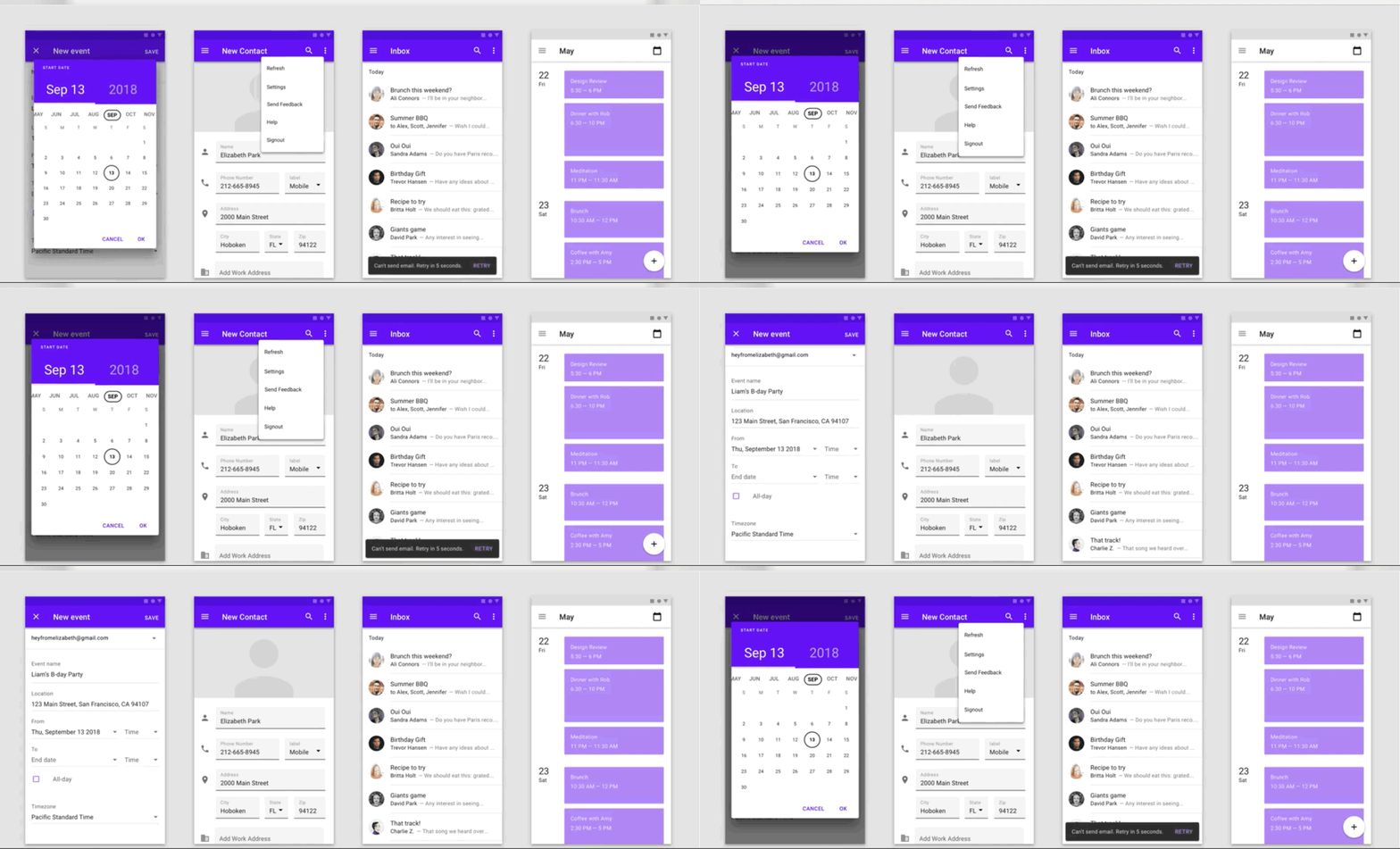
借用官方动画截图来展示Fade和Fade through示例的效果,Container transform和Shared axis自己用代码实现来展示。
Fade through效果:
Fade效果:
实战案例
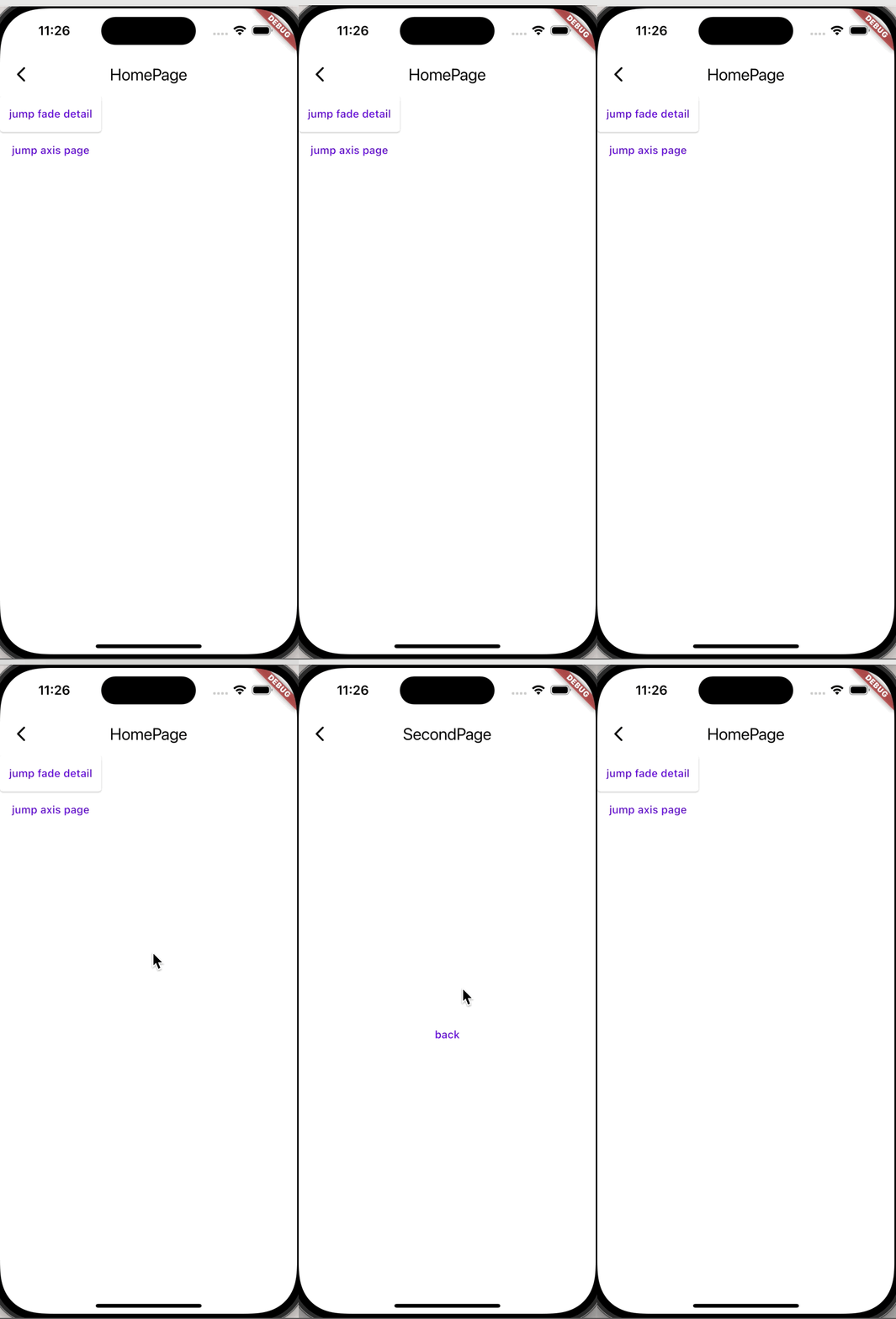
案例一:Container transform
效果:
代码:
// 入口页面
class HomePage extends StatelessWidget {
const HomePage({super.key});
Widget build(BuildContext context) {
return Scaffold(
appBar: AppBar(title: Text("HomePage")),
body: Column(
children: [
// OpenContainer<T> 下一个页面pop 返回的数据
OpenContainer<String>(
transitionType: ContainerTransitionType.fade,
openBuilder: (BuildContext context, VoidCallback _) {
return SecondPage();
},
onClosed: (data) {
debugPrint("data = $data");
},
tappable: false,
closedBuilder: (BuildContext context, VoidCallback action) {
return TextButton(
onPressed: () {
action();
},
child: Text("jump fade detail"),
);
},
),
],
),
);
}
}
// SecondPage
import 'package:flutter/material.dart';
class SecondPage extends StatelessWidget {
const SecondPage({super.key});
Widget build(BuildContext context) {
return Scaffold(
appBar: AppBar(title: Text("SecondPage"),),
body: Center(
child: TextButton(onPressed: () {
// Navigator.of(context).pop();
Navigator.pop(context, "chanson");
}, child: Text("back")),
)
);
}
}
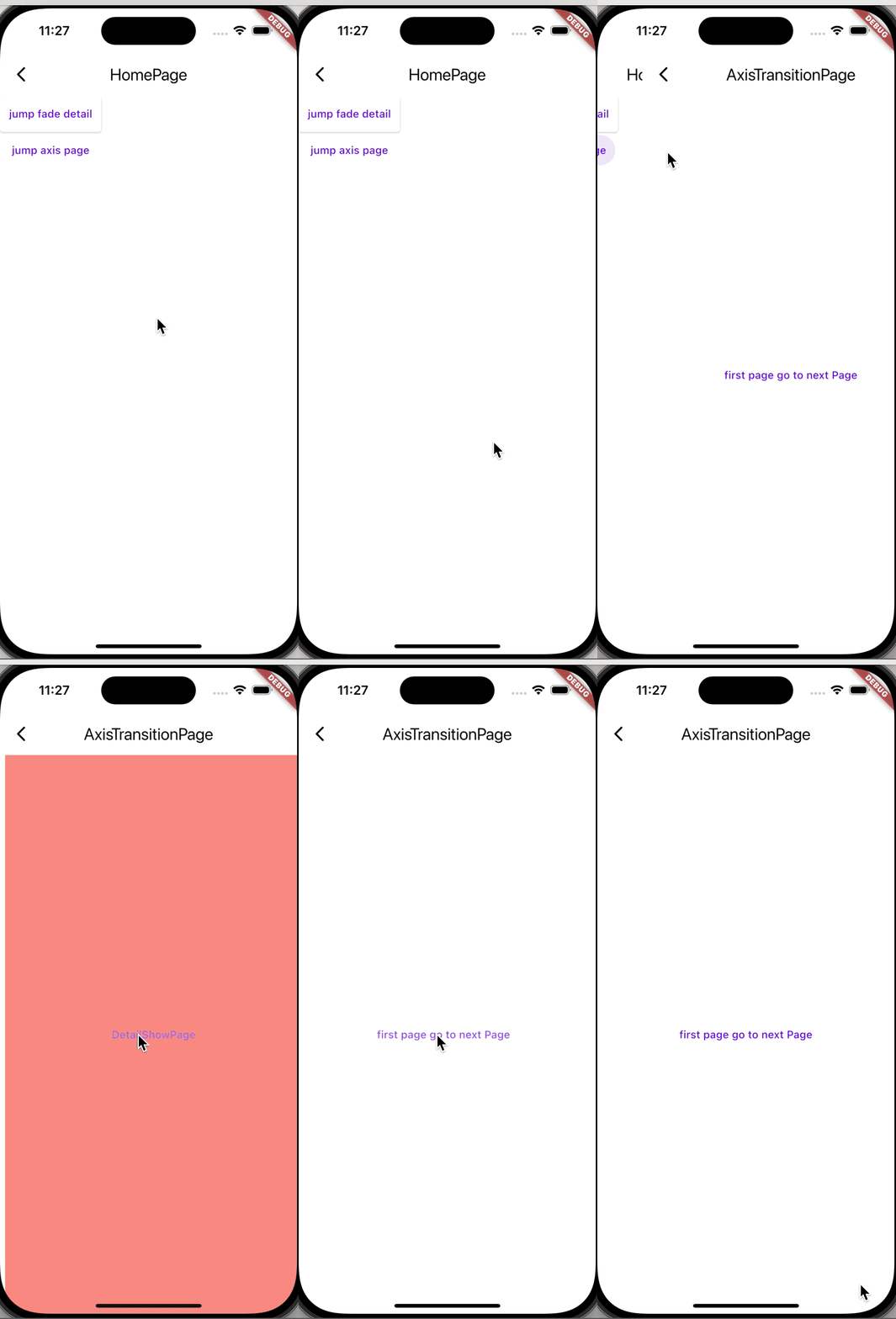
案例二:Shared axis导航
SharedAxisTransition的可选方向有vertical、horizontal、scaled
案例效果:
代码:
// AxisTransitionPage
import 'package:animations/animations.dart';
import 'package:animations_demo/test/detail_show_page.dart';
import 'package:flutter/material.dart';
class AxisTransitionPage extends StatefulWidget {
const AxisTransitionPage({super.key});
State<AxisTransitionPage> createState() => _AxisTransitionPageState();
}
class _AxisTransitionPageState extends State<AxisTransitionPage> {
bool _isShowPage = false;
Widget build(BuildContext context) {
return Scaffold(
appBar: AppBar(title: Text("AxisTransitionPage"),),
body: PageTransitionSwitcher(
reverse: !_isShowPage,
transitionBuilder: (
Widget child,
Animation<double> animation,
Animation<double> secondaryAnimation,
) {
return SharedAxisTransition(
animation: animation,
secondaryAnimation: secondaryAnimation,
transitionType: SharedAxisTransitionType.horizontal,
child: child,
);
},
child: !_isShowPage ? TextButton(onPressed: () {
setState(() {
_isShowPage = true;
});
}, child: Container(
color: Colors.white,
width: double.infinity,
height: double.infinity,
child: Center(child: Text("first page go to next Page"),),
)) : DetailShowPage(callback: () {
setState(() {
_isShowPage = false;
});
},),
),
);
}
}
// DetailShowPage
import 'package:flutter/material.dart';
class DetailShowPage extends StatelessWidget {
const DetailShowPage({super.key, required this.callback});
final VoidCallback callback;
Widget build(BuildContext context) {
return Scaffold(
body: Container(
color: Colors.red,
width: double.infinity,
height: double.infinity,
child: TextButton(onPressed: () {
callback();
}, child: Text("DetailShowPage")),
),
);
}
}
以上便是该库的一点使用心得了。
如何有项目开发方面的需求,欢迎来聊。
更多推荐


 9
9 0
0- 0


 已为社区贡献3条内容

所有评论(0)