zed 1.90 升级,支持了 Skills
TRY
Skills
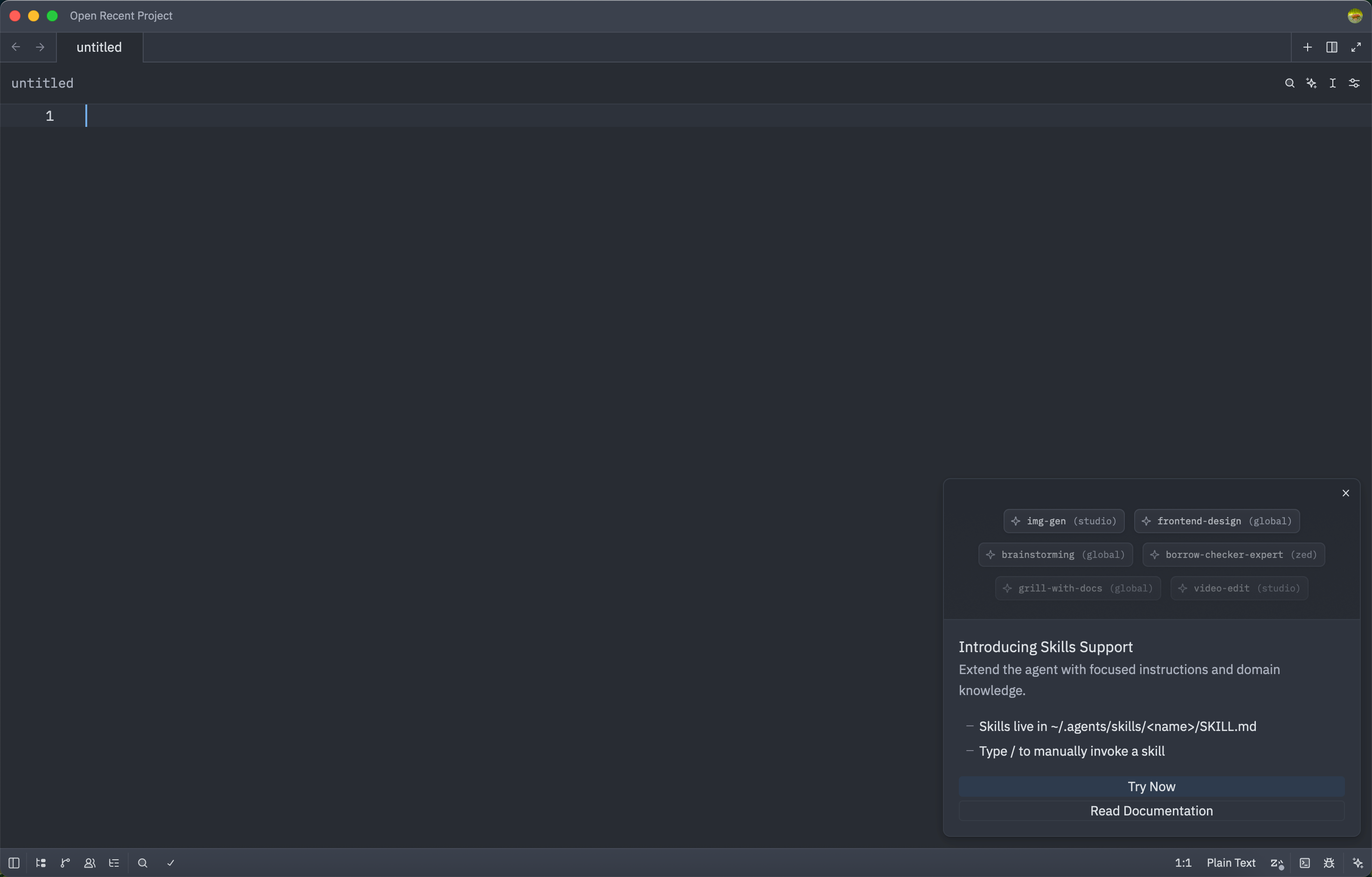
Skills are reusable instruction packages that give the agent specialized knowledge for specific tasks: test-driven development workflows, document processing, database integrations, or your team's internal coding standards.
A skill is a folder containing a SKILL.md file with metadata and instructions. The agent sees a catalog of all installed skills and can load one on demand, or you can invoke any skill directly from the message editor with a slash command.
技能是可重用的指令包,它为代理提供针对特定任务的专业知识,例如:测试驱动开发工作流程、文档处理、数据库集成或团队内部编码规范。
技能是一个文件夹,其中包含一个名为 SKILL.md 的文件,该文件包含元数据和指令。代理可以看到所有已安装技能的目录,并可以按需加载技能;或者,您也可以使用斜杠命令直接从消息编辑器调用任何技能。
Adding Skills
Create your own
Zed includes a built-in create-skill skill — invoke it with /create-skill and the agent walks you through the process.
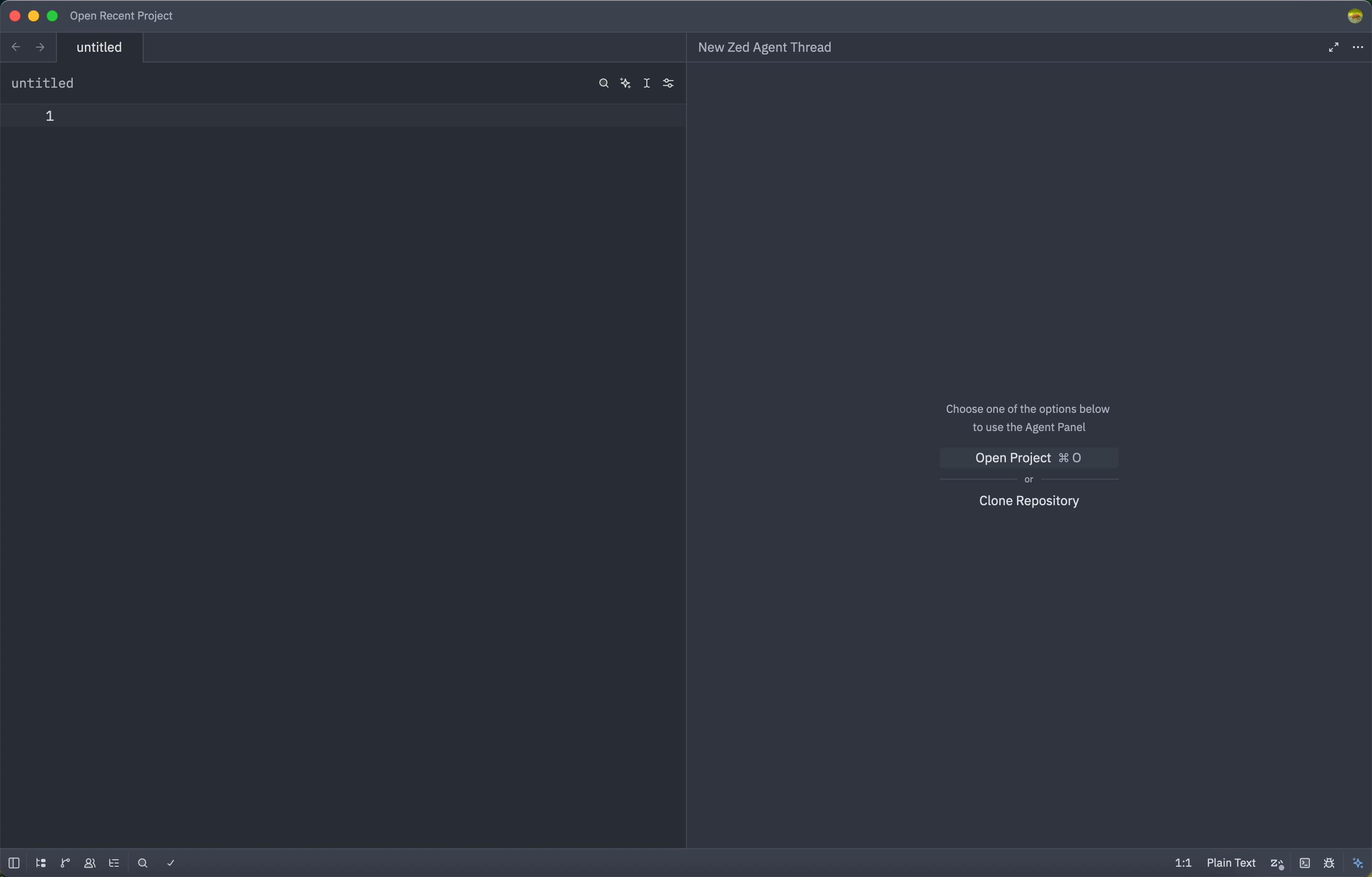
You can also open the Skills Manager from the Agent Panel using cmd-alt-l, or by clicking ... and selecting Skills. Outside the panel, use the agent: open skill creator action from the command palette, or click Create Skill on the AI > Skills settings page. The creator opens as a page in the settings window where you fill in the skill's name, description, body, and optionally toggle disable-model-invocation. The skill is saved to the scope of the settings file selected in the settings window — the User tab creates a global skill, while a Project tab creates a project-local skill — and the form shows exactly where the file will be written.
Lastly, it's also possible to add a skill through importing it from an existing GitHub Markdown file. Open the command palette and look for the agent: create skill from url action. If your clipboard contains a supported GitHub .md URL, Zed pre-fills and fetches it automatically.
See Skill format below for the full format reference.
From the skills.sh Registry
skills.sh is a community registry of open-source skills. You'll find skills for popular frameworks, tools, workflows, and more:
- find-skills: discover and install skills from the open ecosystem
- frontend-design: production-grade frontend interfaces with design polish
- pdf: PDF text extraction, merging, splitting, form filling, and OCR
To install a skill, copy the skill's folder into ~/.agents/skills/ for global use, or into your project's .agents/skills/ folder for project-local use.
Managing Skills
Open the Settings Editor (Cmd+, on macOS, Ctrl+, on Linux/Windows) and navigate to AI > Skills, or go directly to agent.skills.
The User tab shows your global skills, and each Project tab shows the skills for that project.
For each skill you can:
- Copy Share Link — copies a
zed://skilllink that embeds the skill, ready to send to someone else (see Sharing Skills) - Open — opens the skill's
SKILL.mdfile in the editor - Delete — removes the skill folder from disk
In the skills page, you'll see a Create Skill button that opens the settings window, providing the ability to create a skill directly through the UI.
Sharing Skills
You can hand a skill to a teammate without hosting it anywhere. In the Skills settings page, click the link icon on a skill row to copy a zed://skill?data=… link to your clipboard. The link is self-contained: it embeds the full SKILL.mdcontents (base64url-encoded), so the recipient doesn't need access to your project or any registry.
When someone opens that link (for example by pasting it into their browser or clicking it in a chat), Zed opens the "Create Skill" page in the settings window, pre-filled with the shared skill. The recipient can review the name, description, and full body, choose a scope by selecting the User tab (global) or a Projecttab, and click Save to install it. Nothing is written to disk until they explicitly save, so a shared link can never silently install instructions into someone's agent.
Using Skills
By default, the agent picks up skills autonomously. It sees a catalog of every installed skill (name and description) in its system prompt, and calls the skilltool when a task matches a skill's description.
When the agent invokes a skill you created or installed, Zed prompts you to allow or deny it, using the same permission flow as other tools. Skills built into Zed do not prompt. You can set per-skill defaults in Tool Permissions so you're not prompted for skills you always trust.
Manual Invocation
You can also load a skill manually:
- Slash command: type
/in the message editor and select a skill by name - @-mention: type
@skillin the message editor and select a skill from the completion menu
Both inject the skill's instructions as context. The loaded skill appears as a crease button in the thread, which you can click to open the skill file.
Preventing Autonomous Invocation
Add disable-model-invocation: true to a skill's frontmatter to stop the agent from picking it up autonomously. The skill still appears as a slash command, so you stay in control of when it runs.
This is useful for workflows you don't want the agent triggering automatically, like deploy or release procedures.
---
小龙虾开发者社区是 CSDN 旗下专注 OpenClaw 生态的官方阵地,聚焦技能开发、插件实践与部署教程,为开发者提供可直接落地的方案、工具与交流平台,助力高效构建与落地 AI 应用
更多推荐
 3
3 0
0- 0


 已为社区贡献10条内容

所有评论(0)