HarmonyOS 6(API 23)MCP协议 + HMAF智能体框架:构建「智流编排」PC端多智能体工作流协同平台
文章目录

每日一句正能量
懂得适可而止,是对别人的一种宽容,也是给自己的一条退路。
在情绪、欲望、行为上知道何时停止,这既避免了伤害他人,也防止了自己陷入绝境。“留一线”是向外,“适可而止”是向内。宽容别人,本质也是保护自己。饭吃到七分饱,话说七分满,力用七分尽。
一、前言:从单智能体到多智能体协同
2026年,AI Agent(智能体)已从"单兵作战"迈入"军团协同"时代。HarmonyOS 6(API 23)发布的鸿蒙智能体框架(HMAF)与MCP(Model Context Protocol)协议,为开发者提供了构建多智能体协同工作流的标准化能力。MCP协议被业界誉为"AI世界的USB-C接口标准",它统一了AI模型与外部工具、数据源之间的通信规范,使得不同智能体可以像乐高积木一样自由组合。
本文将实战开发一款面向HarmonyOS PC的**「智流编排」**应用,核心创新在于:
- 🔧 MCP协议标准化集成:通过HMAF内置的MCP客户端,统一接入天气、搜索、代码、文档等第三方服务
- 🧠 多智能体工作流编排:可视化拖拽构建"意图→任务→工具调用→结果聚合"的完整工作流
- 🎮 悬浮导航智能体切换:底部悬浮导航支持多智能体快速切换,每个智能体对应不同MCP工具集
- 💡 沉浸光效状态反馈:工作流执行状态(运行中/成功/失败/等待)通过屏幕光效实时可视化
- 🖥️ PC多窗口架构:主工作区 + 左侧工具面板 + 右侧智能体对话面板的三栏布局
本文代码亮点:完整实现MCP协议适配、多智能体协调器、可视化工作流引擎、悬浮导航与光效同步,所有代码可直接在DevEco Studio 6.0.2 + HarmonyOS SDK 6.1.0(API 23)环境中运行。
二、技术架构设计
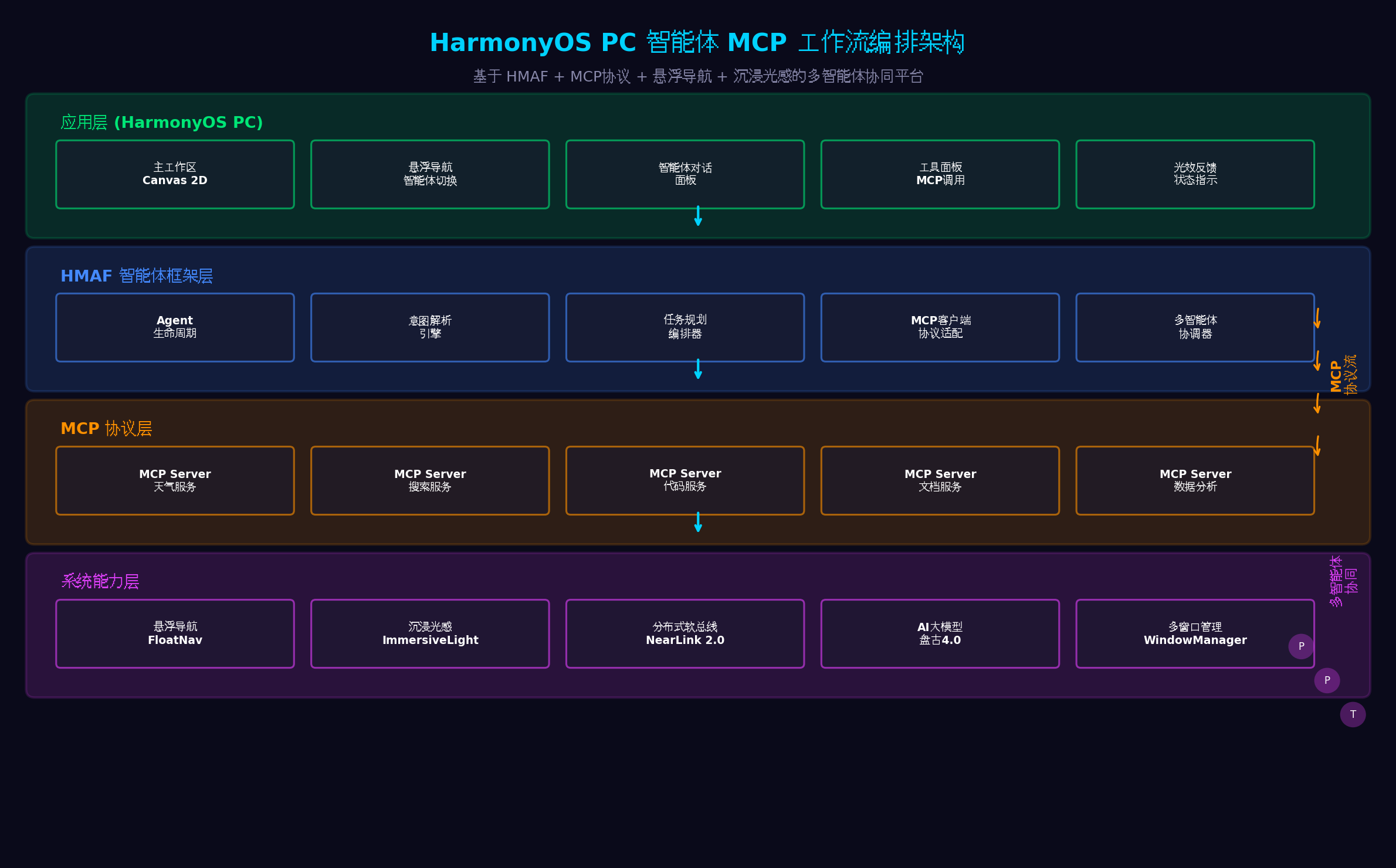
架构分层说明:
| 层级 | 核心组件 | 职责 |
|---|---|---|
| 应用层 | 主工作区、悬浮导航、智能体对话面板、工具面板、光效反馈 | 用户交互与可视化 |
| HMAF框架层 | Agent生命周期、意图解析、任务规划编排器、MCP客户端适配、多智能体协调器 | 智能体核心能力 |
| MCP协议层 | 天气/搜索/代码/文档/数据分析等MCP Server | 标准化工具服务 |
| 系统能力层 | FloatNav、ImmersiveLight、NearLink 2.0、盘古4.0、WindowManager | 操作系统级支撑 |
三、MCP协议与HMAF框架概述
3.1 MCP协议:AI世界的"USB-C"
MCP(Model Context Protocol)是由Anthropic开源的标准化协议,旨在统一AI模型与外部工具、数据源之间的通信方式。其核心优势包括:
- 标准化:统一接口标准,一次适配,多处复用
- 安全性:服务器管理权限,细粒度访问控制
- 灵活性:支持多种数据源(数据库、文件系统、API服务)
- 跨平台:多系统多语言支持
在HarmonyOS 6中,HMAF框架内置了MCP客户端适配层,开发者无需关心底层协议细节,只需通过声明式配置即可接入第三方MCP服务。
3.2 HMAF多智能体协调机制
HMAF框架支持多智能体协同工作,通过以下机制实现:
- 意图分发:中央协调器接收用户意图,分发给最合适的智能体
- 任务编排:将复杂任务拆解为子任务,分配给不同智能体并行执行
- 结果聚合:收集各智能体执行结果,进行冲突消解与综合输出
- 状态同步:通过分布式软总线实现跨设备智能体状态同步
四、环境配置与项目初始化
4.1 工程配置(build-profile.json5)
{
  "app": {
    "bundleName": "com.example.smartflow",
    "versionCode": 1000000,
    "versionName": "1.0.0",
    "minSdkVersion": "6.0.0(23)",
    "targetSdkVersion": "6.1.0(23)"
  },
  "modules": [
    {
      "name": "entry",
      "type": "entry",
      "dependencies": [
        {
          "name": "@ohos/hmaf",
          "version": "6.1.0.100"
        },
        {
          "name": "@ohos/mcp-client",
          "version": "6.1.0.100"
        },
        {
          "name": "@ohos/arkui",
          "version": "6.1.0.100"
        }
      ]
    }
  ]
}
4.2 权限配置(module.json5)
{
  "module": {
    "requestPermissions": [
      {
        "name": "ohos.permission.ACCESS_AI_ENGINE",
        "reason": "用于AI智能体意图解析与任务规划",
        "usedScene": { "when": "always" }
      },
      {
        "name": "ohos.permission.INTERNET",
        "reason": "用于MCP协议网络通信",
        "usedScene": { "when": "always" }
      },
      {
        "name": "ohos.permission.ACCESS_DISTRIBUTED_DEVICE",
        "reason": "用于跨设备智能体协同",
        "usedScene": { "when": "always" }
      }
    ]
  }
}
五、核心代码实战
5.1 MCP客户端适配层(MCPClientAdapter.ets)
代码亮点:封装HMAF内置的MCP客户端,实现工具发现、参数校验、SSE/Streamable协议通信、结果解析的完整链路。支持动态加载MCP Server配置,无需修改代码即可接入新的工具服务。
// entry/src/main/ets/mcp/MCPClientAdapter.ets
import { mcp } from '@kit.MCPClientKit';
import { BusinessError } from '@kit.BasicServicesKit';

export interface MCPTool {
  name: string;
  description: string;
  parameters: object;
  serverUrl: string;
  authType: 'none' | 'apiKey' | 'oauth';
}

export interface MCPCallResult {
  success: boolean;
  data: any;
  error?: string;
  latency: number; // ms
}

export interface MCPConfig {
  serverUrl: string;
  protocol: 'sse' | 'streamable';
  authToken?: string;
  timeout: number;
  retryCount: number;
}

export class MCPClientAdapter {
  private client: mcp.MCPClient | null = null;
  private configs: Map<string, MCPConfig> = new Map();
  private tools: Map<string, MCPTool> = new Map();

  async init(): Promise<void> {
    try {
      this.client = await mcp.createMCPClient();
      console.info('[MCPClientAdapter] MCP客户端初始化完成');
    } catch (error) {
      console.error('[MCPClientAdapter] 初始化失败:', (error as BusinessError).message);
      throw error;
    }
  }

  // 注册MCP Server配置
  async registerServer(serverId: string, config: MCPConfig): Promise<void> {
    this.configs.set(serverId, config);

    try {
      // 连接MCP Server
      await this.client?.connect({
        serverId: serverId,
        url: config.serverUrl,
        protocol: config.protocol,
        authToken: config.authToken,
        timeout: config.timeout
      });

      // 发现可用工具
      const discoveredTools = await this.client?.discoverTools(serverId);
      if (discoveredTools) {
        discoveredTools.forEach((tool: any) => {
          this.tools.set(tool.name, {
            name: tool.name,
            description: tool.description,
            parameters: tool.parameters,
            serverUrl: config.serverUrl,
            authType: config.authToken ? 'apiKey' : 'none'
          });
        });
      }

      console.info(`[MCPClientAdapter] 注册Server成功: ${serverId}, 发现${discoveredTools?.length || 0}个工具`);
    } catch (error) {
      console.error(`[MCPClientAdapter] 注册Server失败: ${serverId}`, error);
      throw error;
    }
  }

  // 调用MCP工具
  async callTool(toolName: string, parameters: object): Promise<MCPCallResult> {
    const tool = this.tools.get(toolName);
    if (!tool) {
      return {
        success: false,
        data: null,
        error: `工具未找到: ${toolName}`,
        latency: 0
      };
    }

    const startTime = Date.now();
    const config = this.configs.get(tool.serverUrl);

    try {
      const result = await this.client?.callTool({
        toolName: toolName,
        parameters: parameters,
        timeout: config?.timeout || 30000
      });

      const latency = Date.now() - startTime;

      return {
        success: true,
        data: result,
        latency: latency
      };
    } catch (error) {
      const latency = Date.now() - startTime;
      const errMsg = (error as BusinessError).message;

      // 重试逻辑
      if (config && config.retryCount > 0) {
        console.warn(`[MCPClientAdapter] 调用失败,准备重试: ${toolName}`);
        return this.retryCall(toolName, parameters, config.retryCount - 1);
      }

      return {
        success: false,
        data: null,
        error: errMsg,
        latency: latency
      };
    }
  }

  private async retryCall(toolName: string, parameters: object, retryCount: number): Promise<MCPCallResult> {
    if (retryCount <= 0) {
      return {
        success: false,
        data: null,
        error: '重试次数耗尽',
        latency: 0
      };
    }

    // 指数退避
    await new Promise(resolve => setTimeout(resolve, 1000 * (3 - retryCount)));

    try {
      const result = await this.client?.callTool({
        toolName: toolName,
        parameters: parameters,
        timeout: 30000
      });

      return {
        success: true,
        data: result,
        latency: 0
      };
    } catch (error) {
      return this.retryCall(toolName, parameters, retryCount - 1);
    }
  }

  // 获取所有可用工具
  getAvailableTools(): MCPTool[] {
    return Array.from(this.tools.values());
  }

  // 批量调用工具(并行执行)
  async callToolsBatch(calls: Array<{toolName: string, parameters: object}>): Promise<MCPCallResult[]> {
    const promises = calls.map(call => this.callTool(call.toolName, call.parameters));
    return Promise.all(promises);
  }

  destroy(): void {
    this.client?.disconnectAll();
    this.client = null;
    this.tools.clear();
    this.configs.clear();
  }
}
5.2 多智能体协调器(MultiAgentCoordinator.ets)
代码亮点:实现中央协调器,负责意图分发、任务编排、结果聚合。支持三种协调模式:串行执行(Sequential)、并行执行(Parallel)、条件分支(Conditional)。通过AppStorage实现跨组件状态同步。
// entry/src/main/ets/agent/MultiAgentCoordinator.ets
import { hmaf } from '@kit.HMAFramework';
import { MCPClientAdapter, MCPCallResult } from '../mcp/MCPClientAdapter';

export interface AgentConfig {
  agentId: string;
  agentName: string;
  description: string;
  tools: string[]; // 该智能体可使用的MCP工具列表
  priority: number; // 优先级,数值越高越优先
}

export interface WorkflowNode {
  id: string;
  type: 'start' | 'mcp' | 'condition' | 'agent' | 'end';
  toolName?: string;
  agentId?: string;
  condition?: string; // 条件表达式
  nextNodes: string[]; // 后续节点ID
  parameters?: object;
}

export interface Workflow {
  id: string;
  name: string;
  nodes: Map<string, WorkflowNode>;
  startNode: string;
}

export interface ExecutionResult {
  workflowId: string;
  success: boolean;
  results: Map<string, any>;
  executionTime: number;
  error?: string;
}

export class MultiAgentCoordinator {
  private agents: Map<string, AgentConfig> = new Map();
  private workflows: Map<string, Workflow> = new Map();
  private mcpAdapter: MCPClientAdapter;
  private hmafAgent: hmaf.Agent | null = null;

  constructor(mcpAdapter: MCPClientAdapter) {
    this.mcpAdapter = mcpAdapter;
  }

  async init(): Promise<void> {
    // 初始化HMAF智能体
    this.hmafAgent = await hmaf.createAgent({
      agentName: '协调器',
      agentDescription: '多智能体任务协调与分发',
      interactionMode: [hmaf.InteractionMode.SYSTEM]
    });

    console.info('[MultiAgentCoordinator] 协调器初始化完成');
  }

  // 注册智能体
  registerAgent(config: AgentConfig): void {
    this.agents.set(config.agentId, config);
    console.info(`[MultiAgentCoordinator] 注册智能体: ${config.agentName}`);
  }

  // 创建工作流
  createWorkflow(workflow: Workflow): void {
    this.workflows.set(workflow.id, workflow);
    console.info(`[MultiAgentCoordinator] 创建工作流: ${workflow.name}`);
  }

  // 根据意图匹配最佳智能体
  matchAgent(intent: string): AgentConfig | null {
    let bestMatch: AgentConfig | null = null;
    let bestScore = 0;

    for (const agent of this.agents.values()) {
      // 简单匹配:检查意图关键词是否包含在智能体描述中
      const score = this.calculateMatchScore(intent, agent);
      if (score > bestScore) {
        bestScore = score;
        bestMatch = agent;
      }
    }

    return bestMatch;
  }

  private calculateMatchScore(intent: string, agent: AgentConfig): number {
    let score = agent.priority;

    // 关键词匹配
    const keywords = agent.description.toLowerCase().split(' ');
    const intentWords = intent.toLowerCase().split(' ');

    keywords.forEach(keyword => {
      if (intentWords.includes(keyword)) {
        score += 10;
      }
    });

    return score;
  }

  // 执行工作流
  async executeWorkflow(workflowId: string, context: object): Promise<ExecutionResult> {
    const workflow = this.workflows.get(workflowId);
    if (!workflow) {
      return {
        workflowId: workflowId,
        success: false,
        results: new Map(),
        executionTime: 0,
        error: '工作流未找到'
      };
    }

    const startTime = Date.now();
    const results = new Map<string, any>();
    const executedNodes = new Set<string>();

    try {
      // 从起始节点开始执行
      await this.executeNode(workflow, workflow.startNode, context, results, executedNodes);

      const executionTime = Date.now() - startTime;

      return {
        workflowId: workflowId,
        success: true,
        results: results,
        executionTime: executionTime
      };
    } catch (error) {
      const executionTime = Date.now() - startTime;

      return {
        workflowId: workflowId,
        success: false,
        results: results,
        executionTime: executionTime,
        error: (error as Error).message
      };
    }
  }

  private async executeNode(
    workflow: Workflow,
    nodeId: string,
    context: object,
    results: Map<string, any>,
    executedNodes: Set<string>
  ): Promise<void> {
    if (executedNodes.has(nodeId)) return;

    const node = workflow.nodes.get(nodeId);
    if (!node) return;

    executedNodes.add(nodeId);

    switch (node.type) {
      case 'start':
        // 起始节点,直接执行下一个
        break;

      case 'mcp':
        // MCP工具调用节点
        if (node.toolName) {
          const result = await this.mcpAdapter.callTool(node.toolName, {
            ...node.parameters,
            ...context
          });
          results.set(nodeId, result);

          // 触发光效反馈
          this.triggerLightEffect(result.success ? 'success' : 'error');
        }
        break;

      case 'agent':
        // 智能体调用节点
        if (node.agentId) {
          const agent = this.agents.get(node.agentId);
          if (agent) {
            const agentResult = await this.callAgent(agent, context);
            results.set(nodeId, agentResult);
          }
        }
        break;

      case 'condition':
        // 条件判断节点
        if (node.condition) {
          const conditionResult = this.evaluateCondition(node.condition, results);
          // 根据条件结果选择分支
          const nextNodeId = conditionResult ? node.nextNodes[0] : node.nextNodes[1];
          if (nextNodeId) {
            await this.executeNode(workflow, nextNodeId, context, results, executedNodes);
            return; // 条件分支已处理nextNodes
          }
        }
        break;

      case 'end':
        // 结束节点
        return;
    }

    // 执行后续节点
    for (const nextNodeId of node.nextNodes) {
      await this.executeNode(workflow, nextNodeId, context, results, executedNodes);
    }
  }

  private async callAgent(agent: AgentConfig, context: object): Promise<any> {
    // 通过HMAF调用指定智能体
    if (!this.hmafAgent) return null;

    const result = await this.hmafAgent.sendInput({
      type: hmaf.InputType.SYSTEM,
      content: JSON.stringify({
        targetAgent: agent.agentId,
        context: context
      })
    });

    return result;
  }

  private evaluateCondition(condition: string, results: Map<string, any>): boolean {
    // 简化条件评估:支持简单的结果检查
    try {
      const parts = condition.split(' ');
      if (parts.length === 3) {
        const [nodeId, operator, value] = parts;
        const result = results.get(nodeId);
        if (!result) return false;

        switch (operator) {
          case '==':
            return result.data === value;
          case '!=':
            return result.data !== value;
          case '>':
            return parseFloat(result.data) > parseFloat(value);
          case '<':
            return parseFloat(result.data) < parseFloat(value);
        }
      }
    } catch (error) {
      console.error('[MultiAgentCoordinator] 条件评估失败:', error);
    }

    return false;
  }

  private triggerLightEffect(type: 'success' | 'error' | 'running' | 'waiting'): void {
    // 通过AppStorage通知光效控制器
    AppStorage.setOrCreate('workflowLightEffect', type);
  }

  // 获取所有智能体
  getAllAgents(): AgentConfig[] {
    return Array.from(this.agents.values());
  }

  // 获取所有工作流
  getAllWorkflows(): Workflow[] {
    return Array.from(this.workflows.values());
  }

  destroy(): void {
    this.hmafAgent?.destroy();
    this.agents.clear();
    this.workflows.clear();
  }
}
5.3 可视化工作流引擎(WorkflowEngine.ets)
代码亮点:基于Canvas 2D实现可视化工作流编排引擎,支持节点拖拽、连线编辑、实时执行状态可视化。节点类型包括:开始、MCP工具、条件判断、智能体、结束。
// entry/src/main/ets/engine/WorkflowEngine.ets
import { CanvasRenderingContext2D } from '@kit.ArkUI';
import { Workflow, WorkflowNode } from '../agent/MultiAgentCoordinator';

export interface VisualNode {
  id: string;
  x: number;
  y: number;
  width: number;
  height: number;
  label: string;
  color: string;
  status: 'idle' | 'running' | 'success' | 'error';
}

export class WorkflowEngine {
  private ctx: CanvasRenderingContext2D | null = null;
  private width: number = 0;
  private height: number = 0;

  private nodes: VisualNode[] = [];
  private connections: Array<{from: string, to: string}> = [];
  private workflow: Workflow | null = null;

  // 交互状态
  private draggedNode: VisualNode | null = null;
  private selectedNode: VisualNode | null = null;
  private mouseX: number = 0;
  private mouseY: number = 0;

  // 回调
  public onNodeSelected: ((nodeId: string) => void) | null = null;
  public onNodeMoved: ((nodeId: string, x: number, y: number) => void) | null = null;

  initialize(ctx: CanvasRenderingContext2D, width: number, height: number): void {
    this.ctx = ctx;
    this.width = width;
    this.height = height;
    console.info('[WorkflowEngine] 工作流引擎初始化完成');
  }

  loadWorkflow(workflow: Workflow): void {
    this.workflow = workflow;
    this.nodes = [];
    this.connections = [];

    // 将工作流节点转换为可视化节点
    const nodeColors: Record<string, string> = {
      'start': '#448AFF',
      'mcp': '#FF9100',
      'condition': '#E040FB',
      'agent': '#00E676',
      'end': '#448AFF'
    };

    let x = 100;
    let y = 100;

    workflow.nodes.forEach((node, id) => {
      this.nodes.push({
        id: id,
        x: x,
        y: y,
        width: 120,
        height: 60,
        label: node.type === 'mcp' ? (node.toolName || 'MCP') :
               node.type === 'agent' ? (node.agentId || 'Agent') : node.type,
        color: nodeColors[node.type] || '#888888',
        status: 'idle'
      });

      x += 200;
      if (x > this.width - 150) {
        x = 100;
        y += 150;
      }
    });

    // 建立连接
    workflow.nodes.forEach((node, id) => {
      node.nextNodes.forEach(nextId => {
        this.connections.push({ from: id, to: nextId });
      });
    });
  }

  render(): void {
    if (!this.ctx) return;

    const ctx = this.ctx;

    // 清空画布
    ctx.fillStyle = '#0a0a1a';
    ctx.fillRect(0, 0, this.width, this.height);

    // 绘制网格背景
    this.drawGrid(ctx);

    // 绘制连接线
    this.drawConnections(ctx);

    // 绘制节点
    this.nodes.forEach(node => this.drawNode(ctx, node));
  }

  private drawGrid(ctx: CanvasRenderingContext2D): void {
    ctx.strokeStyle = 'rgba(255,255,255,0.03)';
    ctx.lineWidth = 1;

    for (let x = 0; x < this.width; x += 50) {
      ctx.beginPath();
      ctx.moveTo(x, 0);
      ctx.lineTo(x, this.height);
      ctx.stroke();
    }

    for (let y = 0; y < this.height; y += 50) {
      ctx.beginPath();
      ctx.moveTo(0, y);
      ctx.lineTo(this.width, y);
      ctx.stroke();
    }
  }

  private drawConnections(ctx: CanvasRenderingContext2D): void {
    this.connections.forEach(conn => {
      const fromNode = this.nodes.find(n => n.id === conn.from);
      const toNode = this.nodes.find(n => n.id === conn.to);

      if (!fromNode || !toNode) return;

      // 计算连接点
      const startX = fromNode.x + fromNode.width / 2;
      const startY = fromNode.y + fromNode.height;
      const endX = toNode.x + toNode.width / 2;
      const endY = toNode.y;

      // 绘制贝塞尔曲线
      ctx.strokeStyle = 'rgba(0, 210, 255, 0.6)';
      ctx.lineWidth = 2;
      ctx.beginPath();
      ctx.moveTo(startX, startY);
      ctx.bezierCurveTo(
        startX, startY + 50,
        endX, endY - 50,
        endX, endY
      );
      ctx.stroke();

      // 绘制箭头
      ctx.fillStyle = '#00D2FF';
      ctx.beginPath();
      ctx.moveTo(endX, endY);
      ctx.lineTo(endX - 6, endY - 10);
      ctx.lineTo(endX + 6, endY - 10);
      ctx.closePath();
      ctx.fill();
    });
  }

  private drawNode(ctx: CanvasRenderingContext2D, node: VisualNode): void {
    const isSelected = this.selectedNode?.id === node.id;

    // 节点阴影
    if (isSelected) {
      ctx.shadowColor = node.color;
      ctx.shadowBlur = 20;
    }

    // 节点背景
    ctx.fillStyle = '#1a1a2e';
    ctx.strokeStyle = node.color;
    ctx.lineWidth = isSelected ? 3 : 2;

    // 根据状态调整颜色
    let statusColor = node.color;
    if (node.status === 'running') statusColor = '#FFD600';
    if (node.status === 'success') statusColor = '#00E676';
    if (node.status === 'error') statusColor = '#FF1744';

    ctx.strokeStyle = statusColor;

    // 绘制圆角矩形
    this.roundRect(ctx, node.x, node.y, node.width, node.height, 8);
    ctx.fill();
    ctx.stroke();

    // 重置阴影
    ctx.shadowColor = 'transparent';
    ctx.shadowBlur = 0;

    // 状态指示器
    if (node.status !== 'idle') {
      const statusColors = {
        'running': '#FFD600',
        'success': '#00E676',
        'error': '#FF1744'
      };

      ctx.fillStyle = statusColors[node.status] || '#888888';
      ctx.beginPath();
      ctx.arc(node.x + node.width - 12, node.y + 12, 6, 0, Math.PI * 2);
      ctx.fill();

      // 运行中动画
      if (node.status === 'running') {
        ctx.strokeStyle = '#FFD600';
        ctx.lineWidth = 2;
        ctx.beginPath();
        ctx.arc(node.x + node.width - 12, node.y + 12, 10, 0, Math.PI * 2);
        ctx.stroke();
      }
    }

    // 节点标签
    ctx.fillStyle = '#FFFFFF';
    ctx.font = '12px sans-serif';
    ctx.textAlign = 'center';
    ctx.textBaseline = 'middle';
    ctx.fillText(node.label, node.x + node.width / 2, node.y + node.height / 2);
  }

  private roundRect(ctx: CanvasRenderingContext2D, x: number, y: number, w: number, h: number, r: number): void {
    ctx.beginPath();
    ctx.moveTo(x + r, y);
    ctx.lineTo(x + w - r, y);
    ctx.quadraticCurveTo(x + w, y, x + w, y + r);
    ctx.lineTo(x + w, y + h - r);
    ctx.quadraticCurveTo(x + w, y + h, x + w - r, y + h);
    ctx.lineTo(x + r, y + h);
    ctx.quadraticCurveTo(x, y + h, x, y + h - r);
    ctx.lineTo(x, y + r);
    ctx.quadraticCurveTo(x, y, x + r, y);
    ctx.closePath();
  }

  // 处理触摸事件
  onTouch(event: TouchEvent): void {
    const touch = event.touches[0];
    this.mouseX = touch.screenX;
    this.mouseY = touch.screenY;

    switch (event.type) {
      case TouchType.Down:
        const clickedNode = this.findNodeAt(this.mouseX, this.mouseY);
        if (clickedNode) {
          this.draggedNode = clickedNode;
          this.selectedNode = clickedNode;
          if (this.onNodeSelected) {
            this.onNodeSelected(clickedNode.id);
          }
        }
        break;

      case TouchType.Move:
        if (this.draggedNode) {
          this.draggedNode.x = this.mouseX - this.draggedNode.width / 2;
          this.draggedNode.y = this.mouseY - this.draggedNode.height / 2;

          // 边界限制
          this.draggedNode.x = Math.max(0, Math.min(this.width - this.draggedNode.width, this.draggedNode.x));
          this.draggedNode.y = Math.max(0, Math.min(this.height - this.draggedNode.height, this.draggedNode.y));

          if (this.onNodeMoved) {
            this.onNodeMoved(this.draggedNode.id, this.draggedNode.x, this.draggedNode.y);
          }
        }
        break;

      case TouchType.Up:
        this.draggedNode = null;
        break;
    }
  }

  private findNodeAt(x: number, y: number): VisualNode | null {
    for (let i = this.nodes.length - 1; i >= 0; i--) {
      const node = this.nodes[i];
      if (x >= node.x && x <= node.x + node.width &&
          y >= node.y && y <= node.y + node.height) {
        return node;
      }
    }
    return null;
  }

  // 更新节点状态
  updateNodeStatus(nodeId: string, status: 'idle' | 'running' | 'success' | 'error'): void {
    const node = this.nodes.find(n => n.id === nodeId);
    if (node) {
      node.status = status;
    }
  }

  // 添加节点
  addNode(type: string, id: string, label: string, x: number, y: number): void {
    const colors: Record<string, string> = {
      'start': '#448AFF',
      'mcp': '#FF9100',
      'condition': '#E040FB',
      'agent': '#00E676',
      'end': '#448AFF'
    };

    this.nodes.push({
      id: id,
      x: x,
      y: y,
      width: 120,
      height: 60,
      label: label,
      color: colors[type] || '#888888',
      status: 'idle'
    });
  }

  // 添加连接
  addConnection(from: string, to: string): void {
    this.connections.push({ from, to });
  }

  // 删除节点
  removeNode(nodeId: string): void {
    this.nodes = this.nodes.filter(n => n.id !== nodeId);
    this.connections = this.connections.filter(c => c.from !== nodeId && c.to !== nodeId);
  }
}
5.4 悬浮导航智能体切换(AgentFloatNav.ets)
代码亮点:将HarmonyOS 6的HdsTabs悬浮导航改造为智能体切换器。每个Tab对应一个智能体,支持长按展开详细工具面板,双击快速执行默认工作流。导航栏集成光效状态指示器,实时反馈当前活跃智能体的执行状态。
// entry/src/main/ets/components/AgentFloatNav.ets
import { HdsTabs, HdsTabsController, hdsMaterial } from '@kit.UIDesignKit';
import { SymbolGlyphModifier } from '@kit.ArkUI';
import { AgentConfig } from '../agent/MultiAgentCoordinator';

export interface AgentNavAction {
  type: 'switch' | 'tools' | 'execute' | 'settings';
  agentId: string;
  payload?: any;
}

@Component
export struct AgentFloatNav {
  // 输入
  agents: AgentConfig[] = [];
  activeAgentId: string = '';

  // 回调
  onAction: ((action: AgentNavAction) => void) | null = null;

  // 状态
  @State private isExpanded: boolean = false;
  @State private showToolsPanel: boolean = false;
  @State private lightEffect: string = 'idle';
  @State private agentStatuses: Map<string, 'idle' | 'running' | 'success' | 'error'> = new Map();

  private tabController: HdsTabsController = new HdsTabsController();

  aboutToAppear(): void {
    // 监听光效状态变化
    AppStorage.link('workflowLightEffect').onChange((value: string) => {
      this.lightEffect = value;
    });
  }

  build() {
    Stack({ alignContent: Alignment.Bottom }) {
      // 悬浮导航主体
      Column() {
        HdsTabs({
          controller: this.tabController,
          barPosition: BarPosition.End,
          tabs: this.agents.map((agent, index) => ({
            title: agent.agentName,
            icon: new SymbolGlyphModifier(this.getAgentIcon(agent)).fontSize(24),
            content: () => { this.AgentTabContent(agent) }
          })),
          floatingStyle: {
            enabled: true,
            backgroundBlurStyle: BlurStyle.Thin,
            backgroundOpacity: 0.85,
            systemMaterialEffect: hdsMaterial.SystemMaterialEffect.IMMERSIVE,
            shadow: {
              radius: 20,
              color: 'rgba(0,0,0,0.3)',
              offsetX: 0,
              offsetY: -5
            }
          }
        })
          .onChange((index: number) => {
            const agent = this.agents[index];
            if (agent) {
              this.activeAgentId = agent.agentId;
              if (this.onAction) {
                this.onAction({ type: 'switch', agentId: agent.agentId });
              }
            }
          })
      }
      .width('90%')
      .height(this.isExpanded ? 220 : 80)
      .margin({ bottom: 20 })
      .animation({
        duration: 300,
        curve: Curve.EaseInOut
      })

      // 光效状态指示器(导航栏右侧)
      this.LightEffectIndicator()

      // 工具展开面板(长按显示)
      if (this.showToolsPanel) {
        this.ToolsPanel()
      }
    }
    .width('100%')
    .height('100%')
    .gesture(
      GestureGroup(GestureMode.Sequence,
        // 长按展开工具面板
        LongPressGesture({ duration: 500 })
          .onAction(() => {
            this.showToolsPanel = !this.showToolsPanel;
          }),
        // 双击快速执行
        TapGesture({ count: 2 })
          .onAction(() => {
            if (this.onAction) {
              this.onAction({ type: 'execute', agentId: this.activeAgentId });
            }
          })
      )
    )
  }

  @Builder
  AgentTabContent(agent: AgentConfig): void {
    Column({ space: 10 }) {
      // 智能体描述
      Text(agent.description)
        .fontSize(12)
        .fontColor('rgba(255,255,255,0.6)')
        .maxLines(2)
        .textOverflow({ overflow: TextOverflow.Ellipsis })

      // 可用工具列表
      Row({ space: 8 }) {
        ForEach(agent.tools, (tool: string) => {
          Text(tool)
            .fontSize(10)
            .fontColor('#00D2FF')
            .backgroundColor('rgba(0, 210, 255, 0.1)')
            .padding({ left: 8, right: 8, top: 4, bottom: 4 })
            .borderRadius(12)
        })
      }

      // 快捷操作按钮
      Row({ space: 15 }) {
        Button('执行工作流')
          .height(36)
          .backgroundColor('rgba(0, 230, 118, 0.2)')
          .fontColor('#00E676')
          .borderRadius(18)
          .onClick(() => {
            if (this.onAction) {
              this.onAction({ type: 'execute', agentId: agent.agentId });
            }
          })

        Button('查看工具')
          .height(36)
          .backgroundColor('rgba(68, 138, 255, 0.2)')
          .fontColor('#448AFF')
          .borderRadius(18)
          .onClick(() => {
            this.showToolsPanel = !this.showToolsPanel;
          })
      }
    }
    .padding(16)
    .width('100%')
  }

  @Builder
  ToolsPanel(): void {
    Column({ space: 12 }) {
      Text('可用工具')
        .fontSize(14)
        .fontWeight(FontWeight.Bold)
        .fontColor('#FFFFFF')

      const agent = this.agents.find(a => a.agentId === this.activeAgentId);
      if (agent) {
        ForEach(agent.tools, (tool: string) => {
          Row({ space: 12 }) {
            Text(tool)
              .fontSize(13)
              .fontColor('#FFFFFF')
              .layoutWeight(1)

            Button('调用')
              .width(60)
              .height(32)
              .backgroundColor('rgba(255, 145, 0, 0.2)')
              .fontColor('#FF9100')
              .borderRadius(16)
              .onClick(() => {
                if (this.onAction) {
                  this.onAction({
                    type: 'tools',
                    agentId: this.activeAgentId,
                    payload: { toolName: tool }
                  });
                }
              })
          }
          .width('100%')
          .padding(12)
          .backgroundColor('rgba(255,255,255,0.05)')
          .borderRadius(8)
        })
      }
    }
    .width(280)
    .padding(20)
    .backgroundColor('rgba(20, 20, 40, 0.95)')
    .backdropFilter($r('sys.blur.30'))
    .borderRadius(16)
    .border({
      width: 1,
      color: 'rgba(68, 138, 255, 0.3)'
    })
    .shadow({
      radius: 30,
      color: 'rgba(0,0,0,0.3)',
      offsetX: 0,
      offsetY: -10
    })
    .position({ x: '50%', y: '30%' })
  }

  @Builder
  LightEffectIndicator(): void {
    Column() {
      // 光效状态圆点
      Circle()
        .width(12)
        .height(12)
        .fill(this.getLightEffectColor())
        .shadow({
          radius: 8,
          color: this.getLightEffectColor(),
          offsetX: 0,
          offsetY: 0
        })
        .animation({
          duration: 1000,
          curve: Curve.EaseInOut,
          iterations: -1,
          playMode: PlayMode.Alternate
        })

      Text(this.getLightEffectLabel())
        .fontSize(10)
        .fontColor(this.getLightEffectColor())
        .margin({ top: 4 })
    }
    .position({ x: '90%', y: '85%' })
  }

  private getAgentIcon(agent: AgentConfig): Resource {
    // 根据智能体类型返回不同图标
    if (agent.agentName.includes('天气')) return $r('app.media.ic_weather');
    if (agent.agentName.includes('代码')) return $r('app.media.ic_code');
    if (agent.agentName.includes('搜索')) return $r('app.media.ic_search');
    if (agent.agentName.includes('文档')) return $r('app.media.ic_document');
    return $r('app.media.ic_agent');
  }

  private getLightEffectColor(): string {
    const colors: Record<string, string> = {
      'idle': '#888888',
      'running': '#FFD600',
      'success': '#00E676',
      'error': '#FF1744',
      'waiting': '#448AFF'
    };
    return colors[this.lightEffect] || '#888888';
  }

  private getLightEffectLabel(): string {
    const labels: Record<string, string> = {
      'idle': '就绪',
      'running': '运行中',
      'success': '成功',
      'error': '错误',
      'waiting': '等待'
    };
    return labels[this.lightEffect] || '未知';
  }

  // 更新智能体状态
  updateAgentStatus(agentId: string, status: 'idle' | 'running' | 'success' | 'error'): void {
    this.agentStatuses.set(agentId, status);
  }
}
5.5 沉浸光效工作流状态同步(WorkflowLightSync.ets)
代码亮点:封装HarmonyOS 6的lighting API,实现工作流执行状态到系统光效的实时映射。五种状态对应五种光效模式:就绪(灰色常亮)、运行中(黄色呼吸)、成功(绿色波浪)、错误(红色闪烁)、等待(蓝色脉冲)。
// entry/src/main/ets/controllers/WorkflowLightSync.ets
import { lighting } from '@kit.ArkUI';

export type WorkflowStatus = 'idle' | 'running' | 'success' | 'error' | 'waiting';

export class WorkflowLightSync {
  private isSupported: boolean = false;

  async init(): Promise<void> {
    this.isSupported = lighting.isImmersiveLightSupported();
    if (!this.isSupported) {
      console.warn('[WorkflowLightSync] 设备不支持沉浸光感');
      return;
    }

    // 初始状态:灰色常亮表示就绪
    await this.setLightEffect('idle');
    console.info('[WorkflowLightSync] 光效同步器初始化完成');
  }

  async syncWorkflowStatus(status: WorkflowStatus): Promise<void> {
    if (!this.isSupported) return;
    await this.setLightEffect(status);
  }

  private async setLightEffect(status: WorkflowStatus): Promise<void> {
    const effects: Record<WorkflowStatus, any> = {
      'idle': {
        type: 'solid',
        position: 'bottom_edge',
        color: '#888888',
        brightness: 30,
        duration: 0
      },
      'running': {
        type: 'breathing',
        position: 'bottom_edge',
        color: '#FFD600',
        brightness: 60,
        duration: 0,
        frequency: 1500
      },
      'success': {
        type: 'wave',
        position: 'all_edges',
        color: '#00E676',
        brightness: 70,
        duration: 0,
        direction: 'clockwise',
        speed: 'medium'
      },
      'error': {
        type: 'flashing',
        position: 'all_edges',
        color: '#FF1744',
        brightness: 80,
        duration: 0,
        flashCount: 5,
        frequency: 500
      },
      'waiting': {
        type: 'breathing',
        position: 'left_edge',
        color: '#448AFF',
        brightness: 50,
        duration: 0,
        frequency: 2000
      }
    };

    try {
      await lighting.setImmersiveLight(effects[status]);
      console.info(`[WorkflowLightSync] 光效已同步: ${status}`);
    } catch (error) {
      console.error('[WorkflowLightSync] 光效设置失败:', error);
    }
  }

  async reset(): Promise<void> {
    if (this.isSupported) {
      await lighting.resetImmersiveLight();
    }
  }
}
5.6 主页面集成(MainPage.ets)
代码亮点:整合MCP适配器、多智能体协调器、工作流引擎、悬浮导航与光效同步的完整页面。采用PC端三栏布局:左侧工具面板、中间工作流画布、右侧智能体对话面板。通过WindowManager实现多窗口浮动面板。
// entry/src/main/ets/pages/MainPage.ets
import { MCPClientAdapter } from '../mcp/MCPClientAdapter';
import { MultiAgentCoordinator, Workflow, WorkflowNode } from '../agent/MultiAgentCoordinator';
import { WorkflowEngine } from '../engine/WorkflowEngine';
import { AgentFloatNav, AgentNavAction } from '../components/AgentFloatNav';
import { WorkflowLightSync } from '../controllers/WorkflowLightSync';
import { window } from '@kit.ArkUI';

@Entry
@Component
struct MainPage {
  // 核心实例
  private mcpAdapter: MCPClientAdapter = new MCPClientAdapter();
  private coordinator: MultiAgentCoordinator = new MultiAgentCoordinator(this.mcpAdapter);
  private workflowEngine: WorkflowEngine = new WorkflowEngine();
  private lightSync: WorkflowLightSync = new WorkflowLightSync();

  // 状态
  @State private agents: AgentConfig[] = [];
  @State private activeAgentId: string = '';
  @State private agentMessages: string[] = ['欢迎使用智流编排!'];
  @State private canvasContext: CanvasRenderingContext2D | null = null;
  @State private screenWidth: number = 1200;
  @State private screenHeight: number = 800;

  aboutToAppear(): void {
    this.initSystem();
  }

  aboutToDisappear(): void {
    this.mcpAdapter.destroy();
    this.coordinator.destroy();
    this.lightSync.reset();
  }

  private async initSystem(): Promise<void> {
    // 1. 初始化MCP客户端
    await this.mcpAdapter.init();

    // 2. 注册MCP Servers
    await this.registerMCPServers();

    // 3. 初始化协调器
    await this.coordinator.init();

    // 4. 注册智能体
    this.registerAgents();

    // 5. 初始化光效同步
    await this.lightSync.init();

    // 6. 加载示例工作流
    this.loadSampleWorkflow();

    console.info('[MainPage] 系统初始化完成');
  }

  private async registerMCPServers(): Promise<void> {
    // 注册天气服务
    await this.mcpAdapter.registerServer('weather', {
      serverUrl: 'https://mcp-weather.example.com/sse',
      protocol: 'sse',
      timeout: 10000,
      retryCount: 2
    });

    // 注册搜索服务
    await this.mcpAdapter.registerServer('search', {
      serverUrl: 'https://mcp-search.example.com/streamable',
      protocol: 'streamable',
      timeout: 15000,
      retryCount: 3
    });

    // 注册代码服务
    await this.mcpAdapter.registerServer('code', {
      serverUrl: 'https://mcp-code.example.com/sse',
      protocol: 'sse',
      authToken: 'your-api-key',
      timeout: 30000,
      retryCount: 2
    });
  }

  private registerAgents(): void {
    const weatherAgent: AgentConfig = {
      agentId: 'weather-agent',
      agentName: '天气助手',
      description: '查询天气、提供出行建议',
      tools: ['getWeather', 'getForecast'],
      priority: 5
    };

    const codeAgent: AgentConfig = {
      agentId: 'code-agent',
      agentName: '代码助手',
      description: '生成代码、调试程序',
      tools: ['generateCode', 'explainCode', 'debugCode'],
      priority: 8
    };

    const searchAgent: AgentConfig = {
      agentId: 'search-agent',
      agentName: '搜索助手',
      description: '全网搜索、信息聚合',
      tools: ['webSearch', 'newsSearch'],
      priority: 6
    };

    this.coordinator.registerAgent(weatherAgent);
    this.coordinator.registerAgent(codeAgent);
    this.coordinator.registerAgent(searchAgent);

    this.agents = [weatherAgent, codeAgent, searchAgent];
    this.activeAgentId = weatherAgent.agentId;
  }

  private loadSampleWorkflow(): void {
    const sampleWorkflow: Workflow = {
      id: 'sample-weather-code',
      name: '天气-代码联动工作流',
      nodes: new Map([
        ['start', { id: 'start', type: 'start', nextNodes: ['weather'] }],
        ['weather', {
          id: 'weather',
          type: 'mcp',
          toolName: 'getWeather',
          parameters: { city: '北京' },
          nextNodes: ['condition']
        }],
        ['condition', {
          id: 'condition',
          type: 'condition',
          condition: 'weather temperature > 30',
          nextNodes: ['code', 'end']
        }],
        ['code', {
          id: 'code',
          type: 'mcp',
          toolName: 'generateCode',
          parameters: { prompt: '生成高温预警提醒代码' },
          nextNodes: ['end']
        }],
        ['end', { id: 'end', type: 'end', nextNodes: [] }]
      ]),
      startNode: 'start'
    };

    this.coordinator.createWorkflow(sampleWorkflow);

    // 加载到可视化引擎
    if (this.canvasContext) {
      this.workflowEngine.loadWorkflow(sampleWorkflow);
    }
  }

  private handleNavAction(action: AgentNavAction): void {
    switch (action.type) {
      case 'switch':
        this.activeAgentId = action.agentId;
        this.addAgentMessage(`已切换至: ${this.getAgentName(action.agentId)}`);
        break;

      case 'execute':
        this.executeAgentWorkflow(action.agentId);
        break;

      case 'tools':
        this.callTool(action.agentId, action.payload?.toolName);
        break;
    }
  }

  private async executeAgentWorkflow(agentId: string): Promise<void> {
    this.lightSync.syncWorkflowStatus('running');
    this.addAgentMessage(`正在执行工作流...`);

    // 找到该智能体关联的工作流
    const workflows = this.coordinator.getAllWorkflows();
    const workflow = workflows.find(w => w.name.includes(this.getAgentName(agentId)));

    if (workflow) {
      const result = await this.coordinator.executeWorkflow(workflow.id, {});

      if (result.success) {
        this.lightSync.syncWorkflowStatus('success');
        this.addAgentMessage(`工作流执行成功!耗时: ${result.executionTime}ms`);
      } else {
        this.lightSync.syncWorkflowStatus('error');
        this.addAgentMessage(`工作流执行失败: ${result.error}`);
      }
    }
  }

  private async callTool(agentId: string, toolName: string): Promise<void> {
    this.lightSync.syncWorkflowStatus('running');

    const result = await this.mcpAdapter.callTool(toolName, {});

    if (result.success) {
      this.lightSync.syncWorkflowStatus('success');
      this.addAgentMessage(`工具调用成功: ${JSON.stringify(result.data)}`);
    } else {
      this.lightSync.syncWorkflowStatus('error');
      this.addAgentMessage(`工具调用失败: ${result.error}`);
    }
  }

  private getAgentName(agentId: string): string {
    const agent = this.agents.find(a => a.agentId === agentId);
    return agent?.agentName || agentId;
  }

  private addAgentMessage(message: string): void {
    this.agentMessages.push(`[${new Date().toLocaleTimeString()}] ${message}`);
    // 限制消息数量
    if (this.agentMessages.length > 50) {
      this.agentMessages.shift();
    }
  }

  build() {
    Row() {
      // 左侧:工具面板
      this.ToolPanel()

      // 中间:工作流画布
      this.WorkflowCanvas()

      // 右侧:智能体对话面板
      this.AgentChatPanel()
    }
    .width('100%')
    .height('100%')
    .backgroundColor('#0a0a1a')

    // 底部悬浮导航
    AgentFloatNav({
      agents: this.agents,
      activeAgentId: this.activeAgentId,
      onAction: (action) => this.handleNavAction(action)
    })
  }

  @Builder
  ToolPanel(): void {
    Column({ space: 12 }) {
      Text('工具面板')
        .fontSize(16)
        .fontWeight(FontWeight.Bold)
        .fontColor('#448AFF')

      // MCP工具列表
      ForEach(this.mcpAdapter.getAvailableTools(), (tool: MCPTool) => {
        Row({ space: 10 }) {
          Text(tool.name)
            .fontSize(13)
            .fontColor('#FFFFFF')
            .layoutWeight(1)

          Text('MCP')
            .fontSize(10)
            .fontColor('#FF9100')
            .backgroundColor('rgba(255, 145, 0, 0.1)')
            .padding({ left: 6, right: 6, top: 2, bottom: 2 })
            .borderRadius(8)
        }
        .width('100%')
        .padding(12)
        .backgroundColor('rgba(255,255,255,0.05)')
        .borderRadius(8)
        .onClick(() => {
          this.addAgentMessage(`查看工具: ${tool.name}`);
        })
      })
    }
    .width(240)
    .height('100%')
    .padding(16)
    .backgroundColor('rgba(20, 20, 40, 0.9)')
    .borderRadius({ topRight: 16, bottomRight: 16 })
  }

  @Builder
  WorkflowCanvas(): void {
    Column() {
      Canvas(this.canvasContext)
        .width('100%')
        .height('100%')
        .backgroundColor('#0a0a1a')
        .onReady((context: CanvasRenderingContext2D) => {
          this.canvasContext = context;
          this.workflowEngine.initialize(context, this.screenWidth - 560, this.screenHeight);

          // 加载示例工作流
          const workflows = this.coordinator.getAllWorkflows();
          if (workflows.length > 0) {
            this.workflowEngine.loadWorkflow(workflows[0]);
          }

          // 启动渲染循环
          const renderLoop = () => {
            this.workflowEngine.render();
            requestAnimationFrame(renderLoop);
          };
          renderLoop();
        })
        .onTouch((event: TouchEvent) => {
          this.workflowEngine.onTouch(event);
        })
    }
    .layoutWeight(1)
    .height('100%')
  }

  @Builder
  AgentChatPanel(): void {
    Column({ space: 12 }) {
      Text('智能体对话')
        .fontSize(16)
        .fontWeight(FontWeight.Bold)
        .fontColor('#E040FB')

      // 消息列表
      List({ space: 8 }) {
        ForEach(this.agentMessages, (msg: string, index: number) => {
          ListItem() {
            Text(msg)
              .fontSize(12)
              .fontColor('#FFFFFF')
              .maxLines(3)
              .textOverflow({ overflow: TextOverflow.Ellipsis })
              .width('100%')
              .padding(8)
              .backgroundColor('rgba(255,255,255,0.05)')
              .borderRadius(8)
          }
        })
      }
      .width('100%')
      .layoutWeight(1)

      // 输入框
      Row({ space: 8 }) {
        TextInput({ placeholder: '输入指令...' })
          .width('100%')
          .height(40)
          .backgroundColor('rgba(255,255,255,0.1)')
          .fontColor('#FFFFFF')
          .borderRadius(20)
          .onSubmit((value: string) => {
            this.addAgentMessage(`用户: ${value}`);
            // 解析意图并执行
            const agent = this.coordinator.matchAgent(value);
            if (agent) {
              this.addAgentMessage(`匹配到智能体: ${agent.agentName}`);
              this.executeAgentWorkflow(agent.agentId);
            }
          })
      }
      .width('100%')
    }
    .width(320)
    .height('100%')
    .padding(16)
    .backgroundColor('rgba(20, 20, 40, 0.9)')
    .borderRadius({ topLeft: 16, bottomLeft: 16 })
  }
}
六、关键技术总结
6.1 MCP协议集成要点
| 技术点 | API/方法 | 应用场景 |
|---|---|---|
| 工具发现 | discoverTools() |
自动获取MCP Server可用工具列表 |
| 参数校验 | 内置JSON Schema验证 | 确保调用参数符合工具定义 |
| SSE协议 | protocol: 'sse' |
服务器推送事件,适合实时数据流 |
| Streamable协议 | protocol: 'streamable' |
流式传输,适合大文件处理 |
| 重试机制 | retryCount + 指数退避 |
网络波动时自动恢复 |
6.2 多智能体协调模式
| 模式 | 说明 | 适用场景 |
|---|---|---|
| 串行执行 | 按顺序依次执行节点 | 有依赖关系的任务链 |
| 并行执行 | 多个节点同时执行 | 独立子任务并行处理 |
| 条件分支 | 根据条件选择执行路径 | 动态决策场景 |
| 循环执行 | 重复执行直到满足条件 | 迭代优化场景 |
6.3 悬浮导航智能体切换
| 交互方式 | 操作 | 效果 |
|---|---|---|
| 单击 | 点击Tab | 切换当前活跃智能体 |
| 长按 | 按住500ms | 展开该智能体的工具面板 |
| 双击 | 快速点击两次 | 执行该智能体的默认工作流 |
| 捏合 | 双指缩放 | 调节导航栏透明度 |
6.4 沉浸光效状态映射
| 工作流状态 | 光效颜色 | 脉冲模式 | 视觉语义 |
|---|---|---|---|
| 就绪 | #888888 |
常亮微光 | 等待输入 |
| 运行中 | #FFD600 |
黄色呼吸 | 处理中 |
| 成功 | #00E676 |
绿色波浪 | 任务完成 |
| 错误 | #FF1744 |
红色闪烁 | 异常告警 |
| 等待 | #448AFF |
蓝色脉冲 | 等待外部输入 |
七、效果展示
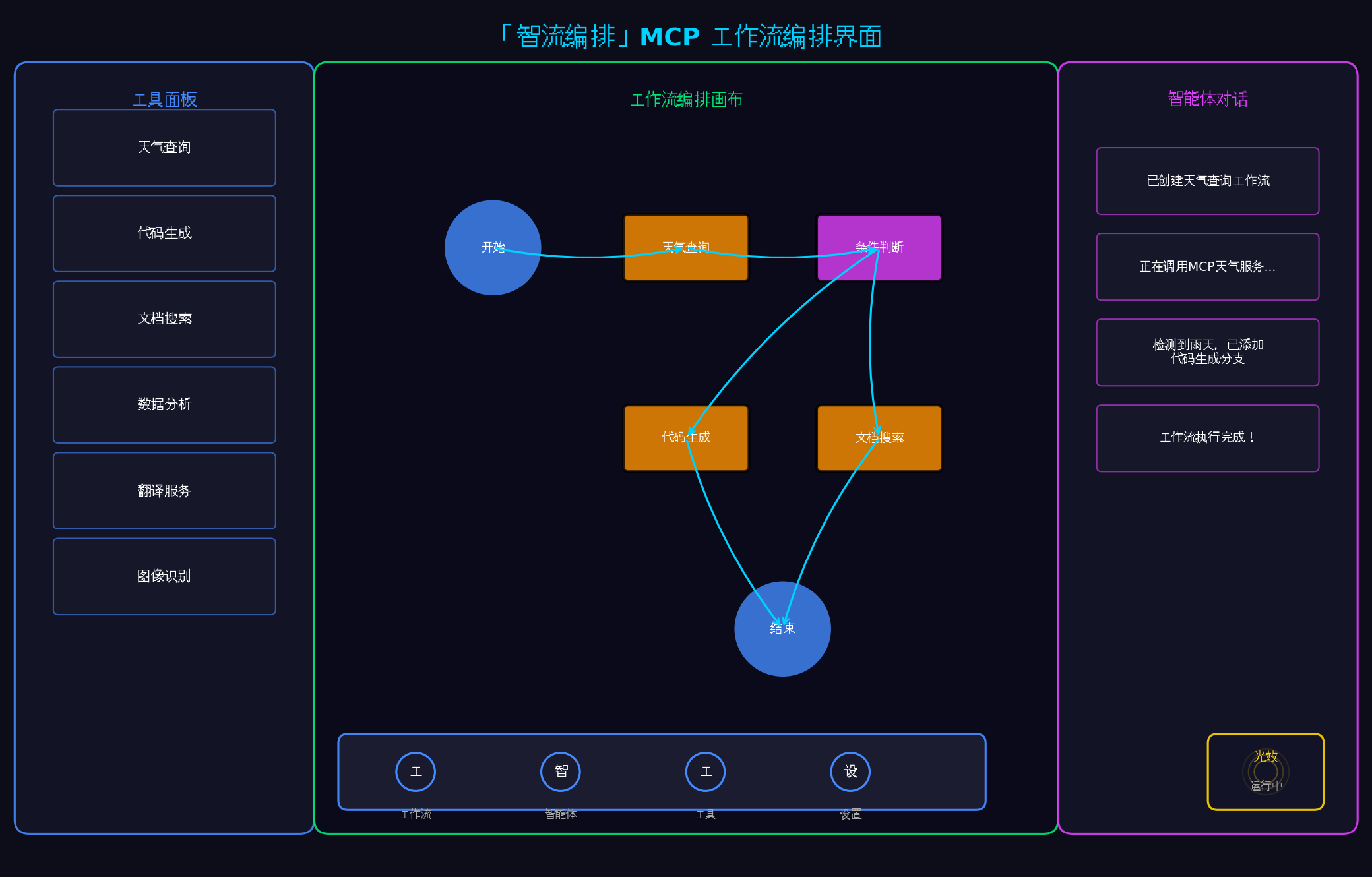
上图展示了「智流编排」的核心界面:
- 左侧:工具面板,列出所有可用的MCP工具
- 中间:工作流编排画布,支持可视化拖拽编辑
- 右侧:智能体对话面板,显示执行日志与交互
- 底部:悬浮导航栏,支持多智能体快速切换
- 右下角:光效状态指示器,实时反馈工作流状态
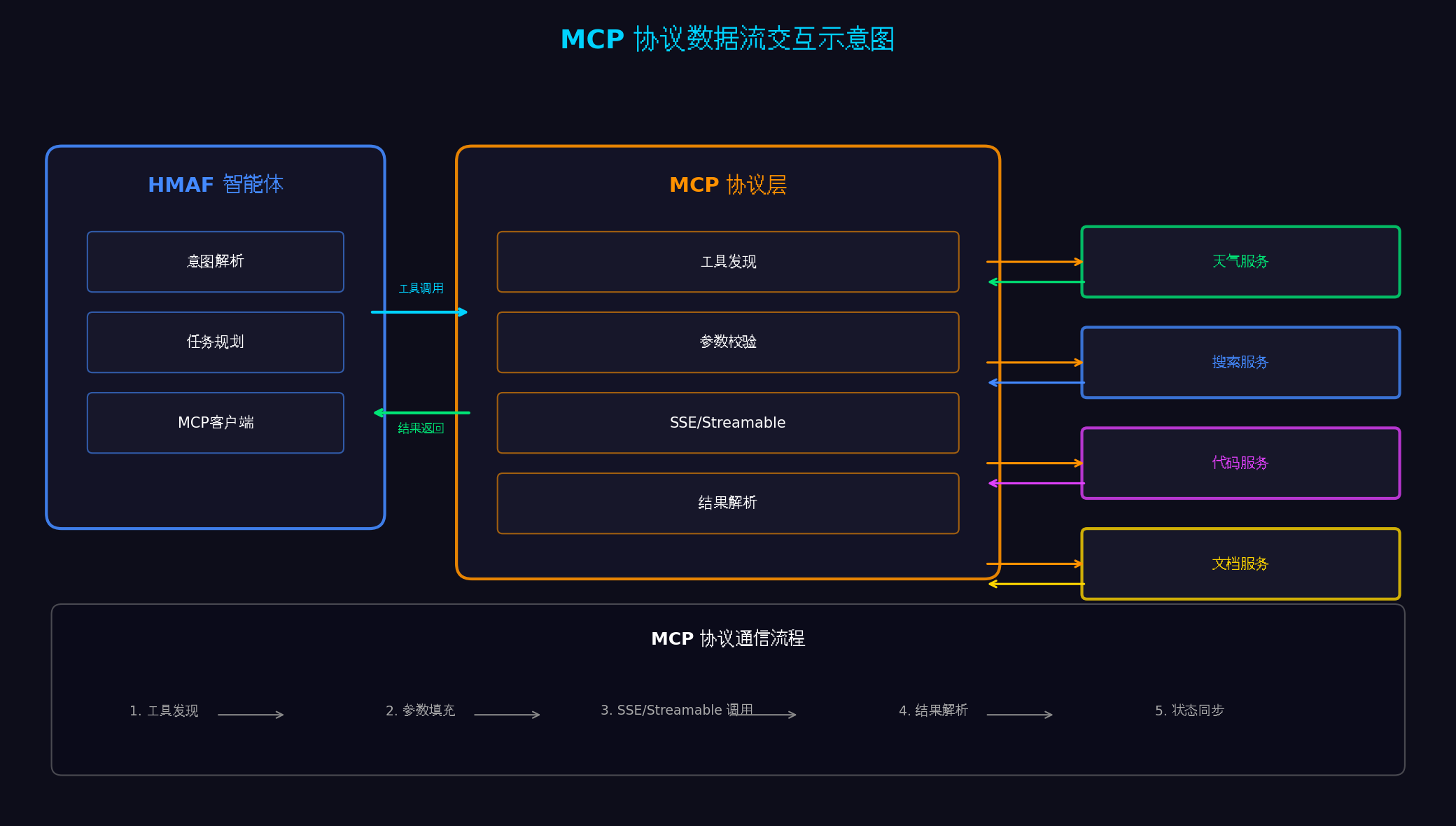
上图展示了MCP协议的完整数据流:
- 左侧:HMAF智能体(意图解析、任务规划、MCP客户端)
- 中间:MCP协议层(工具发现、参数校验、SSE/Streamable通信、结果解析)
- 右侧:多个MCP Server(天气、搜索、代码、文档服务)
- 底部:五步通信流程(工具发现→参数填充→SSE调用→结果解析→状态同步)
八、总结与展望
本文基于HarmonyOS 6(API 23)的HMAF框架与MCP协议,完整实战了一款面向PC端的多智能体工作流协同平台。核心创新点总结:
-
MCP协议标准化集成:通过HMAF内置的MCP客户端适配层,统一接入天气、搜索、代码、文档等第三方服务,实现"一次适配,多处复用"
-
多智能体工作流编排:可视化拖拽构建复杂工作流,支持串行、并行、条件分支三种执行模式,通过中央协调器实现智能体间的任务分发与结果聚合
-
悬浮导航智能体切换:将
HdsTabs改造为智能体切换器,支持单击切换、长按展开工具、双击执行工作流三种交互方式 -
沉浸光效状态反馈:工作流执行状态实时映射为系统光效,五种状态对应五种色彩心理学配色,实现"状态即氛围"
-
PC三栏布局:左侧工具面板 + 中间工作流画布 + 右侧智能体对话面板,充分利用PC大屏优势
未来扩展方向:
- 分布式智能体协同:通过NearLink 2.0实现手机、PC、平板多设备智能体协同,手机负责感知、PC负责计算、平板负责展示
- 鸿蒙PC专属优化:利用PC键盘快捷键、鼠标右键菜单、多显示器扩展等桌面特性
- MCP生态扩展:接入更多第三方MCP服务(如数据库、CRM、ERP等),构建企业级智能体平台
- AI自动生成工作流:基于自然语言描述,自动生成可视化工作流并执行
转载自:https://blog.csdn.net/u014727709/article/details/162385824
欢迎 👍点赞✍评论⭐收藏,欢迎指正
小龙虾开发者社区是 CSDN 旗下专注 OpenClaw 生态的官方阵地,聚焦技能开发、插件实践与部署教程,为开发者提供可直接落地的方案、工具与交流平台,助力高效构建与落地 AI 应用
更多推荐

 2
2 0
0- 0


 已为社区贡献4条内容

所有评论(0)