10 lines of Python code to upload a video to TikTok, Instagram, Twitter
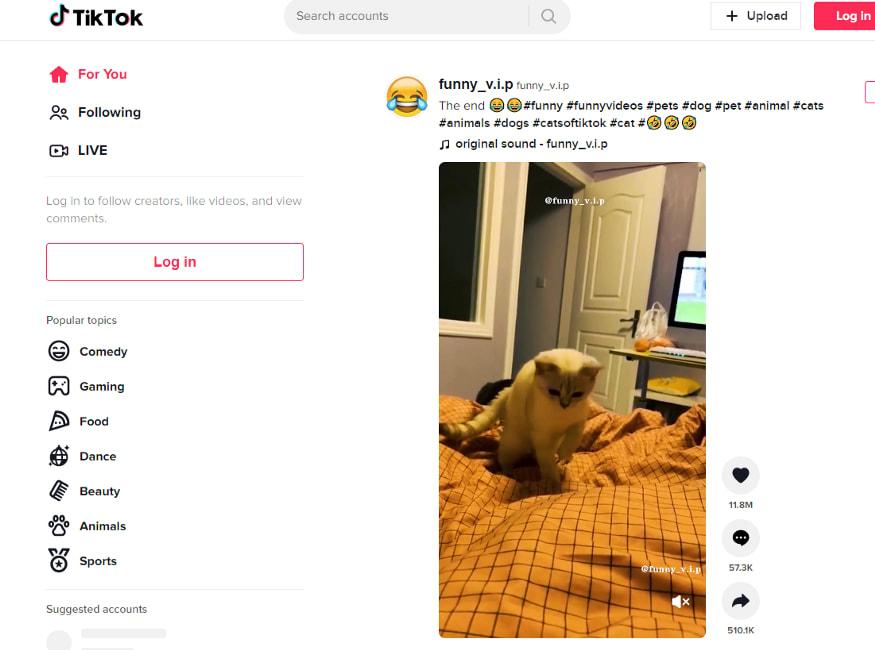
First, let's look at the running video.
upload video to Tiktok, Instagram, Twitter
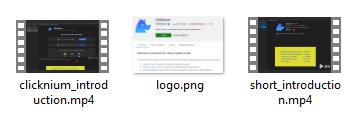
Material Prepared
An mp4 video file, because twitter has a limit on the length of uploaded videos, a shortened video file has been prepared.
A cover image for Instagram, TikTok uses the first frame of the video as cover.
Run Python Code
- follow clicknium getting started to set up develop environment.
- clone sample repo.
git clone https://github.com/automation9417/automation-samples.git
Enter fullscreen mode Exit fullscreen mode
- open the folder 'UploadVideo' in Visual Studio Code.
- open
sample.pyin Visual Studio Code. - open the chrome browser (guarantee that there is only one chrome window, explained later), open 3 tabs respectively, open and login TikTok, Twitter and Instagram.
- press
F5to debug the sample or pressCTRL+F5to run sample. The video that comes with the sample will be uploaded, and you can also modify code to your own video content:
caption = 'Clicknium introduction'
cover_image = os.path.join(os.getcwd(), "media", "logo.png")
video_file = os.path.join(os.getcwd(), "media", "clicknium_introduction.mp4")
upload_tiktok.upload(caption, video_file)
short_video_file = os.path.join(os.getcwd(), "media", "short_introduction.mp4")
upload_twitter.upload(caption, short_video_file)
upload_instagram.upload(caption, cover_image, video_file)
Enter fullscreen mode Exit fullscreen mode
Implementation
Here is an example of uploading a video to Instagram, uploading a video to TikTok and Twitter is a similar process.
- Get the open browser tab by attaching the browser, and then navigate to the Instagram Home page.
tab = cc.chrome.attach_by_title_url(url="https://*instagram.com/*")
tab.goto("https://www.instagram.com/")
Enter fullscreen mode Exit fullscreen mode
- Click the 'add post' button, all web page elements here are recorded by Clicknium Recorder.
tab.find_element(locator.chrome.instagram.svg_add_post).click()
Enter fullscreen mode Exit fullscreen mode
- Click the 'Select from computer' button to pop up a file selection dialog box. Due to browser security restrictions, click here by simulating a mouse.
tab.find_element(locator.chrome.instagram.button_select_file).click(by='mouse-emulation')
Enter fullscreen mode Exit fullscreen mode
- Using Clicknium desktop automation to select video file and click open button.
ui(locator.chrome.edit_file).set_text(video_file, by='set-text')
ui(locator.chrome.button_open).click(by='control-invocation')
Enter fullscreen mode Exit fullscreen mode
A special note here is that I changed the recorded locator 'edit_file' and 'button_open':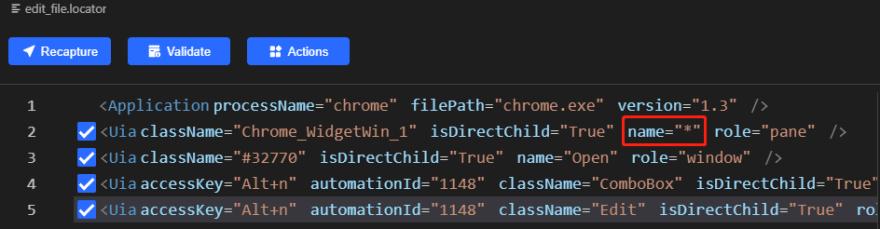
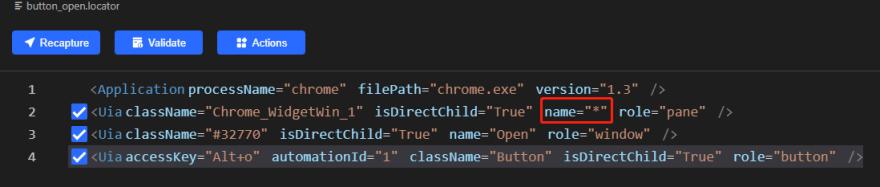
Changed the window matching Name to the wildcard *, because uploading videos to TikTok and Twitter also requires the operation of the file selection dialog. In order to avoid repeated recording, the wildcard is used to match the window to achieve reuse. Therefore, the previous steps require only one Chrome browser window to ensure that the window can be correctly matched.
- Click the 'next' button, then select the cover image, the code is similar to the above.
- Enter the text you want to send, then click 'Share' button.
tab.find_element(locator.chrome.instagram.textarea).set_text(caption)
tab.find_element(locator.chrome.instagram.button_share).click()
Enter fullscreen mode Exit fullscreen mode
- Wait for the upload to succeed, the time required varies according to the size of the video.
tab.wait_appear(locator.chrome.instagram.h2_yourposthasbeenshared, wait_timeout=120)
Enter fullscreen mode Exit fullscreen mode
Uploading a video to Instagram requires a few more steps to upload a cover image. The following is the complete code for uploading a video to Twitter. It only takes 9 lines of code.
tab = cc.chrome.attach_by_title_url(url="https://*twitter.com/*")
tab.goto("https://twitter.com/compose/tweet")
tab.find_element(locator.chrome.twitter.div).set_focus()
cc.send_text(tweet)
tab.find_element(locator.chrome.twitter.svg).click()
ui(locator.chrome.edit_file).set_text(video_file, by='set-text')
ui(locator.chrome.button_open).click(by='control-invocation')
tab.wait_appear(locator.chrome.twitter.video)
tab.find_element(locator.chrome.twitter.span_tweet).click()
Enter fullscreen mode Exit fullscreen mode
You are welcome to comment on the needs of uploading videos to other video platforms, and I can provide more sample code.

Python社区为您提供最前沿的新闻资讯和知识内容
更多推荐

 0
0 0
0- 0


 已为社区贡献126445条内容

所有评论(0)