
Docker&Containerd对接Harbor仓库HTTPS协议配置
引入
随着企业容器化部署的普及,Harbor 作为主流的私有镜像仓库,已成为 Docker、Containerd 及 K8S 生态中镜像存储与分发的核心载体。但在实际运维中,多数容器运维工程师及 K8S 初学者会面临一个关键痛点:若采用 HTTP 协议访问 Harbor,镜像传输过程中易出现数据泄露、被篡改的风险,且主流操作系统及容器引擎默认禁用非加密的镜像仓库访问;而一旦启用 HTTPS,又会卡在多组件对接的配置细节上 —— 比如 Docker 证书挂载路径错误、Containerd 镜像仓库配置格式不兼容、K8S 拉取镜像时 Secret 证书失效等问题,导致镜像拉取失败,影响业务部署进度。
为解决这一痛点,本文聚焦 “实战落地”,针对 Docker 28.0.x、Containerd 2.1.x 及 K8S 1.32+ 三个核心组件,与Harbor2.13.1版本详细拆解从 Harbor 仓库 HTTPS 证书配置,到各组件对接访问的全流程,同时提供常见报错的排查方案,帮助目标读者快速实现安全、稳定的 Harbor 仓库 HTTPS 访问。
一、部署Harbor
1. 下载离线offline包
2. 配置Harbor
# 解压压缩包到指定目录
[root@cfc ~]# tar xf harbor-offline-installer-v2.13.1.tgz -C /usr/local/
[root@cfc ~]# cd /usr/local/harbor/
[root@cfc /usr/local/harbor]# ll
total 650928
-rw-r--r-- 1 root root     11347 May 22  2025 LICENSE
drwxr-xr-x 5 root root      4096 Nov 24 14:43 certs/
drwxr-xr-x 3 root root      4096 Nov 24 14:38 common/
-rw-r--r-- 1 root root      3646 May 22  2025 common.sh
-rw-r--r-- 1 root root      5960 Nov 24 14:49 docker-compose.yml
-rw-r--r-- 1 root root 666471629 May 22  2025 harbor.v2.13.1.tar.gz
-rw-r--r-- 1 root root     14765 Nov 24 14:48 harbor.yml
-rw-r--r-- 1 root root     14688 May 22  2025 harbor.yml.tmpl
-rwxr-xr-x 1 root root      1975 Nov 24 14:37 install.sh*
-rwxr-xr-x 1 root root      2211 May 22  2025 prepare*
# 修改配置文件
[root@cfc ~]# cp /usr/local/harbor/harbor.yml{.tmpl,}
# 主要配置如下
hostname: harbor10.vamos.com

# 注释HTTP协议,打开HTTPS
# http related config
#http:
# port for http, default is 80. If https enabled, this port will redirect to https port
#  port: 80

# https related config
https:
  # https port for harbor, default is 443
  port: 443
  # The path of cert and key files for nginx
  certificate: /usr/local/harbor/certs/harbor.online.com.cert
  private_key: /usr/local/harbor/certs/harbor.online.com.key
  # enable strong ssl ciphers (default: false)
  # strong_ssl_ciphers: false
.....
external_url: https://harbor.online.com
# 登录密码
harbor_admin_password: 1

# harbor数据存储目录
data_volume: /data/harbor
3. 启动前准备
配置HTTPS访问的方式有两种,第一种是购买权威的CA证书进行配置。第二种是可以使用openssl自建证书,这里本博文采用第二种自建证书的方式,如果有权威CA证书,直接放在指定目录即可。
# 保证数据目录存在
[root@cfc /usr/local/harbor]# ll /data/harbor/
# 创建自建证书使用HTTPS访问
[root@cfc /usr/local/harbor]# mkdir certs
[root@cfc /usr/local/harbor]# cd certs/
[root@cfc /usr/local/harbor/certs]# pwd
/usr/local/harbor/certs
# 生成一个CA证书私钥。
openssl genrsa -out ca.key 4096
# 生成CA证书。
openssl req -x509 -new -nodes -sha512 -days 3650 \
 -subj "/C=CN/ST=Beijing/L=Beijing/O=person/OU=Personal/CN=MyPersonal Root CA" \
 -key ca.key \
 -out ca.crt
# 生成服务器证书
# 生成私钥。
openssl genrsa -out harbor.online.com.key 4096
# 生成证书签名请求(CSR)。
openssl req -sha512 -new \
    -subj "/C=CN/ST=Beijing/L=Beijing/O=person/OU=Personal/CN=harbor.online.com" \
    -key harbor.online.com.key \
    -out harbor.online.com.csr
# 生成一个x509 v3扩展文件。
cat > v3.ext <<-EOF
authorityKeyIdentifier=keyid,issuer
basicConstraints=CA:FALSE
keyUsage = digitalSignature, nonRepudiation, keyEncipherment, dataEncipherment
extendedKeyUsage = serverAuth
subjectAltName = @alt_names

[alt_names]
DNS.1=harbor.online.com
DNS.2=harbor.online
DNS.3=cfc
EOF
# 使用该文件生成你的Harbor主机的证书。v3.ext
openssl x509 -req -sha512 -days 3650 \
    -extfile v3.ext \
    -CA ca.crt -CAkey ca.key -CAcreateserial \
    -in harbor.online.com.csr \
    -out harbor.online.com.crt
# 转换为 ,供 Docker 使用。yourdomain.com.crtyourdomain.com.cert
# Docker 守护进程将文件解释为 CA 证书,文件将文件解释为客户端证书。.crt.cert
openssl x509 -inform PEM -in harbor.online.com.crt -out harbor.online.com.cert
# 将服务器证书、密钥和CA文件复制到Harbor主机的Docker证书文件夹中。你必须先创建相应的文件夹。
[root@cfc /usr/local/harbor/certs]# mkdir -p /etc/docker/certs.d/harbor.online.com/
cp harbor.online.com.cert /etc/docker/certs.d/harbor.online.com/
cp harbor.online.com.key /etc/docker/certs.d/harbor.online.com/
cp ca.crt /etc/docker/certs.d/harbor.online.com/
# 重启 Docker 引擎。
systemctl restart docker
# 证书目录结构展示
[root@cfc /usr/local/harbor/certs]# tree .
.
├── ca.crt
├── ca.key
├── ca.srl
├── harbor.online.com.cert
├── harbor.online.com.crt
├── harbor.online.com.csr
├── harbor.online.com.key
└── v3.ext

1 directory, 8 files
[root@cfc /usr/local/harbor/certs]#
[root@cfc /usr/local/harbor/certs]# ll /etc/docker/certs.d/harbor.online.com/
total 12
-rw-r--r-- 1 root root 2061 Nov 25 14:00 ca.crt
-rw-r--r-- 1 root root 2167 Nov 25 14:00 harbor.online.com.cert
-rw------- 1 root root 3268 Nov 25 14:00 harbor.online.com.key

# Windows修改hosts解析
找到此目录
C:\Windows\System32\drivers\etc
修改文件hosts,在文件末尾追加一行
10.0.0.10 harbor.online.com
# 注意这个IP要是你harbor所在节点的IP。

# 配置本地服务器的/etc/hosts文件解析
[root@cfc /usr/local/harbor]# cat /etc/hosts
10.0.0.10 harbor.online.com
# 如果你把默认端口443映射到另一个端口,可以创建文件夹,或者。
nginx/etc/docker/certs.d/yourdomain.com:port/etc/docker/certs.d/harbor_IP:port
4. 启动Harbor
在harbor的程序目录执行安装脚本
[root@cfc /usr/local/harbor]# ./install.sh
.....
[Step 5]: starting Harbor ...
[+] Running 10/10
 ✔ Network harbor_harbor        Created                                                                                                                                     0.1s
 ✔ Container harbor-log         Started                                                                                                                                     0.5s
 ✔ Container harbor-db          Started                                                                                                                                     1.2s
 ✔ Container redis              Started                                                                                                                                     1.2s
 ✔ Container registry           Started                                                                                                                                     1.2s
 ✔ Container harbor-portal      Started                                                                                                                                     1.3s
 ✔ Container registryctl        Started                                                                                                                                     1.3s
 ✔ Container harbor-core        Started                                                                                                                                     1.8s
 ✔ Container nginx              Started                                                                                                                                     2.3s
 ✔ Container harbor-jobservice  Started                                                                                                                                     2.1s
✔ ----Harbor has been installed and started successfully.----
# 检查一下
[root@cfc /usr/local/harbor]# ./prepare
prepare base dir is set to /usr/local/harbor
Clearing the configuration file: /config/registry/passwd
Clearing the configuration file: /config/registry/config.yml
Clearing the configuration file: /config/portal/nginx.conf
Clearing the configuration file: /config/nginx/nginx.conf
Clearing the configuration file: /config/registryctl/env
Clearing the configuration file: /config/registryctl/config.yml
Clearing the configuration file: /config/log/logrotate.conf
Clearing the configuration file: /config/log/rsyslog_docker.conf
Clearing the configuration file: /config/db/env
Clearing the configuration file: /config/jobservice/env
Clearing the configuration file: /config/jobservice/config.yml
Clearing the configuration file: /config/core/app.conf
Clearing the configuration file: /config/core/env
Generated configuration file: /config/portal/nginx.conf
Generated configuration file: /config/log/logrotate.conf
Generated configuration file: /config/log/rsyslog_docker.conf
Generated configuration file: /config/nginx/nginx.conf
Generated configuration file: /config/core/env
Generated configuration file: /config/core/app.conf
Generated configuration file: /config/registry/config.yml
Generated configuration file: /config/registryctl/env
Generated configuration file: /config/registryctl/config.yml
Generated configuration file: /config/db/env
Generated configuration file: /config/jobservice/env
Generated configuration file: /config/jobservice/config.yml
copy /data/secret/tls/harbor_internal_ca.crt to shared trust ca dir as name harbor_internal_ca.crt ...
ca file /hostfs/data/secret/tls/harbor_internal_ca.crt is not exist
copy  to shared trust ca dir as name storage_ca_bundle.crt ...
copy None to shared trust ca dir as name redis_tls_ca.crt ...
loaded secret from file: /data/secret/keys/secretkey
Generated configuration file: /compose_location/docker-compose.yml
Clean up the input dir
# 查看容器状态
[root@cfc /usr/local/harbor]# docker ps -a
CONTAINER ID   IMAGE                                 COMMAND                  CREATED          STATUS                    PORTS                                                                                NAMES
cd38e4220089   goharbor/nginx-photon:v2.13.1         "nginx -g 'daemon of…"   38 seconds ago   Up 35 seconds (healthy)   0.0.0.0:80->8080/tcp, [::]:80->8080/tcp, 0.0.0.0:443->8443/tcp, [::]:443->8443/tcp   nginx
15afa41e2ab1   goharbor/harbor-jobservice:v2.13.1    "/harbor/entrypoint.…"   38 seconds ago   Up 33 seconds (healthy)                                                                                        harbor-jobservice
d52c3398e141   goharbor/harbor-core:v2.13.1          "/harbor/entrypoint.…"   38 seconds ago   Up 36 seconds (healthy)                                                                                        harbor-core
64922a6e5b46   goharbor/harbor-portal:v2.13.1        "nginx -g 'daemon of…"   38 seconds ago   Up 37 seconds (healthy)                                                                                        harbor-portal
394a660617b6   goharbor/redis-photon:v2.13.1         "redis-server /etc/r…"   38 seconds ago   Up 37 seconds (healthy)                                                                                        redis
e6f04dec1234   goharbor/harbor-registryctl:v2.13.1   "/home/harbor/start.…"   38 seconds ago   Up 37 seconds (healthy)                                                                                        registryctl
7ad90b7ec257   goharbor/harbor-db:v2.13.1            "/docker-entrypoint.…"   38 seconds ago   Up 37 seconds (healthy)                                                                                        harbor-db
8fdaf762b698   goharbor/registry-photon:v2.13.1      "/home/harbor/entryp…"   38 seconds ago   Up 37 seconds (healthy)                                                                                        registry
ef092742e46f   goharbor/harbor-log:v2.13.1           "/bin/sh -c /usr/loc…"   38 seconds ago   Up 37 seconds (healthy)   127.0.0.1:1514->10514/tcp                                                            harbor-log
[root@cfc /usr/local/harbor]#
# 查看健康状态
[root@cfc /usr/local/harbor]# curl -k https://harbor.online.com/api/v2.0/health
{"components":[{"name":"core","status":"healthy"},{"name":"database","status":"healthy"},{"name":"jobservice","status":"healthy"},{"name":"portal","status":"healthy"},{"name":"redis","status":"healthy"},{"name":"registry","status":"healthy"},{"name":"registryctl","status":"healthy"}],"status":"healthy"}
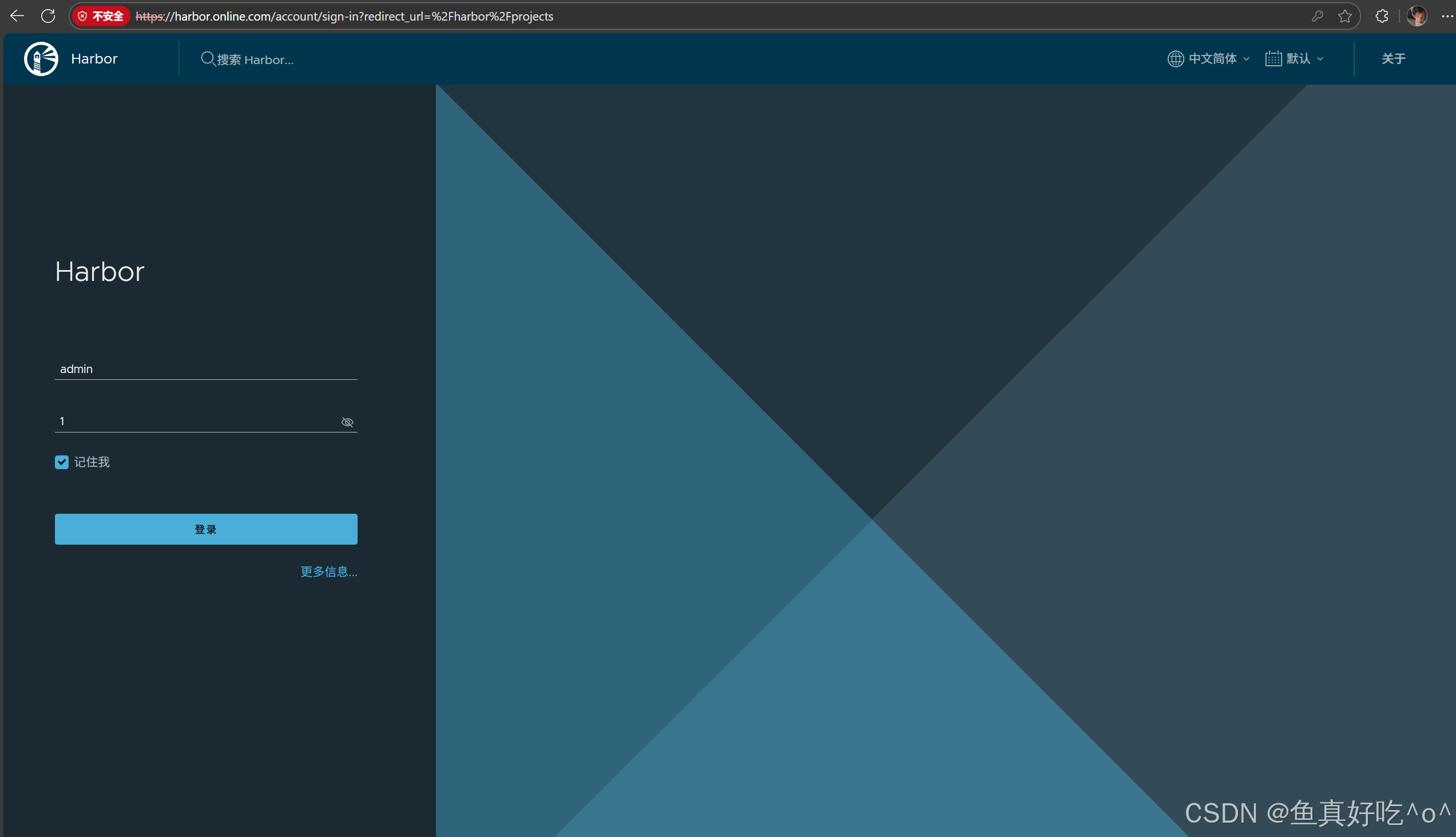
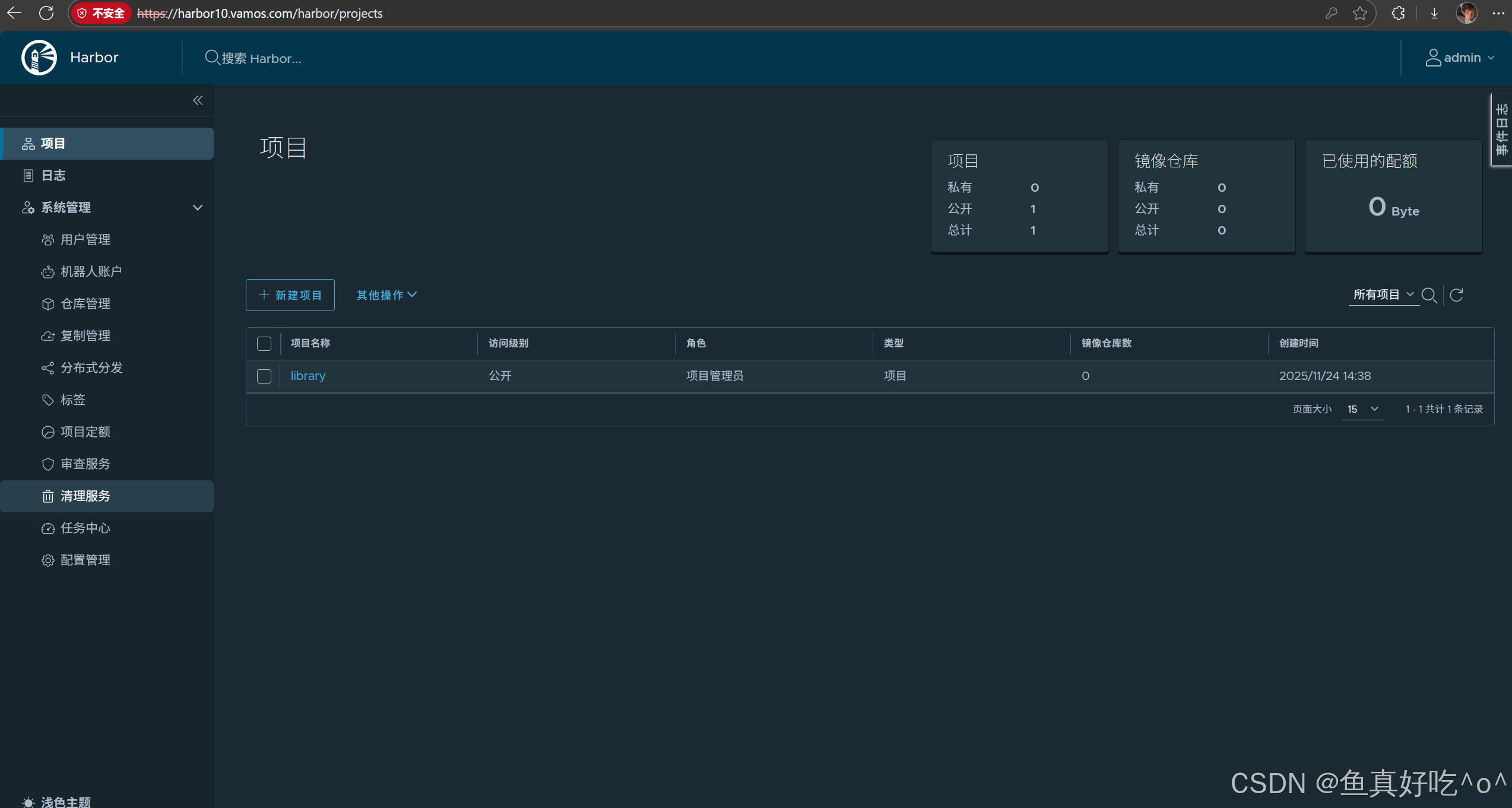
5.访问Harbor
用户:admin
密码:1
(如果跟我的harbor的配置文件一样的话)
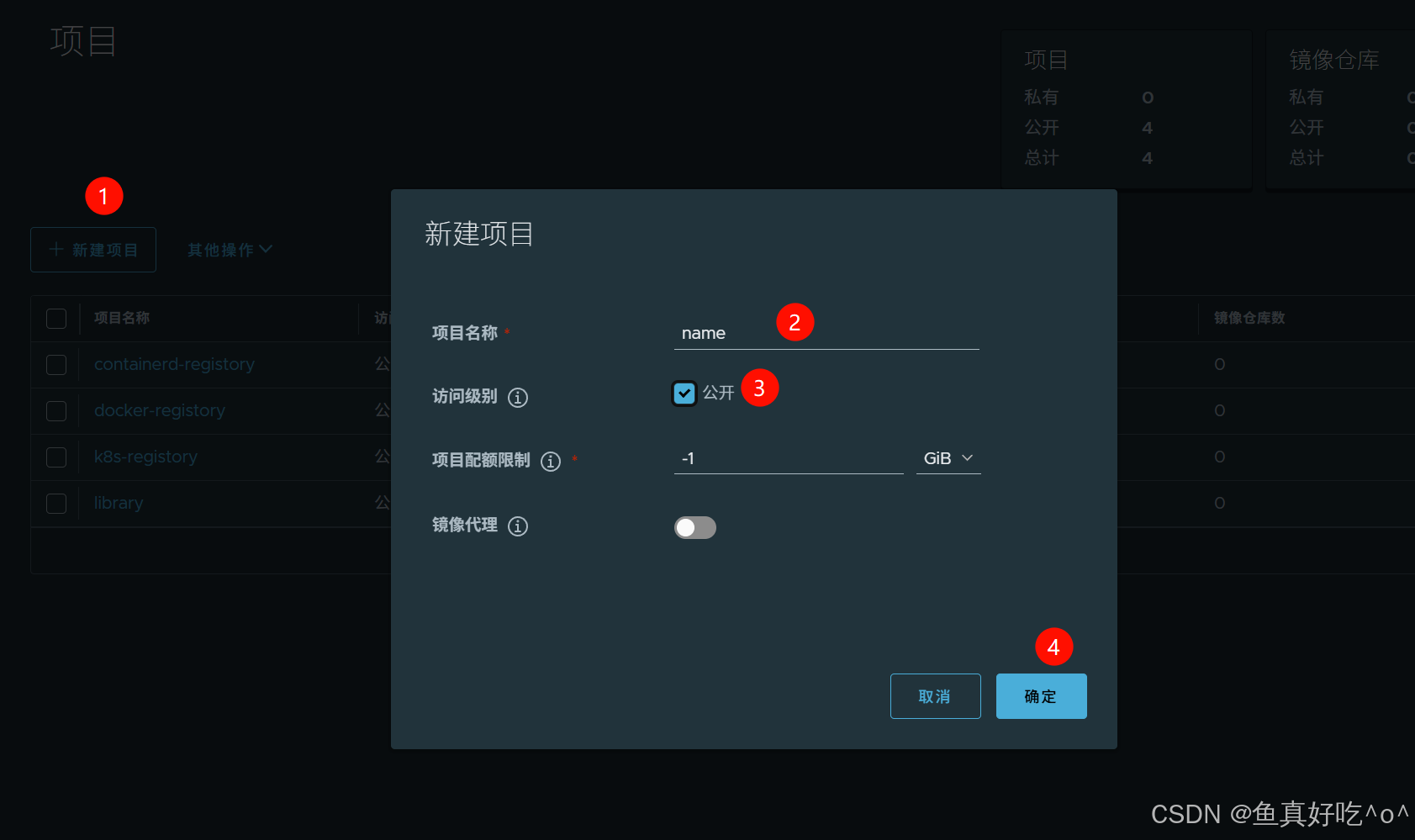
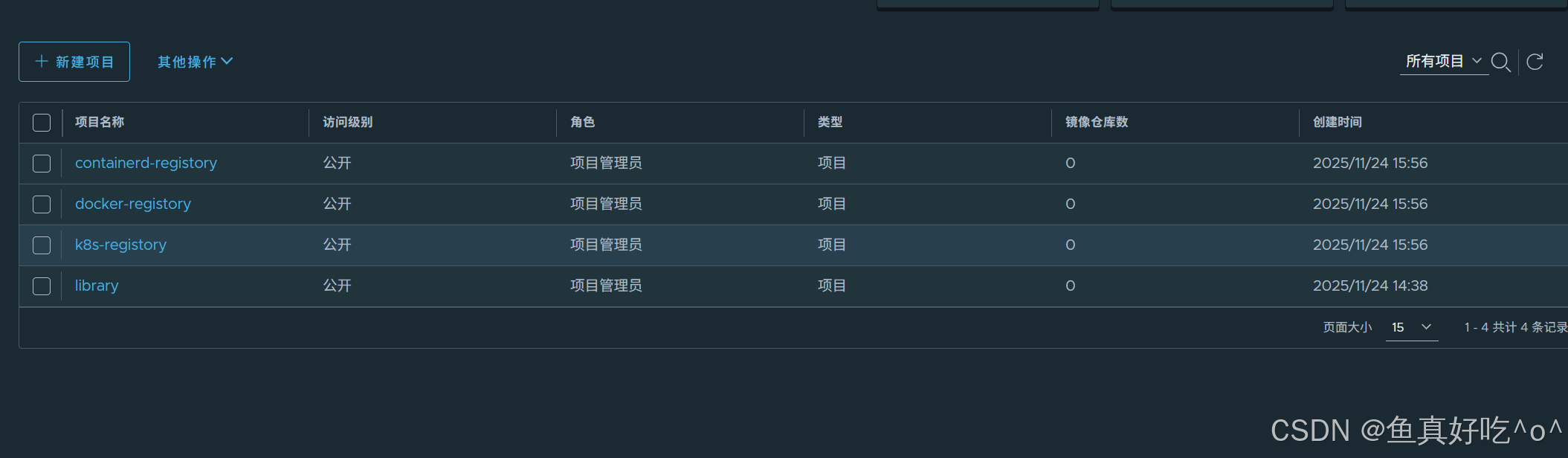
6. 创建项目目录
二、docker接入Harbor仓库
TIPS: 请确保docker客户端存在证书文件
# 客户端创建证书目录
# 将服务器证书、密钥和CA文件复制到Harbor主机的Docker证书文件夹中。你必须先创建相应的文件夹。
[root@cfc /usr/local/harbor/certs]# mkdir -p /etc/docker/certs.d/harbor.online.com/
cp harbor.online.com.cert /etc/docker/certs.d/harbor.online.com/
cp harbor.online.com.key /etc/docker/certs.d/harbor.online.com/
cp ca.crt /etc/docker/certs.d/harbor.online.com/
# 请确保你的docker客户端证书目录存在这些证书文件。
1. docker登录仓库
[root@cfc /usr/local/harbor]# docker login -uadmin -p1 harbor.online.com
WARNING! Using --password via the CLI is insecure. Use --password-stdin.

WARNING! Your credentials are stored unencrypted in '/root/.docker/config.json'.
Configure a credential helper to remove this warning. See
https://docs.docker.com/go/credential-store/

Login Succeeded
2. 推送镜像到harbor
这里有提示
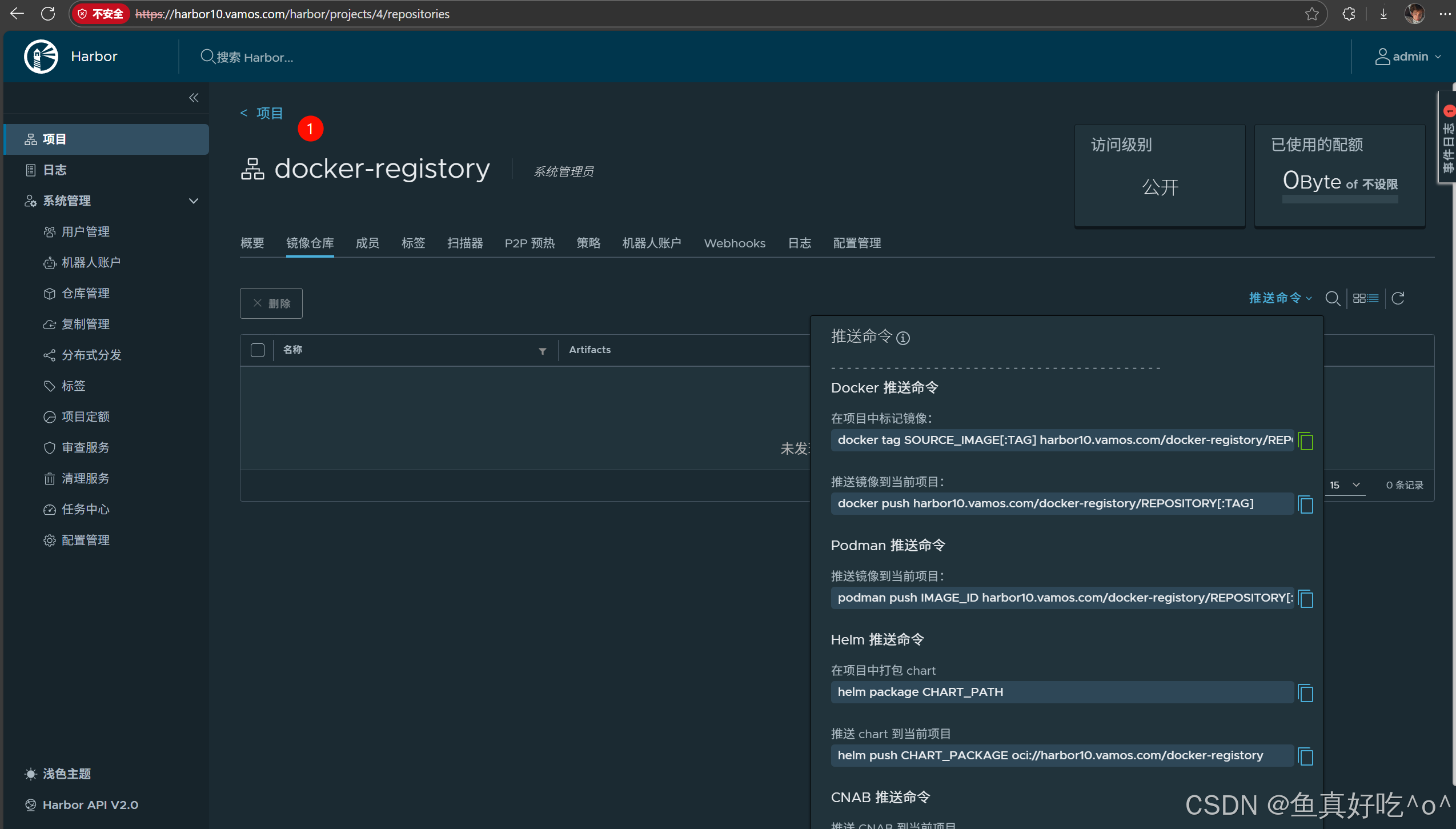
[root@cfc ~]# docker images
REPOSITORY                      TAG       IMAGE ID       CREATED        SIZE
myweb                           v5        948fe6d77401   2 weeks ago    43.2MB
myweb                           v4        0174571871f4   2 weeks ago    43.2MB
myweb                           v3        e895c751e3b5   2 weeks ago    43.2MB
myweb                           v2        08e9b034c1bc   2 weeks ago    43.2MB
myweb                           v1        747b42d457cf   2 weeks ago    43.2MB
goharbor/harbor-exporter        v2.13.1   8323e56fa034   6 months ago   127MB
goharbor/redis-photon           v2.13.1   27079bef6812   6 months ago   166MB
goharbor/trivy-adapter-photon   v2.13.1   9d2de710e1bc   6 months ago   387MB
goharbor/harbor-registryctl     v2.13.1   1ca7f7dffcb8   6 months ago   162MB
goharbor/registry-photon        v2.13.1   251eb949b8fc   6 months ago   85.9MB
goharbor/nginx-photon           v2.13.1   3a0ac2771512   6 months ago   151MB
goharbor/harbor-log             v2.13.1   49f7cdb104f3   6 months ago   164MB
goharbor/harbor-jobservice      v2.13.1   b964386ce624   6 months ago   174MB
goharbor/harbor-core            v2.13.1   701038c9f9cf   6 months ago   197MB
goharbor/harbor-portal          v2.13.1   254c145df624   6 months ago   159MB
goharbor/harbor-db              v2.13.1   8645cd204f13   6 months ago   273MB
goharbor/prepare                v2.13.1   eeb5b545352d   6 months ago   208MB
[root@cfc ~]# docker tag myweb:v1 harbor.online.com/docker-registory/web:v1
[root@cfc ~]# docker push harbor.online.com/docker-registory/web:v1
The push refers to repository [harbor.online.com/docker-registory/web]
cb304388cde0: Pushed
b0f60355fd52: Pushed
027907faf592: Pushed
11134cc97d7f: Pushed
f7a5847cdca9: Pushed
aec1e8cf14f5: Pushed
717b3a077b07: Pushed
2ff96b2e5450: Pushed
63ca1fbb43ae: Pushed
v1: digest: sha256:f901ed8d19aa892f6a1b627fd1ffd1f36d9d4a17a604bd4e2a8d795b9ae82f52 size: 2196
[root@cfc ~]#
3. 在Harbor页面查看
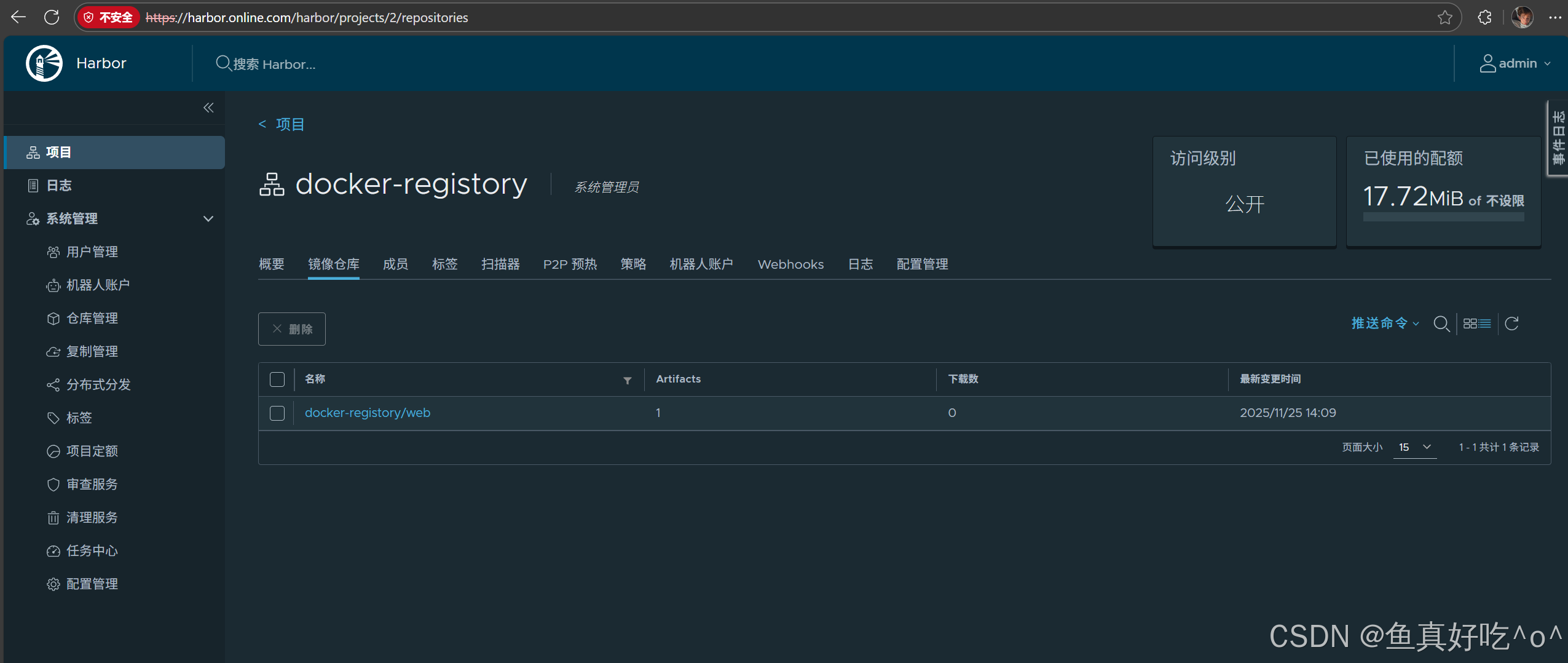
拉取镜像测试
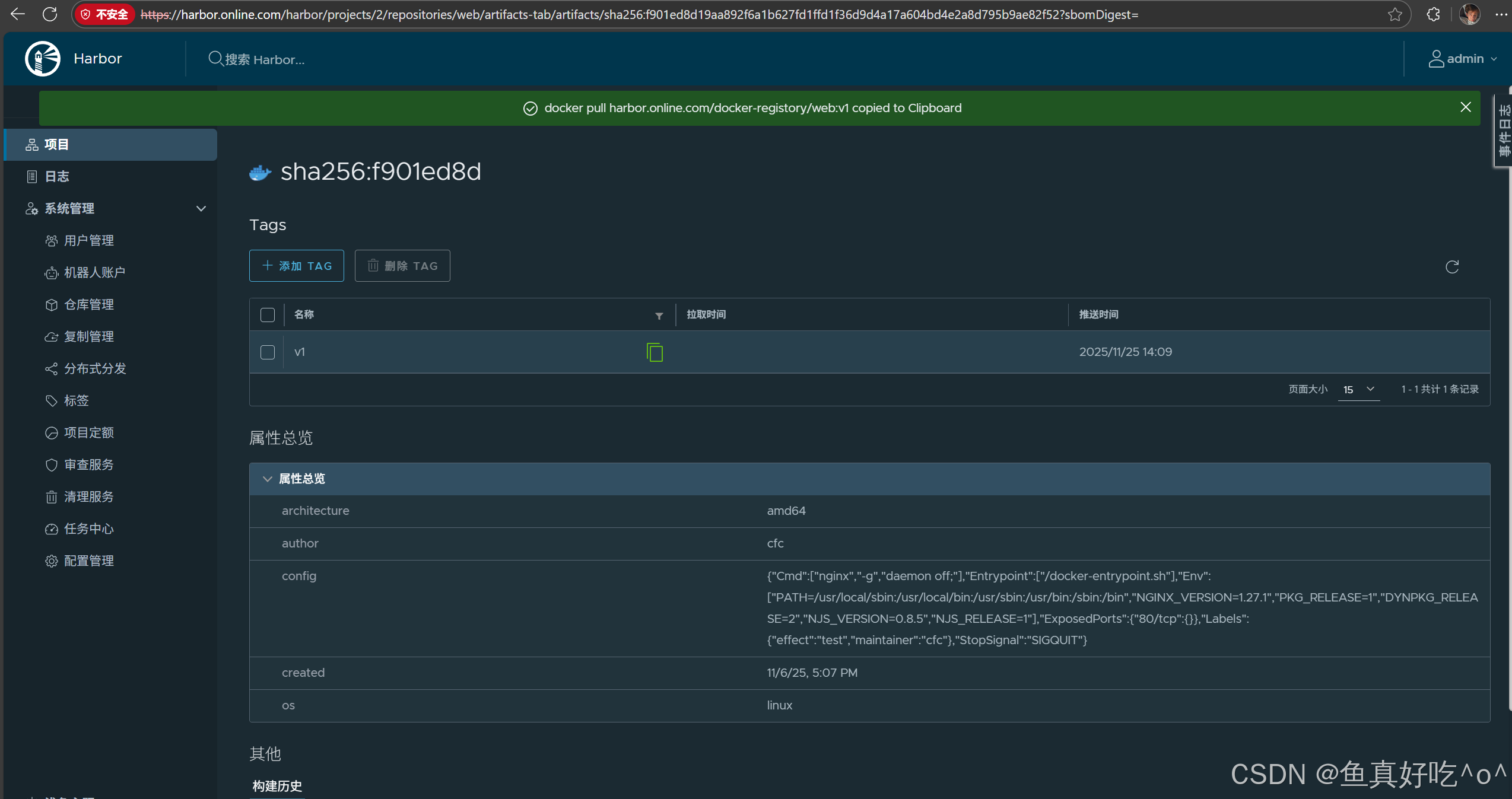
[root@cfc ~]# docker pull harbor.online.com/docker-registory/web:v1
v1: Pulling from docker-registory/web
Digest: sha256:f901ed8d19aa892f6a1b627fd1ffd1f36d9d4a17a604bd4e2a8d795b9ae82f52
Status: Image is up to date for harbor.online.com/docker-registory/web:v1
harbor.online.com/docker-registory/web:v1
[root@cfc ~]# docker images
REPOSITORY                               TAG       IMAGE ID       CREATED        SIZE
myweb                                    v5        948fe6d77401   2 weeks ago    43.2MB
myweb                                    v4        0174571871f4   2 weeks ago    43.2MB
myweb                                    v3        e895c751e3b5   2 weeks ago    43.2MB
myweb                                    v2        08e9b034c1bc   2 weeks ago    43.2MB
harbor.online.com/docker-registory/web   v1        747b42d457cf   2 weeks ago    43.2MB
myweb                                    v1        747b42d457cf   2 weeks ago    43.2MB
[root@cfc ~]# docker run -it --name c1 -d harbor.online.com/docker-registory/web:v1
6e2cb636af7acecd1299b93e6cd3516b14079acdb75ca1351122d0906d446d5a
[root@cfc ~]# docker ps -l
CONTAINER ID IMAGE COMMAND CREATED STATUS PORTS NAMES
6e2cb636af7a harbor.online.com/docker-registory/web:v1 "/docker-entrypoint.…" 6 seconds ago Up 5 seconds 80/tcp c1
[root@cfc ~]#
[root@cfc ~]# docker exec -it c1 sh
/ # curl
curl: try 'curl --help' or 'curl --manual' for more information
/ # curl localhost
vamos | This version is v1 | v111111
/ # exit三、Containerd接入Harbor仓库
1. 复制ca证书
mkdir -p /etc/containerd/certs.d/harbor.online.com
cp /usr/local/harbor/certs/ca.crt /etc/containerd/certs.d/harbor.online.com/ca.crt
[root@cfc /usr/local/harbor/certs]# cp -a harbor.online.com.cert  harbor.online.com.key /etc/containerd/certs.d/harbor.online.com/

#
cat > /etc/containerd/certs.d/harbor.online.com/hosts.toml <<EOF
server = "https://harbor.online.com"

[host."https://harbor.online.com"]
capabilities = ["pull", "resolve", "push"]
ca = "/etc/containerd/certs.d/harbor.online.com/ca.crt"
EOF
systemctl restart containerd

[root@cfc /usr/local/harbor/certs]# ll /etc/containerd/certs.d/harbor.online.com/
total 16
-rw-r--r-- 1 root root 2061 Nov 25 14:37 ca.crt
-rw-r--r-- 1 root root 2167 Nov 25 13:44 harbor.online.com.cert
-rw------- 1 root root 3268 Nov 25 13:43 harbor.online.com.key
-rw-r--r-- 1 root root  172 Nov 25 15:32 hosts.toml
[root@cfc /usr/local/harbor/certs]#
2. 添加证书校验路径
[root@cfc /usr/local/harbor/certs]# containerd config dump | grep -A 5 "registry]"
    [plugins.'io.containerd.cri.v1.images'.registry]
      config_path = '/etc/containerd/certs.d'

    [plugins.'io.containerd.cri.v1.images'.image_decryption]
      key_model = 'node'

[root@cfc ~]# cd /usr/local/harbor/certs/
[root@cfc /usr/local/harbor/certs]# cp ca.crt /usr/local/share/ca-certificates/
[root@cfc /usr/local/harbor/certs]# /usr/sbin/update-ca-certificates
Updating certificates in /etc/ssl/certs...
rehash: warning: skipping ca-certificates.crt, it does not contain exactly one certificate or CRL
1 added, 0 removed; done.
Running hooks in /etc/ca-certificates/update.d...
Processing triggers for ca-certificates-java (20240118) ...
Adding debian:ca.pem
done.
done.
3. 拉取&推送镜像
[root@cfc /usr/local/harbor/certs]# ctr images pull harbor.online.com/docker-registory/web:v1
harbor.online.com/docker registory/web:v        saved
└──manifest (f901ed8d19aa)                      already exists
   └──config (747b42d457cf)                     already exists
application/vnd.docker.distribution.manifest.v2+json sha256:f901ed8d19aa892f6a1b627fd1ffd1f36d9d4a17a604bd4e2a8d795b9ae82f52
Pulling from OCI Registry (harbor.online.com/docker-registory/web:v1)   elapsed: 0.1 s  total:  14.7 K  (165.4 KiB/s)
[root@cfc /usr/local/harbor/certs]# ctr image ls
REF                                       TYPE                                                 DIGEST                                                                  SIZE     PLATFORMS   LABELS
harbor.online.com/docker-registory/web:v1 application/vnd.docker.distribution.manifest.v2+json sha256:f901ed8d19aa892f6a1b627fd1ffd1f36d9d4a17a604bd4e2a8d795b9ae82f52 17.7 MiB linux/amd64 -
[root@cfc /usr/local/harbor/certs]#
[root@cfc /usr/local/harbor/certs]# ctr images push --user admin:1 harbor.online.com/docker-registory/nginx:v1
harbor.online.com/docker registory/nginx pushed content
└──manifest (127262f8c4c7) complete |++++++++++++++++++++++++++++++++++++++|
├──layer (2a0cb278fd9f) complete |++++++++++++++++++++++++++++++++++++++|
├──config (5ef79149e0ec) complete |++++++++++++++++++++++++++++++++++++++|
├──layer (e4fff0779e6d) complete |++++++++++++++++++++++++++++++++++++++|
├──layer (7045d6c32ae2) complete |++++++++++++++++++++++++++++++++++++++|
├──layer (03de31afb035) complete |++++++++++++++++++++++++++++++++++++++|
├──layer (0f17be8dcff2) complete |++++++++++++++++++++++++++++++++++++++|
├──layer (14b7e5e8f394) complete |++++++++++++++++++++++++++++++++++++++|
└──layer (23fa5a7b99a6) complete |++++++++++++++++++++++++++++++++++++++|
application/vnd.docker.distribution.manifest.v2+json sha256:127262f8c4c716652d0e7863bba3b8c45bc9214a57d13786c854272102f7c945
Completed push to OCI Registry (harbor.online.com/docker-registory/nginx:v1) elapsed: 0.4 s total: 67.7 M (156.8 MiB/s)
[root@cfc /usr/local/harbor/certs]# 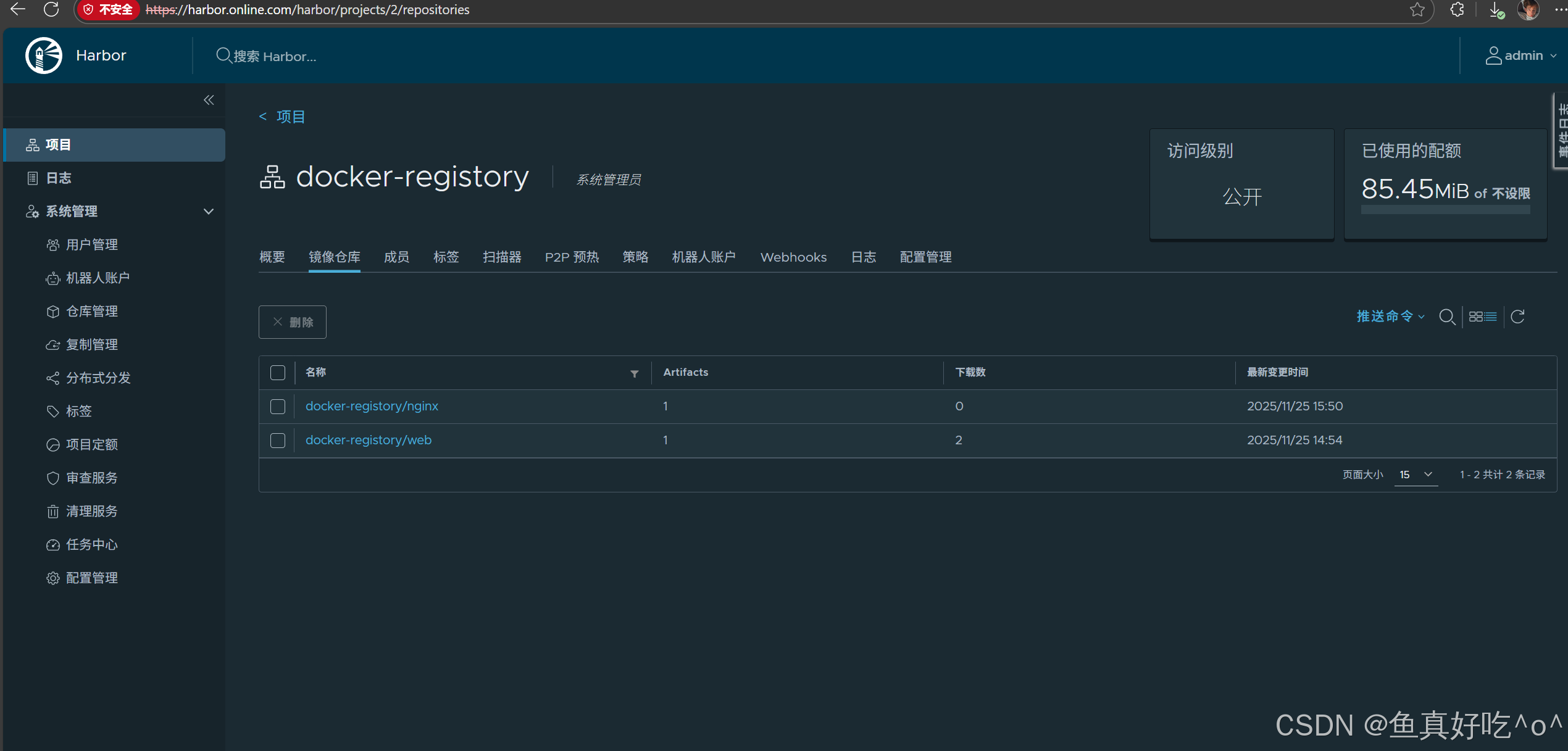
四、containerd和 Docker 的区别
| 操作 | Docker | containerd (ctr) |
|---|---|---|
| 登录 | docker login (保存凭证) | 每次操作都要带 --user 参数 |
| 拉取 | docker pull image | ctr images pull --user user:pass image |
| 推送 | docker push image | ctr images push --user user:pass image |
| 凭证保存 | 保存在 ~/.docker/config.json | 不保存,每次都要输入 |
1.containerd优化方案--->nerdctl
如果想获得 完全像 Docker 一样的体验,推荐安装 nerdctl(containerd 的 Docker 兼容工具):
# 安装 nerdctl
wget https://github.com/containerd/nerdctl/releases/download/v1.7.0/nerdctl-1.7.0-linux-amd64.tar.gz
tar Cxzvvf /usr/local nerdctl-1.7.0-linux-amd64.tar.gz
安装完成之后就完全可以像Docker一样操作了。
配置好证书
然后操作
# 使用方式和 docker 完全一致!
nerdctl login harbor.online.com -u admin -p Harbor12345
nerdctl pull harbor.online.com/library/nginx:latest
nerdctl push harbor.online.com/library/nginx:test
2. 总结
| 需求 | 推荐方案 |
|---|---|
| 临时操作 | 用 ctr images pull/push --user user:pass |
| 长期使用 | 安装 nerdctl,体验和 docker 几乎完全一致 |
| Kubernetes 环境 | containerd 原生支持,无需手动 pull/push |
建议:如果习惯 Docker 命令,直接安装
nerdctl,配置一次就能永久保存凭证,所有命令和docker一样用!
五、K8S案例
针对于K8S来讲,底层运行时使用的时哪一种只需要直接配置即可,这里简单演示一下Docker运行时。
1. 按照上文配置好docker,顺利接入Harbor之后,K8S只需要在pod.spec.image字段,修改为Harbor链接即可。
[root@cfc /usr/local/harbor]# docker login -uadmin -p1 harbor.online.com
WARNING! Using --password via the CLI is insecure. Use --password-stdin.

WARNING! Your credentials are stored unencrypted in '/root/.docker/config.json'.
Configure a credential helper to remove this warning. See
https://docs.docker.com/go/credential-store/

Login Succeeded
[root@master231 pods]# cat 06-pods-harbor-c1.yaml
apiVersion: v1
kind: Pod
metadata:
name: c1-harbor
spec:
containers:
- image: harbor.online.com/docker-registory/web:v1
name: xiuxian
[root@master231 pods]# kubectl create -f 06-pods-harbor-c1.yaml
pod/xiuxian-harbor created
[root@master231 pods]#
[root@master231 pods]# kubectl get pods -o wide
NAME READY STATUS RESTARTS AGE IP NODE NOMINATED NODE READINESS GATES
restartpolicy 0/1 Completed 1 32m 10.100.203.143 worker232 <none> <none>
c1-harbor 1/1 Running 0 5s 10.100.203.146 worker232 <none> <none>
[root@master231 pods]# [root@master231 pods]# curl 10.100.203.146
<!DOCTYPE html>
<html>
<head>
<meta charset="utf-8"/>
<title>yinzhengjie apps v1</title>
<style>
div img {
width: 900px;
height: 600px;
margin: 0;
}
</style>
</head>
<body>
<h1 style="color: green">凡人修仙传 v1 </h1>
<div>
<img src="1.jpg">
<div>
</body>
</html>彩蛋、Harbor高可用案例
可以参考如下作者好久之前的文章~
更多推荐
 38
38 0
0- 0


 已为社区贡献12条内容

所有评论(0)