
Swift学习笔记36-UICollectionView与瀑布信息流练习
重用机制强的部分用UITableView或者UICollectionView
这两种的使用方法都是:
1.直接在需要显示重用部分的页面添加需要继承的协议,然后在Cell类中继承对应的协议并设置需要重用的部分的样式(如长宽等)。
- TableView是UITableViewDelegate, UITableViewDataSource和UITableViewCell。
- CollectionView则是和UICollectionViewCell, UICollectionViewDelegate, UICollectionViewDataSource.
2.同时要添加两个默认实现方法,一个是Cell的创建和设置,另一个是需要重用的次数。
CollectionView其实就是竖着自动排列View
以排列Label标签为例,创建一个Cell,排列标签。
先设置一下ContentViewCell
class CustomCell: UICollectionViewCell {
    override init(frame: CGRect) {
        super.init(frame: frame)
    }

    lazy var titleLabel: UILabel = {
        let titleLabel = UILabel(frame: .init(x: 0, y: 0, width: frame.width, height: frame.height))
        titleLabel.textAlignment = .center
        //等会改一下width试试会发生什么?
        return titleLabel
    }()

    required init?(coder: NSCoder) {
        fatalError("init(coder:) has not been implemented")
    }
}
与TableView不同的是
- CollectionView需要在ViewController页面设置CollectionView的实例collectionView,也就是UICollectionView的矩形区域,包括宽高和大小。同样也要设置该参数的delegate代理和dataSource为自己
- CollectionView是需要注册的,注册就是.register
- 最后记得要把设置好的collectionView添加
- 在默认实现中创建cell
override func viewDidLoad() {
        let layout = UICollectionViewFlowLayout()
        layout.itemSize = CGSize(width: ((self.view.frame.width - 32 - 10 * 2) / 3), height: ((self.view.frame.width - 32 - 10 * 2) / 3))
        let collectionView = UICollectionView(
            frame: CGRect(x: 16, y: 64, width: self.view.frame.width - 32, height: self.view.frame.height - 64),
            collectionViewLayout: layout
        )

        collectionView.delegate = self
        collectionView.dataSource = self
        collectionView.register(ImageCell.self, forCellWithReuseIdentifier: "cell")
        collectionView.alwaysBounceVertical = true
        self.view.addSubview(collectionView)
        super.viewDidLoad()
func collectionView(_ collectionView: UICollectionView, cellForItemAt indexPath: IndexPath) -> UICollectionViewCell {
        let cell = collectionView.dequeueReusableCell(withReuseIdentifier: "cell", for: indexPath) as! ImageCell
        cell.imageView.image = UIImage(named: img_num[indexPath.row])
        return cell
    }
注意:Cell的大小在.itemSize里设置
用indexPath表示排列的Cell下标
单个cell的大小在CollectionView.itemSize里设置,和直接在对应的Cell内部设置有什么不同?
| 特性 | 在 itemSize 中设置 | 在 Cell 内部自适应设置 |
|---|---|---|
| 主导方 | 外部的 Layout(布局管理器) | 内部的 Auto Layout 约束/内容 |
| 尺寸确定时机 | 列表渲染前就已确定 | 列表渲染时动态计算确定 |
| 所有 Cell 大小 | 默认全部一样(除非用代理单独改) | 错落有致,每个都可以不一样 |
| 滚动性能 | 极高(顺畅丝滑) | 中等(如果约束复杂,可能会微卡顿) |
一般都是在Layout的itemSize中设置的,如果是瀑布流,则是在Layout里动态计算的。
练习一:模仿照片相册
用系统默认的Layout
这里创建collectionView和layout,指定layout为UICollectionViewFlowLayout
    override func viewDidLoad() {
        let layout = UICollectionViewFlowLayout()
        layout.itemSize = CGSize(width: ((self.view.frame.width - 32 - 10 * 2) / 3), height: ((self.view.frame.width - 32 - 10 * 2) / 3))
        let collectionView = UICollectionView(
            frame: CGRect(x: 16, y: 64, width: self.view.frame.width - 32, height: self.view.frame.height - 64),
            collectionViewLayout: layout
        )

        collectionView.delegate = self
        collectionView.dataSource = self
        collectionView.register(ImageCell.self, forCellWithReuseIdentifier: "cell")
        collectionView.alwaysBounceVertical = true
        self.view.addSubview(collectionView)
        super.viewDidLoad()
图片就用资源库里的了
class ViewController: UIViewController, UICollectionViewDelegate, UICollectionViewDataSource {
    let img_num: [String] = ["1", "2", "3", "4", "5", "6", "7", "8", "9", "10", "11", "12", "13", "14", "15"]
    func collectionView(_ collectionView: UICollectionView, numberOfItemsInSection section: Int) -> Int {
        img_num.count
    }

    func collectionView(_ collectionView: UICollectionView, cellForItemAt indexPath: IndexPath) -> UICollectionViewCell {
        let cell = collectionView.dequeueReusableCell(withReuseIdentifier: "cell", for: indexPath) as! ImageCell
        cell.imageView.image = UIImage(named: img_num[indexPath.row])
        return cell
    }
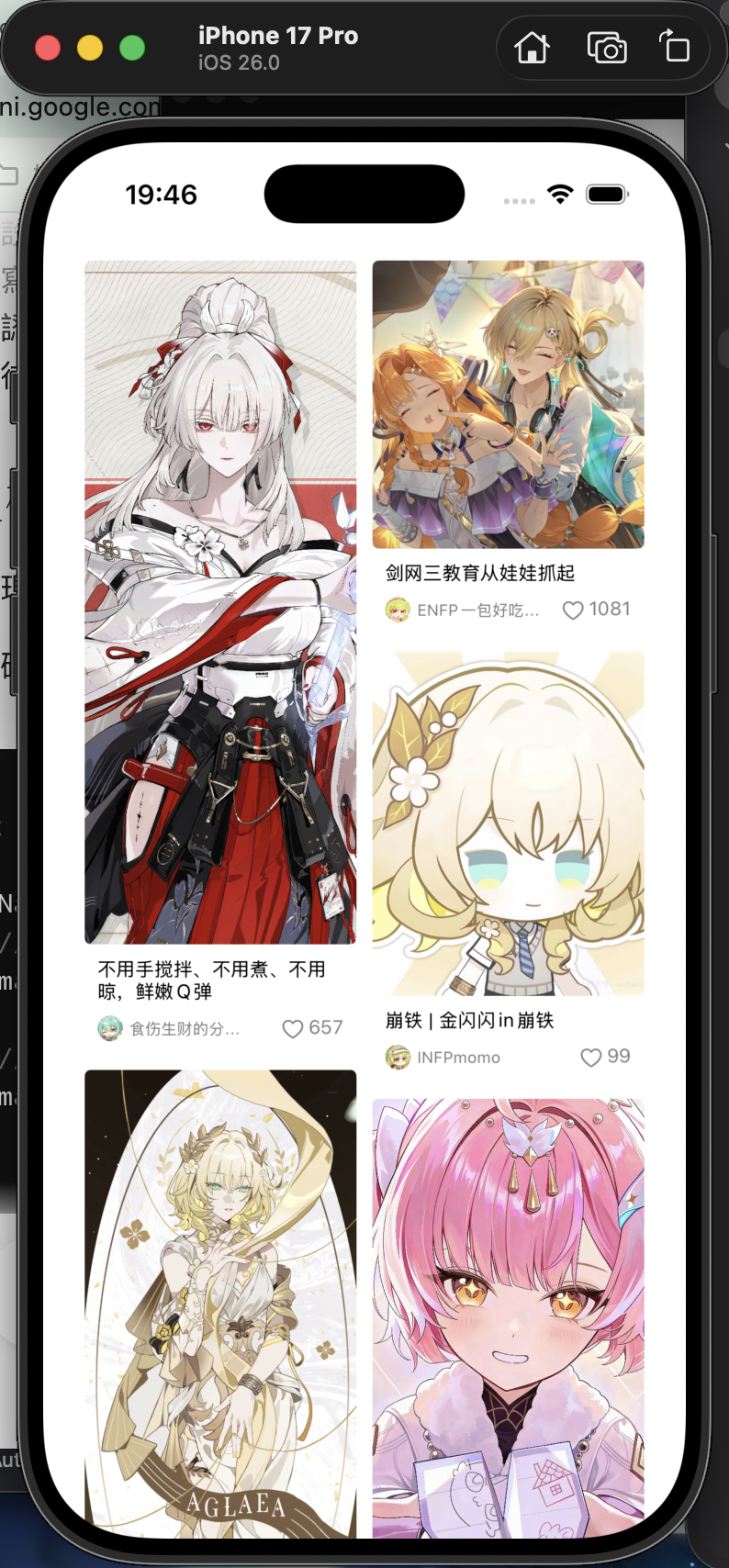
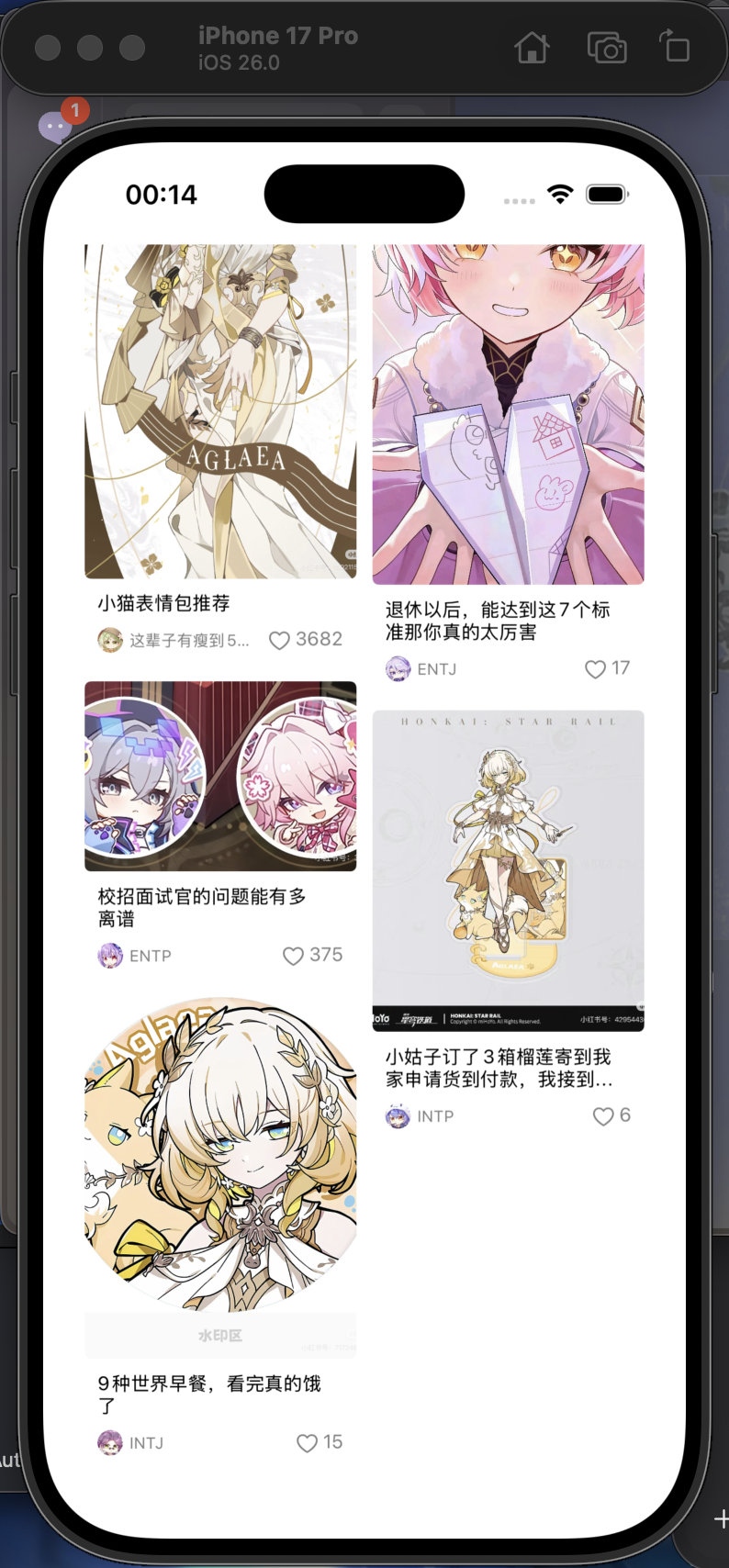
练习二:模仿小红书主页瀑布信息流
主要是三部分:
1.存放需要的View的UICollectionViewCell
2.自定义的Layout
3.继承了UICollectionDelegate和UICollectionDataSource的ViewController
1.存放需要的View的UICollectionViewCell
反正能确定下来的就先确定,不能确定的后面用第三方库SnapKit来调整位置,SnapKit是基于Swift的库,效果就跟SwiftUI差不多是相对位置的,对于位置不确定的或者会随着文本长度变化而变化的
lazy var title_label: UILabel = {
        let title_label = UILabel(frame: .init(x: 16, y: 0, width: frame.width - 16, height: 20))
        title_label.textColor = .black
        title_label.numberOfLines = 2
        title_label.font = .systemFont(ofSize: 12)
        return title_label
    }()

    lazy var head_img: UIImageView = {
        let head_img = UIImageView(frame: .init(x: 16, y: 0, width: 16, height: 16))
        head_img.layer.cornerRadius = 8
        head_img.layer.masksToBounds = true
        return head_img
    }()

    lazy var userNameLabel: UILabel = {
        let userNameLabel = UILabel(frame: .init(x: 16 + 16 + 4, y: 0, width: frame.width - CGFloat(16 + 16 + 4 + 50 + 16), height: 16))
        userNameLabel.textColor = .gray
        userNameLabel.font = .systemFont(ofSize: 10)
        return userNameLabel
    }()
然后用SnapKit来确定组件之间的相对位置
SnapKit的用法,同样要把需要的视图在初始化时候添加进去,然后再在下面用.snp.makeConstraints { make in …}来编辑这个组件的位置,大小等内容。
举例:
make.right.equalToSuperview().offset(-16)
就是把这个视图的右边缘,距离父视图的距离定为x(一个整数),后面的数字是正数就代表向右偏移(跟x一样),是负数就代表向左偏移。
make.bottom.equalToSuperview().offset(-8)
就是把这个视图的下边缘,距离父视图的距离定为y(一个整数),后面的数字逻辑和y一样,正就是往下,负就是往上。
make.top.equalTo(title_label.snp.bottom).offset(8)
把当前视图的上边缘和另一个视图(title_label.snp.bottom )拉近,并设置它们的距离为8.这个也是一样的正负规则,自己玩一下就知道了
这个也可以用来控制最大最小的宽度和高度。
override init(frame: CGRect) {
        super.init(frame: frame)
        addSubview(content_img)
        addSubview(title_label)
        addSubview(head_img)
        addSubview(userNameLabel)
        addSubview(head_img)
        addSubview(likes_label)
        addSubview(heart_img)
        //内容图
        content_img.snp.makeConstraints {
            make in
            make.top.left.right.equalToSuperview()
            make.bottom.equalTo(title_label.snp.top).offset(-8)
        }
//        头像。。。
        head_img.snp.makeConstraints {
                make in
                make.left.equalToSuperview().offset(8)
                make.bottom.equalToSuperview().offset(-8)
                make.width.height.equalTo(16)
            }
        title_label.snp.makeConstraints { make in
            make.left.equalToSuperview().offset(8)
            make.right.equalToSuperview().offset(-16)
            make.top.equalTo(content_img.snp.bottom).offset(8)
            make.bottom.equalTo(head_img.snp.top).offset(-8)
            make.height.lessThanOrEqualTo(32)
        }

        userNameLabel.snp.makeConstraints { make in
            make.left.equalTo(head_img.snp.right).offset(4)
            make.bottom.equalToSuperview().offset(-10)
            make.width.lessThanOrEqualTo(frame.width - (8 + 16 + 36 + 8 + 16 + 8))
        }
        likes_label.snp.makeConstraints { make in
            make.right.equalToSuperview().offset(-8)
            make.top.equalTo(title_label.snp.bottom).offset(8)
            make.width.lessThanOrEqualTo(36)

        }
        heart_img.snp.makeConstraints { make in
            make.right.equalTo(likes_label.snp.left).offset(-2)
            make.top.equalTo(title_label.snp.bottom).offset(8)
            make.width.height.equalTo(16)
        }

        }
2.自定义的Layout
这个部分就是信息流用的Layout,用高度来确定Cell位置的
//
//  WaterflowLayout.swift
//  CollectionView_homework2
//
//  Created by sakiko on 2026/6/3.
//

import UIKit

// 定义一个协议,让代理(通常是 ViewController)提供图片或内容的高度
protocol WaterflowLayoutDelegate: AnyObject {
    func waterflowLayout(_ layout: WaterflowLayout, heightForItemAt indexPath: IndexPath, itemWidth: CGFloat) -> CGFloat
}

class WaterflowLayout: UICollectionViewLayout {

    weak var delegate: WaterflowLayoutDelegate?

    // 配置参数
    var columnCount: Int = 2 // 列数
    var columnMargin: CGFloat = 10 // 列间距
    var rowMargin: CGFloat = 10 // 行间距
    var edgeInsets: UIEdgeInsets = UIEdgeInsets(top: 10, left: 10, bottom: 10, right: 10)

    // 缓存布局属性
    private var attrsArray: [UICollectionViewLayoutAttributes] = []
    // 记录每列当前的高度
    private var columnHeights: [CGFloat] = []

    // 1. 准备布局,计算每个 item 的 frame
    override func prepare() {
        super.prepare()
        // 清除之前的缓存
        attrsArray.removeAll()
        columnHeights = Array(repeating: edgeInsets.top, count: columnCount)

        guard let collectionView = collectionView else { return }
        let itemCount = collectionView.numberOfItems(inSection: 0)

        // 计算 item 的宽度
        let totalWidth = collectionView.frame.size.width
        let availableWidth = totalWidth - edgeInsets.left - edgeInsets.right - CGFloat(columnCount - 1) * columnMargin
        let itemWidth = availableWidth / CGFloat(columnCount)

        // 循环计算每个 item 的位置
        for i in 0..<itemCount {
            let indexPath = IndexPath(item: i, section: 0)
            let attrs = UICollectionViewLayoutAttributes(forCellWith: indexPath)

            // 找出当前最短的那一列
            var minColumnIndex = 0
            var minColumnHeight = columnHeights[0]
            for (index, height) in columnHeights.enumerated() {
                if height < minColumnHeight {
                    minColumnHeight = height
                    minColumnIndex = index
                }
            }

            // 计算 X 和 Y
            let x = edgeInsets.left + CGFloat(minColumnIndex) * (itemWidth + columnMargin)
            let y = minColumnHeight

            // 从代理获取高度
            let itemHeight = delegate?.waterflowLayout(self, heightForItemAt: indexPath, itemWidth: itemWidth) ?? 100

            // 设置 frame
            attrs.frame = CGRect(x: x, y: y, width: itemWidth, height: itemHeight)
            attrsArray.append(attrs)

            // 更新当前列的高度
            columnHeights[minColumnIndex] = CGRect(x: x, y: y, width: itemWidth, height: itemHeight).maxY + rowMargin
        }
    }

    // 2. 返回可见区域内的布局属性
    override func layoutAttributesForElements(in rect: CGRect) -> [UICollectionViewLayoutAttributes]? {
        return attrsArray.filter { $0.frame.intersects(rect) }
    }

    // 3. 返回特定 indexPath 的布局属性
    override func layoutAttributesForItem(at indexPath: IndexPath) -> UICollectionViewLayoutAttributes? {
        return attrsArray[indexPath.item]
    }

    // 4. 返回滚动范围
    override var collectionViewContentSize: CGSize {
        let maxColumnHeight = columnHeights.max() ?? 0
        return CGSize(width: collectionView?.frame.size.width ?? 0, height: maxColumnHeight + edgeInsets.bottom - rowMargin)
    }
}
3.继承了UICollectionDelegate和UICollectionDataSource的ViewController
在创建Cell的地方给这些会变的内容,就比如图片,文案之类的渲染上。
func collectionView(_ collectionView: UICollectionView, cellForItemAt indexPath: IndexPath) -> UICollectionViewCell {
        let cell = collectionView.dequeueReusableCell(withReuseIdentifier: "cell", for: indexPath) as! InfoCell
        cell.content_img.image = UIImage(named: contentImg[indexPath.row])
        cell.head_img.image = UIImage(named: headImg[indexPath.row])
        cell.likes_label.text = likesCount[indexPath.row]
        cell.title_label.text = titleName[indexPath.row]
        cell.userNameLabel.text = userName[indexPath.row]
        return cell
    }
然后把collectionView的Layout设置为刚刚写好的WaterFlowLayout,并设置列数
override func viewDidLoad() {
        super.viewDidLoad()
        let layout = WaterflowLayout()
        layout.delegate = self
        layout.columnCount = 2
        let collectionView = UICollectionView(frame: .init(x: 16, y: 64, width: self.view.frame.width - 32, height: self.view.frame.height - 64), collectionViewLayout: layout)
        collectionView.delegate = self
        collectionView.dataSource = self
        collectionView.register(InfoCell.self, forCellWithReuseIdentifier: "cell")
        collectionView.showsVerticalScrollIndicator = false
        self.view.addSubview(collectionView)
        // Do any additional setup after loading the view.
    }
信息流需要用到Cell高度,这个高度得手动算出来,这里是本地图片。如果是网络请求,会有图片的尺寸,就更加方便。
那就先用一个函数,根据图片算出高度(因为信息流的cell图片宽度是固定的,而高度是变化的)就都当做参数传进去。
func getNewHeight(imgName: String, fixed_width: CGFloat) -> CGFloat {
        let img = UIImage(named: imgName)
        if img == nil {
            return fixed_width
        } else {
            let o_width = img?.size.width ?? 0
            let o_height = img?.size.height ?? 0
            let newheight =  (o_height / o_width) * fixed_width
            return newheight
        }
    }
然后再在这个基础上,把高度和下面留空的地方加上,看个效果例如底部留空的位置为100
func waterflowLayout(_ layout: WaterflowLayout, heightForItemAt indexPath: IndexPath, itemWidth: CGFloat) -> CGFloat {
        let content = contentImg[indexPath.item]
        let imgHeight = getNewHeight(imgName: content, fixed_width: itemWidth)
//        let bottomGap: CGFloat = 16.0 + 8.0 + 8.0 + 20.0 + 8.0
        //下面的间隔是16(头像高), 8(底部距离), 8(头像和标题距离),20(标签高度) 8(标题和内容图片距离)
//        先固定100,搞一块大地方出来
//        16 + 8
        return imgHeight + 100.0
    }
更多推荐

 4
4 0
0- 0


 已为社区贡献10条内容

所有评论(0)