
鸿蒙实战:让页面背景随图片主色灵动变色
·
完整源码:DynamicBackgroundDemo 不知道大家用过汽水音乐?每切换一首歌,整个页面的背景色都会跟着变化,仔细观察,这竟然和歌手图片的主色调“一致”! 这篇文章我们就来分享:如何用
@ohos.effectKit打造沉浸式动态背景,提升 App 的视觉体验。
一、效果预览
| 汽水音乐原效果 | 本文实现效果 |
|---|---|
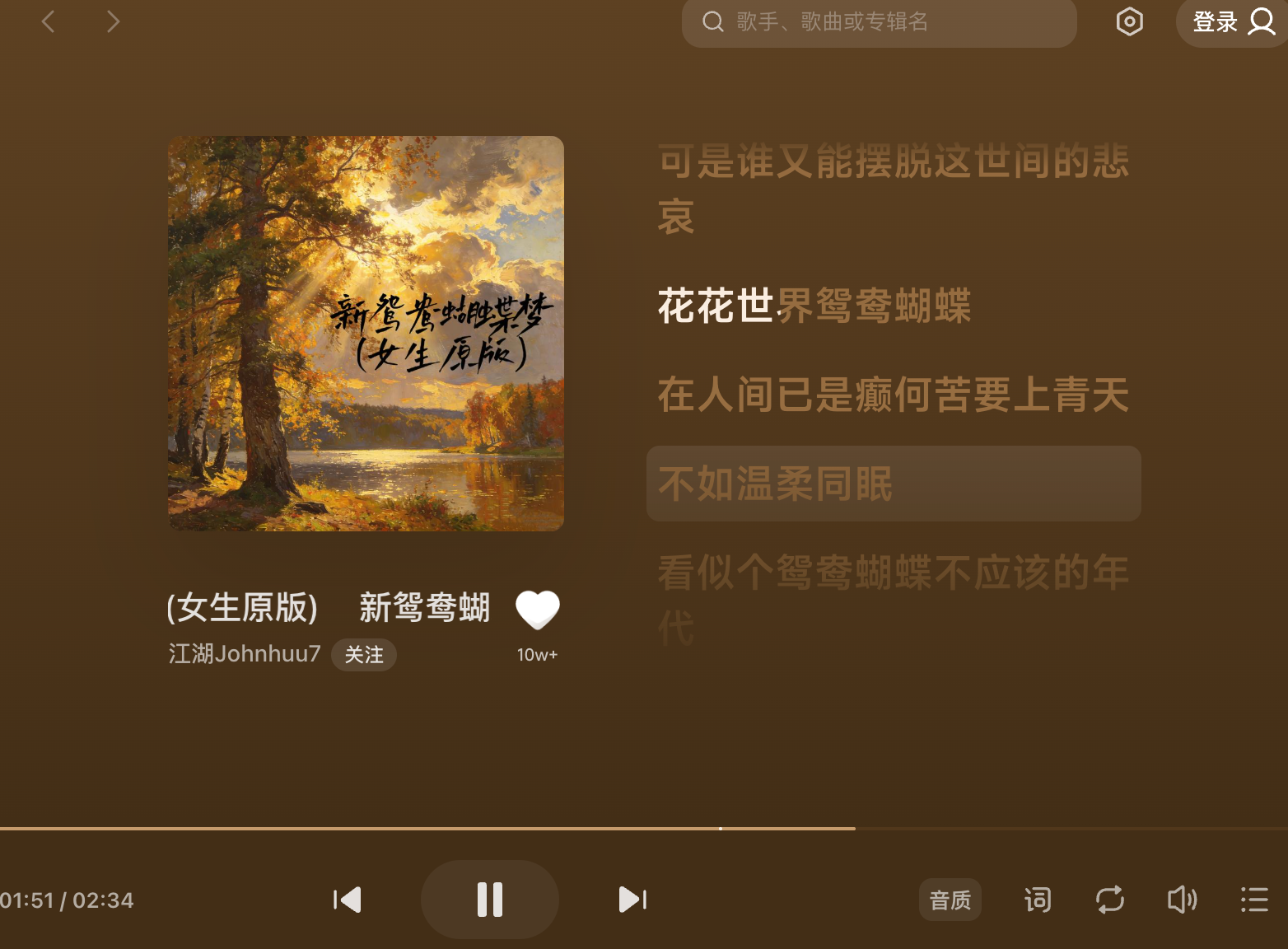 | 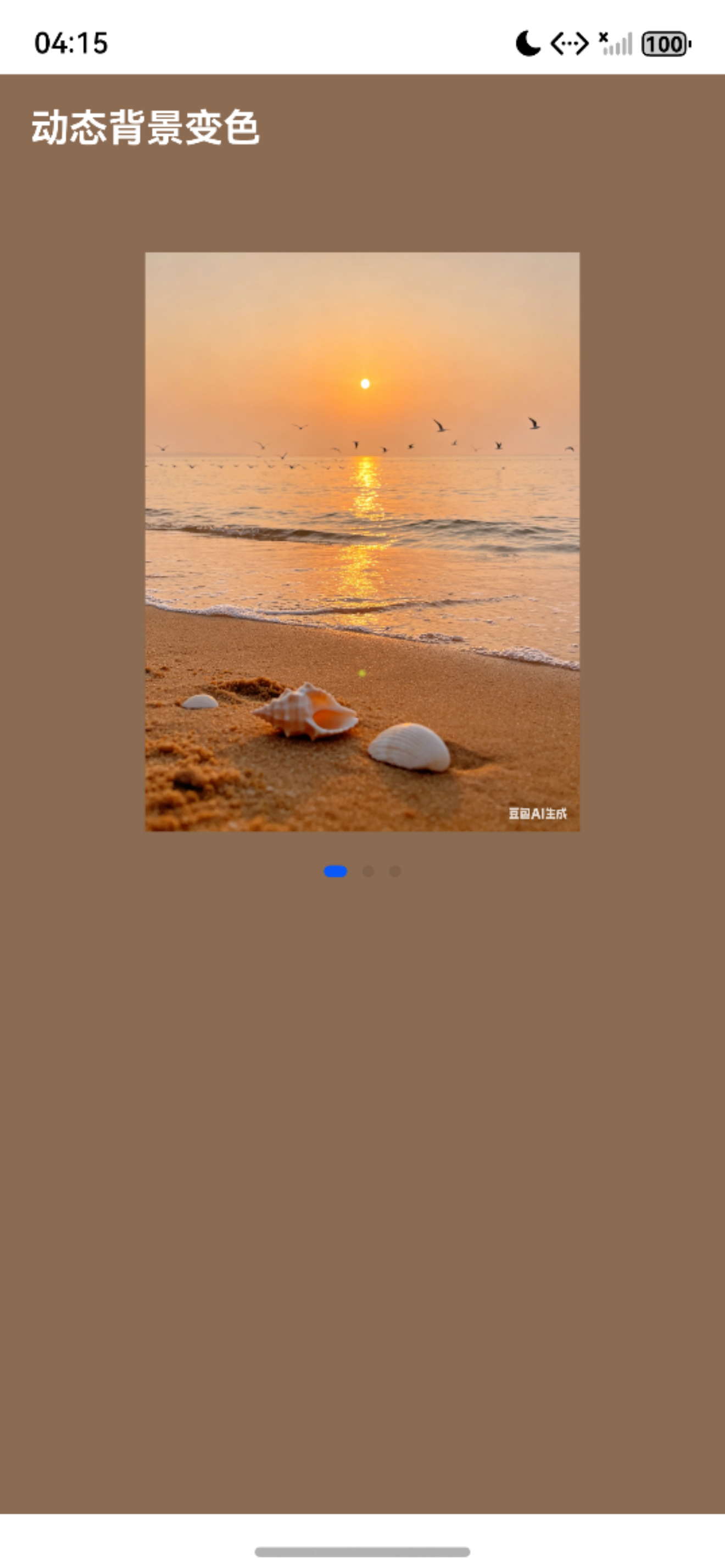 |
二、核心思路
要实现这个效果,需要解决三个技术点:
- 读取图片资源 → 将图片文件转换为
PixelMap(像素图) - 提取主色调 → 使用
@ohos.effectKit的ColorPicker获取图片平均颜色 - 动态更新 UI → 将颜色值绑定到页面背景,并添加过渡动画
整体流程图:
用户滑动 Swiper
    ↓
获取当前图片的资源 ID
    ↓
通过 resourceManager 读取图片字节流
    ↓
创建 ImageSource → 生成 PixelMap
    ↓
创建 ColorPicker → 同步获取主色 (getMainColorSync)
    ↓
转换颜色 → 更新 @Local 背景色变量
    ↓
UI 自动刷新 + 动画过渡
三、完整代码实现
3.1 工程准备
在 entry/src/main/resources/base/media/ 下放入几张测试图片(例如 img1.jpg、img2.jpg、img3.jpg)。
3.2 页面代码
import { resourceManager } from '@kit.LocalizationKit';
import { image } from '@kit.ImageKit';
import { effectKit } from '@kit.ArkGraphics2D';

interface ImageItem {
  id: number;      // 图片资源的数字 ID
  name: string;
}

@Entry
@ComponentV2
struct Index {
  // 图片列表:注意 $r('app.media.xxx').id 才能传给 resourceManager
  private imgData: ImageItem[] = [
    { id: $r('app.media.img1').id, name: 'img1' },
    { id: $r('app.media.img2').id, name: 'img2' },
    { id: $r('app.media.img3').id, name: 'img3' }
  ];

  @Local currentIndex: number = 0;
  @Local bgColor: string = '#FFFFFF';   // 默认背景色

  aboutToAppear(): void {
    // 页面加载时获取第一张图片的主色
    this.getAverageColor(this.imgData[0].id);
  }

  /**
   * 异步获取图片主色,并更新 backgroundColor
   * @param resId 图片资源 ID(数字)
   */
  async getAverageColor(resId: number): Promise<void> {
    try {
      const context = this.getUIContext().getHostContext() as Context;
      const resourceMgr: resourceManager.ResourceManager = context.resourceManager;

      // 1. 读取图片原始数据
      const fileData: Uint8Array = resourceMgr.getMediaContentSync(resId);
      const buffer = fileData.buffer;

      // 2. 创建 ImageSource 和 PixelMap
      const imageSource: image.ImageSource = image.createImageSource(buffer);
      const pixelMap: image.PixelMap = await imageSource.createPixelMap();

      // 3. 提取主色
      const colorPicker: effectKit.ColorPicker = await effectKit.createColorPicker(pixelMap);
      const mainColor: effectKit.Color = colorPicker.getMainColorSync();

      // 4. 转换为十六进制颜色字符串
      this.bgColor = this.colorToHex(mainColor);

      // 5. 释放 Native 内存
      await pixelMap.release();
      await imageSource.release();
    } catch (err) {
      const error = err as BusinessError;
      console.error(`提取颜色失败: ${error.code} - ${error.message}`);
    }
  }

  /**
   * 将 Color 对象(RGB 0-255)转为 #RRGGBB
   */
  private colorToHex(color: effectKit.Color): string {
    const r = color.red.toString(16).padStart(2, '0');
    const g = color.green.toString(16).padStart(2, '0');
    const b = color.blue.toString(16).padStart(2, '0');
    return `#${r}${g}${b}`;
  }

  build() {
    Column() {
      // 顶部导航栏
      Row() {
        Text('动态背景变色')
          .fontSize(20)
          .fontWeight(FontWeight.Bold)
          .fontColor(Color.White)
      }
      .width('100%')
      .height(56)
      .backgroundColor(this.bgColor)
      .padding({ left: 16 })

      // 图片轮播区
      Swiper() {
        ForEach(this.imgData, (item: ImageItem) => {
          Image($r(`app.media.${item.name}`))
            .width('100%')
            .height('100%')
            .objectFit(ImageFit.Contain)
        }, (item: ImageItem) => item.name)
      }
      .width('60%')
      .height('50%')
      .index(this.currentIndex)
      .indicator(true)
      .loop(true)
      .onChange((index: number) => {
        this.currentIndex = index;
        this.getAverageColor(this.imgData[index].id);   // 切换图片时重新提取主色
      })
    }
    .width('100%')
    .height('100%')
    .backgroundColor(this.bgColor)
    .animation({ duration: 300, curve: Curve.EaseInOut })  // 背景色过渡动画
  }
}
四、关键细节解析
4.1 如何正确传递图片资源?
- 代码中
$r('app.media.img1').id获取的是数字资源 ID,而非Resource对象。 resourceManager.getMediaContentSync()需要传入数字 ID,因此imgData里存储的是id数值。
4.2 同步 vs 异步
getMediaContentSync是同步方法,但createPixelMap是异步的,所以外层函数标记为async。- 使用
await等待 PixelMap 创建完成,避免阻塞 UI 线程。
4.3 内存泄漏防范
每次创建 PixelMap 和 ImageSource 后,务必调用 release() 释放 Native 层内存,否则多次滑动会导致内存持续增长。
4.4 颜色格式转换
getMainColorSync() 返回的 Color 对象包含 red、green、blue、alpha(均为 0-255 整数)。转换为十六进制字符串时,忽略 alpha(默认为完全不透明)。
4.5 平滑过渡动画
在根 Column 上使用 .animation({ duration: 500, curve: Curve.EaseInOut }),当 backgroundColor 变化时,会以动画形式过渡,避免生硬跳变。
五、踩坑与优化建议
常见错误及解决方案
| 错误现象 | 可能原因 | 解决方案 |
|---|---|---|
| 颜色一直为默认值 | getMediaContentSync 传入的不是数字 ID | 使用 $r('app.media.xxx').id |
| 滑动卡顿、内存升高 | 未释放 PixelMap | 每次 getAverageColor 结束时调用 release() |
| 部分图片无法提取主色 | 图片格式或数据损坏 | 添加 try-catch,使用默认颜色兜底 |
进阶优化思路
- 颜色缓存:对已提取过主色的图片进行缓存(
Map<resId, colorString>),避免重复计算,提升滑动流畅度。 - 渐变背景:获取 Top 2 主色,生成
LinearGradient渐变背景,效果更细腻。 - 文字对比度自适应:根据背景亮度自动调整导航栏文字颜色(白/黑),保证可读性。
- 全局主题共享:配合状态管理 V2 的
@Provider/@Consumer,将背景色提升到全局,实现多页面联动。
六、总结
通过本文,你学会了:
- 使用
resourceManager读取应用内图片资源 - 利用
@ohos.effectKit提取图片主色调 - 动态改变页面背景并添加过渡动画
- 避免内存泄漏,提升滑动流畅度
这个技巧不仅适用于图片轮播,还可以用在音乐播放器的专辑封面、商品详情页的主题色匹配等场景。如果觉得本文对你有帮助,请点赞、收藏、转发支持!

免费领 150 小时云算力,进群参与显卡、AI PC 幸运抽奖
更多推荐


 14
14 0
0- 0


 已为社区贡献2条内容

所有评论(0)