
Mac配置Github
1.安装Git
\qquad
在终端输入:git查看Git是否已安装,Xcode默认安装Git,如果已安装Xcode,那么Git即已存在,那么就会输出以下内容:
Last login: Wed Sep 15 10:08:50 on ttys000
*****@MacBook-Pro ~ % git
usage: git [--version] [--help] [-C <path>] [-c <name>=<value>]
           [--exec-path[=<path>]] [--html-path] [--man-path] [--info-path]
           [-p | --paginate | -P | --no-pager] [--no-replace-objects] [--bare]
           [--git-dir=<path>] [--work-tree=<path>] [--namespace=<name>]
           <command> [<args>]

These are common Git commands used in various situations:

start a working area (see also: git help tutorial)
   clone             Clone a repository into a new directory
   init              Create an empty Git repository or reinitialize an existing one

work on the current change (see also: git help everyday)
   add               Add file contents to the index
   mv                Move or rename a file, a directory, or a symlink
   restore           Restore working tree files
   rm                Remove files from the working tree and from the index
   sparse-checkout   Initialize and modify the sparse-checkout

examine the history and state (see also: git help revisions)
   bisect            Use binary search to find the commit that introduced a bug
   diff              Show changes between commits, commit and working tree, etc
   grep              Print lines matching a pattern
   log               Show commit logs
   show              Show various types of objects
   status            Show the working tree status

grow, mark and tweak your common history
   branch            List, create, or delete branches
   commit            Record changes to the repository
   merge             Join two or more development histories together
   rebase            Reapply commits on top of another base tip
   reset             Reset current HEAD to the specified state
   switch            Switch branches
   tag               Create, list, delete or verify a tag object signed with GPG

collaborate (see also: git help workflows)
   fetch             Download objects and refs from another repository
   pull              Fetch from and integrate with another repository or a local branch
   push              Update remote refs along with associated objects

'git help -a' and 'git help -g' list available subcommands and some
concept guides. See 'git help <command>' or 'git help <concept>'
to read about a specific subcommand or concept.
See 'git help git' for an overview of the system.
\qquad
若未安装,可以通过Homebrew安装,Homebrew是一款macOS/Linux平台下的软件包管理工具,拥有安装、卸载、更新、查看、搜索等很多实用的功能。简单的一条指令,就可以实现包管理,而不用你关心各种依赖和文件路径的情况,十分方便快捷。类似pip和conda。Homebrew安装与使用教程已经详细,这里不再重复。
2.在本地Git中添加GitHub账户
\qquad
依次输入以下命令:
git config --global user.name "kenneth Yin"
git config --global user.emall "k******in@qq.com"
\qquad
其中Kenneth Yin和y******in@qq.com分别为个人GitHub用户名及邮箱,填自己的就行。
3.生成ssh密匙
\qquad
首先查看电脑是否已生成过密匙:
cd ~/.ssh
open .
\qquad
若文件夹为空,则表示未生成过密匙。~表示根目录。
\qquad
输入以下命令生成密匙:
ssh-keygen -t rsa -C "k******in@qq.com"
\qquad 然后会弹出:
Generating public/private rsa key pair.
Enter file in which to save the key (/Users/*****/.ssh/id_rsa):
\qquad
这是让你输入一个文件名,用于保存刚才生成的 SSH key 。默认就行,直接回车进行下一步;然后就会默认生成id_rsa和id_rsa.pub两个秘钥文件。
\qquad
这时候会自动在根目录创建一个.ssh文件夹,但是是隐藏的,会提示:
Created directory '/Users/*****/.ssh'.
Enter passphrase (empty for no passphrase):
\qquad 紧接着会让你输入一个密码,用于使用ssh传文件时加密使用。每次传输文件都需要输入,如果不怕麻烦可以设置,但是一定要记下。我个人不建议设置,直接回车跳过。紧接着还会让你输入一次密码,以确认上一步输入的密码:
Enter same passphrase again:
\qquad 如果上一步没设置密码,这里直接回车就行,此时会收到提示:
Your identification has been saved in /Users/*****/.ssh/id_rsa.
Your public key has been saved in /Users/*****/.ssh/id_rsa.pub.
The key fingerprint is:
SHA256:*******************************************************
The key's randomart image is:
+---[RSA 3072]----+
|      ***********|
|     ************|
|        *********|
|       **********|
|        S  +.o   |
|       . .. o.o  |
|           . ... |
|            .E . |
|              .  |
+----[SHA256]-----+
\qquad 提示密匙已保存,并提示保存路径,同时展示密匙。此时再输入命令:
cd ~/.ssh
open .
\qquad
此时~/.ssh文件夹下就会出现id_ras和id_rsa.pub两个密匙文件。
4.添加SSH密匙到GitHub
\qquad
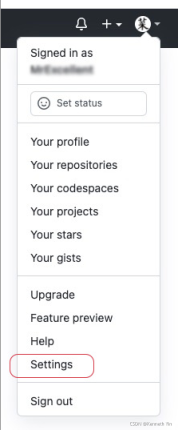
打开GitHub账号主页,点击头像下拉菜单Setting。
\qquad
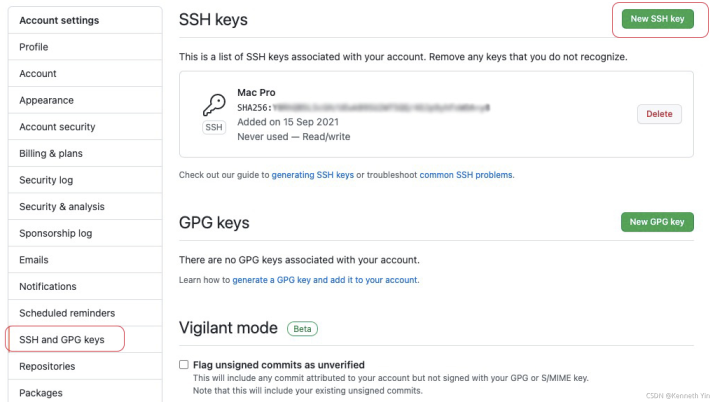
然后点击左侧账户设置SSH and GPG keys,再点击右上侧SSH Keys 选项 New SSH key。
\qquad
然后输入Title,内容任意。Key的内容输入id_rsa.pub文件中的内容,直接复制粘贴到对话框中,点击添加即可。至此密匙就已添加完成。
\qquad
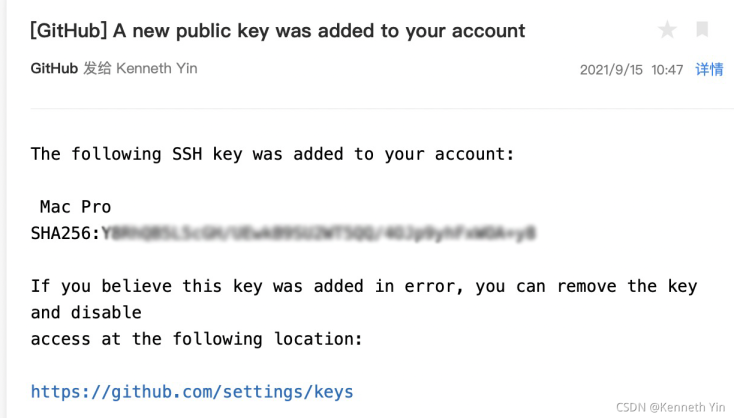
然后就会收到GitHub发送的密匙添加成功的提示邮件。
\qquad
然后测试一下SSH key,输入指令:
ssh -T git@github.com
\qquad 然后会提示:
*****@MacBook-Pro Git % ssh -T git@github.com
The authenticity of host 'github.com (20.205.243.166)' can't be established.
RSA key fingerprint is SHA256:*********************************************.
Are you sure you want to continue connecting (yes/no/[fingerprint])? yes
\qquad
输入yes回车,注意此处的git@github.com不是个人邮箱。
\qquad
然后会先提示警告:
Warning: Permanently added 'github.com,20.205.243.166' (RSA) to the list of known hosts.
Hi ********! You've successfully authenticated, but GitHub does not provide shell access.
\qquad
这是由于没有设置ssh操作密码,可以忽略。警告完后,会提示你已经成功验证。至此Git相关的配置就已经全部完成。
\qquad
此教程为终端操作配置教程,Git图形化操作工具比较多,GitHub也有桌面版。如果嫌麻烦,可以直接用图像化的操作工具,效果一样。

免费领 150 小时云算力,进群参与显卡、AI PC 幸运抽奖
更多推荐


 2
2 0
0- 0


 已为社区贡献1条内容

所有评论(0)