
Github 命令行搜索工具
文章目录
背景
参考:https://docs.github.com/en/search-github/searching-on-github
前面我出过如何在github上高效搜索仓库的博客:GitHub代码搜索——工具&技巧。
但是问题是,现在随着AI的发展,越来越多的Agent等AI工具开始收敛到终端中,
所以,有没有可以直接在终端中快速在线搜索大型github代码仓库的方法,
最好还是能够拉取README.md等元数据。
在这里,我们再次提醒一下github的搜索语法:https://docs.github.com/en/search-github/getting-started-with-searching-on-github/understanding-the-search-syntax#exclude-results-that-match-a-qualifier
另外注意,github官方其实是有REST API的,参考:https://docs.github.com/en/rest?apiVersion=2026-03-10
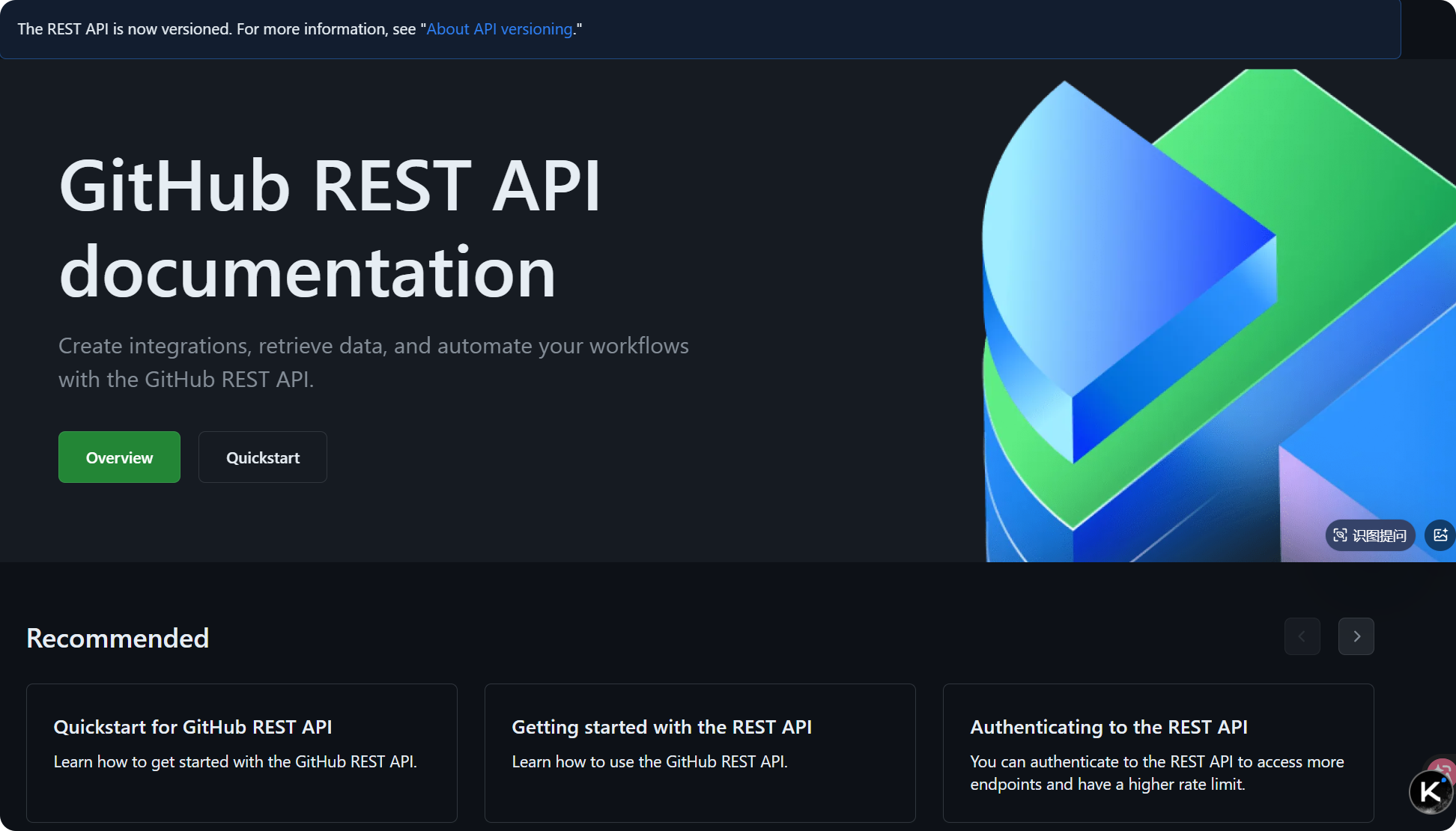
然后我这边的话,是开发了1个封装gh的github CLI工具,将常用的命令以及输出流进行了后处理、信息整合,参考https://github.com/MaybeBio/GhResearcher
github CLI(gh)
这个是官方工具,本来是想提https://github.com/node-gh/gh的,
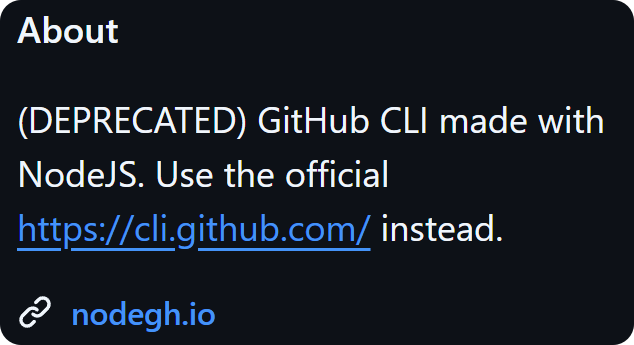
但是官方已经有实现了,

官方仓库参考:https://github.com/cli/cli
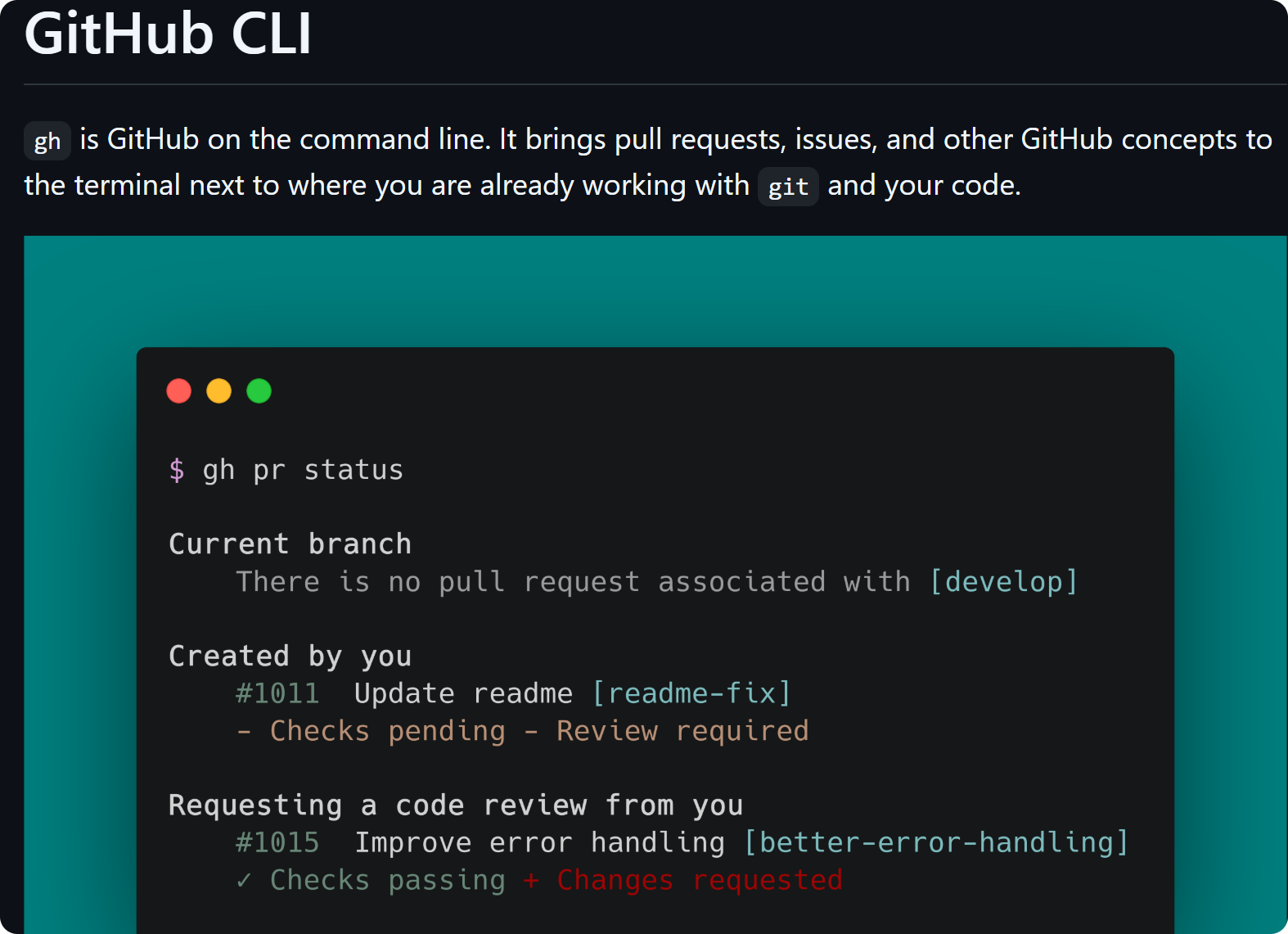
安装参考:https://github.com/cli/cli#installation
❯ gh
Work seamlessly with GitHub from the command line.

USAGE
  gh <command> <subcommand> [flags]

CORE COMMANDS
  auth:          Authenticate gh and git with GitHub
  browse:        Open repositories, issues, pull requests, and more in the browser
  codespace:     Connect to and manage codespaces
  gist:          Manage gists
  issue:         Manage issues
  org:           Manage organizations
  pr:            Manage pull requests
  project:       Work with GitHub Projects.
  release:       Manage releases
  repo:          Manage repositories

GITHUB ACTIONS COMMANDS
  cache:         Manage GitHub Actions caches
  run:           View details about workflow runs
  workflow:      View details about GitHub Actions workflows

ALIAS COMMANDS
  co:            Alias for "pr checkout"

ADDITIONAL COMMANDS
  alias:         Create command shortcuts
  api:           Make an authenticated GitHub API request
  attestation:   Work with artifact attestations
  completion:    Generate shell completion scripts
  config:        Manage configuration for gh
  extension:     Manage gh extensions
  gpg-key:       Manage GPG keys
  label:         Manage labels
  preview:       Execute previews for gh features
  ruleset:       View info about repo rulesets
  search:        Search for repositories, issues, and pull requests
  secret:        Manage GitHub secrets
  ssh-key:       Manage SSH keys
  status:        Print information about relevant issues, pull requests, and notifications across repositories
  variable:      Manage GitHub Actions variables

HELP TOPICS
  accessibility: Learn about GitHub CLI's accessibility experiences
  actions:       Learn about working with GitHub Actions
  environment:   Environment variables that can be used with gh
  exit-codes:    Exit codes used by gh
  formatting:    Formatting options for JSON data exported from gh
  mintty:        Information about using gh with MinTTY
  reference:     A comprehensive reference of all gh commands

FLAGS
  --help      Show help for command
  --version   Show gh version

EXAMPLES
  $ gh issue create
  $ gh repo clone cli/cli
  $ gh pr checkout 321

LEARN MORE
  Use `gh <command> <subcommand> --help` for more information about a command.
  Read the manual at https://cli.github.com/manual
  Learn about exit codes using `gh help exit-codes`
  Learn about accessibility experiences using `gh help accessibility`
查看一下自己是否登入了
gh auth status

gh auth login -h github.com
按照提示操作完

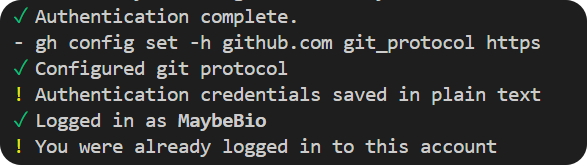
我们重点来看gh search:
https://cli.github.com/manual/gh_search
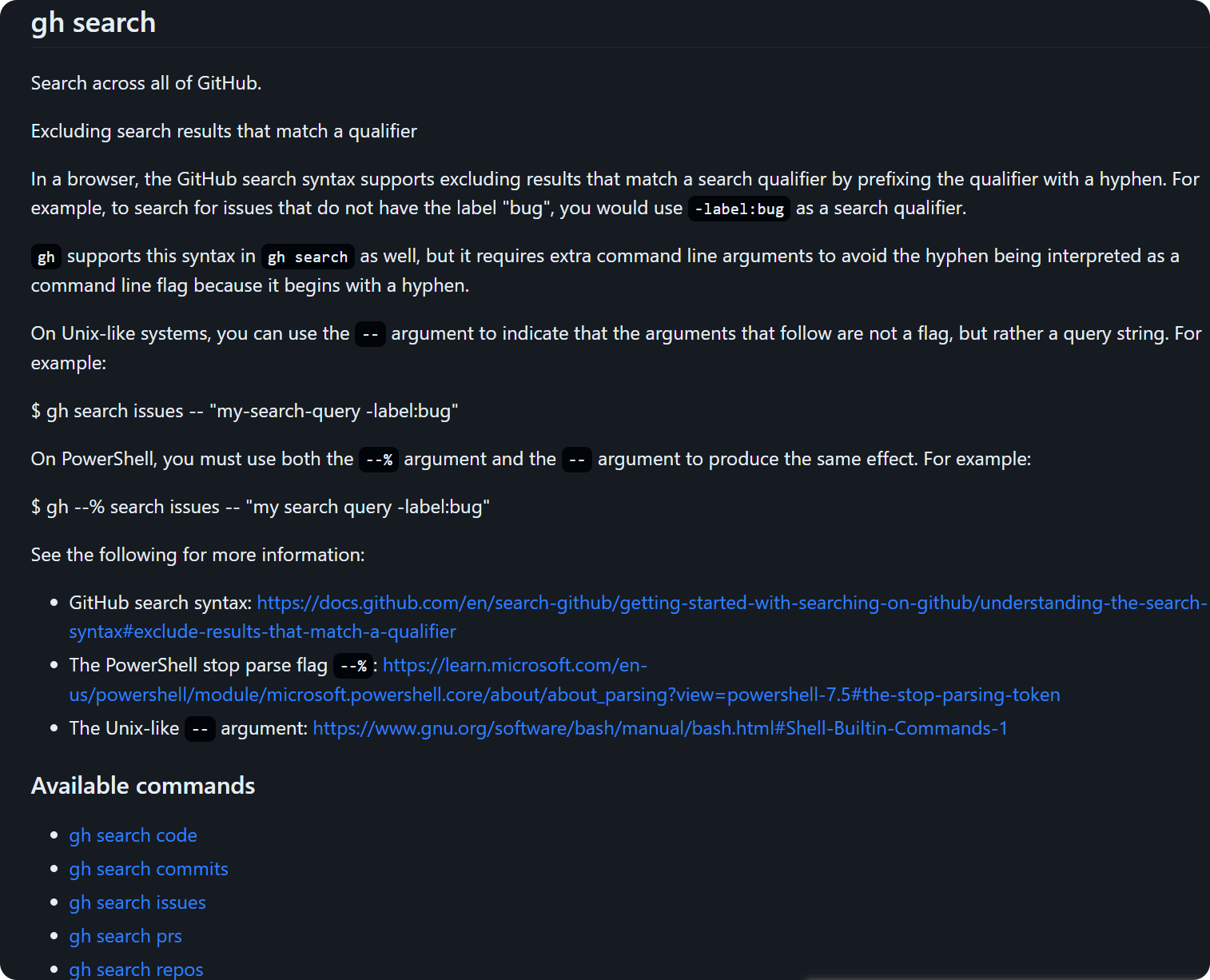
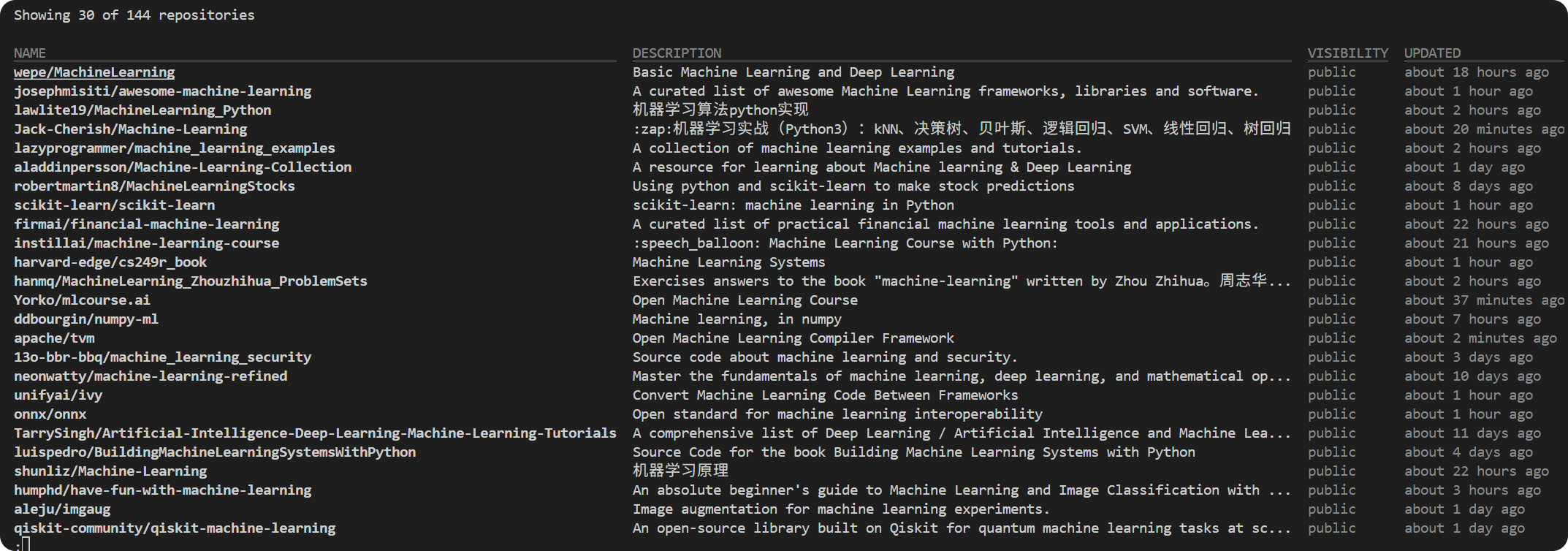
我们先来简单地试验一下:
gh search repos "machine learning" --language python --stars ">1000"
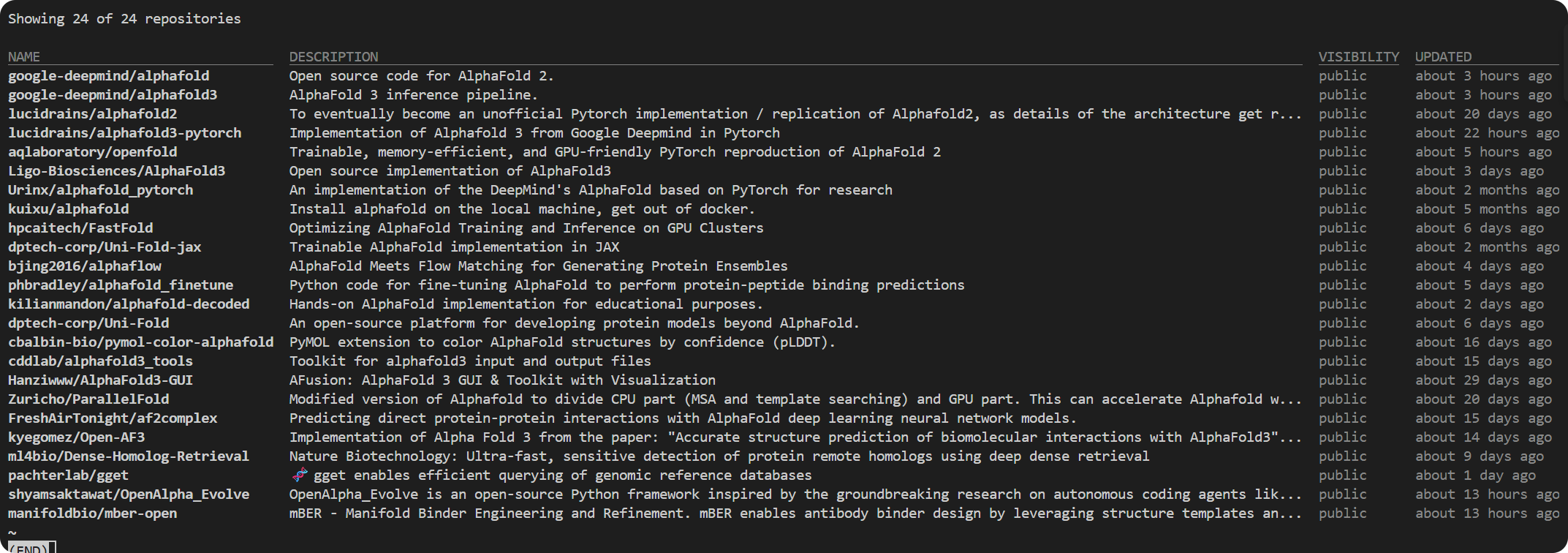
我们再来展示一个例子:
gh search repos "alphafold" --language python --stars ">100"
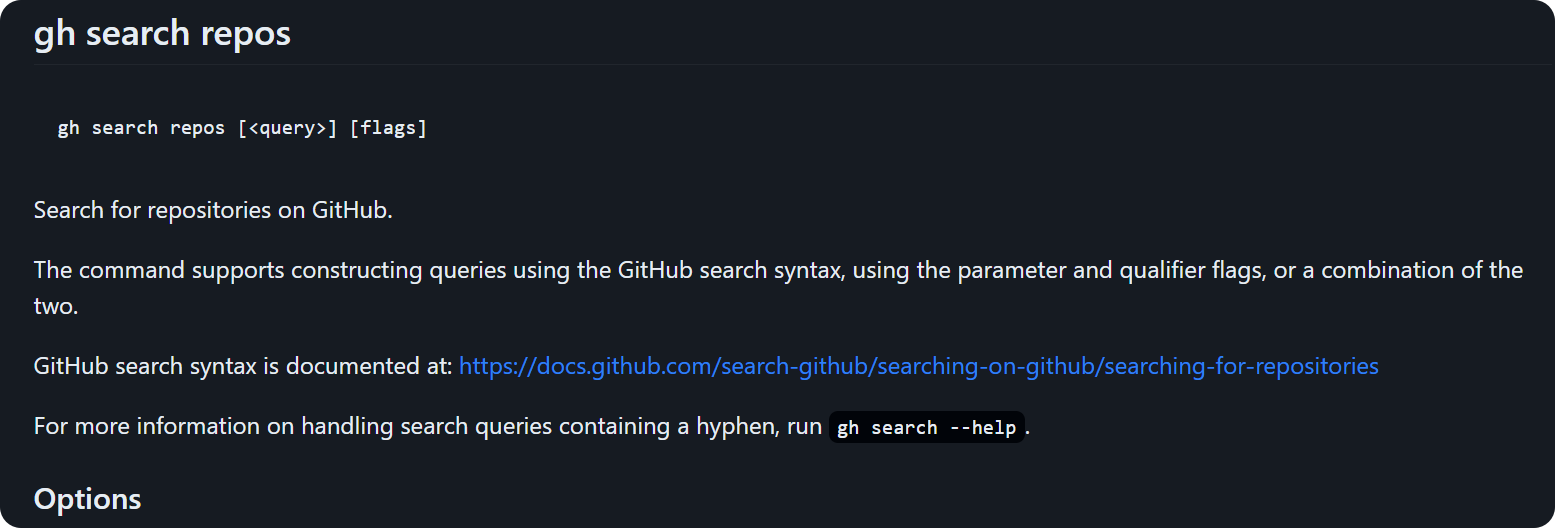
gh search repos
参考:https://cli.github.com/manual/gh_search_repos
仓库搜索指令,语法参考:https://docs.github.com/search-github/searching-on-github/searching-for-repositories
gh search code
参考:https://cli.github.com/manual/gh_search_code,
语法参考:https://docs.github.com/search-github/searching-on-github/searching-code
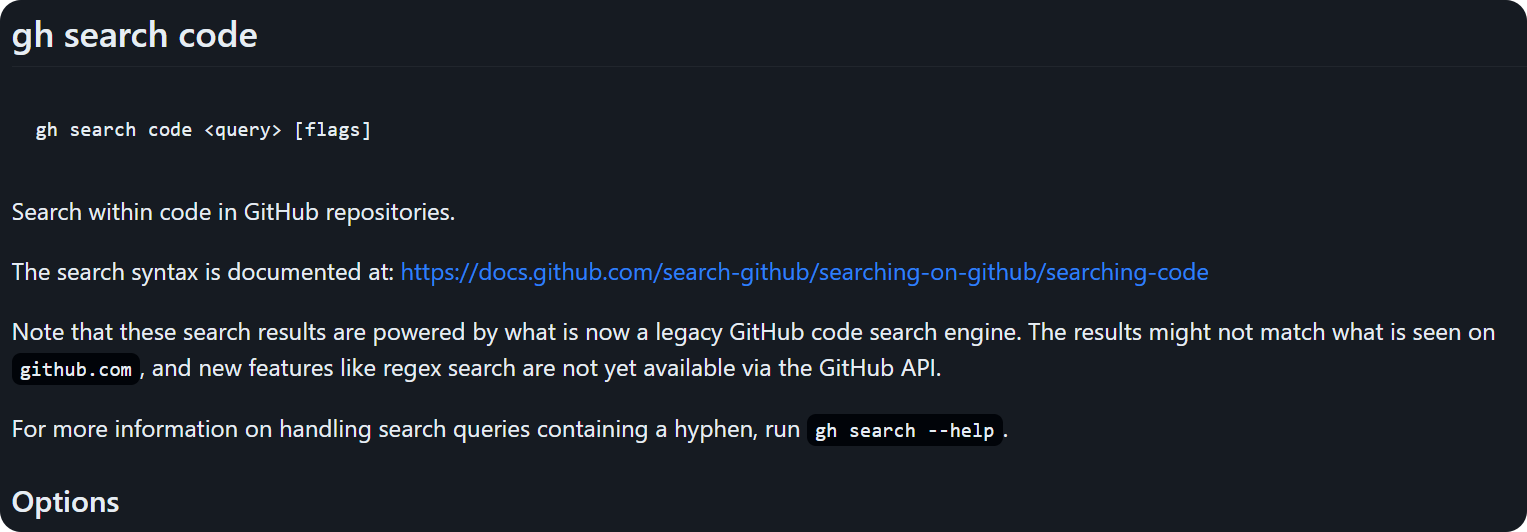
我们举一个简单的例子
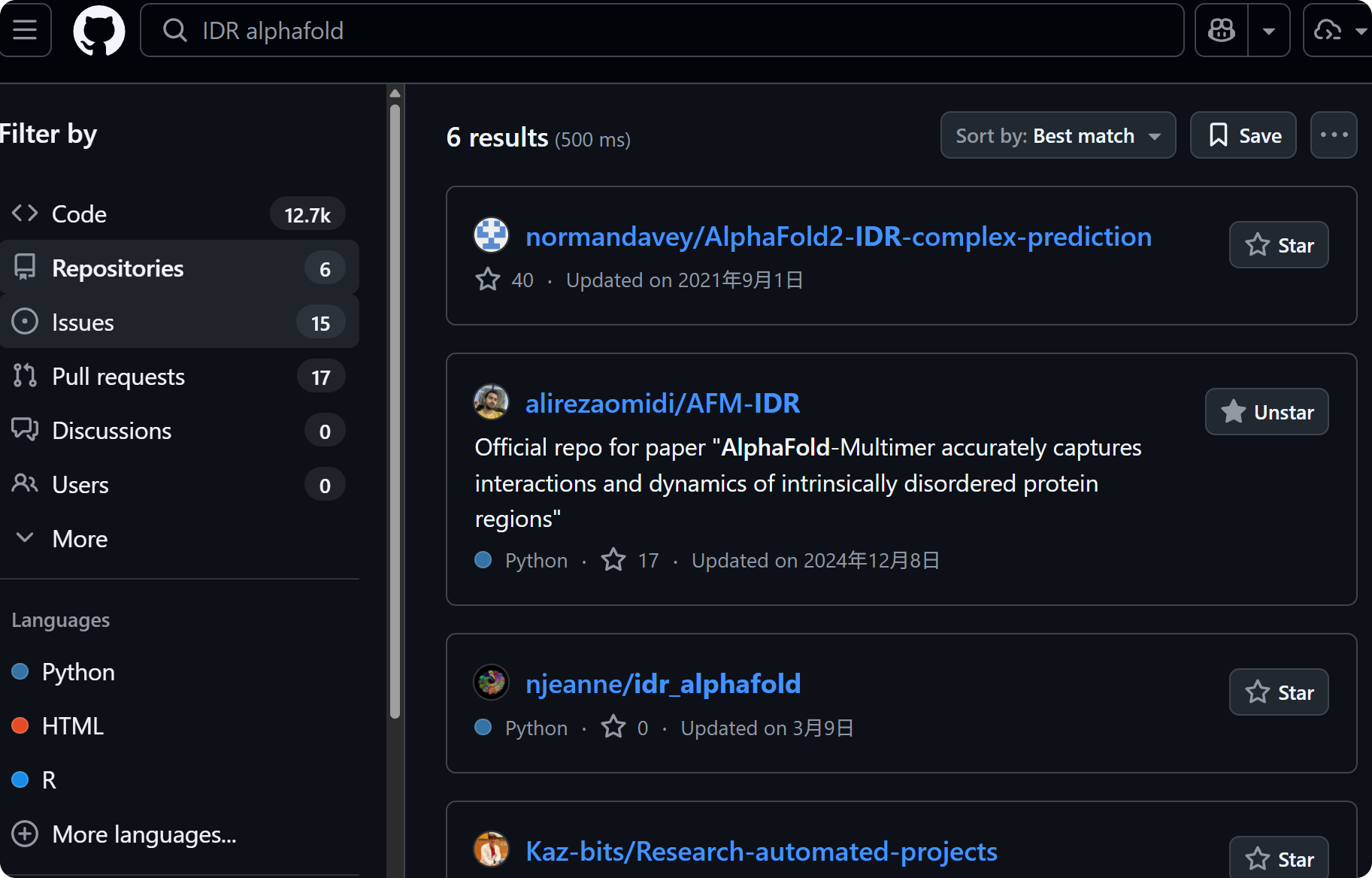
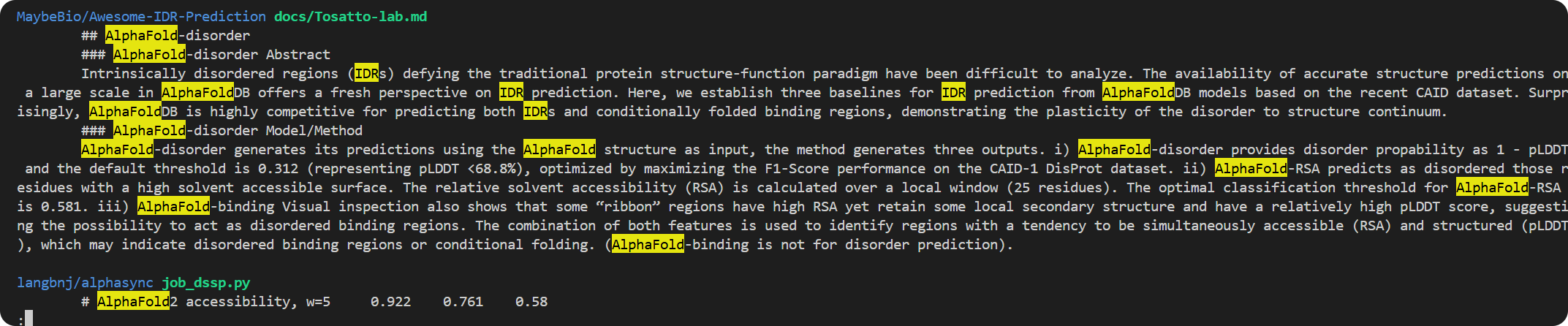
gh search code IDR alphafold
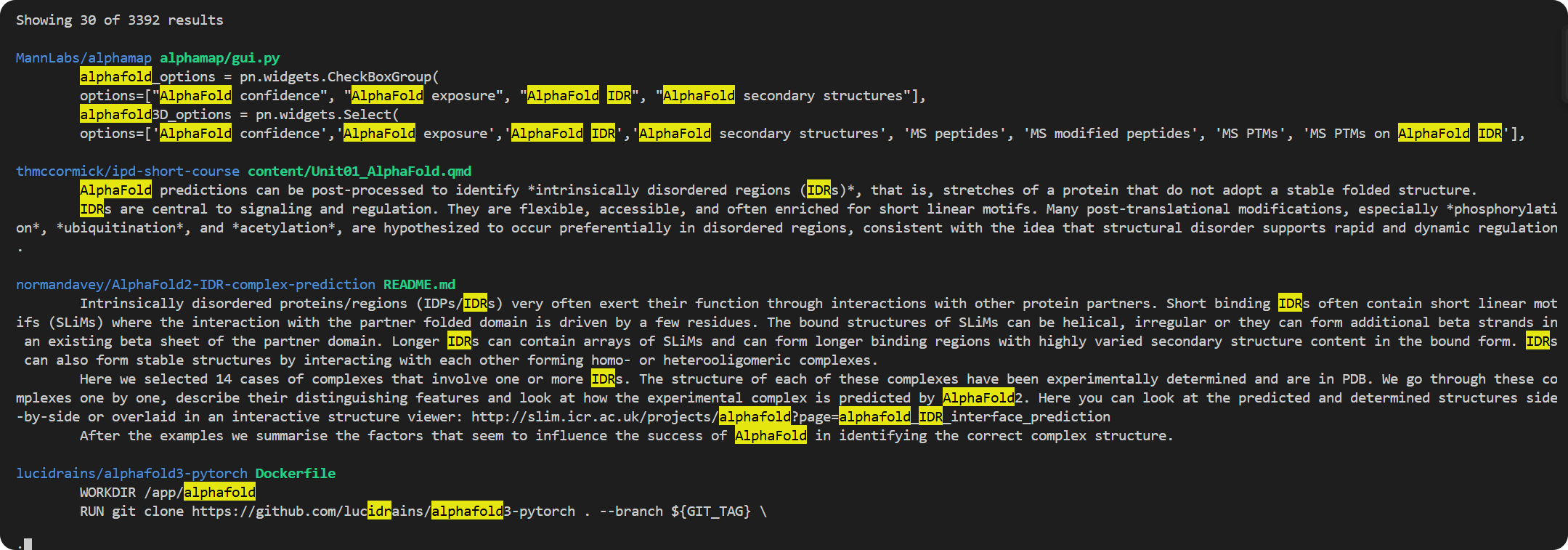
对照一下
还能看到我的仓库
gh repo view
前面讲了如何搜索仓库、搜索代码,那么在找到仓库之后,我们应该如何进一步查看处理。
如果是单个的仓库,比如说某一个仓库,
此处以https://github.com/Junjie-Zhu/IDPFold2为例
# 查看README
gh repo view Junjie-Zhu/IDPFold2
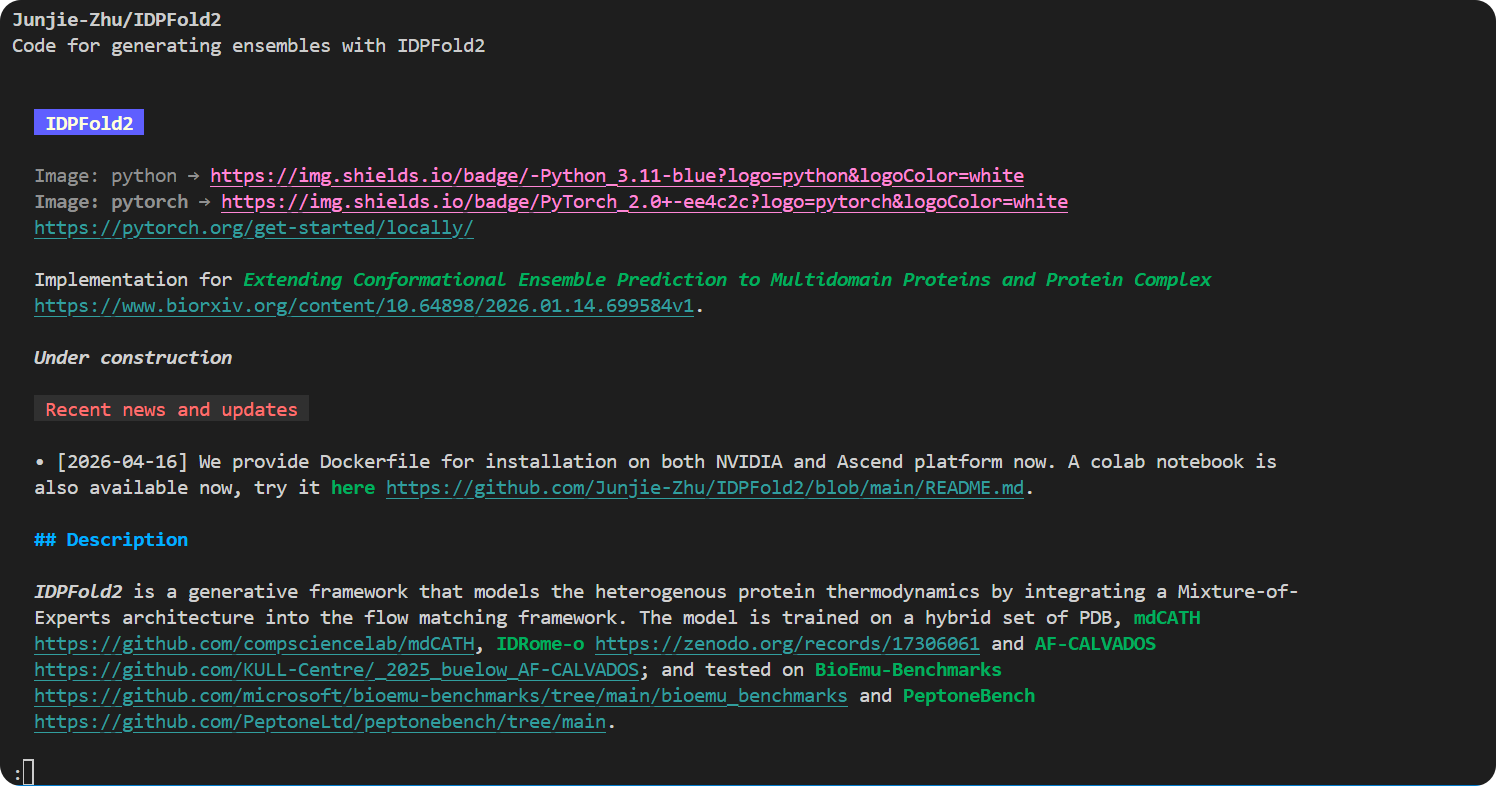
是对应上的:
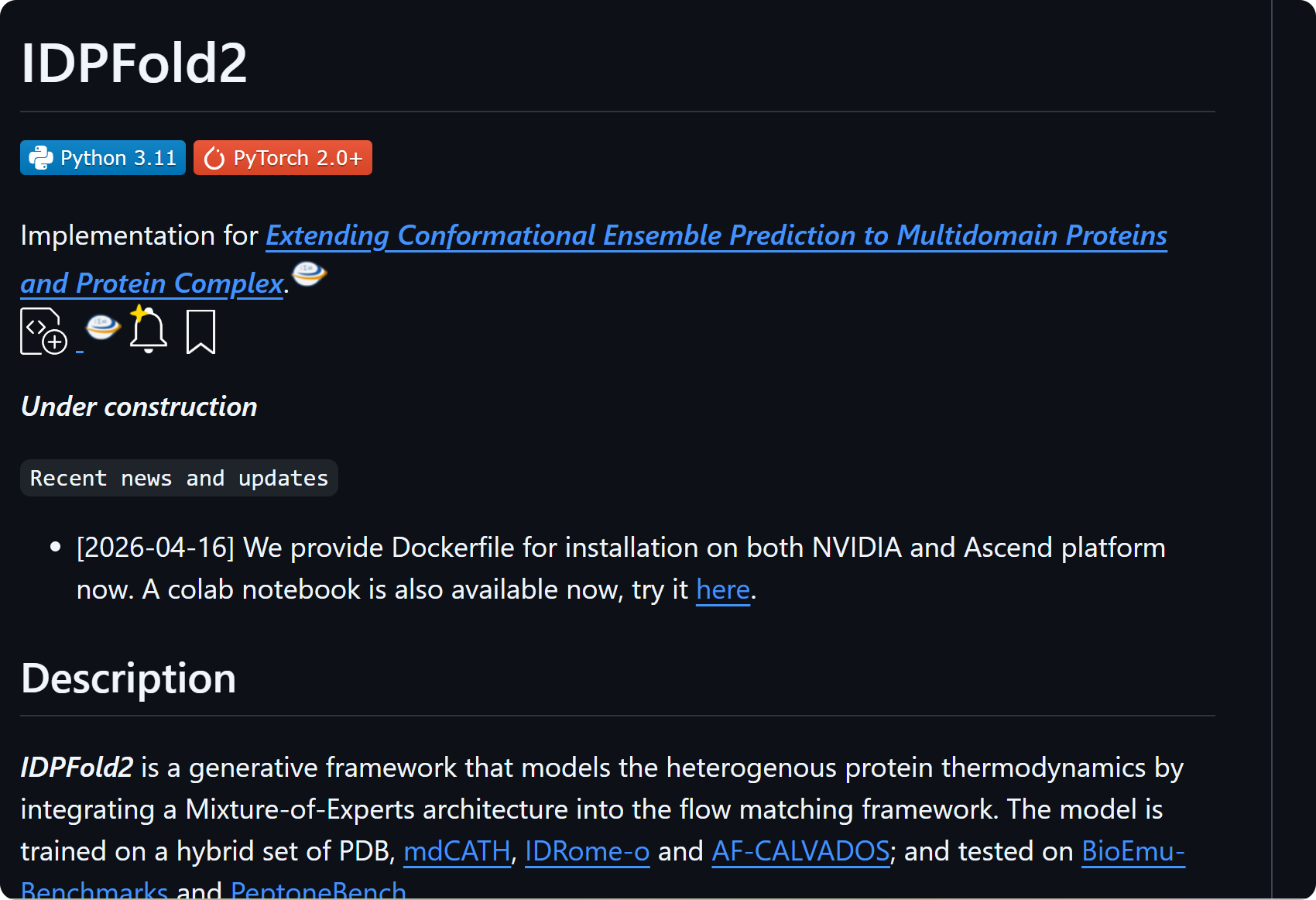
进一步查看:
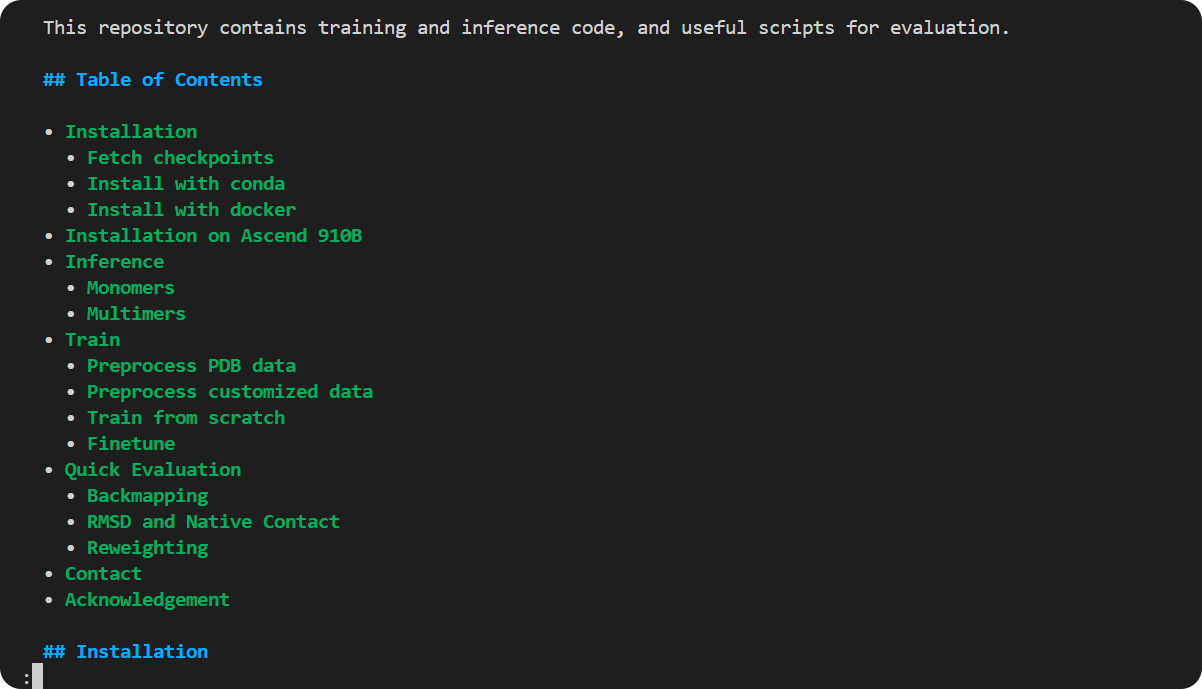
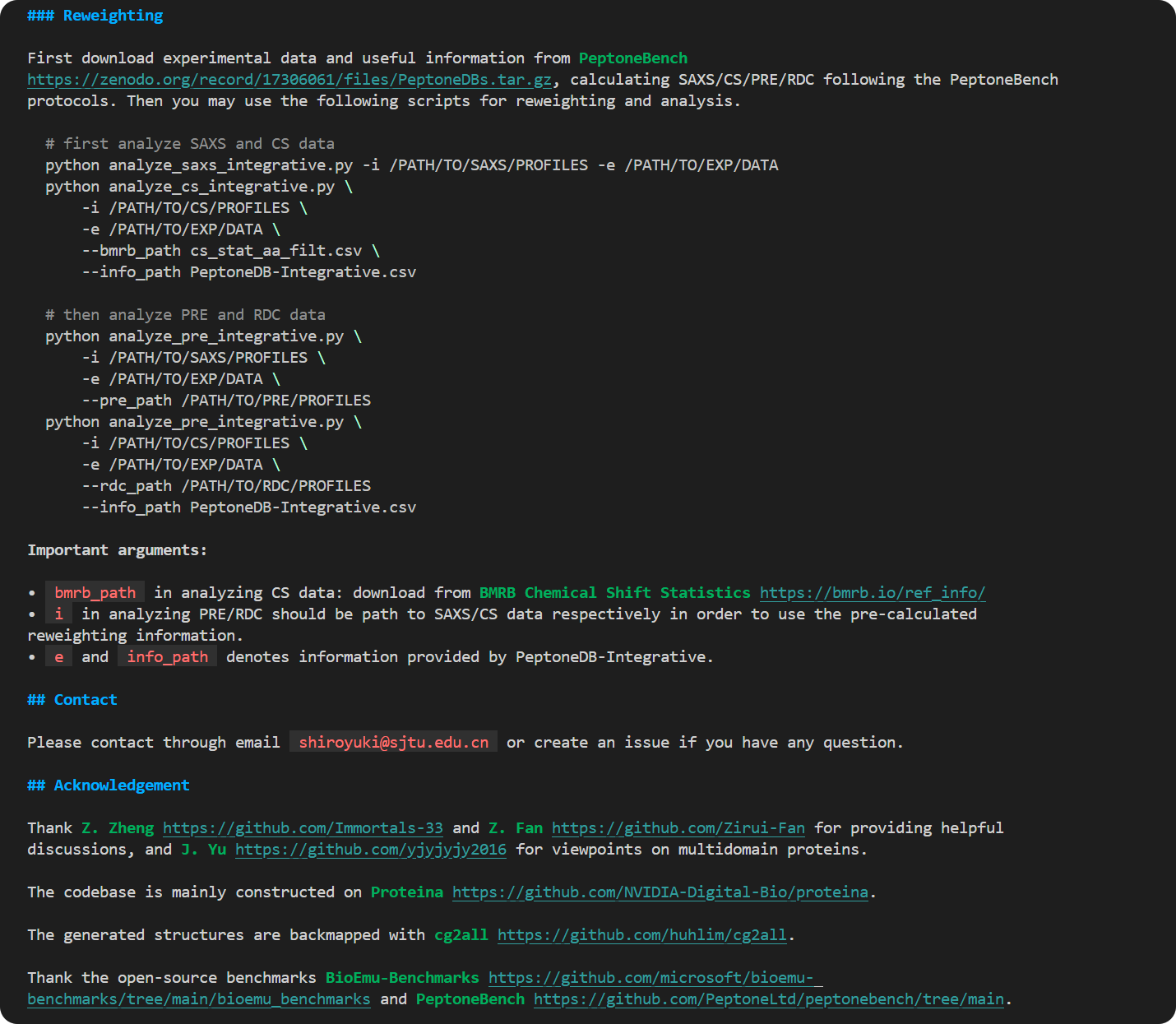
可以注意到,repo view其实查看的就是仓库的README.md文件。
那如果我们要查看其余的文件呢,readme是用于快速概览+总结大意(相当于一篇文献的abstract,我们先快速过一遍),
如果我们发现了感兴趣的仓库(比如说通过abstract觉得这篇文献确实有用,有意思),
这个时候,我们想要进一步深入查询该仓库中的其他文件。
方法有很多,我们可以直接git clone,或者是通过gh的相关命令。
githubhunt
参考:https://github.com/xgzlucario/githubhunt
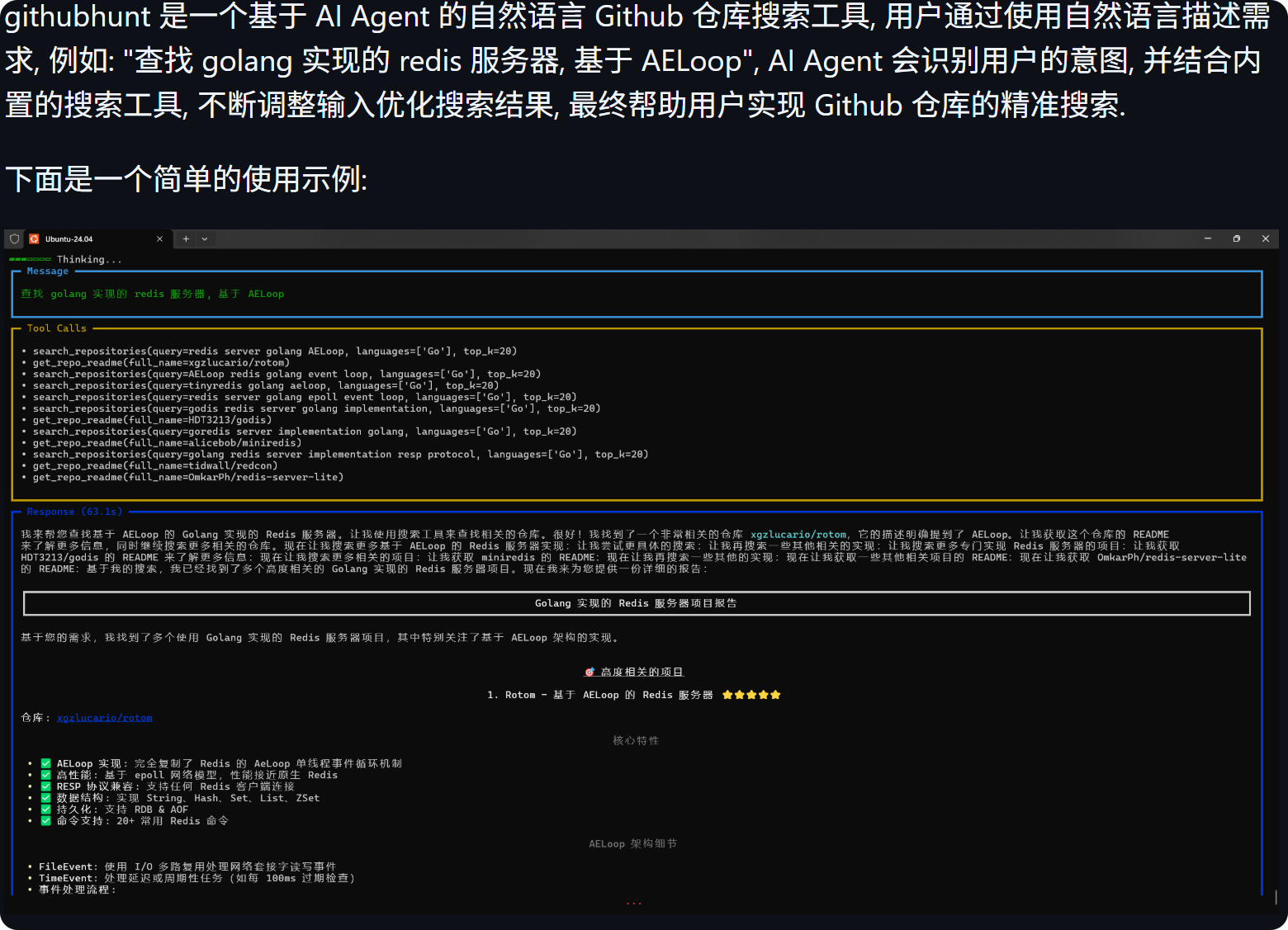
ghgrab
参考:https://github.com/abhixdd/ghgrab
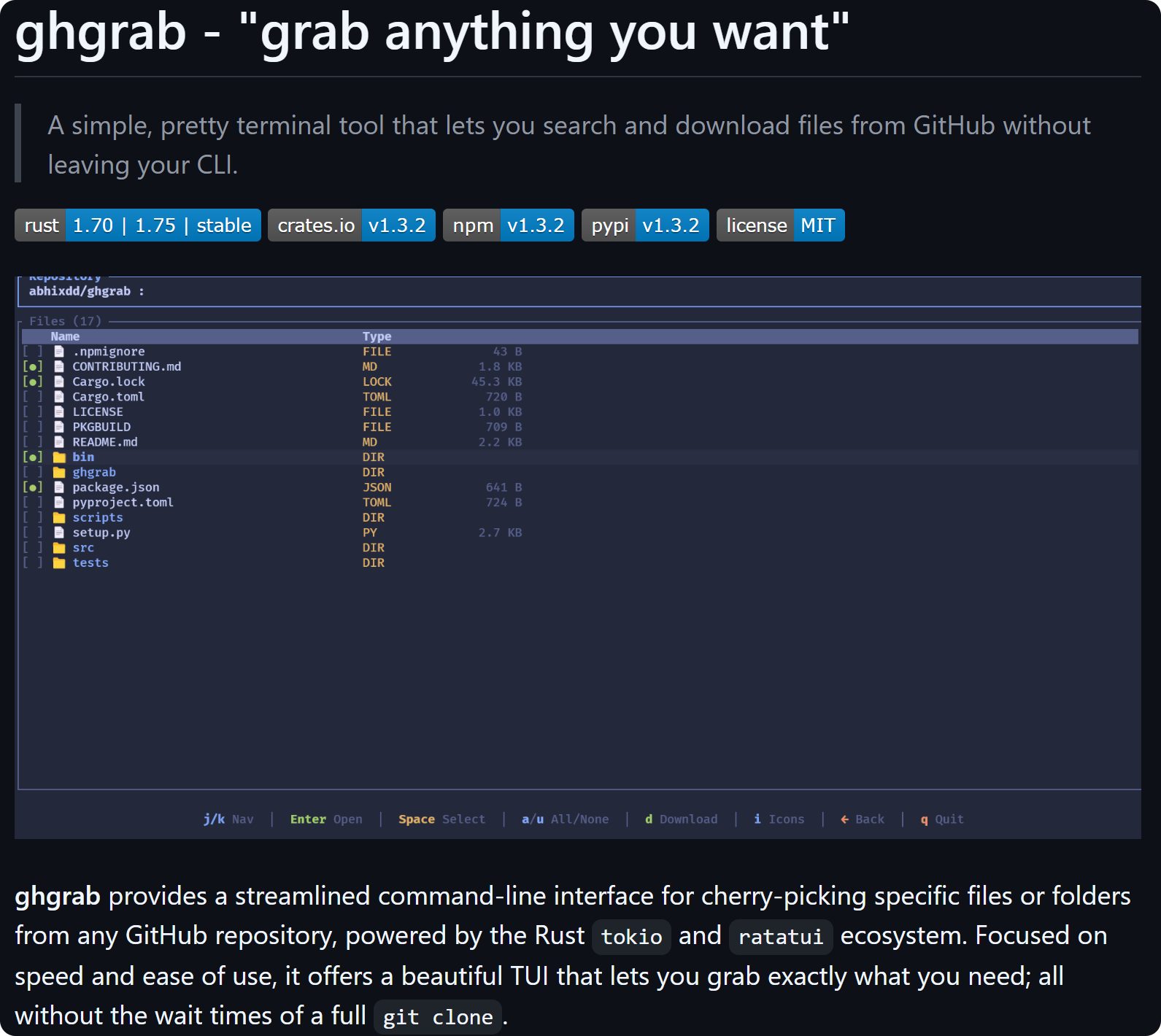
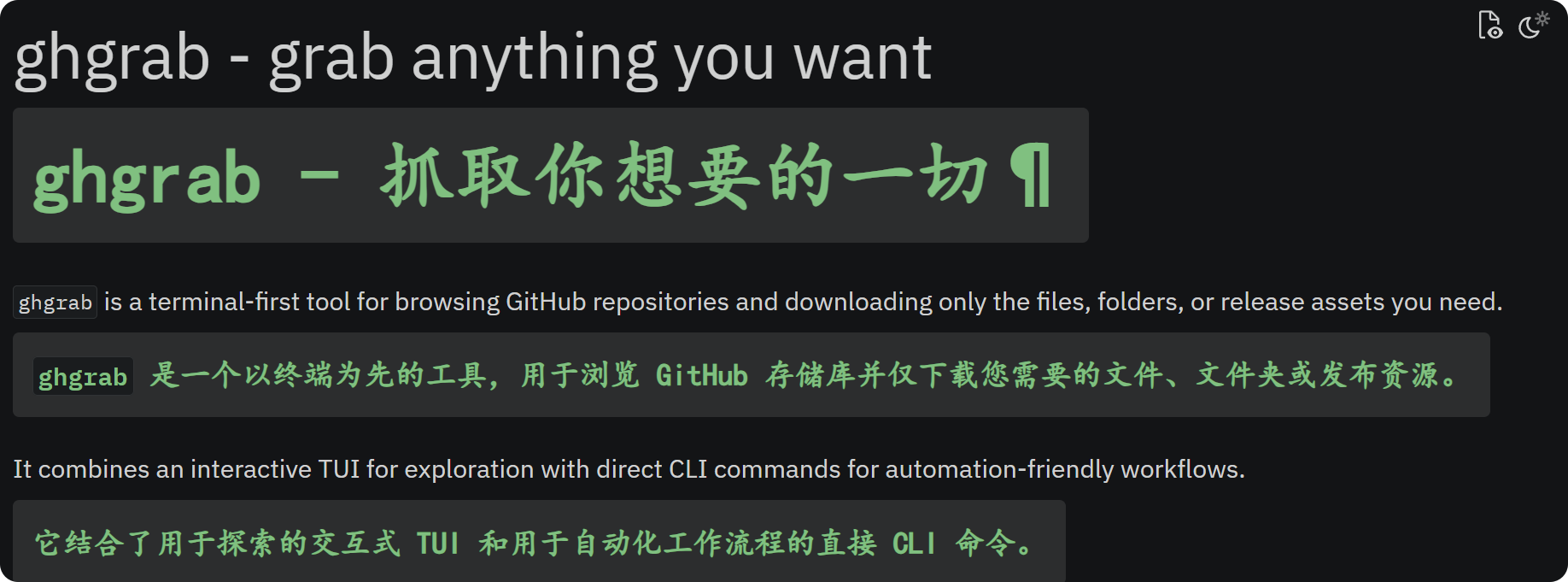
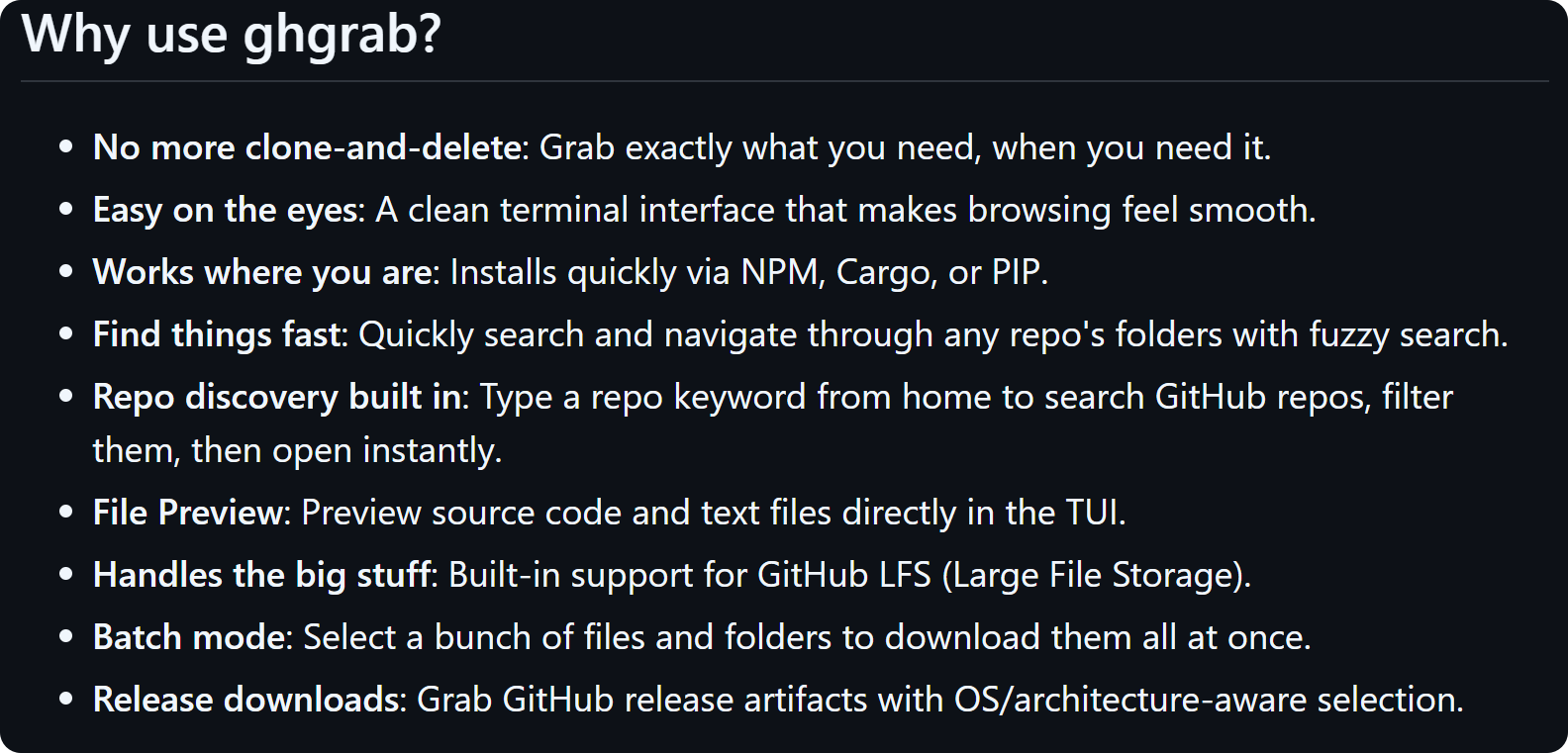
下面是使用方式:
首先我们需要安装
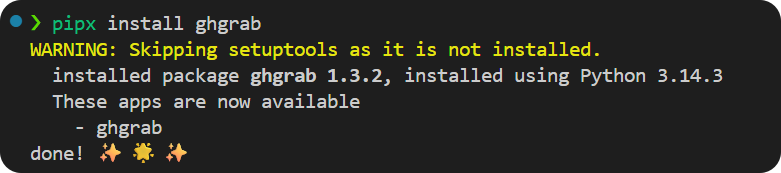
pipx install ghgrab
注意这里用的不是pip,是pipx,
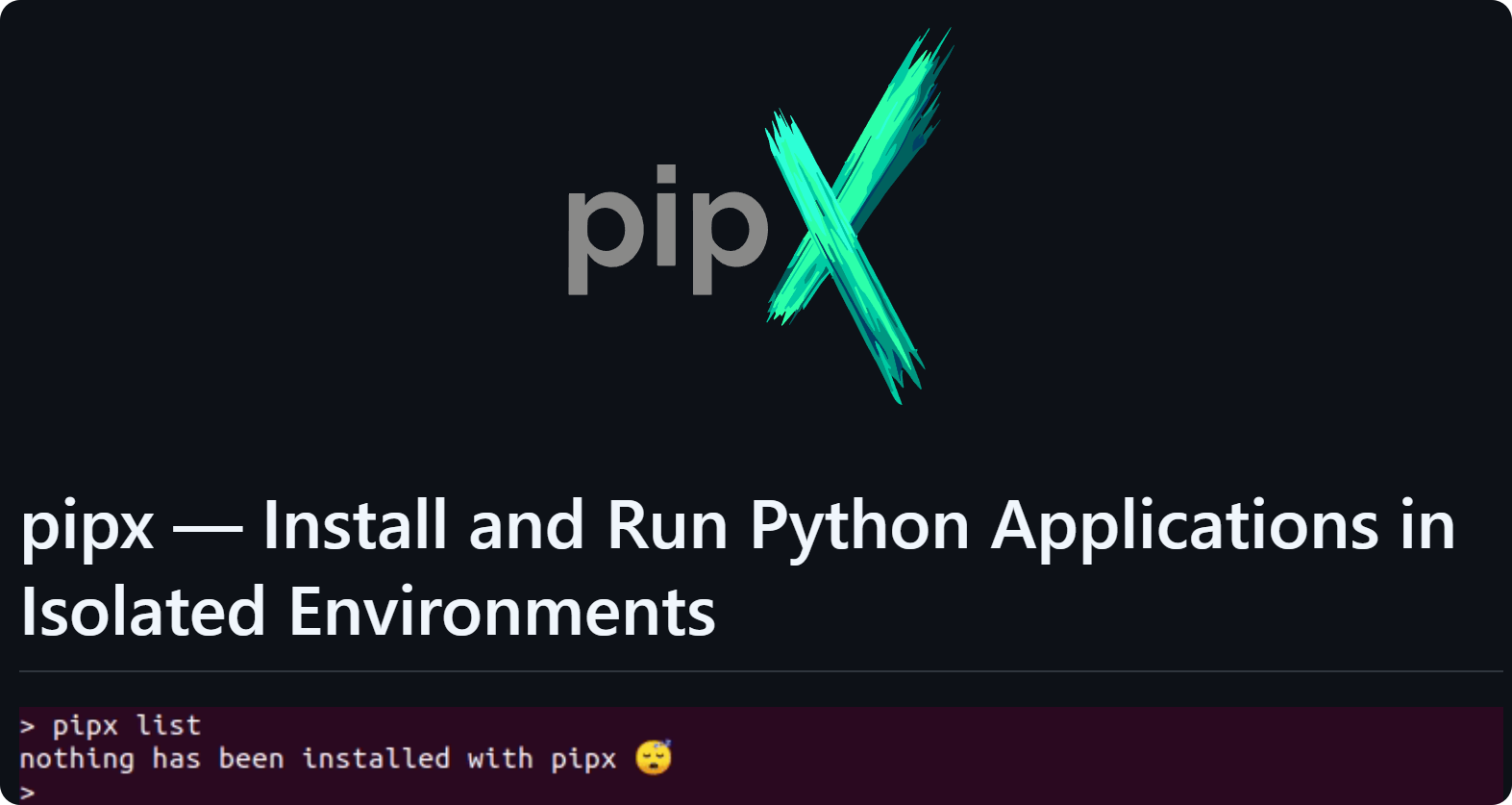
pipx和pip
参考官网:https://github.com/pypa/pipx
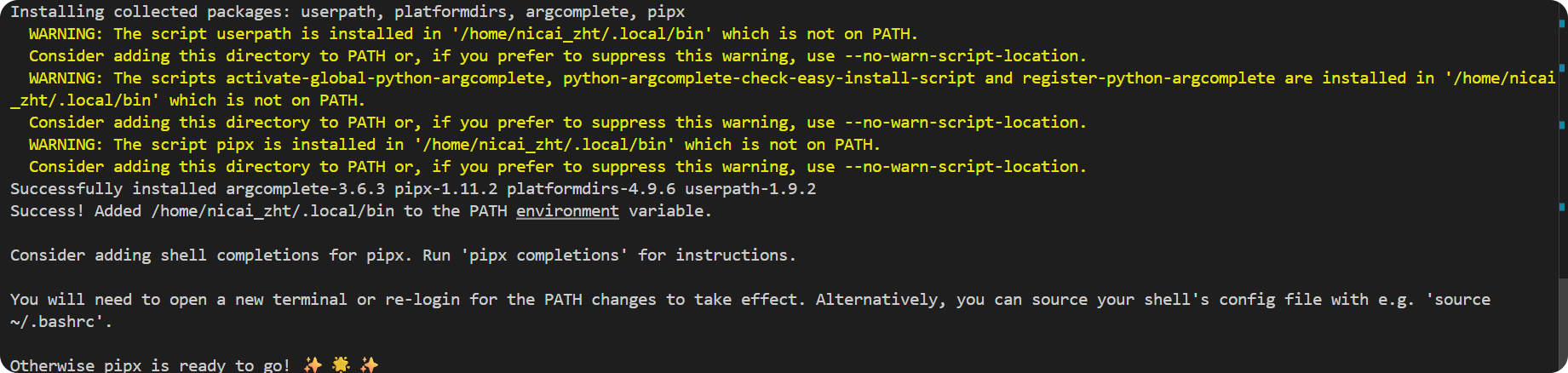
安装方式
python3 -m pip install --user pipx
python3 -m pipx ensurepath
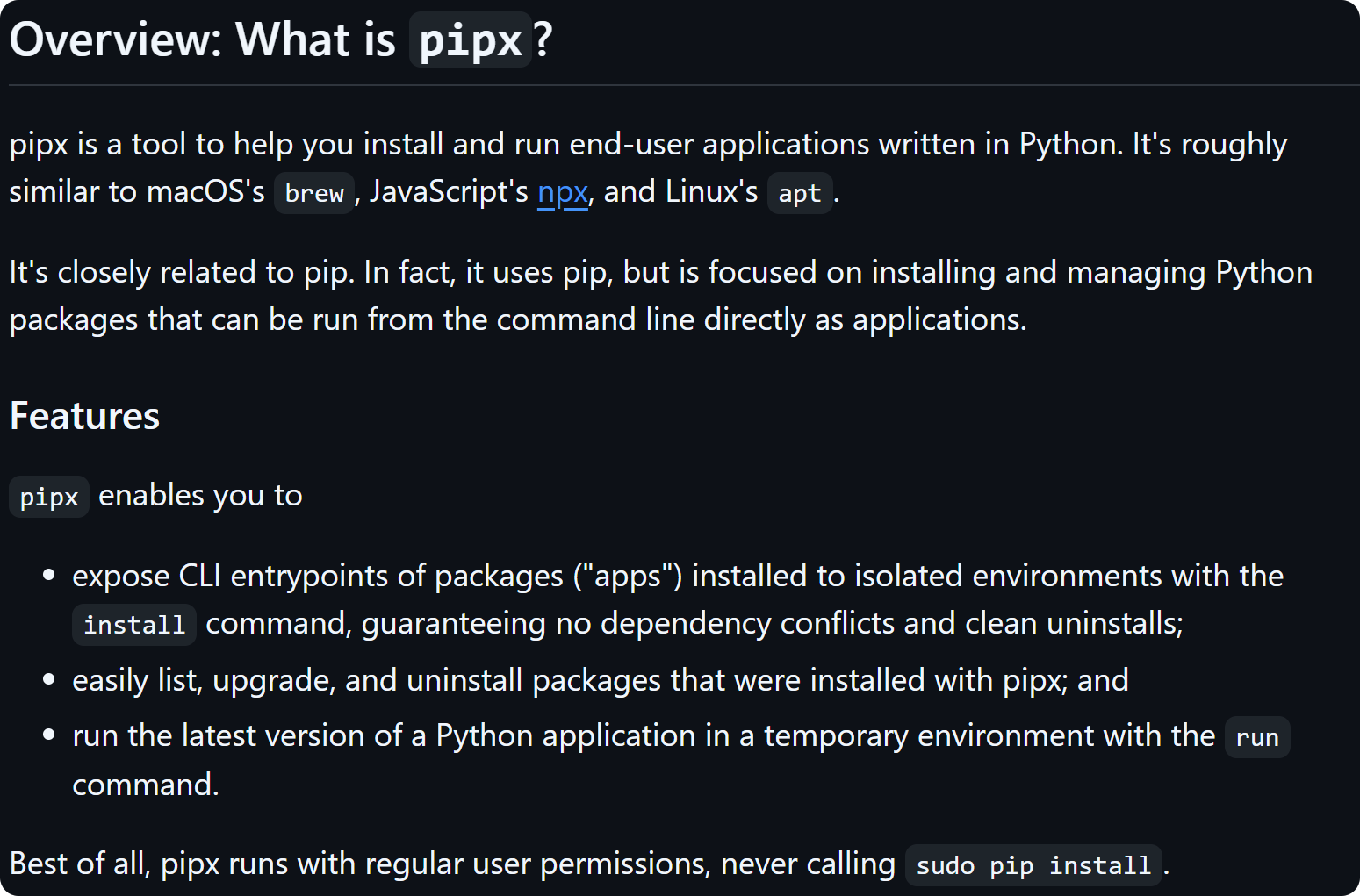
| pip | pipx | |
|---|---|---|
| 用途 | 安装 Python 库/依赖包 | 安装和运行 Python 命令行应用程序 |
| 类比 | 像 npm install 装依赖 | 像 brew、apt、npx —— 装可执行工具 |
1. 隔离性
- pip:包安装到系统或当前环境的 Python 中,所有包共享同一个环境,容易产生依赖冲突
- pipx:每个应用安装在独立的虚拟环境中,完全隔离,互不干扰,卸载也干净
2. 使用场景
- pip:开发时安装项目依赖(如
requests、django) - pipx:安装终端可直接运行的工具(如
black、pycowsay、poetry)
3. 命令行暴露
- pip:安装后不一定有 CLI 命令,需要手动配置
- pipx:自动将应用的 CLI 入口点暴露到 PATH,全局可直接运行
4. 权限
- pip:经常需要
sudo pip install(危险,可能破坏系统 Python) - pipx:普通用户权限即可运行,更安全
pip 是用来装"库"的,pipx 是用来装"工具"的。
如果你装的东西是在终端里直接敲命令运行的(如代码格式化、HTTP 客户端、构建工具),用 pipx;如果是项目里 import 用的库,用 pip。
使用方式
使用方法的话很简单,只需要输入
ghgrab
就是一个TUI终端交互界面
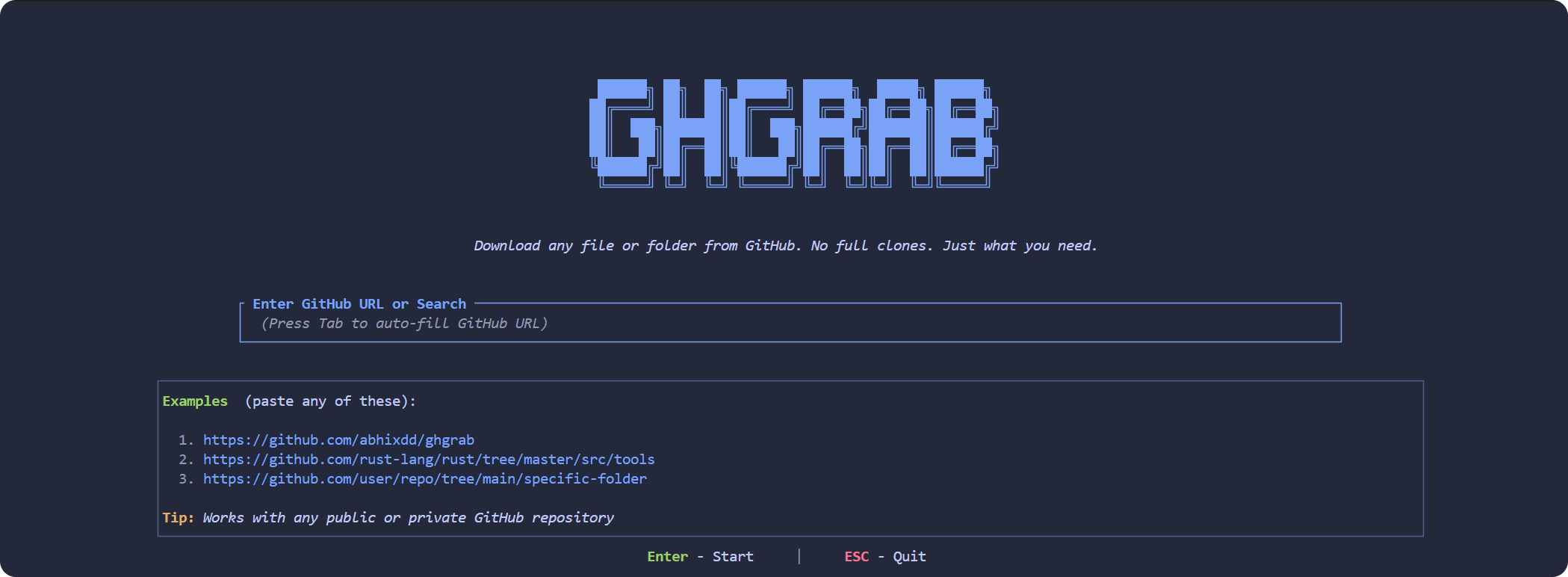
然后按照说明在screen中可以输入url或者是key word之类,
但是我输了key word没成功,只能手动输入github url
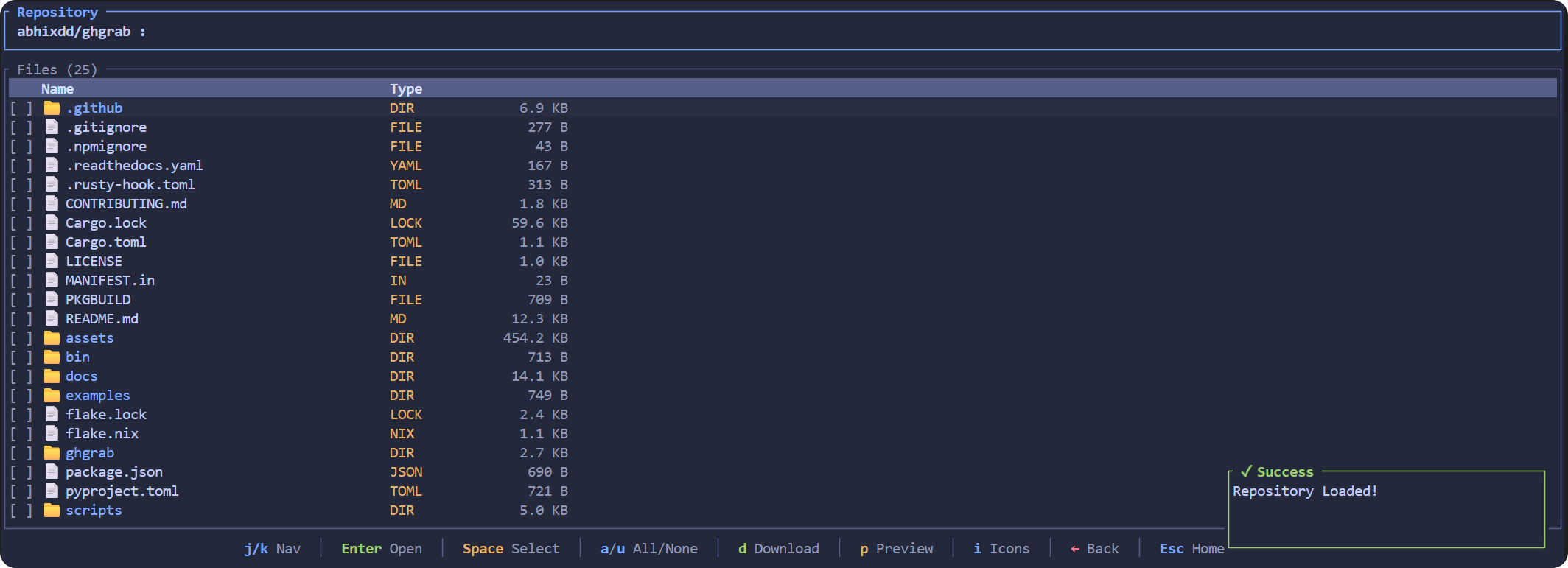
体验下来,更多的是给定github仓库,可以直接下载指定文件,
但是没法拿来作为单纯的github搜索引擎CLI用
githubsearchtool
参考:https://www.aidoczh.com/crewai/en/tools/search-research/githubsearchtool.html
https://github.com/crewAIInc/crewAI
OpenCLI/CLI- Anything+网页搜索工具
在 AI Agent 迅速崛起的今天,一个核心问题日益凸显:如何让 AI 真正"使用"软件?
传统的解决方案要么依赖脆弱的 UI 自动化(截图、点击、OCR),要么需要软件提供完善的 API 接口。但现实是,绝大多数专业软件既没有为 AI 设计的接口,其 UI 也远非为机器操作而优化。这个鸿沟,正在成为 AI Agent 落地的最大障碍。
OpenCLI 和 CLI-Anything。它们从不同角度切入,却指向同一个愿景——让任何软件都能被 AI Agent 通过命令行界面高效控制。
openCLI
官网参考:http://github.com/jackwener/OpenCLI
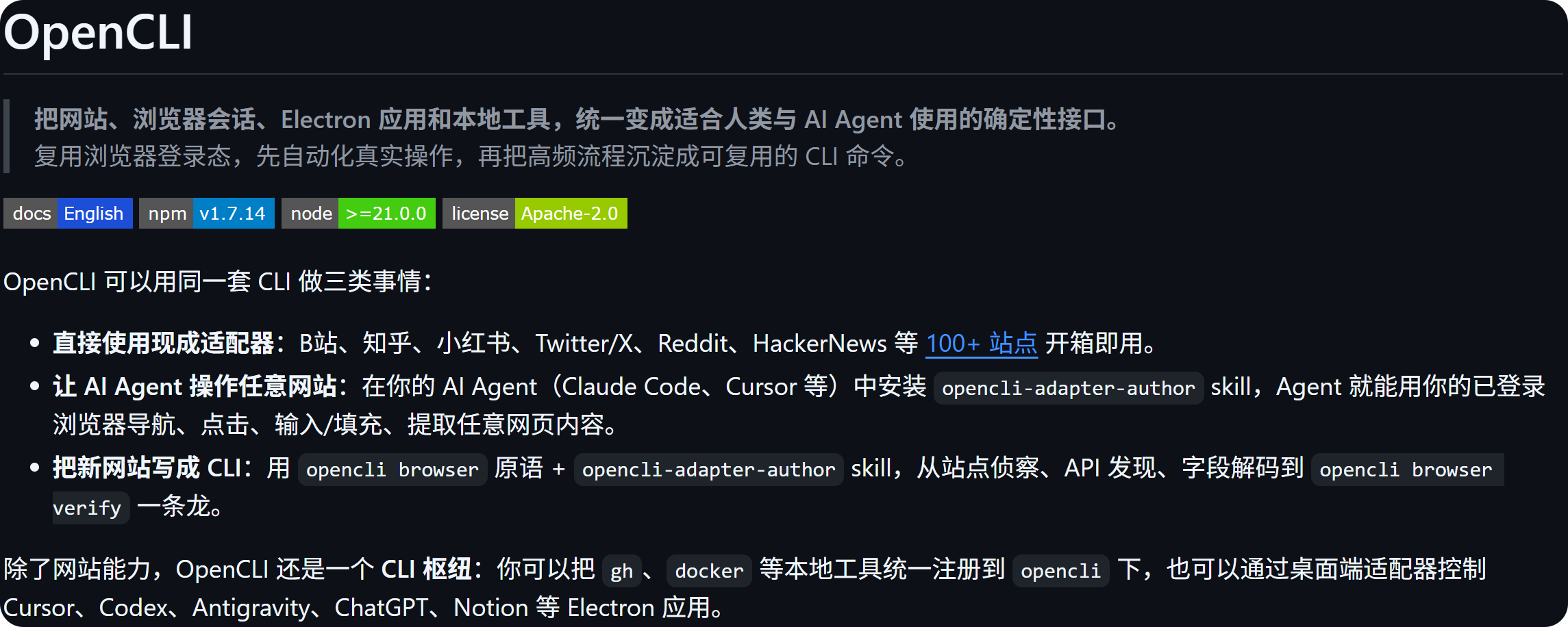
内置100+站点是:
https://github.com/jackwener/OpenCLI/blob/main/docs/adapters/index.md
安装步骤:
# OpenCLI 要求 Node.js >= 21
node --version
npm install -g @jackwener/opencli
然后再是安装 Browser Bridge 扩展,就是添加chrome浏览器插件
https://chromewebstore.google.com/detail/opencli/ildkmabpimmkaediidaifkhjpohdnifk
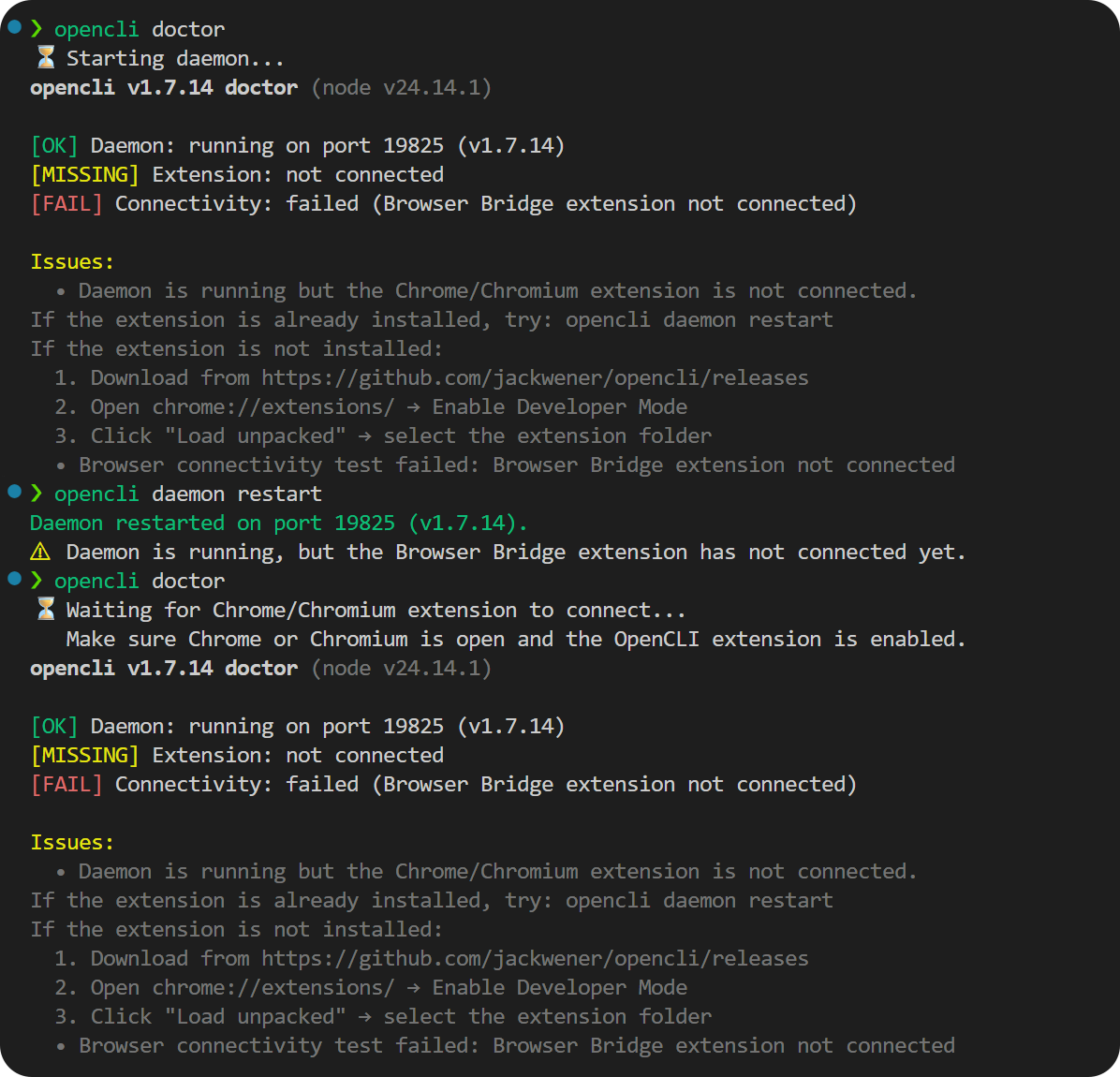
OpenCLI 通过轻量 Browser Bridge 扩展和本地微型 daemon 与 Chrome/Chromium 通信。daemon 会按需自动启动。
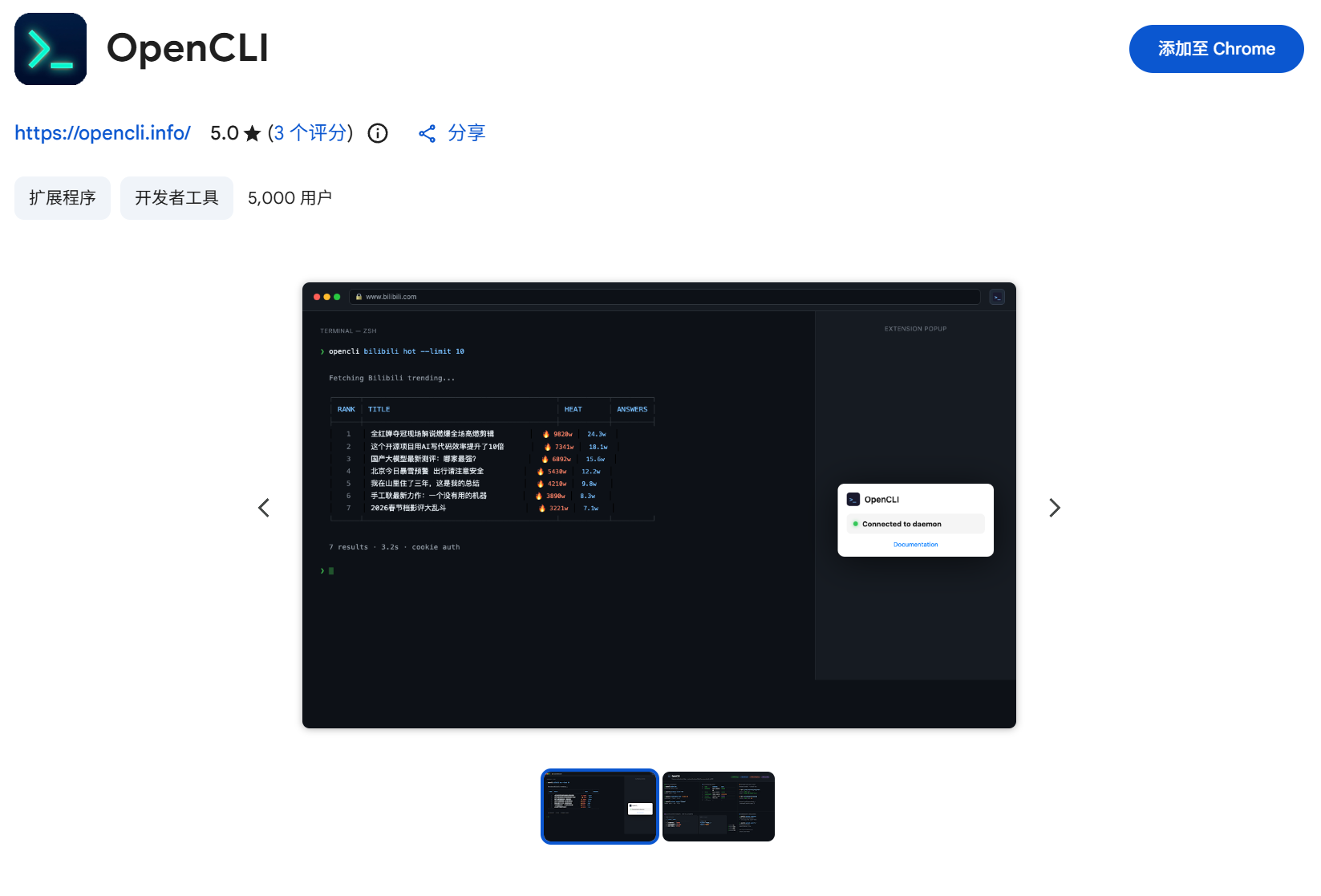
然后是验证环境
opencli doctor
一些重要的事
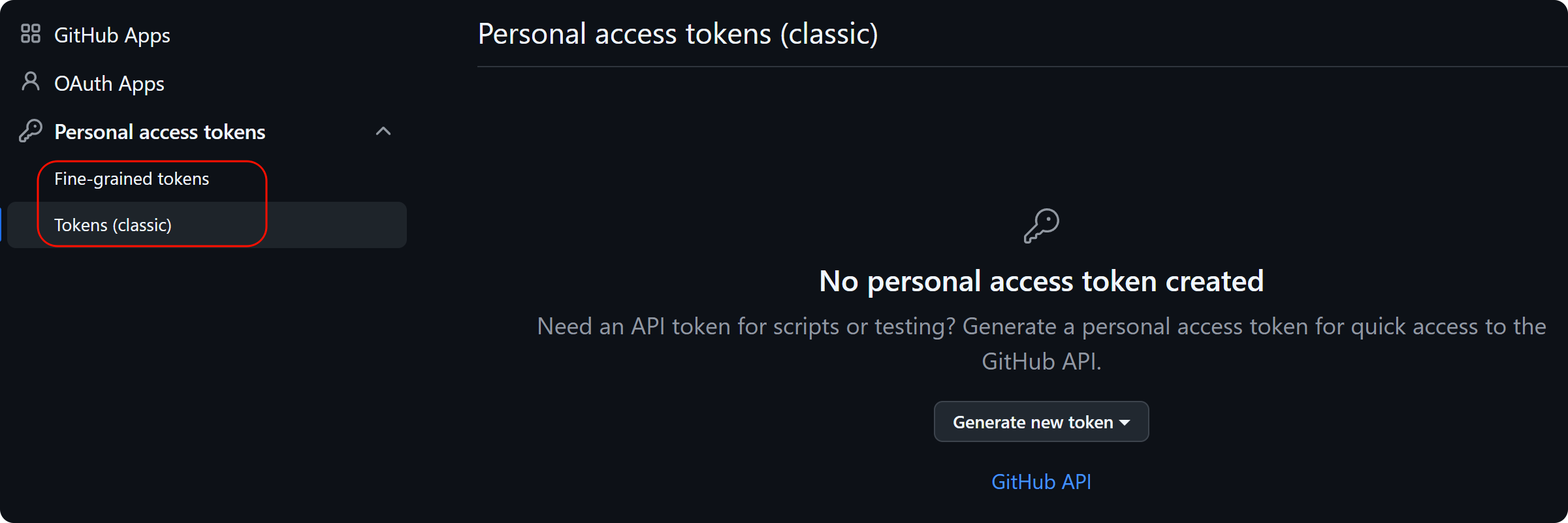
访问github,个人token是必须的:
参考:https://github.com/settings/tokens

免费领 150 小时云算力,进群参与显卡、AI PC 幸运抽奖
更多推荐

 9
9 0
0- 0


 已为社区贡献1条内容

所有评论(0)