
CherryStudio 安装 OpenClaw 遇到 `fuser not found; required for --force when lsof is unavailable` 问题解决
CherryStudio 安装 OpenClaw 遇到 fuser not found; required for --force when lsof is unavailable 问题解决
本文详细记录了在 CherryStudio 中安装 OpenClaw 时遇到
fuser not found错误的多种解决方案,同时涵盖 Windows 环境下安装配置 OpenClaw + MCP 的完整步骤。
一、问题背景
在 Windows 环境下,pacman 是 Arch Linux 的包管理器无法使用:
$ pacman -S psmisc
bash: pacman: command not found
原因是 Git Bash 默认使用的是 MinGW 版本,不是 MSYS2,因此无法使用 pacman 命令。需要改用 npm 方式安装相关工具。
二、安装步骤
2.1 安装 Node.js
确保已安装 Node.js(推荐 LTS 版本):
node --version
npm --version
如果未安装,请从 Node.js 官网 下载安装。
2.2 安装 OpenClaw CLI
npm install -g openclaw@latest
注意:如果使用
npx openclaw start命令,会自动安装最新版本的 openclaw,但该命令已废弃:PS C:\Users\xxxx\xxxx> npx openclaw start Need to install the following packages: openclaw@2026.6.6 Ok to proceed? (y) y [openclaw] Could not start the CLI. [openclaw] Reason: Unknown command: openclaw start. No built-in command or plugin CLI metadata owns "start". [openclaw] Debug: set OPENCLAW_DEBUG=1 to include the stack trace. [openclaw] Try: openclaw doctor [openclaw] Help: openclaw --help
三、启动 OpenClaw
3.1 初始化配置(首次使用)
npx openclaw setup
该命令会创建本地配置和工作空间。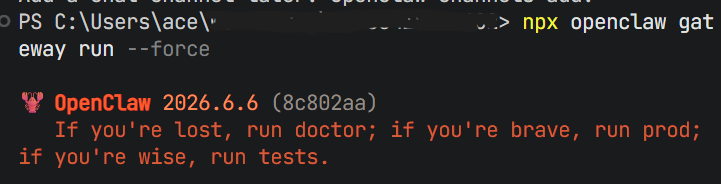
3.2 启动 Gateway 服务
npx openclaw gateway run --force
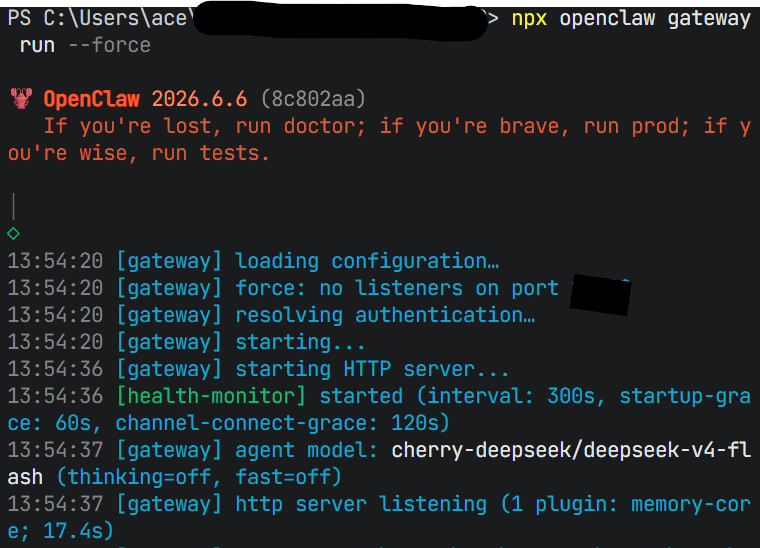
参数说明:
--force:强制启动,替换占用端口的进程
启动成功后:Gateway 服务会在本地运行,此时回到 CherryStudio 刷新页面,即可看到 OpenClaw 的操作界面,包括模型配置、通道管理、技能市场等功能模块。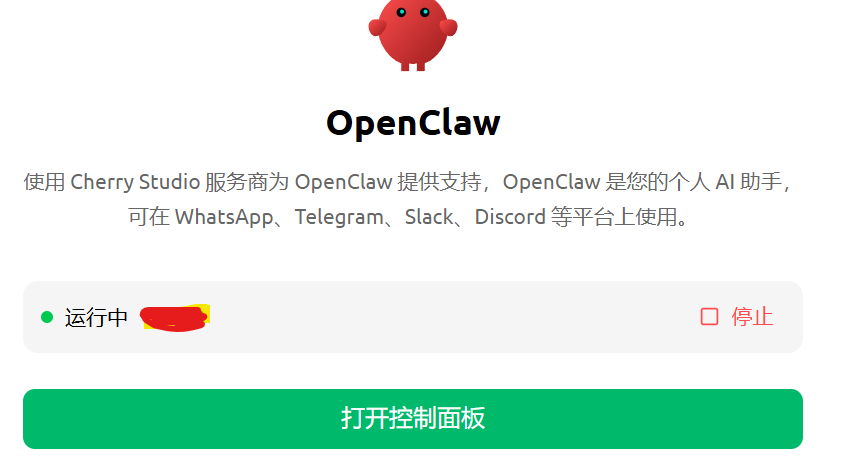
3.3 打开终端 UI(可选)
npx openclaw tui
四、配置 MCP Server
4.1 在 Cherry Studio 中配置
在 Cherry Studio 中添加 MCP Server 时:
| 配置项 | 值 |
|---|---|
| 命令 | npx |
| 参数 | openclaw-mcp-client |
4.2 其他常用 MCP Server
# 文件系统
npm install -g @modelcontextprotocol/server-filesystem

# GitHub
npm install -g @modelcontextprotocol/server-github

# Postgres
npm install -g @modelcontextprotocol/server-postgres
五、常见问题及解决方案
Q1:openclaw : 无法将“openclaw”项识别为 cmdlet
原因:全局安装后环境变量未更新
解决方案:使用 npx 运行
npx openclaw xxx
Q2:Unknown command: openclaw start
原因:新版本 OpenClaw 命令变更
解决方案:使用新命令
# 旧命令(已废弃)
openclaw start

# 新命令
npx openclaw gateway run --force
Q3:npm error 404 找不到包
原因:包名错误
解决方案:确认包名正确
# 错误包名
npm install -g @anthropic-ai/openclaw  # ❌ 不存在

# 正确包名
npm install -g openclaw-mcp-client     # ✅ 正确
Q4:fuser not found; required for --force when lsof is unavailable
错误信息:
2026-06-14T13:15:43.331+08:00 Force: Error: fuser not found; required for --force when lsof is unavailable
原因:fuser 和 lsof 是 Linux/Unix 系统下的端口查询工具,Windows 系统默认没有这些工具。
解决方案:
方案一:使用 Chocolatey 安装 psmisc(推荐)
# 安装 Chocolatey(如果未安装)
Set-ExecutionPolicy Bypass -Scope Process -Force; [System.Net.ServicePointManager]::SecurityProtocol = [System.Net.ServicePointManager]::SecurityProtocol -bor 3072; iex ((New-Object System.Net.WebClient).DownloadString('https://community.chocolatey.org/install.ps1'))

# 安装 psmisc(包含 fuser)
choco install psmisc
方案二:使用 Scoop 安装
# 安装 Scoop(如果未安装)
Set-ExecutionPolicy RemoteSigned -Scope CurrentUser
irm get.scoop.sh | iex

# 安装 psmisc
scoop install psmisc
方案三:手动释放端口
# 查找占用端口的进程(假设端口是 19001)
netstat -ano | findstr :19001

# 杀死进程(将 <PID> 替换为实际进程ID)
taskkill /F /PID <PID>

# 然后重新启动
npx openclaw gateway run
方案四:使用 WSL
在 WSL (Windows Subsystem for Linux) 中运行 OpenClaw,Linux 环境原生支持这些工具。
Q5:端口被占用
解决方案:使用 --force 参数强制替换
npx openclaw gateway run --force
六、常用命令速查
| 命令 | 功能描述 |
|---|---|
openclaw setup |
初始化本地配置和工作空间 |
openclaw gateway run |
启动 Gateway 服务 |
openclaw gateway run --force |
强制启动(替换占用端口) |
openclaw tui |
打开终端 UI |
openclaw terminal |
打开本地终端 UI(tui --local 的别名) |
openclaw status |
查看 Gateway、通道、模型状态 |
openclaw doctor --fix |
修复常见配置、服务、插件问题 |
openclaw configure |
修改模型、Gateway、通道、插件配置 |
openclaw plugins list |
查看已安装插件 |
openclaw plugins install <name> |
安装插件 |
openclaw skills list |
查看已安装技能 |
八、小贴士
- 终端选择:建议使用 Git Bash 或 PowerShell,体验更佳
- 权限问题:如果遇到权限错误,尝试以管理员身份运行终端
- 环境变量:安装后如果命令仍不可用,重启终端或手动添加 npm 全局路径到环境变量
- 更新检查:定期运行
npm update -g openclaw保持最新版本
九、参考链接

小龙虾开发者社区是 CSDN 旗下专注 OpenClaw 生态的官方阵地,聚焦技能开发、插件实践与部署教程,为开发者提供可直接落地的方案、工具与交流平台,助力高效构建与落地 AI 应用
更多推荐

 4
4 0
0- 0


 已为社区贡献1条内容

所有评论(0)