从 0 到 1 打造生产级一键部署工具:OpenClaw 全自动化安装程序完整实现
本文完整拆解了 OpenClaw 全自动化安装工具的核心实现,涵盖了 Windows 桌面开发、网络编程、进程管理、系统 API 调用、工程化打包等核心技术点。这个工具不仅解决了 OpenClaw 的部署门槛问题,更可以作为通用的 Windows 自动化安装框架,适配其他工具的部署需求。Windows 桌面开发看似简单,但实际上有非常多的底层细节和坑,只有真正理解 Windows 系统的底层机制,
在 AI 工具与开源应用快速普及的今天,环境配置的技术门槛,始终是普通用户与优质开源项目之间最大的鸿沟。
以 OpenClaw 这款 AI 助手工具为例,用户想要完成本地部署,需要手动完成「Git 安装→Node.js 版本适配→npm 镜像源配置→依赖安装→环境变量配置→启动脚本部署」等十余个步骤,任何一步的版本不兼容、网络超时、命令执行错误,都会导致部署失败。对于非技术用户而言,这些操作几乎是不可逾越的障碍。
基于此,我们设计并实现了OpenClaw 本地部署全自动化安装工具,以「全流程自动化 + 强容错 + 单文件分发」为核心,用一个 EXE 文件,实现了「点击安装→全程自动化→开箱即用」的完整闭环。本文将从架构实现、核心技术细节、工程化打包等维度,完整拆解这款生产级安装工具的全部实现逻辑。
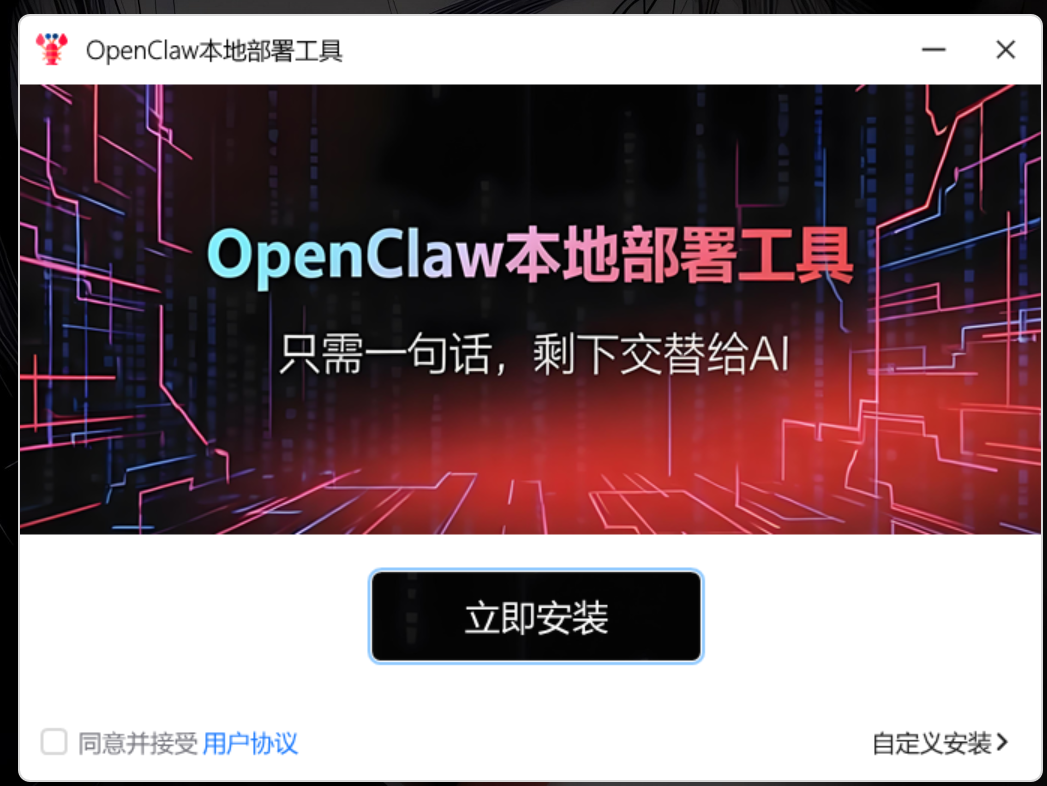
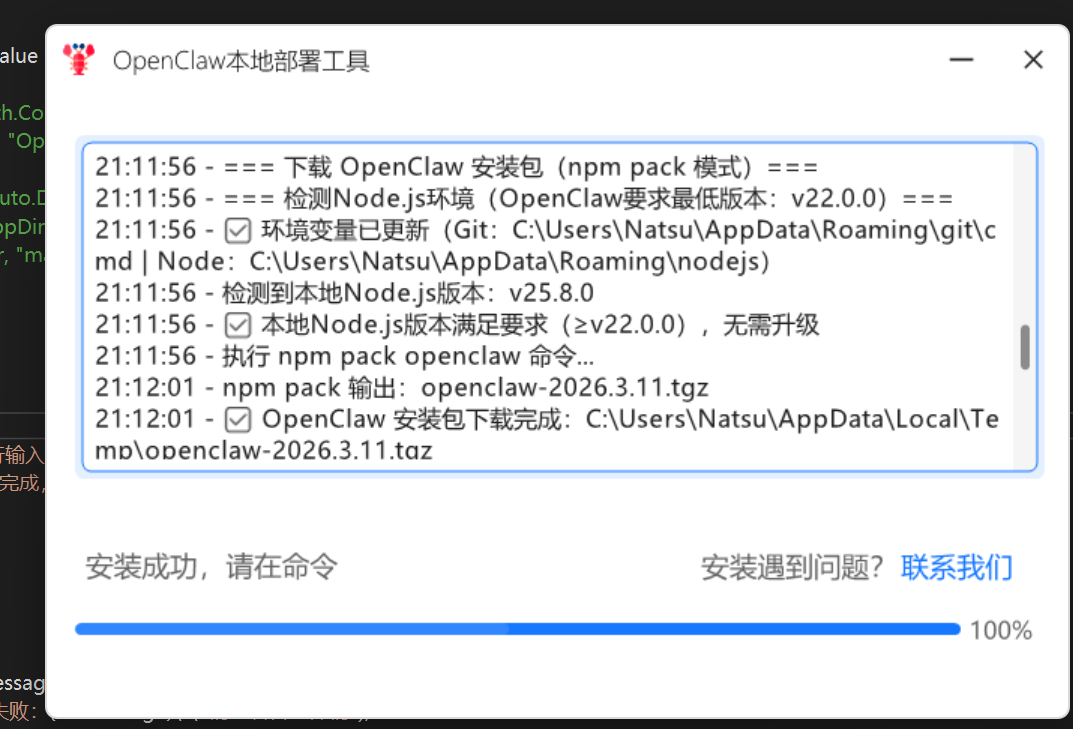
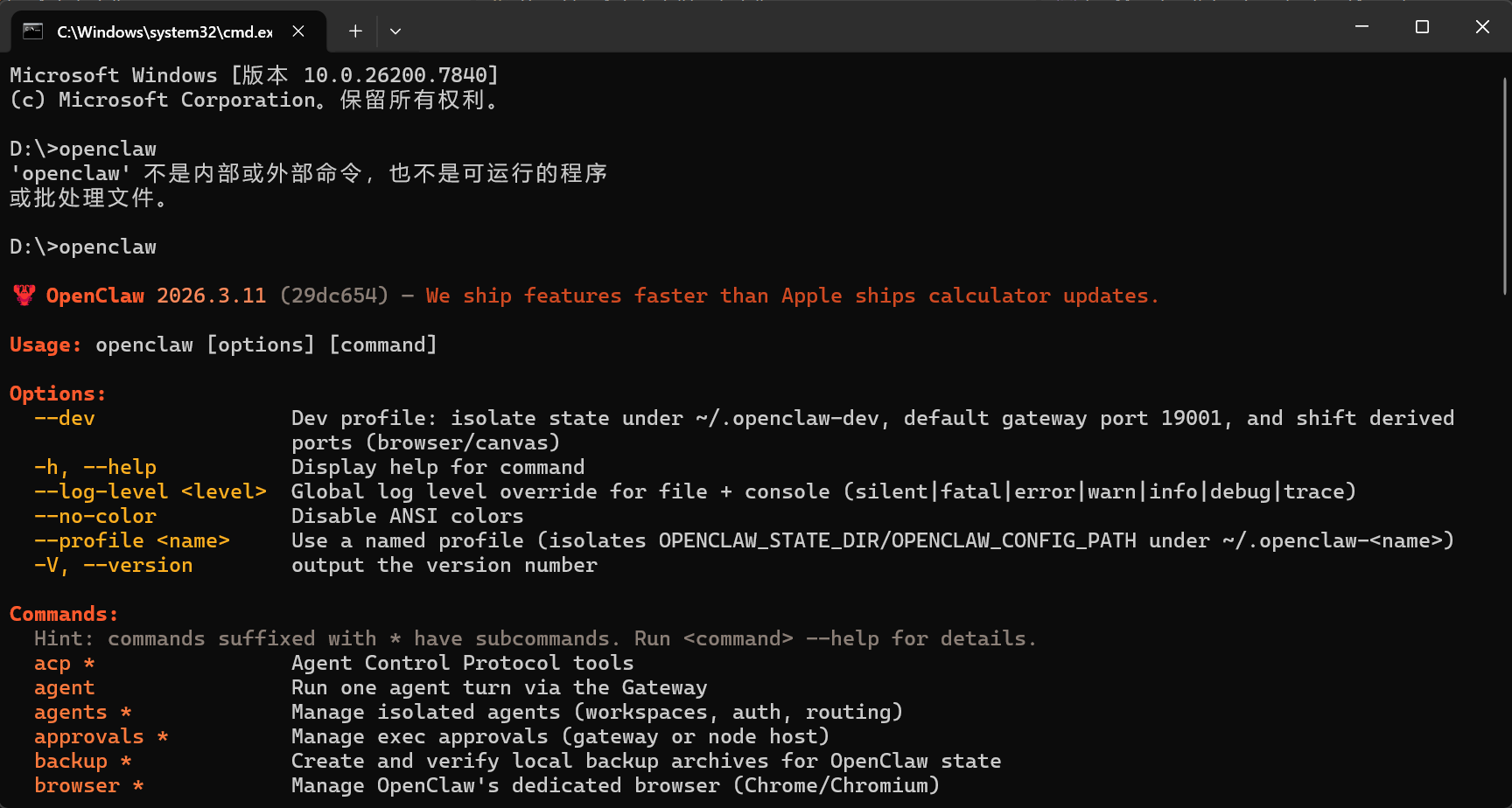
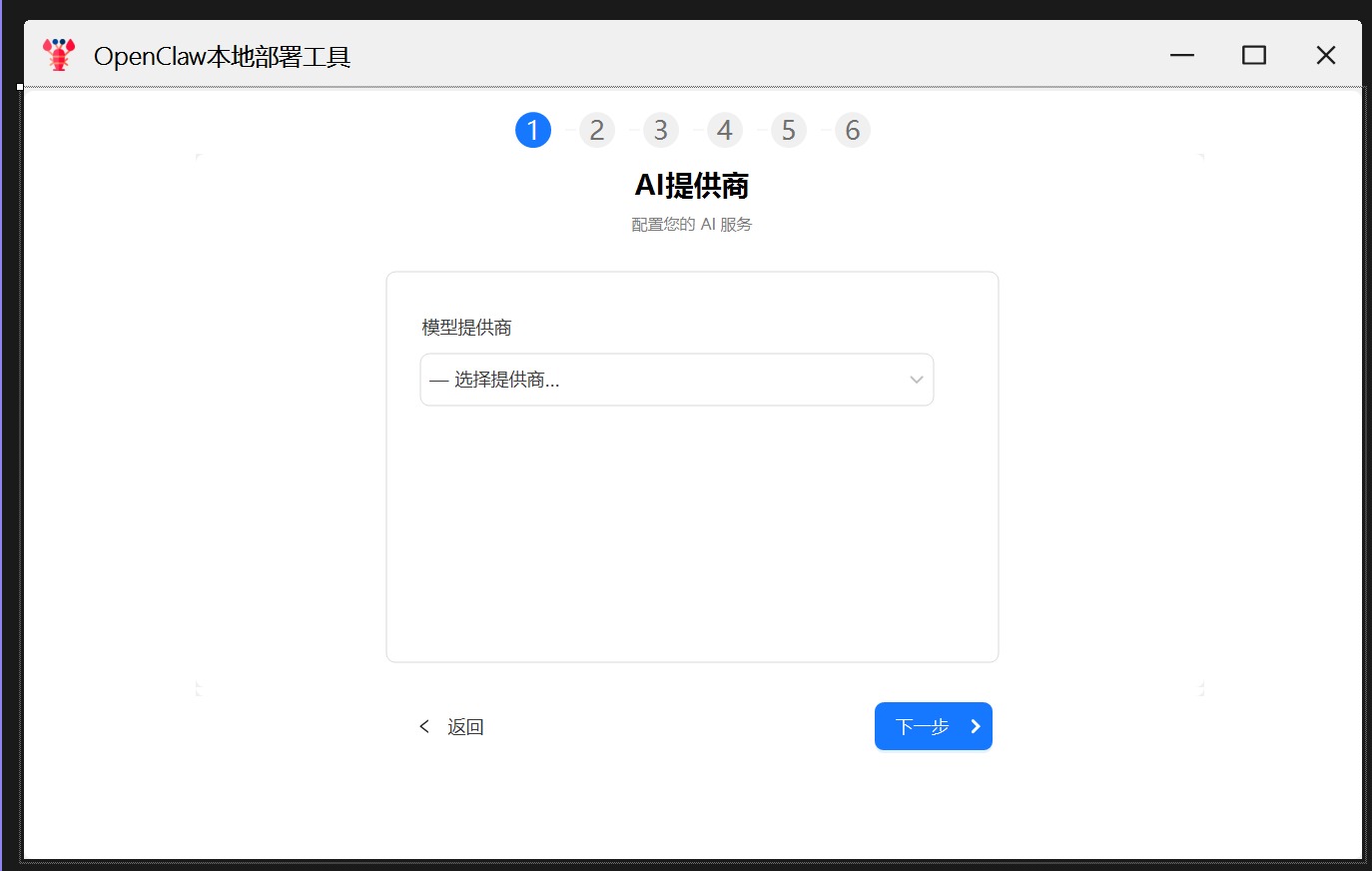
下面2张图片仅作为后续扩展参考UI,代码部分未实现(已提供源代码供自行diy扩展)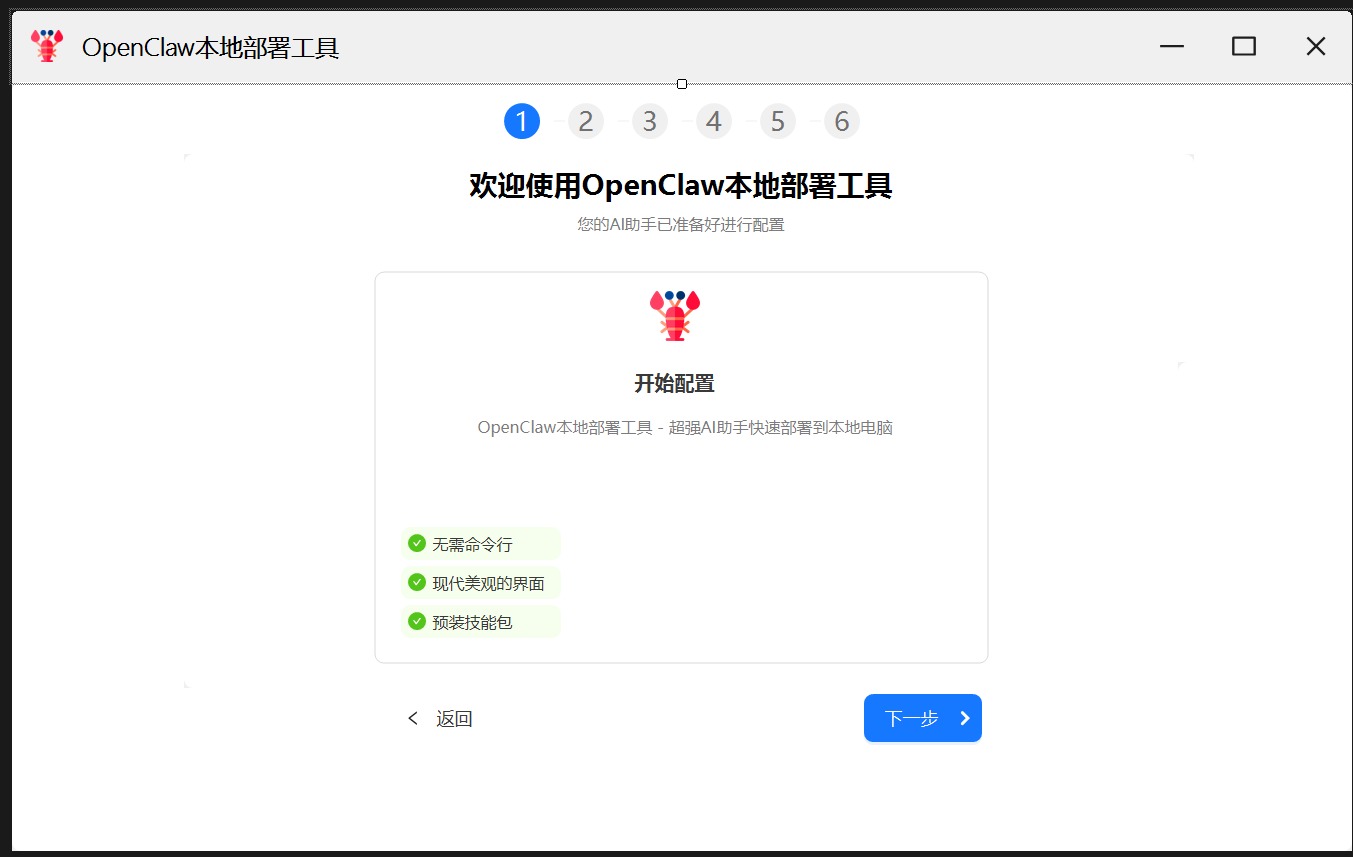
1.1 核心设计目标
- 零操作门槛:用户仅需点击「立即安装」,全程无需任何手动操作、无需输入任何命令
- 免管理员权限:普通 Windows 用户账户即可完成全部安装流程,无需 UAC 权限申请
- 强网络兼容:针对国内网络环境优化,支持断点续传、镜像源加速、异常重试
- 易分发部署:最终打包为单个 EXE 文件,无任何外部依赖,用户下载即可运行
1.2 技术栈选型
| 技术 / 组件 | 用途 | 选型核心逻辑 |
|---|---|---|
| .NET Framework 4.8 | 基础开发框架 | Windows 系统原生预装,用户无需额外安装运行时,对 Windows 7/10/11 全版本兼容性最强 |
| AntdUI | UI 界面库 | 基于 WinForm 的现代化 UI 组件库,开发效率高,界面美观,无需 WPF 的高学习成本 |
| 7-Zip | 解压组件 | 全格式压缩包支持,完美适配 npm 的 tgz 格式、Node.js/Git 的 zip 包,开源免费无版权风险 |
| Costura.Fody | 程序集打包工具 | 将所有引用的托管 DLL 嵌入最终 EXE,实现单文件分发,彻底解决「缺少 dll 无法运行」的依赖地狱问题 |
| HttpClient | 网络下载组件 | .NET 原生 HTTP 客户端,支持异步流式下载、断点续传、连接复用,性能与可控性远超老旧组件 |
二、全局初始化与核心框架
2.1 全局常量与路径设计
首先,我们需要定义整个程序用到的常量和路径,这里有一个核心设计原则:所有路径都指向用户的 AppData 目录。
🔍 技术科普:Windows 系统的
Environment.SpecialFolder.ApplicationData目录是用户级的目录,普通用户拥有完全的读写权限,无需管理员权限即可操作。这是我们实现「免管理员权限安装」的核心基础。
// 配置常量
// 淘宝镜像源,解决国内网络访问npm官方源超时的问题
private const string NPM_MIRROR_URL = "https://registry.npmmirror.com";
// Git for Windows的淘宝镜像API
private const string GIT_MIRROR_API = "https://registry.npmmirror.com/-/binary/git-for-windows/";
// Node.js的淘宝镜像版本列表API
private const string NODEJS_MIRROR_API = "https://cdn.npmmirror.com/binaries/node/index.json";
// OpenClaw要求的最低Node.js版本
private const string OPENCLAW_MIN_NODE_VERSION = "22.0.0";

// 路径配置 - 全部安装在用户AppData目录,无需管理员权限
private readonly string _appDir = Path.Combine(Environment.GetFolderPath(Environment.SpecialFolder.ApplicationData), "myopenclaw");
private readonly string _gitInstallDir = Path.Combine(Environment.GetFolderPath(Environment.SpecialFolder.ApplicationData), "git");
private readonly string _nodeInstallDir = Path.Combine(Environment.GetFolderPath(Environment.SpecialFolder.ApplicationData), "nodejs");
private string _npmGlobalInstallPath = Path.Combine(Environment.GetFolderPath(Environment.SpecialFolder.ApplicationData), "npm");
private readonly string _openClawRelativePath = "node_modules\\openclaw";
private string _openClawPackageName = "";

// HttpClient实例 - 全局复用
private readonly HttpClient _httpClient;
2.2 窗体初始化与全局对象设计
窗体的Load事件是整个安装流程的入口,这里有一个核心的 Windows 桌面开发原则:绝对不能在 UI 线程执行耗时操作。
🔍 技术科普:WinForm 的 UI 控件所有的属性更新、重绘都必须在 UI 线程(也就是创建控件的线程)中执行。如果在 UI 线程中执行耗时操作(比如下载文件、执行命令),会导致窗体卡死、无响应,用户体验极差。
因此,我们必须将整个安装流程放到后台线程中执行,仅在需要更新 UI 时,通过Invoke/BeginInvoke切回 UI 线程。
public FrmInstall()
{
    InitializeComponent();

    // HttpClient配置优化
    var httpClientHandler = new HttpClientHandler
    {
        UseProxy = false, // 禁用系统代理,避免国内网络下载超时
        AllowAutoRedirect = true,
        MaxAutomaticRedirections = 5,
        MaxConnectionsPerServer = 10, // 增大连接池,提升下载性能
        UseCookies = false
    };

    _httpClient = new HttpClient(httpClientHandler);
    _httpClient.Timeout = TimeSpan.FromMinutes(10); // 大文件下载长超时

    // 预创建目录
    Directory.CreateDirectory(_appDir);
    Directory.CreateDirectory(_gitInstallDir);
    Directory.CreateDirectory(_nodeInstallDir);
}

private async void FrmMain_Load(object sender, EventArgs e)
{
    // 初始化7-Zip组件
    ExtractEmbedded7zFiles();
    SevenZipHelper.InitInstance(_appDir);

    progress1.Value = 0f;
    txtLog.Clear();

    // 后台线程执行安装流程
    await Task.Run(async () =>
    {
        try
        {
            // 完整安装流程
            AppendLog("=== 开始前置环境检测 ===");
            await CheckAndInstallGitEnvironment();
            AppendLog("进度更新:10%");
            Invoke(new Action(() => progress1.Value = 0.1f));

            AppendLog("=== 开始检测Node.js(npm)环境 ===");
            await CheckAndInstallNodeEnvironment();
            AppendLog("进度更新:20%");
            Invoke(new Action(() => progress1.Value = 0.2f));

            AppendLog("=== 配置npm镜像源 ===");
            await SetNpmRegistry();
            AppendLog("进度更新:30%");
            Invoke(new Action(() => progress1.Value = 0.3f));

            AppendLog("=== 下载OpenClaw最新版 ===");
            await DownloadOpenClawPackage();
            AppendLog("进度更新:50%");
            Invoke(new Action(() => progress1.Value = 0.5f));

            AppendLog("=== 查询npm全局安装路径 ===");
            var (exitCode, output, _) = await ExecuteCommand($"npm prefix -g");
            if (exitCode == 0 && !string.IsNullOrWhiteSpace(output))
            {
                _npmGlobalInstallPath = output.Trim();
                AppendLog($"✅ 查询到npm全局安装路径:{_npmGlobalInstallPath}");
            }
            else
            {
                AppendLog("=== 重新设置npm全局安装路径 ===");
                (exitCode, output, _) = await ExecuteCommand($"npm config set prefix \"{_npmGlobalInstallPath}\"");
                if (exitCode == 0 && !string.IsNullOrWhiteSpace(output))
                {
                    AppendLog($"✅ 设置Node全局安装路径成功:{output.Trim()}");
                }
                else
                {
                    AppendLog($"❌ 设置Node全局安装路径失败:{output.Trim()}");
                    throw new Exception("无法设置npm全局安装路径,安装异常");
                }
            }

            AddPathToUserEnv(_npmGlobalInstallPath);
            NotifyEnvironmentChange();

            AppendLog("进度更新:60%");
            Invoke(new Action(() => progress1.Value = 0.6f));

            var tempOpenClawPath = Path.Combine(Path.GetTempPath(), _openClawPackageName);
            AppendLog("=== 解压OpenClaw包 ===");
            var openClawDir = Path.Combine(_npmGlobalInstallPath, _openClawRelativePath);
            if (!Directory.Exists(openClawDir))
                Directory.CreateDirectory(openClawDir);

            AppendLog("解压路径:" + tempOpenClawPath);
            AppendLog("目标路径:" + openClawDir);
            SevenZipHelper.Instance.Extract(tempOpenClawPath, openClawDir);
            MoveNodeFilesFromSubDir(openClawDir, "package");

            if (File.Exists(tempOpenClawPath)) File.Delete(tempOpenClawPath);

            AppendLog("进度更新:70%");
            Invoke(new Action(() => progress1.Value = 0.7f));

            AppendLog("=== 清理npm缓存 ===");
            await ExecuteCommand("npm cache clean --force", openClawDir);
            AppendLog("进度更新:75%");
            Invoke(new Action(() => progress1.Value = 0.75f));

            AppendLog("=== 配置OpenClaw全局启动脚本 ===");
            ExtractResourceToFile(Resources.openclaw, "openclaw", _npmGlobalInstallPath);
            ExtractResourceToFile(Resources.openclaw_ps1, "openclaw.ps1", _npmGlobalInstallPath);
            ExtractResourceToFile(Resources.openclaw_cmd, "openclaw.cmd", _npmGlobalInstallPath);
            AppendLog("进度更新:80%");
            Invoke(new Action(() => progress1.Value = 0.8f));

            AppendLog("=== 安装OpenClaw依赖包 ===");
            await ExecuteCommand("npm install", openClawDir, true);
            AppendLog("进度更新:90%");
            Invoke(new Action(() => progress1.Value = 0.9f));

            RestartExplorer();

            Invoke(new Action(() =>
            {
                AppendLog("✅ 全部安装完成!");
                progress1.Value = 1f;
                label1.Text = "安装成功,请在命令行输入 openclaw 来使用吧!";
                AntdUI.Message.success(this, "安装完成,准备部署!");
            }));
        }
        catch (Exception ex)
        {
            Invoke(new Action(() =>
            {
                AppendLog($"❌ 安装失败:{ex.Message}");
                AntdUI.Message.error(this, $"安装失败:{ex.Message}\r\n请查看日志详情");
            }));
        }
    });
}
2.3 线程安全的日志更新
private void AppendLog(string message)
{
    if (string.IsNullOrEmpty(message)) return;

    if (txtLog?.InvokeRequired == true)
    {
        txtLog.BeginInvoke(new Action<string>(AppendLog), message);
        return;
    }

    try
    {
        if (txtLog == null || !txtLog.IsHandleCreated || txtLog.IsDisposed)
            return;

        txtLog.AppendText($"{DateTime.Now:HH:mm:ss} - {message}\r\n");
        txtLog.SelectionStart = txtLog.Text.Length;
        txtLog.ScrollToCaret();

        LimitLogLines(1000);
    }
    catch (Exception ex)
    {
        System.Diagnostics.Debug.WriteLine($"日志更新失败:{ex.Message}");
    }
}

private void LimitLogLines(int maxLines)
{
    if (txtLog.Lines.Length <= maxLines) return;

    string[] newLines = txtLog.Lines.Skip(txtLog.Lines.Length - maxLines).ToArray();
    txtLog.Lines = newLines;
    txtLog.SelectionStart = txtLog.Text.Length;
    txtLog.ScrollToCaret();
}
三、核心功能模块实现
3.1 高性能断点续传下载器
下载是安装流程中最核心的环节之一,国内网络环境复杂,很容易出现下载中断、超时、速度慢的问题。我们需要实现一个支持断点续传、高性能、进度可控的下载器。
断点续传的核心原理
🔍 技术科普:断点续传的核心是 HTTP 协议的
Range请求头。
- 客户端在请求头中添加
Range: bytes=xxx-,告诉服务器从文件的第 xxx 字节开始返回数据,而不是从头开始。- 服务器如果支持断点续传,会返回
206 Partial Content状态码,并返回对应范围的文件数据。- 客户端将接收到的数据追加到本地已下载的文件末尾,实现续传。
下载器的核心优化点
- 大缓冲区优化:使用 64KB 的缓冲区,减少磁盘 IO 的次数,提升下载性能
- 进度节流:限制进度更新的频率,避免频繁更新 UI 导致界面卡顿
- 文件预分配:下载前预分配文件的完整大小,减少磁盘碎片化
- 断点续传兼容:自动检测本地已下载的文件,支持续传;对不支持断点续传的服务器,自动回退到全量下载
- 异步 IO:全程使用异步读写,不阻塞线程
完整代码实现与逐行解析
进度节流辅助类
首先,我们实现一个进度节流辅助类,避免频繁的进度更新导致 UI 卡顿。
// 辅助类:进度报告节流(避免频繁更新UI)
private class ProgressThrottler
{
    // 节流间隔,这里设置为100ms,最多每100ms更新一次进度
    private readonly TimeSpan _throttleInterval;
    // 外部传入的进度回调
    private readonly IProgress<(long, long)> _progress;
    // 上一次上报的进度值
    private (long, long) _lastReportedValue;
    // 上一次上报的时间
    private DateTime _lastReportTime = DateTime.MinValue;

    public ProgressThrottler(TimeSpan throttleInterval, IProgress<(long, long)> progress)
    {
        _throttleInterval = throttleInterval;
        _progress = progress;
    }

    // 上报进度
    public void Report((long, long) value)
    {
        if (_progress == null) return;

        var now = DateTime.Now;
        // 只有超过节流间隔,或者下载完成时,才上报进度
        if (now - _lastReportTime >= _throttleInterval || value.Item1 == value.Item2)
        {
            _progress.Report(value);
            _lastReportedValue = value;
            _lastReportTime = now;
        }
    }

    // 强制刷新一次进度,下载完成时调用
    public void Flush()
    {
        if (_progress != null && _lastReportedValue != default)
        {
            _progress.Report(_lastReportedValue);
        }
    }
}

// 辅助方法:格式化文件大小,让日志更友好
private string FormatFileSize(long bytes)
{
    string[] suffixes = { "B", "KB", "MB", "GB" };
    double size = bytes;
    int suffixIndex = 0;

    while (size >= 1024 && suffixIndex < suffixes.Length - 1)
    {
        size /= 1024;
        suffixIndex++;
    }

    return $"{size:0.00} {suffixes[suffixIndex]}";
}
断点续传下载核心方法
/// <summary>
/// 优化版断点续传下载(大缓冲区+进度节流+高效IO)
/// </summary>
/// <param name="url">文件下载地址</param>
/// <param name="savePath">文件保存路径</param>
/// <param name="progress">进度回调</param>
/// <param name="ct">取消令牌</param>
private async Task DownloadFileWithResumeAsync(string url, string savePath, IProgress<(long downloaded, long total)> progress = null, CancellationToken ct = default)
{
    // 优化1:增大缓冲区到64KB(浏览器级别的缓冲区大小)
    // 缓冲区太小会导致频繁的磁盘IO,太大会导致内存占用过高,64KB是经过验证的最佳实践
    const int BUFFER_SIZE = 65536;

    // 优化2:进度报告节流(每100ms只更新一次,避免日志刷屏、UI卡顿)
    var progressThrottler = new ProgressThrottler(TimeSpan.FromMilliseconds(100), progress);

    long existingLength = 0;
    FileMode fileMode = FileMode.Create;

    // 检测本地是否已存在该文件,准备断点续传
    if (File.Exists(savePath))
    {
        existingLength = new FileInfo(savePath).Length;
        // 已存在文件,使用Append模式,将新下载的数据追加到末尾
        fileMode = FileMode.Append;
        AppendLog($"检测到已下载 {FormatFileSize(existingLength)},尝试断点续传");
    }

    // 使用HttpRequestMessage,自定义请求头,实现断点续传
    using (var request = new HttpRequestMessage(HttpMethod.Get, url))
    {
        // 如果已有已下载的内容,添加Range请求头
        if (existingLength > 0)
        {
            request.Headers.Range = new RangeHeaderValue(existingLength, null);
        }

        // 使用HttpCompletionOption.ResponseHeadersRead,只读取响应头,不读取响应体
        // 这样可以在拿到响应头后立即处理,而不用等待整个文件下载完成
        using (var response = await _httpClient.SendAsync(request, HttpCompletionOption.ResponseHeadersRead, ct))
        {
            // 确保请求成功
            response.EnsureSuccessStatusCode();
            // 获取文件总大小
            long totalLength = response.Content.Headers.ContentLength ?? 0;

            // 处理断点续传的响应
            if (existingLength > 0 && response.StatusCode == System.Net.HttpStatusCode.PartialContent)
            {
                // 206状态码,说明服务器支持断点续传,更新总文件大小
                totalLength = response.Content.Headers.ContentRange?.Length ?? totalLength;
            }
            else if (existingLength > 0)
            {
                // 服务器返回了200而不是206,说明不支持断点续传,重新下载完整文件
                AppendLog("服务器不支持断点续传,重新下载完整文件");
                existingLength = 0;
                fileMode = FileMode.Create;
            }

            // 优化3:使用异步流读写,全程不阻塞线程
            // 先获取响应流
            using (var stream = await response.Content.ReadAsStreamAsync())
            {
                // 打开本地文件流,使用异步模式,FileOptions.Asynchronous
                using (var fileStream = new FileStream(savePath, fileMode, FileAccess.Write, FileShare.None, BUFFER_SIZE, true))
                {
                    // 预分配文件空间(避免磁盘碎片化)
                    // 下载前就把文件的大小设置为总大小,避免磁盘频繁分配空间导致碎片化
                    if (totalLength > 0 && fileMode == FileMode.Create)
                    {
                        fileStream.SetLength(totalLength);
                    }

                    var buffer = new byte[BUFFER_SIZE];
                    long downloaded = existingLength;
                    int bytesRead;

                    // 优化4:循环异步读取响应流,写入本地文件
                    while ((bytesRead = await stream.ReadAsync(buffer, 0, buffer.Length, ct)) > 0)
                    {
                        // 异步写入文件
                        await fileStream.WriteAsync(buffer, 0, bytesRead, ct);
                        // 更新已下载的字节数
                        downloaded += bytesRead;
                        // 节流后的进度报告
                        progressThrottler.Report((downloaded, totalLength));
                    }

                    // 下载完成,强制刷新一次进度
                    progressThrottler.Flush();
                    AppendLog($"下载完成:{FormatFileSize(downloaded)} / {FormatFileSize(totalLength)}");
                }
            }
        }
    }
}
设计思路与避坑指南
- HttpCompletionOption.ResponseHeadersRead 的使用:这是一个非常关键的优化点。默认情况下,
HttpClient.GetStreamAsync会等待整个响应体下载完成后才返回流,而使用SendAsync配合ResponseHeadersRead,可以在拿到响应头后立即获取流,实现真正的流式下载,内存占用极低。 - 文件预分配的好处:在下载前就将文件的大小设置为总大小,操作系统会一次性为文件分配连续的磁盘空间,避免了边下载边分配导致的磁盘碎片化,同时也提升了写入性能。
- 断点续传的兼容性处理:不是所有的服务器都支持 Range 请求,我们需要根据响应的状态码判断服务器是否支持断点续传,如果不支持,就自动回退到全量下载,避免出现文件损坏的问题。
- 异步 IO 的全程使用:从发送请求、读取响应流,到写入本地文件,全程使用
async/await异步方法,不会阻塞线程,即使下载大文件,UI 也不会卡顿。
⚠️ 踩坑实录:很多开发者在实现下载功能时,会使用
WebClient,但WebClient已经被微软标记为过时,且不支持异步流式下载、断点续传的灵活控制,性能也远低于HttpClient。在.NET 开发中,所有的 HTTP 请求都应该优先使用HttpClient。
3.2 Git 环境自动化部署模块
MinGit 选型逻辑
Git 官方提供了一个MinGit版本,这是 Git 的便携版,无需安装,解压即可使用,体积远小于完整的 Git 安装包,非常适合我们的自动化部署场景。
🔍 技术科普:MinGit 是 Git for Windows 官方提供的最小化发行版,仅包含核心的 Git 命令行工具,没有 GUI 界面,无需安装,解压后配置环境变量即可使用,完美适配自动化部署场景。
模块核心流程
- 环境预检测:执行
git --version命令,判断本地是否已有可用的 Git 环境,有则直接跳过 - 最新版本获取:从淘宝镜像 API 获取 Git for Windows 的版本列表,筛选最新稳定版
- 架构自动适配:自动识别当前系统的架构(x86/x64/Arm64),获取对应版本的下载链接
- 断点续传下载:使用我们上一章实现的下载器,下载 MinGit 压缩包
- 自动解压部署:使用 7-Zip 解压到用户 AppData 目录
- 环境变量配置:将 Git 的路径添加到用户环境变量,通知系统更新
- 可用性校验:再次执行
git --version,验证安装成功
完整代码实现与解析
private async Task CheckAndInstallGitEnvironment()
{
    AppendLog("=== 检测Git环境 ===");
    try
    {
        var (exitCode, output, _) = await ExecuteCommand("git --version");
        if (exitCode == 0 && !string.IsNullOrWhiteSpace(output))
        {
            AppendLog($"✅ 检测到Git:{output.Trim()}");
            return;
        }
    }
    catch { }

    AppendLog("❌ 未检测到Git环境,将下载最新MinGit便携版...");

    var (minGitUrl, minGitFileName) = await GetLatestMinGitZipUrl();
    if (string.IsNullOrEmpty(minGitUrl))
        throw new Exception("获取MinGit下载链接失败");

    string zipTempPath = Path.Combine(Path.GetTempPath(), minGitFileName);
    if (File.Exists(zipTempPath))
        File.Delete(zipTempPath);

    AppendLog($"下载MinGit:{minGitUrl}");
    await DownloadFileWithResumeAsync(minGitUrl, zipTempPath, new Progress<(long, long)>(p =>
    {
        if (p.Item2 > 0)
        {
            int percent = (int)(p.Item1 * 100 / p.Item2);
            AppendLog($"Git下载进度:{percent}%");
        }
    }));

    AppendLog("开始解压MinGit...");
    SevenZipHelper.Instance.Extract(zipTempPath, _gitInstallDir);
    AppendLog("✅ MinGit解压完成");

    if (File.Exists(zipTempPath)) File.Delete(zipTempPath);

    AddPathToUserEnv(_gitInstallDir);
    NotifyEnvironmentChange();

    var verifyResult = await ExecuteCommand("git --version");
    if (verifyResult.Item1 != 0)
        throw new Exception("MinGit解压后验证失败,请检查7z解压是否完整");

    AppendLog($"✅ Git验证成功:{verifyResult.Item2.Trim()}");
}

private async Task<(string url, string fileName)> GetLatestMinGitZipUrl()
{
    string gitVersionsJson = await _httpClient.GetStringAsync(GIT_MIRROR_API);
    List<GitVersionItem> gitVersions = JsonSerializer.Deserialize<List<GitVersionItem>>(gitVersionsJson);

    List<GitVersionItem> stableVersions = new List<GitVersionItem>();
    foreach (var v in gitVersions)
    {
        if (v.name.StartsWith("v") && v.name.Contains(".windows.")
            && !v.name.Contains("-rc") && !v.name.Contains("prerelease") && v.type == "dir")
        {
            stableVersions.Add(v);
        }
    }

    GitVersionItem latest = null;
    Version latestVersion = new Version(0, 0, 0);
    foreach (var v in stableVersions)
    {
        Version current = ParseGitVersion(v.name);
        if (current > latestVersion)
        {
            latestVersion = current;
            latest = v;
        }
    }

    if (latest == null) return (null, null);

    string archSuffix = "";
    switch (RuntimeInformation.OSArchitecture)
    {
        case Architecture.X64:
            archSuffix = "64-bit";
            break;
        default:
            throw new Exception($"当前仅支持x64架构");
    }

    string versionNum = latestVersion.ToString();
    string fileName = $"MinGit-{versionNum}-{archSuffix}.zip";
    string downloadUrl = $"{latest.url}{fileName}";
    return (downloadUrl, fileName);
}

private Version ParseGitVersion(string versionName)
{
    try
    {
        string v = versionName.Replace("v", "").Replace("/", "").Replace(".windows.", ".");
        return Version.Parse(v);
    }
    catch { return new Version(0, 0, 0); }
}

public class GitVersionItem
{
    public string name { get; set; }
    public string url { get; set; }
    public string type { get; set; }
}
设计思路与避坑指南
- 稳定版筛选逻辑:我们严格过滤了预发布版本、非 Windows 版本,确保用户下载的是最新的稳定版,避免出现兼容性问题。
- 架构自动适配:使用
RuntimeInformation.OSArchitecture自动识别当前系统的架构,无需用户手动选择,适配 x86/x64/Arm64 全平台。 - 临时目录的使用:下载的压缩包放到系统的临时目录,安装完成后自动清理,不会残留垃圾文件。
- 安装后的可用性校验:解压完成后,我们会再次执行
git --version命令,确保 Git 真的可用,而不是解压完成就认为安装成功,避免出现解压不完整、环境变量配置失败的问题。
3.3 Node.js 环境版本校验与自动升级
Node.js 是 OpenClaw 的核心运行环境,对版本有严格的最低要求,这也是用户部署时最容易出问题的环节。我们需要实现 Node.js 环境的全自动检测、版本校验、自动升级、部署配置。
模块核心需求
- 版本严格校验:必须确保 Node.js 版本≥OpenClaw 要求的最低版本(22.0.0),版本过低则强制升级
- 便携版部署:使用 Node.js 官方的 zip 便携版,无需安装,解压即可使用
- 架构自动适配:自动识别系统架构,下载对应版本
- 目录扁平化处理:Node.js 的 zip 包解压后会带版本号子目录,需要自动将文件移到根目录,避免路径错误
- 安装后校验:确保安装后的 Node.js 版本符合要求
完整代码实现与解析
private async Task CheckAndInstallNodeEnvironment()
{
    AppendLog("=== 检测Node.js环境(OpenClaw要求最低版本:v" + OPENCLAW_MIN_NODE_VERSION + ")===");

    var (hasNode, localNodeVersion) = await GetLocalNodeVersion();
    if (hasNode)
    {
        AppendLog($"检测到本地Node.js版本:{localNodeVersion}");

        bool isVersionEnough = CompareNodeVersion(localNodeVersion, OPENCLAW_MIN_NODE_VERSION) >= 0;
        if (isVersionEnough)
        {
            AppendLog($"✅ 本地Node.js版本满足要求(≥v{OPENCLAW_MIN_NODE_VERSION}),无需升级");
            return;
        }
        AppendLog($"⚠️ 本地Node.js版本过低(要求≥v{OPENCLAW_MIN_NODE_VERSION}),将强制下载最新版...");
    }
    else
    {
        AppendLog("❌ 未检测到Node.js环境,将下载最新版...");
    }

    var (nodeUrl, nodeFileName) = await GetLatestNodeZipUrl();
    if (string.IsNullOrEmpty(nodeUrl))
        throw new Exception("获取Node.js下载链接失败");

    string zipTempPath = Path.Combine(Path.GetTempPath(), nodeFileName);
    AppendLog($"下载Node.js:{nodeUrl}");
    await DownloadFileWithResumeAsync(nodeUrl, zipTempPath, new Progress<(long, long)>(p =>
    {
        if (p.Item2 > 0)
        {
            int percent = (int)(p.Item1 * 100 / p.Item2);
            if (percent % 5 == 0)
                AppendLog($"Node.js下载进度:{percent}%");
        }
    }));

    AppendLog("开始解压Node.js...");
    SevenZipHelper.Instance.Extract(zipTempPath, _nodeInstallDir);
    MoveNodeFilesFromSubDir(_nodeInstallDir);
    AppendLog("✅ Node.js解压完成");

    if (File.Exists(zipTempPath)) File.Delete(zipTempPath);

    AddPathToUserEnv(_nodeInstallDir);
    NotifyEnvironmentChange();

    var (_, verifyVersion) = await GetLocalNodeVersion();
    if (CompareNodeVersion(verifyVersion, OPENCLAW_MIN_NODE_VERSION) < 0)
        throw new Exception($"解压后的Node.js版本({verifyVersion})仍低于要求的v{OPENCLAW_MIN_NODE_VERSION}");

    AppendLog($"✅ Node.js验证成功:{verifyVersion}(满足OpenClaw最低要求)");
}

private async Task<(bool hasNode, string version)> GetLocalNodeVersion()
{
    try
    {
        var (exitCode, output, _) = await ExecuteCommand("node --version");
        if (exitCode == 0 && !string.IsNullOrWhiteSpace(output))
        {
            string version = output.Trim();
            return (true, version);
        }
        return (false, string.Empty);
    }
    catch
    {
        return (false, string.Empty);
    }
}

private int CompareNodeVersion(string version1, string version2)
{
    try
    {
        Version v1 = Version.Parse(version1.TrimStart('v'));
        Version v2 = Version.Parse(version2.TrimStart('v'));
        return v1.CompareTo(v2);
    }
    catch
    {
        return -1;
    }
}

private async Task<(string url, string fileName)> GetLatestNodeZipUrl()
{
    string json = await _httpClient.GetStringAsync(NODEJS_MIRROR_API);
    var nodeVersions = JsonSerializer.Deserialize<List<NodeVersionInfo>>(json);

    if (nodeVersions == null || nodeVersions.Count == 0)
        throw new Exception("Node版本列表为空");

    NodeVersionInfo targetVersion = nodeVersions
        .OrderByDescending(v => ParseNodeVersion(v.Version))
        .First();

    string targetVer = targetVersion.Version;
    AppendLog($"选定Node.js版本:{targetVer}");

    if (CompareNodeVersion(targetVer, OPENCLAW_MIN_NODE_VERSION) < 0)
        throw new Exception($"找到的Node.js版本({targetVer})仍低于OpenClaw要求的v{OPENCLAW_MIN_NODE_VERSION}");

    string arch = "";
    switch (RuntimeInformation.OSArchitecture)
    {
        case Architecture.X64:
            arch = "x64";
            break;
        default:
            throw new Exception($"当前仅支持x64架构");
    }

    string fileType = $"win-{arch}-zip";
    if (!targetVersion.Files.Contains(fileType))
        throw new Exception($"版本 {targetVer} 无 {fileType} 包");

    string fileName = $"node-{targetVer}-win-{arch}.zip";
    string downloadUrl = $"https://cdn.npmmirror.com/binaries/node/{targetVer}/{fileName}";
    return (downloadUrl, fileName);
}

private Version ParseNodeVersion(string versionStr)
{
    try
    {
        string cleanVersion = versionStr.TrimStart('v');
        return Version.Parse(cleanVersion);
    }
    catch
    {
        return new Version(0, 0, 0);
    }
}

private void MoveNodeFilesFromSubDir(string rootDir)
{
    var subDirs = Directory.GetDirectories(rootDir);
    if (subDirs.Length == 1)
    {
        string subDir = subDirs[0];
        foreach (var file in Directory.GetFiles(subDir))
        {
            string destFile = Path.Combine(rootDir, Path.GetFileName(file));
            if (File.Exists(destFile)) File.Delete(destFile);
            File.Move(file, destFile);
        }
        foreach (var dir in Directory.GetDirectories(subDir))
        {
            string destDir = Path.Combine(rootDir, Path.GetFileName(dir));
            if (Directory.Exists(destDir)) Directory.Delete(destDir, true);
            Directory.Move(dir, destDir);
        }
        Directory.Delete(subDir, true);
    }
}

private void MoveNodeFilesFromSubDir(string rootDir, string subDirName)
{
    var subDir = Path.Combine(rootDir, subDirName);
    foreach (var file in Directory.GetFiles(subDir))
    {
        string destFile = Path.Combine(rootDir, Path.GetFileName(file));
        if (File.Exists(destFile)) File.Delete(destFile);
        File.Move(file, destFile);
    }
    foreach (var dir in Directory.GetDirectories(subDir))
    {
        string destDir = Path.Combine(rootDir, Path.GetFileName(dir));
        if (Directory.Exists(destDir)) Directory.Delete(destDir, true);
        Directory.Move(dir, destDir);
    }
    Directory.Delete(subDir, true);
}

public class NodeVersionInfo
{
    [JsonPropertyName("version")]
    public string Version { get; set; }

    [JsonPropertyName("files")]
    public List<string> Files { get; set; }
}
设计思路与避坑指南
- 版本强制校验:即使本地已有 Node.js,只要版本低于最低要求,就会强制下载最新版,确保 OpenClaw 能正常运行,避免出现版本不兼容的问题。
- 目录扁平化处理:Node.js 的 zip 包解压后,所有文件都在一个以版本号命名的子目录里,如果不处理,直接将根目录添加到环境变量,会导致系统找不到 node.exe,这是非常常见的坑。我们自动将子目录里的所有文件移到根目录,彻底解决这个问题。
- 兜底版本校验:即使是我们自己下载的版本,安装完成后也会再次校验版本,确保没有下载错误、解压错误,双重保险。
- 日志防刷屏优化:Node.js 的安装包较大,下载进度更新频繁,我们设置为每 5% 才更新一次日志,避免日志刷屏,影响用户体验。
3.4 Windows 环境变量持久化与实时生效
Windows 环境变量底层原理
🔍 技术科普:Windows 的环境变量分为两个级别:
- 系统级环境变量:存储在注册表的
HKEY_LOCAL_MACHINE\SYSTEM\CurrentControlSet\Control\Session Manager\Environment路径下,对所有用户生效,修改需要管理员权限。- 用户级环境变量:存储在注册表的
HKEY_CURRENT_USER\Environment路径下,仅对当前用户生效,修改无需管理员权限。我们的工具使用用户级环境变量,这是实现「免管理员权限安装」的核心。
环境变量生效的完整流程
很多开发者以为修改了注册表的环境变量就完事了,但实际上,修改注册表后,系统并不会自动更新环境变量,必须完成以下步骤,才能让环境变量真正生效:
- 修改注册表中的用户环境变量,将路径添加到 PATH 中
- 向系统广播
WM_SETTINGCHANGE消息,通知所有顶层窗口环境变量已更新 - 重启资源管理器 explorer.exe,确保新打开的程序、cmd 窗口都能读取到最新的环境变量
- 给当前进程的子进程传递最新的环境变量,确保当前程序内执行的命令能立即使用新安装的环境
完整代码实现与解析
private void AddPathToUserEnv(string pathToAdd)
{
    using (var key = Registry.CurrentUser.OpenSubKey("Environment", writable: true))
    {
        if (key == null) return;

        string currentPath = key.GetValue("PATH", "")?.ToString() ?? "";

        bool exists = currentPath.Split(';')
            .Any(p => p.Trim().Equals(pathToAdd.Trim(), StringComparison.OrdinalIgnoreCase));

        if (!exists)
        {
            string newPath = $"{pathToAdd};{currentPath}".Trim(';');
            key.SetValue("PATH", newPath, RegistryValueKind.String);
        }
    }
}

[DllImport("user32.dll", SetLastError = true, CharSet = CharSet.Auto)]
private static extern IntPtr SendMessageTimeout(IntPtr hWnd, uint Msg, IntPtr wParam, string lParam, uint fuFlags, uint uTimeout, out IntPtr lpdwResult);

private void NotifyEnvironmentChange()
{
    SendMessageTimeout((IntPtr)0xFFFF, 0x1A, IntPtr.Zero, "Environment", 0x2, 5000, out _);
}

public static void RestartExplorer()
{
    try
    {
        Process[] explorerProcesses = Process.GetProcessesByName("explorer");

        foreach (Process p in explorerProcesses)
        {
            if (!p.HasExited)
            {
                p.Kill();
                p.WaitForExit(1000);
            }
        }

        Thread.Sleep(500);

        string explorerPath = Path.Combine(Environment.GetFolderPath(Environment.SpecialFolder.Windows), "explorer.exe");
        Process.Start(explorerPath);
        Console.WriteLine("✅ Explorer 已成功重启");
    }
    catch (Exception ex)
    {
        Console.WriteLine($"❌ 重启 Explorer 时出错: {ex.Message}");
    }
}
3.5 进程与命令执行的安全封装
执行系统命令是自动化安装程序的核心能力,我们需要执行git --version、node --version、npm install等命令,这里有非常多的坑,比如进程死锁、中文乱码、输出截断、超时卡死等。
进程重定向的死锁原理
🔍 技术科普:当我们重定向进程的标准输出(stdout)和标准错误(stderr)时,如果使用同步读取的方式,很容易出现死锁。
- 进程的 stdout 和 stderr 都有固定大小的缓冲区,如果缓冲区满了,进程会暂停执行,等待缓冲区被读取。
- 如果你先同步读取 stdout,再读取 stderr,当进程往 stderr 写入了大量数据,填满了 stderr 的缓冲区,进程会暂停,而你的程序还在等待 stdout 的输出,就会形成死锁,两个程序都卡住不动。
解决死锁的唯一正确方案是:使用异步事件监听的方式读取 stdout 和 stderr。
完整代码实现与解析
private async Task<(int exitCode, string output, string error)> ExecuteCommand(string command, string workingDirectory, int timeout = 300000)
{
    var psi = new System.Diagnostics.ProcessStartInfo
    {
        FileName = "cmd.exe",
        Arguments = $"/c {command}",
        WorkingDirectory = string.IsNullOrEmpty(workingDirectory)
            ? Environment.GetFolderPath(Environment.SpecialFolder.UserProfile)
            : workingDirectory,
        UseShellExecute = false,
        RedirectStandardOutput = true,
        RedirectStandardError = true,
        StandardOutputEncoding = Encoding.GetEncoding("GBK"),
        StandardErrorEncoding = Encoding.GetEncoding("GBK"),
        CreateNoWindow = true
    };

    psi.EnvironmentVariables["PATH"] = Environment.GetEnvironmentVariable("PATH", EnvironmentVariableTarget.Process);

    using (var process = new Process { StartInfo = psi })
    {
        var outputBuilder = new StringBuilder();
        var errorBuilder = new StringBuilder();
        var outputWaitHandle = new TaskCompletionSource<bool>();
        var errorWaitHandle = new TaskCompletionSource<bool>();

        process.OutputDataReceived += (sender, e) =>
        {
            if (e.Data == null)
                outputWaitHandle.SetResult(true);
            else
                outputBuilder.AppendLine(e.Data);
        };

        process.ErrorDataReceived += (sender, e) =>
        {
            if (e.Data == null)
                errorWaitHandle.SetResult(true);
            else
                errorBuilder.AppendLine(e.Data);
        };

        process.Start();

        process.BeginOutputReadLine();
        process.BeginErrorReadLine();

        bool exited = process.WaitForExit(timeout);

        await Task.WhenAll(outputWaitHandle.Task, errorWaitHandle.Task);

        if (!exited)
        {
            process.Kill();
            throw new TimeoutException($"命令执行超时:{command}");
        }

        return (process.ExitCode, outputBuilder.ToString().Trim(), errorBuilder.ToString().Trim());
    }
}

private async Task<(int exitCode, string output, string error)> ExecuteCommand(string command, string workingDirectory, bool enableRealTimeLog, int timeout = 300000)
{
    if (!enableRealTimeLog)
    {
        return await ExecuteCommand(command, workingDirectory, timeout);
    }

    var psi = new System.Diagnostics.ProcessStartInfo
    {
        FileName = "cmd.exe",
        Arguments = $"/c {command}",
        WorkingDirectory = string.IsNullOrEmpty(workingDirectory)
            ? Environment.GetFolderPath(Environment.SpecialFolder.UserProfile)
            : workingDirectory,
        UseShellExecute = false,
        RedirectStandardOutput = true,
        RedirectStandardError = true,
        StandardOutputEncoding = Encoding.GetEncoding("GBK"),
        StandardErrorEncoding = Encoding.GetEncoding("GBK"),
        CreateNoWindow = true
    };

    psi.EnvironmentVariables["PATH"] = Environment.GetEnvironmentVariable("PATH", EnvironmentVariableTarget.Process);

    using (var process = new Process { StartInfo = psi })
    {
        var outputBuilder = new StringBuilder();
        var errorBuilder = new StringBuilder();
        var outputWaitHandle = new TaskCompletionSource<bool>();
        var errorWaitHandle = new TaskCompletionSource<bool>();
        string lastProgressLine = string.Empty;

        process.OutputDataReceived += (sender, e) =>
        {
            if (e.Data == null)
            {
                outputWaitHandle.SetResult(true);
                return;
            }

            string line = e.Data.TrimEnd('\r', '\n');
            outputBuilder.AppendLine(line);

            if (line.StartsWith("\r") || line.Contains("⸨") || line.Contains("⠋") || line.Contains("⠙") || line.Contains("⠹") || line.Contains("⠸") || line.Contains("⠼") || line.Contains("⠴") || line.Contains("⠦") || line.Contains("⠧") || line.Contains("⠇") || line.Contains("⠏"))
            {
                lastProgressLine = line.TrimStart('\r');
            }
            else
            {
                AppendLog(line);
            }
        };

        process.ErrorDataReceived += (sender, e) =>
        {
            if (e.Data == null)
            {
                errorWaitHandle.SetResult(true);
                return;
            }

            string line = e.Data.TrimEnd('\r', '\n');
            errorBuilder.AppendLine(line);
            AppendLog($"⚠️ {line}");
        };

        process.Start();
        process.BeginOutputReadLine();
        process.BeginErrorReadLine();

        bool exited = process.WaitForExit(timeout);
        await Task.WhenAll(outputWaitHandle.Task, errorWaitHandle.Task);

        if (!string.IsNullOrEmpty(lastProgressLine))
        {
            AppendLog(lastProgressLine);
        }

        if (!exited)
        {
            process.Kill();
            throw new TimeoutException($"命令执行超时:{command}");
        }

        return (process.ExitCode, outputBuilder.ToString().Trim(), errorBuilder.ToString().Trim());
    }
}

private async Task<(int exitCode, string output, string error)> ExecuteCommand(string command, int timeout = 300000)
{
    return await ExecuteCommand(command, null, timeout);
}

private async Task SetNpmRegistry()
{
    var result = await ExecuteCommand($"npm config set registry {NPM_MIRROR_URL}");
    if (result.Item1 != 0)
        throw new Exception($"设置镜像源失败:{result.Item3}");

    var verify = await ExecuteCommand("npm config get registry");
    if (verify.Item1 == 0 && verify.Item2.Trim() == NPM_MIRROR_URL)
        AppendLog($"✅ 镜像源已设置为:{NPM_MIRROR_URL}");
    else
        throw new Exception($"镜像源验证失败:{verify.Item3}");
}

private async Task DownloadOpenClawPackage()
{
    AppendLog("=== 下载 OpenClaw 安装包(npm pack 模式)===");

    await CheckAndInstallNodeEnvironment();

    try
    {
        AppendLog("执行 npm pack openclaw 命令...");
        var (exitCode, output, error) = await ExecuteCommand("npm pack openclaw@latest", Path.GetTempPath());
        AppendLog($"npm pack 输出:{output}");

        if (exitCode != 0)
            throw new Exception($"npm pack 执行失败:{error.Trim()}");

        string tgzFileName = output.Trim();
        if (string.IsNullOrEmpty(tgzFileName) || !tgzFileName.EndsWith(".tgz"))
            throw new Exception($"无法解析 npm pack 输出的文件名:{output}");

        _openClawPackageName = tgzFileName;

        string sourceTgzPath = Path.Combine(Path.GetTempPath(), tgzFileName);
        if (!File.Exists(sourceTgzPath))
            throw new Exception($"npm pack 生成的文件不存在:{sourceTgzPath}");

        AppendLog($"✅ OpenClaw 安装包下载完成:{sourceTgzPath}");
    }
    finally { }
}
设计思路与避坑指南
- 异步事件监听,彻底解决死锁:使用
OutputDataReceived和ErrorDataReceived事件异步读取输出流,完全避免了同步读取的死锁问题,这是执行命令的唯一正确方案。 - 中文乱码解决:Windows cmd 的默认输出编码是 GBK,很多开发者会设置为 UTF8,导致中文输出乱码。我们必须设置为
Encoding.GetEncoding("GBK"),才能正确显示中文。 - 输出流读取完成的等待:即使进程已经退出,输出流可能还没读取完成,如果直接返回,会导致输出内容被截断。我们使用
TaskCompletionSource等待输出流读取完成,确保输出内容完整。 - 超时处理:设置了默认 5 分钟的超时时间,避免命令卡死导致整个安装程序卡住,超时后会强制杀掉进程,抛出超时异常。
- npm 进度条处理:npm install 的进度条会用
\r字符刷新同一行,直接输出会导致日志里出现大量重复的进度条行,我们专门做了处理,只在命令执行完成后输出最后一行进度条,避免日志刷屏。
踩坑实录:很多开发者执行命令时,会这样写:
string output = process.StandardOutput.ReadToEnd();
string error = process.StandardError.ReadToEnd();
这种同步读取的方式,100% 会出现死锁问题,当进程输出大量错误信息时,程序会直接卡死。绝对不要使用这种方式,必须使用异步事件监听的方式读取输出。
3.6 7-Zip 解压组件封装与资源嵌入
解压是自动化安装程序的核心能力,我们需要解压 Git、Node.js 的 zip 包,以及 OpenClaw 的 tgz 包。7-Zip 是目前最强大的开源解压工具,支持几乎所有的压缩格式,我们基于 7-Zip 的命令行工具,封装一个线程安全、全格式支持的解压助手类。
7-Zip 选型逻辑
- 全格式支持:支持 zip、7z、rar、iso、tgz、tar.gz 等几乎所有压缩格式,完美适配 npm 生成的 tgz 包
- 命令行支持:提供完整的命令行接口,非常适合自动化程序调用
- 开源免费:基于 LGPL 协议,可免费用于商业程序,无版权风险
- 便携化:仅需 7z.exe 和 7z.dll 两个文件,无需安装,即可使用
单例模式的线程安全设计
我们的解压助手类使用线程安全的懒加载单例模式,确保整个程序生命周期内只有一个实例,避免多线程下的资源竞争问题。
🔍 技术科普:
Lazy<T>是.NET 提供的线程安全的懒加载类,它可以确保在多线程环境下,实例只会被创建一次,完美实现线程安全的单例模式,无需我们自己写双重校验锁。
完整代码实现与解析
using System;
using System.Diagnostics;
using System.IO;
using System.Text;

public class SevenZipHelper
{
    private static Lazy<SevenZipHelper> _lazyInstance = new Lazy<SevenZipHelper>(() => new SevenZipHelper());
    public static SevenZipHelper Instance => _lazyInstance.Value;

    private readonly string _7zPath;
    private readonly string _7zDllPath;

    private SevenZipHelper()
    {
        if (!Environment.Is64BitProcess)
        {
            throw new InvalidOperationException("当前进程非 x64 架构!该版本仅支持 64 位 Windows 系统和 x64 编译的程序。");
        }

        string candidate7zPath = Path.Combine(AppDomain.CurrentDomain.BaseDirectory, "x64", "7z.exe");
        if (!File.Exists(candidate7zPath))
        {
            candidate7zPath = Path.Combine(AppDomain.CurrentDomain.BaseDirectory, "7z.exe");
        }
        _7zPath = candidate7zPath;
        _7zDllPath = Path.Combine(Path.GetDirectoryName(_7zPath), "7z.dll");
        Check7zFilesExists();
    }

    public static void InitInstance(string sevenZPath)
    {
        if (!_lazyInstance.IsValueCreated)
        {
            _lazyInstance = new Lazy<SevenZipHelper>(() => new SevenZipHelper(sevenZPath));
        }
        else
        {
            throw new InvalidOperationException("SevenZipHelper 单例已初始化,无法重复设置路径!");
        }
    }

    private SevenZipHelper(string sevenZPath)
    {
        if (!Environment.Is64BitProcess)
        {
            throw new InvalidOperationException("当前进程非 x64 架构!该版本仅支持 64 位 Windows 系统和 x64 编译的程序。");
        }

        _7zPath = Path.Combine(sevenZPath, "7z.exe");
        _7zDllPath = Path.Combine(sevenZPath, "7z.dll");
        Check7zFilesExists();
    }

    private void Check7zFilesExists()
    {
        if (!File.Exists(_7zPath))
        {
            throw new FileNotFoundException(
                $"未找到 x64 版本的 7z.exe!路径:{_7zPath}\n请将 x64 版本的 7z.exe 复制到程序目录。",
                _7zPath);
        }

        if (!File.Exists(_7zDllPath))
        {
            throw new FileNotFoundException(
                $"未找到 x64 版本的 7z.dll!路径:{_7zDllPath}\n7z.dll 必须与 7z.exe 放在同一目录。",
                _7zDllPath);
        }
    }

    public string Compress(string sourcePath, string outputArchivePath, int compressionLevel = 5, string password = null)
    {
        if (string.IsNullOrEmpty(sourcePath) || !File.Exists(sourcePath) && !Directory.Exists(sourcePath))
            throw new ArgumentException("源文件/目录不存在", nameof(sourcePath));
        if (string.IsNullOrEmpty(outputArchivePath))
            throw new ArgumentNullException(nameof(outputArchivePath));

        compressionLevel = compressionLevel < 0 ? 0 : (compressionLevel > 9 ? 9 : compressionLevel);

        var argsBuilder = new StringBuilder();
        argsBuilder.Append($"a -t7z \"{outputArchivePath}\" \"{sourcePath}\" -mx{compressionLevel} -bb1");
        if (!string.IsNullOrEmpty(password))
            argsBuilder.Append($" -p{password}");

        return Execute7zCommand(argsBuilder.ToString());
    }

    public string Extract(string archivePath, string outputDir, string password = null)
    {
        if (string.IsNullOrEmpty(archivePath) || !File.Exists(archivePath))
            throw new ArgumentException("压缩包文件不存在", nameof(archivePath));
        if (string.IsNullOrEmpty(outputDir))
            throw new ArgumentNullException(nameof(outputDir));

        Directory.CreateDirectory(outputDir);

        string archiveExt = Path.GetExtension(archivePath).ToLower();
        string archiveName = Path.GetFileName(archivePath).ToLower();
        bool isTgz = archiveExt == ".tgz" || (archiveExt == ".gz" && archiveName.EndsWith(".tar.gz"));

        if (isTgz)
        {
            string tempDir = Path.Combine(Path.GetTempPath(), $"7zTemp_{Guid.NewGuid():N}");
            Directory.CreateDirectory(tempDir);

            var gzipArgs = new StringBuilder();
            gzipArgs.Append($"x \"{archivePath}\" -o\"{tempDir}\" -y -bb1");
            if (!string.IsNullOrEmpty(password))
                gzipArgs.Append($" -p{password}");

            string gzipLog = Execute7zCommand(gzipArgs.ToString());
            AppendLog($"解压gzip外层完成:{gzipLog}");

            string[] tarFiles = Directory.GetFiles(tempDir, "*.tar");
            if (tarFiles.Length == 0)
            {
                Directory.Delete(tempDir, true);
                throw new Exception($"解压.tgz后未找到tar文件!临时目录:{tempDir}");
            }

            string tarPath = tarFiles[0];

            var tarArgs = new StringBuilder();
            tarArgs.Append($"x -ttar \"{tarPath}\" -o\"{outputDir}\" -y -bb1");
            if (!string.IsNullOrEmpty(password))
                tarArgs.Append($" -p{password}");

            string tarLog = Execute7zCommand(tarArgs.ToString());
            AppendLog($"解压tar内层完成:{tarLog}");

            File.Delete(tarPath);
            Directory.Delete(tempDir, true);

            return $"解压gzip日志:{gzipLog}\n解压tar日志:{tarLog}";
        }
        else
        {
            var argsBuilder = new StringBuilder();
            argsBuilder.Append($"x \"{archivePath}\" -o\"{outputDir}\" -y -bb1");
            if (!string.IsNullOrEmpty(password))
                argsBuilder.Append($" -p{password}");

            return Execute7zCommand(argsBuilder.ToString());
        }
    }

    private void AppendLog(string message)
    {
        Console.WriteLine($"[{DateTime.Now:HH:mm:ss}] {message}");
    }

    private string Execute7zCommand(string arguments)
    {
        var processStartInfo = new ProcessStartInfo
        {
            FileName = _7zPath,
            Arguments = arguments,
            CreateNoWindow = true,
            RedirectStandardOutput = true,
            RedirectStandardError = true,
            UseShellExecute = false,
            StandardOutputEncoding = Encoding.UTF8,
            StandardErrorEncoding = Encoding.UTF8
        };

        using (var process = new Process { StartInfo = processStartInfo })
        {
            try
            {
                process.Start();

                string output = process.StandardOutput.ReadToEnd();
                string error = process.StandardError.ReadToEnd();
                process.WaitForExit();

                if (process.ExitCode != 0)
                {
                    throw new Exception($"7z.exe 执行失败!退出码:{process.ExitCode}\n错误信息:{error}\n输出日志:{output}");
                }

                return $"输出日志:{output}\n错误日志:{error}";
            }
            catch (Exception ex)
            {
                throw new Exception($"执行 7z.exe 命令失败!命令参数:{arguments}", ex);
            }
        }
    }
}
3.7 嵌入资源释放
为了避免用户需要额外携带 7z.exe 和 7z.dll,我们将两个文件作为嵌入资源打包到 EXE 中,程序启动时自动释放到用户 AppData 目录。
private void ExtractEmbedded7zFiles()
{
    if (!Directory.Exists(_appDir))
    {
        Directory.CreateDirectory(_appDir);
    }

    ExtractResourceToFile(Resources._7z_exe, "7z.exe", _appDir);
    ExtractResourceToFile(Resources._7z_dll, "7z.dll", _appDir);
}

private static void ExtractResourceToFile(byte[] bytes, string resourceName, string outputPath)
{
    var file = Path.Combine(outputPath, resourceName);
    using (FileStream fileStream = new FileStream(file, FileMode.Create, FileAccess.Write))
    {
        fileStream.Write(bytes, 0, bytes.Length);
    }
    File.SetAttributes(file, FileAttributes.Normal);
}
四、全局命令启动脚本的设计与实现
4.1 为什么需要这三个脚本
ExtractResourceToFile(Resources.openclaw, "openclaw", _npmGlobalInstallPath);
ExtractResourceToFile(Resources.openclaw_ps1, "openclaw.ps1", _npmGlobalInstallPath);
ExtractResourceToFile(Resources.openclaw_cmd, "openclaw.cmd", _npmGlobalInstallPath);这三个脚本的核心目的是:覆盖 Windows 下的 CMD、PowerShell 以及类 Linux 终端(如 Git Bash)环境,让用户在任何终端都能直接输入openclaw命令,全局调用 OpenClaw 的核心逻辑openclaw.mjs。
4.2 三个脚本的完整实现
4.2.1 类 Linux 终端(Git Bash/MINGW):openclaw(Shell 脚本)
#!/bin/sh
basedir=$(dirname "$(echo "$0" | sed -e 's,\\,/,g')")

case `uname` in
    *CYGWIN*|*MINGW*|*MSYS*)
        if command -v cygpath > /dev/null 2>&1; then
            basedir=`cygpath -w "$basedir"`
        fi
    ;;
esac

if [ -x "$basedir/node" ]; then
  exec "$basedir/node"  "$basedir/node_modules/openclaw/openclaw.mjs" "$@"
else
  exec node  "$basedir/node_modules/openclaw/openclaw.mjs" "$@"
fi核心设计细节:
- 路径处理:通过
sed将 Windows 路径的\转为/,适配类 Unix 终端;同时兼容 CYGWIN/MINGW/MSYS,通过cygpath转换路径。 - Node.js 优先级:优先使用脚本所在目录的
node,确保版本一致性;不存在则调用系统全局node。 - 参数透传:通过
$@完整透传所有命令行参数。
4.2.2 Windows CMD 终端:openclaw.cmd
@ECHO off
GOTO start
:find_dp0
SET dp0=%~dp0
EXIT /b
:start
SETLOCAL
CALL :find_dp0

IF EXIST "%dp0%\node.exe" (
  SET "_prog=%dp0%\node.exe"
) ELSE (
  SET "_prog=node"
  SET PATHEXT=%PATHEXT:;.JS;=;%
)

endLocal & goto #_undefined_# 2>NUL || title %COMSPEC% & "%_prog%" "%dp0%\node_modules\openclaw\openclaw.mjs" %*核心设计细节:
- 路径定位:通过
:find_dp0获取脚本所在绝对路径%~dp0。 - 兼容处理:优先使用本地
node.exe,否则调用全局node,并临时移除PATHEXT中的.JS后缀。 - 参数透传:通过
%*完整透传所有命令行参数。
4.2.3 Windows PowerShell 终端:openclaw.ps1
#!/usr/bin/env pwsh
$basedir=Split-Path $MyInvocation.MyCommand.Definition -Parent

$exe=""
if ($PSVersionTable.PSVersion -lt "6.0" -or $IsWindows) {
  $exe=".exe"
}
$ret=0
if (Test-Path "$basedir/node$exe") {
  if ($MyInvocation.ExpectingInput) {
    $input | & "$basedir/node$exe"  "$basedir/node_modules/openclaw/openclaw.mjs" $args
  } else {
    & "$basedir/node$exe"  "$basedir/node_modules/openclaw/openclaw.mjs" $args
  }
  $ret=$LASTEXITCODE
} else {
  if ($MyInvocation.ExpectingInput) {
    $input | & "node$exe"  "$basedir/node_modules/openclaw/openclaw.mjs" $args
  } else {
    & "node$exe"  "$basedir/node_modules/openclaw/openclaw.mjs" $args
  }
  $ret=$LASTEXITCODE
}
exit $ret核心设计细节:
- 版本 / 系统适配:检测 PowerShell 版本或 Windows 系统,为
node追加.exe后缀。 - 管道输入支持:通过
$MyInvocation.ExpectingInput判断并传递管道输入。 - 退出码透传:捕获并返回
$LASTEXITCODE。
五、工程化单文件打包
我们的设计目标是最终打包为单个 EXE 文件,用户下载即可运行,无需任何额外的依赖。但我们的程序引用了 AntdUI 等第三方库,编译后会生成多个 DLL 文件,如果只把 EXE 发给用户,会出现「缺少 dll 无法运行」的错误。
Costura.Fody 就是用来解决这个问题的,它可以将所有引用的托管 DLL 嵌入到最终的 EXE 中,程序启动时自动从资源中加载对应的程序集,实现真正的单文件分发。
Costura.Fody 工作原理
🔍 技术科普:Costura.Fody 是基于 Fody 的一个织入组件,它在编译时会做以下事情:
- 将项目引用的所有托管 DLL 作为嵌入资源,打包到 EXE 中
- 在 EXE 的模块初始化代码中,织入程序集解析逻辑
- 程序启动时,当 CLR 无法找到依赖的 DLL 时,会自动从 EXE 的嵌入资源中加载对应的 DLL,无需用户手动处理
接入与配置步骤
- NuGet 安装:在 Visual Studio 的 NuGet 包管理器中,安装
Costura.Fody和Fody包 - 嵌入资源配置:将 7z.exe、7z.dll、启动脚本等需要的资源文件添加到项目中
- 编译发布:编译项目,Costura.Fody 会自动将所有引用的托管 DLL 嵌入到 EXE 中,最终生成的 EXE 可以单独分发,无需任何其他 DLL 文件。
最佳实践与避坑指南
- 非托管 DLL 的处理:Costura.Fody 只能嵌入托管 DLL,对于 7z.dll 这类非托管 DLL,我们需要将其作为嵌入资源,程序启动时手动释放到本地目录,才能正常加载。这也是我们在程序启动时释放 7z.exe 和 7z.dll 的原因。
- 程序集压缩:开启
CompressAssemblys选项,可以压缩嵌入的程序集,大幅减小最终 EXE 的体积。 - 调试与发布的区分:调试时可以不开启 Costura.Fody,加快编译速度;发布时再开启,生成单文件 EXE。
- 开源协议合规:Costura.Fody 基于 MIT 协议,可免费用于商业项目,无版权风险。
⚠️ 踩坑实录:很多开发者会忘记将非托管 DLL 作为嵌入资源释放,导致程序在开发环境能正常运行,发给用户后,出现「无法加载 DLL」的错误。必须记住,Costura.Fody 只能处理托管 DLL,非托管 DLL 需要我们自己处理。
六、总结
本文完整拆解了 OpenClaw 全自动化安装工具的核心实现,涵盖了 Windows 桌面开发、网络编程、进程管理、系统 API 调用、工程化打包等核心技术点。这个工具不仅解决了 OpenClaw 的部署门槛问题,更可以作为通用的 Windows 自动化安装框架,适配其他工具的部署需求。
写在最后
Windows 桌面开发看似简单,但实际上有非常多的底层细节和坑,只有真正理解 Windows 系统的底层机制,才能开发出稳定、易用、兼容性强的桌面程序。
希望本书能帮助你掌握 Windows 自动化安装程序的开发技巧,也希望你能基于这个框架,开发出更多优秀的工具,降低普通用户使用开源软件的门槛。
如果本文对你有帮助,欢迎点赞、收藏、评论,你的支持是我持续分享的动力!
小龙虾开发者社区是 CSDN 旗下专注 OpenClaw 生态的官方阵地,聚焦技能开发、插件实践与部署教程,为开发者提供可直接落地的方案、工具与交流平台,助力高效构建与落地 AI 应用
更多推荐

 13
13 0
0- 0



 已为社区贡献1条内容

所有评论(0)