Python Streamlit: Uploading and Using Files

I have been working on small front-end project using Streamlit. Previously I had supplied a data file that the application would use, but I also wanted the user to upload their own files and run them against the python script.
My objective: allow the user to upload files and pick which one to run the application against, providing a default file for demonstration
Set Up Multiple Pages
In this approach, I decided it would be best to separate the uploading of a file and running the script with the file into separate pages.
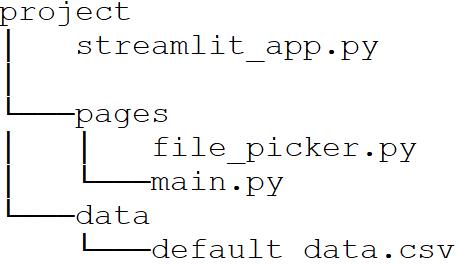
File structure
streamlit_app.py acts as a home page, with some information about the project, and how to use it.
pages subdirectory where the pages of the app reside.
file_picker.py is where the logic for letting a user upload a file goes.
main.py is the main application script.
data subdirectory is where the input data will be saved to, currently containing only the default data I provided for demonstration.
This folder structures enables navigation between these pages from the side menu of the application:
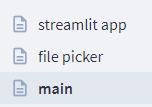
Side menu navigation
File Picker
Streamlit provides a file_uploader , which is accessible with st.file_uploaderand looks like this:

Streamlit file picker

Code for the file picker, with a title as the parameter
It’s a good idea to give the user more information, so I added some text areas to inform the user of the current state.
I added a small text area, containing a maximum of 5 lines (at most 5, in case the user uploads a file that has less than 5 lines), just to show the user a snippet of the file they have just uploaded. (Please note that the text area is defined after the ‘if’ statement).
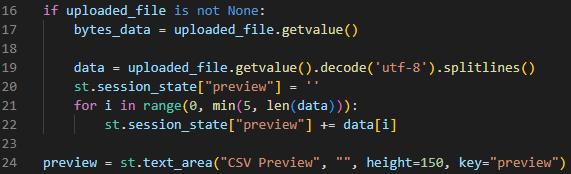
CSV preview
Similarly, I added a text area for notifying the user of the outcome.

Text area for showing the upload state
Finally, I added a button and an upload function:
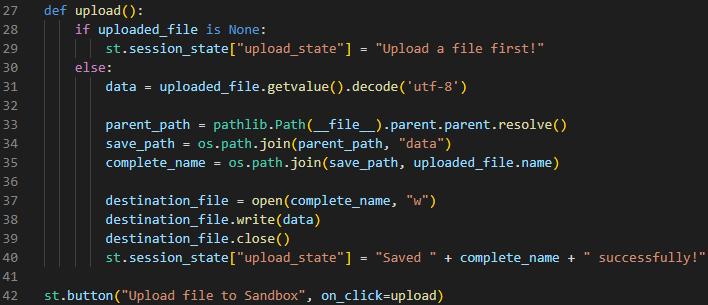
When the button is clicked, the upload function is run, and the file is saved. Here I used relative paths, so this project can be later dockerised.
This results in the following file_picker.py:
import streamlit as st
import os.path
import pathlibst.write("""
# File Picker
""")uploaded_file = st.file_uploader("Choose a CSV file")if uploaded_file is not None:
bytes_data = uploaded_file.getvalue()
data = uploaded_file.getvalue().decode('utf-8').splitlines()
st.session_state["preview"] = '' for i in range(0, min(5, len(data))):
st.session_state["preview"] += data[i]preview = st.text_area("CSV Preview", "", height=150, key="preview")
upload_state = st.text_area("Upload State", "", key="upload_state")def upload():
if uploaded_file is None:
st.session_state["upload_state"] = "Upload a file first!"
else:
data = uploaded_file.getvalue().decode('utf-8')
parent_path = pathlib.Path(__file__).parent.parent.resolve()
save_path = os.path.join(parent_path, "data")
complete_name = os.path.join(save_path, uploaded_file.name)
destination_file = open(complete_name, "w")
destination_file.write(data)
destination_file.close()
st.session_state["upload_state"] = "Saved " + complete_name + " successfully!"st.button("Upload file to Sandbox", on_click=upload)
Main File
Once the user has uploaded a file, they can navigate to the main section of the application from the side menu. There I placed a dropdown menu using st.selectbox .
Using a similar approach, I retrieved all the file names from the data subdirectory and used those as the options in the dropdown menu:

Logic for selecting an input file from the ‘data’ subdirectory
The selected file location can be the retrieved using the data_path variable like so:

Selected file location
file_location can then be passed to the main script as a parameter. That’s it!
This result in the following main.py :
import streamlit as st
import os
import pathlib
from os import listdir
from os.path import isfile, joinst.write("""
# Demo
""")parent_path = pathlib.Path(__file__).parent.parent.resolve()
data_path = os.path.join(parent_path, "data")
onlyfiles = [f for f in listdir(data_path) if isfile(join(data_path, f))]option = st.sidebar.selectbox('Pick a dataset', onlyfiles)file_location=os.path.join(data_path, option)# use `file_location` as a parameter to the main script
Conclusion
These are the steps I took to allow a user to upload a file and run the script with it.
At this stage, there is no file validation, but generally it’s a good idea to make sure that the file that the user uploaded is valid, i.e:
- It has the right file extension
- The file is of the right format
- The data it contains is not going to break your script
I chose not to include this here, because validation is really specific to the type of data you are dealing with, and it is the next step for me in this app.
I hope this helps and someone finds this useful!
Level Up Coding
Thanks for being a part of our community! Before you go:
- 👏 Clap for the story and follow the author 👉
- 📰 View more content in the Level Up Coding publication
- 🔔 Follow us: Twitter | LinkedIn | Newsletter
🚀👉 Join the Level Up talent collective and find an amazing job

Python社区为您提供最前沿的新闻资讯和知识内容
更多推荐

 0
0 0
0- 0


 已为社区贡献126445条内容

所有评论(0)