Django ImageField - Easy steps to use it in your model
What exactly is a Django ImageField?
The imageField in a Django model is a part of a FileField that adds image storage functionality to your model. Though using this field on your model is a bit easy, you have to be careful most of the time because it can get complicated very fast. This post I have written will take you through steps on how you can use the image field efficiently on your model.
Using the imageField
installing pillow
First, before adding the image field to your model, you need to install the pillow library (which will help you render the images smoothly).
To install run
pip install pillow
This library provides extensive file format support, an efficient internal representation, and powerful image processing capabilities.
Adding the imageField
Now you can add an image field to your model.
from django.core.files import File
from django.db import models
from PIL import Image
from django.contrib.auth.models import User


class Product(models.Model):
    title = models.CharField(max_length=255)
    slug = models.SlugField(max_length=255)
    description = models.TextField(blank=True, null=True)
    price = models.FloatField()
                #adding the image field
    image = models.ImageField(upload_to='uploads/', blank=True, null=True)
    thumbnail = models.ImageField(upload_to='uploads/', blank=True, null=True)
    date_added = models.DateTimeField(auto_now_add=True)
Next, configure the file path to store the image uploaded using the MEDIA_ROOT and MEDIA_URL. Copy the code below into your settings file.
MEDIA_ROOT = os.path.join(BASE_DIR, 'media/')
MEDIA_URL = '/media/'
The media_url is the URL that points to the directory the media file uploaded is stored, while the media_root is the path that stores the media files.
With this, You are almost set!
Now, update your urls.py file as shown below:
from django.urls import path
from django.conf import settings
from django.conf.urls.static import static

urlpatterns = [
    path('admin/', admin.site.urls),

] + static(settings.MEDIA_URL, document_root=settings.MEDIA_ROOT)
After adding this, your Django development server will be able to serve media files both in development and production mode.
Updating the server
We can now update the server, update the development server by running the migrations.
python manage.py makemigrations
python manage.py migrate
Note: to avoid errors such as the one below, make sure you have the pillow library installed before running migrations
magazine.Magazine.image: (fields.E210) Cannot use ImageField because Pillow is not installed.
        HINT: Get Pillow at https://pypi.org/project/Pillow/ or run command "python -m pip install Pillow".
post.Posts.image: (fields.E210) Cannot use ImageField because Pillow is not installed.
        HINT: Get Pillow at https://pypi.org/project/Pillow/ or run command "python -m pip install Pillow".
post.Sample.image: (fields.E210) Cannot use ImageField because Pillow is not installed.
        HINT: Get Pillow at https://pypi.org/project/Pillow/ or run command "python -m pip install Pillow".
post.Workers.avatar: (fields.E210) Cannot use ImageField because Pillow is not installed.
        HINT: Get Pillow at https://pypi.org/project/Pillow/ or run command "python -m pip install Pillow".
Once done with the steps above, run the server.
python manage.py runserver
The above function will run the development server. Login to the admin environment the see the image field.
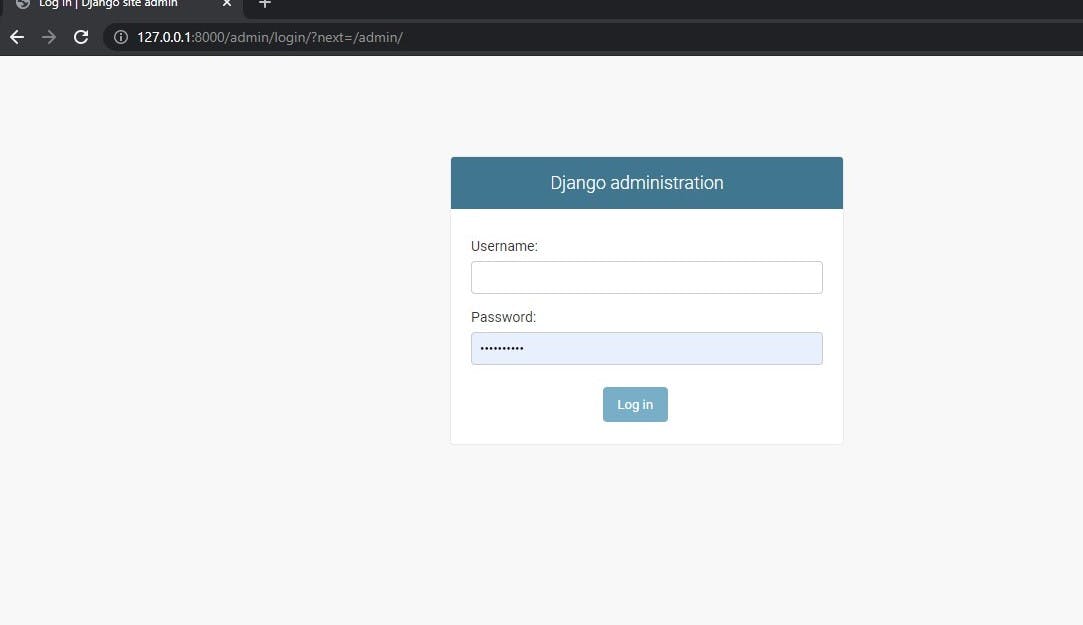
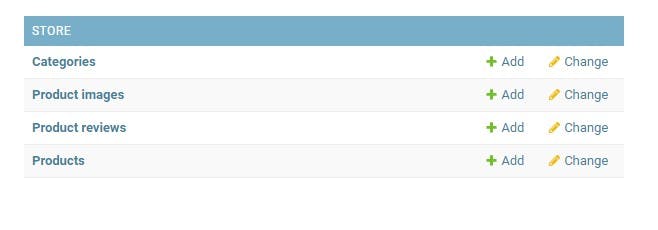
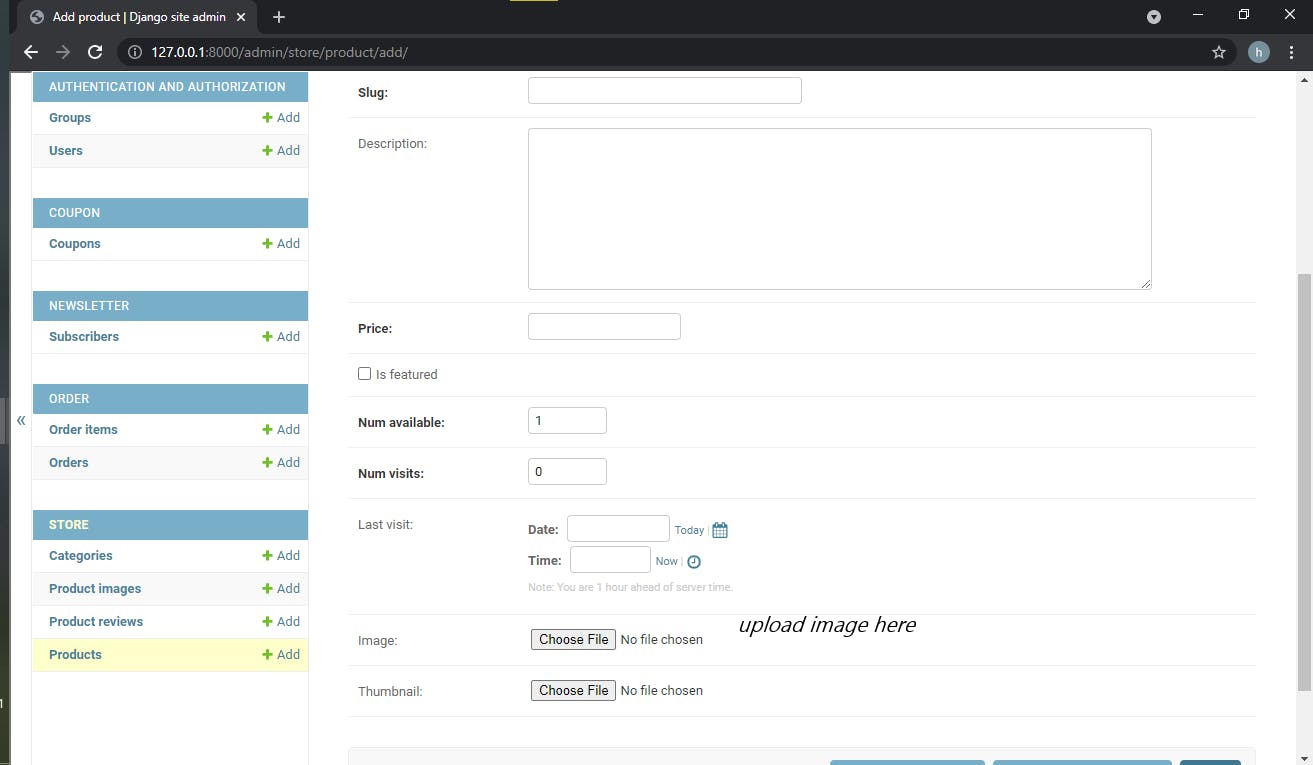
The user can now upload the image from your local storage by clicking the choose file button.

Python社区为您提供最前沿的新闻资讯和知识内容
更多推荐

 0
0 0
0- 0


 已为社区贡献126445条内容

所有评论(0)