Automatically organize downloads folder with a simple python script
Automatically organize downloads folder with a simple python script
Recently I opened my downloads folder to find pictures from my last trip and here’s what I found.
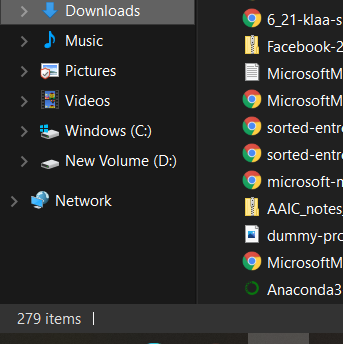
Randomly assorted 279 files with super slow Windows search. Needless to say, Marie Kondo would be highly disappointed in me.
This resulted in an epiphany that I needed to declutter my Downloads folder. Being the kind of lazy person I am, instead of manually cherry-picking the files, I created a python script to declutter the downloads folder.
Like any good transformation result, here’s a before and after:
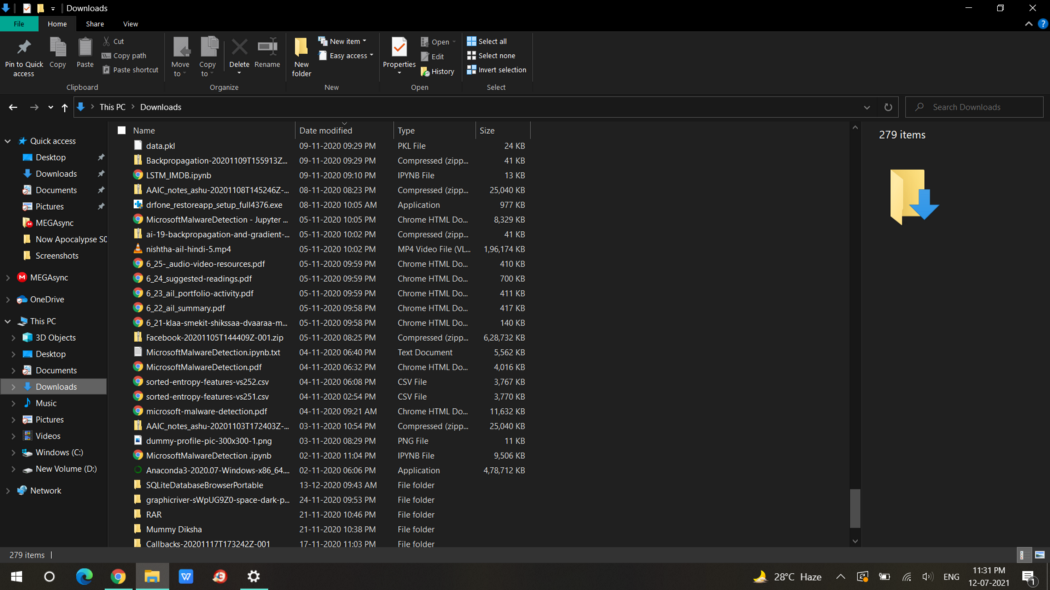
Pre-breakthrough Downloads folder
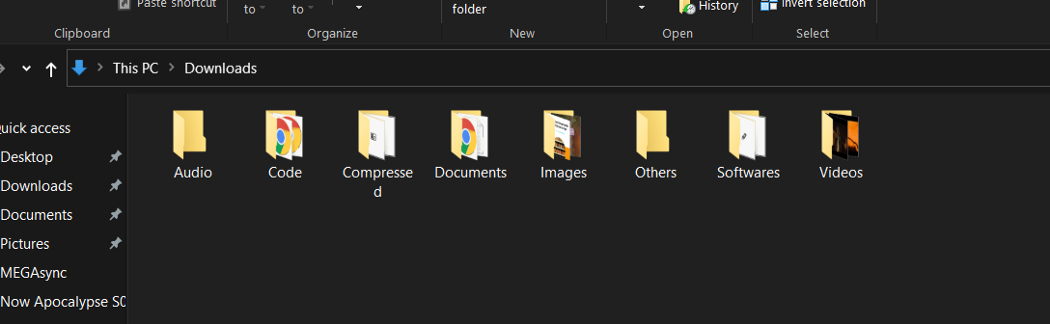
Post Script run screenshot
Now the cool transformation picture is out of the way, let’s dive into the juicy🧃 coding stuff.
Directly want the code? Here’s the Github project link to skip the article😜:
{% github mukundmadhav/declutter-downloads-folder-script %}
First Step: Identify the type of files 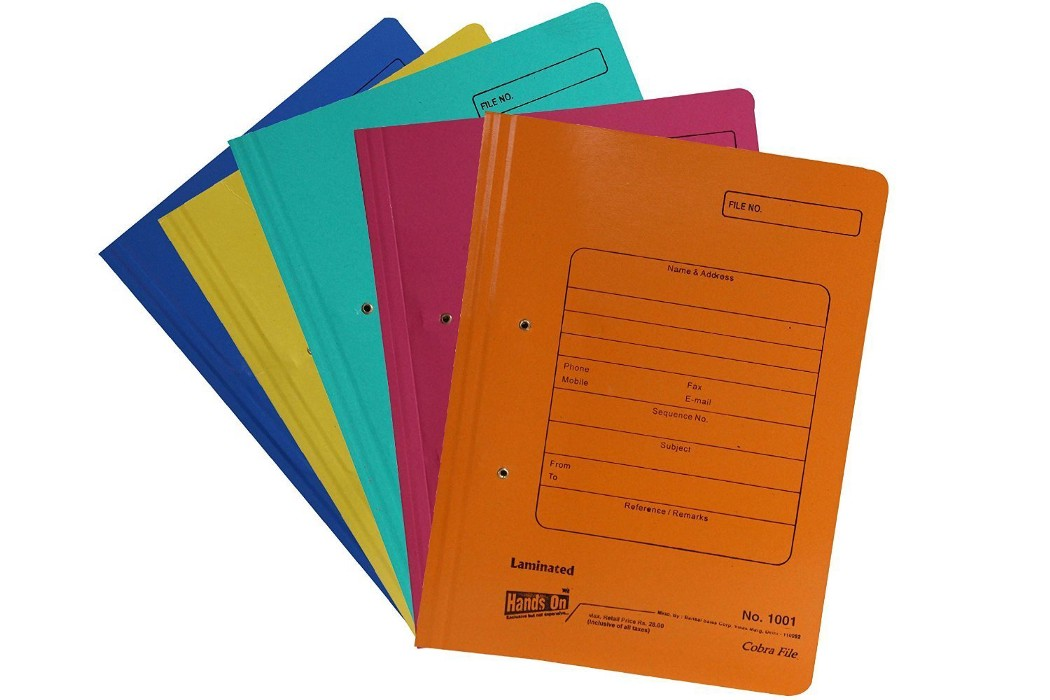
First thing before we make a Python script, we need to understand what types of extensions correspond to what file types.
A quick Google search landed on Computer Hope and had a detailed breakdown of the file types.
For my particular organizer script here’s the division of file types I’ll be using:
- Audio: .aif .cda , .mid, .midi , .mp3 , .mpa, .ogg, .wav, .wma
- Compressed files: .7z, .deb , pkg, .rar , .rpm , tar.gz , .z , zip
- Code: .js, .jsp, .html, .ipynb, .py, .java, .css
- Documents: .ppt, .pptx, .pdf, .xls, xlsx, .doc, .docx, .txt, .tex
- Images: .bmp , .gif .ico , .jpeg, .jpg , .png ,.svg , .tif, .tiff
- Softwares: .apk, .bat , .bin , exe , .jar , .msi , .py
- Videos: .3gp , .avi, .flv, .h264, .mkv , .mov , .mp4, .mpg, .mpeg , .wmv
- Others: All other extensions
Now that we have our 8 folder names, let’s start coding. 🖥
First, let’s declare the folder names in Python.
folder_names = {
"Audio": {'aif','cda','mid','midi','mp3','mpa','ogg','wav','wma'},
"Compressed":{'7z','deb','pkg','rar','rpm', 'tar.gz','z', 'zip'},
'Code':{'js','jsp','html','ipynb','py','java','css'},
'Documents':{'ppt','pptx','pdf','xls', 'xlsx','doc','docx','txt', 'tex', 'epub'},
'Images':{'bmp','gif .ico','jpeg','jpg','png','jfif','svg','tif','tiff'},
'Softwares':{'apk','bat','bin', 'exe','jar','msi','py'},
'Videos':{'3gp','avi','flv','h264','mkv','mov','mp4','mpg','mpeg','wmv'},
'Others': {'NONE'}
}
Second step: Get all the files from the Downloads Folder

Now that we have the file types. Time to get the paths of files or folders we want to move.
We can do that by simply listing all the items in the Downloads folder and sorting them by whether they are a file or not
downloads_path = r"C:\Users\casia\Downloads"
onlyfiles = [os.path.join(downloads_path, file)
        for file in os.listdir(downloads_path)
            if os.path.isfile(os.path.join(downloads_path, file))]
onlyfolders = [os.path.join(downloads_path, file)
        for file in os.listdir(downloads_path)
            if not os.path.isfile(os.path.join(downloads_path, file))]
Now that we have the names of files that are either only folders or files, we need to move them. But before moving the files, we need to create a map so that each extension is mapped to its respective type.
In case we find an item whose file type we have not accounted for, we will move it to the ‘Others’ folder.
extension_filetype_map = {extension: fileType
        for fileType, extensions in folder_names.items()
                for extension in extensions }
Now let’s go ahead and create the folder. We know that we will run this script as a cron so we need to make sure if check if a folder does not exist, then only we create the folder.
For the list of folder names that we have to create we can get them from the folder name mapping, we had created earlier.
folder_paths = [os.path.join(downloads_path, folder_name)
        for folder_name in folder_names.keys()]
[os.mkdir(folderPath)
        for folderPath in folder_paths if not os.path.exists(folderPath)]
Third Step: Sort the files in their respective folder

We have identified the file/folder paths. We have created a directory for the Downloads folder. The next step on the script, move files to revolve location.
To assist in this, we will create a helper function that will take in the old file path and return us to the new path. This new path will have the folder name in which we are to move later.
We will also handle unknown file types here and send them to the ‘Others’ folder.
def new_path(old_path):
extension = str(old_path).split('.')[-1]
amplified_folder = extension_filetype_map[extension] if extension in extension_filetype_map.keys() else 'Others'
final_path = os.path.join(downloads_path,amplified_folder, str(old_path).split('\\')[-1])
return final_path
Let’s quickly now move the files to their relevant location by iterating through the files list loop.
[Path(eachfile).rename(new_path(eachfile)) for eachfile in onlyfiles]
Files are covered. They are organized in their various folders in Downloads. The next step does the same for unknown folders.
[Path(onlyfolder).rename(os.path.join(downloads_path,'Others', str(onlyfolder).split('\\')[-1]))
        for onlyfolder in onlyfolders
                if str(onlyfolder).split('\\')[-1] not in folder_names.keys()]
Fourth Step: Make a cron bat file
Well, our script is ready. Next up we will have to create a bat file. This file will handle what happens every week in Windows. For other OS like macOS and Linux based distros you can refer to the respective blog:
- Easily Automate Your Python Scripts on Mac
- Run Python Scripts on cron on Linux
In this .bat file, we will instruct it to run our python file.
For this, create a file with a ‘.bat’ extension and in that provide the path for your Python file.
Then, in the next line, write pause to stop bat execution.
"C:\Users\casia\Documents\declutter downloads folder.py"
pause
Fifth Step: Configure bat file to run every week [Windows only]
Now let’s set up the bat file to run every weekend. We will use Windows Task Scheduler for scheduling our Python script.
Open Task Scheduler from the start menu.
It should look something like this: 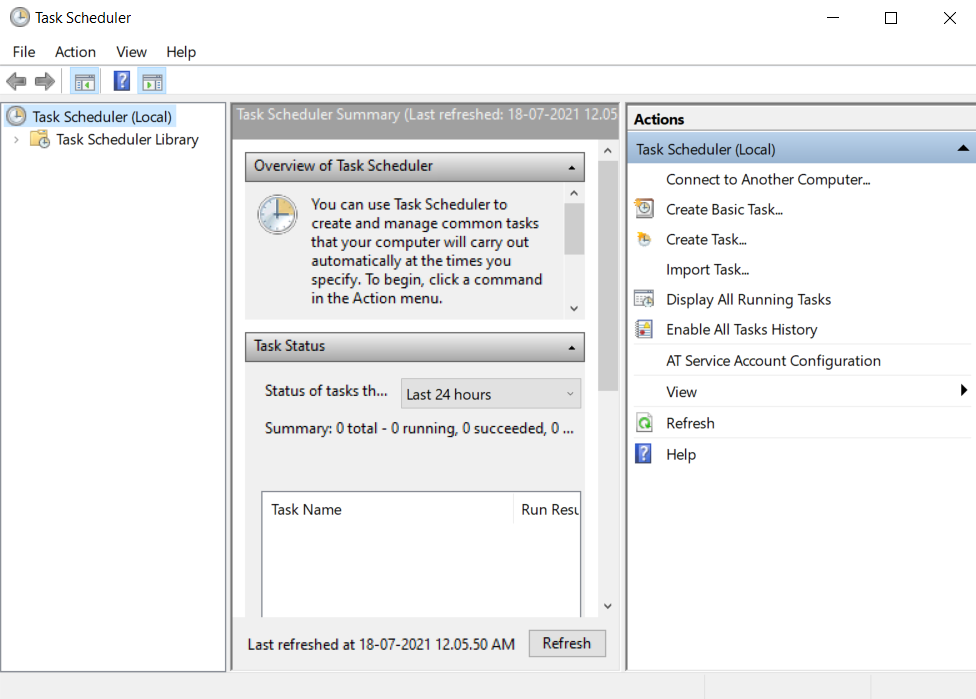
Choose to create basic task.
You can fill in any name and description as it suits you
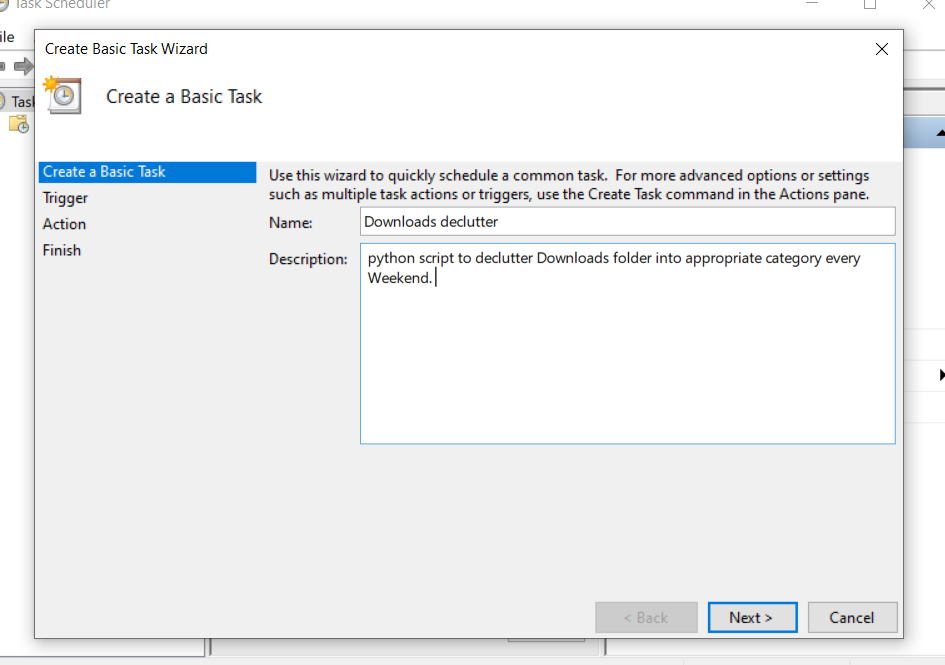
In the next step, choose the weekly option. Or any other option as per your preference.
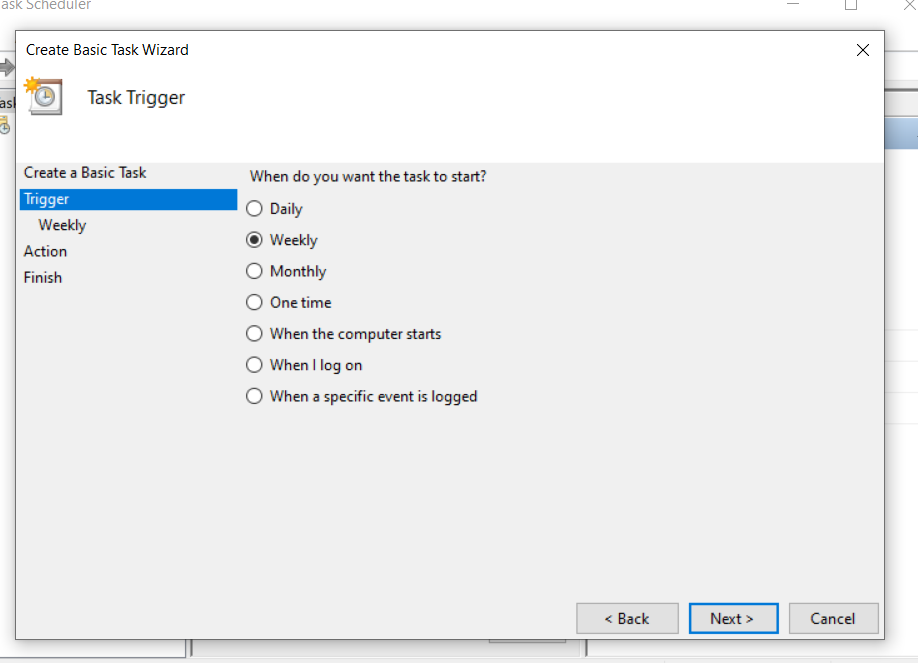
You can adjust the timings as per your needs
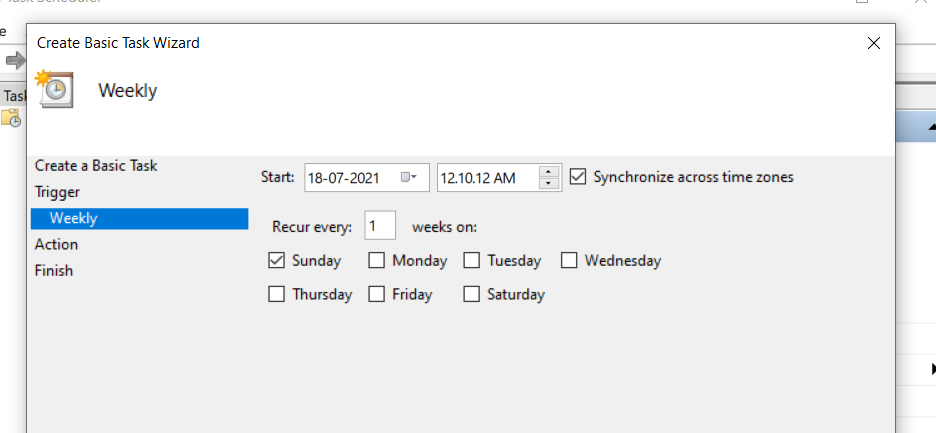
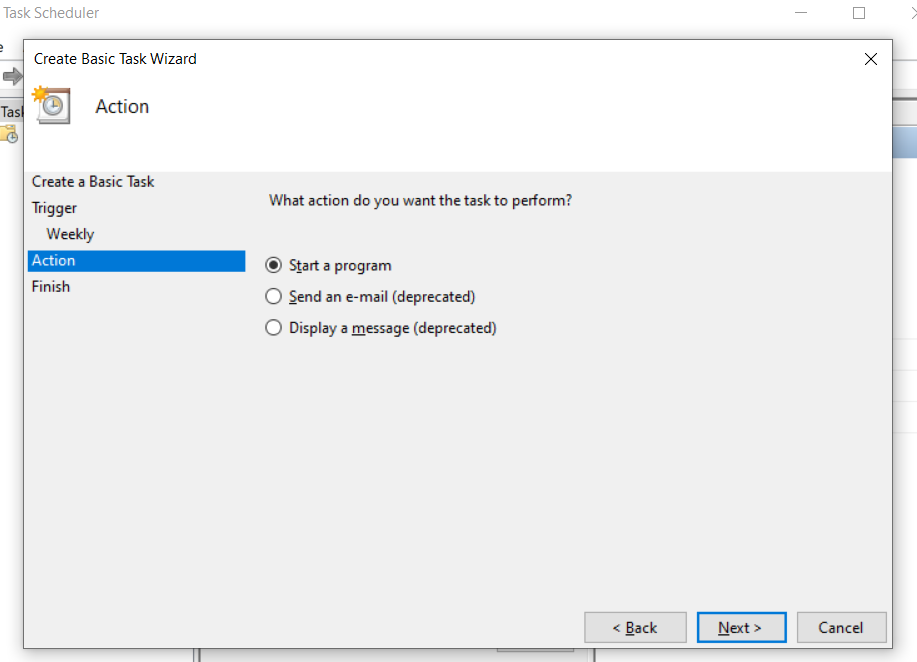
On the next step, choose to start a program
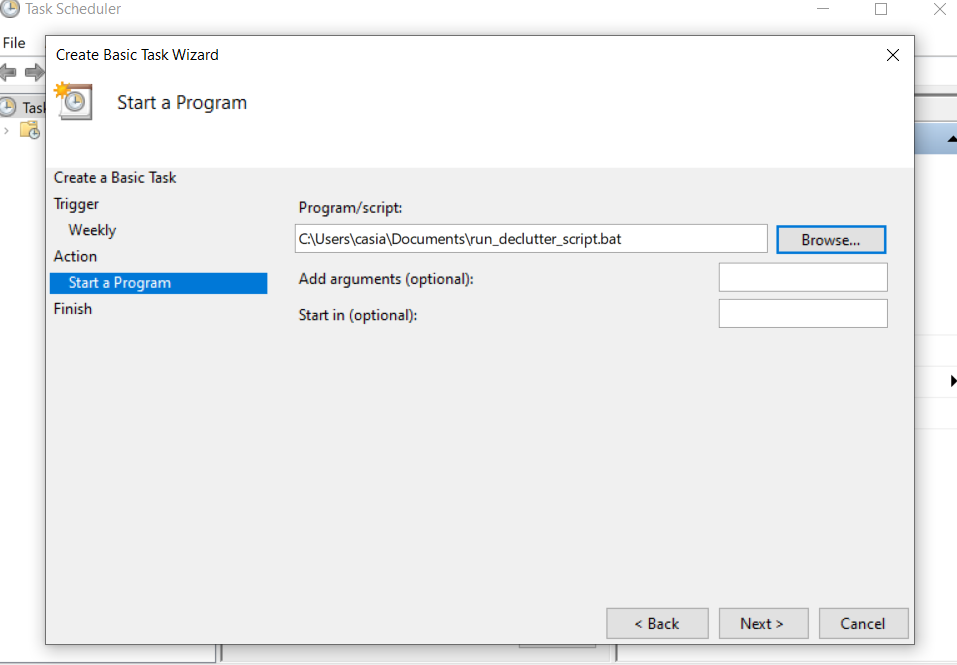
In my case, I have browsed to the specific path my bat file is there. This will run every week which in turn will trigger our Python script.
Confirm that all the details are correct and click on the finish button. 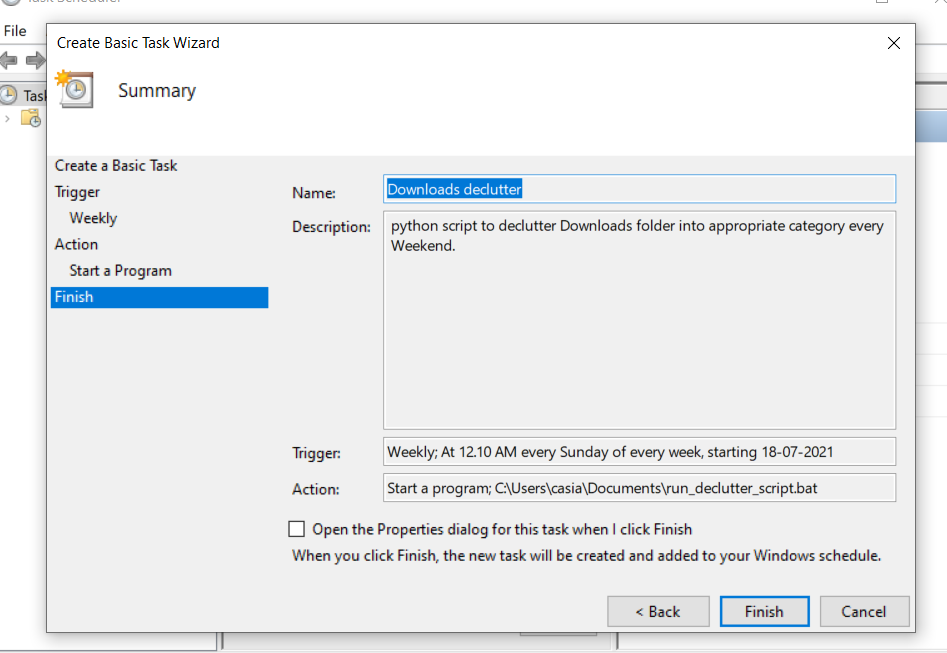
Final Step: Marvel at the result ✨
It’s all done!

If you liked this article and would like to connect and chat, here’s my Twitter📨: Mukund Madhav

Python社区为您提供最前沿的新闻资讯和知识内容
更多推荐

 0
0 0
0- 0


 已为社区贡献126440条内容

所有评论(0)