How to Get Rich with Python?
Introduction
If you're here, you probably wish to get rich with Python. But what if I tell you this was just clickbait.

Well yes, I'm not gonna tell you how to earn with Python. Instead, we're going to learn about a Python library called Rich.
Rich is a Python library for writing rich text (with color and style) to the terminal, and for displaying advanced content such as tables, markdown, and syntax highlighted code.
The output of your code at the terminal is a little boring and difficult to understand. If you want to make it clearer and prettier, you probably want to use Rich, you probably want to use Rich and you've come to the right place to learn how to do it.
How to Install Rich
Rich can be installed with pip as:
pip install Rich
To know what all Rich can do, you can type the following command in the terminal:
python -m rich
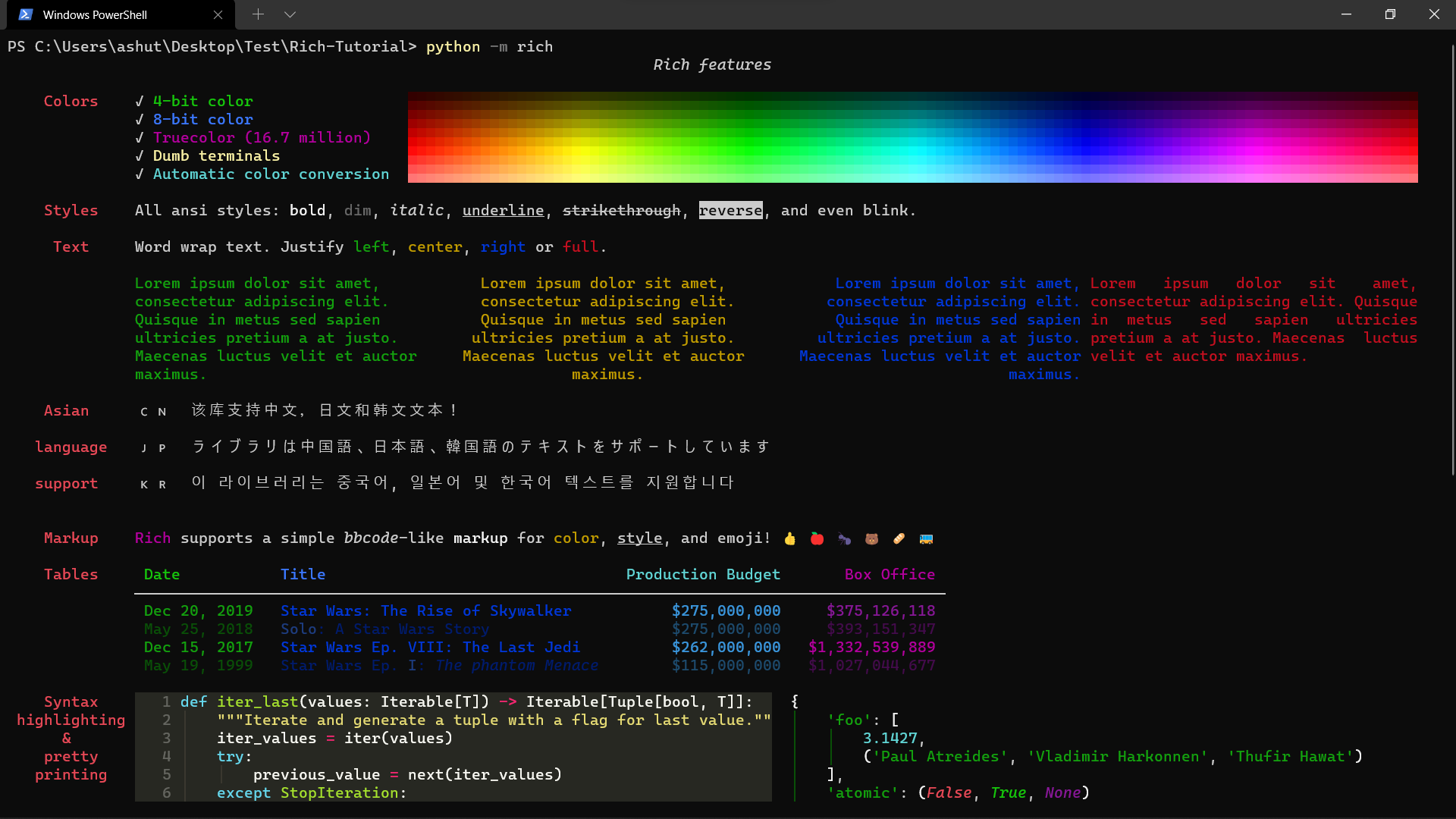
Did you see that we can do quite a lot of things with Rich? Let's try a few of them now.
How to Rich print
Rich has the capability to highlight the output according to the datatype. We'll import the alternative print function from the Rich library which takes the same arguments as the built-in print. To avoid confusion with the built-in print function, we'll import print from the rich library as rprint.
from rich import print as rprint

nums_list = [1, 2, 3, 4]
rprint(nums_list)

nums_tuple = (1, 2, 3, 4)
rprint(nums_tuple)

nums_dict = {'nums_list': nums_list, 'nums_tuple': nums_tuple}
rprint(nums_dict)

bool_list = [True, False]
rprint(bool_list)
Output:
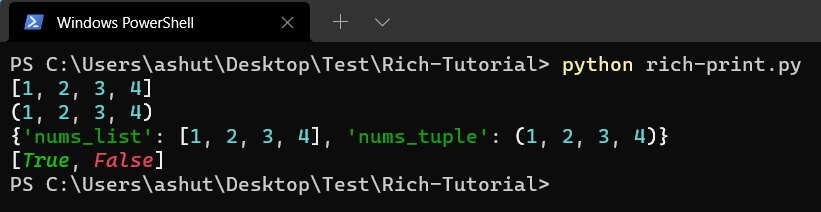
Did you see how the different data types were highlighted with different colors? This can help us a lot while debugging.
How to Rich inspect
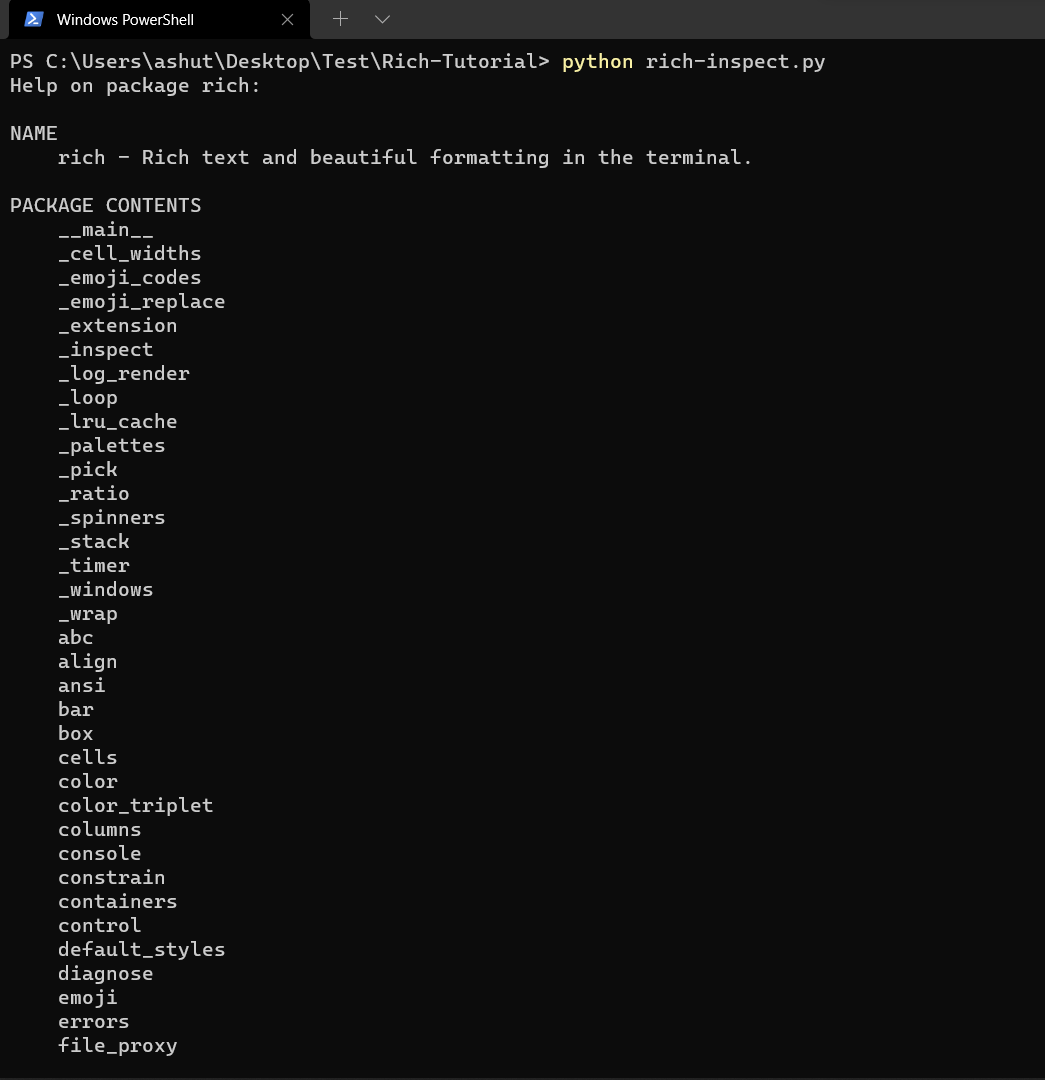
If you use the built-in help function for viewing the documentation of a library, you'd see a boring output.
import rich

print(help(rich))
Output:
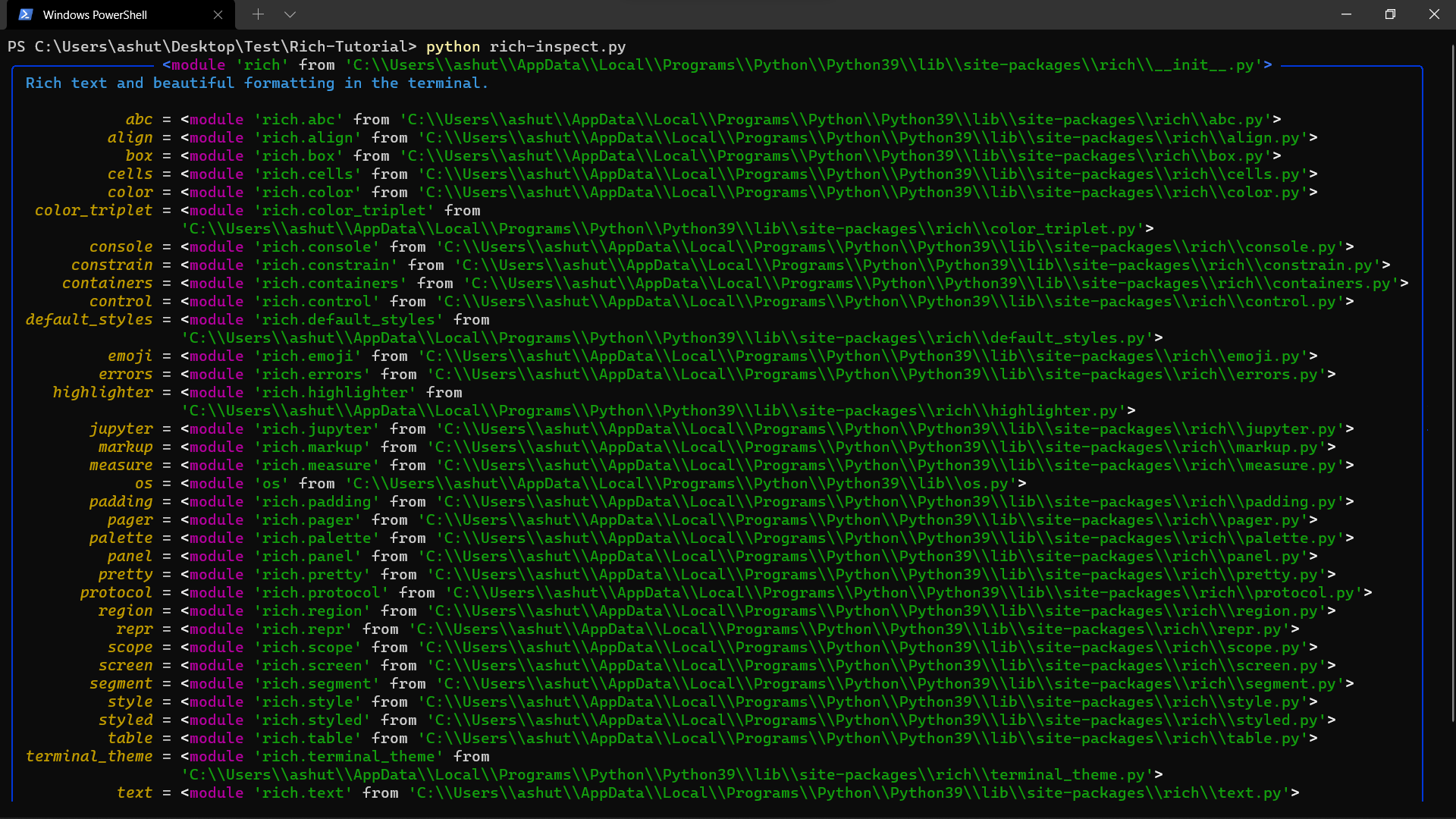
Rich has an inspect() function which can generate a report on any Python object. It is a fantastic debug aid, and a good example of the output that Rich can generate.
from rich import inspect
import rich

inspect(rich)
Output:
How to style your Console
For complete control over terminal formatting, Rich offers a Console class.
Let's write a function to merge Python dictionaries.
from rich.console import Console

console = Console()

def merge_dict(dict_one, dict_two):
    merged_dict = dict_one | dict_two
    console.log(merged_dict, log_locals=True)

merge_dict({'id': 1}, {'name': 'Ashutosh'})
Output:
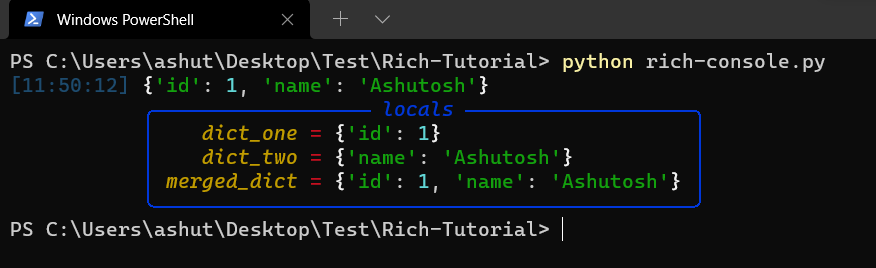
In the above example, we have used the log method that offers the same capabilities as print, but adds some features useful for debugging a running application. There are several other methods such as print, print_json, out, rule, etc. Learn more about them here.
How to use Tree in Rich
Rich has a Tree class which can generate a tree view in the terminal. A tree view is a great way of presenting the contents of a filesystem or any other hierarchical data. Each branch of the tree can have a label which may be text or any other Rich renderable.
Let's see an example by creating a family tree:
from rich.tree import Tree
from rich import print as rprint

tree = Tree("Family Tree")
tree.add("Mom")
tree.add("Dad")
tree.add("Brother").add("Wife")
tree.add("[red]Sister").add("[green]Husband").add("[blue]Son")

rprint(tree)
Output:
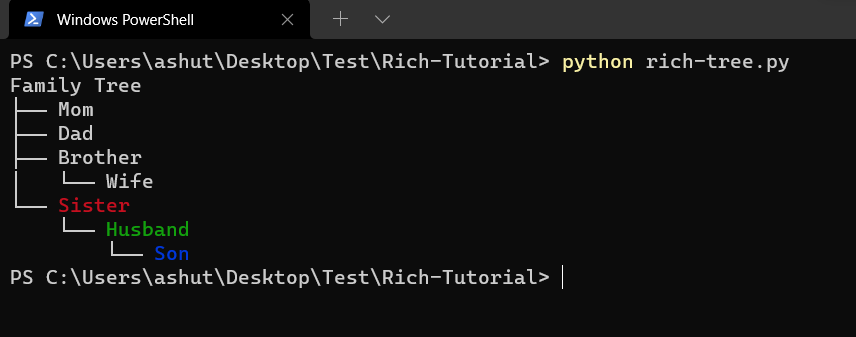
Once we create an instance of the Tree class, we can use the add() method to add branches to it. To create a complex tree, you can use the add() method to add more branches to it. Notice the Brother and Sister branch in the above example.
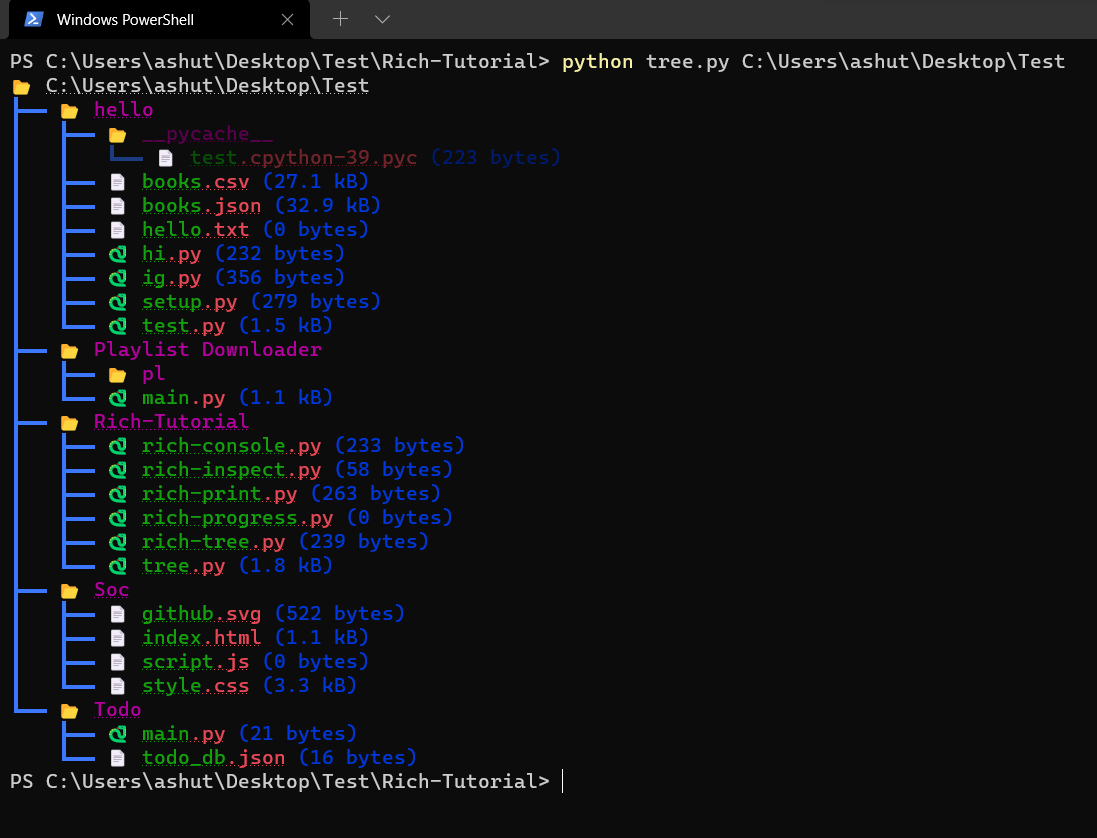
In the official documentation, we have a tree.py file that outputs the file structure using Tree. The output looks like this:
How to display progress bar
Rich can show continuously updated information about the status of long-running tasks, file copies, and so forth. The information presented can be customized; by default, a description of the 'task,' a progress bar, percentage complete, and anticipated time left will be provided.
Multiple tasks are supported with a rich progress display, each with a bar and progress statistics. This can be used to keep track of several jobs that are being worked on in threads or processes.
Let us first try the progress.track method to create the progress bar.
from rich.progress import track
from time import sleep

def process_data():
    sleep(0.02)

for _ in track(range(100), description='[green]Processing data'):
    process_data()
Output:

If we want to record the time when a particular task is finished executing, we can use console.status instead.
from rich.console import Console
from time import sleep

console = Console()

data = [1, 2, 3, 4, 5]
with console.status("[bold green]Fetching data...") as status:
    while data:
        num = data.pop(0)
        sleep(1)
        console.log(f"[green]Finish fetching data[/green] {num}")

    console.log(f'[bold][red]Done!')
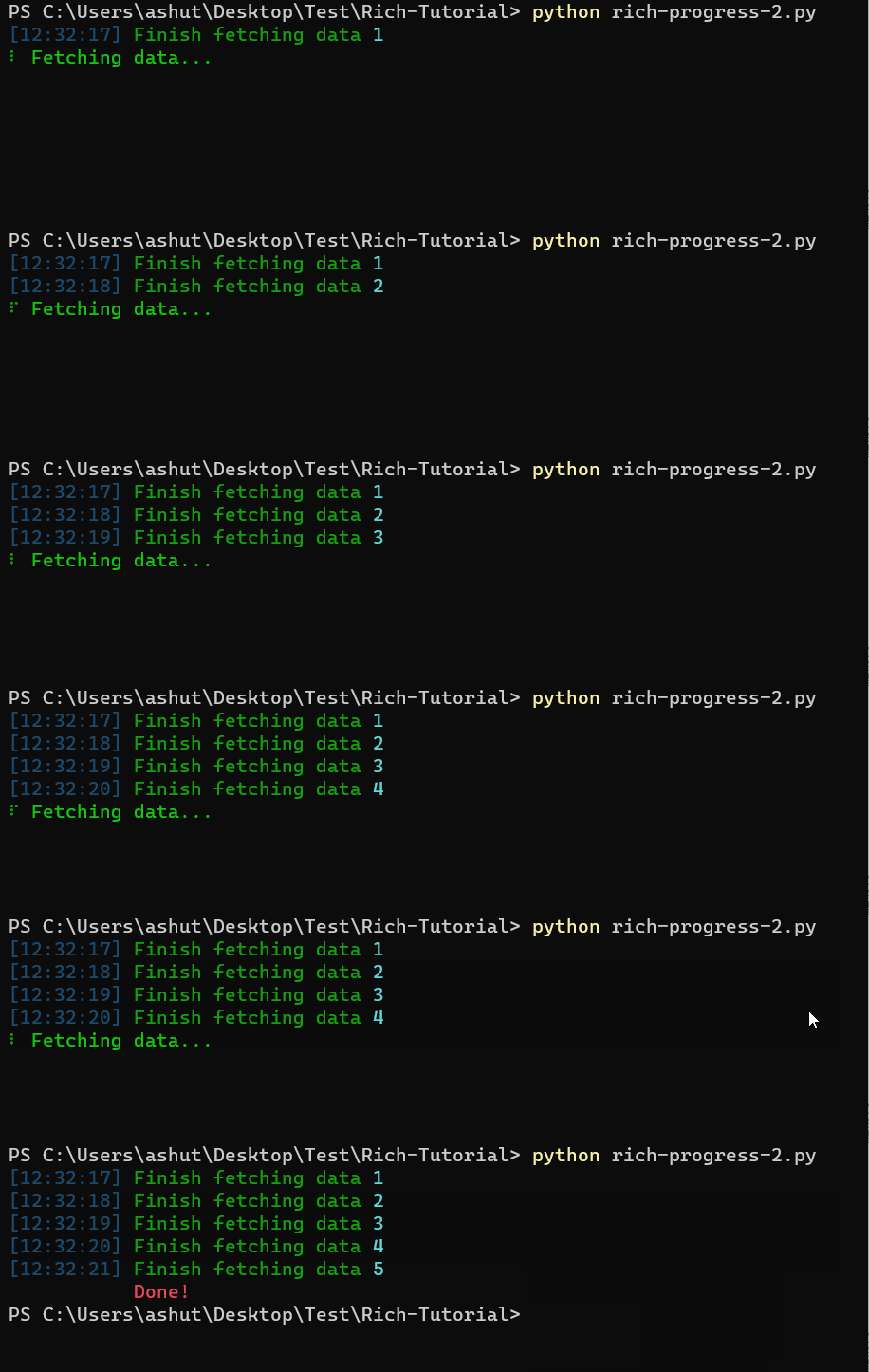
You can work directly with the Progress class if you need several tasks in the display or want to customize the columns in the progress display. After you've created a Progress object, use (add_task()) to add task(s) and (update_progress()) to update progress.
The Progress class is intended to be used as a context manager, automatically starting and stopping the progress display.
import time

from rich.progress import Progress

with Progress() as progress:

    task1 = progress.add_task("[red]Downloading...", total=100)
    task2 = progress.add_task("[green]Processing...", total=100)
    task3 = progress.add_task("[cyan]Installing...", total=100)

    while not progress.finished:
        progress.update(task1, advance=0.9)
        progress.update(task2, advance=0.6)
        progress.update(task3, advance=0.3)
        time.sleep(0.02)
Output:

How to display Rich Columns
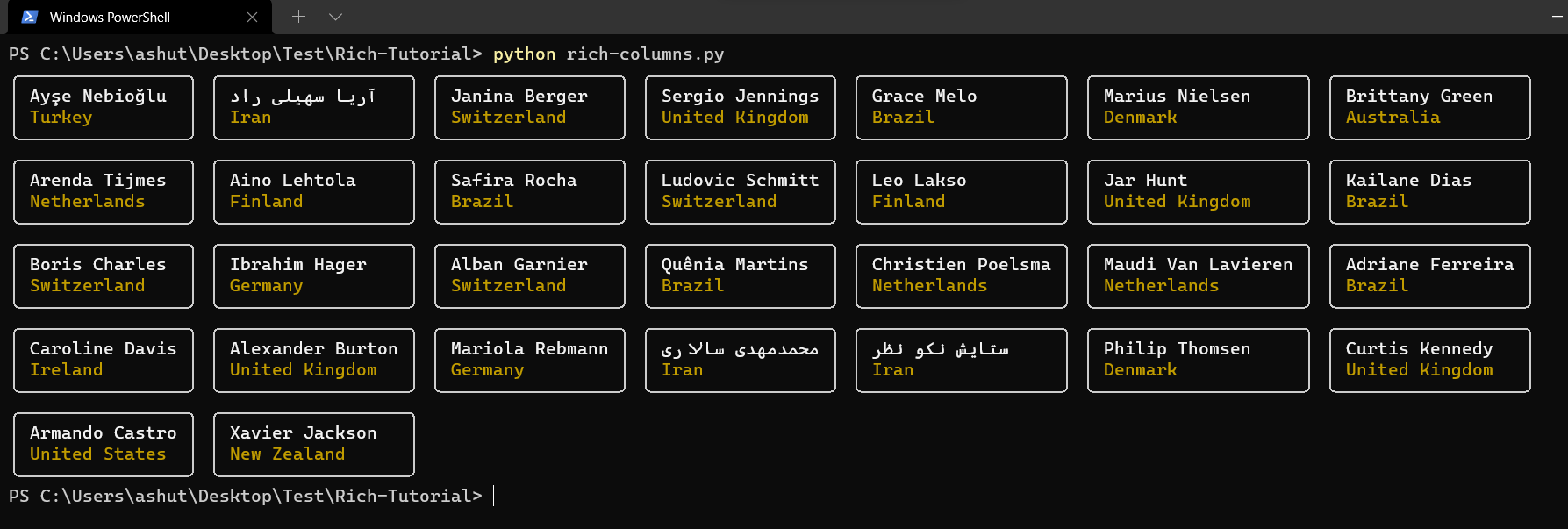
Rich can render text or other Rich renderables in neat columns with the Columns class. To use, construct a Columns instance with an iterable of renderables and print it to the Console.
import json
from urllib.request import urlopen

from rich.console import Console
from rich.columns import Columns
from rich.panel import Panel

def get_content(user):
    """Extract text from user dict."""
    country = user["location"]["country"]
    name = f"{user['name']['first']} {user['name']['last']}"
    return f"[b]{name}[/b]\n[yellow]{country}"

console = Console()

users = json.loads(urlopen("https://randomuser.me/api/?results=30").read())["results"]
user_renderables = [Panel(get_content(user), expand=True) for user in users]
console.print(Columns(user_renderables))
Output:
SVG Support
In addition to HTML and Text, Rich now supports SVG too. It can now export console output to an SVG file when captured. These SVGs are quite useful when writing documentation, or for bloggers like me where we need to share the console output.
Let us see how we can do it.
from rich.console import Console
from rich.table import Table
import requests


# Creating table
table = Table(title="iRead Blogs")

# Adding Columns
table.add_column("ID", style="cyan", no_wrap=True)
table.add_column("Post Title", style="magenta")
table.add_column("Author", justify="center", style="green")

# Getting data
response = requests.get("https://ireadblog.com/api/v1/posts?limit=5").json()

# Adding Rows
for post in response:
    table.add_row(str(post["pk"]), post["fields"]["title"], post["fields"]["author"])

# Console
console = Console(record=True)
console.print(table, justify="center")
console.save_svg("table.svg", title="iRead Blogs Table")
In the above code, we are creating a table of the latest five blogs posted on iRead. In the last line, we are using the save_svg().
Let us see the SVG image now.
 Doesn't that look pretty cool? I found it amazing. Let me know what you think about it.
Display Progress Bar When Reading A File
This feature has been contributed by Martin Larralde who often has to process large datasets where you might want to see a progress bar. Suppose you're reading a JSON file, it was not easy to display a progress bar showing the update.
Martin's solution was to wrap file-like objects that read and seek to update the progress bar accordingly. That way when you pass a file-like object to a third-party API, you will get a progress bar that tracks how much of the file has been read.
Let us have an example JSON file with the following content.
[
  {
    "_id": "624b17b884324179f580f2c9",
    "index": 0,
    "guid": "4384af08-9f65-4b8c-bb34-daccfb45dcb2",
    "isActive": true,
    "balance": "$1,244.99",
    "picture": "http://placehold.it/32x32",
    "age": 37,
    "eyeColor": "blue",
    "name": "Vickie Flynn",
    "gender": "female",
    "company": "ZIDOX",
    "email": "vickieflynn@zidox.com",
    "phone": "+1 (879) 416-3606",
    "address": "636 Newkirk Placez, Sexton, Missouri, 1532",
    "about": "Fugiat aute aliquip esse veniam ex qui reprehenderit excepteur incididunt ad Lorem voluptate. Duis irure laborum qui ex ipsum adipisicing minim. Magna anim tempor tempor Lorem commodo ex enim irure quis est reprehenderit incididunt. Laboris labore do nulla do laboris pariatur id aute elit ea pariatur.\r\n",
    "registered": "2014-05-04T04:15:21 -06:-30",
    "latitude": -60.538619,
    "longitude": 25.245925,
    "tags": [
      "esse",
      "anim",
      "occaecat",
      "ipsum",
      "exercitation",
      "amet",
      "ipsum"
    ],
    "friends": [
      {
        "id": 0,
        "name": "Christian Weaver"
      },
      {
        "id": 1,
        "name": "Terry Stanley"
      },
      {
        "id": 2,
        "name": "Cox Kirby"
      }
    ],
    "greeting": "Hello, Vickie Flynn! You have 2 unread messages.",
    "favoriteFruit": "apple"
  }
]
Let us see how we can read this JSON file.
import json
import rich.progress


with rich.progress.open("data.json") as file_handler:
    data = json.load(file_handler)
Output: 
rich.progress.open.
Wrapping Up
In this tutorial, we learned how to use Rich to beautify the terminal. There are lots of other features supported by Rich. Learn more about them in the official documentation of Rich.
Feel free to fork and play with the source code of this article here.
Thanks for reading!
If you loved reading this article, you can consider subscribing to my newsletter.

Python社区为您提供最前沿的新闻资讯和知识内容
更多推荐

 0
0 0
0- 0


 已为社区贡献126445条内容

所有评论(0)