
HarmonyOS 6.1 实战:Scroll 滚动容器全面解析
·
前言
Scroll 是 ArkUI 中最基础的滚动容器,当内容超过容器尺寸时自动提供滚动能力。区别于 List(专为列表设计),Scroll 支持任意布局内容的垂直/水平滚动,并提供丰富的边缘效果、滚动条控制及滚动事件回调。本文通过完整示例逐一演示。
运行效果
初始状态(垂直滚动)
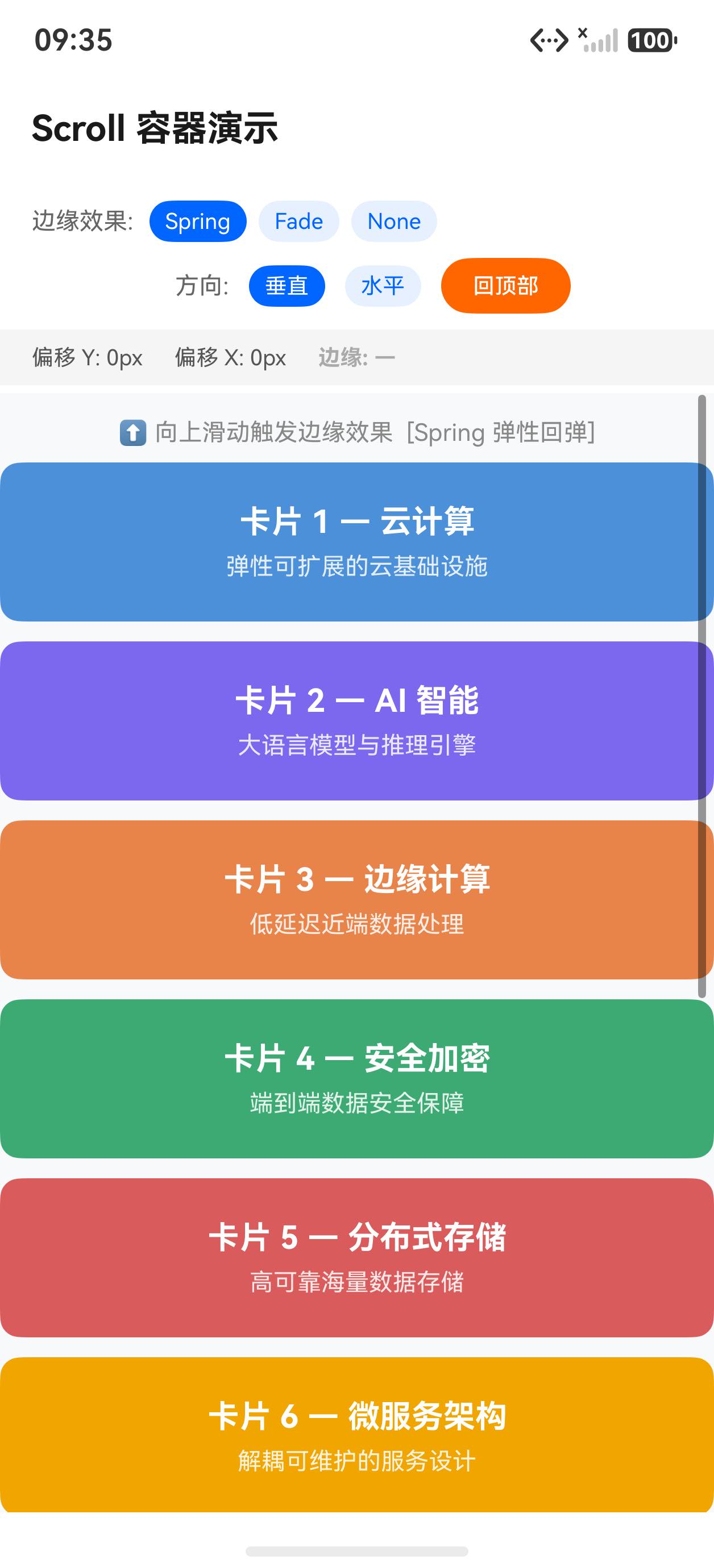
切换水平滚动模式
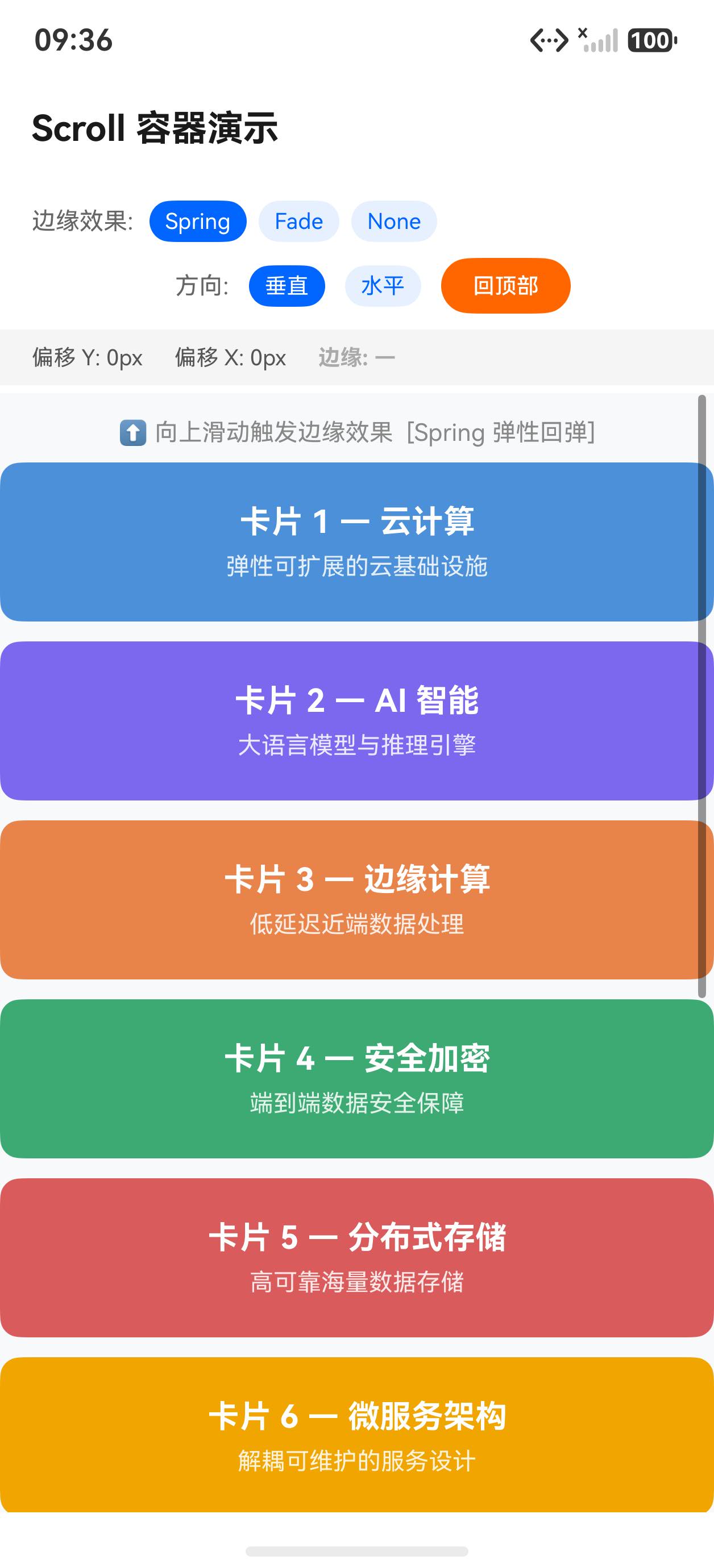
核心 API 一览
| API | 说明 |
|---|---|
Scroll(scroller?) | 滚动容器,可传入 Scroller 控制器 |
.scrollable(ScrollDirection) | 滚动方向:Vertical / Horizontal / Free / None |
.scrollBar(BarState) | 滚动条可见性:Auto / On / Off |
.edgeEffect(EdgeEffect) | 边缘效果:Spring(弹性)/ Fade(渐隐)/ None |
.onScroll(xOff, yOff) | 滚动偏移量回调 |
.onScrollEdge(side) | 到达边缘时回调 |
scroller.scrollTo({xOffset, yOffset}) | 编程式滚动到指定位置 |
scroller.scrollEdge(Edge.Top) | 滚动到顶部/底部 |
scroller.currentOffset() | 获取当前滚动偏移量 |
完整示例代码
@Entry
@Component
struct Index {
  @State scrollDir: ScrollDirection = ScrollDirection.Vertical
  @State edgeEffectIndex: number = 0
  @State scrollOffsetY: number = 0
  @State scrollOffsetX: number = 0
  @State reachedEdge: string = ''

  private scroller: Scroller = new Scroller()

  private edgeEffects: EdgeEffect[] = [EdgeEffect.Spring, EdgeEffect.Fade, EdgeEffect.None]
  private edgeLabels: string[] = ['Spring', 'Fade', 'None']

  private colorList: string[] = [
    '#ff6b6b', '#ff9f43', '#feca57', '#48dbfb',
    '#ff9ff3', '#54a0ff', '#5f27cd', '#00d2d3',
    '#1dd1a1', '#c8d6e5', '#576574', '#341f97',
  ]

  build() {
    Column({ space: 0 }) {
      // 控制栏
      Row({ space: 0 }) {
        // 边缘效果选择
        Row({ space: 6 }) {
          ForEach(this.edgeLabels, (label: string, idx: number) => {
            Text(label)
              .fontSize(12)
              .fontColor(this.edgeEffectIndex === idx ? '#fff' : '#333')
              .backgroundColor(this.edgeEffectIndex === idx ? '#0066ff' : '#eeeeee')
              .padding({ left: 10, right: 10, top: 5, bottom: 5 })
              .borderRadius(12)
              .onClick(() => { this.edgeEffectIndex = idx })
          })
        }
        .layoutWeight(1)

        // 方向切换
        Row({ space: 6 }) {
          Text('垂直')
            .fontSize(12)
            .fontColor(this.scrollDir === ScrollDirection.Vertical ? '#fff' : '#333')
            .backgroundColor(this.scrollDir === ScrollDirection.Vertical ? '#0066ff' : '#eeeeee')
            .padding({ left: 10, right: 10, top: 5, bottom: 5 })
            .borderRadius(12)
            .onClick(() => {
              this.scrollDir = ScrollDirection.Vertical
              this.scroller.scrollEdge(Edge.Top)
            })

          Text('水平')
            .fontSize(12)
            .fontColor(this.scrollDir === ScrollDirection.Horizontal ? '#fff' : '#333')
            .backgroundColor(this.scrollDir === ScrollDirection.Horizontal ? '#0066ff' : '#eeeeee')
            .padding({ left: 10, right: 10, top: 5, bottom: 5 })
            .borderRadius(12)
            .onClick(() => {
              this.scrollDir = ScrollDirection.Horizontal
              this.scroller.scrollEdge(Edge.Start)
            })

          Button('回顶部')
            .fontSize(12)
            .height(32)
            .backgroundColor('#ff6600')
            .onClick(() => {
              this.scroller.scrollEdge(Edge.Top)
            })
        }
      }
      .width('100%')
      .height(52)
      .padding({ left: 12, right: 12 })
      .backgroundColor('#f8f8f8')
      .border({ width: { bottom: 1 }, color: '#e0e0e0' })

      // 偏移量显示
      Row({ space: 8 }) {
        Text('X: ' + Math.round(this.scrollOffsetX).toString())
          .fontSize(12).fontColor('#0066ff')
        Text('Y: ' + Math.round(this.scrollOffsetY).toString())
          .fontSize(12).fontColor('#ff6600')
        if (this.reachedEdge.length > 0) {
          Text('到达: ' + this.reachedEdge)
            .fontSize(12).fontColor('#00aa44')
        }
      }
      .width('100%')
      .height(32)
      .padding({ left: 16 })

      // Scroll 主体
      Scroll(this.scroller) {
        if (this.scrollDir === ScrollDirection.Vertical) {
          // 垂直方向:色块列表
          Column({ space: 12 }) {
            ForEach(this.colorList, (color: string, idx: number) => {
              Column() {
                Text('色块 ' + (idx + 1).toString())
                  .fontSize(18)
                  .fontColor('#ffffff')
                  .fontWeight(FontWeight.Bold)
                Text(color)
                  .fontSize(12)
                  .fontColor('rgba(255,255,255,0.7)')
                  .margin({ top: 4 })
              }
              .width('100%')
              .height(80)
              .backgroundColor(color)
              .borderRadius(12)
              .justifyContent(FlexAlign.Center)
            })
          }
          .width('100%')
          .padding({ left: 16, right: 16 })
        } else {
          // 水平方向:横排色块
          Row({ space: 12 }) {
            ForEach(this.colorList, (color: string, idx: number) => {
              Column() {
                Text((idx + 1).toString())
                  .fontSize(24)
                  .fontColor('#ffffff')
                  .fontWeight(FontWeight.Bold)
                Text(color)
                  .fontSize(10)
                  .fontColor('rgba(255,255,255,0.8)')
                  .margin({ top: 4 })
              }
              .width(120)
              .height('100%')
              .backgroundColor(color)
              .borderRadius(12)
              .justifyContent(FlexAlign.Center)
            })
          }
          .height('100%')
          .padding({ top: 16, bottom: 16 })
        }
      }
      .scrollable(this.scrollDir)
      .scrollBar(BarState.Auto)
      .edgeEffect(this.edgeEffects[this.edgeEffectIndex])
      .onScroll((_x: number, _y: number) => {
        let offset = this.scroller.currentOffset()
        this.scrollOffsetX = offset.xOffset
        this.scrollOffsetY = offset.yOffset
      })
      .onScrollEdge((side: Edge) => {
        if (side === Edge.Top) {
          this.reachedEdge = '顶部'
        } else if (side === Edge.Bottom) {
          this.reachedEdge = '底部'
        } else if (side === Edge.Start) {
          this.reachedEdge = '左侧'
        } else if (side === Edge.End) {
          this.reachedEdge = '右侧'
        }
      })
      .onScrollEnd(() => {
        this.reachedEdge = ''
      })
      .width('100%')
      .layoutWeight(1)
      .padding({ top: 8, bottom: 8 })
    }
    .width('100%')
    .height('100%')
    .backgroundColor('#ffffff')
  }
}
关键知识点
1. Scroller 控制器:编程式滚动
Scroller 是实现“回到顶部“、“跳转到指定位置“等功能的关键:
private scroller: Scroller = new Scroller()

// 绑定到 Scroll
Scroll(this.scroller) { ... }

// 编程式控制
this.scroller.scrollTo({ xOffset: 0, yOffset: 500 })  // 滚动到 y=500
this.scroller.scrollEdge(Edge.Top)                     // 回到顶部
this.scroller.scrollEdge(Edge.Bottom)                  // 滚到底部
let pos = this.scroller.currentOffset()                // 获取当前偏移
2. onScroll 回调的参数
.onScroll(xOffset, yOffset) 传入的是本次滚动的增量,不是总偏移量。要获取当前绝对位置,需调用 scroller.currentOffset():
.onScroll((_dx: number, _dy: number) => {
  // _dx/_dy 是增量,用 currentOffset() 获取绝对位置
  let pos = this.scroller.currentOffset()
  this.currentY = pos.yOffset
})
3. 边缘效果(EdgeEffect)
| 值 | 视觉效果 | 适用场景 |
|---|---|---|
EdgeEffect.Spring | 超出边界后弹性回弹 | iOS 风格,最常用 |
EdgeEffect.Fade | 边缘渐隐遮罩 | 偏 Android 风格 |
EdgeEffect.None | 无边缘效果,硬停止 | 精确控制场景 |
4. 切换滚动方向
切换滚动方向时需要重置滚动位置,否则偏移量残留会导致内容不可见:
// 切换到水平方向时,重置滚动位置
this.scrollDir = ScrollDirection.Horizontal
this.scroller.scrollEdge(Edge.Start)  // 回到最左侧
5. Scroll vs List 的选型
| 维度 | Scroll | List |
|---|---|---|
| 内容类型 | 任意布局(Column/Row/Grid 等) | 仅列表项 |
| 性能 | 全部子节点同时渲染 | 虚拟化,只渲染可见项 |
| 适用数据量 | 较少(<100 项) | 任意(千级以上) |
| 分组吸顶 | 不支持 | 支持(ListItemGroup) |
小结
Scroll适合内容数量有限的任意布局滚动场景,不具备虚拟化能力- 通过
Scroller控制器可以编程式滚动到任意位置 onScroll回调参数是增量;绝对位置需用scroller.currentOffset()获取edgeEffect选Spring最接近系统原生体验- 长列表(数量大、相似结构)请使用
List,而非Scroll + Column + ForEach
更多推荐
 4
4 0
0- 0


 已为社区贡献1条内容

所有评论(0)