
Python 之 rich 终端美化工具使用示例
rich 用于在终端中创建富文本和格式化输出。它提供了比 Python 原生的 print 函数更丰富的文本格式化选项,例如彩色文本、表格、进度条等。Windows 原生终端的支持有限,为了更好的展示效果,可以使用 Pycharm 中自带的 Terminal 终端(以下示例效果均以此终端展示)。
安装
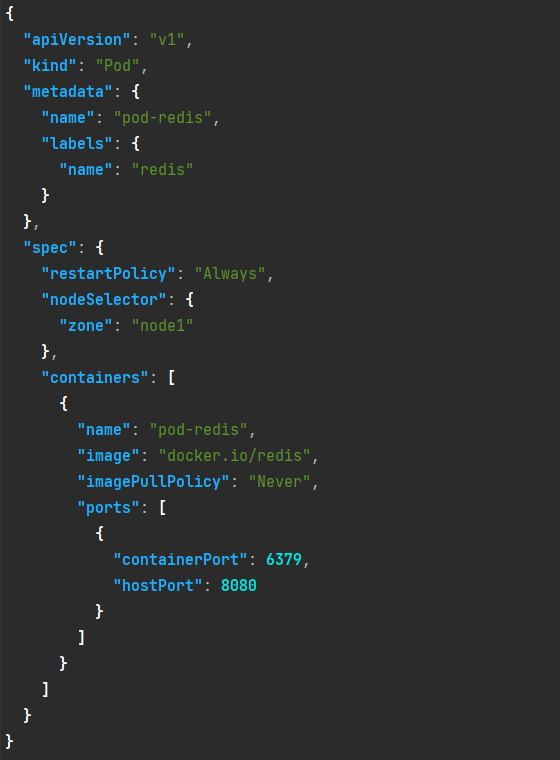
pip install richJSON美化展示
import json
from rich.console import Console

console = Console()

d = {"apiVersion": "v1", "kind": "Pod", "metadata": {"name": "pod-redis", "labels": {"name": "redis"}}, "spec": {"restartPolicy": "Always", "nodeSelector": {"zone": "node1"}, "containers": [{"name": "pod-redis", "image": "docker.io/redis", "imagePullPolicy": "Never", "ports": [{"containerPort": 6379, "hostPort": 8080}]}]}}
d_str = json.dumps(d)
console.print_json(d_str)
文本美化展示
终端文本美化是最基础的美化,我们可以设置颜色,粗细,斜体,下划线 等样式。
from rich.console import Console
from rich.text import Text
from rich.panel import Panel

console = Console()

text = Text("Hello, World!")
text.stylize("underline italic bold blue")

console.print(Panel(text))
还可以设置对齐方式等
from rich.console import Console
from rich.text import Text
from rich.panel import Panel

console = Console(width=40)

text = Text("Hello, World!")
text.stylize("underline italic bold blue on red")

console.print(Panel(text), justify='center')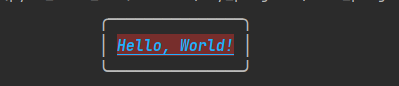
长度溢出处理
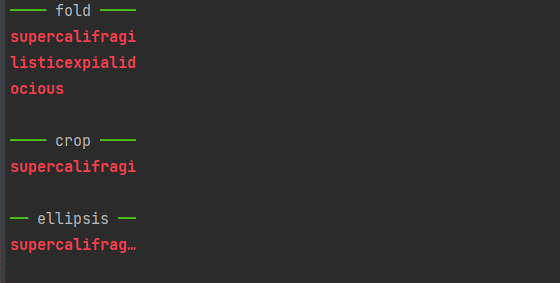
当设置了指定的宽度时,如果文本超出长度导致了溢出,可以设置相应的展示方式。比如截断展示,换行继续展示,或添加省略号。
from typing import List
from rich.console import Console, OverflowMethod

console = Console(width=14)
supercali = "supercalifragilisticexpialidocious"

overflow_methods: List[OverflowMethod] = ["fold", "crop", "ellipsis"]
for overflow in overflow_methods:
    console.rule(overflow)
    console.print(supercali, overflow=overflow, style="bold red")
    console.print()
进度条美化展示
from rich.progress import Progress
import time

with Progress() as progress:
    task = progress.add_task("Processing...", total=100)
    for i in range(100):
        time.sleep(0.5)
        progress.update(task, advance=1)

表格美化展示
from rich.console import Console
from rich.table import Table

console = Console()

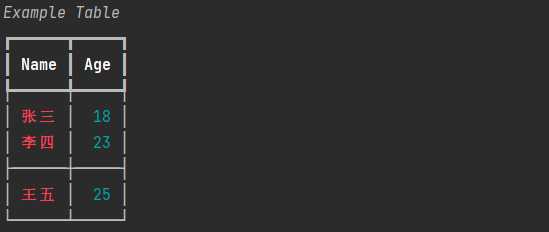
table = Table(title="Example Table")
table.add_column("Name", justify="left", style="red")
table.add_column("Age", justify="right", style="cyan")

table.add_row("张三", "18")
table.add_row("李四", "23")
table.add_section()
table.add_row("王五", "25")

console.print(table)
面板分组美化展示
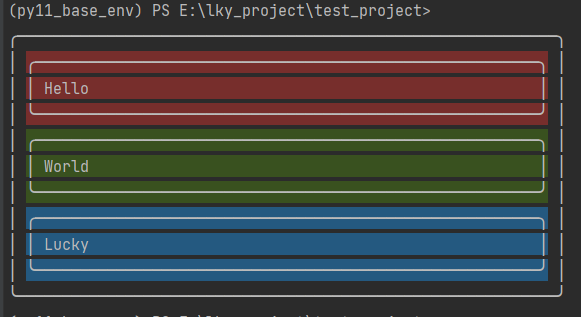
使用 Panel 面板的方式封装文本的话,每行文本会占用 3 行。
from rich import print
from rich.console import Group
from rich.panel import Panel

panel_group = Group(
    Panel("Hello", style="on red"),
    Panel("World", style="on green"),
    Panel("Lucky", style="on blue"),
)
print(Panel(panel_group))
正则匹配高亮显示
可以正则匹配文本中指定的字符串,然后高亮展示匹配上的部分。
from rich.console import Console
from rich.highlighter import RegexHighlighter
from rich.theme import Theme


class EmailHighlighter(RegexHighlighter):
    base_style = "example."
    highlights = [r"(?P<email>[\w-]+@([\w-]+\.)+[\w-]+)"]


theme = Theme({"example.email": "underline bold red"})
console = Console(highlighter=EmailHighlighter(), theme=theme)

console.print("Send funds to looking@example.qq.com will be okay.")

日志打印美化展示
日志打印默认会在打印文本前加上日志打印时间,会展示日志所在的文件及行数,我们还可以结合正则表达式,高亮展示部分文本。
import time
from rich.console import Console
from rich.style import Style
from rich.theme import Theme
from rich.highlighter import RegexHighlighter


class RequestHighlighter(RegexHighlighter):
    base_style = "req."
    highlights = [
        r"^(?P<protocol>\w+) (?P<method>\w+) (?P<path>\S+) (?P<result>\w+) (?P<stats>\[.+\])$",
        r"\/(?P<filename>\w+\..{3,4})",
    ]


theme = Theme(
    {
        "req.protocol": Style.parse("dim bold green"),
        "req.method": Style.parse("bold cyan"),
        "req.path": Style.parse("magenta"),
        "req.filename": Style.parse("bright_magenta"),
        "req.result": Style.parse("yellow"),
        "req.stats": Style.parse("dim"),
    }
)
console = Console(theme=theme)

console.log("Server starting...")
console.log("Serving on http://127.0.0.1:8000")

time.sleep(1)

request_highlighter = RequestHighlighter()

console.log(
    request_highlighter("HTTP GET /foo/bar/baz/egg.html 200 [0.57, 127.0.0.1:59076]"),
)

console.log(
    request_highlighter(
        "HTTP GET /foo/bar/baz/background.jpg 200 [0.57, 127.0.0.1:59076]"
    ),
)

终端数据保存成文件
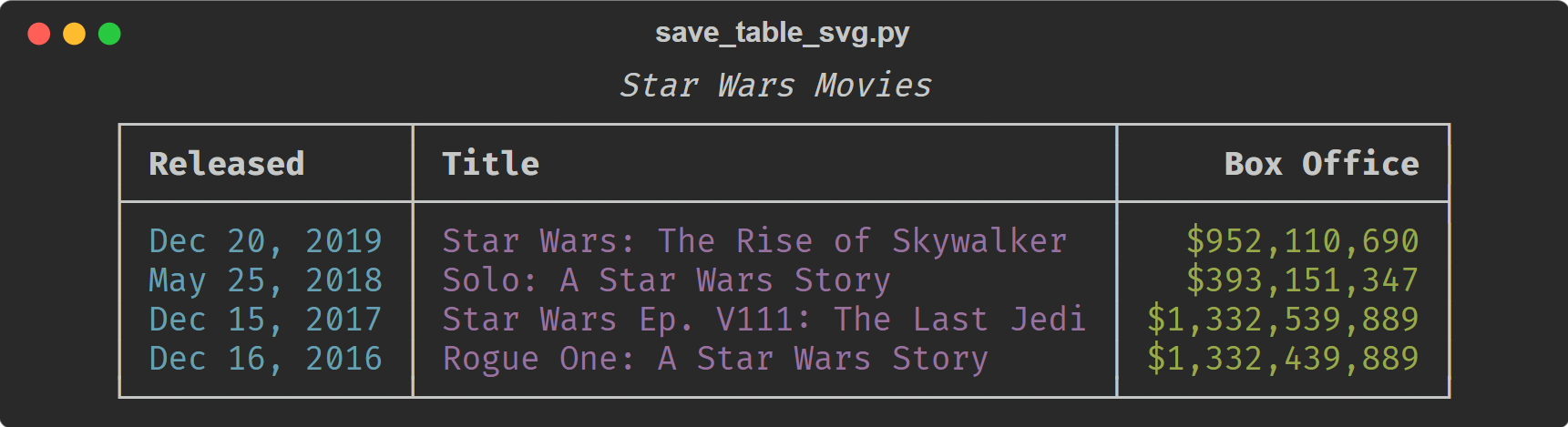
我们可以将终端显示的美化数据转换成 svg 文件。
from rich.console import Console
from rich.table import Table

table = Table(title="Star Wars Movies")

table.add_column("Released", style="cyan", no_wrap=True)
table.add_column("Title", style="magenta")
table.add_column("Box Office", justify="right", style="green")

table.add_row("Dec 20, 2019", "Star Wars: The Rise of Skywalker", "$952,110,690")
table.add_row("May 25, 2018", "Solo: A Star Wars Story", "$393,151,347")
table.add_row("Dec 15, 2017", "Star Wars Ep. V111: The Last Jedi", "$1,332,539,889")
table.add_row("Dec 16, 2016", "Rogue One: A Star Wars Story", "$1,332,439,889")

console = Console(record=True)
console.print(table, justify="center")
console.save_svg("table.svg", title="save_table_svg.py")

import os
import webbrowser

webbrowser.open(f"file://{os.path.abspath('table.svg')}")
动态表格展示
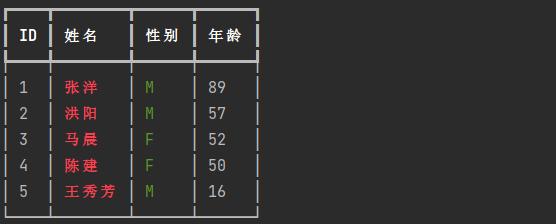
我们可以使用 rich 的 Live 来实现表格动态展示。
import time

from rich.table import Table
from rich.live import Live
from faker import Faker

faker = Faker(locale='zh_CN')
table = Table()

with Live(table, refresh_per_second=2):
    table.add_column("ID")
    table.add_column("姓名", style='bold red')
    table.add_column("性别", style='green')
    table.add_column("年龄")
    time.sleep(0.5)
    for row in range(5):
        time.sleep(0.5)
        table.add_row(f"{row + 1}", faker.name(), faker.passport_gender(), str(faker.random_int(10, 100, 1)))
询问输入展示
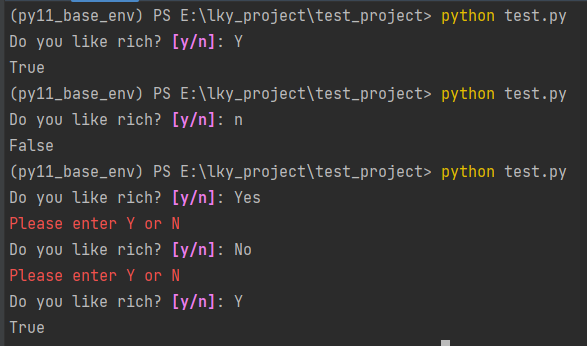
from rich.prompt import Confirm

is_rich_great = Confirm.ask("Do you like rich?")
print(is_rich_great)
目录树形结构美化展示
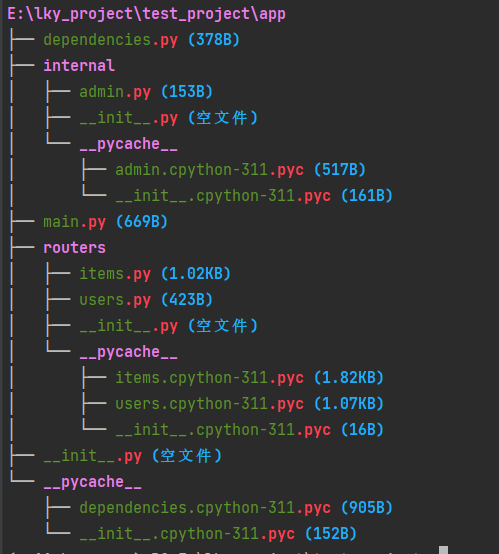
我们可以利用 Text 和 Tree 模块,生成一个类 Linux 中 tree 命令的目录树形结构展示函数。
import os

import rich
from rich.text import Text
from rich.tree import Tree


def get_file_size(file):
    size = os.path.getsize(file)
    if size == 0:
        return "空文件"
    num = 0
    while size > 1024:
        size /= 1024
        num += 1
    unit = ["B", "KB", "MB", "GB", "TB"]
    return f"{size:.2f}".rstrip(".0") + unit[num]


def show_dir(path, tree=None):
    if tree is None:
        tree = Tree(f"[bold magenta]{os.path.abspath(path)}")
    for file in os.listdir(path):
        file_path = os.path.join(path, file)
        if os.path.isdir(file_path):
            parent = tree.add(f"[bold magenta]{file}")
            show_dir(file_path, parent)
        else:
            text_filename = Text(file, "green")
            text_filename.highlight_regex(r"\.[^.]+$", "bold red")
            text_filename.append(f" ({get_file_size(file_path)})", "bold blue")
            tree.add(text_filename)
    return tree


if __name__ == '__main__':
    rich.print(show_dir("app"))
markdown 文本格式展示
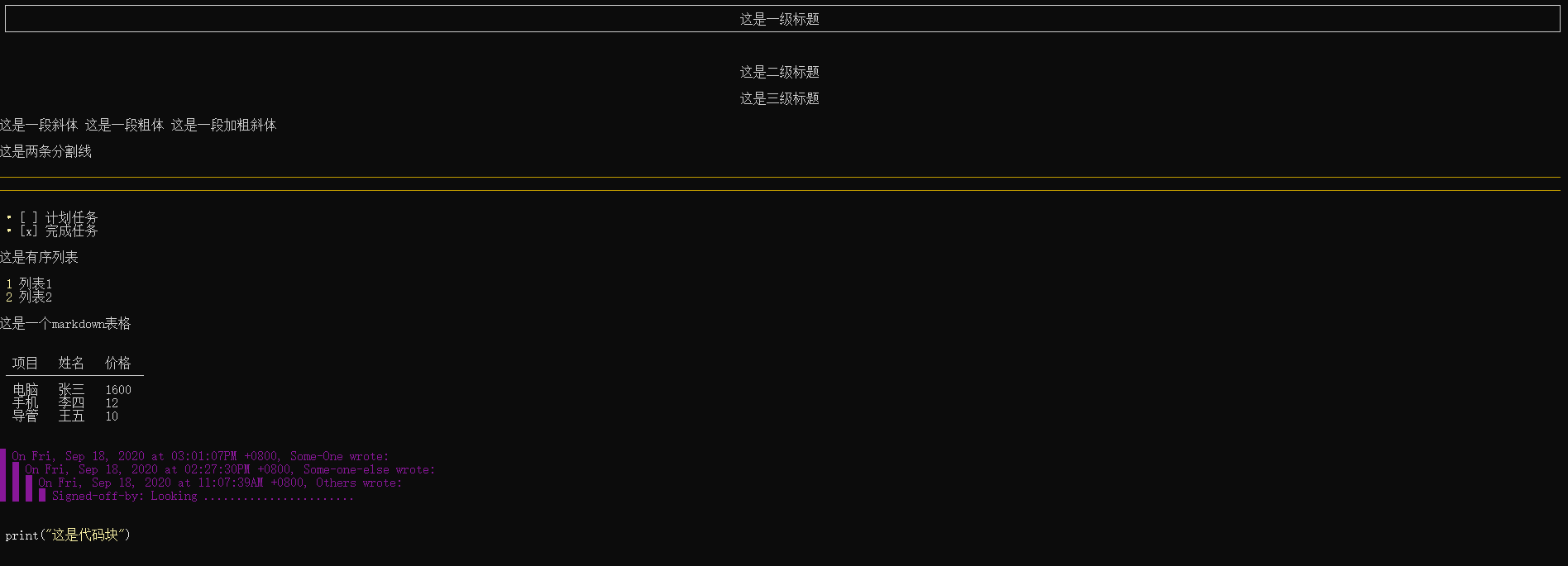
MARKDOWN = """
# 这是一级标题
## 这是二级标题
### 这是三级标题

*这是一段斜体*
**这是一段粗体**
***这是一段加粗斜体***

这是两条分割线

---
***
- [ ] 计划任务
- [x] 完成任务

这是有序列表
1. 列表1
2. 列表2

这是一个markdown表格
项目 | 姓名 | 价格
----- | ----- |-----
电脑  | 张三 | 1600
手机  | 李四 | 12
导管  | 王五 | 10


>On Fri, Sep 18, 2020 at 03:01:07PM +0800, Some-One wrote:
>>On Fri, Sep 18, 2020 at 02:27:30PM +0800, Some-one-else wrote:
>>>On Fri, Sep 18, 2020 at 11:07:39AM +0800, Others wrote:
>>>>Signed-off-by: Looking
>>>> .......................

```python
print("这是代码块")

```
"""
from rich.console import Console
from rich.markdown import Markdown

console = Console()
md = Markdown(MARKDOWN)
console.print(md)
更多示例
更多示例可参照 https://github.com/Textualize/rich/tree/master/examples 里的示例去运行发掘,这里也有很多使用 rich 库各模块进行终端美化展示的示例(如果访问失败可以用这个镜像地址试试 https://gitcode.com/gh_mirrors/ric/rich/tree/master/examples)。

小龙虾开发者社区是 CSDN 旗下专注 OpenClaw 生态的官方阵地,聚焦技能开发、插件实践与部署教程,为开发者提供可直接落地的方案、工具与交流平台,助力高效构建与落地 AI 应用
更多推荐


 6
6 0
0- 0


 已为社区贡献1条内容

所有评论(0)