
VSCode配置c++开发环境
·
VSCode配置下c++开发环境。
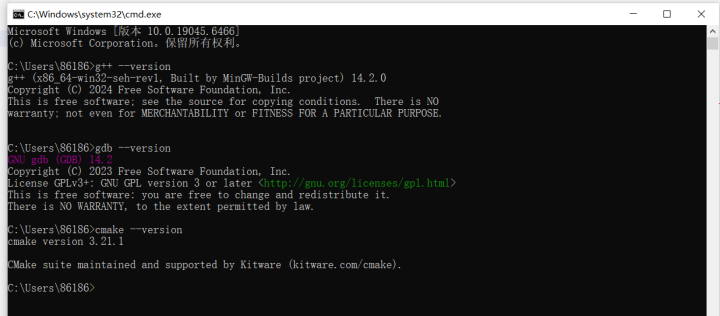
安装c/c++扩展:
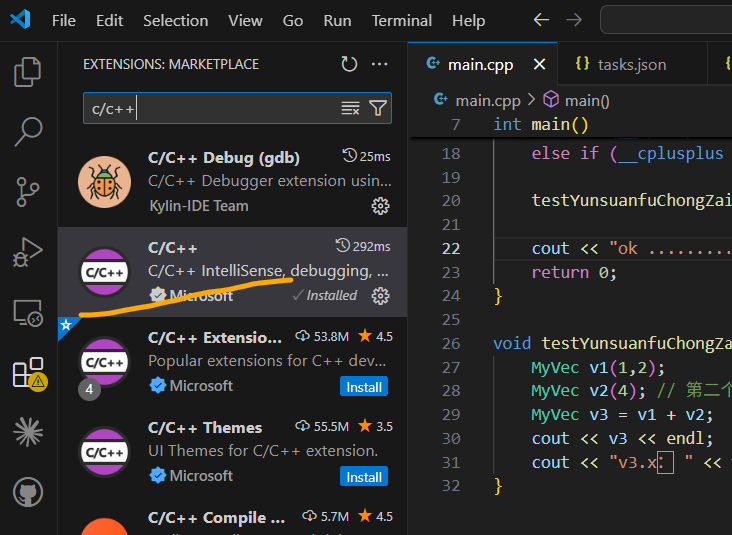
项目根目录新建src文件夹存cpp文件, 新建include文件夹存头文件。main.cpp放根目录。
项目根目录新建CmakeLists.txt, 这个是构建配置文件,用于定义编译规则、依赖关系和目标输出。内容如下:
# 最低CMake版本要求
cmake_minimum_required(VERSION 3.10)

# 项目名 + 语言
project(MyCppTestProject LANGUAGES CXX)

# 设置C++标准 C++17
set(CMAKE_CXX_STANDARD 17)
set(CMAKE_CXX_STANDARD_REQUIRED ON)

# 头文件目录(让编译器能找到include里的.h)
include_directories(include)

# 自动收集:根目录main.cpp + src下所有cpp文件
file(GLOB SRC_FILES
    *.cpp
    src/*.cpp
)

# 生成可执行文件,名字叫 main
add_executable(main ${SRC_FILES})

# 编译输出到 output 文件夹
set(EXECUTABLE_OUTPUT_PATH ${PROJECT_SOURCE_DIR}/output)
测试下, 以前是用Visual Studio 2022写的代码, 复制一些过来测试下。
MyVec.h, 放在include目录, 内容:
#pragma once
#include <iostream>

using namespace std;

// 我的二维向量,测试运算符重载
class MyVec
{
private:
	int x, y;

public:
    MyVec(int x = 0, int y = 0);

    // 成员函数重载+
    MyVec operator+(const MyVec& rhs);

    // 成员函数重载-
    MyVec operator-(const MyVec& rhs);

    // 友元函数重载<<
    friend ostream& operator<<(ostream& os, const MyVec& v);

    // 成员函数重载[]
    int& operator[](int index);
};

ostream& operator<<(ostream& os, const MyVec& v); // 上面那个友元函数的声明。不能缺少,不然外部不知道这个函数
MyVec.cpp , 放在src目录, 内容:
#include "MyVec.h"
#include <stdexcept>

MyVec::MyVec(int x, int y) : x(x), y(y)
{
}

MyVec MyVec::operator+(const MyVec& rhs)
{
	return MyVec(x + rhs.x, y + rhs.y);
}

MyVec MyVec::operator-(const MyVec& rhs)
{
	return MyVec(x - rhs.x, y - rhs.y);
}

ostream& operator<<(ostream& os, const MyVec& v)
{
	os << "(" << v.x << ", " << v.y << ")";
	return os;
}

int& MyVec::operator[](int index)
{
	if (index == 0) return x;
	if (index == 1) return y;
	throw out_of_range("Index out of bounds");
}
根目录下main.cpp内容:
#include <iostream>
#include "MyVec.h"
using namespace std;

void testYunsuanfuChongZai();

int main()
{
    cout << "VSCode C++ 环境正常. ok" << endl;
    // 打印 C++ 标准版本
    cout << "当前 C++ 标准版本: " << __cplusplus << endl;

    // 显示名称
    if (__cplusplus == 201103L) cout << "=> C++11\n";
    else if (__cplusplus == 201402L) cout << "=> C++14\n";
    else if (__cplusplus == 201703L) cout << "=> C++17\n";
    else if (__cplusplus == 202002L) cout << "=> C++20\n";
    else if (__cplusplus == 202302L) cout << "=> C++23\n";

    testYunsuanfuChongZai();

    return 0;
}

void testYunsuanfuChongZai() { // 测试运算符重载
	MyVec v1(1,2);
	MyVec v2(4); // 第二个参数有默认值0,可以不传
	MyVec v3 = v1 + v2;
	cout << v3 << endl;
	cout << "v3.x: " << v3[0] << ", v3.y: " << v3[1] << endl;
}
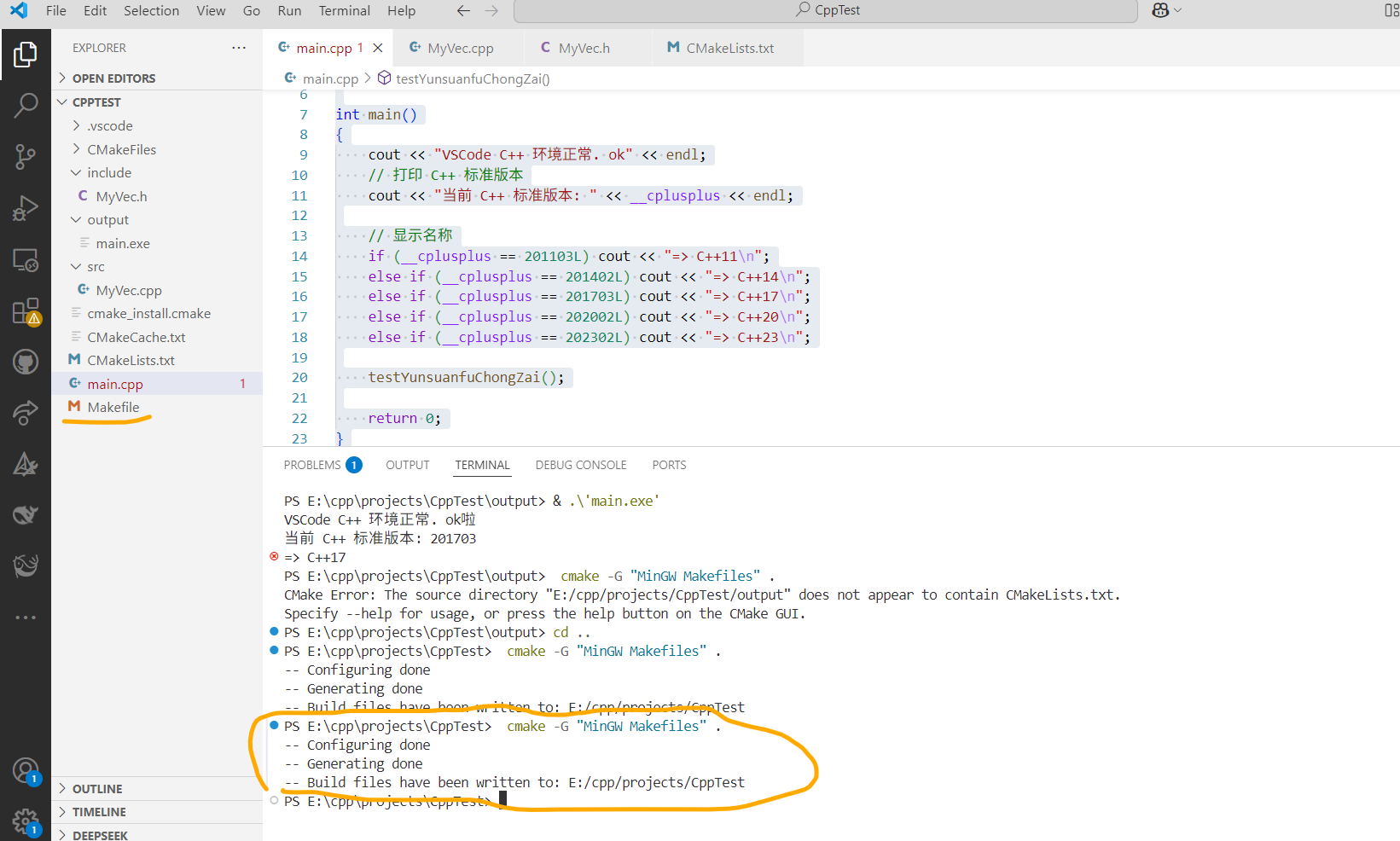
编译之前,先生成Makefile:
cmake -G "MinGW Makefiles" .执行如下,生成了Makefile:
再执行 mingw32-make 编译所有文件:

再执行.\output\main.exe 运行程序:
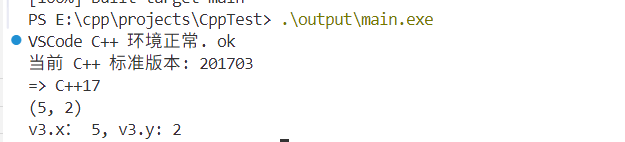
ok. 但是如果直接点击右上角的运行按钮会报错:

需要配置下。新建.vscode目录,会自动生成如下文件:
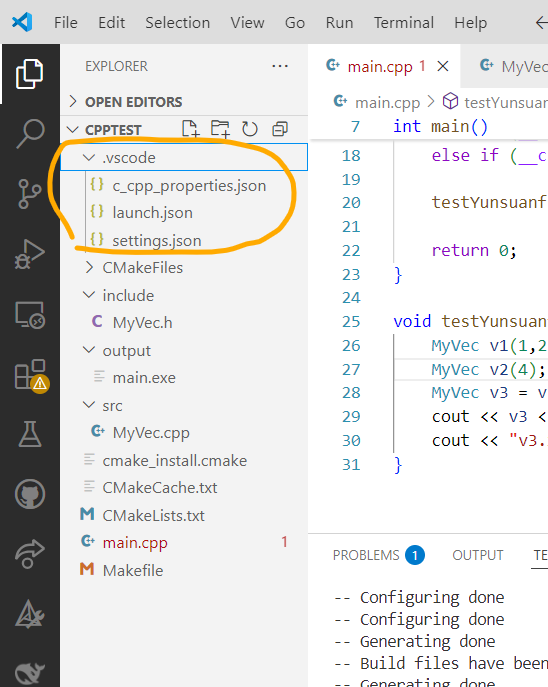
修改launch.json:
{
  "version": "0.2.0",
  "configurations": [
      {
          "name": "运行程序",
          "type": "cppdbg",
          "request": "launch",
          "program": "${workspaceFolder}/output/main.exe",
          "args": [],
          "stopAtEntry": false,
          "cwd": "${workspaceFolder}",
          "externalConsole": false,
          "MIMode": "gdb",
          "miDebuggerPath": "gdb",
          "preLaunchTask": "CMake Build"
      }
  ]
}
修改tasks.json:
{
    "version": "2.0.0",
    "tasks": [
        {
            "label": "CMake Build",
            "type": "shell",
            "command": "cmake -G \"MinGW Makefiles\" . ; mingw32-make",
            "group": {
                "kind": "build",
                "isDefault": true
            }
        }
    ]
}
点击运行:
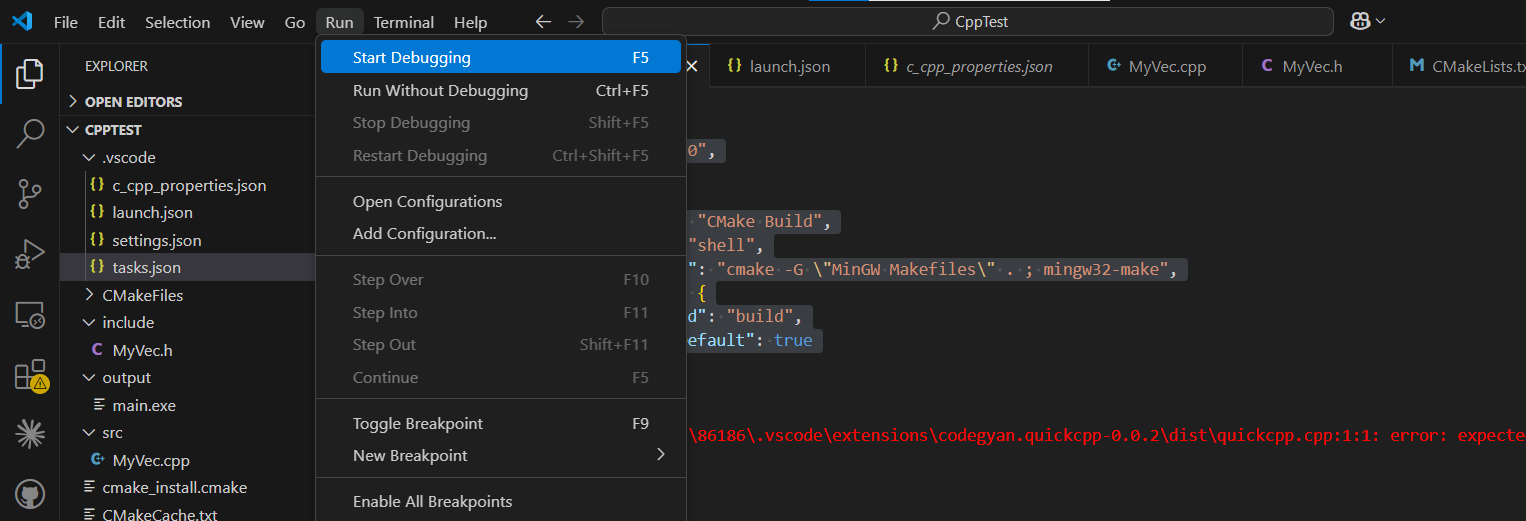
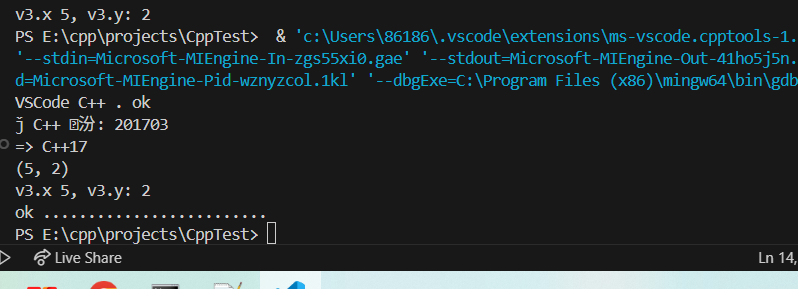
ok.

小龙虾开发者社区是 CSDN 旗下专注 OpenClaw 生态的官方阵地,聚焦技能开发、插件实践与部署教程,为开发者提供可直接落地的方案、工具与交流平台,助力高效构建与落地 AI 应用
更多推荐


 0
0 0
0- 0


 已为社区贡献1条内容

所有评论(0)