项目实训——大数据租房推荐智能体(爬虫部分2)
·
目录
登录问题:
如果链家要增加筛选条件,或者查看第二页,那么我们就不能无身份访问了。否则自动跳转登录界面。
请求 URL
https://jn.lianjia.com/ershoufang/pg5
请求方法
GET
状态代码
301 Moved Permanently
Remote Address
114.117.128.51:443
引用站点策略
strict-origin-when-cross-origin
看出网站触发重定向了,状态码301
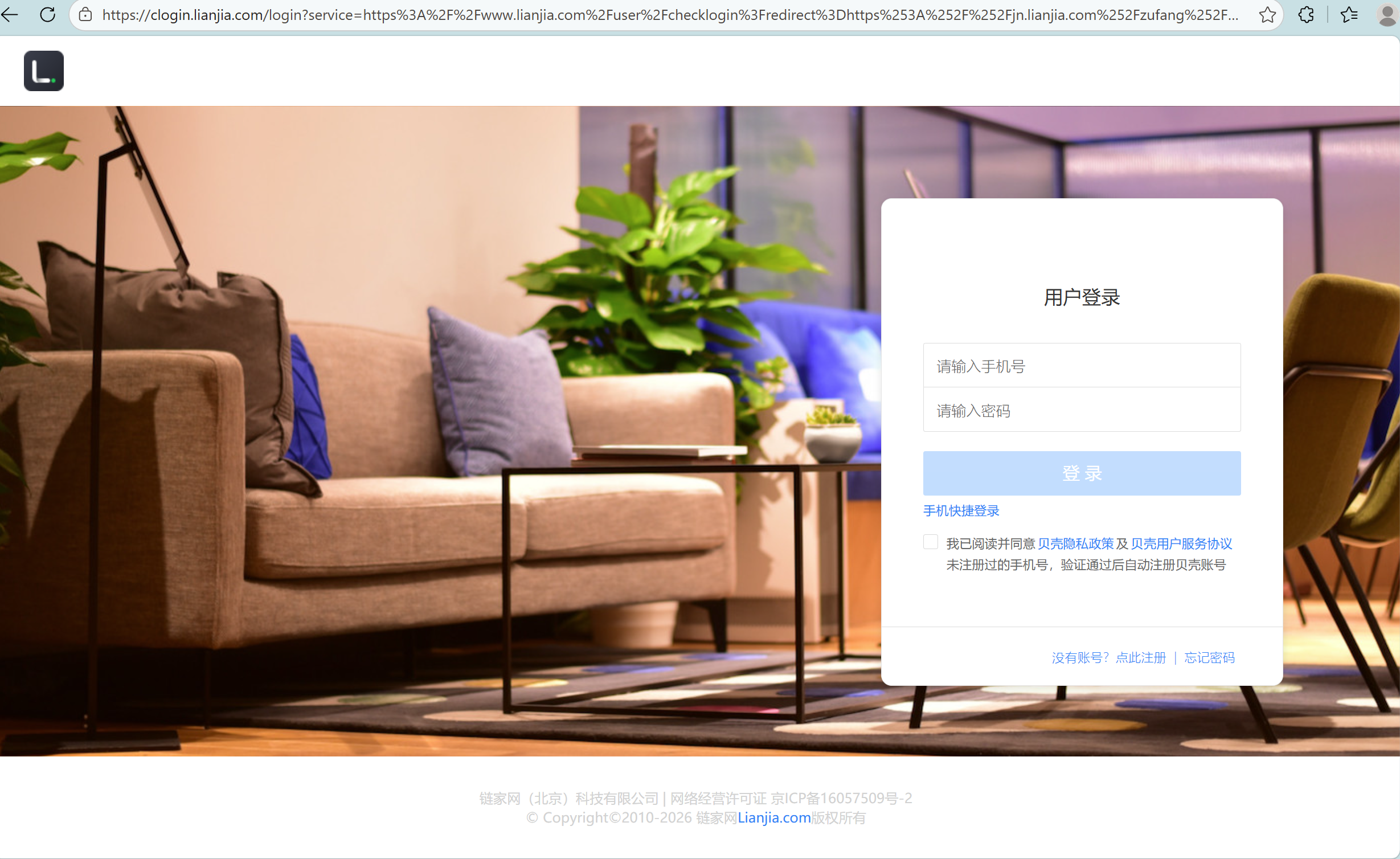
如何解决?
方法一:直接复制cookie
我们登陆后,在网页的控制面板中打开网络板块,查看请求中携带的请求头中cookie信息。手动复制,做法简单,高效。但是cookie通常有有效期,过期后,cookie失效,代码进而也失效。
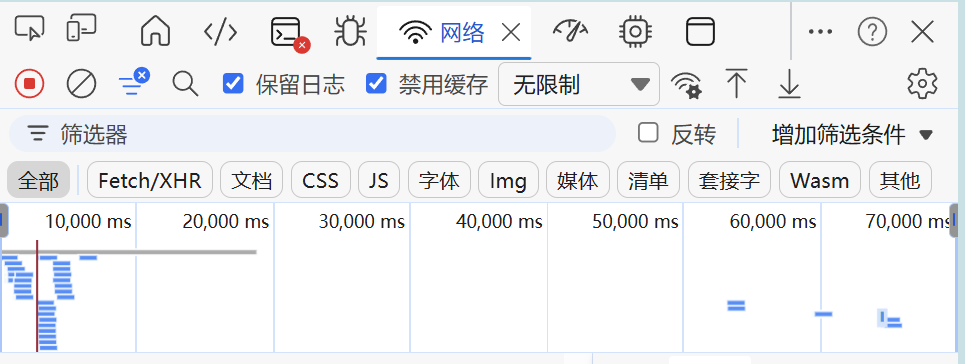
方法二:模拟登录
我们使用的是request库,也能够像目标服务器发送post请求,我们查看登录时,发送了哪些包。
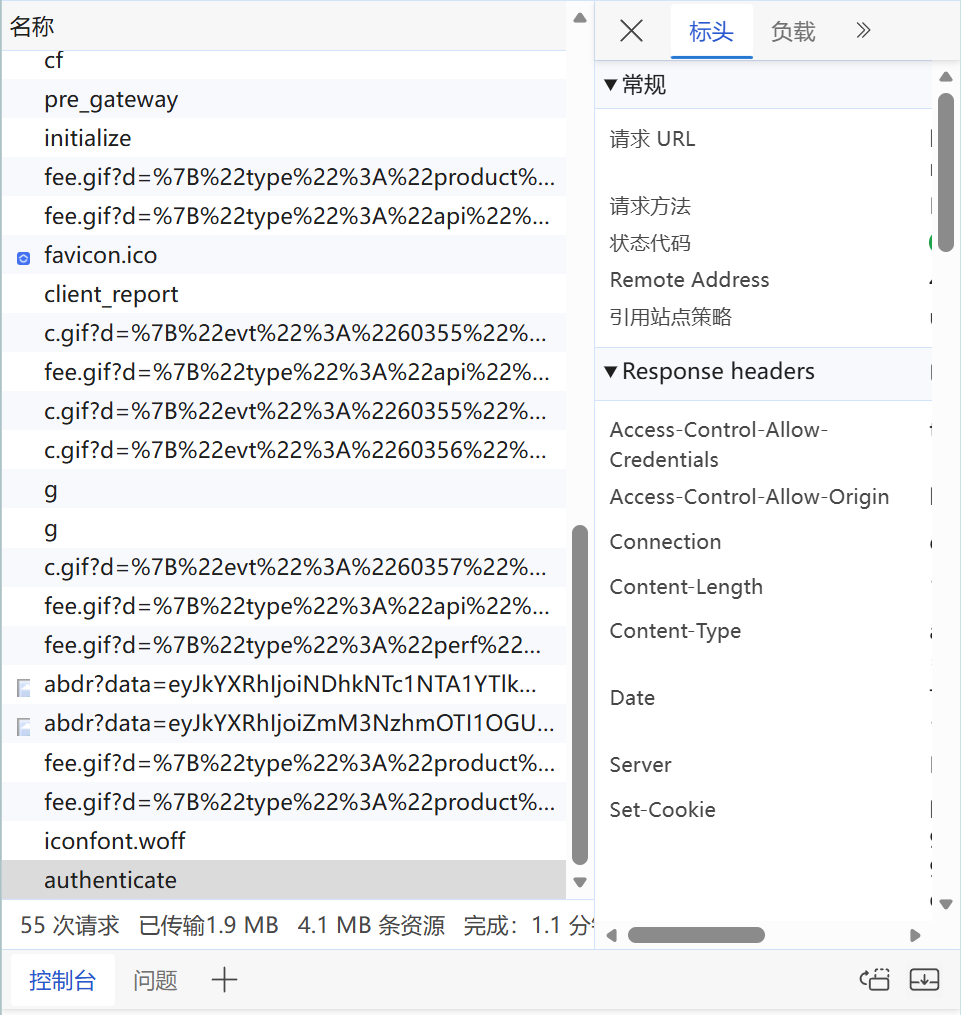
找到authenticate包。查阅内容。
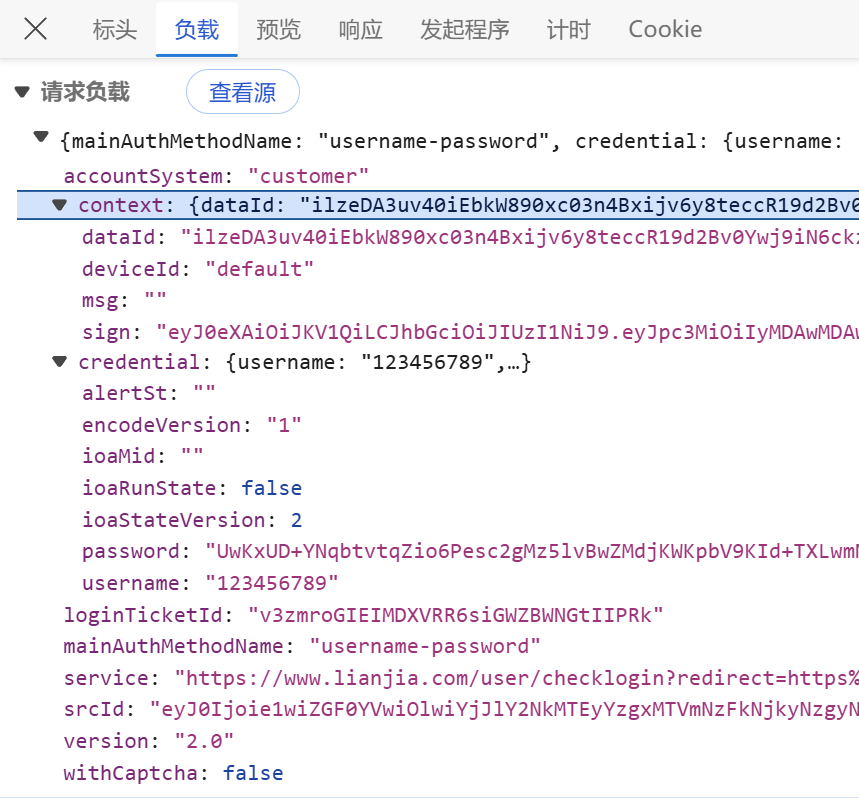
看到负载中,有许多键值,我们查看哪些键对应的值是变化。
再次发送请求,比对不同项。
对比发现,
"password"
"srcId"
"dataId"
"sign"
"loginTicketId"
五项均改变了。
我们不妨查看这些键的生成过程。
查看登录代码
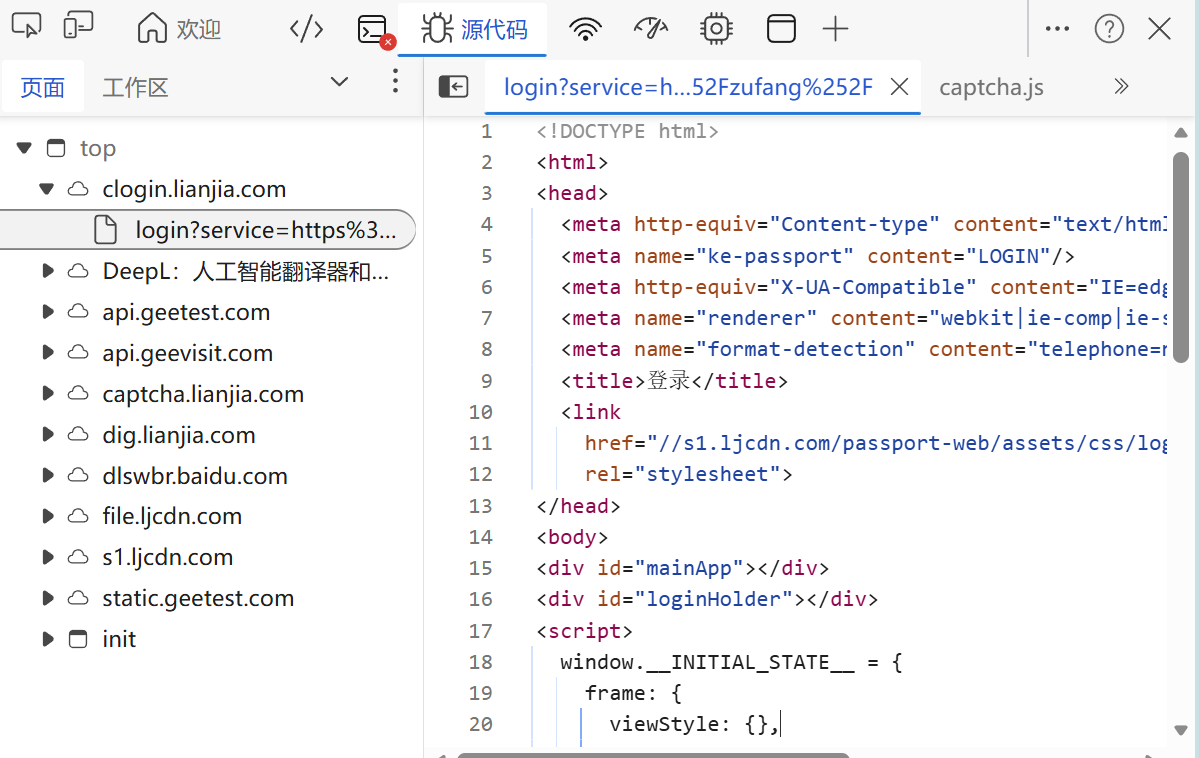
在源代码板块寻找登录校验逻辑。
在不同的域名下寻找对应js文件。
我们在s1.ljcdn.com下有所发现。
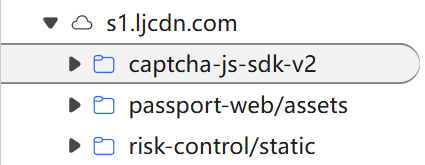
- 第一个为外部验证码的包,是极验平台下的产品,这里是v2版本,在登录后的人机验证是它的v4版本。
- 第二个为网页登录包。我们要找的文件就在这。
- 第三个是风控包。这里会检验我们的环境,检验鼠标痕迹等等来决定是否弹出人机验证。
我们在第二个包中,找到loginApp.d5361066f07fc2ddec0b.js
打断点,找逻辑
在里面查找相应关键词。多多打断点。
执行登录,查看断点。
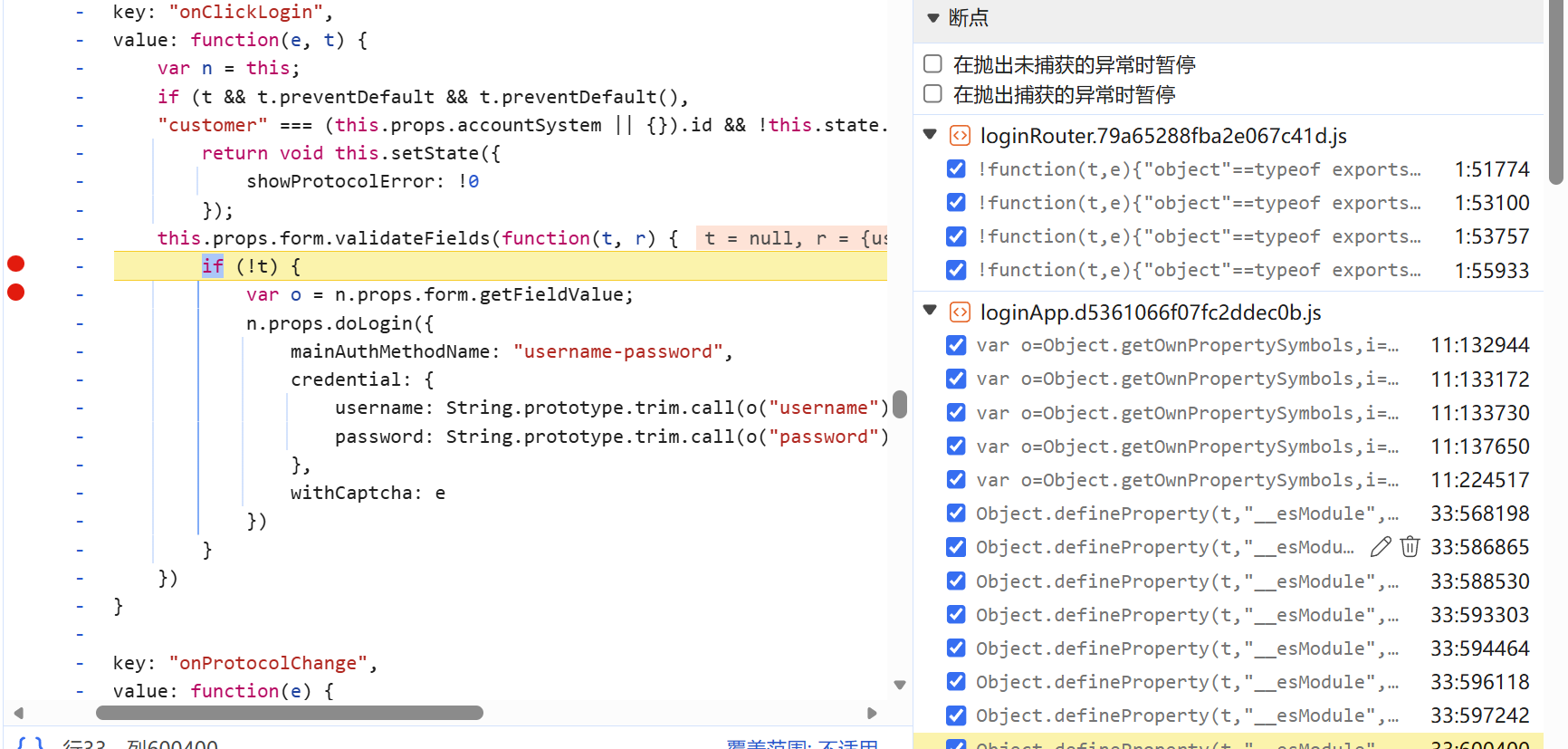
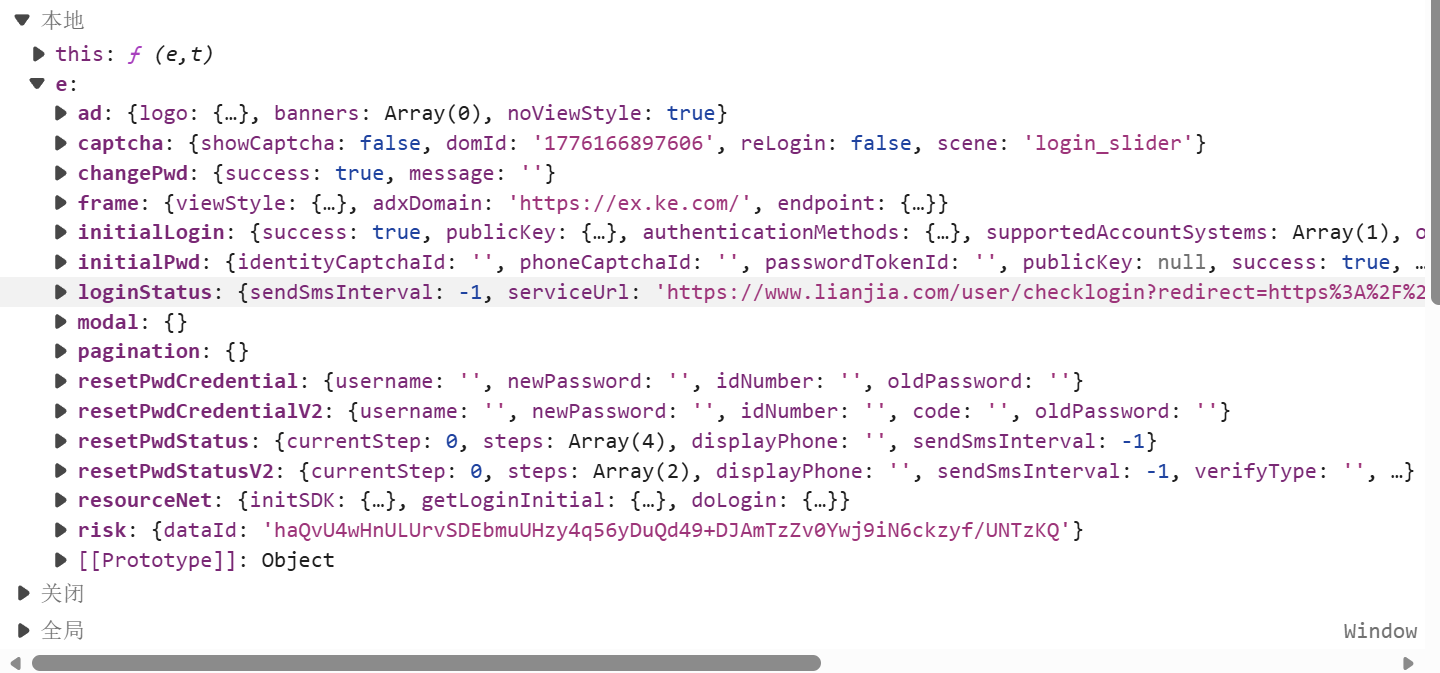
重点跟随loginstatus的变化过程。
跟代码,看看能不能复刻
 this.passwordLogin = function(t, e) {
                    t.encodeVersion = o.encodeVersion;
                    var n = {};
                    e && (n = o.getRiskInfo(Object.assign({}, e.clickPos, e.riskData))),
                    o.publicKey && (t.password = o.ec.encrypt(t.password));
                    var i = {
                        service: o.service,
                        mainAuthMethodName: l.mainAuthMethodName.PASSWORD,
                        accountSystem: o.accountSystem,
                        credential: t,
                        context: Object.assign({}, n),
                        loginTicketId: o.loginTicketId,
                        version: o.serviceVersion
                    };
                    return window.srcId && (i.srcId = window.srcId),
                    t.code && (i.mfaAuthMethodName = l.allianceMethods.security),
                    e.ticketMaxAge && (i.ticketMaxAge = e.ticketMaxAge),
                    new Promise(function(e, n) {
                        Object(u.fetch)({
                            url: "" + o.domain + l.APIEndpoint.auth,
                            method: "POST",
                            data: i
                        }).then(function(t) {
                            e(t),
                            o.sign = t.data.sign,
                            o.tgt = t.data.serviceTicket.id
                        }).catch(function(t) {
                            Object(c.sendFee)({
                                detail: {
                                    error: t,
                                    data: i
                                },
                                errorName: "passport-auth-error"
                            }),
                            n(t)
                        })
                    }
                    )
                }

srcid的初始化

        new u.default({
        portal: 110301,
        cb: function(t) {
            return window.srcId = h.Base64.encode(JSON.stringify({
                t: t,
                r: window.location.href,
                os: "web",
                v: "0.1"
            }))
        }
    });

初始化risk的代码。

             key: "initRisk",
        value: (w = b(i.default.mark(function t() {
            var e;
            return i.default.wrap(function(t) {
                for (; ; )
                    switch (t.prev = t.next) {
                    case 0:
                        return t.next = 2,
                        (0,
                        p.getRiskDataId)();
                    case 2:
                        e = t.sent,
                        this.riskData = Object.assign({}, this.riskData, {
                            dataId: e
                        });
                    case 4:
                    case "end":
                        return t.stop()
                    }
            }, t, this)

         获得this.key
        t.prototype.getKey = function(t) {
                if (!this.key) {
                    if (this.key = new nt,
                    t && "[object Function]" === {}.toString.call(t))
                        return void this.key.generateAsync(this.default_key_size, this.default_public_exponent, t);
                    this.key.generate(this.default_key_size, this.default_public_exponent)
                }
                return this.key
            }

         t.prototype.encrypt = function(t) {
                        var e = function(t, e) {
                            if (e < t.length + 11)
                                return null;
                            var n = []
                              , i = t.length - 1;
                            for (; 0 <= i && 0 < e; ) {
                                var r = t.charCodeAt(i--);
                                r < 128 ? n[--e] = r : 127 < r && r < 2048 ? (n[--e] = 63 & r | 128,
                                n[--e] = r >> 6 | 192) : (n[--e] = 63 & r | 128,
                                n[--e] = r >> 6 & 63 | 128,
                                n[--e] = r >> 12 | 224)
                            }
                            n[--e] = 0;
                            var o = new Z
                              , a = [];
                            for (; 2 < e; ) {
                                for (a[0] = 0; 0 == a[0]; )
                                    o.nextBytes(a);
                                n[--e] = a[0]
                            }
                            return n[--e] = 2,
                            n[--e] = 0,
                            new _(n)
                        }(t, this.n.bitLength() + 7 >> 3);
                        if (null == e)
                            return null;
                        var n = this.doPublic(e);
                        if (null == n)
                            return null;
                        var i = n.toString(16);
                        return 0 == (1 & i.length) ? i : "0" + i
                    }
严重问题
严重问题:风控中有检验设备的函数,request库无法模拟,必然触发风控,输入验证码,或者sms。
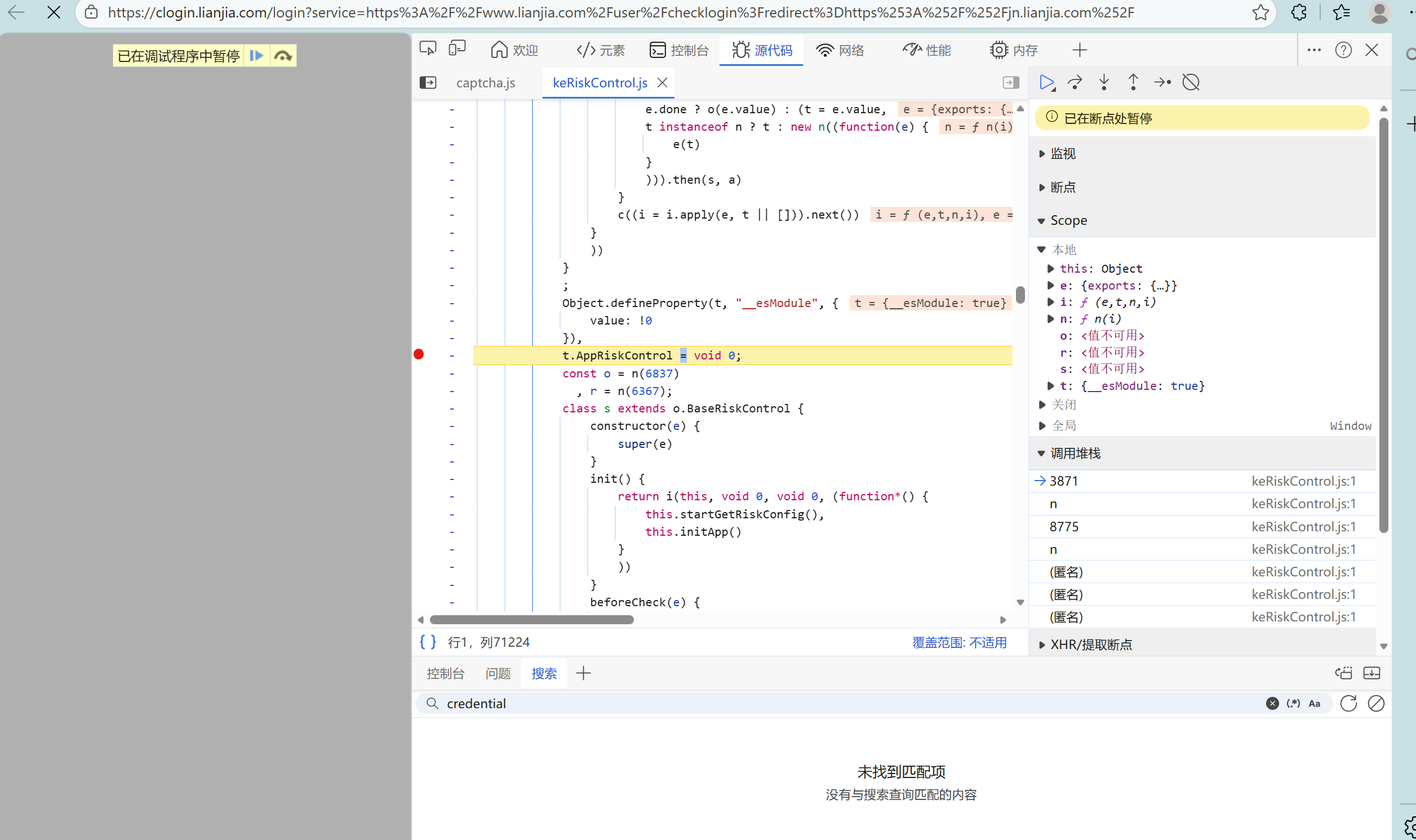
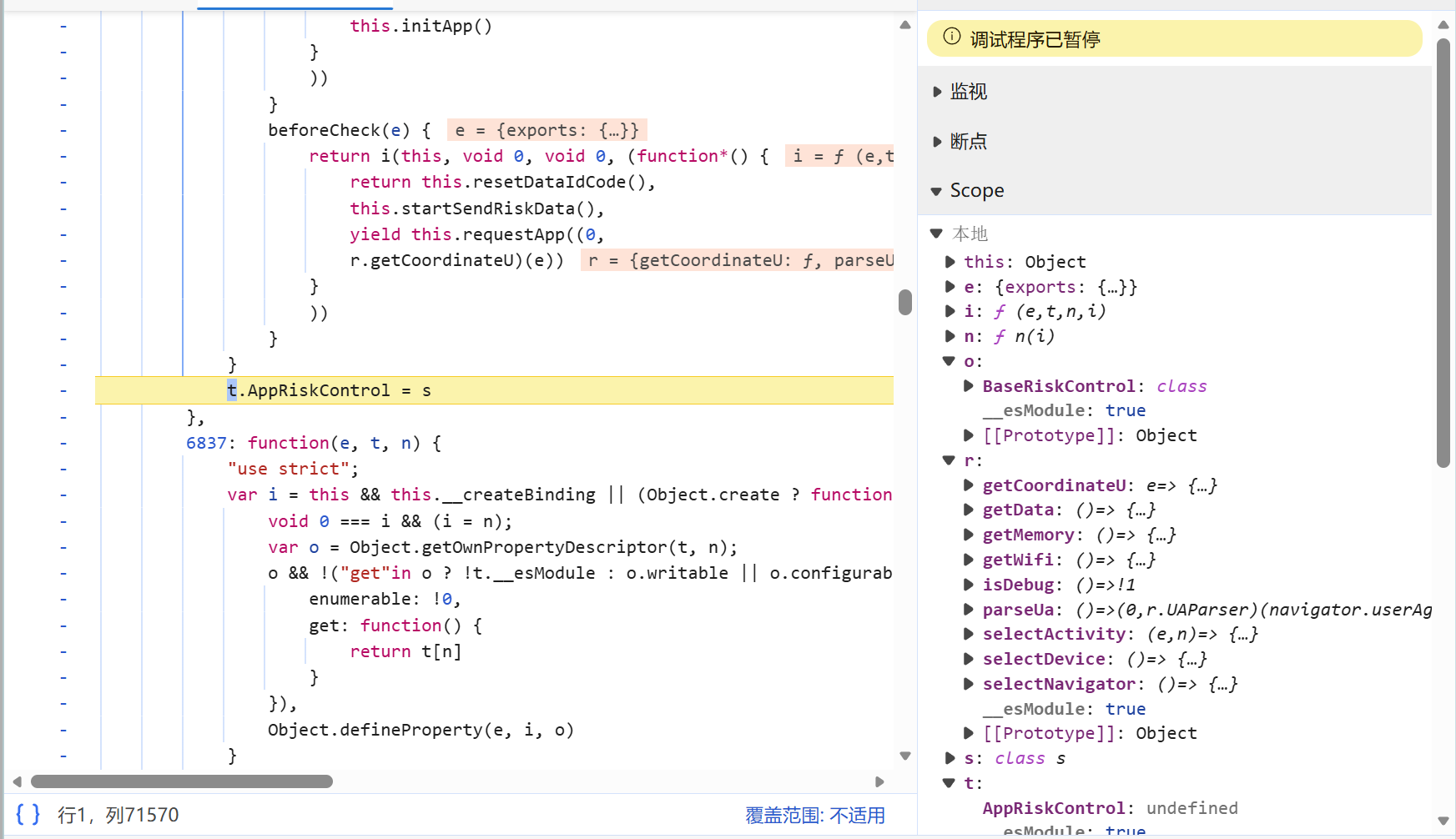
几乎不能绕过。逆向难度极大,这里不再深入。
方法三:selenium模拟
放弃使用request轻量库,采用selenium模拟。selenium是一个自动化程序,里面是一整个浏览器。因此能绕过大部分风控。
class LianjiaRequestsSpider:
    def __init__(self, city='bj', district=None):
        self.cookie_manager = CookieManager()
        self.source = "链家"
        self.city = city
        self.district = district
        self.driver = None
        # 1. 配置 Edge 选项
        options = Options()

        # 2. 去除无头模式(可以看到浏览器界面)
        # options.add_argument('--headless')

        # 3. 反爬虫策略:隐藏 Selenium 特征
        options.add_argument('--disable-blink-features=AutomationControlled')
        options.add_argument("--no-sandbox")
        options.add_argument("--disable-dev-shm-usage")
        options.add_argument("user-agent=Mozilla/5.0 (Windows NT 10.0; Win64; x64) AppleWebKit/537.36 (KHTML, "
                             "like Gecko) Chrome/146.0.0.0 Safari/537.36 Edg/146.0.0.0")
        options.add_experimental_option("excludeSwitches", ["enable-automation"])
        options.add_experimental_option('useAutomationExtension', False)

        # 4. 窗口最大化
        options.add_argument('--start-maximized')

        # 5. 初始化 Edge 浏览器
        try:
            print("正在配置 Edge 驱动...")
            self.driver = webdriver.Edge(options=options)
            self.driver.execute_cdp_cmd("Page.addScriptToEvaluateOnNewDocument", {
                "source": """
                        Object.defineProperty(navigator, 'webdriver', {
                          get: () => undefined
                        })
                      """
            })
            print("✅ Edge 浏览器启动成功!")
        except Exception as e:
            print(f"❌ 浏览器启动失败: {e}")
            print("💡 提示:请确保你的电脑已安装 Microsoft Edge 浏览器。")
如果遇到了登录逻辑,我们采用以下方法:
    def login_with_selenium(self, login_url) -> bool:
        self.driver.get(login_url)
        wait = WebDriverWait(self.driver, 15)
        try:
            user_input = wait.until(EC.presence_of_element_located((By.ID, "username")))
            user_input.send_keys("************")
            time.sleep(random.uniform(0.5, 1))
            pwd_input = self.driver.find_element(By.ID, "password")
            pwd_input.send_keys("**********")
            time.sleep(random.uniform(0.5, 1))
            # 随机等待1-2秒
            time.sleep(random.uniform(1, 2))
            # 点击协议
            try:
                checkbox = self.driver.find_element(By.CSS_SELECTOR, ".ant-checkbox-wrapper")
                checkbox.click()
            except Exception as e:
                print("未找到协议勾选框", e)
                pass

            # 点击登录
            login_btn = wait.until(EC.element_to_be_clickable((By.CSS_SELECTOR, ".btn-login")))
            login_btn.click()
这里仍然有时候会遇到验证码的问题,风控等级很高。我们下一篇介绍打码平台的应用。
小龙虾开发者社区是 CSDN 旗下专注 OpenClaw 生态的官方阵地,聚焦技能开发、插件实践与部署教程,为开发者提供可直接落地的方案、工具与交流平台,助力高效构建与落地 AI 应用
更多推荐


 5
5 0
0- 0


 已为社区贡献3条内容

所有评论(0)