龙虾OpenClaw 接入第三方中转api详细教程,以及错误排查
OpenClaw 是一款强大的 AI 编程助手工具,支持通过 Web UI 或命令行与 AI 模型交互。通过本教程,你应该已经成功:✅ 安装并配置了 OpenClaw✅ 接入了自定义 API(squarefaceicon.org 或中转站)✅ 优化了配置参数(contextWindow、maxTokens)✅ 掌握了常见问题的排查方法✅ 了解了实用的命令行工具加入社区寻求帮助祝使用愉快!🎉。
OpenClaw 完整配置教程
从零开始配置 OpenClaw,接入自定义 API(api.squarefaceicon.org / NewAPI / OneAPI 等中转站)
交流群: 464730979(尽享 8 元 100 刀额度 claude code)
目录
什么是 OpenClaw
OpenClaw 是一款强大的 AI 编程助手工具,支持通过 Web UI 或命令行与 AI 模型交互。
核心特性
✅ Web UI 界面 - 提供友好的 Web 界面,方便查看和管理对话
✅ 多模型支持 - 支持 Claude、GPT 等多种 AI 模型
✅ 插件系统 - 丰富的插件生态,扩展更多功能
✅ 高度可配置 - 支持自定义 contextWindow、maxTokens 等参数
安装步骤
前提条件
确保已安装 Node.js ≥ 22。检查版本:
node --version
如果版本过低,请前往 Node.js 官网 下载最新版本。
安装 OpenClaw
在终端运行以下命令全局安装:
# 使用 npm
npm install -g openclaw@latest

# 或使用 pnpm(推荐,速度更快)
pnpm add -g openclaw@latest
配置说明
步骤 1:启动初始化程序
安装完成后,运行初始化向导:
openclaw onboard --install-daemon
步骤 2:配置向导
按照向导提示进行配置,关键步骤如下:
| 提示 | 选择 |
|---|---|
| Install daemon? | 选择 yes |
| Onboarding mode | 选择第一个选项 |
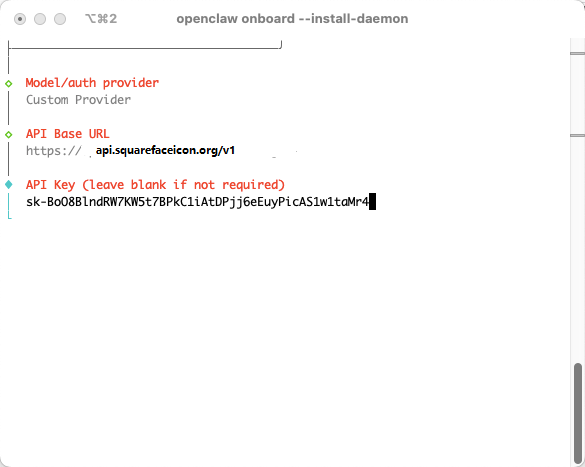
| Model/auth provider | 选择 Custom Provider (Any OpenAI or Anthropic compatible endpoint) |
| API Base URL | 输入 https://api.squarefaceicon.org/v1 |
| API Key | 输入从控制台获取的 API Key(见下方说明) |
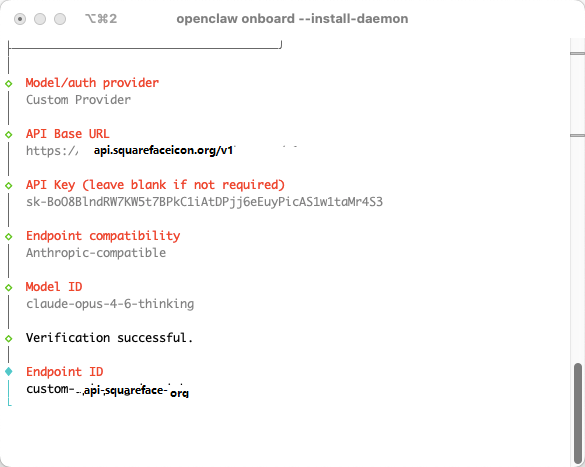
| Endpoint compatibility | 选择 Anthropic-compatible (Uses /messages) |
| Model ID | 输入 claude-opus-4-6-thinking(或其他模型) |
| Endpoint ID | 使用默认值即可 |
| Model alias | 可选,例如输入 opus4.6 |
后续的 QuickStart、Skills、Hooks 等选项可根据需要选择,初次使用可全部跳过。
How do you want to hatch your bot? - 选择 Open the Web UI 方便查看
步骤 3:获取 API Key
方法 A:从 squarefaceicon.org 获取
- 前往 square Api 令牌页面
- 创建令牌:
- 点击「添加令牌」
- 输入名称(随意),分组选择
cc1或默认分组 - 模型限制列表和 IP 白名单留空,直接点击提交
- 复制生成的 Key,粘贴到 OpenClaw 配置中
方法 B:从 NewAPI / OneAPI 中转站获取
- 登录你的中转站管理后台
- 进入「令牌管理」或「API Keys」页面
- 创建新令牌,复制 Key
步骤 4:优化配置文件
初始化完成后,编辑配置文件以获得最佳性能。
Windows 配置文件位置
C:\Users\你的用户名\.openclaw\openclaw.json
Linux/macOS 配置文件位置
~/.openclaw/openclaw.json
优化参数
将以下参数从默认值提升:
contextWindow:4096→200000maxTokens:4096→8192- 确认
baseUrl为https://api.squarefaceicon.org(不要带 /v1)
配置文件示例
{
  "models": {
    "providers": {
      "custom-api-squarefaceicon-org": {
        "baseUrl": "https://api.squarefaceicon.org",
        "apiKey": "sk-your-api-key",
        "api": "anthropic-messages",
        "headers": {
          "User-Agent": "Mozilla/5.0"
        },
        "models": [
          {
            "id": "claude-opus-4-6-thinking",
            "name": "Claude Opus 4.6 Thinking",
            "reasoning": true,
            "input": ["text", "image"],
            "cost": {
              "input": 15,
              "output": 75,
              "cacheRead": 1.5,
              "cacheWrite": 18.75
            },
            "contextWindow": 200000,
            "maxTokens": 8192
          },
          {
            "id": "claude-opus-4-6",
            "name": "Claude Opus 4.6",
            "reasoning": false,
            "input": ["text", "image"],
            "cost": {
              "input": 15,
              "output": 75,
              "cacheRead": 1.5,
              "cacheWrite": 18.75
            },
            "contextWindow": 200000,
            "maxTokens": 8192
          },
          {
            "id": "claude-sonnet-4-5",
            "name": "Claude Sonnet 4.5",
            "reasoning": false,
            "input": ["text", "image"],
            "cost": {
              "input": 3,
              "output": 15,
              "cacheRead": 0.3,
              "cacheWrite": 3.75
            },
            "contextWindow": 200000,
            "maxTokens": 8192
          }
        ]
      }
    }
  },
  "agents": {
    "defaults": {
      "model": {
        "primary": "custom-api-squarefaceicon-org/claude-opus-4-6"
      }
    }
  }
}
步骤 5:重启 Gateway
修改配置后,重启 OpenClaw Gateway 使配置生效:
openclaw gateway restart
基本使用
配置完成后,OpenClaw 会自动打开 Web UI 界面(通常是 http://localhost:3000)。
基本命令
# 查看状态
openclaw status

# 查看可用模型
openclaw models list

# 切换模型
openclaw models set custom-api-squarefaceicon-org/claude-opus-4-6

# 查看日志
openclaw gateway logs

# 实时监控日志
openclaw gateway logs --follow
在聊天中使用
# 切换模型
/model opus4.6

# 查看当前状态
/status

# 开始新会话
/new
故障排查
问题 1:403 被拦截
症状
- Provider 配好了,curl 直接请求中转站 API 完全正常(200)
- 但 OpenClaw 发出去就是
403 Your request was blocked
原因
OpenClaw 底层使用 @anthropic-ai/sdk,发请求时会带上官方 SDK 的 User-Agent:
User-Agent: Anthropic/JS 0.73.0
很多中转站(特别是套了 Cloudflare 或自带 WAF 的)会直接拦截带官方 SDK 特征的 UA。OpenAI/JS 同理。
验证方法
# 带 SDK UA → 403
curl -H "User-Agent: Anthropic/JS 0.73.0" \
  -H "x-api-key: sk-your-api-key" \
  -H "anthropic-version: 2023-06-01" \
  https://api.squarefaceicon.org/v1/messages \
  -d '{"model":"claude-sonnet-4-20250514","max_tokens":10,"messages":[{"role":"user","content":"hi"}]}'

# 普通 UA → 200
curl -H "User-Agent: Mozilla/5.0" \
  -H "x-api-key: sk-your-api-key" \
  -H "anthropic-version: 2023-06-01" \
  https://api.squarefaceicon.org/v1/messages \
  -d '{"model":"claude-sonnet-4-20250514","max_tokens":10,"messages":[{"role":"user","content":"hi"}]}'
解决方案
在 provider 配置里加 headers 字段覆盖 UA:
{
  "my-relay": {
    "baseUrl": "https://api.squarefaceicon.org",
    "apiKey": "sk-your-api-key",
    "api": "anthropic-messages",
    "headers": {
      "User-Agent": "Mozilla/5.0"
    },
    "models": [...]
  }
}
问题 2:baseUrl 不要带 /v1
症状
- 请求直接 404
- 日志里看到请求路径变成了
/v1/v1/messages
原因
Anthropic SDK 会在 baseURL 后面自动拼接 /v1/messages。如果你的 baseUrl 写了 https://api.squarefaceicon.org/v1,实际请求就变成了:
https://api.squarefaceicon.org/v1/v1/messages → 404
OpenAI 模式同理,SDK 会自动拼 /v1/chat/completions。
解决方案
baseUrl 只写到域名,不带路径:
{
  "baseUrl": "https://api.squarefaceicon.org"
}
⚠️ 注意:如果你的中转站必须带路径(例如 https://example.com/api),那就写完整路径,但不要加 /v1。
问题 3:api 字段只认三个值
症状
- 启动报
Config invalid - 或者模型列表里看不到你配的 provider
原因
OpenClaw 的 api 字段做了严格校验,只接受:
| 值 | 对应格式 |
|---|---|
anthropic-messages |
Anthropic Messages API |
openai-completions |
OpenAI Chat Completions |
openai-responses |
OpenAI Responses API |
写成 openai-chat、openai、anthropic 等都会报错。
解决方案
老老实实用上面三个值之一。推荐用 anthropic-messages,因为 OpenClaw 内部就是 Anthropic 格式,用 OpenAI 格式可能出现下面第 4 点的问题。
问题 4:openai-completions 收到空回复
症状
api设为openai-completions- 请求成功(日志
isError=false) - 但 UI 上显示空消息
原因
OpenClaw 内部用 Anthropic 格式处理消息流。openai-completions 返回的 OpenAI 格式响应在某些情况下无法正确映射,导致 UI 拿不到内容。
解决方案
如果你的中转站同时支持 Anthropic 和 OpenAI 格式(大多数 NewAPI/OneAPI 都支持),优先用 anthropic-messages。
问题 5:还有两个配置文件
症状
- 配置了但没生效
- 模型列表里看不到新配的 provider
原因
OpenClaw 有两处 provider 配置需要同步修改:
~/.openclaw/openclaw.json→models.providers~/.openclaw/agents/main/agent/models.json→providers
只改一个会出现"配了但没生效"的灵异现象。
解决方案
改完后用以下命令确认:
openclaw models status
openclaw models list
完整配置示例
示例 1:squarefaceicon.org
{
  "models": {
    "providers": {
      "custom-api-squarefaceicon-org": {
        "baseUrl": "https://api.squarefaceicon.org",
        "apiKey": "sk-your-api-key",
        "api": "anthropic-messages",
        "headers": {
          "User-Agent": "Mozilla/5.0"
        },
        "models": [
          {
            "id": "claude-opus-4-6-thinking",
            "name": "Claude Opus 4.6 Thinking",
            "reasoning": true,
            "input": ["text", "image"],
            "cost": {
              "input": 15,
              "output": 75,
              "cacheRead": 1.5,
              "cacheWrite": 18.75
            },
            "contextWindow": 200000,
            "maxTokens": 8192
          }
        ]
      }
    }
  },
  "agents": {
    "defaults": {
      "model": {
        "primary": "custom-api-squarefaceicon-org/claude-opus-4-6-thinking"
      }
    }
  }
}
示例 2:NewAPI / OneAPI 中转站
{
  "models": {
    "providers": {
      "my-relay": {
        "baseUrl": "https://api.squarefaceicon.org",
        "apiKey": "sk-your-api-key",
        "api": "anthropic-messages",
        "headers": {
          "User-Agent": "Mozilla/5.0"
        },
        "models": [
          {
            "id": "claude-sonnet-4-20250514",
            "name": "Claude Sonnet 4",
            "reasoning": false,
            "input": ["text", "image"],
            "cost": {
              "input": 0,
              "output": 0,
              "cacheRead": 0,
              "cacheWrite": 0
            },
            "contextWindow": 200000,
            "maxTokens": 32000
          }
        ]
      }
    }
  },
  "agents": {
    "defaults": {
      "model": {
        "primary": "my-relay/claude-sonnet-4-20250514"
      }
    }
  }
}
常见问题
Q1: 如何查看实时日志?
# Linux/macOS
tail -f /tmp/openclaw/openclaw-$(date +%F).log

# Windows
openclaw gateway logs --follow
Q2: 如何切换模型?
# 命令行
openclaw models set custom-api-squarefaceicon-org/claude-opus-4-6

# 或在聊天中
/model opus4.6
Q3: 配置修改后不生效?
# 重启 Gateway
openclaw gateway restart

# 检查配置是否正确加载
openclaw gateway config.get
Q4: 如何诊断问题?
# 综合诊断
openclaw doctor

# 查看模型状态
openclaw models status

# 查看特定 provider 的模型
openclaw models list --provider custom-api-squarefaceicon-org
Q5: 如何设置模型别名?
在配置文件中添加:
{
  "agents": {
    "defaults": {
      "models": {
        "custom-api-squarefaceicon-org/claude-opus-4-6": {
          "alias": "opus"
        }
      }
    }
  }
}
然后在聊天中使用:
/model opus
排查工具速查
| 命令 | 用途 |
|---|---|
openclaw status |
查看 Gateway 状态 |
openclaw models status |
查看当前模型和认证状态 |
openclaw models list |
查看所有可用模型 |
openclaw models list --provider xxx |
查看特定 provider 的模型 |
openclaw doctor |
综合诊断 |
openclaw gateway logs |
查看日志 |
openclaw gateway logs --follow |
实时监控日志 |
openclaw gateway restart |
重启 Gateway |
openclaw gateway config.get |
查看当前配置 |
排查核心思路
- 先用 curl 确认中转站本身没问题
- 再看 OpenClaw 端发出去的请求有什么不同(UA、路径、格式)
- 大多数情况下就是上面这几个坑
配置截图参考
步骤 1:Install daemon 选择 yes
步骤 2:选择 Custom Provider
步骤 3:获取 API Key
步骤 4:创建令牌
步骤 5:验证成功
总结
通过本教程,你应该已经成功:
✅ 安装并配置了 OpenClaw
✅ 接入了自定义 API(squarefaceicon.org 或中转站)
✅ 优化了配置参数(contextWindow、maxTokens)
✅ 掌握了常见问题的排查方法
✅ 了解了实用的命令行工具
如果遇到问题:
- 查看日志:
openclaw gateway logs - 运行诊断:
openclaw doctor - 检查配置:
openclaw gateway config.get - 加入社区寻求帮助
祝使用愉快!🎉
小龙虾开发者社区是 CSDN 旗下专注 OpenClaw 生态的官方阵地,聚焦技能开发、插件实践与部署教程,为开发者提供可直接落地的方案、工具与交流平台,助力高效构建与落地 AI 应用
更多推荐
 15
15 0
0- 0


 已为社区贡献1条内容

所有评论(0)