Kubernetes(K8S) 之 使用 kubeadm 创建多 Master K8S 高可用集群 - ETCD外部集群
使用 kubeadm 命令创建多 Master K8S 高可用集群 - 使用ETCD外部集群一、集群规划主机名IP地址组件vms11192.168.26.11etcdvms12192.168.26.12etcdvms13192.168.26.13etcdvms15192.168.26.15apiserver、scheduler、controller-manager、kubeadm、kubeclt、
使用 kubeadm 命令创建多 Master K8S 高可用集群 - 使用ETCD外部集群
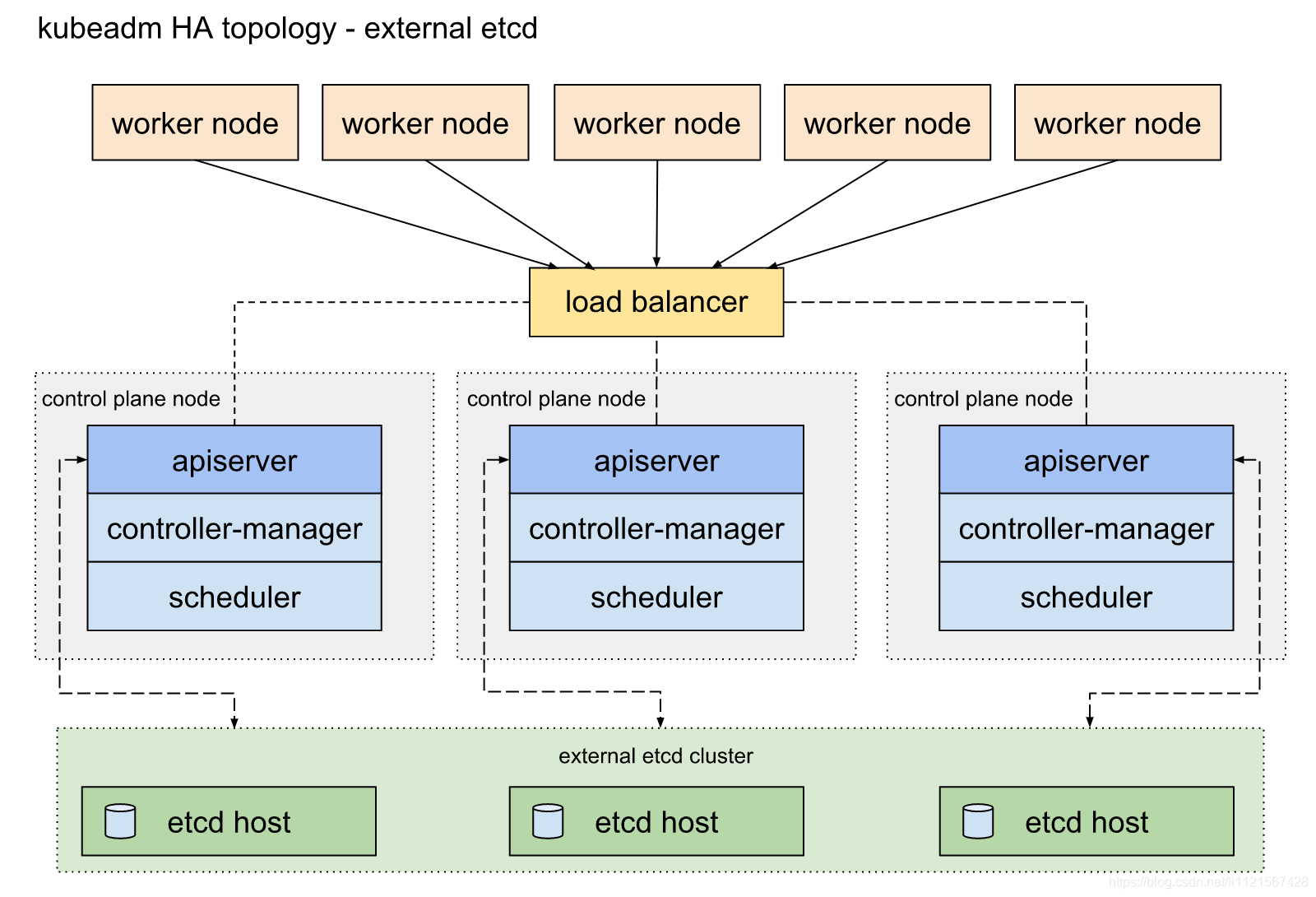
一、集群规划
| 主机名 | IP地址 | 组件 |
|---|---|---|
| vms11 | 192.168.26.11 | etcd |
| vms12 | 192.168.26.12 | etcd |
| vms13 | 192.168.26.13 | etcd |
| vms15 | 192.168.26.15 | apiserver、scheduler、controller-manager、kubeadm、kubeclt、kubelet、kube-proxy、nginx、keepalive |
| vms16 | 192.168.26.16 | apiserver、scheduler、controller-manager、kubeadm、kubeclt、kubelet、kube-proxy、nginx、keepalive |
| vms17 | 192.168.26.17 | kubeadm、kubelet、kube-proxy |
| vms18 | 192.168.26.18 | kubeadm、kubelet、kube-proxy |
| VIP | 192.168.26.10 | apiserver vip |
二、系统优化
三、创建ETCD集群
四、配置API Server HA:
haproxy + keepalived 高可用
yum install haproxy keepalived -y
配置haproxy
# cat <<EOF > /etc/haproxy/haproxy.cfg
#---------------------------------------------------------------------
global
    log         127.0.0.1 local2

    chroot      /var/lib/haproxy
    pidfile     /var/run/haproxy.pid
    maxconn     4000
    user        haproxy
    group       haproxy
    daemon

    # turn on stats unix socket
    stats socket /var/lib/haproxy/stats

#---------------------------------------------------------------------
defaults
    mode                    http
    log                     global
    option                  httplog
    option                  dontlognull
    option http-server-close
    option forwardfor       except 127.0.0.0/8
    option                  redispatch
    retries                 1
    timeout http-request    10s
    timeout queue           20s
    timeout connect         5s
    timeout client          20s
    timeout server          20s
    timeout http-keep-alive 10s
    timeout check           10s
    #maxconn                 3000

#---------------------------------------------------------------------
frontend  apiserver
    bind *:7443
    mode tcp
    option tcplog
    default_backend apiserver

#---------------------------------------------------------------------
backend apiserver
    option httpchk GET /healthz
    http-check  expect status 200
    mode        tcp
    option      ssl-hello-chk
    balance     roundrobin
    server  vms15 192.168.26.15:6443 check
    server  vms16 192.168.26.16:6443 check
EOF
配置keepalived
# cat <<EOF > /etc/keepalived/keepalived.conf
! Configuration File for keepalived

global_defs {
   router_id LVS_DEVEL
   script_user root
   enable_script_security
}

vrrp_script check_apiserver {
  script "/etc/keepalived/check_apiserver.sh"
  interval 3		 # 脚本执行间隔,每3s检测一次
  weight -3			 # 脚本结果导致的优先级变更,检测失败(脚本返回非0)则优先级 -3
  fall 2			 # 检测连续2次失败才算确定是真失败。会用weight减少优先级(1-255之间)
  rise 1             # 检测2次成功就算成功。但不修改优先级
}

vrrp_instance VI_1 {
    state MASTER		# 从设置BACKUP
    interface ens33
    virtual_router_id 51
    priority 100	 # 100(主)|99(备1)98(备2)定义优先级,数字越大,优先级越高,MASTER的优先级必须大于BACKUP的优先级
    advert_int 1
    authentication {
        auth_type PASS
        auth_pass 1111
    }
    virtual_ipaddress {							# 虚拟IP的设置(VIP)
        192.168.26.10/24 dev ens33 label ens33:1
    }
    track_script {
        check_apiserver
    }
    unicast_src_ip 192.168.26.15		# 关闭组播,使用单播通信,源ip为本机IP
    unicast_peer {
        192.168.26.16					# 对端ip
    }
}
EOF
健康检查脚本
# cat <<EOF > /etc/keepalived/check_apiserver.sh
#!/bin/sh

errorExit() {
    echo "*** $*" 1>&2
    exit 1
}

APISERVER_VIP="192.168.26.10"
APISERVER_DEST_PORT="7443"

curl --silent --max-time 2 --insecure https://localhost:${APISERVER_DEST_PORT}/ -o /dev/null || errorExit "Error GET https://localhost:${APISERVER_DEST_PORT}/"
if ip addr | grep -q ${APISERVER_VIP}; then
    curl --silent --max-time 2 --insecure https://${APISERVER_VIP}:${APISERVER_DEST_PORT}/ -o /dev/null || errorExit "Error GET https://${APISERVER_VIP}:${APISERVER_DEST_PORT}/"
fi
EOF
chmod +x /etc/keepalived/check_apiserver.sh
启动服务
systemctl enable haproxy --now
systemctl enable keepalived --now
五、Kubernetes cluster安装:
拉取镜像
kubeadm config images pull --kubernetes-version=1.20.1 --image-repository registry.aliyuncs.com/google_containers
导出所有默认的配置
kubeadm config print init-defaults > kubeadm-ha.yaml
修改 kubeadm-ha.yaml 文件
# cat <<EOF > kubeadm-ha.yaml
apiVersion: kubeadm.k8s.io/v1beta2
bootstrapTokens:
- groups:
  - system:bootstrappers:kubeadm:default-node-token
  token: abcdef.0123456789abcdef
  ttl: 24h0m0s
  usages:
  - signing
  - authentication
kind: InitConfiguration
localAPIEndpoint:
  advertiseAddress: 192.168.26.15
  bindPort: 6443
nodeRegistration:
  criSocket: /var/run/dockershim.sock
  name: vms15
  taints:
  - effect: NoSchedule
    key: node-role.kubernetes.io/master
---
apiServer:
  timeoutForControlPlane: 4m0s
apiVersion: kubeadm.k8s.io/v1beta2
certificatesDir: /etc/kubernetes/pki
clusterName: kubernetes
controlPlaneEndpoint: "192.168.26.10:7443"
controllerManager: {}
dns:
  type: CoreDNS
etcd:
  external:
    endpoints:
    - https://192.168.26.11:2379
    - https://192.168.26.12:2379
    - https://192.168.26.13:2379
    caFile: /etc/kubernetes/pki/etcd/ca.crt
    certFile: /etc/kubernetes/pki/apiserver-etcd-client.crt
    keyFile: /etc/kubernetes/pki/apiserver-etcd-client.key
imageRepository: registry.aliyuncs.com/google_containers
kind: ClusterConfiguration
kubernetesVersion: v1.20.1
networking:
  dnsDomain: cluster.local
  serviceSubnet: 10.1.0.0/16
  podSubnet: 10.2.0.0/16
scheduler: {}
---
apiVersion: kubeproxy.config.k8s.io/v1alpha1
kind: KubeProxyConfiguration
mode: ipvs
EOF
拷贝证书到master节点(外部 etcd 节点)
将以下文件从集群中的任何 etcd 节点复制到第一个master节点:
export CONTROL_PLANE="root@192.168.26.15"
scp /etc/kubernetes/pki/etcd/ca.crt "${CONTROL_PLANE}":
scp /etc/kubernetes/pki/apiserver-etcd-client.crt "${CONTROL_PLANE}":
scp /etc/kubernetes/pki/apiserver-etcd-client.key "${CONTROL_PLANE}":
把证书拷贝到对应目录:
mkdir -p /etc/kubernetes/pki/etcd
cp ca.crt /etc/kubernetes/pki/etcd
cp apiserver-etcd-client.crt apiserver-etcd-client.key /etc/kubernetes/pki/
执行初始化操作
kubeadm init --config kubeadm-ha.yaml --upload-certs
成功执行之后,你会看到下面的输出:
Your Kubernetes control-plane has initialized successfully!

To start using your cluster, you need to run the following as a regular user:

  mkdir -p $HOME/.kube
  sudo cp -i /etc/kubernetes/admin.conf $HOME/.kube/config
  sudo chown $(id -u):$(id -g) $HOME/.kube/config

Alternatively, if you are the root user, you can run:

  export KUBECONFIG=/etc/kubernetes/admin.conf

You should now deploy a pod network to the cluster.
Run "kubectl apply -f [podnetwork].yaml" with one of the options listed at:
  https://kubernetes.io/docs/concepts/cluster-administration/addons/

You can now join any number of the control-plane node running the following command on each as root:

  kubeadm join 192.168.26.10:7443 --token abcdef.0123456789abcdef \
    --discovery-token-ca-cert-hash sha256:332646b26373db2307492e6cfdc6e1f8b62fdf60233cc784adf7eedf28a9fbfb \
    --control-plane --certificate-key 0d9089ca4698ebbd3cbf9cfdbb2cccb3b8bedad3fa48bd15e10dc143fe46ba24

Please note that the certificate-key gives access to cluster sensitive data, keep it secret!
As a safeguard, uploaded-certs will be deleted in two hours; If necessary, you can use
"kubeadm init phase upload-certs --upload-certs" to reload certs afterward.

Then you can join any number of worker nodes by running the following on each as root:

kubeadm join 192.168.26.10:7443 --token abcdef.0123456789abcdef \
    --discovery-token-ca-cert-hash sha256:332646b26373db2307492e6cfdc6e1f8b62fdf60233cc784adf7eedf28a9fbfb
kubectl默认会在执行的用户家目录下面的.kube目录下寻找config文件。这里是将在初始化时[kubeconfig]步骤生成的admin.conf拷贝到.kube/config。
  mkdir -p $HOME/.kube
  sudo cp -i /etc/kubernetes/admin.conf $HOME/.kube/config
  sudo chown $(id -u):$(id -g) $HOME/.kube/config
部署其他Master节点
  kubeadm join 192.168.26.10:7443 --token abcdef.0123456789abcdef \
    --discovery-token-ca-cert-hash sha256:332646b26373db2307492e6cfdc6e1f8b62fdf60233cc784adf7eedf28a9fbfb \
    --control-plane --certificate-key 0d9089ca4698ebbd3cbf9cfdbb2cccb3b8bedad3fa48bd15e10dc143fe46ba24
部署Node节点
1、在Master节点输出增加节点的命令
# kubeadm token create --print-join-command
kubeadm join 192.168.26.10:6443 --token isggqa.xjwsm3i6nex91d2x --discovery-token-ca-cert-hash sha256:718827895a9a5e63dfa9ff54e16ad6dc0c493139c9c573b67ad66968036cd569
2、在Node节点执行
kubeadm join 192.168.26.10:7443 --token abcdef.0123456789abcdef \
    --discovery-token-ca-cert-hash sha256:332646b26373db2307492e6cfdc6e1f8b62fdf60233cc784adf7eedf28a9fbfb
3、在Master节点执行
# kubectl get nodes
NAME    STATUS     ROLES                  AGE     VERSION
vms15   NotReady   control-plane,master   4m21s   v1.20.1
vms16   NotReady   control-plane,master   3m9s    v1.20.1
vms17   NotReady   <none>                 30s     v1.20.1
vms18   NotReady   <none>                 40s     v1.20.1
5、部署网络插件
5.1【部署Flannel网络插件】部署Flannel网络插件需要修改Pod的IP地址段,修改为和你初始化一直的网段,可以先下载Flannel的YAML文件修改后,再执行。
# wget https://raw.githubusercontent.com/flannel-io/flannel/master/Documentation/kube-flannel.yml
# vim kube-flannel.yml
# 修改"Network": "10.244.0.0/16"为"Network": "10.2.0.0/16",

74   net-conf.json: |
75     {
76       "Network": "10.2.0.0/16",
77       "Backend": {
78         "Type": "vxlan"
79       }
80     }

# 请注意,Flannel的镜像拉取速度会比较慢,可以替换为国内镜像
# image: quay.io/coreos/flannel:v0.10.0-amd64
image: quay-mirror.qiniu.com/coreos/flannel:v0.11.0-amd64

# 如果Node中有多个网卡,可以使用--iface来指定对应的网卡参数。
containers:
      - name: kube-flannel
        image: quay-mirror.qiniu.com/coreos/flannel:v0.11.0-amd64
        command:
        - /opt/bin/flanneld
        args:
        - --ip-masq
        - --kube-subnet-mgr
        - --iface=eth0
部署Flannel
# kubectl create -f kube-flannel.yml
5.2 部署calico网络插件(推荐)
参考:https://docs.projectcalico.org/getting-started/kubernetes/self-managed-onprem/onpremises
curl https://docs.projectcalico.org/manifests/calico.yaml -O
修改calico.yaml 文件
# vim calico.yaml
675             - name: CALICO_IPV4POOL_CIDR
676               value: "10.244.0.0/16"
修改为:
675             - name: CALICO_IPV4POOL_CIDR
676               value: "10.2.0.0/16"
部署calico
# kubectl create -f calico.yaml
查看node,Pod状态
# kubectl get nodes
NAME    STATUS   ROLES                  AGE   VERSION
vms15   Ready    control-plane,master   14m   v1.20.1
vms16   Ready    control-plane,master   12m   v1.20.1
vms17   Ready    <none>                 10m   v1.20.1
vms18   Ready    <none>                 10m   v1.20.1

#  kubectl get pod -n kube-system
NAME                                       READY   STATUS    RESTARTS   AGE
calico-kube-controllers-6dfcd885bf-8kwr9   1/1     Running   0          5m18s
calico-node-7qg8x                          1/1     Running   0          5m18s
calico-node-kgshd                          1/1     Running   0          5m18s
calico-node-nmv79                          1/1     Running   0          5m18s
calico-node-wlk4z                          1/1     Running   0          5m18s
coredns-7f89b7bc75-6jq2g                   1/1     Running   0          13m
coredns-7f89b7bc75-hcrzt                   1/1     Running   0          13m
kube-apiserver-vms15                       1/1     Running   0          13m
kube-apiserver-vms16                       1/1     Running   0          12m
kube-controller-manager-vms15              1/1     Running   0          13m
kube-controller-manager-vms16              1/1     Running   0          12m
kube-proxy-blrkm                           1/1     Running   0          13m
kube-proxy-dfqts                           1/1     Running   0          9m56s
kube-proxy-mh295                           1/1     Running   0          12m
kube-proxy-xzcxw                           1/1     Running   0          9m50s
kube-scheduler-vms15                       1/1     Running   0          13m
kube-scheduler-vms16                       1/1     Running   0          12m
六 测试集群
[root@vms16 ~]# kubectl create deployment nginx-deploy --image=nginx:1.16.1 --port=80
deployment.apps/nginx-deploy created

[root@vms16 ~]# kubectl expose deployment nginx-deploy --name=nginx-svc --port=80 --protocol=TCP --target-port=80 --type=NodePort
service/nginx-svc exposed

[root@vms16 ~]# kubectl get deploy,pod,ep,svc
NAME                           READY   UP-TO-DATE   AVAILABLE   AGE
deployment.apps/nginx-deploy   1/1     1            1           56s

NAME                                READY   STATUS    RESTARTS   AGE
pod/nginx-deploy-66d4599bd6-t4967   1/1     Running   0          56s

NAME                   ENDPOINTS                               AGE
endpoints/kubernetes   192.168.26.15:6443,192.168.26.16:6443   35m
endpoints/nginx-svc    10.2.246.130:80                         2s

NAME                 TYPE        CLUSTER-IP     EXTERNAL-IP   PORT(S)        AGE
service/kubernetes   ClusterIP   10.1.0.1       <none>        443/TCP        35m
service/nginx-svc    NodePort    10.1.228.229   <none>        80:31679/TCP   2s

[root@vms16 ~]# curl -I 192.168.26.15:31679
HTTP/1.1 200 OK
Server: nginx/1.16.1
Date: Wed, 09 Jun 2021 08:47:54 GMT
Content-Type: text/html
Content-Length: 612
Last-Modified: Tue, 13 Aug 2019 10:05:00 GMT
Connection: keep-alive
ETag: "5d528b4c-264"
Accept-Ranges: bytes

[root@vms16 ~]# curl -I 192.168.26.16:31679
HTTP/1.1 200 OK
Server: nginx/1.16.1
Date: Wed, 09 Jun 2021 08:47:58 GMT
Content-Type: text/html
Content-Length: 612
Last-Modified: Tue, 13 Aug 2019 10:05:00 GMT
Connection: keep-alive
ETag: "5d528b4c-264"
Accept-Ranges: bytes

K8S/Kubernetes社区为您提供最前沿的新闻资讯和知识内容
更多推荐


 2
2 0
0- 0


 已为社区贡献11条内容

所有评论(0)