

The Linux find command is a powerful tool that allows system administrators to search for and manage files and directories that match a set of criteria in the filesystem.
You can not only use the find command to search for files on your system, but you can also use external commands to perform actions on those files, such as deleting them with the rm command, checking their permissions with the ls command, copying them with the cp command etc.
Basic syntax of the find command:
The find command syntax is very simple to understand, here is the basic find command syntax:
$ find [path] [options] [action]
- [path]: It defines the directory where to begin searching.
- [options]: It defines the criteria of filtering e.g. searching a file/folder by its name, permission, time, or date.
- [action]: It defines what actions to perform with the file.
Find files by name:
Finding files by name is most likely the most common and basic application of the find command. To find a specific file by name, use the -name option followed by the file name you want to find.
To find a file named log.txt in the home directory, for example, use the following command:
$ find -name log.txt
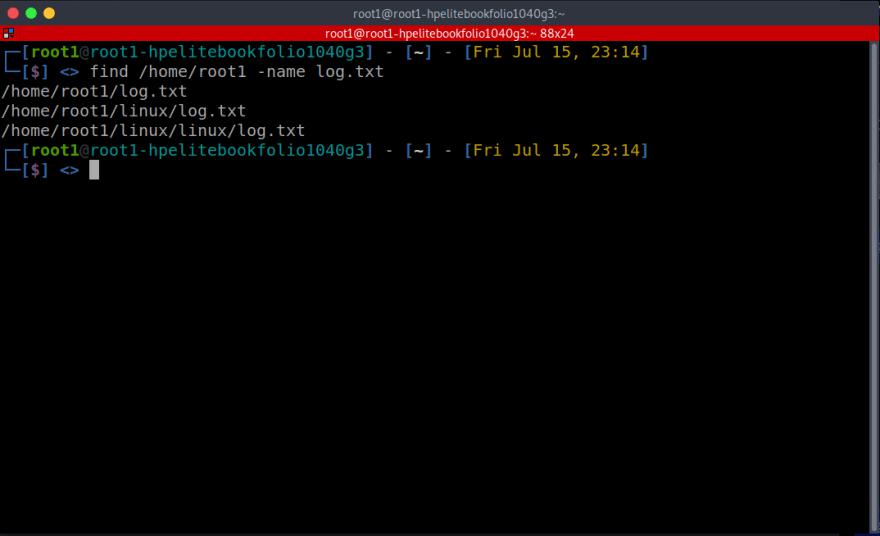
The preceding search is case sensitive; to make your -name option case insensitive, use the -iname option. The example below will match log.txt, LOG.txt, Log.txt etc.
$ find -iname log.txt
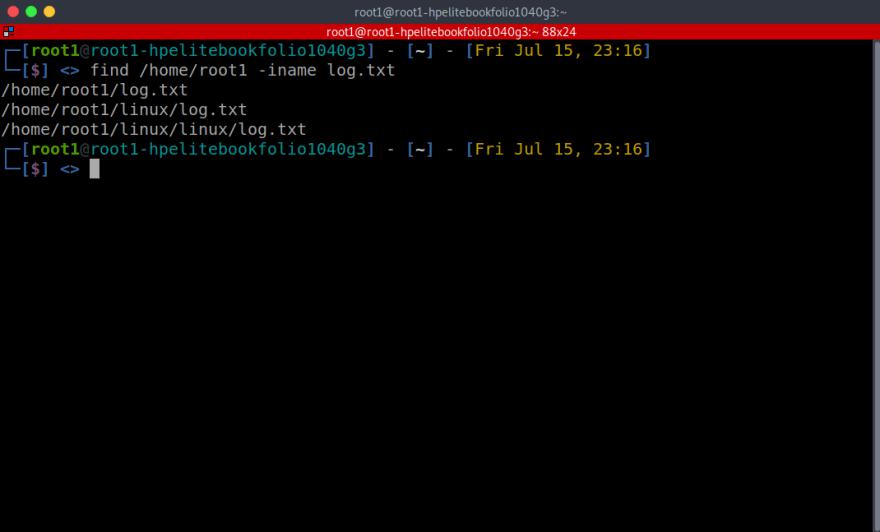
To find a file named log.txt in the home directory, for example, use the following command:
Find files on in the parent directory
Find searches for files in specified directories (parent directory) and sub-directories within the parent directory by default.
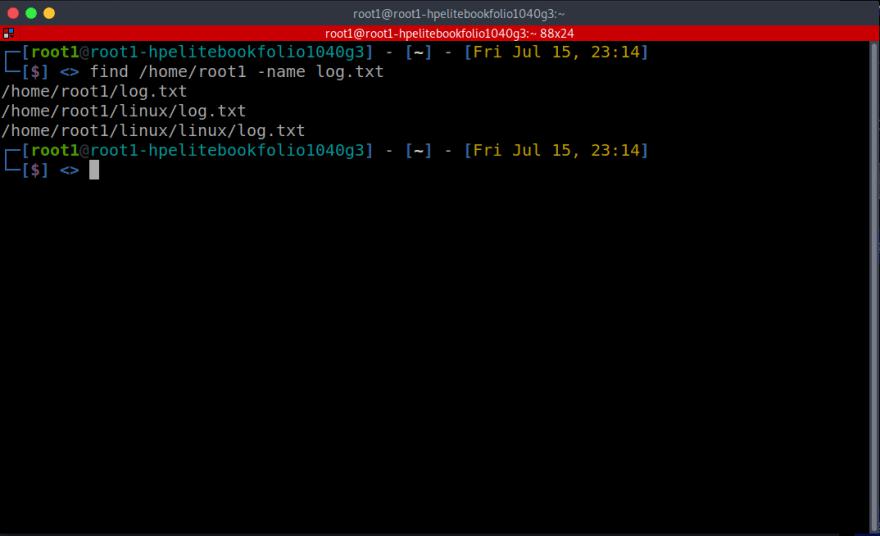
You can control this by passing the -maxdepth option to the find command, which instructs it to search the specified number of directories down.
In the below example, the find command will only search one directory down and discard the sub-directories.
$ find /home/root1 -maxdepth 1 -iname log.txt
Find files by extension
Searching for files by extension is similar to searching for files by name, with the exception that you will use the * wildcard meta character. For example, to find all python scripts inside the
/home/root1 directory, you would type:
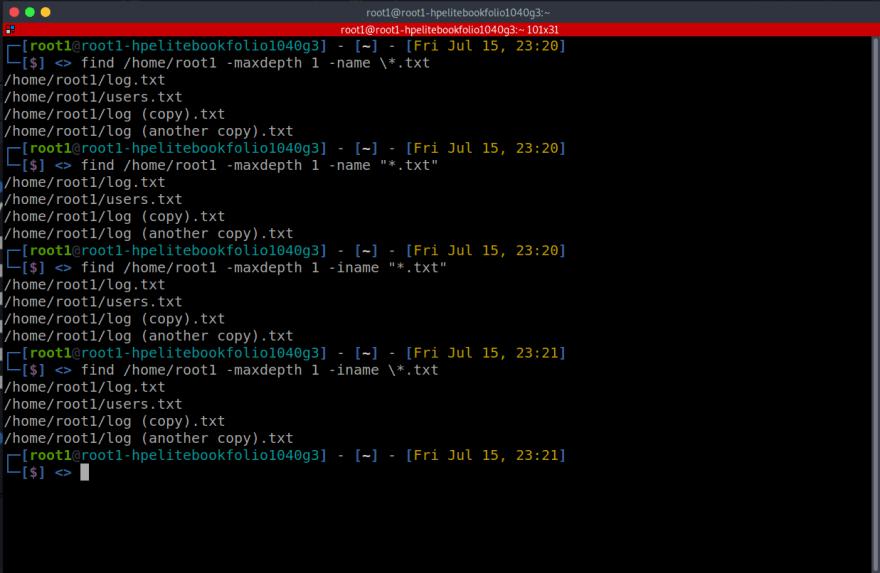
It's important to note that if you don't want the shell to interpret the asterisk * symbol , you escape it with a backslash or place it in quotations.
Negating your search
At times , you may want to find files that do not match a certain criteria; to do so, use the find command's -not option. Here's an example of how to find all files that do not match the pattern "*.txt.”
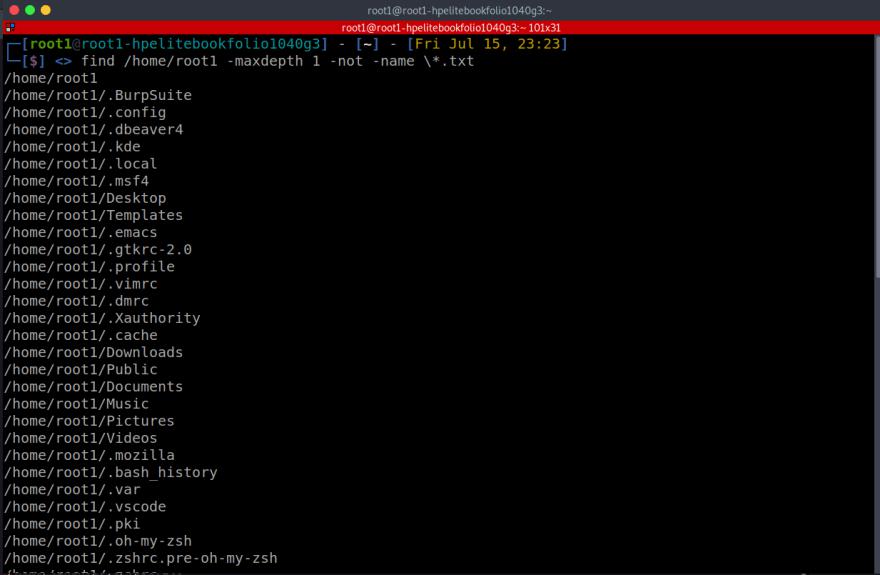
Notice that I'm still using the -maxdepth option to only search in the parent directory.
Find files by type
You may need to search for specific file types such as regular files, directories, or symlinks on occasion. Everything in Linux is a file. To search for files based on their type, use the -type option and one of the file descriptors listed below:
• b - block (buffered) special
• c - block (buffered) special
• d - a directory f: a regular file
• l - a symbolic link
• p - a named pipe (FIFO)
• s - a socket
• D - door (Solaris)
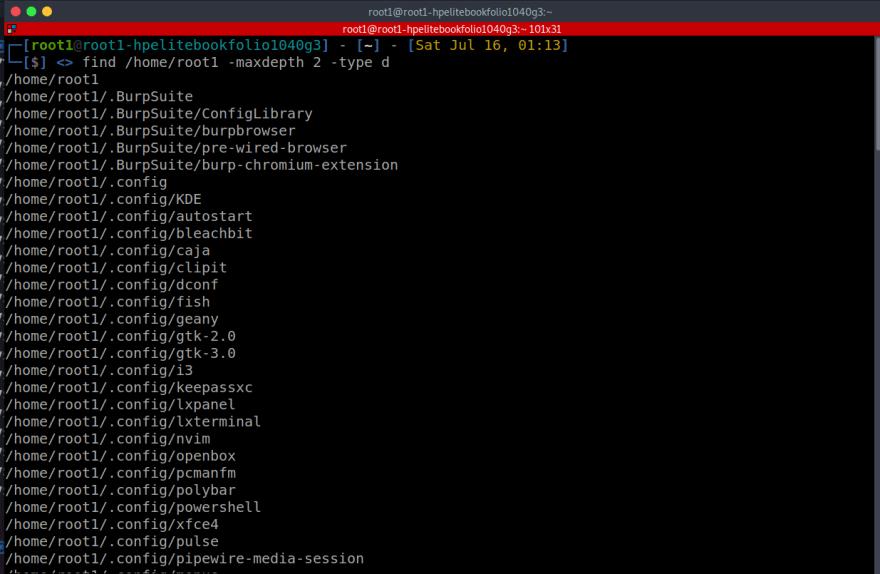
Here's an example of searching for all directories within a specific directory while excluding files, symbolic links, character devices, and so on.
Find files by size
Use the -size parameter along with the size criteria to find files based on file size. To specify the file size, use the following suffixes:
• b - 512-byte blocks
• c - bytes
• k - Kilobytes
• G - Gigabyte
• M - Megabytes
• w - two-byte words
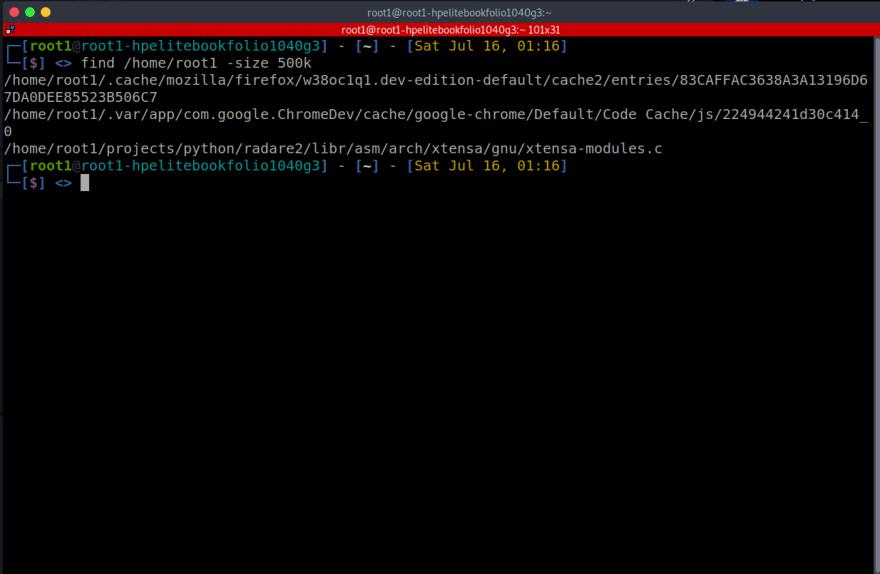
The following command will find all files in the home directory that are exactly 500k in size:
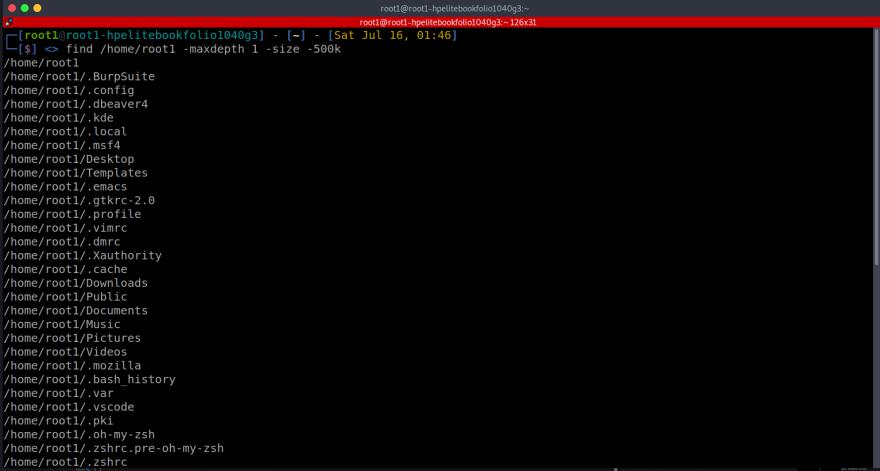
You can also use the find command to look for files that are larger or smaller than a certain size. In the following example, we look for files that are less than 20k in the effective user's home directory. Take note of the minus - symbol preceding the size value:
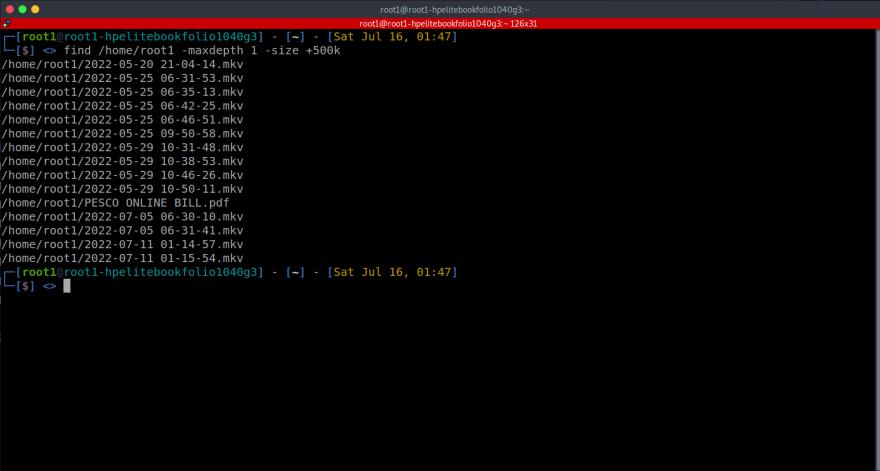
If you want to search for files larger than a certain size, you must use the plus + symbol. Here is an example searching for files larger than 500k:
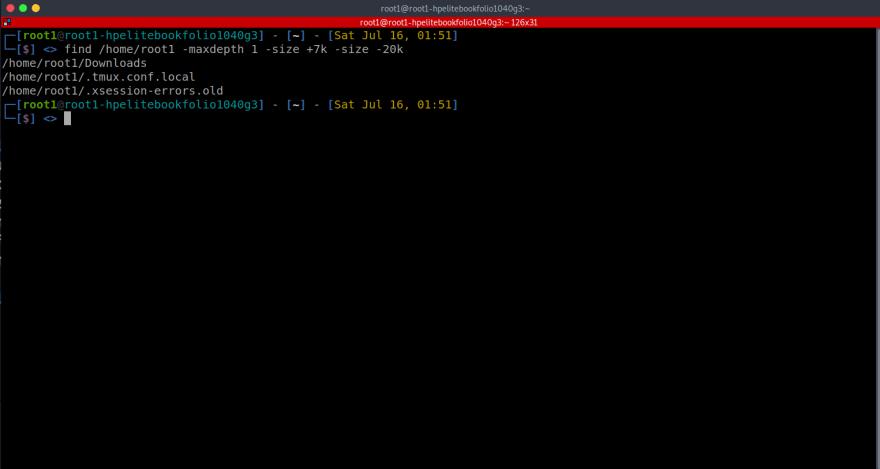
The find command also allows you to look for files within a size range. The following command will locate all files with size between 7K and 20K:
Find files by their permissions
To find files based on their permissions, you use the -perm option.
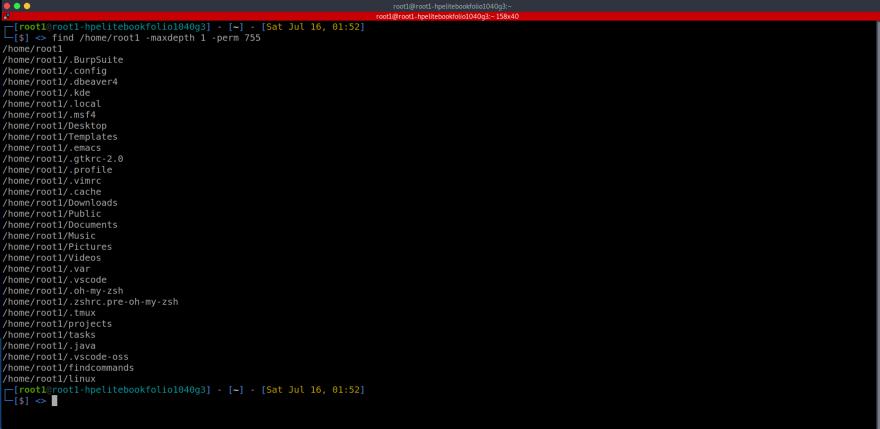
For example, to find all files with permissions of exactly 755 inside the /home/root1 directory, you would use:
The numeric mode can be prefixed with minus / or slash -.
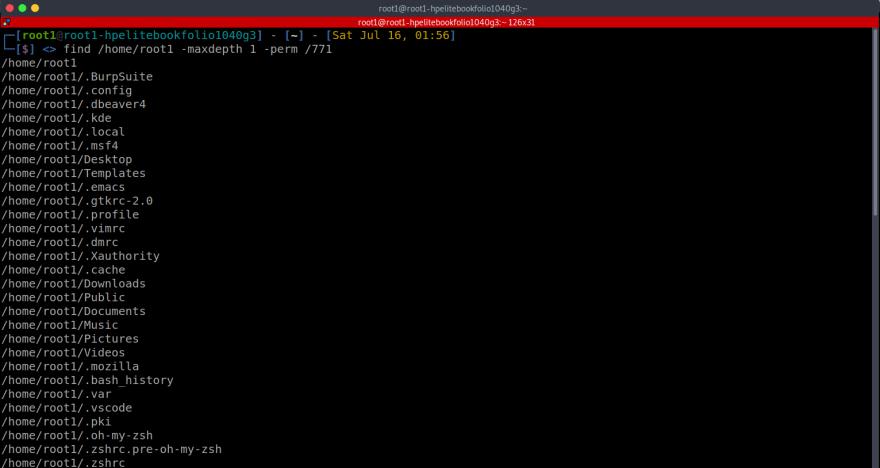
When the prefix is slash /, at least one category (user, group, or others) must have at least the respective bits set in order for a file to match.
Consider the following an example:
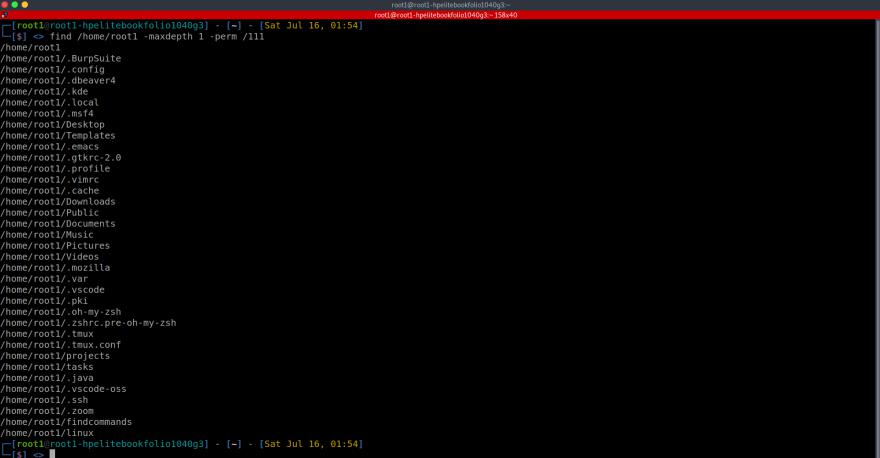
The above command will match all the files with execute permissions set for either user, group, or others.
If minus - is used as the prefix, then for the file to match, at least the specified bits must be set. The following command will search for files that have read, write and executable permission for the owner and group and are executable by other users:
Find files by owner
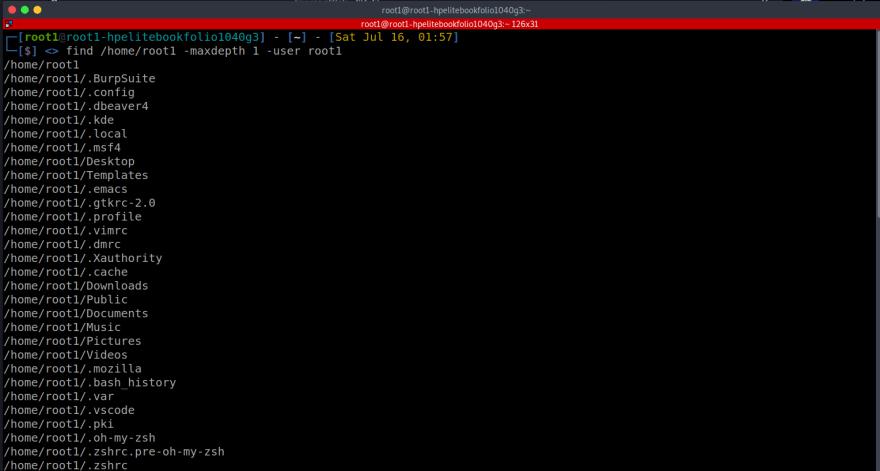
Use the -user and -group options to find files owned by a specific user or group.
For example, to find all files and directories owned by the user root1 use the following command:
Find files by modification date
The find command can also look for files based on when they were last modified, accessed, or changed.
When searching by size, use the plus and minus symbols to indicate "greater than" or "less than."
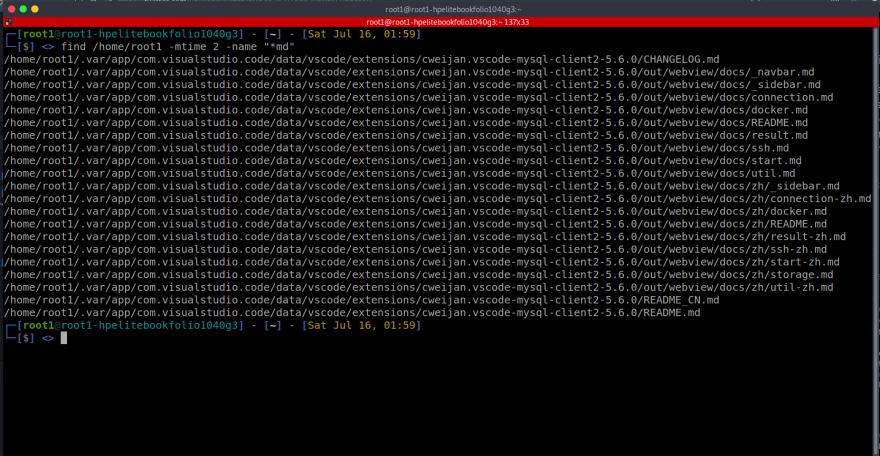
This will allow you to find files that were modified within a specified range of time.
Assume you modified one of your markdown files a few days ago but have forgotten which one. You can easily filter all files in your home directory that end in .md and were modified within the last five days:
Find and delete files
You can use the -delete option to delete every file that match a certain criteria. It is important to note that the -delete option will not delete not-empty directories.
Here is an example, to delete all files ending with .py from the /home/root1/, you would use:
⚠️ Warning
Use this option only when you are certain that the result matches the files you want to delete. Before using the -delete option, it is always a good idea to print the matched files.
Find empty files
The find command also allows you to locate empty files by using the -empty option. Here is a quick example demonstrating that.
Perform actions on each matched result
The find command has a useful option for calling external programs to perform specific actions on the returned files that matched a certain criteria.
Here is an example of listing the permissions and other metadata of every file that the find command finds:
A breakdown of the -exec option:
• exec ls - this tells find to execute the ls command on every filename that matches the search string.
• -lah - displays all files, including hidden files, their permissions, and other file metadata, such as sizes, in human readable format.
• {} - The “{}” placeholder represents each filename and must be the last item in the parameter list.
• ; - To indicate the end of the parameter list, a semicolon ";" is used. It must be escaped with a backslash "\" otherwise the shell will interpret it.
You can also use the + instead of the ; to indicate the end of the parameter list.
That concludes the find command. If you take the time to experiment with the find command, you will discover that there are numerous possibilities. You'll save a lot of time if you get good at commands like this.
If you get stuck, feel free to consult the find man pages.
That it for today's blog! Thank you for reading!
If you enjoyed this blog and found it useful, please follow us here on dev as well as my youtube or twitter whose links are:
https://twitter.com/internetsekho
youtube.com/internetseekhocom
Credits
https://twitter.com/linuxopsys/status/1545766975737016320


 已为社区贡献12493条内容

所有评论(0)