Time Series databases- An implementation in MongoDB Express and Raspberry PI.
GitHub
Introduction
NoSQL databases offer a wide range of solutions for different purposes, In this article I will explore in detail the implementation of a Time Series database and show the aggregation benefits from it. We will implement a Temperature reading sensor on a PI Raspberry that will send timely measures to a remote API backed by a Time Series database.
Objectives:
- To create and implement a Time Series collection in MongoDB
- To implement an Express API endpoint to create new measures in our time series collection
- To implement an Express API endpoint to get Minimum temperature, maximum temperature and average temperature
- To build a circuit for a Raspberry PI to measure temperatures every minute
- To implement a Python HTTP client to use an API to post to MongoDB
1 Time Series databases
Quick introduction
Time series Databases allows to efficiently store sequences of measurements over a period of time. Time series databases collect data from multiple sources such as sensors, mobile devices, servers, etc. This timestamped data is then processed and aggregated in an efficient way to optimize measuring change over time.
There are multiple applications for a Time series database such as:
- IoT - Read measure from multiple devices and sensors and produce smart insights and aggregation on timestamped data. -Financial Applications - Capture Financial KPI's with high level of time granularity and then produce forecast and predictions with this data. -Stock Market : Analyze fluctuations over time and get insight of the factors that impact financial indexes.
Database market has an extensive offer of Time Series databases such as InfluxDB, kDB and MongoDB. Being MongoDB one of the most popular NoSQL databases, I wanted to explore the capabilities of its time series collection since many existing application are using already this DB.
MongoDB offers Time series collections that efficiently store sequences of measurements over a period of time, this approach abstracts and optimize the storing pattern. Previous versions of Mongo DB didn't have a Time Series collection so We had to implement other architectural patterns to improve Time Series readability, One of this patterns is the bucket pattern. For more information related to bucket pattern
A Time Series database can be used in tandem with another generic purpose database and benefit from a micro services approach.
2 Project preparation.
- Project can be cloned from GitHub repository.
Docker preparations for MongoDB
Docker is a great tool to prepare a sandbox environment, For this exercise I will use docker as a personal preference however MongoDB has an amazing cloud offer that has a free tier for development. For more information click here
To install Docker on your computer please refer here.
-
Create a Docker directory and make a mongodb.yaml and mongo-init.js files inside of it.
-
Enter the following script inside the file mongo-init.js, We will use this script later on our Docker file to initialize the Time Series database with a user and password.
db.createUser( { user: "root", //To change pwd: "example", // To change roles: [ { role: "readWrite", db: "Temperature" // Name of the database to create } ] } ); -
Enter the following script inside the file mongodb.yaml, this is a Docker compose file that will allow to create a Mongo DB database with an initial database, user and password.
version: 3.1 # version of the file services: mongo: image: mongo # Mongo Image. It will pull the latest version restart: always ports: - 27017:27017 #Port to be exposed environment: MONGO_INITDB_ROOT_USERNAME: root # Initial user MONGO_INITDB_ROOT_PASSWORD: example # Initial password MONGO_INITDB_DATABASE: Temperature # Database name volumes: - ./mongo-init.js:/docker-entrypoint-initdb.d/mongo-init.js:ro #Script to run at initialization - Start a Docker instance of MongoDB. Run in the command line the following command.
docker compose -f docker/mongodb.yaml up
Awesome, Now we have a MongoDB instance to work with, It is time to create the data model.
3 API Backend
Our backend will be built using Express as the framework for development. We will implement an Express project in TypeScript for the following end points
| Endpoint | HTTP |
| /measures | POST |
| /measures/stats | GET |
Initialize Type Script project
We are using Type Script for this API so follow the following steps to implement an TS Express project.
-
Initialize a Node JS project
npm init -
Initialize project
npx tsc --init -
Install Mongoose and Express dependencies
npm i @types/mongoose @types/express @types/node dotenv express mongoose -
Install Type Script
npm install -D typescript -
Let's create the following directory structure.
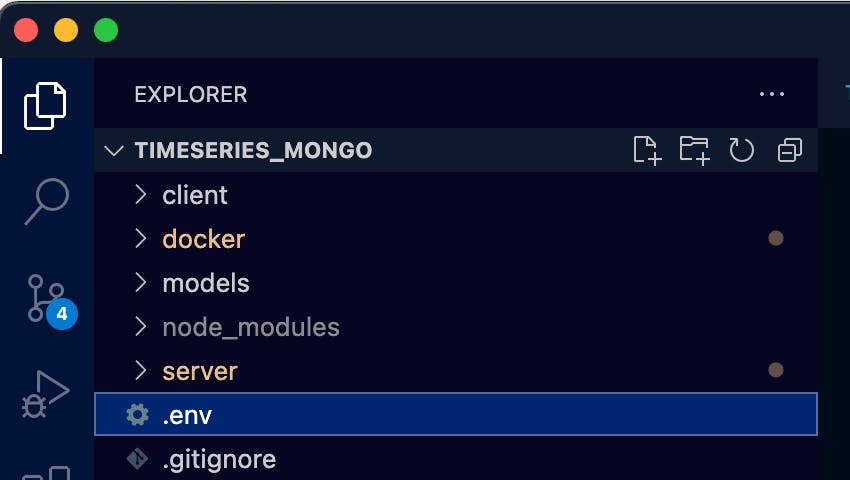
Mongoose model creation.
Mongoose allows to create Time Series collections, The constructor type specification for a mongoose Schema is defined as follows.
constructor(definition?: SchemaDefinition>, options?: SchemaOptions);
Therefore it requires a SchemaDefinitionType that will be implemented with the help of an Interface. It also allows to define Options for this schema using the SchemaOptions type, Here We will indicate to MongoDB to create a Time Series Database
- Inside the model folder create a temperatureSchema.ts file. This file will contain the Temperature interface , IT contains Temperature that will be our measure, timestamt that is a mandatory field for Time Series data and metadata to capture auxiliary information related to the measure, in this case we will capture the sensor Id .
import {Schema, model} from "mongoose";

//Type Script interface that
interface Temperature {
    temperature: Number;
    timestamp: Date;
    metadata: {
        sensor: String
    }
}


const tempSchema = new Schema<Temperature>({timestamp:{type: Date} , temperature: {type: Number} ,metadata:{type: Object}}, {
    //Time Series Schema
    timeseries: {
      timeField: 'timestamp',
      metaField: 'metadata',
      granularity: 'hours'
    },


  });

  const TemperatureModel = model<Temperature>('Temperature',tempSchema)

  export default TemperatureModel;
4 API Server
Inside the server folder create a index.ts file. This file will contain :
- Environment variables with dotenv.
- MongoDB time series collection creation
- POST entry point.
-
Aggregation pipelines.
Copy the content of the following section code to this file. Import express, mongoose, dotenv, and the schema we defined
import express from 'express'
import mongoose from 'mongoose'
import Temperature from  '../models/temperatureSchema'
import * as dotenv from 'dotenv'
Initialize dot env
dotenv.config()
Use express to implement an HTTP service and create a connection to MongoDB database. you can use a .env file with an entry for DATABASE_URL environment variable 
const app = express()
const  connectDB = async () => {

    try {
        const conn= await mongoose.connect(process.env.DATABASE_URL ?? '',)

        console.log(`MongoDB connected: ${conn.connection.host}`)
    } catch (error) {
        console.error(`Error: ${error} connecting to: ${process.env.DATABASE_URL ?? ''}`)
        process.exit(1)
    }

}
Function to create new measures in Mongo DB TS collection.
const createMeasure = async(req: express.Request,res: express.Response) => {

    const measure = new Temperature (
        {
            "temperature": req.body.temperature,
            "timestamp": req.body.timestamp,
            "metadata": req.body.metadata
         }
    )

    const createdTemp = await measure.save()
    res.status(201).json(createdTemp)

}
Aggregation Pipeline to produce Average, Minimum and Maximum It contains three stages [ Match, Group, Sort]
Match: Get all temperatures between 0 and 24
Group: Group by ID, Month, Day and Hour and yield Average, Minimum and maximum
Sort: Sort results by Id, Month, Day and Hour
const getStats = async(req: express.Request,res: express.Response) => {
    console.log('read')
    const temps = await Temperature.aggregate(   [
        {
       $match:{temperature:{$gte:0,$lte:24}}
       },
        {
          $group:
            {
              _id: {year:{$year:"$timestamp"},month:{$month:"$timestamp"},day:{$dayOfMonth:"$timestamp"},hour:{$hour:"$timestamp"}},
              avgTemperature: { $avg: "$temperature" },  maxTemperature:{ $max: "$temperature" }, minTemperature:{ $min: "$temperature" }
            }
        },
       {$sort:{"_id.year":1,"_id.month":1,"_id.day":1,"_id.hour":1}}
      ]
   )


    res.json(temps)
}
Implement Router for POST and GET
const router = express.Router()
const port = 3000
app.use(express.json())
connectDB()

router.route('/measures')
      .post(createMeasure)
router.route('/measures/stats')
        .get(getStats)

app.use('/',router)
app.use(express.json())
app.listen(port, () => {
    console.log(`Temperature app listening at http://localhost:${port}`)
  })
package.json - Compile and Start script
Edit package.json file and add the following lines below "main": "index.js" 
  "scripts": {
    "compile": "tsc",
    "start": "node server/index.js"
  },
And run the following command to transpile from TypeScript to JavaScript :
npm run compile
and then the following command to execute the file.
npm run start
Optional - If you want to skip Raspberry PI section.
Simulate
You can skip step 5 by using POSTMAN or any other HTTP client to send a POST Request. Use the template to send ad-hoc measures.
URL: localhost:3000/measures
{
"temperature":21,
"timestamp": "2022-06-19T20:00:00.000Z",
"metadata": {"sensorid":123}
}

5 Raspberry PI preparation
Requirements
We are going to prepare a circuit to read the temperature from a PI sensor.
- Raspberry PI .
- Solderless Breadboard.
- GPIO breakout board. Optional
- Temperature sensor DS18B20
- 10k resistor
- Wires
Raspberry PI breadboard configuration
In order to use the Temperature sensor, We need to set up the circuit in the breadboard. 
Having the Raspberry turned-off:
-
Put sensor on the bread board. Align the sensor to align the right pin to row 35 of the breadboard. This is just to follow the example, you can put it as per your preference.

-
Wire the 3.3 Volts, Ground and GPIO4.

-
Add a 10K resistor to the voltage pin and wire to the data pin of the sensor (row 36)

-
Add ground wire

-
Wire data to GPIO4

-
Add 3.3 V to the resistor line

-
Turn on Raspberry PI
Raspberry PI - system configuration
First , We need to activate a One-Wire interface before the Pi can receive data from the sensor. 
This can be achieved by:
- Open a terminal window and enter the following command.
sudo nano /boot/config.txt - Add the following line at the end of the file.
dtoverlay=w1-gpio,gpiopin=4 - Reboot Pi
sudo reboot - Enable sensor reading
sudo modprobe w1-therm - Change to the W1 devices folder
cd /sys/bus/w1/devices -
List the content of the directory.
ls It will display a different 28-XXXXXXX, this is different for every sensor
 -
Change to device folder cd 28-XXXXXXXXXXXX
cd 28-0115140217ee - Read the last measure by entering the following command.
cat w1_slave - This will show the last reading.

In this case 24625/1000 = 24.625
Good!!!, Now we can build a small script to read these measures and send to our API.
Create a file named readtemp.py in the Raspberry. It can be located at the Documents folder.
Before we start , please install the Temperature sensor reading library.
pip3 install W1ThermSensor
Import the needed libraries
import time
import requests
from w1thermsensor import W1ThermSensor
from datetime import datetime
Create a new instance of W1 Temperature sensor
sensor= W1ThermSensor()
Specify URL of your API server
#To Change
url = 'http://192.168.2.34:3000/measures'
Put the reading in a loop. Get the sensor ID. Call our API and send Sensor ID , Temperature and Timestamp Sleep one minute
while True:
    now = datetime.now().isoformat()
    temperature = sensor.get_temperature()

    try:
        response = requests.post(url,json={'metadata':{'sensorId': sensor.id}, 'timestamp': now , 'temperature': temperature})
    except:
        print('error')
    print("The Temperature is " , temperature, "at ",now, "sensor id:",sensor.id)
    time.sleep(60)
Edit rc.local to start this script at boot.
sudo nano /etc/rc.local
Enter the following line. It can vary depending on where you have placed the python readtemp.py . python /home/pi/Documents/tadeo/temp/readtemp.py & 
Reboot your Raspberry
After reboot , The raspberry PI will be broadcasting every minute the temperature readings from the sensor and after a few minutes we can review the readings in any HTTP client.
6 Data aggregations and visualizations
You can use an HTTP such as curl or Postman to validate that data is flowing properly and that the aggregation pipeline presents the results as expected.
##CURL
curl http://localhost:3000/measures/stats
Postman

As you can see , the aggregation is working as expected. Data is grouped by Year, Month, Day and hour. And provides Average , Minimum and Maximum temperatures.
7 Next steps
This is a starter project that is not ready for industry applications, Its intent was demonstrative but there are opportunity areas that can be extended in future articles.
-Add error handling mechanisms in client and server.
-
The Raspberry PI is not resilient and data measures can be lost if the network connection is lost. A local storage in the Raspberry PI can help to store unsend measures to Mongo DB API.
-
Asynchronous messaging: It is recommended to have an messaging system to handle message interchange between the multiple sensor devices and our Express API. RabbitMQ or Kafka are a good fit for this job.
-
API to accept parameters and get readings.
-
Add Geo coordinates capabilities to capture the exact location of every sensor.
-
Create a visualization dashboard to present and analyze the results.
* Thank you for reading this article, I hope it sparkles a sense of curiosity in multi stack technologies.

云原生社区为您提供最前沿的新闻资讯和知识内容
更多推荐
 0
0 0
0- 0


 已为社区贡献35527条内容

所有评论(0)