Prettier doesn't format based on my eslint config
Answer a question
I have installed Eslint-Prettier extension on VSCode. I already have an .eslintrc.js and my default formatter (Eslint-prettier) doesn't format according to my eslint rules.
For example: when i type npm run eslint . --fix it deletes all semicolons, but after i hit CTRL + V, prettier adds semi colons again..
It was working all good until I format my computer. Can anyone help me?
my .eslintrc.js files contents is
module.exports = {
  env: {
    node: true,
    es6: true,
    browser: true
  },
  parserOptions: {
    ecmaVersion: 6,
    sourceType: "module",
    ecmaFeatures: {
      jsx: true,
      modules: true,
      experimentalObjectRestSpread: true
    }
  },
  rules: {
    "no-console": "off",
    "no-debugger": process.env.NODE_ENV === "production" ? "error" : "off",

    // Best Practices
    eqeqeq: "error",
    "no-invalid-this": "error",
    "no-return-assign": "error",
    "no-unused-expressions": ["error", { allowTernary: true }],
    "no-useless-concat": "error",
    "no-useless-return": "error",

    // Variable
    // 'init-declarations': 'error',
    "no-use-before-define": "error",

    // Stylistic Issues
    "array-bracket-newline": ["error", { multiline: true, minItems: null }],
    "array-bracket-spacing": "error",
    "brace-style": ["error", "1tbs", { allowSingleLine: true }],
    "block-spacing": "error",
    "comma-dangle": "error",
    "comma-spacing": "error",
    "comma-style": "error",
    "computed-property-spacing": "error",
    "func-call-spacing": "error",
    "implicit-arrow-linebreak": ["error", "beside"],
    // indent: ['error', 4],
    "keyword-spacing": "error",
    "multiline-ternary": ["error", "never"],
    // 'no-lonely-if': 'error',
    "no-mixed-operators": "error",
    "no-multiple-empty-lines": ["error", { max: 2, maxEOF: 1 }],
    "no-tabs": "error",
    "no-unneeded-ternary": "error",
    "no-whitespace-before-property": "error",
    "nonblock-statement-body-position": "error",
    "object-property-newline": [
      "error",
      { allowAllPropertiesOnSameLine: true }
    ],
    "quote-props": ["error", "as-needed"],
    // quotes: ['error', 'prefer-single'],
    semi: ["error", "never"],
    "semi-spacing": "error",
    "space-before-blocks": "error",
    // 'space-before-function-paren': 'error',
    "space-in-parens": "error",
    "space-infix-ops": "error",
    "space-unary-ops": "error",

    // ES6
    "arrow-spacing": "error",
    "no-confusing-arrow": "error",
    "no-duplicate-imports": "error",
    "no-var": "error",
    "object-shorthand": "error",
    "prefer-const": "error",
    "prefer-template": "error"
  }
}
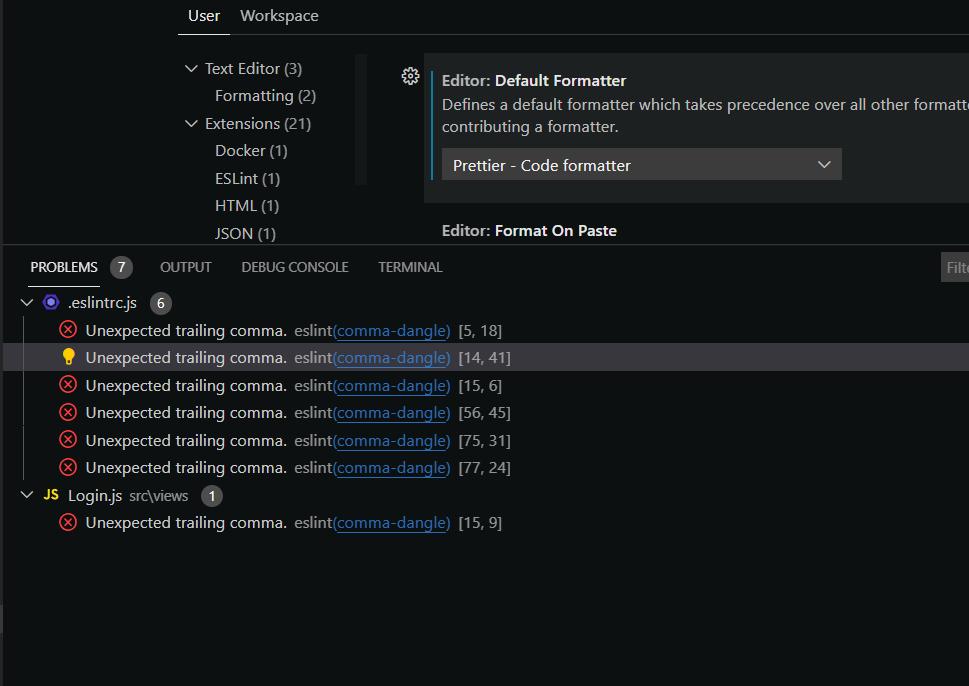
You can see that eslint says no trailing coma, after i right click one of them and fix all auto-fixable problems, problems are gone but after I save the file prettier extension puts them again.
Answers
-
Install eslint:
npm i --save-dev eslint -
Init eslint:
npx eslint --initFor some options you need choose next:
- How would you like to use ESLint?
- To check syntax and find problems
- What format do you want your config file to be in?
- JavaScript
-
Install prettier:
npm i --save-dev eslint-config-prettier eslint-plugin-prettier prettier -
Create
.prettierrcconfig file:{ "printWidth": 80, "singleQuote": true, "trailingComma": "es5" }
At now you can check style with eslint and fix style with prettier from comand line.
For VSCode integration with eslint and prettier you need to install one of:
- esbenp.prettier-vscode.
- dbaeumer.vscode-eslint;
After that you need to set this extension as default formatter:
- Open command pallette
ctrl+shift+p; - Select
Format Document With...; - Select
Configure Document With...; - Select
Prettier - Code FormatterorESLintbased on your preferences.
Now, eslint will work as linter and prettier as formatter:
VSCode problem tab: 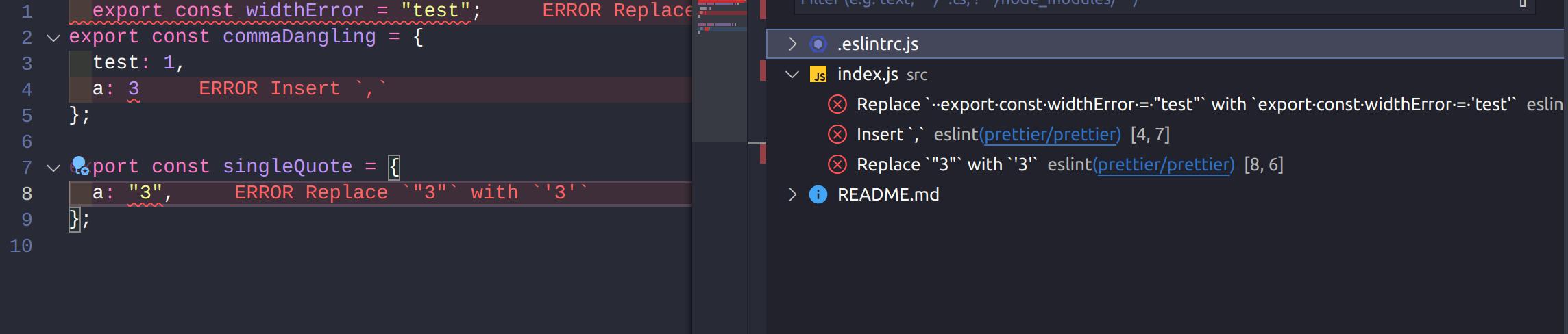
eslint output 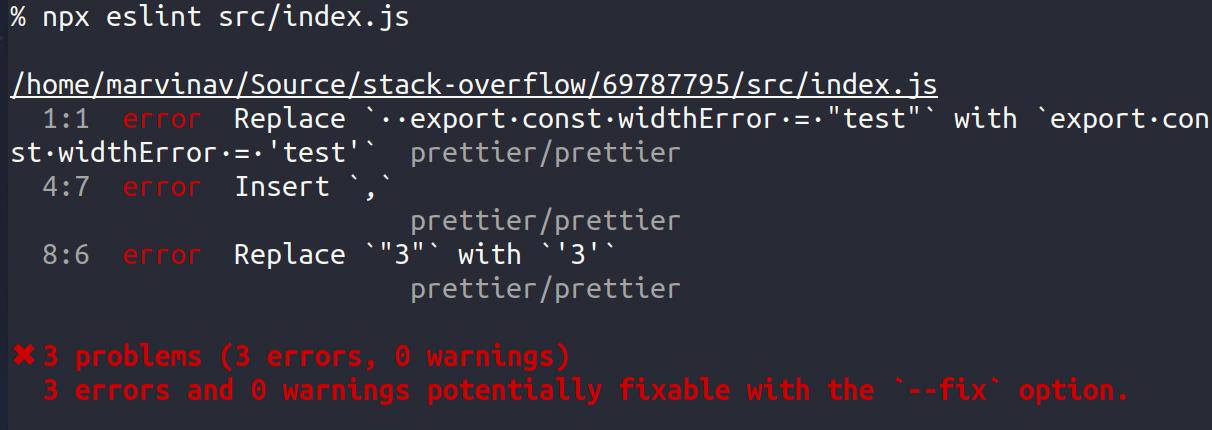
If I save file all prettier problems will be fixed (Autoformat on save should be turned on)
Eslint plugin does not apply automatically changes in settings located in
.prettierrc. See issue on github. To fix this you can:
- move
.prettierrccontent in .eslint (not recommended because prettier plugins sometimes do not read this file);- run from command pallette in VSCode
ESLint: Restart ESLint serverafter edit .prettierrcfile.

开发云社区提供前沿行业资讯和优质的学习知识,同时提供优质稳定、价格优惠的云主机、数据库、网络、云储存等云服务产品
更多推荐
 0
0 0
0- 0


 已为社区贡献4439条内容

所有评论(0)