
Flutter 框架跨平台鸿蒙开发 —— Container Widget 基础:容器组件入门
·
示例
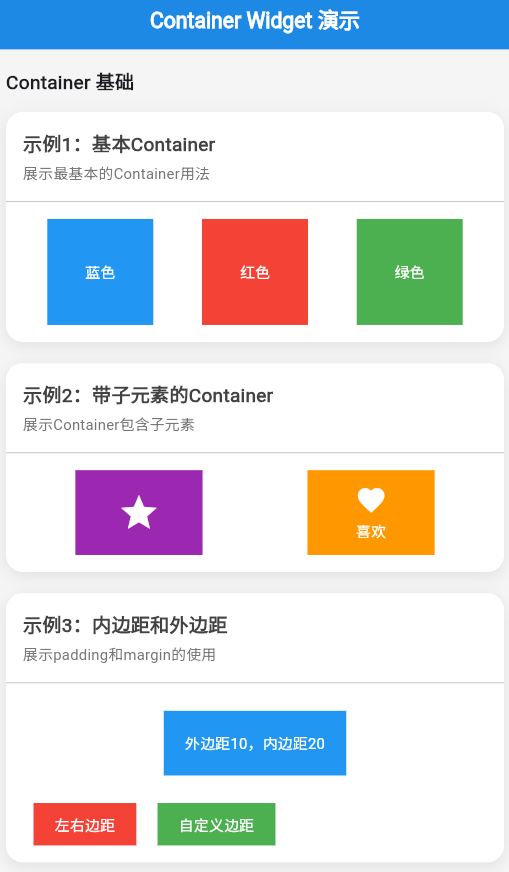
import 'package:flutter/material.dart';
void main() => runApp(const ContainerBasicsApp());
class ContainerBasicsApp extends StatelessWidget {
const ContainerBasicsApp({Key? key}) : super(key: key);
Widget build(BuildContext context) {
return MaterialApp(
debugShowCheckedModeBanner: false,
home: Scaffold(
appBar: AppBar(title: const Text('Container Widget 基础')),
body: const SingleChildScrollView(
padding: EdgeInsets.all(16),
child: Column(
crossAxisAlignment: CrossAxisAlignment.start,
children: [
BasicContainerExample(),
SizedBox(height: 20),
ColoredContainerExample(),
SizedBox(height: 20),
CenteredContentExample(),
],
),
),
),
);
}
}
class BasicContainerExample extends StatelessWidget {
const BasicContainerExample({Key? key}) : super(key: key);
Widget build(BuildContext context) {
return Card(
child: Column(
crossAxisAlignment: CrossAxisAlignment.start,
children: [
Padding(
padding: const EdgeInsets.all(12),
child: Text(
'示例1:基本 Container',
style: TextStyle(fontWeight: FontWeight.bold, fontSize: 16),
),
),
const Padding(
padding: EdgeInsets.all(16),
child: Center(
child: Container(
width: 200,
height: 100,
color: Colors.blue,
child: const Center(
child: Text(
'Container',
style: TextStyle(color: Colors.white, fontSize: 20),
),
),
),
),
),
const SizedBox(height: 12),
],
),
);
}
}
class ColoredContainerExample extends StatelessWidget {
const ColoredContainerExample({Key? key}) : super(key: key);
Widget build(BuildContext context) {
return Card(
child: Column(
crossAxisAlignment: CrossAxisAlignment.start,
children: [
Padding(
padding: const EdgeInsets.all(12),
child: Text(
'示例2:不同颜色的 Container',
style: TextStyle(fontWeight: FontWeight.bold, fontSize: 16),
),
),
const Padding(
padding: EdgeInsets.all(16),
child: Column(
children: [
Row(
mainAxisAlignment: MainAxisAlignment.spaceAround,
children: [
Container(width: 80, height: 80, color: Colors.red),
Container(width: 80, height: 80, color: Colors.green),
Container(width: 80, height: 80, color: Colors.blue),
],
),
SizedBox(height: 16),
Row(
mainAxisAlignment: MainAxisAlignment.spaceAround,
children: [
Container(width: 80, height: 80, color: Colors.orange),
Container(width: 80, height: 80, color: Colors.purple),
Container(width: 80, height: 80, color: Colors.teal),
],
),
],
),
),
const SizedBox(height: 12),
],
),
);
}
}
class CenteredContentExample extends StatelessWidget {
const CenteredContentExample({Key? key}) : super(key: key);
Widget build(BuildContext context) {
return Card(
child: Column(
crossAxisAlignment: CrossAxisAlignment.start,
children: [
Padding(
padding: const EdgeInsets.all(12),
child: Text(
'示例3:居中对齐内容',
style: TextStyle(fontWeight: FontWeight.bold, fontSize: 16),
),
),
const Padding(
padding: EdgeInsets.all(16),
child: Column(
children: [
Container(
width: double.infinity,
height: 80,
color: Colors.blue.shade50,
child: const Center(
child: Text('水平垂直居中'),
),
),
SizedBox(height: 16),
Container(
width: double.infinity,
height: 80,
color: Colors.green.shade50,
child: const Align(
alignment: Alignment.centerLeft,
child: Text('左对齐'),
),
),
SizedBox(height: 16),
Container(
width: double.infinity,
height: 80,
color: Colors.orange.shade50,
child: const Align(
alignment: Alignment.centerRight,
child: Text('右对齐'),
),
),
],
),
),
const SizedBox(height: 12),
],
),
);
}
}
🚀 快速运行
示例应用
本篇文章的示例项目:flutter_examples/container_widget_demo_07
运行步骤
# 进入示例项目目录
cd flutter_examples/container_widget_demo_07

# 运行应用(鸿蒙虚拟机)
flutter run -d 127.0.0.1:5555

# 或运行应用(其他设备)
flutter run
演示内容
运行应用后,您将看到本篇文章的示例:
- 示例1:基本 Container - 展示最简单的 Container 用法
- 示例2:不同颜色的 Container - 展示不同颜色的 Container
- 示例3:居中对齐内容 - 展示如何对齐 Container 内的内容
一、 前言
Container 是 Flutter 中最常用的容器组件,用于组合、装饰和定位子组件。它提供了丰富的布局和样式功能,是 Flutter UI 开发的基础。
本篇文章讲解 Container Widget 的基础用法。
二、 Container 简介
2.1 什么是 Container
Container 是一个组合性的 Widget,可以装饰和定位其子组件。它相当于一个"盒子",可以设置大小、颜色、边框、内边距、外边距等属性。
2.2 Container 的主要功能
- 装饰:背景色、边框、阴影、圆角
- 布局:大小、内边距、外边距
- 定位:对齐方式、变换
2.3 何时使用 Container
✅ 适合使用 Container 的场景:
- 需要设置背景色
- 需要设置边框或圆角
- 需要设置内边距或外边距
- 需要设置固定大小
- 需要居中或对齐内容
❌ 不适合使用 Container 的场景:
- 纯布局(用 Padding、Column、Row)
- 纯装饰(用 DecoratedBox)
- 纯定位(用 Align、Center)
三、 Container 基本用法
3.1 最简单的 Container
Container(
  child: Text('Hello'),
)
3.2 设置大小
// 固定大小
Container(
  width: 200,
  height: 100,
  color: Colors.blue,
  child: Text('固定大小'),
)

// 设置宽度
Container(
  width: double.infinity,  // 占满父容器宽度
  height: 100,
  color: Colors.green,
  child: Text('占满宽度'),
)

// 设置高度
Container(
  width: 200,
  height: 50,
  color: Colors.orange,
  child: Text('固定高度'),
)
3.3 设置背景色
// 使用预定义颜色
Container(
  width: 100,
  height: 100,
  color: Colors.blue,
)

// 使用自定义颜色
Container(
  width: 100,
  height: 100,
  color: Color(0xFFFF5722),
)

// 使用带透明度的颜色
Container(
  width: 100,
  height: 100,
  color: Colors.blue.withOpacity(0.5),
)
3.4 使用 decoration
decoration 属性提供更强大的样式定制,但不能与 color 同时使用。
Container(
  width: 100,
  height: 100,
  decoration: BoxDecoration(
    color: Colors.blue,
  ),
)

// 设置圆角
Container(
  width: 100,
  height: 100,
  decoration: BoxDecoration(
    color: Colors.blue,
    borderRadius: BorderRadius.circular(10),
  ),
)

// 设置阴影
Container(
  width: 100,
  height: 100,
  decoration: BoxDecoration(
    color: Colors.blue,
    boxShadow: [
      BoxShadow(
        color: Colors.black.withOpacity(0.3),
        blurRadius: 8,
        offset: Offset(0, 4),
      ),
    ],
  ),
)
四、 Container 主要属性
4.1 尺寸相关
| 属性 | 类型 | 说明 |
|---|---|---|
width | double? | 容器宽度 |
height | double? | 容器高度 |
constraints | BoxConstraints? | 尺寸约束 |
4.2 内边距和外边距
| 属性 | 类型 | 说明 |
|---|---|---|
padding | EdgeInsetsGeometry? | 内边距 |
margin | EdgeInsetsGeometry? | 外边距 |
4.3 装饰相关
| 属性 | 类型 | 说明 |
|---|---|---|
color | Color? | 背景色 |
decoration | BoxDecoration? | 装饰(边框、阴影等) |
foregroundDecoration | BoxDecoration? | 前景装饰 |
4.4 对齐和定位
| 属性 | 类型 | 说明 |
|---|---|---|
alignment | AlignmentGeometry? | 子组件对齐方式 |
transform | Matrix4? | 变换矩阵 |
五、 内容对齐
5.1 使用 alignment
// 居中对齐
Container(
  width: 200,
  height: 100,
  alignment: Alignment.center,
  color: Colors.blue.shade50,
  child: Text('居中'),
)

// 左上对齐
Container(
  width: 200,
  height: 100,
  alignment: Alignment.topLeft,
  color: Colors.blue.shade50,
  child: Text('左上'),
)

// 右下对齐
Container(
  width: 200,
  height: 100,
  alignment: Alignment.bottomRight,
  color: Colors.blue.shade50,
  child: Text('右下'),
)
5.2 常用对齐方式
| 对齐方式 | 代码 | 说明 |
|---|---|---|
| 居中 | Alignment.center | 水平垂直居中 |
| 左上 | Alignment.topLeft | 左上角 |
| 右上 | Alignment.topRight | 右上角 |
| 左下 | Alignment.bottomLeft | 左下角 |
| 右下 | Alignment.bottomRight | 右下角 |
| 顶部居中 | Alignment.topCenter | 顶部居中 |
| 底部居中 | Alignment.bottomCenter | 底部居中 |
| 左侧居中 | Alignment.centerLeft | 左侧垂直居中 |
| 右侧居中 | Alignment.centerRight | 右侧垂直居中 |
5.3 使用 Align Widget
Container(
  width: 200,
  height: 100,
  color: Colors.blue.shade50,
  child: Align(
    alignment: Alignment.topRight,
    child: Text('右上对齐'),
  ),
)
六、 约束(Constraints)
6.1 使用 constraints
// 最小尺寸
Container(
  constraints: BoxConstraints(
    minWidth: 100,
    minHeight: 50,
  ),
  color: Colors.blue.shade50,
  child: Text('最小尺寸'),
)

// 尺寸范围
Container(
  constraints: BoxConstraints(
    minWidth: 100,
    maxWidth: 200,
    minHeight: 50,
    maxHeight: 100,
  ),
  color: Colors.blue.shade50,
  child: Text('尺寸范围'),
)

// 松散约束(允许子组件自由设置大小)
Container(
  constraints: BoxConstraints.loose(
    Size(200, 100),
  ),
  color: Colors.blue.shade50,
  child: Text('松散约束'),
)
6.2 常用约束方法
// 紧密约束(子组件必须填满父容器)
BoxConstraints.tight(Size(200, 100))

// 松散约束(子组件可自由设置大小,但不超过指定值)
BoxConstraints.loose(Size(200, 100))

// 扩张约束(子组件至少填满父容器)
BoxConstraints.expand()
七、 实战示例
7.1 简单卡片
Container(
  width: 300,
  decoration: BoxDecoration(
    color: Colors.white,
    borderRadius: BorderRadius.circular(16),
    boxShadow: [
      BoxShadow(
        color: Colors.black.withOpacity(0.1),
        blurRadius: 12,
        offset: Offset(0, 4),
      ),
    ],
  ),
  child: Padding(
    padding: EdgeInsets.all(16),
    child: Column(
      children: [
        Text(
          '卡片标题',
          style: TextStyle(fontSize: 20, fontWeight: FontWeight.bold),
        ),
        SizedBox(height: 8),
        Text('卡片内容'),
      ],
    ),
  ),
)
7.2 彩色方块
Row(
  children: [
    Container(width: 100, height: 100, color: Colors.red),
    SizedBox(width: 16),
    Container(width: 100, height: 100, color: Colors.green),
    SizedBox(width: 16),
    Container(width: 100, height: 100, color: Colors.blue),
  ],
)
7.3 居中提示框
Container(
  width: 300,
  padding: EdgeInsets.all(20),
  decoration: BoxDecoration(
    color: Colors.blue.shade50,
    borderRadius: BorderRadius.circular(8),
    border: Border.all(color: Colors.blue),
  ),
  child: Column(
    children: [
      Icon(Icons.info, color: Colors.blue, size: 48),
      SizedBox(height: 16),
      Text(
        '提示信息',
        style: TextStyle(fontSize: 18, fontWeight: FontWeight.bold),
      ),
      SizedBox(height: 8),
      Text('这里是详细说明'),
    ],
  ),
)
八、 最佳实践
8.1 优先使用 decoration
// ✅ 推荐:使用 decoration
Container(
  decoration: BoxDecoration(
    color: Colors.blue,
    borderRadius: BorderRadius.circular(8),
  ),
)

// ❌ 不推荐:使用 color
Container(
  color: Colors.blue,
)
8.2 避免不必要的嵌套
// ✅ 推荐:合并样式
Container(
  padding: EdgeInsets.all(16),
  decoration: BoxDecoration(
    color: Colors.blue,
    borderRadius: BorderRadius.circular(8),
  ),
)

// ❌ 不推荐:多层嵌套
Container(
  padding: EdgeInsets.all(16),
  child: Container(
    decoration: BoxDecoration(
      color: Colors.blue,
      borderRadius: BorderRadius.circular(8),
    ),
  ),
)
8.3 使用语义化颜色
// ✅ 推荐:使用主题颜色
Container(
  decoration: BoxDecoration(
    color: Theme.of(context).primaryColor,
  ),
)

// ❌ 不推荐:硬编码颜色
Container(
  decoration: BoxDecoration(
    color: Color(0xFF2196F3),
  ),
)
九、 总结
Container 是 Flutter 中最基础的容器组件:
- 基本用法:设置大小、颜色、对齐方式
- 装饰:使用
decoration设置边框、阴影、圆角 - 布局:使用
padding、margin设置内外边距 - 对齐:使用
alignment控制子组件对齐 - 约束:使用
constraints控制尺寸范围
记住,Container 是最通用的容器组件,但要注意避免过度使用。
欢迎加入开源鸿蒙跨平台社区:https://openharmonycrossplatform.csdn.net
更多推荐
 17
17 0
0- 0



 已为社区贡献1条内容

所有评论(0)