
Kubernetes集群搭建
·
一.构建harbor镜像仓库
1.安装docker
[root@harbor ~]# cat > /etc/yum.repos.d/docker.repo <<EOF
[docker]
name = docker
baseurl = https://mirrors.aliyun.com/docker-ce/linux/rhel/9.6/x86_64/stable/
gpgcheck = 0
EOF
[root@harbor ~]# dnf install docker-ce-3:28.5.2-1.el9 -y
[root@harbor ~]# echo br_netfilter > /etc/modules-load.d/docker_mod.conf
[root@harbor ~]# modprobe -a br_netfilter
[root@harbor ~]# vim /etc/sysctl.d/docker.conf
net.bridge.bridge-nf-call-iptables = 1
net.bridge.bridge-nf-call-ip6tables = 1
net.ipv4.ip_forward = 1
[root@harbor ~]# sysctl --system
[root@harbor ~]# vim /lib/systemd/system/docker.service
ExecStart=/usr/bin/dockerd -H fd:// --containerd=/run/containerd/containerd.sock --iptables=true
[root@harbor ~]# systemctl daemon-reload
[root@harbor ~]# systemctl enable --now docker
2.生成key
[root@harbor ~]# mkdir /data/certs -p
[root@harbor ~]# mkdir /data/certs -p
[root@harbor ~]# openssl req -newkey rsa:4096 \
-nodes -sha256 -keyout /data/certs/hjw.org.key \
-addext "subjectAltName = DNS:reg.hjw.org" \
-x509 -days 365 -out /data/certs/hjw.org.crt
You are about to be asked to enter information that will be incorporated
into your certificate request.
What you are about to enter is what is called a Distinguished Name or a DN.
There are quite a few fields but you can leave some blank
For some fields there will be a default value,
If you enter '.', the field will be left blank.
-----
Country Name (2 letter code) [XX]:CN
State or Province Name (full name) []:hn
Locality Name (eg, city) [Default City]:cs
Organization Name (eg, company) [Default Company Ltd]:kubernetes
Organizational Unit Name (eg, section) []:harbor
Common Name (eg, your name or your server's hostname) []:reg.hjw.org
Email Address []:admin@hjw.org
3.编辑harbor配置文件
[root@harbor ~]# tar zxf harbor-offline-installer-v2.5.4.tgz -C /opt/
[root@harbor ~]# cd /opt/harbor/
[root@harbor harbor]# ls
common.sh harbor.v2.5.4.tar.gz harbor.yml.tmpl install.sh LICENSE prepare
[root@harbor harbor]# cp harbor.yml.tmpl harbor.yml
[root@harbor harbor]# vim harbor.yml
hostname: reg.hjw.com
# http related config
http:
# port for http, default is 80. If https enabled, this port will redirect to https port
port: 80
# https related config
https:
# https port for harbor, default is 443
port: 443
# The path of cert and key files for nginx
certificate: /data/certs/hjw.org.crt
private_key: /data/certs/hjw.org.key
harbor_admin_password: lee
[root@harbor harbor]# ./install.sh --with-chartmuseum
4.启动并验证
[root@harbor harbor]# mkdir /etc/docker/certs.d/reg.hjw.org/ -p
[root@harbor harbor]# cp /data/certs/hjw.org.crt /etc/docker/certs.d/reg.hjw.org/ca.crt
[root@harbor harbor]# vim /etc/hosts
127.0.0.1 localhost localhost.localdomain localhost4 localhost4.localdomain4
::1 localhost localhost.localdomain localhost6 localhost6.localdomain6
172.25.254.200 harbor reg.timinglee.org
[root@harbor harbor]# systemctl restart docker
[root@harbor harbor]# docker compose up -d
[root@harbor harbor]# docker login reg.hjw.org -u admin
Password:
WARNING! Your credentials are stored unencrypted in '/root/.docker/config.json'.
Configure a credential helper to remove this warning. See
https://docs.docker.com/go/credential-store/
Login Succeeded
二.构建部署kubernetes所需主机
| 主机名 | ip | 配置 | 角色 |
|---|---|---|---|
| harbor.timinglee.org | 172.25.254.254 | cpu1、mem 1G | harbor仓库 |
| master-node | 172.25.254.100 | cpu4、mem>4G | master,k8s集群控制节点 |
| node1 | 172.25.254.10 | cpu2、mem 2G | worker,k8s集群工作节点 |
| node2 | 172.25.254.20 | cpu2、mem 2G | worker,k8s集群工作节点 |
1.所有主机配置
关闭swap
systemctl disable --now swap.target
systemctl mask swap.target
sed '/swap/s/^/#/g' -i /etc/fstab
#方法二
]# systemctl mask swap.target
]# swapoff -a
]# vim /etc/fstab
#
# /etc/fstab
# Created by anaconda on Wed Jan 14 03:29:26 2026
#
# Accessible filesystems, by reference, are maintained under '/dev/disk/'.
# See man pages fstab(5), findfs(8), mount(8) and/or blkid(8) for more info.
#
# After editing this file, run 'systemctl daemon-reload' to update systemd
# units generated from this file.
#
UUID=7294309d-766f-44cc-9bd9-5ad64b280536 / xfs defaults 0 0
UUID=b7029340-e7de-442c-a22c-60bf5af6eed2 /boot xfs defaults 0 0
#UUID=a6d9ce45-9d0f-4ebf-a925-73c3cd7a86ce none swap defaults 0 0
安装docker
[root@harbor ~]# cat > /etc/yum.repos.d/docker.repo <<EOF
[docker]
name = docker
baseurl = https://mirrors.aliyun.com/docker-ce/linux/rhel/9.6/x86_64/stable/
gpgcheck = 0
EOF
[root@harbor ~]# dnf install docker-ce-3:28.5.2-1.el9 -y
[root@harbor ~]# echo br_netfilter > /etc/modules-load.d/docker_mod.conf
[root@harbor ~]# modprobe -a br_netfilter
[root@harbor ~]# vim /etc/sysctl.d/docker.conf
net.bridge.bridge-nf-call-iptables = 1
net.bridge.bridge-nf-call-ip6tables = 1
net.ipv4.ip_forward = 1
[root@harbor ~]# sysctl --system
[root@harbor ~]# vim /lib/systemd/system/docker.service
ExecStart=/usr/bin/dockerd -H fd:// --containerd=/run/containerd/containerd.sock --iptables=true
[root@harbor ~]# systemctl daemon-reload
[root@harbor ~]# systemctl enable --now docker
配置可以使用harbor仓库
mkdir /etc/docker/certs.d/reg.hjw.org/ -p
#在harbor主机中分发证书到所有主机
[root@harbor ~]# for i in 100 20
> do
> scp /data/certs/hjw.org.crt root@172.25.254.$i:/etc/docker/certs.d/reg.hjw.org/ca.crt
> done
systemctl enable docker
systemctl restart docker
#验证
[root@K8S-master ~]# docker login reg.hjw.org -u admin
Password:
WARNING! Your credentials are stored unencrypted in '/root/.docker/config.json'.
Configure a credential helper to remove this warning. See
https://docs.docker.com/go/credential-store/
Login Succeeded
所有主机配置docker加速器
cat >/etc/docker/daemon.json <<EOF
{
"registry-mirrors":["https://reg.hjw.org"]
}
EOF
systemctl restart docker
docker info
可以看到
Registry Mirrors:
https://reg.timinglee.org/
所有主机彼此建立解析
vim /etc/hosts
127.0.0.1 localhost localhost.localdomain localhost4 localhost4.localdomain4
::1 localhost localhost.localdomain localhost6 localhost6.localdomain6
172.25.254.100 master
172.25.254.10 node1
172.25.254.20 node2
172.25.254.200 reg.timinglee.org
所有主机配置kubernetes安装源
cat > /etc/yum.repos.d/kubernetes.repo <<EOF
[kubernetes]
name = kubernetes
baseurl = https://mirrors.aliyun.com/kubernetes-new/core/stable/v1.35/rpm/
gpgcheck = 0
EOF
#检测
dnf list kubelet
以上操作完成后重启主机检测swap分区
swapon -s 没有任何输出表示ok
三.kubernetes的部署
1.安装cri-dockerd(所有主机中安装)
[root@master ~]# ls
anaconda-ks.cfg cri-dockerd-0.3.14-3.el8.x86_64.rpm libcgroup-0.41-19.el8.x86_64.rpm
[root@master ~]# rpm -ivh *.rpm
警告:libcgroup-0.41-19.el8.x86_64.rpm: 头V4 RSA/SHA256 Signature, 密钥 ID 6d745a60: NOKEY
Verifying... ################################# [100%]
准备中... ################################# [100%]
正在升级/安装...
1:libcgroup-0.41-19.el8 ################################# [ 50%]
2:cri-dockerd-3:0.3.14-3.el8 ################################# [100%]
vim /lib/systemd/system/cri-docker.service
ExecStart=/usr/bin/cri-dockerd --container-runtime-endpoint fd:// --network-plugin=cni --pod-infra-container-image=reg.timinglee.org/k8s/pause:3.10.1
ll /var/run/cri-dockerd.sock
2.安装构建kubernetes 集群所需软件
master节点
dnf install kubelet kubeadm kubectl -y
systemctl enable --now kubelet.service
node节点
dnf install kubelet kubeadm  -y
systemctl enable --now kubelet.service
master节点中 kubectl 和kubeadm 补齐
[root@master ~]# echo "source <(kubectl completion bash)" >> ~/.bashrc
[root@master ~]# echo "source <(kubeadm completion bash)" >> ~/.bashrc
[root@master ~]# source ~/.bashrc
3.下载kubernetes集群所需镜像
下载镜像
[root@master ~]# kubeadm config images pull \
--image-repository registry.aliyuncs.com/google_containers \
--kubernetes-version v1.35.3 \
--cri-socket=unix:///var/run/cri-dockerd.sock
[config/images] Pulled registry.aliyuncs.com/google_containers/kube-apiserver:v1.35.3
[config/images] Pulled registry.aliyuncs.com/google_containers/kube-controller-manager:v1.35.3
[config/images] Pulled registry.aliyuncs.com/google_containers/kube-scheduler:v1.35.3
[config/images] Pulled registry.aliyuncs.com/google_containers/kube-proxy:v1.35.3
[config/images] Pulled registry.aliyuncs.com/google_containers/coredns:v1.13.1
[config/images] Pulled registry.aliyuncs.com/google_containers/pause:3.10.1
[config/images] Pulled registry.aliyuncs.com/google_containers/etcd:3.6.6-0
上传镜像到本地harbor
[root@master ~]# docker login reg.hjw.org -u admin
Password:
WARNING! Your credentials are stored unencrypted in '/root/.docker/config.json'.
Configure a credential helper to remove this warning. See
https://docs.docker.com/go/credential-store/
Login Succeeded
[root@master ~]# docker images --format "{{.Repository}}:{{.Tag}}" | awk -F "/" '/google/{system("docker tag "$0" reg.hjw.org/k8s/"$3)}'
[root@master ~]# docker images --format "{{.Repository}}:{{.Tag}}" | awk -F "/" '/hjw/{system("docker push "$0)}'
4.在master中初始化kubernetes集群
在master中完成集群初始化
先在页面中创建k8s项目
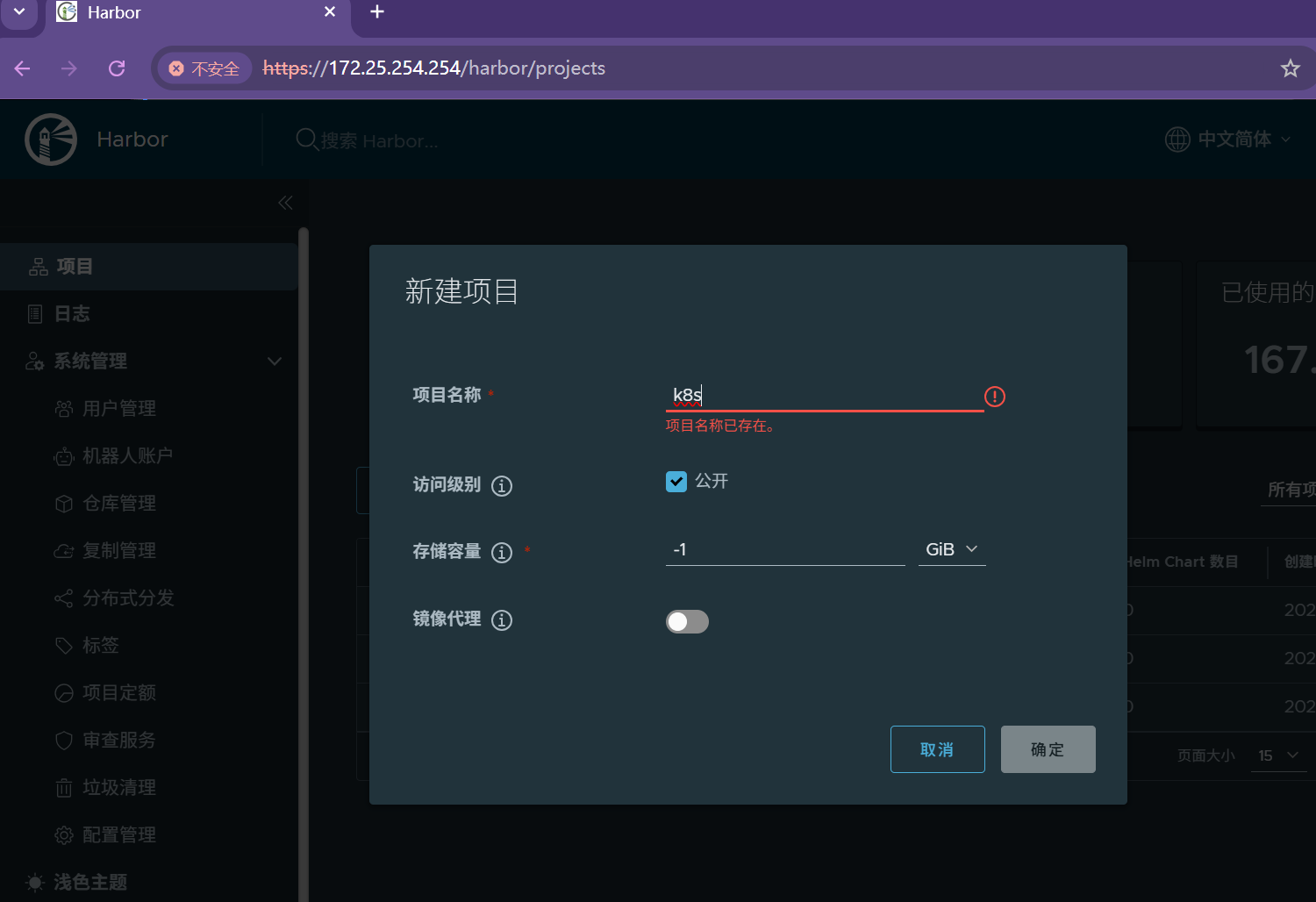
[root@master ~]# kubeadm init --pod-network-cidr=10.244.0.0/16 \
--image-repository reg.hjw.org/k8s \
--kubernetes-version v1.35.3 \
--cri-socket=unix:///var/run/cri-dockerd.sock
。。。
#每个人不一样,其他主机加入本集群的凭证
kubeadm join 172.25.254.100:6443 --token rprdem.4vybcpceqchhvebr \
--discovery-token-ca-cert-hash sha256:c656a86380b0d3f2c4ad81f2ca247233d984a4fbac5a723c87ad718bbdd24ab9
#如果忘记
[root@K8S-master ~]# kubeadm token create --print-join-command
kubeadm join 172.25.254.100:6443 --token
kubeadm join 172.25.254.100:6443 --token m5aby7.88tof1psl5f9bk6g --discovery-token-ca-cert-hash sha256:c656a86380b0d3f2c4ad81f2ca247233d984a4fbac5a723c87ad718bbdd24ab9
error: flag needs an argument: --token
To see the stack trace of this error execute with --v=5 or higher
#如果初始化出问题
[root@master ~]# kubeadm reset --cri-socket=unix:///var/run/cri-dockerd.sock #可以重置集群设定
添加kubernets环境变量到本机
[root@master ~]# echo "export KUBECONFIG=/etc/kubernetes/admin.conf" > ~/.bash_profile
[root@master ~]# source ~/.bash_profile
[root@master ~]# kubectl get nodes
NAME STATUS ROLES AGE VERSION
master NotReady control-plane 102s v1.35.3
添加node节点到本集群
[root@node1 ~]#
kubeadm join 172.25.254.100:6443 --token rprdem.4vybcpceqchhvebr --discovery-token-ca-cert-hash sha256:c656a86380b0d3f2c4ad81f2ca247233d984a4fbac5a723c87ad718bbdd24ab9 --cri-socket=unix:///var/run/cri-dockerd.sock
#测试
[root@K8S-master ~]# kubectl get nodes #可以看到集群中主机但是因为网络插件问题状态是NotReady
NAME STATUS ROLES AGE VERSION
k8s-master Ready control-plane 16h v1.35.3
k8s-web1 NoReady <none> 16h v1.35.3
k8s-web2 NoReady <none> 16h v1.35.3
5.安装网络插件
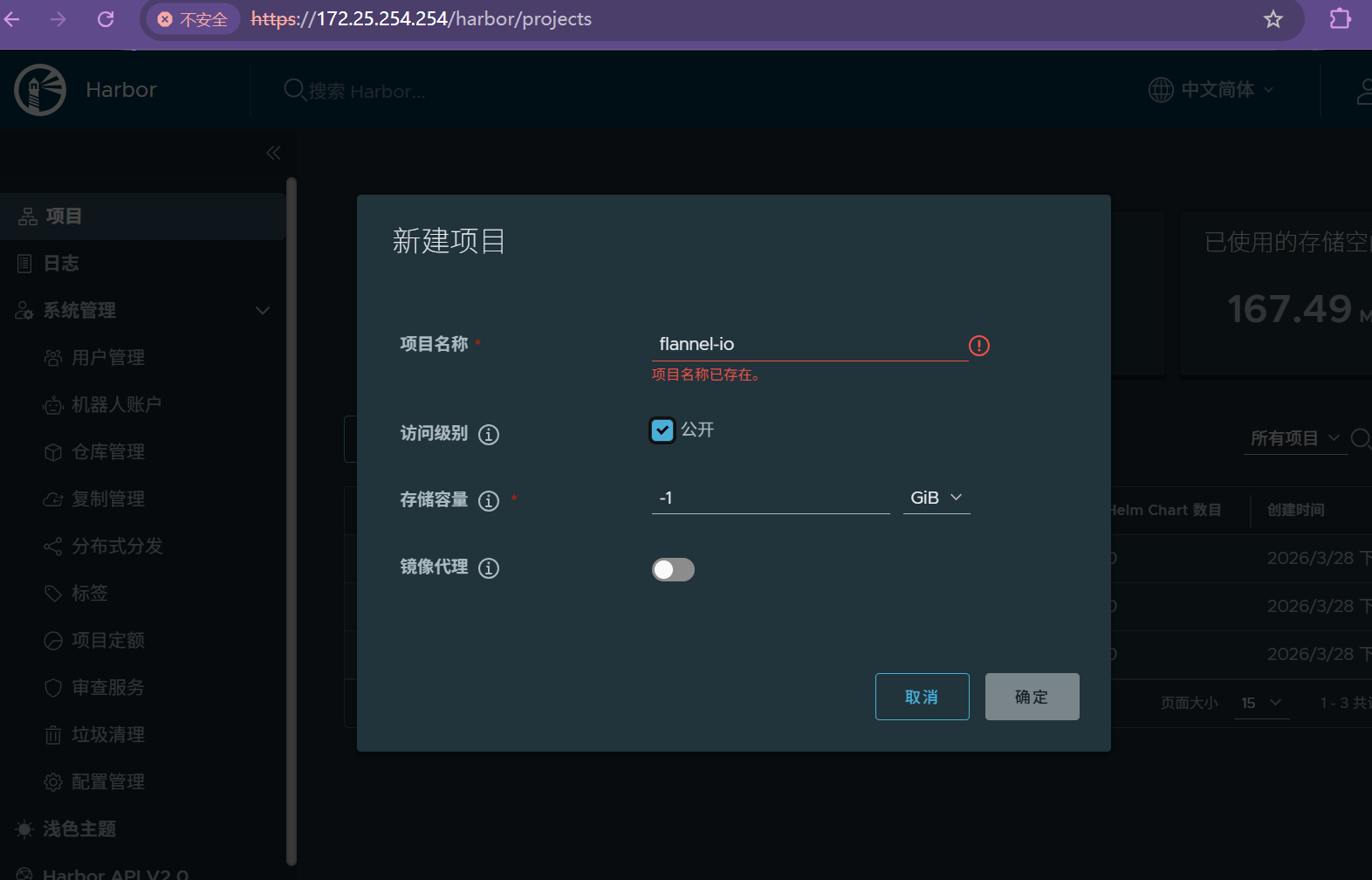
[root@master ~]# ls
anaconda-ks.cfg flannel-0.28.1.tar libcgroup-0.41-19.el8.x86_64.rpm
cri-dockerd-0.3.14-3.el8.x86_64.rpm kube-flannel.yml
[root@master ~]# docker load -i flannel-0.28.1.tar
[root@master ~]# docker tag ghcr.io/flannel-io/flannel-cni-plugin:v1.9.0-flannel1 reg.hjw.org/flannel-io/flannel-cni-plugin:v1.9.0-flannel1
[root@master ~]# docker push reg.hjw.org/flannel-io/flannel-cni-plugin:v1.9.0-flannel1
The push refers to repository [reg.hjw.org/flannel-io/flannel-cni-plugin]
2c8aa52d4746: Pushed
5aa68bbbc67e: Pushed
v1.9.0-flannel1: digest: sha256:b3d30c221113b30fea3e8a7fccb145e929b097d0319b9eeb6b5a591b10b5c671 size: 739
[root@master ~]# docker tag ghcr.io/flannel-io/flannel:v0.28.1 reg.hjw.org/flannel-io/flannel:v0.28.1
[root@master ~]# docker push reg.hjw.org/flannel-io/flannel:v0.28.1
The push refers to repository [reg.hjw.org/flannel-io/flannel]
5668da16a30b: Pushed
5f70bf18a086: Pushed
00012e17b6cc: Pushed
9738bb9596cf: Pushed
b6233bc105d7: Pushed
03767449b95b: Pushed
9a7d8cf9ff51: Pushed
13a60c10faeb: Pushed
70dc5e033175: Pushed
256f393e029f: Pushed
v0.28.1: digest: sha256:e671adbc267460164555159210066d3304a43e3b5dd85cc0b5b6ad62e83aab52 size: 2414
[root@K8S-master ~]# grep "image:" kube-flannel.yml
image: reg.hjw.org/flannel-io/flannel:v0.28.1
image: reg.hjw.org/flannel-io/flannel-cni-plugin:v1.9.0-flannel1
image: reg.hjw.org/flannel-io/flannel:v0.28.1
[root@K8S-master ~]# kubectl apply -f kube-flannel.yml
namespace/kube-flannel unchanged
serviceaccount/flannel unchanged
clusterrole.rbac.authorization.k8s.io/flannel unchanged
clusterrolebinding.rbac.authorization.k8s.io/flannel unchanged
configmap/kube-flannel-cfg unchanged
daemonset.apps/kube-flannel-ds configured
#测试
[root@K8S-master ~]# kubectl get nodes
NAME STATUS ROLES AGE VERSION
k8s-master Ready control-plane 18m v1.35.3
k8s-web1 Ready <none> 14m v1.35.3
k8s-web2 Ready <none> 13m v1.35.3
[root@K8S-master ~]#
当整个集群关闭时重新启动服务
#当整个集群关机以后重新启动需要重启服务
#harbor仓库
[root@harbro ~]# cd /opt/harbor/
[root@harbro harbor]# docker compose ps
WARN[0000] /opt/harbor/docker-compose.yml: the attribute `version` is obsolete, it will be ignored, please remove it to avoid potential confusion
NAME IMAGE COMMAND SERVICE CREATED STATUS PORTS
harbor-log goharbor/harbor-log:v2.5.4 "/bin/sh -c /usr/loc…" log 18 hours ago Up 6 minutes (healthy) 127.0.0.1:1514->10514/tcp
[root@harbro harbor]# docker compose up -d
WARN[0000] /opt/harbor/docker-compose.yml: the attribute `version` is obsolete, it will be ignored, please remove it to avoid potential confusion
[+] up 10/10
✔ Container harbor-log Running 0.0s
✔ Container harbor-portal Started 0.6s
✔ Container registryctl Started 0.4s
✔ Container redis Started 0.6s
✔ Container registry Started 0.3s
✔ Container harbor-db Started 0.5s
✔ Container chartmuseum Started 0.7s
✔ Container harbor-core Started 0.3s
✔ Container nginx Started 0.6s
✔ Container harbor-jobservice Started 0.3s
[root@harbro harbor]# netstat -tlnp | grep -E "80|443"
tcp 0 0 0.0.0.0:443 0.0.0.0:* LISTEN 3810/docker-proxy
tcp 0 0 0.0.0.0:80 0.0.0.0:* LISTEN 3796/docker-proxy
tcp6 0 0 :::443 :::* LISTEN 3817/docker-proxy
tcp6 0 0 :::80 :::* LISTEN 3802/docker-proxy
#node
[root@K8s-web2 ~]# systemctl enable cri-docker
Created symlink /etc/systemd/system/multi-user.target.wants/cri-docker.service → /usr/lib/systemd/system/cri-docker.service.
[root@K8s-web2 ~]# systemctl restart cri-docker
#master
]systemctl enable cri-docker
]systemctl restart cri-docker
]kubectl get nodes
[root@K8S-master ~]# kubectl get nodes
NAME STATUS ROLES AGE VERSION
k8s-master Ready control-plane 16h v1.35.3
k8s-web1 Ready <none> 16h v1.35.3
k8s-web2 Ready <none> 16h v1.35.3
更多推荐
 8
8 0
0- 0


 已为社区贡献7条内容

所有评论(0)