
在win11/10中通过docker启动ros2并打开movelt
·
前置条件:
安装docker:Windows 下 Docker Desktop 安装教程及常用命令(2026年6月)-CSDN博客
安装VcXsrv:Win10/11系统上安装VcXsrv软件教程(2026年6月)-CSDN博客
安装VsCode:在win10/11系统上安装VsCode(2026年6月)-CSDN博客
首先拿dockerfile文件:
# MoveIt 2 Docker Image for Windows 10/11
# Based on: https://moveit.picknik.ai/main/doc/how_to_guides/how_to_setup_docker_containers_in_ubuntu.html
# ROS2 Jazzy with MoveIt 2 and development tools

# 使用官方ROS2 Jazzy基础镜像(与MoveIt官方推荐一致)
FROM ros:jazzy

# 设置环境变量
ENV DEBIAN_FRONTEND=noninteractive
ENV LANG=C.UTF-8
ENV LC_ALL=C.UTF-8

# 设置工作目录
WORKDIR /root/ros2_ws

# ============================================================================
# 第一步:安装系统基础工具和Python开发工具
# ============================================================================
RUN apt-get update && apt-get install -y --fix-missing --no-install-recommends \
    curl \
    wget \
    git \
    vim \
    nano \
    htop \
    net-tools \
    iputils-ping \
    bash-completion \
    python3-pip \
    build-essential \
    cmake \
    libboost-all-dev \
    && rm -rf /var/lib/apt/lists/*

# ============================================================================
# 第二步:安装Python工具(colcon, rosdep等)
# ============================================================================
RUN pip3 install --no-cache-dir --break-system-packages \
    colcon-common-extensions \
    rosdep \
    vcstool

# ============================================================================
# 第三步:初始化rosdep(只在未初始化时执行)
# ============================================================================
RUN if [ ! -f /etc/ros/rosdep/sources.list.d/20-default.list ]; then \
        rosdep init; \
    fi && \
    rosdep update || echo "rosdep update failed but continuing..."

# ============================================================================
# 第四步:安装MoveIt2核心包及相关依赖
# 参考: https://moveit.picknik.ai/ 和 CSDN教程
# 使用通配符安装所有moveit相关包,确保完整性
# 同时安装常用的可视化和URDF工具
# ============================================================================
RUN apt-get update && apt-get install -y --fix-missing --no-install-recommends \
    ros-jazzy-moveit \
    ros-jazzy-moveit-* \
    ros-jazzy-rviz2 \
    ros-jazzy-rqt \
    ros-jazzy-rqt-common-plugins \
    ros-jazzy-urdf \
    ros-jazzy-robot-state-publisher \
    ros-jazzy-joint-state-publisher \
    ros-jazzy-joint-state-publisher-gui \
    ros-jazzy-xacro \
    && rm -rf /var/lib/apt/lists/*

# ============================================================================
# 第七步:安装Navigation2导航栈(可选但推荐)
# ============================================================================
RUN apt-get update && apt-get install -y --fix-missing --no-install-recommends \
    ros-jazzy-navigation2 \
    ros-jazzy-nav2-bringup \
    ros-jazzy-slam-toolbox \
    && rm -rf /var/lib/apt/lists/*

# ============================================================================
# 第八步:安装常用消息包和图形库
# ============================================================================
RUN apt-get update && apt-get install -y --fix-missing --no-install-recommends \
    ros-jazzy-turtlebot3-msgs \
    ros-jazzy-geometry-msgs \
    ros-jazzy-sensor-msgs \
    ros-jazzy-nav-msgs \
    # OpenGL和X11支持
    libgl1-mesa-dri \
    libglx-mesa0 \
    libglu1-mesa \
    libxext6 \
    libx11-6 \
    libxcb1 \
    libxrender1 \
    libxi6 \
    && rm -rf /var/lib/apt/lists/*

# ============================================================================
# 第九步:配置ROS2环境
# ============================================================================
RUN echo "source /opt/ros/jazzy/setup.bash" >> /root/.bashrc && \
    echo "export ROS_DOMAIN_ID=0" >> /root/.bashrc && \
    echo "export RMW_IMPLEMENTATION=rmw_cyclonedds_cpp" >> /root/.bashrc && \
    echo "export TURTLEBOT3_MODEL=waffle" >> /root/.bashrc && \
    echo "alias ll='ls -la'" >> /root/.bashrc && \
    echo "alias cw='cd ~/ros2_ws'" >> /root/.bashrc && \
    echo "alias cs='cd ~/ros2_ws/src'" >> /root/.bashrc && \
    echo "alias cb='cd ~/ros2_ws && colcon build'" >> /root/.bashrc && \
    echo "alias cbs='cd ~/ros2_ws && colcon build && source install/setup.bash'" >> /root/.bashrc

# ============================================================================
# 第十步:创建工作空间并初始化
# ============================================================================
RUN mkdir -p /root/ros2_ws/src

# ============================================================================
# 第十一步:克隆并构建MoveIt 2教程
# ============================================================================
#RUN cd /root/ros2_ws/src && \
#    git clone https://github.com/moveit/moveit2_tutorials.git -b jazzy && \
#    cd /root/ros2_ws && \
#    . /opt/ros/jazzy/setup.bash && \
#    rosdep install -y --from-paths src --ignore-src --rosdistro jazzy && \
#    colcon build --symlink-install && \
#    echo "source /root/ros2_ws/install/setup.bash" >> /root/.bashrc

# 注意: 不设置ENTRYPOINT,让docker-compose的command生效
以及docker-compose.yml文件
version: '3.8'

# MoveIt 2 Docker Compose Configuration for Windows 10/11
# Based on: https://moveit.picknik.ai/main/doc/how_to_guides/how_to_setup_docker_containers_in_ubuntu.html
#
# Usage:
#   With GPU (NVIDIA): run .\start.bat gpu
#   Without GPU:       run .\start.bat cpu

services:
  # CPU-only configuration (no GPU required)
  cpu:
    build:
      context: .
      dockerfile: Dockerfile
    image: ros2-jazzy-win10:latest
    container_name: moveit2_container
    privileged: true
    network_mode: host
    command: /bin/bash -c "while true; do sleep 3600; done"
    stdin_open: true
    tty: true

    volumes:
      # Share workspace to host
      - ./ros2_ws:/root/ros2_ws

    environment:
      # GUI display configuration (Windows needs X Server like VcXsrv or Xming)
      - DISPLAY=${DISPLAY:-host.docker.internal:0}
      - QT_X11_NO_MITSHM=1

      # ROS2 configuration
      - ROS_DOMAIN_ID=${ROS_DOMAIN_ID:-0}
      - RMW_IMPLEMENTATION=${RMW_IMPLEMENTATION:-rmw_cyclonedds_cpp}

      # TurtleBot3 model configuration
      - TURTLEBOT3_MODEL=waffle

      # OpenGL configuration
      - LIBGL_ALWAYS_INDIRECT=0

    # Windows specific configuration
    extra_hosts:
      - "host.docker.internal:host-gateway"

    # Resource limits (optional)
    deploy:
      resources:
        limits:
          cpus: '${CPU_LIMIT:-4}'
          memory: ${MEMORY_LIMIT:-4G}
        reservations:
          cpus: '1'
          memory: 1G

    # Restart policy
    restart: unless-stopped

    # Health check
    healthcheck:
      test: ["CMD", "ros2", "topic", "list"]
      interval: 30s
      timeout: 10s
      retries: 3
      start_period: 10s

  # GPU configuration (NVIDIA GPU required)
  gpu:
    build:
      context: .
      dockerfile: Dockerfile
    image: ros2-jazzy-win10:latest
    container_name: moveit2_container_gpu
    privileged: true
    network_mode: host
    command: /bin/bash -c "while true; do sleep 3600; done"
    stdin_open: true
    tty: true

    volumes:
      # Share workspace to host
      - ./ros2_ws:/root/ros2_ws

    environment:
      # GUI display configuration
      - DISPLAY=${DISPLAY:-host.docker.internal:0}
      - QT_X11_NO_MITSHM=1

      # ROS2 configuration
      - ROS_DOMAIN_ID=${ROS_DOMAIN_ID:-0}
      - RMW_IMPLEMENTATION=${RMW_IMPLEMENTATION:-rmw_cyclonedds_cpp}

      # TurtleBot3 model configuration
      - TURTLEBOT3_MODEL=waffle

      # NVIDIA GPU configuration
      - NVIDIA_VISIBLE_DEVICES=all
      - NVIDIA_DRIVER_CAPABILITIES=all
      - LIBGL_ALWAYS_INDIRECT=0

    # Windows specific configuration
    extra_hosts:
      - "host.docker.internal:host-gateway"

    # GPU device access (Windows Docker Desktop + WSL2)
    deploy:
      resources:
        reservations:
          devices:
            - driver: nvidia
              count: 1
              capabilities: [gpu]
          cpus: '1'
          memory: 2G
        limits:
          cpus: '${CPU_LIMIT:-4}'
          memory: ${MEMORY_LIMIT:-8G}

    # Restart policy
    restart: unless-stopped

    # Health check
    healthcheck:
      test: ["CMD", "ros2", "topic", "list"]
      interval: 30s
      timeout: 10s
      retries: 3
      start_period: 10s
放置在同一个文件夹
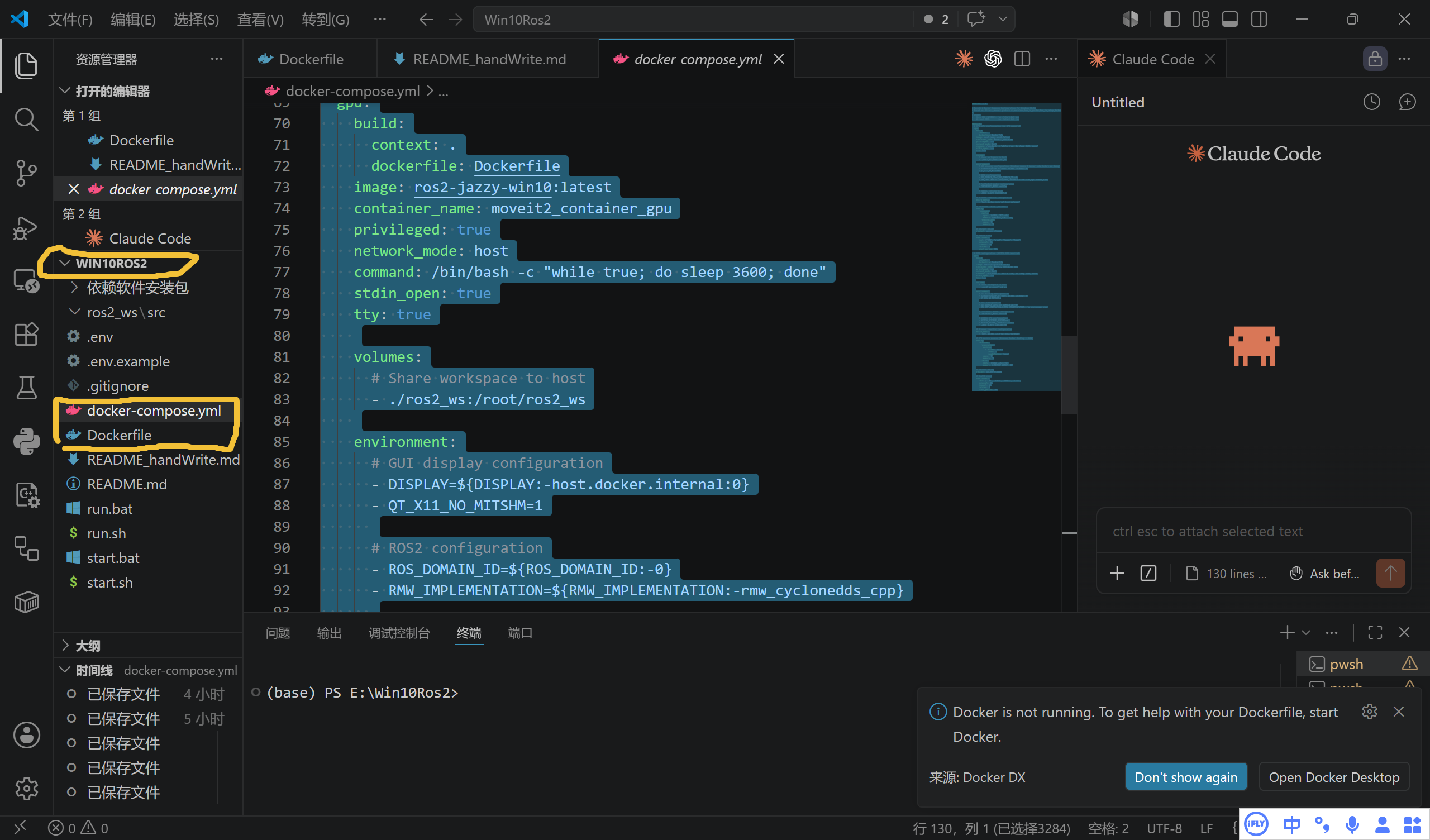
启动代码
docker-compose up -d cpu首次启动会加载很久,他在下载对应的驱动包,耐心等待即可
启动成功后打开docker容器代码
.\run.bat接着就可以启动示例代码了
# Panda机械臂
docker exec -it moveit2_container bash -c "source /opt/ros/jazzy/setup.bash && unset RMW_IMPLEMENTATION && ros2 launch moveit_resources_panda_moveit_config demo.launch.py"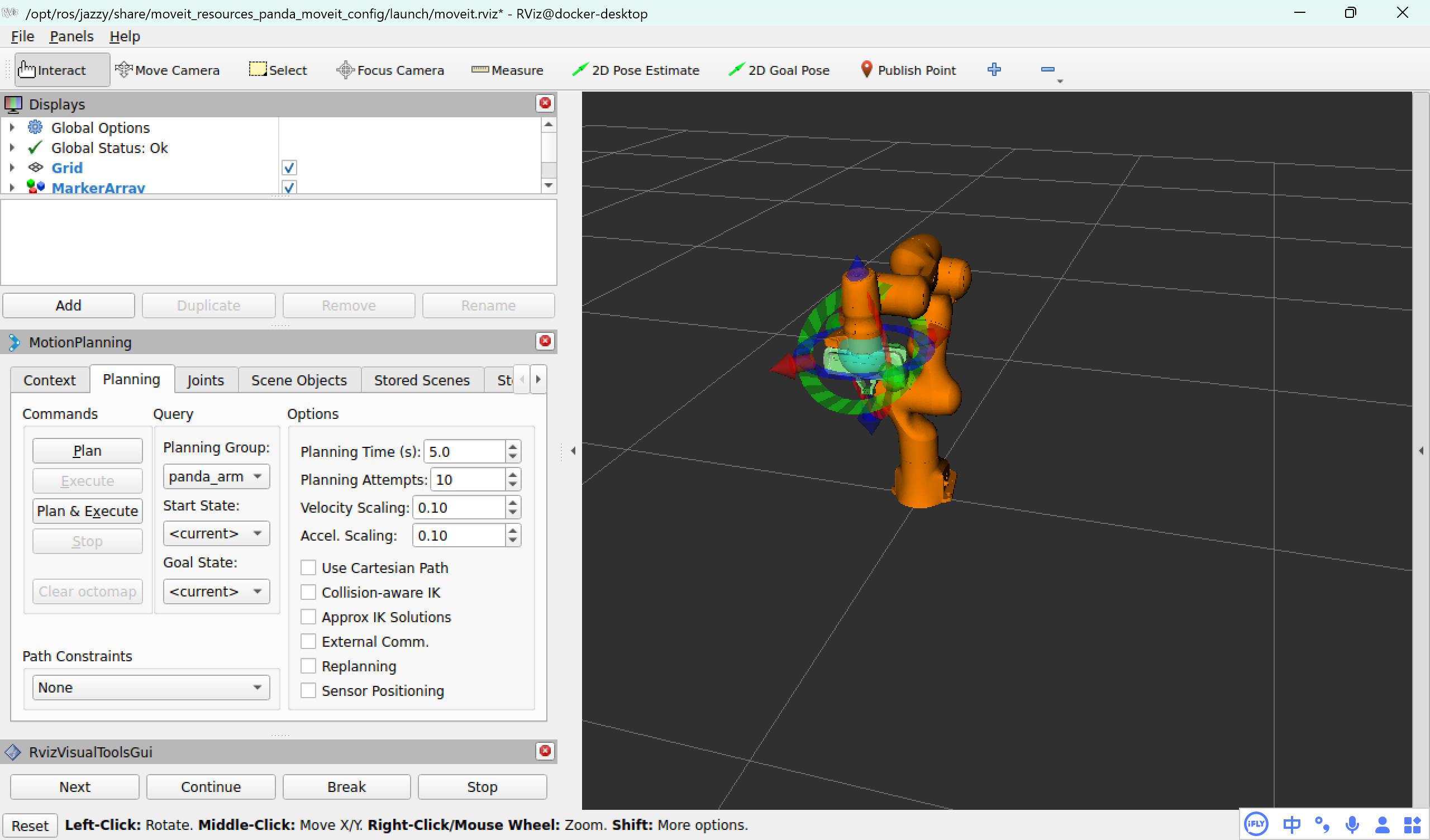
注意启动代码,打开docker容器代码和启动示例代码要开三个终端分别启动
代码网址:
github Offi-to/Win10_Ros2_Movelt_Env: this is docker study
gitee Win10_Ros2_Movelt_Env: this is docker study - Gitee.com
更多推荐
 8
8 0
0- 0


 已为社区贡献2条内容

所有评论(0)