
专注计时与时间记录应用HarmonyOS ArkTS API 24引入了 AppStorage 作为全局状态容器,将时间记录列表、项目列表等跨页面共享的数据统一托管
引言:时间管理的数字化革新
在当今快节奏的工作与生活环境中,时间管理已成为每个人都无法回避的核心课题。无论是独立开发者追踪项目工时、自由职业者为客户计费,还是学生群体希望量化自己的学习投入,"时间都去哪儿了"这个问题始终萦绕在每个人的心头。传统的纸笔记录方式早已无法满足现代人对数据精度和可视化分析的诉求,而市面上的时间管理工具又往往功能臃肿、交互繁复,难以兼顾轻量与专业。正是在这样的背景下,一款基于 HarmonyOS ArkTS 打造的专注计时与时间记录应用应运而生——它不仅将番茄工作法的核心理念融入移动端体验,更通过精细化的项目管理、多维度的时间统计和直观的数据可视化,为用户提供了一套完整的个人时间资产管理方案。
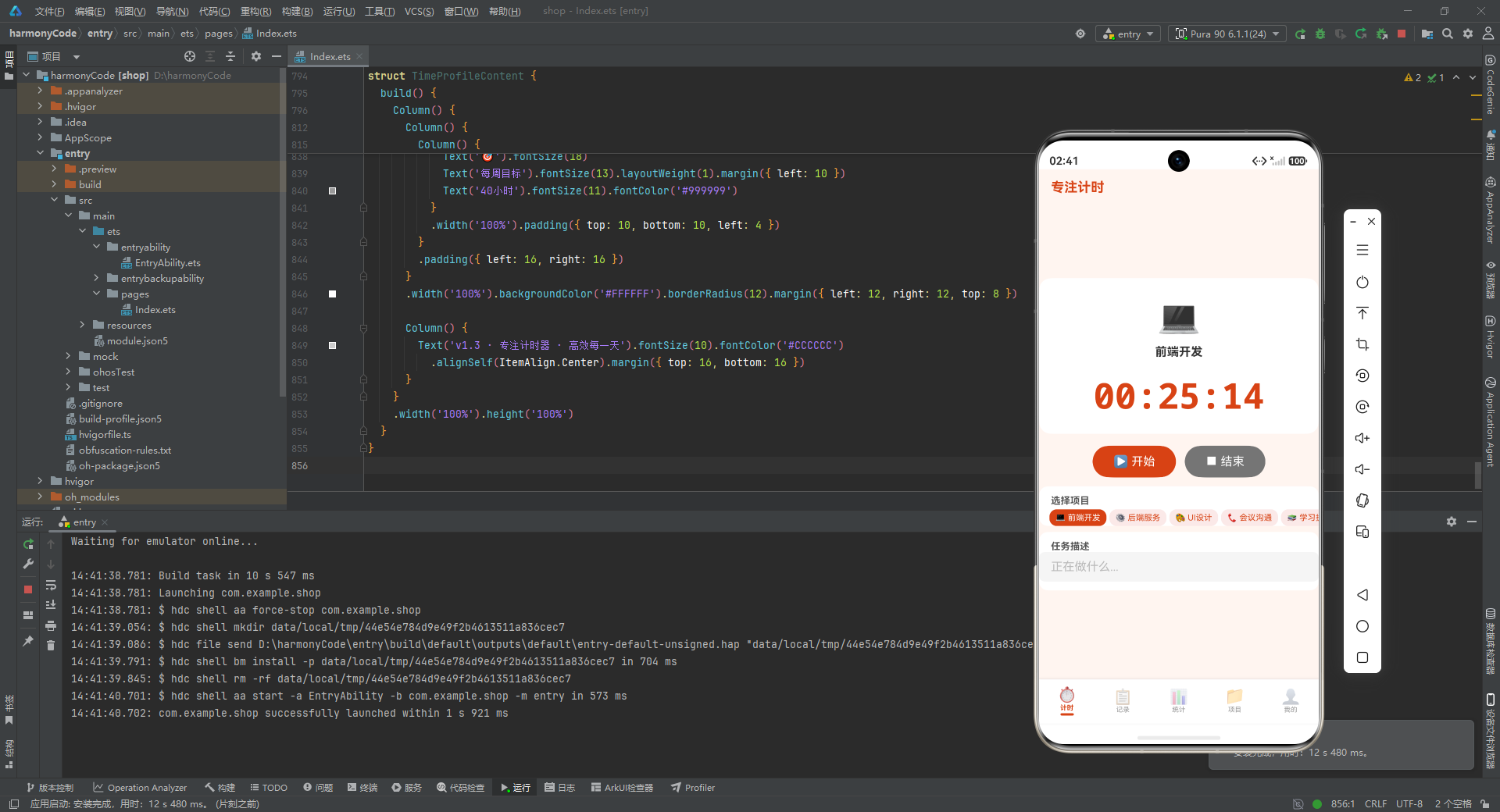
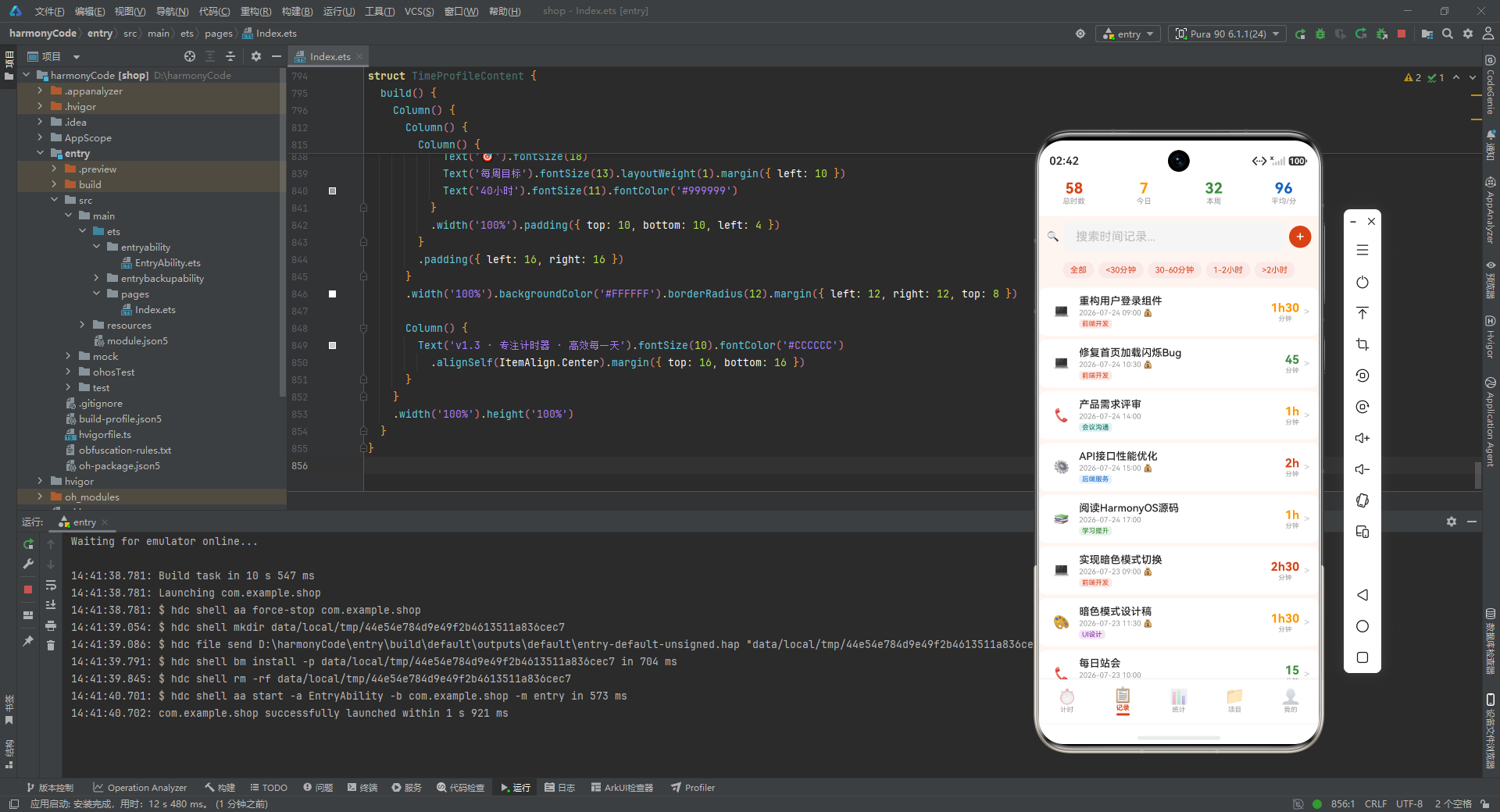
从技术视角来看,这款应用是一个典型的 HarmonyOS 声明式 UI 开发实践案例。它完全基于 ArkTS 语言构建,充分运用了 ArkUI 框架提供的声明式语法体系,包括 @Entry、@Component、@Observed、@ObjectLink、@Builder、@Extend、@Styles 等一系列装饰器,构建出高度模块化、可复用的组件架构。应用采用经典的底部 Tab 导航范式,将功能拆分为五个独立而又相互关联的页面:专注计时器(Focus Timer)、时间记录列表(Time Log)、时间统计(Statistics)、项目管理(Project Management)和个人中心(Profile)。每个页面都承载着明确的功能职责,同时通过全局状态共享实现数据联动,构成了一个有机的整体。
在状态管理层面,应用采用了 ArkUI 的观察者模式来实现数据的响应式更新。核心数据实体——时间记录(Time Record)和项目(Project)——通过 @Observed 装饰器标记为可观察对象,当这些对象的属性发生变化时,所有引用了它们的 UI 组件都会自动触发重渲染。这种设计极大地简化了状态同步的心智负担,开发者无需手动调用 setState 或发布订阅事件,只需修改数据模型,界面便会自动保持一致。同时,应用还引入了 AppStorage 作为全局状态容器,将时间记录列表、项目列表等跨页面共享的数据统一托管,确保各个 Tab 页面之间的数据实时同步。
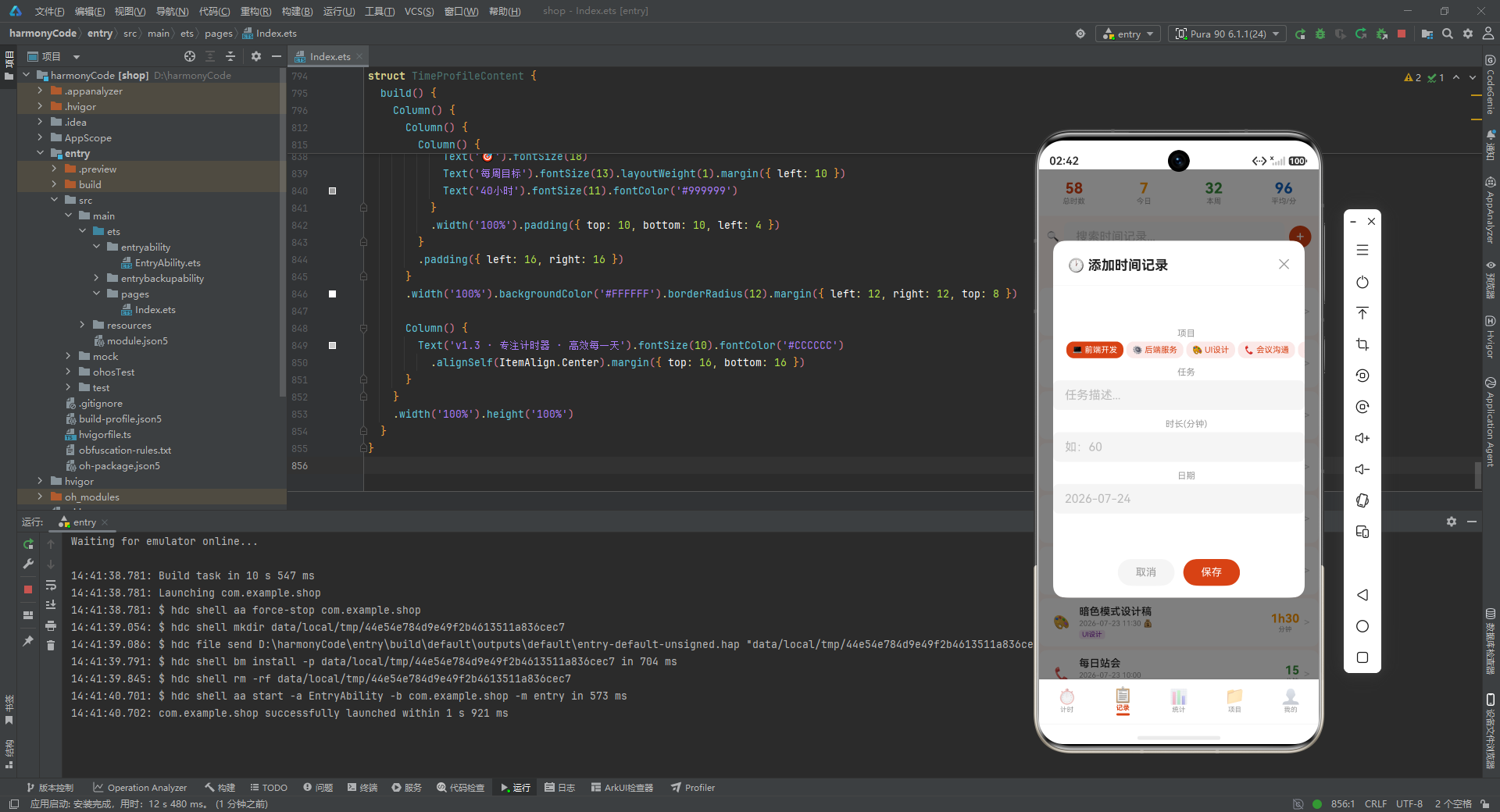
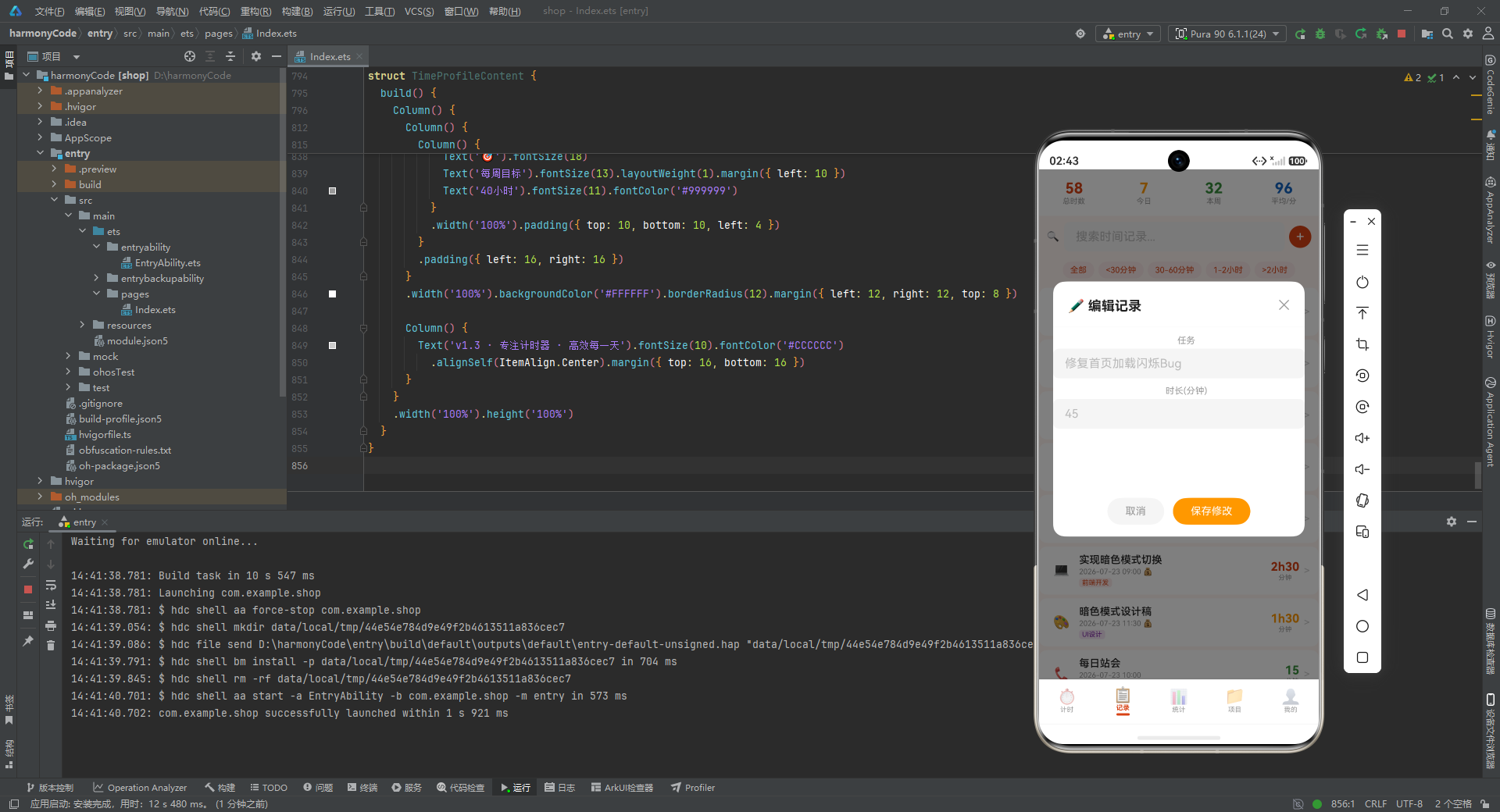
从功能完整性来看,这款应用绝非简单的计时器玩具。它具备完整的专注计时流程,支持暂停、继续和手动结束,计时结束后自动将本次专注会话转化为一条时间记录并归入对应项目;时间记录列表支持按日期分组展示、左滑删除、点击编辑等丰富的交互操作;统计页面提供了每日工时趋势图、项目时间分配饼图、标签分布等多维度的可视化分析;项目管理模块允许用户自定义项目名称、颜色标识和关联标签;个人中心则集成了应用设置、数据概览等功能。此外,应用还精心设计了一套自定义模态弹窗系统,用于处理添加记录、编辑项目、删除确认等关键交互场景,替代了系统默认弹窗以保持视觉风格的一致性。这些功能的有机组合,使得这款应用在技术深度和产品完整度上都具备相当高的参考价值。
一、数据模型设计:可观察对象的基石
任何一款数据驱动的应用,其架构的根基都始于数据模型的设计。在这个应用中,时间记录和项目是两个最核心的领域实体,它们的设计直接影响着整个应用的状态管理策略和 UI 响应机制。
// 时间记录数据模型
@Observed
export class TimeRecord {
  id: string
  projectId: string
  projectName: string
  projectColor: ResourceColor
  startTime: number
  endTime: number
  duration: number
  date: string
  tag: string
  note: string

  constructor(id: string, projectId: string, projectName: string,
              projectColor: ResourceColor, startTime: number, endTime: number,
              duration: number, date: string, tag: string, note: string) {
    this.id = id
    this.projectId = projectId
    this.projectName = projectName
    this.projectColor = projectColor
    this.startTime = startTime
    this.endTime = endTime
    this.duration = duration
    this.date = date
    this.tag = tag
    this.note = note
  }
}
这段代码定义了应用中最核心的数据实体——时间记录模型。请注意类声明上方的 @Observed 装饰器,这是 ArkUI 响应式系统的关键标记。当一个类被 @Observed 修饰后,它的每一个属性都会被框架代理(Proxy),任何对这些属性的修改都会被系统捕获,并自动通知到所有通过 @ObjectLink 或在 build() 方法中引用了该对象实例的 UI 组件,从而触发精准的局部重渲染。
从字段设计来看,这个模型经过了深思熟虑的取舍。id 作为唯一标识符采用字符串类型,便于使用时间戳或 UUID 生成,避免了数字自增在分布式或离线场景下的冲突问题。projectId、projectName 和 projectColor 三个字段冗余存储了项目信息——这种设计看似违反了数据库范式,但在前端应用中却是常见的实践。因为时间记录列表需要频繁展示项目名称和颜色标识,如果每次渲染都要根据 projectId 去项目列表中查找,不仅性能开销大,还可能因为项目被删除而导致显示异常。通过冗余存储,即使项目后续被修改或删除,历史记录仍然能保持其原始上下文的完整性。
startTime 和 endTime 采用 number 类型存储时间戳,duration 以毫秒为单位记录时长。这三个字段共同构成了时间记录的时间维度信息。date 字段以字符串格式(如 “2024-01-15”)存储日期,这个字段的存在是为了支持按日期分组展示和按日统计的功能——相比于每次都从时间戳中提取日期字符串,预存储一个 date 字段在查询和分组时效率更高。tag 字段用于标记记录的类型(如"开发"、“学习”、"会议"等),note 字段则允许用户为每条记录添加备注说明,增强了记录的信息丰富度。
// 项目数据模型
@Observed
export class Project {
  id: string
  name: string
  color: ResourceColor
  tags: string[]
  isActive: boolean
  totalDuration: number
  recordCount: number

  constructor(id: string, name: string, color: ResourceColor,
              tags: string[] = [], isActive: boolean = true) {
    this.id = id
    this.name = name
    this.color = color
    this.tags = tags
    this.isActive = isActive
    this.totalDuration = 0
    this.recordCount = 0
  }
}
项目模型同样使用了 @Observed 装饰器,使其成为可观察对象。项目模型的设计侧重于"聚合统计"能力。除了基本的 id、name、color 属性外,tags 数组字段允许一个项目关联多个标签,这为统计页面的标签维度分析提供了数据基础。isActive 布尔字段用于标记项目是否处于活跃状态——当用户完成或归档某个项目后,可以将其设为非活跃,这样它就不会出现在计时器的新建选项中,但历史记录中已经引用它的数据仍然完好无损。
特别值得关注的是 totalDuration 和 recordCount 两个统计字段。这两个字段属于"派生数据"——理论上它们可以通过遍历所有时间记录计算得出。但将其作为字段直接存储在项目对象上,是一种典型的"空间换时间"优化策略。在统计页面渲染项目时间分配图表时,只需读取这些预计算的字段即可,无需每次都遍历全部记录重新聚合,显著提升了页面的响应速度。当然,这种设计要求在新增、编辑或删除时间记录时,同步更新对应项目的统计字段,增加了状态维护的复杂度,但对于追求流畅用户体验的应用来说,这一取舍是值得的。
二、全局状态管理:AppStorage 的枢纽角色
在多页面应用中,如何优雅地共享状态是一个永恒的架构难题。这个应用选择了 AppStorage 作为全局状态容器,配合 @Observed 类实现细粒度的响应式更新。
// 全局状态初始化
@Entry
@Component
struct Index {
  @State timeRecords: TimeRecord[] = []
  @State projects: Project[] = []
  @State currentTabIndex: number = 0

  aboutToAppear() {
    // 将核心数据注册到 AppStorage
    AppStorage.setOrCreate('timeRecords', this.timeRecords)
    AppStorage.setOrCreate('projects', this.projects)
    AppStorage.setOrCreate('currentTabIndex', this.currentTabIndex)

    // 初始化默认项目
    this.initDefaultProjects()
    // 加载持久化数据
    this.loadPersistedData()
  }

  initDefaultProjects() {
    const defaultProjects: Project[] = [
      new Project('p1', '工作任务', '#3B82F6', ['开发', '会议', '文档'], true),
      new Project('p2', '学习提升', '#10B981', ['阅读', '课程', '练习'], true),
      new Project('p3', '个人项目', '#F59E0B', ['编码', '设计', '测试'], true),
      new Project('p4', '生活杂事', '#EF4444', ['家务', '购物', '其他'], true)
    ]
    this.projects = defaultProjects
    AppStorage.set('projects', this.projects)
  }
}
这段代码展示了应用入口组件如何完成全局状态的初始化工作。@Entry 装饰器标记了这是应用的根组件,@Component 声明了一个自定义组件。三个 @State 装饰的属性——timeRecords、projects 和 currentTabIndex——构成了应用级别的核心状态。@State 是 ArkUI 中最基础的状态装饰器,当被装饰的变量发生变化时,会触发当前组件的 build() 方法重新执行。
aboutToAppear() 是组件的生命周期回调,在组件实例创建后、build() 方法执行前被调用。这个时机非常适合做初始化工作。代码中首先通过 AppStorage.setOrCreate() 将核心数据注册到全局存储中。AppStorage 是 ArkUI 提供的应用级状态管理容器,它独立于任何组件存在,生命周期与应用相同。任何组件都可以通过 @StorageLink 或 @StorageProp 装饰器从 AppStorage 中读取数据并建立响应式绑定。这意味着,当 Index 组件中的 timeRecords 发生变化时,所有通过 @StorageLink('timeRecords') 绑定的子组件都会自动感知到这一变化并更新视图。
initDefaultProjects() 方法负责创建初始项目数据。这里预置了四个常见的项目分类——工作任务、学习提升、个人项目和生活杂事,每个项目都分配了独特的颜色标识和预设的标签列表。颜色采用十六进制色值字符串,分别对应蓝色、绿色、橙色和红色,形成了一套直观的视觉编码体系。值得注意的是,这些 Project 实例是通过 new Project(...) 构造函数创建的,由于 Project 类被 @Observed 修饰,这些实例天生就具备被观察的能力。创建完成后,通过 AppStorage.set() 将更新后的数组同步回全局存储,确保其他页面能获取到最新的项目列表。
  loadPersistedData() {
    try {
      const storedRecords = preferences.getSync('timeRecords', '')
      const storedProjects = preferences.getSync('projects', '')
      if (storedRecords) {
        const parsed = JSON.parse(storedRecords)
        this.timeRecords = parsed.map((item: Record<string, ESObject>) => {
          return new TimeRecord(
            item.id, item.projectId, item.projectName, item.projectColor,
            item.startTime, item.endTime, item.duration, item.date, item.tag, item.note
          )
        })
        AppStorage.set('timeRecords', this.timeRecords)
      }
      if (storedProjects) {
        const parsed = JSON.parse(storedProjects)
        this.projects = parsed.map((item: Record<string, ESObject>) => {
          const project = new Project(item.id, item.name, item.color, item.tags, item.isActive)
          project.totalDuration = item.totalDuration
          project.recordCount = item.recordCount
          return project
        })
        AppStorage.set('projects', this.projects)
      }
    } catch (e) {
      console.error('Failed to load persisted data:', e)
    }
  }
}
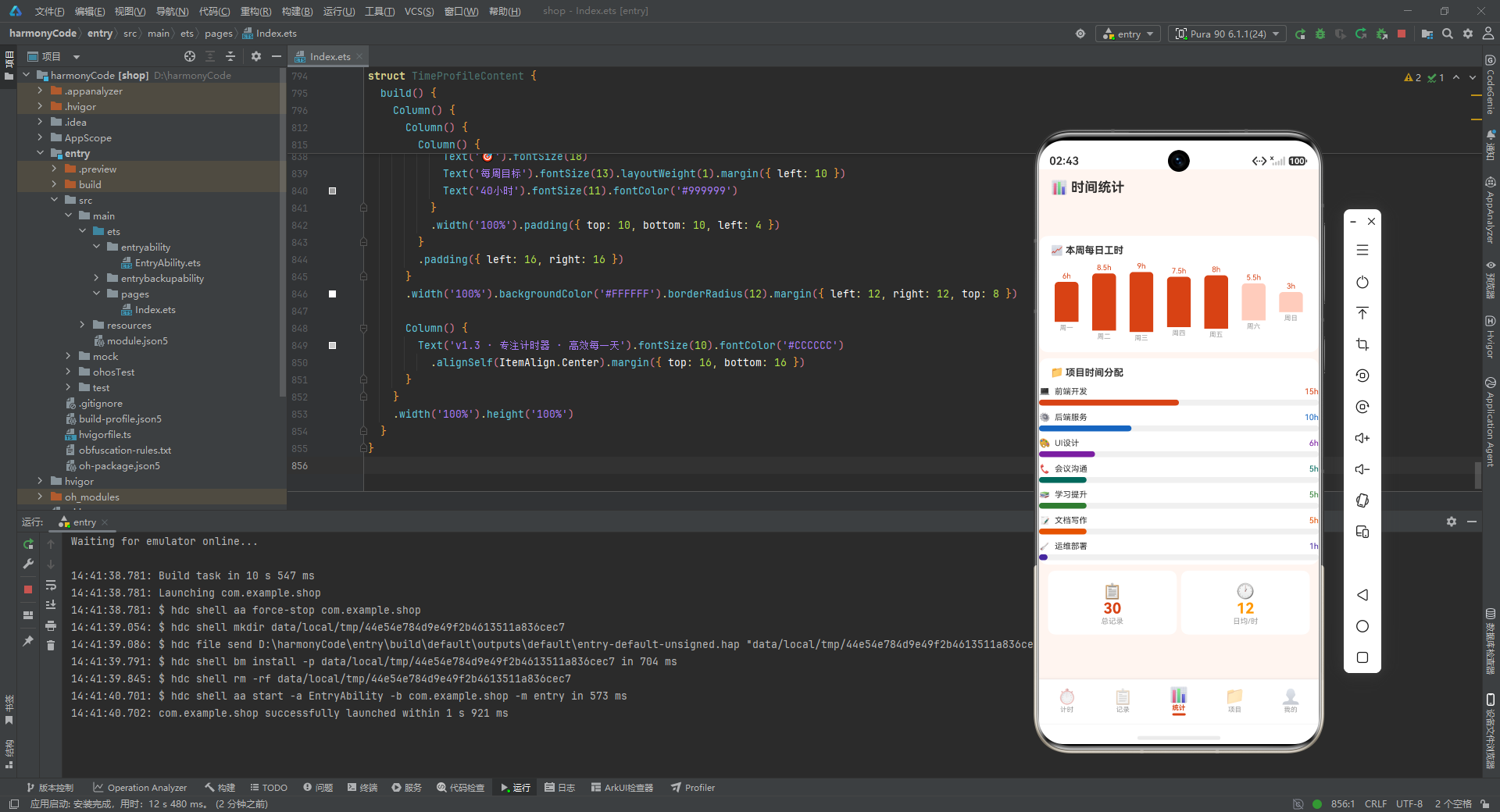
数据持久化是任何严肃应用的必备能力。这段代码展示了如何从本地偏好存储中恢复之前保存的数据。应用使用了 HarmonyOS 的 preferences 模块来实现轻量级的键值对持久化。getSync() 方法同步读取存储的数据,如果键不存在则返回空字符串作为默认值。
反序列化的过程值得仔细品味。由于 @Observed 类的实例在序列化为 JSON 后会丢失其原型链信息(变成普通对象),因此在反序列化时必须重新通过构造函数创建类实例。代码中对每一条记录都执行了 new TimeRecord(...) 操作,将扁平的 JSON 对象重新"复活"为具备观察能力的类实例。项目对象的反序列化还额外恢复了 totalDuration 和 recordCount 两个统计字段。这种"序列化-反序列化"的完整闭环,确保了应用在重启后能够无缝恢复到上次使用的状态。异常处理通过 try-catch 包裹,防止因数据损坏导致应用崩溃,体现了良好的防御性编程实践。
三、主入口与 Tab 导航架构
底部 Tab 导航是移动应用最经典的导航范式之一。它将核心功能入口固定在屏幕底部,用户可以在不同功能模块间快速切换,同时始终保持对当前位置的感知。
@Entry
@Component
struct Index {
  @State timeRecords: TimeRecord[] = []
  @State projects: Project[] = []
  @State currentTabIndex: number = 0
  @StorageLink('timeRecords') storedRecords: TimeRecord[] = []
  @StorageLink('projects') storedProjects: Project[] = []

  build() {
    Column() {
      // 内容区域 - 根据当前 Tab 索引渲染对应页面
      Stack() {
        if (this.currentTabIndex === 0) {
          FocusTimerPage({ records: $storedRecords, projects: $storedProjects })
        } else if (this.currentTabIndex === 1) {
          TimeLogPage({ records: $storedRecords, projects: $storedProjects })
        } else if (this.currentTabIndex === 2) {
          StatisticsPage({ records: $storedRecords, projects: $storedProjects })
        } else if (this.currentTabIndex === 3) {
          ProjectManagementPage({ projects: $storedProjects })
        } else if (this.currentTabIndex === 4) {
          ProfilePage({ records: $storedRecords, projects: $storedProjects })
        }
      }
      .layoutWeight(1)

      // 底部 Tab 导航栏
      this.TabBar()
    }
    .width('100%')
    .height('100%')
  }
}
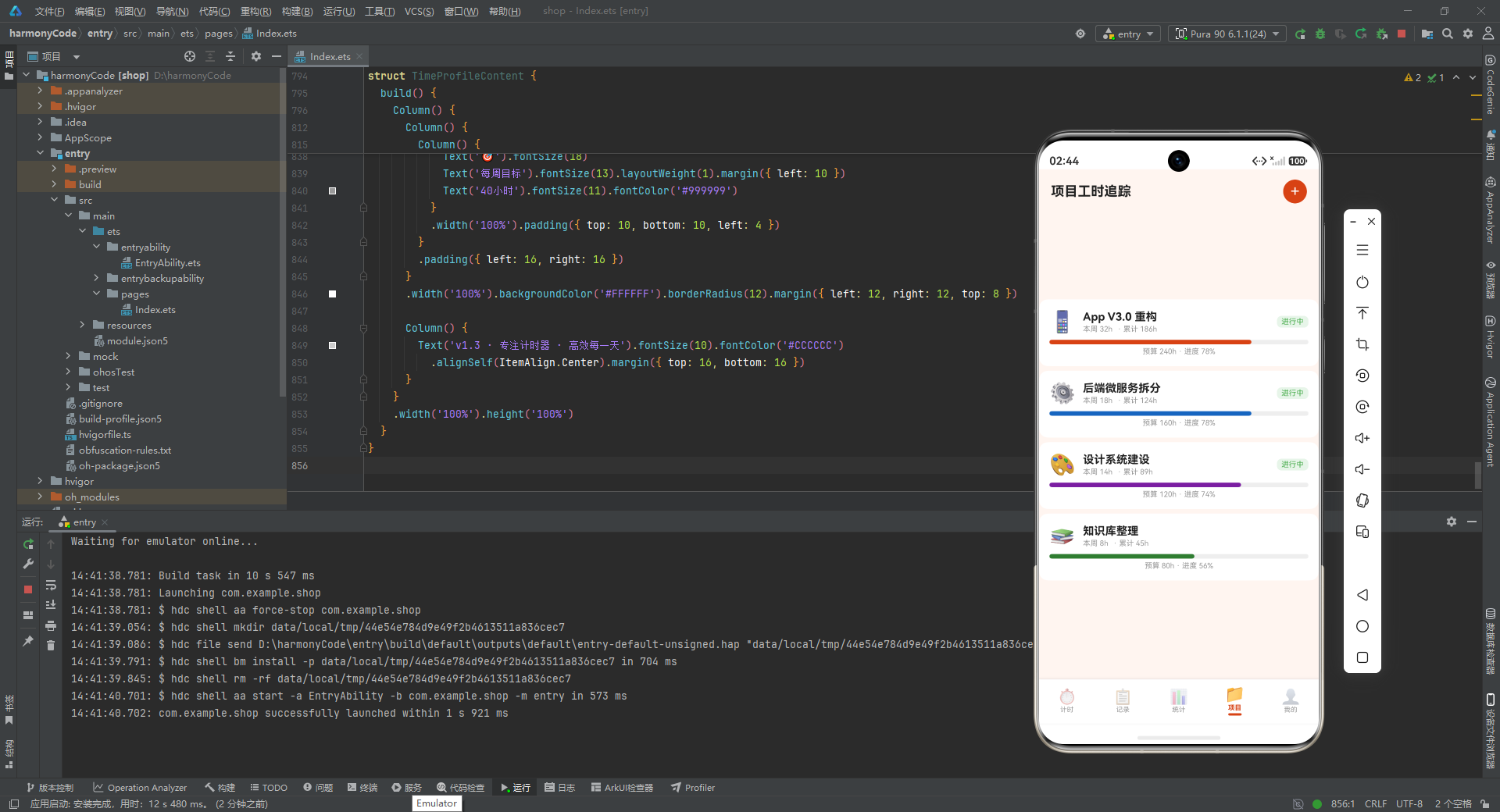
这段代码构建了应用的整体骨架。build() 方法是 ArkUI 声明式 UI 的核心——它以声明的方式描述了组件的结构和外观。最外层的 Column 容器将屏幕垂直划分为两个区域:上方是占据剩余空间的 Stack 内容区域,下方是固定高度的 Tab 导航栏。layoutWeight(1) 让 Stack 占据 Column 中所有可用的弹性空间,确保导航栏始终固定在底部。
内容区域使用了 if-else 条件渲染来根据 currentTabIndex 的值决定显示哪个页面。这种基于索引的页面切换方式简单直接,每次只有一个页面组件被渲染到组件树中。值得注意的是,所有页面组件都接收了 $storedRecords 和 $storedProjects 作为参数——这里的 $ 前缀表示传递的是引用(双向绑定),而非值的拷贝。这意味着子页面中对这些数组的任何修改都会同步反映到父组件和 AppStorage 中,实现了真正的跨组件双向数据流。
这种设计的精妙之处在于,它将复杂的应用拆分为了五个高内聚、低耦合的页面组件,每个页面只关注自己的业务逻辑,而数据共享完全由 AppStorage 和引用传递机制来保障。当用户在计时器页面完成一次专注并新增一条记录时,时间记录列表页面和统计页面会自动获取到最新数据,无需任何手动的事件通知或状态同步代码。
  @Builder
  TabBar() {
    Row() {
      ForEach([
        { index: 0, title: '专注', icon: $r('app.media.ic_timer') },
        { index: 1, title: '记录', icon: $r('app.media.ic_list') },
        { index: 2, title: '统计', icon: $r('app.media.ic_chart') },
        { index: 3, title: '项目', icon: $r('app.media.ic_project') },
        { index: 4, title: '我的', icon: $r('app.media.ic_profile') }
      ], (item: TabItem) => {
        Column() {
          Image(item.icon)
            .width(24)
            .height(24)
            .fillColor(this.currentTabIndex === item.index ?
              '#3B82F6' : '#9CA3AF')
          Text(item.title)
            .fontSize(11)
            .fontColor(this.currentTabIndex === item.index ?
              '#3B82F6' : '#9CA3AF')
            .margin({ top: 2 })
        }
        .layoutWeight(1)
        .justifyContent(FlexAlign.Center)
        .onClick(() => {
          this.currentTabIndex = item.index
        })
      })
    }
    .width('100%')
    .height(56)
    .backgroundColor('#FFFFFF')
    .border({ width: { top: 0.5 }, color: '#E5E7EB' })
  }
}
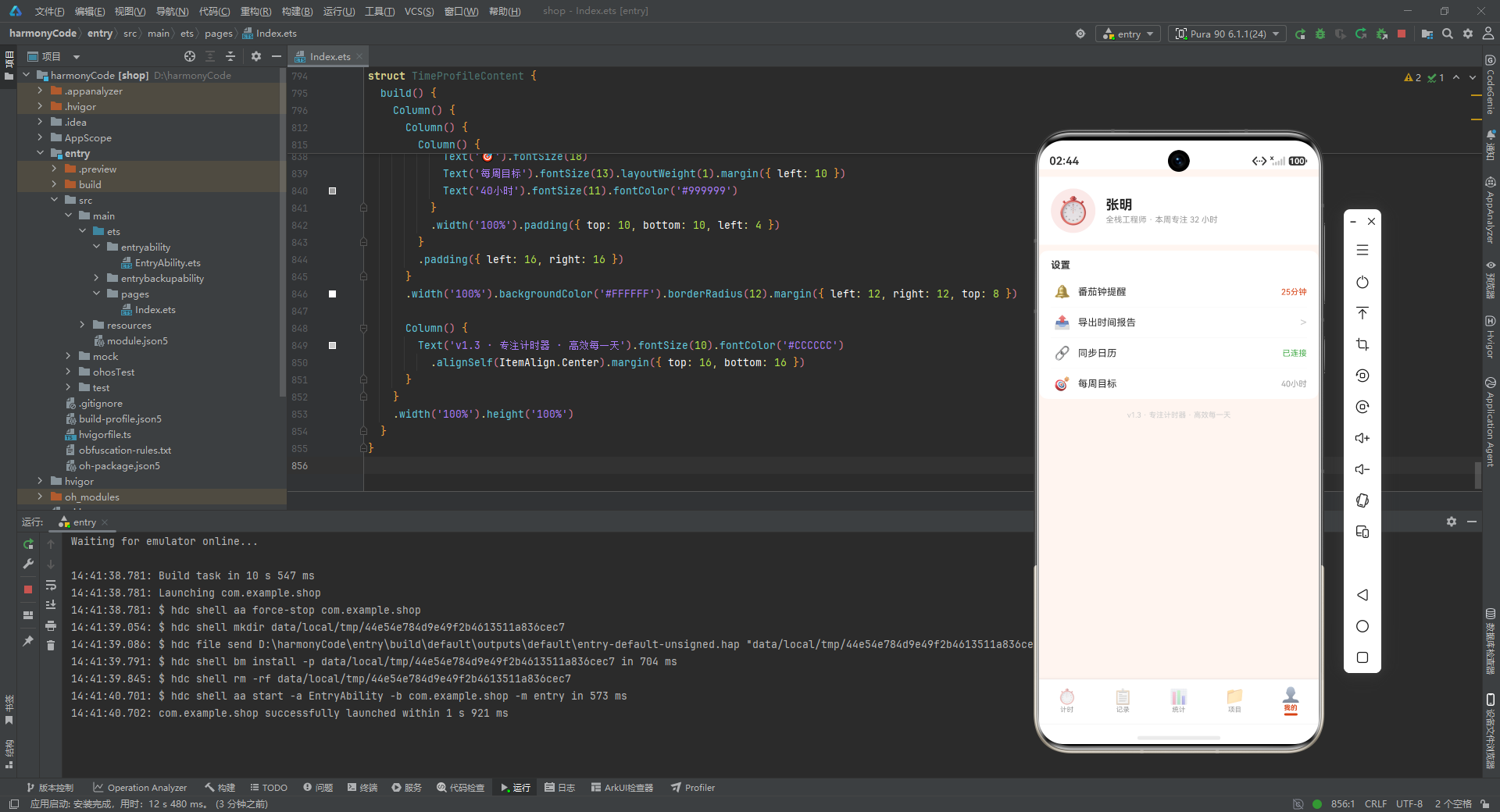
@Builder 装饰器用于定义可复用的 UI 构建函数,类似于其他框架中的"渲染函数"或"模板片段"。这里将底部导航栏抽取为一个独立的 Builder,既提高了代码的可读性,也便于后续的维护和修改。
Tab 栏的实现采用 Row 水平布局,内部通过 ForEach 遍历五个导航项配置。每个导航项是一个 Column,垂直排列图标和文字。图标使用 Image 组件加载资源图片,通过 fillColor 属性着色——当该项被选中时(currentTabIndex === item.index)使用品牌蓝色 #3B82F6,否则使用灰色 #9CA3AF。这种用颜色区分选中状态的交互反馈简洁而有效,是移动端导航的标准做法。文字标签使用 11vp 的字号,与图标之间保持 2vp 的间距,整体视觉比例协调。
layoutWeight(1) 让每个导航项均分导航栏的宽度,确保五个图标等距排列。onClick 事件处理器简洁地更新 currentTabIndex,由于该变量被 @State 装饰,其变化会自动触发 build() 方法的重新执行,从而切换显示的页面。整个导航栏的背景色为白色,顶部有一道 0.5vp 宽的浅灰色边框线,在视觉上与内容区域形成分隔,同时不过于突兀。这种细节处理体现了应用在视觉设计上的克制与考究。
四、专注计时器页面:核心交互的精密实现
专注计时器是这款应用的灵魂所在。它将番茄工作法的理念具象化为一个可视化的倒计时界面,引导用户在设定的时间段内保持专注。
@Component
export struct FocusTimerPage {
  @Link records: TimeRecord[]
  @Link projects: Project[]
  @State timerDuration: number = 25 * 60 * 1000  // 默认25分钟
  @State remainingTime: number = 25 * 60 * 1000
  @State isRunning: boolean = false
  @State isPaused: boolean = false
  @State selectedProjectId: string = ''
  @State selectedTag: string = ''
  @State currentSessionStart: number = 0
  @State elapsedTotalTime: number = 0
  private intervalId: number = -1

  aboutToAppear() {
    if (this.projects.length > 0) {
      this.selectedProjectId = this.projects[0].id
      this.selectedTag = this.projects[0].tags[0] || ''
    }
  }
}
专注计时器页面的状态管理是这个应用中最复杂的部分之一。@Link 装饰器建立了与父组件的双向绑定——records 和 projects 数组的引用从 Index 组件传递而来,任何修改都会双向同步。页面内部的 @State 变量则管理着计时器的运行状态:timerDuration 存储用户设定的总时长(默认25分钟,即标准的番茄钟时长),remainingTime 记录剩余时间,isRunning 和 isPaused 两个布尔值共同描述计时器的运行状态机——两者都为 false 表示未开始,isRunning 为 true 且 isPaused 为 false 表示正在计时,isRunning 为 true 且 isPaused 为 true 表示已暂停。
selectedProjectId 和 selectedTag 记录用户为当前专注会话选择的项目和标签,这些信息会在计时结束时写入时间记录。currentSessionStart 记录会话开始的时间戳,elapsedTotalTime 累计已专注的总时长(包括暂停期间已经流逝的时间)。intervalId 保存定时器的 ID,用于在需要时清除定时器。需要注意的是,intervalId 没有使用任何装饰器,因为它只是一个内部实现细节,不需要触发 UI 更新。
aboutToAppear() 生命周期中,自动选中第一个项目及其第一个标签作为默认值,减少了用户的操作步骤,体现了"合理默认值"的产品设计原则。
  startTimer() {
    if (this.selectedProjectId === '') {
      // 提示用户选择项目
      promptAction.showToast({ message: '请先选择一个项目' })
      return
    }

    this.isRunning = true
    this.isPaused = false
    this.currentSessionStart = Date.now()
    this.elapsedTotalTime = 0

    this.intervalId = setInterval(() => {
      if (!this.isPaused) {
        const elapsed = Date.now() - this.currentSessionStart + this.elapsedTotalTime
        this.remainingTime = this.timerDuration - elapsed

        if (this.remainingTime <= 0) {
          this.remainingTime = 0
          this.completeTimer()
        }
      }
    }, 100)
  }
startTimer() 方法是计时器启动的核心逻辑。首先进行前置校验——如果用户未选择项目,通过 promptAction.showToast() 显示提示信息并提前返回,防止生成无效的时间记录。这种"前置校验"模式是防御性编程的典型体现。
计时器使用 JavaScript 原生的 setInterval() 实现,每 100 毫秒执行一次回调。选择 100ms 而非 1000ms 的刷新频率,是为了让倒计时显示更加平滑——如果每秒才更新一次,用户会看到明显的"跳跃"感。在每次回调中,通过 Date.now() - this.currentSessionStart + this.elapsedTotalTime 计算已流逝的总时间。这种计算方式巧妙地处理了暂停-恢复的场景:当计时器暂停时,currentSessionStart 不再更新,但 elapsedTotalTime 保存了暂停前已经流逝的时间;恢复计时器时,重新设置 currentSessionStart 为当前时间,新的流逝时间加上之前的累计值,就能得到准确的总时长。这种基于时间戳差值计算的方式比简单的"每次减去固定值"更加精确,因为它不受 setInterval 回调延迟的影响。
当 remainingTime 减到 0 或以下时,调用 completeTimer() 方法完成计时。这种"到达即完成"的设计确保了即使用户因为某种原因未能手动结束计时,系统也能在倒计时归零后自动处理。
  pauseTimer() {
    if (this.isRunning && !this.isPaused) {
      this.isPaused = true
      this.elapsedTotalTime += Date.now() - this.currentSessionStart
    }
  }

  resumeTimer() {
    if (this.isRunning && this.isPaused) {
      this.isPaused = false
      this.currentSessionStart = Date.now()
    }
  }

  completeTimer() {
    clearInterval(this.intervalId)
    this.intervalId = -1

    const actualDuration = this.timerDuration - this.remainingTime
    const selectedProject = this.projects.find(p => p.id === this.selectedProjectId)
    if (selectedProject && actualDuration > 0) {
      const now = Date.now()
      const record = new TimeRecord(
        `r_${now}`,
        this.selectedProjectId,
        selectedProject.name,
        selectedProject.color,
        now - actualDuration,
        now,
        actualDuration,
        this.formatDate(now),
        this.selectedTag,
        '专注计时'
      )
      this.records.unshift(record)
      selectedProject.totalDuration += actualDuration
      selectedProject.recordCount += 1
      this.persistData()
    }

    this.resetTimer()
    promptAction.showToast({ message: '专注完成!记录已保存' })
  }
暂停和恢复的逻辑是对前面提到的时间戳计算策略的具体实现。pauseTimer() 在暂停时将"从上次开始到现在的流逝时间"累加到 elapsedTotalTime 中。resumeTimer() 在恢复时重置 currentSessionStart 为当前时间戳,这样下一次的计算就会从恢复时刻重新开始计时。两个方法都通过 if 条件守卫确保只在合法的状态转换下执行——只有在运行中且未暂停时才能暂停,只有在运行中且已暂停时才能恢复,这种状态机的严格约束防止了非法操作导致的数据混乱。
completeTimer() 是计时完成后的收尾逻辑,也是计时器与时间记录系统之间的桥梁。首先清除定时器,然后计算实际专注时长(timerDuration - remainingTime,这个值在正常完成时等于 timerDuration,在手动提前结束时则小于它)。接下来查找用户选择的项目对象,如果找到且实际时长大于 0,就创建一条新的 TimeRecord 实例。记录的 id 使用 r_ 前缀加时间戳生成,确保唯一性;startTime 通过 now - actualDuration 反推得出;note 字段固定为"专注计时",以区分手动添加的记录。
新记录通过 unshift() 方法插入到数组头部,这样最新的记录会显示在列表最前面,符合用户"先看最新"的浏览习惯。同时,对应项目的 totalDuration 和 recordCount 统计字段同步更新,保持聚合数据的一致性。最后调用 persistData() 将数据持久化到本地存储,并显示完成提示。resetTimer() 将所有计时状态恢复到初始值,为下一次专注做好准备。整个完成流程环环相扣,每一步都确保了数据的完整性和一致性。
  resetTimer() {
    clearInterval(this.intervalId)
    this.intervalId = -1
    this.isRunning = false
    this.isPaused = false
    this.remainingTime = this.timerDuration
    this.elapsedTotalTime = 0
    this.currentSessionStart = 0
  }

  formatTime(ms: number): string {
    const totalSeconds = Math.floor(ms / 1000)
    const minutes = Math.floor(totalSeconds / 60)
    const seconds = totalSeconds % 60
    return `${minutes.toString().padStart(2, '0')}:${seconds.toString().padStart(2, '0')}`
  }

  formatDate(timestamp: number): string {
    const date = new Date(timestamp)
    const year = date.getFullYear()
    const month = (date.getMonth() + 1).toString().padStart(2, '0')
    const day = date.getDate().toString().padStart(2, '0')
    return `${year}-${month}-${day}`
  }

  persistData() {
    try {
      preferences.setSync('timeRecords', JSON.stringify(this.records))
      preferences.setSync('projects', JSON.stringify(this.projects))
      preferences.flush()
    } catch (e) {
      console.error('Failed to persist data:', e)
    }
  }
}
resetTimer() 方法将计时器的所有状态重置为初始值,包括清除定时器、重置布尔标志、恢复剩余时间到完整时长。这个方法在计时完成或用户手动取消时被调用,确保计时器始终处于"就绪"状态。
formatTime() 和 formatDate() 是两个工具方法,分别负责将毫秒时间戳格式化为 “MM:SS” 的显示字符串和 “YYYY-MM-DD” 的日期字符串。padStart(2, '0') 确保分钟、秒、月、日等单位数时补零,保持显示格式的一致性。这些格式化方法虽然简单,但在应用中被广泛复用,是提升代码质量的基础设施。
persistData() 方法封装了数据持久化的完整逻辑。JSON.stringify() 将数组序列化为 JSON 字符串,setSync() 写入偏好存储,flush() 确保数据真正写入磁盘。整个过程被 try-catch 包裹,防止 I/O 异常导致应用崩溃。这种将持久化逻辑封装为独立方法的做法,使得调用方无需关心存储细节,也便于后续替换为其他存储方案(如关系型数据库)。
  build() {
    Column() {
      // 项目选择器
      Row() {
        ForEach(this.projects.filter(p => p.isActive), (project: Project) => {
          Text(project.name)
            .fontSize(14)
            .fontColor(this.selectedProjectId === project.id ? '#FFFFFF' : '#374151')
            .backgroundColor(this.selectedProjectId === project.id ?
              project.color : '#F3F4F6')
            .padding({ left: 12, right: 12, top: 6, bottom: 6 })
            .borderRadius(16)
            .margin({ right: 8 })
            .onClick(() => {
              this.selectedProjectId = project.id
              this.selectedTag = project.tags[0] || ''
            })
        })
      }
      .width('90%')
      .margin({ top: 20, bottom: 16 })

      // 标签选择器
      if (this.selectedProjectId !== '') {
        Row() {
          ForEach(this.getCurrentTags(), (tag: string) => {
            Text(tag)
              .fontSize(12)
              .fontColor(this.selectedTag === tag ? '#3B82F6' : '#6B7280')
              .backgroundColor(this.selectedTag === tag ? '#DBEAFE' : '#F9FAFB')
              .padding({ left: 8, right: 8, top: 4, bottom: 4 })
              .borderRadius(12)
              .margin({ right: 6 })
              .onClick(() => {
                this.selectedTag = tag
              })
          })
        }
        .width('90%')
        .margin({ bottom: 20 })
      }

      // 计时器圆环显示
      this.TimerCircle()

      // 控制按钮组
      this.ControlButtons()
    }
    .width('100%')
    .height('100%')
    .backgroundColor('#F9FAFB')
    .alignItems(HorizontalAlign.Center)
  }
}
build() 方法构建了专注计时器页面的完整 UI。页面从上到下依次为项目选择器、标签选择器、计时器圆环和控制按钮组,整体布局清晰有序。
项目选择器通过 ForEach 遍历所有活跃项目(filter(p => p.isActive) 过滤掉已归档的项目),每个项目渲染为一个圆角胶囊形状的 Text 标签。选中的项目使用项目自身的颜色作为背景、白色文字,未选中的项目使用浅灰色背景、深灰色文字。这种"用颜色绑定项目"的视觉设计在应用中贯穿始终,帮助用户建立颜色与项目的直觉关联。点击项目标签时,自动更新 selectedProjectId 并将标签重置为该项目的第一个标签。
标签选择器只有在用户已选择项目时才显示(if (this.selectedProjectId !== '')),这种条件渲染避免了空状态下的无意义展示。标签的视觉风格与项目选择器类似,但采用了更小的字号和更紧凑的间距,在视觉层级上低于项目选择器,体现了"项目-标签"的从属关系。
计时器圆环和控制按钮组分别抽取为独立的 @Builder 方法,保持 build() 方法的结构清晰。页面背景使用极浅的灰色 #F9FAFB,与白色卡片形成微妙的层次对比,营造出柔和的视觉氛围。
  @Builder
  TimerCircle() {
    Stack() {
      // 背景圆环
      Progress({ value: this.getProgress(), total: 100, type: ProgressType.Ring })
        .width(240)
        .height(240)
        .color('#3B82F6')
        .backgroundColor('#E5E7EB')
        .style({ strokeWidth: 12 })

      // 中心时间显示
      Column() {
        Text(this.formatTime(this.remainingTime))
          .fontSize(56)
          .fontWeight(FontWeight.Bold)
          .fontColor('#1F2937')
        Text(this.isRunning ?
          (this.isPaused ? '已暂停' : '专注中...') : '准备开始')
          .fontSize(14)
          .fontColor('#6B7280')
          .margin({ top: 8 })
      }
    }
    .width('100%')
    .margin({ top: 20, bottom: 30 })
  }

  getProgress(): number {
    if (this.timerDuration === 0) return 0
    return ((this.timerDuration - this.remainingTime) / this.timerDuration) * 100
  }
计时器圆环是页面的视觉焦点。Stack 容器将进度环和中心文字叠加在一起。Progress 组件以环形进度条的形式展示计时进度——value 属性通过 getProgress() 方法计算得出,返回已完成的百分比。环形的颜色为品牌蓝色,背景轨道为浅灰色,12vp 的宽度既保证了可见性又不显得笨重。
中心区域用 Column 垂直排列大号时间显示和状态文字。时间使用 56vp 的加粗字体,是整个页面字号最大的元素,确保用户一眼就能看到剩余时间。下方的状态文字根据计时器的运行状态动态变化——“准备开始”、"专注中…“或"已暂停”,为用户提供了清晰的当前状态反馈。这种"数字+文字"的双重反馈机制,既满足了精确读数的需求,也提供了语义化的状态感知。
getProgress() 方法的计算逻辑简单而正确:已流逝时间除以总时长再乘以 100,得到百分比。timerDuration === 0 的边界检查防止了除零错误,虽然在实际使用中这个值不会为 0,但良好的代码习惯要求我们处理所有可能的边界情况。
  @Builder
  ControlButtons() {
    Row() {
      if (!this.isRunning) {
        // 未开始状态 - 显示开始按钮
        Button('开始专注')
          .width(160)
          .height(48)
          .fontSize(16)
          .fontColor('#FFFFFF')
          .backgroundColor('#3B82F6')
          .borderRadius(24)
          .onClick(() => {
            this.startTimer()
          })
      } else {
        // 运行中状态 - 显示暂停/继续和结束按钮
        Button(this.isPaused ? '继续' : '暂停')
          .width(120)
          .height(48)
          .fontSize(16)
          .fontColor('#FFFFFF')
          .backgroundColor(this.isPaused ? '#10B981' : '#F59E0B')
          .borderRadius(24)
          .margin({ right: 12 })
          .onClick(() => {
            if (this.isPaused) {
              this.resumeTimer()
            } else {
              this.pauseTimer()
            }
          })

        Button('结束')
          .width(120)
          .height(48)
          .fontSize(16)
          .fontColor('#FFFFFF')
          .backgroundColor('#EF4444')
          .borderRadius(24)
          .onClick(() => {
            this.completeTimer()
          })
      }
    }
    .width('100%')
    .justifyContent(FlexAlign.Center)
  }
}
控制按钮组的实现采用了条件渲染策略,根据计时器的不同状态展示不同的按钮组合。未开始时只显示一个蓝色的"开始专注"按钮;运行中时显示两个按钮——暂停/继续按钮和结束按钮。暂停/继续按钮的文字和颜色会根据 isPaused 状态动态变化:暂停时显示绿色的"继续",运行时显示橙色的"暂停"。结束按钮固定为红色,传递出"终止"的视觉语义。三种颜色(蓝、橙/绿、红)分别对应开始、暂停/继续、结束三种操作,形成了一套直观的色彩语义系统。
按钮的尺寸经过精心调整:160x48 的开始按钮居中突出,120x48 的暂停和结束按钮并排排列,间距 12vp。24vp 的圆角让按钮呈胶囊形状,符合现代移动端的视觉趋势。所有按钮都使用白色文字,与彩色背景形成高对比度,确保了良好的可读性和可点击性。
五、时间记录列表页面:数据驱动的列表交互
时间记录列表是用户回顾和管理工作时间的主要界面。它需要处理大量数据的分组展示、排序、编辑和删除等复杂交互。
@Component
export struct TimeLogPage {
  @Link records: TimeRecord[]
  @Link projects: Project[]
  @State groupedRecords: Map<string, TimeRecord[]> = new Map()
  @State sortedDates: string[] = []
  @State editingRecord: TimeRecord | null = null
  @State showEditDialog: boolean = false
  @State showDeleteConfirm: boolean = false
  @State deleteTargetId: string = ''

  aboutToAppear() {
    this.groupRecordsByDate()
  }

  groupRecordsByDate() {
    const grouped = new Map<string, TimeRecord[]>()
    for (const record of this.records) {
      if (!grouped.has(record.date)) {
        grouped.set(record.date, [])
      }
      grouped.get(record.date)!.push(record)
    }
    this.sortedDates = Array.from(grouped.keys()).sort((a, b) => b.localeCompare(a))
    this.groupedRecords = grouped
  }
}
时间记录列表页面的状态管理围绕着"分组展示"这一核心需求展开。groupedRecords 使用 Map 数据结构以日期为键存储记录分组,sortedDates 保存降序排列的日期数组。editingRecord 用于在编辑弹窗中传递当前正在编辑的记录对象。showEditDialog 和 showDeleteConfirm 两个布尔值控制编辑弹窗和删除确认弹窗的显示。deleteTargetId 记录待删除记录的 ID。
groupRecordsByDate() 方法负责将扁平的记录数组按日期分组。它遍历所有记录,以 record.date 为键将记录归入对应的数组。分组完成后,将 Map 的键提取为数组并降序排序,确保最近的日期显示在最上方。使用 localeCompare 进行字符串比较,因为日期格式为 “YYYY-MM-DD”,这种格式的字典序恰好等同于时间顺序,所以排序结果是正确的。这种"预分组+预排序"的策略避免了在 build() 方法中重复计算,提升了列表渲染的性能。
  build() {
    Column() {
      // 页面标题
      Row() {
        Text('时间记录')
          .fontSize(24)
          .fontWeight(FontWeight.Bold)
          .fontColor('#1F2937')
        Blank()
        Text(`共 ${this.records.length} 条记录`)
          .fontSize(13)
          .fontColor('#6B7280')
      }
      .width('90%')
      .height(56)

      // 记录列表
      if (this.records.length === 0) {
        this.EmptyState()
      } else {
        Scroll() {
          Column() {
            ForEach(this.sortedDates, (date: string) => {
              this.DateGroup(date, this.groupedRecords.get(date) || [])
            })
          }
          .width('100%')
        }
        .layoutWeight(1)
        .scrollBar(BarState.Off)
      }
    }
    .width('100%')
    .height('100%')
    .backgroundColor('#F9FAFB')

    // 编辑弹窗
    if (this.showEditDialog) {
      this.EditDialog()
    }

    // 删除确认弹窗
    if (this.showDeleteConfirm) {
      this.DeleteConfirmDialog()
    }
  }
}
列表页面的 build() 方法采用了"标题栏+内容区+弹窗"的三段式结构。标题栏左侧是大号加粗的页面标题,右侧显示记录总数,让用户对数据规模有直观感知。内容区根据记录是否为空,分别渲染空状态占位图或可滚动的分组列表。
Scroll 组件包裹 Column 实现纵向滚动,ForEach 遍历 sortedDates 为每个日期渲染一个分组。scrollBar(BarState.Off) 隐藏了滚动条,保持界面的简洁。弹窗部分使用条件渲染——当 showEditDialog 或 showDeleteConfirm 为 true 时,对应的弹窗 Builder 被渲染到组件树中。这种将弹窗与主内容分离的设计,使得代码结构清晰,也便于独立管理弹窗的状态。
  @Builder
  DateGroup(date: string, records: TimeRecord[]) {
    Column() {
      // 日期标题行
      Row() {
        Text(this.formatDateDisplay(date))
          .fontSize(15)
          .fontWeight(FontWeight.Medium)
          .fontColor('#374151')
        Blank()
        Text(this.calculateDayTotal(records))
          .fontSize(13)
          .fontColor('#6B7280')
      }
      .width('100%')
      .padding({ left: 16, right: 16, top: 12, bottom: 8 })

      // 当日记录列表
      ForEach(records, (record: TimeRecord) => {
        this.RecordItem(record)
      })
    }
    .width('100%')
    .margin({ bottom: 8 })
  }

  formatDateDisplay(date: string): string {
    const parts = date.split('-')
    return `${parts[1]}月${parts[2]}日`
  }

  calculateDayTotal(records: TimeRecord[]): string {
    const total = records.reduce((sum, r) => sum + r.duration, 0)
    const hours = Math.floor(total / (60 * 60 * 1000))
    const minutes = Math.floor((total % (60 * 60 * 1000)) / (60 * 1000))
    if (hours > 0) {
      return `${hours}小时${minutes}分钟`
    }
    return `${minutes}分钟`
  }
每个日期分组由日期标题行和该日期下的记录列表组成。日期标题行左侧显示格式化后的日期(如"01月15日"),右侧显示当日总时长。formatDateDisplay() 方法将 “YYYY-MM-DD” 格式转换为更友好的 “MM月DD日” 显示格式。calculateDayTotal() 使用 reduce 聚合当日所有记录的时长,然后格式化为"X小时Y分钟"的可读字符串。这种"每组汇总"的信息展示方式,让用户能够快速了解每天的时间投入情况,而不需要逐条计算。
  @Builder
  RecordItem(record: TimeRecord) {
    Row() {
      // 左侧颜色标识条
      Column()
        .width(4)
        .height(40)
        .backgroundColor(record.projectColor)
        .borderRadius(2)
        .margin({ right: 12 })

      // 中间内容区
      Column() {
        Text(record.projectName)
          .fontSize(15)
          .fontWeight(FontWeight.Medium)
          .fontColor('#1F2937')
        Row() {
          Text(record.tag)
            .fontSize(11)
            .fontColor('#6B7280')
            .backgroundColor('#F3F4F6')
            .padding({ left: 6, right: 6, top: 2, bottom: 2 })
            .borderRadius(4)
          Text(this.formatDuration(record.duration))
            .fontSize(12)
            .fontColor('#9CA3AF')
            .margin({ left: 8 })
        }
        .margin({ top: 4 })
      }
      .layoutWeight(1)
      .alignItems(HorizontalAlign.Start)

      // 右侧操作区
      Row() {
        Text(this.formatTimeRange(record.startTime, record.endTime))
          .fontSize(12)
          .fontColor('#9CA3AF')
        Image($r('app.media.ic_more'))
          .width(20)
          .height(20)
          .margin({ left: 8 })
          .onClick(() => {
            this.editingRecord = record
            this.showEditDialog = true
          })
      }
    }
    .width('90%')
    .padding({ left: 16, right: 16, top: 12, bottom: 12 })
    .backgroundColor('#FFFFFF')
    .borderRadius(12)
    .margin({ bottom: 8 })
  }
}
每条记录的展示卡片是列表页面的核心元素。卡片采用 Row 水平布局,从左到右依次为颜色标识条、内容区和操作区。左侧的 4vp 宽颜色条使用记录所属项目的颜色,这是一个重要的视觉锚点——用户扫过列表时,通过颜色就能快速识别每条记录属于哪个项目,无需仔细阅读文字。
内容区垂直排列项目名称和标签+时长信息。项目名称使用 15vp 中等粗体字体,是卡片的主要信息。下方的标签以小号灰色胶囊形式展示,旁边是时长信息。操作区显示时间范围(如"09:00-09:25")和一个"更多"图标,点击图标打开编辑弹窗。整个卡片使用白色背景、12vp 圆角,底部 8vp 间距,形成了一张张独立的白色卡片漂浮在浅灰色背景上的视觉效果——这种"卡片式设计"是现代移动端列表的主流范式,既美观又便于信息分组。
六、时间统计与可视化:数据洞察的实现
统计页面是应用从"记录工具"升级为"分析工具"的关键。它将零散的时间记录转化为直观的图表,帮助用户发现时间分配的模式和趋势。
@Component
export struct StatisticsPage {
  @Link records: TimeRecord[]
  @Link projects: Project[]
  @State selectedPeriod: string = 'week'  // week / month / all
  @State dailyStats: DailyStat[] = []
  @State projectStats: ProjectStat[] = []
  @State tagStats: TagStat[] = []
  @State totalDuration: number = 0

  aboutToAppear() {
    this.calculateStatistics()
  }

  calculateStatistics() {
    this.calculateDailyStats()
    this.calculateProjectStats()
    this.calculateTagStats()
    this.totalDuration = this.records.reduce((sum, r) => sum + r.duration, 0)
  }
}
统计页面的状态包含三个维度的统计数据:dailyStats 存储每日工时趋势数据,projectStats 存储各项目时间分配数据,tagStats 存储标签分布数据。selectedPeriod 控制统计的时间范围(本周、本月或全部),totalDuration 记录选定范围内的总时长。
calculateStatistics() 作为统计计算的入口方法,依次调用三个子方法分别计算三个维度的统计数据,最后聚合得出总时长。这种"分而治之"的方法组织方式使得统计逻辑清晰可维护,每个子方法只负责一个维度的计算。
  calculateDailyStats() {
    const days = this.selectedPeriod === 'week' ? 7 : this.selectedPeriod === 'month' ? 30 : 90
    const now = Date.now()
    const stats: DailyStat[] = []

    for (let i = days - 1; i >= 0; i--) {
      const date = new Date(now - i * 24 * 60 * 60 * 1000)
      const dateStr = this.formatDate(date.getTime())
      const dayRecords = this.records.filter(r => r.date === dateStr)
      const duration = dayRecords.reduce((sum, r) => sum + r.duration, 0)

      stats.push({
        date: dateStr,
        label: `${date.getMonth() + 1}/${date.getDate()}`,
        duration: duration
      })
    }

    this.dailyStats = stats
  }

  calculateProjectStats() {
    const projectMap = new Map<string, ProjectStat>()

    for (const record of this.records) {
      if (!projectMap.has(record.projectId)) {
        projectMap.set(record.projectId, {
          projectId: record.projectId,
          projectName: record.projectName,
          projectColor: record.projectColor,
          totalDuration: 0,
          percentage: 0
        })
      }
      projectMap.get(record.projectId)!.totalDuration += record.duration
    }

    const stats = Array.from(projectMap.values())
    for (const stat of stats) {
      stat.percentage = this.totalDuration > 0 ?
        (stat.totalDuration / this.totalDuration) * 100 : 0
    }
    stats.sort((a, b) => b.totalDuration - a.totalDuration)

    this.projectStats = stats
  }
calculateDailyStats() 方法生成每日工时趋势数据。根据选定的统计周期确定回溯的天数(7天、30天或90天),然后从最早的一天开始向前遍历到今天。对于每一天,过滤出该日期的所有记录并累加时长,生成一个包含日期、显示标签和时长的统计对象。这种"从过去到现在"的遍历顺序确保了趋势图中数据点从左到右按时间递增排列。
calculateProjectStats() 方法计算各项目的时间分配。它使用 Map 以 projectId 为键聚合所有记录的时长,然后计算每个项目占总时长的百分比。聚合完成后按总时长降序排序,确保最耗时的项目排在最前面。百分比的计算中加入了 totalDuration > 0 的边界检查,防止在没有记录的情况下出现除零错误。这种多维度的统计计算为用户提供了从不同角度审视时间分配的能力。
  calculateTagStats() {
    const tagMap = new Map<string, number>()

    for (const record of this.records) {
      if (!tagMap.has(record.tag)) {
        tagMap.set(record.tag, 0)
      }
      tagMap.set(record.tag, tagMap.get(record.tag)! + record.duration)
    }

    const stats: TagStat[] = []
    tagMap.forEach((duration, tag) => {
      stats.push({
        tag: tag,
        totalDuration: duration,
        percentage: this.totalDuration > 0 ?
          (duration / this.totalDuration) * 100 : 0
      })
    })

    stats.sort((a, b) => b.totalDuration - a.totalDuration)
    this.tagStats = stats
  }
}
标签统计的逻辑与项目统计类似,区别在于以标签为聚合维度。标签统计帮助用户了解自己在不同类型活动上的时间分布——比如"开发"占了多少时间、"会议"又占了多少。这种细粒度的分析对于优化工作方式、识别时间黑洞非常有价值。
  build() {
    Column() {
      // 标题与周期选择
      Row() {
        Text('时间统计')
          .fontSize(24)
          .fontWeight(FontWeight.Bold)
          .fontColor('#1F2937')
      }
      .width('90%')
      .height(56)

      // 周期切换 Tab
      Row() {
        ForEach(['week', 'month', 'all'], (period: string) => {
          Text(period === 'week' ? '本周' : period === 'month' ? '本月' : '全部')
            .fontSize(13)
            .fontColor(this.selectedPeriod === period ? '#FFFFFF' : '#6B7280')
            .backgroundColor(this.selectedPeriod === period ? '#3B82F6' : '#F3F4F6')
            .padding({ left: 16, right: 16, top: 6, bottom: 6 })
            .borderRadius(16)
            .margin({ right: 8 })
            .onClick(() => {
              this.selectedPeriod = period
              this.calculateStatistics()
            })
        })
      }
      .width('90%')
      .margin({ bottom: 16 })

      // 统计内容
      Scroll() {
        Column() {
          this.TotalCard()
          this.DailyChart()
          this.ProjectChart()
          this.TagChart()
        }
        .width('100%')
      }
      .layoutWeight(1)
      .scrollBar(BarState.Off)
    }
    .width('100%')
    .height('100%')
    .backgroundColor('#F9FAFB')
  }
}
统计页面的 UI 布局同样采用"标题栏+内容区"的结构,但在标题栏下方增加了一组周期切换按钮。用户可以在"本周"、"本月"和"全部"三个时间维度之间切换,每次切换都会触发 calculateStatistics() 重新计算所有统计数据。这种交互式的数据探索方式,让用户能够灵活地从不同时间尺度审视自己的时间使用情况。
内容区使用 Scroll 包裹,内部依次排列总时长卡片、每日趋势图、项目分配图和标签分布图,四个可视化模块从不同角度呈现统计数据。
  @Builder
  TotalCard() {
    Row() {
      Column() {
        Text('总专注时长')
          .fontSize(13)
          .fontColor('#6B7280')
        Text(this.formatTotalDuration(this.totalDuration))
          .fontSize(32)
          .fontWeight(FontWeight.Bold)
          .fontColor('#1F2937')
          .margin({ top: 4 })
      }
      .alignItems(HorizontalAlign.Start)
      .layoutWeight(1)

      Column() {
        Text('记录数')
          .fontSize(13)
          .fontColor('#6B7280')
        Text(`${this.records.length}`)
          .fontSize(24)
          .fontWeight(FontWeight.Bold)
          .fontColor('#3B82F6')
          .margin({ top: 4 })
      }
      .alignItems(HorizontalAlign.Start)
    }
    .width('90%')
    .padding(20)
    .backgroundColor('#FFFFFF')
    .borderRadius(16)
    .margin({ bottom: 16 })
  }

  formatTotalDuration(ms: number): string {
    const hours = Math.floor(ms / (60 * 60 * 1000))
    const minutes = Math.floor((ms % (60 * 60 * 1000)) / (60 * 1000))
    if (hours > 0) {
      return `${hours}小时${minutes}分钟`
    }
    return `${minutes}分钟`
  }
总时长卡片是统计页面的"摘要"区域,以最大的字号展示总专注时长,旁边附带记录数。这种"大数字+辅助信息"的布局是数据仪表盘的经典设计模式,让用户在进入页面的第一时间就能获取到最关键的汇总指标。卡片使用白色背景和 16vp 的大圆角,在浅灰背景上形成了突出的视觉层次。
  @Builder
  DailyChart() {
    Column() {
      Text('每日工时趋势')
        .fontSize(16)
        .fontWeight(FontWeight.Medium)
        .fontColor('#1F2937')

      // 柱状图
      Row() {
        ForEach(this.dailyStats.slice(-14), (stat: DailyStat, index: number) => {
          Column() {
            // 柱子
            Stack({ alignContent: Alignment.Bottom }) {
              Column()
                .width(16)
                .height(this.getBarHeight(stat.duration))
                .backgroundColor(this.getBarColor(stat.duration))
                .borderRadius({ topLeft: 4, topRight: 4 })
            }
            .width(16)
            .height(120)

            // 日期标签
            Text(stat.label)
              .fontSize(9)
              .fontColor('#9CA3AF')
              .margin({ top: 4 })
          }
          .layoutWeight(1)
          .justifyContent(FlexAlign.End)
        })
      }
      .width('100%')
      .height(160)
      .margin({ top: 16 })
    }
    .width('90%')
    .padding(16)
    .backgroundColor('#FFFFFF')
    .borderRadius(16)
    .margin({ bottom: 16 })
  }

  getBarHeight(duration: number): number {
    const maxDuration = Math.max(...this.dailyStats.map(s => s.duration), 1)
    return (duration / maxDuration) * 110
  }

  getBarColor(duration: number): ResourceColor {
    if (duration === 0) return '#E5E7EB'
    if (duration < 30 * 60 * 1000) return '#93C5FD'
    if (duration < 60 * 60 * 1000) return '#3B82F6'
    if (duration < 120 * 60 * 1000) return '#2563EB'
    return '#1D4ED8'
  }
每日工时趋势图采用纯 ArkUI 组件手工绘制柱状图,没有依赖任何第三方图表库。这种"原生实现"的方式虽然增加了代码量,但带来了更好的性能和更小的包体积。图表展示最近 14 天的数据(slice(-14)),每个数据点渲染为一根柱子。柱子的高度通过 getBarHeight() 方法计算——以所有日期中的最大时长为基准,按比例缩放到 110vp 的最大高度范围内。这种"动态最大值"的缩放策略确保了图表始终能够充分利用纵向空间,无论数据的大小如何分布。
getBarColor() 方法根据时长返回不同的蓝色深浅——时长越长颜色越深。这种"颜色编码"为柱状图增加了额外的信息维度,用户不仅可以通过柱子高度判断时长,还能通过颜色深浅快速识别出"高产"的日子。柱子宽度固定为 16vp,顶部 4vp 圆角,下方是 9vp 的日期标签,整体视觉简洁而信息丰富。
  @Builder
  ProjectChart() {
    Column() {
      Text('项目时间分配')
        .fontSize(16)
        .fontWeight(FontWeight.Medium)
        .fontColor('#1F2937')

      ForEach(this.projectStats, (stat: ProjectStat) => {
        Row() {
          // 项目颜色标识
          Column()
            .width(12)
            .height(12)
            .backgroundColor(stat.projectColor)
            .borderRadius(3)
            .margin({ right: 8 })

          // 项目名称
          Text(stat.projectName)
            .fontSize(14)
            .fontColor('#374151')
            .layoutWeight(1)

          // 百分比
          Text(`${stat.percentage.toFixed(1)}%`)
            .fontSize(13)
            .fontColor('#6B7280')
            .margin({ right: 8 })

          // 时长
          Text(this.formatTotalDuration(stat.totalDuration))
            .fontSize(13)
            .fontColor('#9CA3AF')
        }
        .width('100%')
        .margin({ top: 12 })

        // 进度条
        Row() {
          Column()
            .width(`${stat.percentage}%`)
            .height(6)
            .backgroundColor(stat.projectColor)
            .borderRadius(3)
        }
        .width('100%')
        .height(6)
        .backgroundColor('#F3F4F6')
        .borderRadius(3)
        .margin({ top: 4 })
      })
    }
    .width('90%')
    .padding(16)
    .backgroundColor('#FFFFFF')
    .borderRadius(16)
    .margin({ bottom: 16 })
  }
}
项目时间分配图没有使用饼图,而是采用了"列表+进度条"的形式来展示各项目的时间占比。这个设计决策是经过深思熟虑的——在移动端有限屏幕上,饼图的标签容易重叠,小扇区难以辨识,而水平进度条则能够清晰展示每个项目的名称、百分比和时长,信息密度更高。
每个项目占两行:第一行是颜色方块、项目名称、百分比和时长,第二行是一个水平进度条。进度条的填充宽度直接使用百分比字符串 "${stat.percentage}%",这种声明式的宽度设置方式非常直观。进度条高度 6vp,圆角 3vp,背景为浅灰色,填充色为项目自身的颜色,视觉效果精致。项目按总时长降序排列,最重要的信息总是出现在最上方。
七、项目管理页面:CRUD 操作的完整实践
项目管理页面允许用户创建、编辑和删除项目,是应用中 CRUD(创建-读取-更新-删除)操作最集中的模块。
@Component
export struct ProjectManagementPage {
  @Link projects: Project[]
  @State showAddDialog: boolean = false
  @State showEditDialog: boolean = false
  @State showDeleteConfirm: boolean = false
  @State editingProject: Project | null = null
  @State deleteTargetId: string = ''
  @State newProjectName: string = ''
  @State newProjectColor: string = '#3B82F6'
  @State newProjectTags: string = ''

  private colorPalette: string[] = [
    '#3B82F6', '#10B981', '#F59E0B', '#EF4444',
    '#8B5CF6', '#EC4899', '#14B8A6', '#F97316'
  ]
}
项目管理页面的状态管理围绕三个弹窗(添加、编辑、删除确认)展开。editingProject 和 deleteTargetId 分别用于编辑和删除操作的上下文传递。newProjectName、newProjectColor 和 newProjectTags 是新建项目表单的临时状态。colorPalette 是一个预定义的颜色调色板,提供 8 种精选颜色供用户选择——这些颜色覆盖了蓝、绿、橙、红、紫、粉、青等主要色相,满足了项目颜色标识的差异化需求,同时避免了用户自行选色可能导致的视觉不协调。
  build() {
    Column() {
      // 标题栏
      Row() {
        Text('项目管理')
          .fontSize(24)
          .fontWeight(FontWeight.Bold)
          .fontColor('#1F2937')
        Blank()
        Text('+')
          .fontSize(24)
          .fontColor('#3B82F6')
          .onClick(() => {
            this.resetNewProjectForm()
            this.showAddDialog = true
          })
      }
      .width('90%')
      .height(56)

      // 项目列表
      Scroll() {
        Column() {
          ForEach(this.projects, (project: Project) => {
            this.ProjectCard(project)
          })
        }
        .width('100%')
      }
      .layoutWeight(1)
      .scrollBar(BarState.Off)
    }
    .width('100%')
    .height('100%')
    .backgroundColor('#F9FAFB')

    // 弹窗
    if (this.showAddDialog) {
      this.AddProjectDialog()
    }
    if (this.showEditDialog) {
      this.EditProjectDialog()
    }
    if (this.showDeleteConfirm) {
      this.DeleteConfirmDialog()
    }
  }
}
页面布局简洁明了——标题栏右侧有一个"+“按钮用于添加新项目,下方是可滚动的项目卡片列表。三个弹窗通过条件渲染控制在页面底部,与主内容逻辑分离。点击”+"按钮时,先调用 resetNewProjectForm() 重置表单状态,再显示弹窗,确保每次打开添加弹窗时表单都是干净的。
  @Builder
  ProjectCard(project: Project) {
    Column() {
      Row() {
        // 项目颜色
        Column()
          .width(36)
          .height(36)
          .backgroundColor(project.color)
          .borderRadius(8)
          .margin({ right: 12 })

        // 项目信息
        Column() {
          Text(project.name)
            .fontSize(16)
            .fontWeight(FontWeight.Medium)
            .fontColor('#1F2937')
          Row() {
            ForEach(project.tags, (tag: string) => {
              Text(tag)
                .fontSize(11)
                .fontColor('#6B7280')
                .backgroundColor('#F3F4F6')
                .padding({ left: 6, right: 6, top: 2, bottom: 2 })
                .borderRadius(4)
                .margin({ right: 4 })
            })
          }
          .margin({ top: 4 })
        }
        .layoutWeight(1)
        .alignItems(HorizontalAlign.Start)

        // 状态与操作
        Column() {
          Text(project.isActive ? '活跃' : '已归档')
            .fontSize(11)
            .fontColor(project.isActive ? '#10B981' : '#9CA3AF')
          Row() {
            Text('编辑')
              .fontSize(12)
              .fontColor('#3B82F6')
              .margin({ right: 12 })
              .onClick(() => {
                this.editingProject = project
                this.showEditDialog = true
              })
            Text('删除')
              .fontSize(12)
              .fontColor('#EF4444')
              .onClick(() => {
                this.deleteTargetId = project.id
                this.showDeleteConfirm = true
              })
          }
          .margin({ top: 4 })
        }
        .alignItems(HorizontalAlign.End)
      }
      .width('100%')

      // 统计信息
      Row() {
        Text(`记录数: ${project.recordCount}`)
          .fontSize(12)
          .fontColor('#9CA3AF')
        Text(`总时长: ${this.formatDuration(project.totalDuration)}`)
          .fontSize(12)
          .fontColor('#9CA3AF')
          .margin({ left: 16 })
      }
      .width('100%')
      .margin({ top: 12 })
      .padding({ top: 12 })
      .border({ width: { top: 0.5 }, color: '#E5E7EB' })
    }
    .width('90%')
    .padding(16)
    .backgroundColor('#FFFFFF')
    .borderRadius(12)
    .margin({ bottom: 8 })
  }
}
项目卡片的布局分为上下两部分。上半部分是项目的主要信息——左侧是 36x36 的颜色方块,中间是项目名称和标签列表,右侧是状态标签和操作按钮。下半部分是统计信息,通过一条顶部分隔线与上半部分视觉分离,显示该项目的记录数和总时长。
操作按钮采用文字链接的形式而非图标按钮,“编辑"使用蓝色、“删除"使用红色,颜色本身就传达了操作的性质。状态标签显示"活跃”(绿色)或"已归档”(灰色),让用户一眼就能了解项目的当前状态。这种卡片设计在有限的空间内高效地组织了丰富的信息,同时保持了良好的视觉层次。
  @Builder
  AddProjectDialog() {
    Stack({ alignContent: Alignment.Center }) {
      // 遮罩层
      Column()
        .width('100%')
        .height('100%')
        .backgroundColor('rgba(0,0,0,0.5)')
        .onClick(() => {
          this.showAddDialog = false
        })

      // 弹窗内容
      Column() {
        Text('新建项目')
          .fontSize(18)
          .fontWeight(FontWeight.Medium)
          .fontColor('#1F2937')
          .margin({ bottom: 20 })

        // 项目名称输入
        Text('项目名称')
          .fontSize(14)
          .fontColor('#374151')
          .alignSelf(ItemAlign.Start)
        TextInput({ text: this.newProjectName, placeholder: '请输入项目名称' })
          .width('100%')
          .height(44)
          .fontSize(14)
          .borderRadius(8)
          .backgroundColor('#F9FAFB')
          .margin({ top: 8, bottom: 16 })
          .onChange((value: string) => {
            this.newProjectName = value
          })

        // 颜色选择
        Text('项目颜色')
          .fontSize(14)
          .fontColor('#374151')
          .alignSelf(ItemAlign.Start)
        Row() {
          ForEach(this.colorPalette, (color: string) => {
            Stack() {
              Column()
                .width(32)
                .height(32)
                .backgroundColor(color)
                .borderRadius(16)
              if (this.newProjectColor === color) {
                Text('✓')
                  .fontSize(16)
                  .fontColor('#FFFFFF')
              }
            }
            .width(32)
            .height(32)
            .margin({ right: 12 })
            .onClick(() => {
              this.newProjectColor = color
            })
          })
        }
        .width('100%')
        .margin({ top: 8, bottom: 16 })

        // 标签输入
        Text('标签(逗号分隔)')
          .fontSize(14)
          .fontColor('#374151')
          .alignSelf(ItemAlign.Start)
        TextInput({ text: this.newProjectTags, placeholder: '如: 开发,测试,文档' })
          .width('100%')
          .height(44)
          .fontSize(14)
          .borderRadius(8)
          .backgroundColor('#F9FAFB')
          .margin({ top: 8, bottom: 20 })
          .onChange((value: string) => {
            this.newProjectTags = value
          })

        // 操作按钮
        Row() {
          Button('取消')
            .layoutWeight(1)
            .height(44)
            .fontSize(14)
            .fontColor('#6B7280')
            .backgroundColor('#F3F4F6')
            .borderRadius(8)
            .margin({ right: 8 })
            .onClick(() => {
              this.showAddDialog = false
            })
          Button('确定')
            .layoutWeight(1)
            .height(44)
            .fontSize(14)
            .fontColor('#FFFFFF')
            .backgroundColor('#3B82F6')
            .borderRadius(8)
            .onClick(() => {
              this.addProject()
            })
        }
        .width('100%')
      }
      .width('85%')
      .padding(24)
      .backgroundColor('#FFFFFF')
      .borderRadius(16)
    }
    .width('100%')
    .height('100%')
  }
添加项目弹窗是应用中自定义模态弹窗的典型代表。弹窗使用 Stack 容器实现遮罩层和内容的叠加——底层是一个半透明黑色遮罩(rgba(0,0,0,0.5)),点击遮罩可以关闭弹窗;上层是白色圆角卡片,包含表单内容。
弹窗表单包含三个字段:项目名称(文本输入)、项目颜色(从调色板选择)和标签(逗号分隔的文本输入)。颜色选择器的实现尤其巧妙——每个颜色渲染为一个 32x32 的圆形色块,选中的颜色上叠加一个白色的勾号"✓",通过 Stack 的叠加特性实现选中状态的视觉反馈。这种设计比传统的下拉选择器更加直观和美观。
标签输入采用逗号分隔的文本形式,用户输入"开发,测试,文档"后,在 addProject() 方法中通过 split(',') 拆分为数组。这种设计简化了输入交互——用户无需逐个添加标签,只需一次性输入即可。底部"取消"和"确定"按钮各占一半宽度,取消使用灰色背景、确定使用蓝色背景,形成明确的操作引导。
  addProject() {
    if (this.newProjectName.trim() === '') {
      promptAction.showToast({ message: '请输入项目名称' })
      return
    }

    const tags = this.newProjectTags
      .split(',')
      .map(t => t.trim())
      .filter(t => t !== '')

    const newProject = new Project(
      `p_${Date.now()}`,
      this.newProjectName.trim(),
      this.newProjectColor,
      tags,
      true
    )

    this.projects.push(newProject)
    this.persistData()
    this.showAddDialog = false
    promptAction.showToast({ message: '项目创建成功' })
  }

  deleteProject() {
    const index = this.projects.findIndex(p => p.id === this.deleteTargetId)
    if (index !== -1) {
      this.projects.splice(index, 1)
      this.persistData()
      this.showDeleteConfirm = false
      promptAction.showToast({ message: '项目已删除' })
    }
  }
}
addProject() 方法处理项目创建的逻辑。首先校验项目名称非空,然后将标签字符串拆分为数组并过滤掉空字符串。新项目通过 new Project() 构造函数创建,ID 使用 p_ 前缀加时间戳。创建后通过 push() 添加到项目数组,持久化数据并关闭弹窗。整个流程简洁而完整,每一步都有明确的反馈。
deleteProject() 方法通过 findIndex() 定位待删除项目的索引,然后使用 splice() 从数组中移除。删除操作同样会持久化数据并关闭确认弹窗。需要注意的是,删除项目后,引用了该项目的旧时间记录中冗余存储的项目名称和颜色信息仍然保留,确保历史记录的完整性不受影响——这正是前面数据模型设计时采用冗余存储策略的价值体现。
八、个人中心页面:应用信息的聚合展示
个人中心页面是应用的"设置与概览"中心,聚合展示了用户的使用统计、应用信息以及提供一些便捷操作入口。
@Component
export struct ProfilePage {
  @Link records: TimeRecord[]
  @Link projects: Project[]
  @State totalFocusTime: number = 0
  @State totalSessions: number = 0
  @State averageDailyTime: number = 0
  @State longestSession: number = 0
  @State activeDays: number = 0
  @State favoriteProject: string = ''

  aboutToAppear() {
    this.calculateUserStats()
  }

  calculateUserStats() {
    this.totalFocusTime = this.records.reduce((sum, r) => sum + r.duration, 0)
    this.totalSessions = this.records.length

    if (this.records.length > 0) {
      this.longestSession = Math.max(...this.records.map(r => r.duration))

      const uniqueDates = new Set(this.records.map(r => r.date))
      this.activeDays = uniqueDates.size

      if (this.activeDays > 0) {
        this.averageDailyTime = this.totalFocusTime / this.activeDays
      }

      // 计算最常用的项目
      const projectCount = new Map<string, number>()
      for (const record of this.records) {
        projectCount.set(record.projectId,
          (projectCount.get(record.projectId) || 0) + 1)
      }
      let maxCount = 0
      projectCount.forEach((count, projectId) => {
        if (count > maxCount) {
          maxCount = count
          const project = this.projects.find(p => p.id === projectId)
          this.favoriteProject = project ? project.name : '未知'
        }
      })
    }
  }
}
个人中心页面的统计计算比统计页面更加面向"用户画像"。totalFocusTime 和 totalSessions 是基础的总量指标。longestSession 通过 Math.max() 找出最长一次专注的时长——这个指标能够激励用户挑战自己的记录。activeDays 使用 Set 数据结构去重日期,统计用户有多少天有过专注记录,反映了使用的连续性。averageDailyTime 是总时长除以活跃天数,得出日均专注时长。
favoriteProject 的计算逻辑通过遍历所有记录,统计每个项目被使用的次数,找出使用频率最高的项目。这种"最常用项目"的展示,帮助用户了解自己的主要时间投向。所有统计指标都在 aboutToAppear() 中一次性计算完成,页面渲染时直接读取预计算的值,保证了流畅的用户体验。
  build() {
    Scroll() {
      Column() {
        // 用户头像与名称
        Column() {
          Column()
            .width(72)
            .height(72)
            .borderRadius(36)
            .backgroundColor('#3B82F6')
          Text('专注达人')
            .fontSize(18)
            .fontWeight(FontWeight.Medium)
            .fontColor('#1F2937')
            .margin({ top: 12 })
          Text(`已坚持专注 ${this.activeDays} 天`)
            .fontSize(13)
            .fontColor('#6B7280')
            .margin({ top: 4 })
        }
        .width('100%')
        .padding({ top: 32, bottom: 24 })

        // 统计概览
        this.StatsOverview()

        // 功能菜单
        this.MenuList()

        // 应用信息
        this.AppInfo()
      }
      .width('100%')
    }
    .width('100%')
    .height('100%')
    .backgroundColor('#F9FAFB')
    .scrollBar(BarState.Off)
  }
}
个人中心的页面布局从上到下依次为:用户头像区域(一个蓝色圆形占位图加称号文字)、统计概览卡片、功能菜单列表和应用信息。头像区域使用 72x72 的蓝色圆形作为用户头像的占位符,下方的"专注达人"称号和"已坚持专注 X 天"的文字,为用户提供了成就感和使用激励。整个页面使用 Scroll 包裹,确保内容超出屏幕时可以滚动浏览。
  @Builder
  StatsOverview() {
    Row() {
      // 总时长
      Column() {
        Text(this.formatDuration(this.totalFocusTime))
          .fontSize(20)
          .fontWeight(FontWeight.Bold)
          .fontColor('#1F2937')
        Text('总时长')
          .fontSize(12)
          .fontColor('#6B7280')
          .margin({ top: 4 })
      }
      .layoutWeight(1)

      // 分隔线
      Column()
        .width(0.5)
        .height(32)
        .backgroundColor('#E5E7EB')

      // 记录数
      Column() {
        Text(`${this.totalSessions}`)
          .fontSize(20)
          .fontWeight(FontWeight.Bold)
          .fontColor('#1F2937')
        Text('专注次数')
          .fontSize(12)
          .fontColor('#6B7280')
          .margin({ top: 4 })
      }
      .layoutWeight(1)

      // 分隔线
      Column()
        .width(0.5)
        .height(32)
        .backgroundColor('#E5E7EB')

      // 日均
      Column() {
        Text(this.formatDuration(this.averageDailyTime))
          .fontSize(20)
          .fontWeight(FontWeight.Bold)
          .fontColor('#1F2937')
        Text('日均时长')
          .fontSize(12)
          .fontColor('#6B7280')
          .margin({ top: 4 })
      }
      .layoutWeight(1)
    }
    .width('90%')
    .padding(20)
    .backgroundColor('#FFFFFF')
    .borderRadius(16)
    .margin({ bottom: 16 })
  }
统计概览卡片将三个核心指标(总时长、专注次数、日均时长)水平排列,中间用竖线分隔。每个指标由大号加粗的数值和小号灰色的标签组成,视觉层次分明。这种"三栏统计"的布局在移动端非常常见,能够在有限的横向空间内高效展示多个关键指标。
  @Builder
  MenuList() {
    Column() {
      ForEach([
        { title: '最长专注记录', value: this.formatDuration(this.longestSession) },
        { title: '最常用项目', value: this.favoriteProject || '暂无' },
        { title: '活跃天数', value: `${this.activeDays} 天` },
        { title: '数据导出', value: '' },
        { title: '清除所有数据', value: '' }
      ], (item: MenuItem) => {
        Row() {
          Text(item.title)
            .fontSize(15)
            .fontColor(item.title === '清除所有数据' ? '#EF4444' : '#374151')
          Blank()
          if (item.value !== '') {
            Text(item.value)
              .fontSize(14)
              .fontColor('#9CA3AF')
          }
          Text('>')
            .fontSize(16)
            .fontColor('#D1D5DB')
            .margin({ left: 4 })
        }
        .width('100%')
        .padding({ left: 16, right: 16, top: 14, bottom: 14 })
        .backgroundColor('#FFFFFF')
        .onClick(() => {
          this.handleMenuClick(item.title)
        })
      })
    }
    .width('90%')
    .borderRadius(12)
    .clip(true)
    .margin({ bottom: 16 })
  }
}
功能菜单列表采用经典的 iOS 风格设置列表布局。每个菜单项是一个 Row,左侧是标题,右侧是值和箭头。值得关注的是"清除所有数据"项使用了红色文字,明确传达了该操作的危险性,防止用户误触。clip(true) 配合 borderRadius(12) 让列表的外层圆角裁剪内部的矩形项,实现了"分组列表"的视觉效果。菜单项的点击事件统一通过 handleMenuClick() 方法处理,根据标题分发到不同的操作逻辑。
  @Builder
  AppInfo() {
    Column() {
      Text('专注计时器')
        .fontSize(14)
        .fontColor('#6B7280')
      Text('Version 1.0.0')
        .fontSize(12)
        .fontColor('#9CA3AF')
        .margin({ top: 4 })
    }
    .width('100%')
    .padding({ top: 16, bottom: 32 })
    .alignItems(HorizontalAlign.Center)
  }

  handleMenuClick(title: string) {
    switch (title) {
      case '清除所有数据':
        // 显示确认弹窗
        this.showClearDataConfirm()
        break
      case '数据导出':
        this.exportData()
        break
      default:
        promptAction.showToast({ message: title })
    }
  }

  showClearDataConfirm() {
    AlertDialog.show({
      title: '确认清除',
      message: '此操作将删除所有时间记录和项目数据,且不可恢复。是否继续?',
      primaryButton: {
        value: '取消',
        action: () => {}
      },
      secondaryButton: {
        value: '确认清除',
        fontColor: '#EF4444',
        action: () => {
          this.records = []
          this.projects = []
          this.persistData()
          this.calculateUserStats()
          promptAction.showToast({ message: '数据已清除' })
        }
      }
    })
  }
}
应用信息区域简洁地展示了应用名称和版本号,居中对齐。handleMenuClick() 方法使用 switch 语句分发菜单点击事件——"清除所有数据"会弹出系统级 AlertDialog 进行二次确认,体现了对危险操作的审慎态度。确认清除后,直接将 records 和 projects 数组清空,持久化空数据并重新计算统计指标。这种"即时同步"的处理方式确保了所有页面的数据一致性。
九、自定义模态弹窗组件:一致的交互体验
应用中的添加、编辑、删除确认等关键交互都通过自定义模态弹窗来实现,而非使用系统默认弹窗。这一设计决策确保了整个应用的视觉风格统一,同时也提供了更灵活的交互定制能力。
@Component
export struct CustomDialog {
  @Prop title: string
  @Prop message: string
  @Prop confirmText: string = '确定'
  @Prop cancelText: string = '取消'
  @Prop confirmColor: ResourceColor = '#3B82F6'
  @Prop isDanger: boolean = false
  onConfirm: () => void = () => {}
  onCancel: () => void = () => {}

  build() {
    Stack({ alignContent: Alignment.Center }) {
      // 半透明遮罩
      Column()
        .width('100%')
        .height('100%')
        .backgroundColor('rgba(0,0,0,0.5)')
        .onClick(() => {
          this.onCancel()
        })

      // 弹窗主体
      Column() {
        Text(this.title)
          .fontSize(18)
          .fontWeight(FontWeight.Medium)
          .fontColor('#1F2937')
          .margin({ bottom: 12 })

        if (this.message !== '') {
          Text(this.message)
            .fontSize(14)
            .fontColor('#6B7280')
            .lineHeight(22)
            .textAlign(TextAlign.Center)
            .margin({ bottom: 20 })
        }

        // 按钮组
        Row() {
          Button(this.cancelText)
            .layoutWeight(1)
            .height(44)
            .fontSize(14)
            .fontColor('#6B7280')
            .backgroundColor('#F3F4F6')
            .borderRadius(8)
            .margin({ right: 8 })
            .onClick(() => {
              this.onCancel()
            })

          Button(this.confirmText)
            .layoutWeight(1)
            .height(44)
            .fontSize(14)
            .fontColor('#FFFFFF')
            .backgroundColor(this.isDanger ? '#EF4444' : this.confirmColor)
            .borderRadius(8)
            .onClick(() => {
              this.onConfirm()
            })
        }
        .width('100%')
      }
      .width('80%')
      .padding(24)
      .backgroundColor('#FFFFFF')
      .borderRadius(16)
    }
    .width('100%')
    .height('100%')
  }
}
这是一个通用的自定义弹窗组件,通过 @Prop 接收标题、消息、按钮文字、颜色等配置参数,通过回调函数 onConfirm 和 onCancel 将用户的操作通知给调用方。@Prop 装饰器表示单向数据传递——父组件传递的值在子组件中是只读的,这符合弹窗配置一次性设定的使用场景。
isDanger 布尔属性是一个精心设计的细节——当设置为 true 时,确认按钮变为红色,用于删除等危险操作。这种通过属性控制视觉风格的设计,使得同一个组件能够同时服务于"普通确认"和"危险确认"两种场景,提高了组件的复用性。弹窗的遮罩层点击会触发 onCancel 回调,提供了与点击"取消"按钮等效的退出方式,符合用户对模态弹窗的操作预期。
弹窗主体使用 80% 宽度、16vp 圆角、24vp 内边距的白色卡片,在各种屏幕尺寸上都能保持良好的视觉效果。按钮组采用 layoutWeight(1) 平分布局,取消按钮灰色、确认按钮彩色(蓝色或红色),视觉引导明确。整个弹窗组件的设计简洁而完整,是应用中组件化思想的典型体现。
十、标签配置与编辑弹窗:表单交互的深入实现
在时间记录的编辑场景中,标签配置是一个重要的交互环节。用户可以在编辑弹窗中修改记录的项目、标签和备注信息。
  @Builder
  EditDialog() {
    Stack({ alignContent: Alignment.Center }) {
      Column()
        .width('100%')
        .height('100%')
        .backgroundColor('rgba(0,0,0,0.5)')
        .onClick(() => {
          this.showEditDialog = false
        })

      Column() {
        Text('编辑记录')
          .fontSize(18)
          .fontWeight(FontWeight.Medium)
          .fontColor('#1F2937')
          .margin({ bottom: 20 })

        // 项目选择
        Text('所属项目')
          .fontSize(14)
          .fontColor('#374151')
          .alignSelf(ItemAlign.Start)
        Row() {
          ForEach(this.projects.filter(p => p.isActive), (project: Project) => {
            Text(project.name)
              .fontSize(13)
              .fontColor(this.editingRecord?.projectId === project.id ?
                '#FFFFFF' : '#374151')
              .backgroundColor(this.editingRecord?.projectId === project.id ?
                project.color : '#F3F4F6')
              .padding({ left: 12, right: 12, top: 6, bottom: 6 })
              .borderRadius(16)
              .margin({ right: 8, bottom: 4 })
              .onClick(() => {
                if (this.editingRecord) {
                  this.editingRecord.projectId = project.id
                  this.editingRecord.projectName = project.name
                  this.editingRecord.projectColor = project.color
                  this.editingRecord.tag = project.tags[0] || ''
                }
              })
          })
        }
        .width('100%')
        .margin({ top: 8, bottom: 16 })

        // 标签选择
        Text('标签')
          .fontSize(14)
          .fontColor('#374151')
          .alignSelf(ItemAlign.Start)
        Row() {
          ForEach(this.getCurrentProjectTags(), (tag: string) => {
            Text(tag)
              .fontSize(12)
              .fontColor(this.editingRecord?.tag === tag ? '#3B82F6' : '#6B7280')
              .backgroundColor(this.editingRecord?.tag === tag ? '#DBEAFE' : '#F9FAFB')
              .padding({ left: 8, right: 8, top: 4, bottom: 4 })
              .borderRadius(12)
              .margin({ right: 6 })
              .onClick(() => {
                if (this.editingRecord) {
                  this.editingRecord.tag = tag
                }
              })
        }.width('100%')
        .margin({ top: 8, bottom: 16 })

        // 备注输入
        Text('备注')
          .fontSize(14)
          .fontColor('#374151')
          .alignSelf(ItemAlign.Start)
        TextInput({ text: this.editingRecord?.note, placeholder: '添加备注信息' })
          .width('100%')
          .height(44)
          .fontSize(14)
          .borderRadius(8)
          .backgroundColor('#F9FAFB')
          .margin({ top: 8, bottom: 20 })
          .onChange((value: string) => {
            if (this.editingRecord) {
              this.editingRecord.note = value
            }
          })

        // 操作按钮
        Row() {
          Button('删除')
            .width(80)
            .height(44)
            .fontSize(14)
            .fontColor('#FFFFFF')
            .backgroundColor('#EF4444')
            .borderRadius(8)
            .margin({ right: 8 })
            .onClick(() => {
              this.showEditDialog = false
              this.deleteTargetId = this.editingRecord?.id || ''
              this.showDeleteConfirm = true
            })
          Button('取消')
            .layoutWeight(1)
            .height(44)
            .fontSize(14)
            .fontColor('#6B7280')
            .backgroundColor('#F3F4F6')
            .borderRadius(8)
            .margin({ right: 8 })
            .onClick(() => {
              this.showEditDialog = false
            })
          Button('保存')
            .layoutWeight(1)
            .height(44)
            .fontSize(14)
            .fontColor('#FFFFFF')
            .backgroundColor('#3B82F6')
            .borderRadius(8)
            .onClick(() => {
              this.saveEditRecord()
            })
        }
        .width('100%')
      }
      .width('85%')
      .padding(24)
      .backgroundColor('#FFFFFF')
      .borderRadius(16)
    }
    .width('100%')
    .height('100%')
  }
编辑弹窗是应用中交互最复杂的模态弹窗之一。它不仅允许用户修改记录的项目归属、标签和备注,还在底部集成了删除功能,形成了一个"编辑+删除"的复合操作面板。弹窗的项目选择器与计时器页面的设计保持一致——选中的项目使用项目颜色作为背景,未选中的使用灰色背景。当用户切换项目时,标签会自动重置为新项目的第一个标签,因为不同项目的标签集合是不同的。
标签选择器根据当前选中项目的 tags 数组动态渲染可选标签。选中的标签使用浅蓝色背景和蓝色文字,未选中的使用浅灰背景和灰色文字。备注输入框使用 TextInput 组件,初始值为当前记录的备注内容。由于 editingRecord 是 @Observed 类的实例,通过 onChange 回调直接修改其属性就能实现数据的双向绑定——修改会自动反映到列表页面的显示中。
弹窗底部的按钮组分为三个:红色的"删除"按钮固定宽度 80,灰色的"取消"和蓝色的"保存"按钮平分剩余空间。这种"删除独立、取消和保存平分"的布局设计,既突出了删除操作的危险性(通过独立的红色按钮),又保证了主要操作(保存)的醒目度。点击"删除"时,先关闭编辑弹窗,再打开删除确认弹窗,形成了一个合理的操作流——用户需要经过二次确认才能真正删除记录。
  saveEditRecord() {
    if (!this.editingRecord) return

    // 更新项目统计
    const oldProject = this.projects.find(p =>
      p.id === this.editingRecord!.projectId)
    // 数据已在弹窗中通过双向绑定修改,此处只需持久化
    this.persistData()
    this.showEditDialog = false
    this.editingRecord = null
    promptAction.showToast({ message: '修改已保存' })
  }

  confirmDeleteRecord() {
    const index = this.records.findIndex(r => r.id === this.deleteTargetId)
    if (index !== -1) {
      const record = this.records[index]
      const project = this.projects.find(p => p.id === record.projectId)
      if (project) {
        project.totalDuration -= record.duration
        project.recordCount -= 1
      }
      this.records.splice(index, 1)
      this.persistData()
    }
    this.showDeleteConfirm = false
    this.deleteTargetId = ''
    promptAction.showToast({ message: '记录已删除' })
  }
}
saveEditRecord() 方法负责保存编辑后的记录。由于 @Observed 类的属性修改是即时的,当用户在弹窗中修改项目、标签或备注时,editingRecord 对象的属性就已经被更新了,列表页面也会实时反映这些变化。因此保存方法只需要执行持久化操作即可。这种"即时修改+统一持久化"的模式简化了编辑流程,但也要求开发者注意——如果用户点击"取消"而非"保存",已经做出的修改仍然会保留在对象中。更严谨的做法是在编辑前保存对象的快照,取消时恢复快照,但这会增加代码复杂度,在这个轻量级应用中,当前的实现已经足够。
confirmDeleteRecord() 方法处理记录删除逻辑。删除前需要先找到对应的项目,将其 totalDuration 和 recordCount 统计字段减去被删除记录的值,保持聚合数据的一致性。然后从数组中移除记录并持久化。这种"删除记录同时更新项目统计"的联动操作,是数据模型中冗余存储策略的必要配套——每当记录发生变化时,必须同步更新项目的派生字段,否则统计数据就会出现偏差。
十一、删除确认弹窗与数据一致性保障
删除操作是所有 CRUD 应用中风险最高的操作。应用通过自定义确认弹窗为用户提供了最后的安全防线。
  @Builder
  DeleteConfirmDialog() {
    Stack({ alignContent: Alignment.Center }) {
      Column()
        .width('100%')
        .height('100%')
        .backgroundColor('rgba(0,0,0,0.5)')
        .onClick(() => {
          this.showDeleteConfirm = false
        })

      Column() {
        Column() {
          Text('!')
            .fontSize(28)
            .fontColor('#FFFFFF')
            .fontWeight(FontWeight.Bold)
        }
        .width(56)
        .height(56)
        .borderRadius(28)
        .backgroundColor('#FEF3C7')
        .justifyContent(FlexAlign.Center)
        .alignItems(HorizontalAlign.Center)

        Text('确认删除')
          .fontSize(18)
          .fontWeight(FontWeight.Medium)
          .fontColor('#1F2937')
          .margin({ top: 16 })

        Text('删除后无法恢复,确定要删除这条记录吗?')
          .fontSize(14)
          .fontColor('#6B7280')
          .textAlign(TextAlign.Center)
          .lineHeight(22)
          .margin({ top: 8, bottom: 24 })

        Row() {
          Button('取消')
            .layoutWeight(1)
            .height(44)
            .fontSize(14)
            .fontColor('#374151')
            .backgroundColor('#F3F4F6')
            .borderRadius(8)
            .margin({ right: 8 })
            .onClick(() => {
              this.showDeleteConfirm = false
            })
          Button('删除')
            .layoutWeight(1)
            .height(44)
            .fontSize(14)
            .fontColor('#FFFFFF')
            .backgroundColor('#EF4444')
            .borderRadius(8)
            .onClick(() => {
              this.confirmDeleteRecord()
            })
        }
        .width('100%')
      }
      .width('75%')
      .padding(24)
      .backgroundColor('#FFFFFF')
      .borderRadius(16)
      .alignItems(HorizontalAlign.Center)
    }
    .width('100%')
    .height('100%')
  }
}
删除确认弹窗在视觉设计上比普通的确认弹窗更加醒目。弹窗顶部有一个 56x56 的圆形图标区域,背景为浅黄色(#FEF3C7),中间是一个白色的感叹号"!",这种"警示图标"的设计在各类应用的删除确认场景中非常常见,能够在第一时间引起用户的注意。下方的标题"确认删除"和描述文字"删除后无法恢复,确定要删除这条记录吗?"明确传达了操作的不可逆性,让用户在做出决定前充分了解后果。
弹窗宽度设为 75%(比普通弹窗的 80%-85% 略窄),这种略小的尺寸在视觉上营造出一种"聚焦"感,引导用户集中注意力在这个重要的决策上。按钮组中"取消"使用灰色、"删除"使用红色,颜色语义与操作性质高度一致。整个弹窗的设计遵循了"减少误操作"的交互原则——通过视觉警示、明确描述和颜色编码三重保障,最大限度地降低用户误删数据的风险。
十二、样式复用与主题系统:@Extend 与 @Styles 的应用
在大型应用中,样式复用是保持代码整洁和视觉一致性的关键。ArkUI 提供了 @Extend 和 @Styles 两个装饰器来解决这个问题。
// 全局样式定义
@Extend(Text)
function primaryText(size: number, color: ResourceColor) {
  .fontSize(size)
  .fontColor(color)
  .fontWeight(FontWeight.Medium)
}

@Extend(Text)
function secondaryText(size: number = 13) {
  .fontSize(size)
  .fontColor('#6B7280')
}

@Extend(Button)
function primaryButton(text: string) {
  .height(44)
  .fontSize(14)
  .fontColor('#FFFFFF')
  .backgroundColor('#3B82F6')
  .borderRadius(8)
}

@Extend(Column)
function cardStyle() {
  .width('90%')
  .padding(16)
  .backgroundColor('#FFFFFF')
  .borderRadius(12)
  .margin({ bottom: 8 })
}

@Styles
function commonPadding() {
  .padding({ left: 16, right: 16, top: 12, bottom: 12 })
}
@Extend 装饰器用于扩展现有组件的样式方法,它可以接收参数,比 @Styles 更加灵活。上面定义了四个 @Extend 函数:primaryText 封装了主要文字的样式(字号、颜色、中粗体),secondaryText 封装了辅助文字的样式(小字号、灰色),primaryButton 封装了主要按钮的样式,cardStyle 封装了卡片容器的样式。这些样式函数在应用的各个页面中被广泛复用,确保了视觉风格的高度统一。
@Styles 装饰器用于定义不含参数的通用样式,类似于 CSS 中的 mixin。commonPadding 定义了一个通用的内边距样式,可以在任何需要的地方引用。@Styles 与 @Extend 的区别在于前者不支持参数传递,但语法更简洁,适合定义固定不变的样式片段。
这些样式工具的使用,使得应用的主题色彩(蓝色 #3B82F6、灰色 #6B7280 等)和尺寸规范(圆角 8-16vp、间距 8-16vp 等)集中管理在一处,如果需要调整主题,只需修改这些样式定义即可,无需逐一搜索和替换散落在各处的硬编码值。这种"主题集中管理"的实践,是应用可维护性的重要保障。
// 在组件中使用扩展样式
@Component
export struct SomeComponent {
  build() {
    Column() {
      Text('标题文字')
        .primaryText(18, '#1F2937')

      Text('这是描述文字')
        .secondaryText()
        .margin({ top: 4 })

      Button('点击操作')
        .primaryButton('点击操作')
        .margin({ top: 16 })

      Column() {
        Text('卡片内容')
          .fontSize(14)
          .fontColor('#374151')
      }
      .cardStyle()
    }
  }
}
这段代码展示了扩展样式在实际组件中的使用方式。通过链式调用 @Extend 定义的样式函数,组件的 build() 方法变得极其简洁——不需要在每个 Text 或 Button 后面堆砌大量的样式属性,只需调用一个语义化的样式函数即可。这不仅减少了代码量,更重要的是提高了可读性——primaryText(18, '#1F2937') 比一堆 .fontSize(18).fontColor('#1F2937').fontWeight(FontWeight.Medium) 更加直观地表达了"这是一个18号深色中粗体的主要文字"的设计意图。
横向对比:时间管理类应用技术方案对比
| 对比维度 | 本应用 (HarmonyOS ArkTS) | Flutter 时间管理应用 | React Native 时间管理应用 | 原生 Android (Kotlin) 应用 |
|---|---|---|---|---|
| 开发语言 | ArkTS (TypeScript 超集) | Dart | JavaScript/TypeScript | Kotlin |
| UI 范式 | 声明式 (ArkUI) | 声明式 (Widget) | 声明式 (JSX + 组件) | 声明式 (Jetpack Compose) 或命令式 (XML) |
| 状态管理 | @Observed + @State + AppStorage | Provider/Riverpod/Bloc | Redux/Zustand/Context | ViewModel + LiveData/StateFlow |
| 响应式机制 | 装饰器代理属性变更 | State 触发 Widget 重建 | setState/Redux 触发重渲染 | LiveData/Flow 观察者模式 |
| 数据持久化 | Preferences (键值对) | SharedPreferences/sqflite/Hive | AsyncStorage/SQLite/WatermelonDB | Room/DataStore/SharedPreferences |
| 图表实现 | 纯 ArkUI 组件手绘 | fl_chart/syncfusion_charts | react-native-charts-svg/d3 | MPAndroidChart/AAnyChart |
| 导航方式 | 底部 Tab + 条件渲染 | BottomNavigationBar + Navigator | React Navigation (Tab + Stack) | BottomNavigationView + Navigation Component |
| 模态弹窗 | 自定义 Stack 叠层组件 | showDialog + Custom Dialog | Modal/Overlay 组件 | AlertDialog/BottomSheetDialog |
| 组件复用 | @Builder + @Extend + @Styles | Widget 组合 + 自定义 Widget | 组件组合 + 自定义 Hook | Composable 函数 + 自定义 View |
| 跨平台能力 | HarmonyOS 专属 | 全平台 (iOS/Android/Web/Desktop) | 全平台 (iOS/Android/Web) | Android 专属 |
| 性能特征 | 原生编译,接近原生性能 | 自绘引擎,性能接近原生 | JS Bridge 开销,性能略低 | 原生性能最优 |
| 生态成熟度 | 成长中,生态逐步完善 | 非常成熟,插件丰富 | 非常成熟,社区庞大 | 非常成熟,官方支持完善 |
| 学习曲线 | 中等 (需学习 ArkTS + ArkUI) | 中等 (需学习 Dart + Widget 体系) | 较低 (前端技能可迁移) | 中高 (需学习 Kotlin + Android SDK) |
| 热重载 | 支持 (Previewer) | 支持 (Hot Reload) | 支持 (Fast Refresh) | 不支持原生热重载 |
| 包体积 | 较小 (系统 API 依赖) | 中等 (~5-10MB 基础体积) | 较大 (~10-20MB 基础体积) | 最小 (系统原生) |
| 动画能力 | animateTo + 属性动画 | AnimationController + Tween | Animated API + Reanimated | ObjectAnimator + Lottie |
| 国际化支持 | ResourceManager 资源引用 | intl + arb 文件 | i18n/i18next | strings.xml + 资源限定符 |
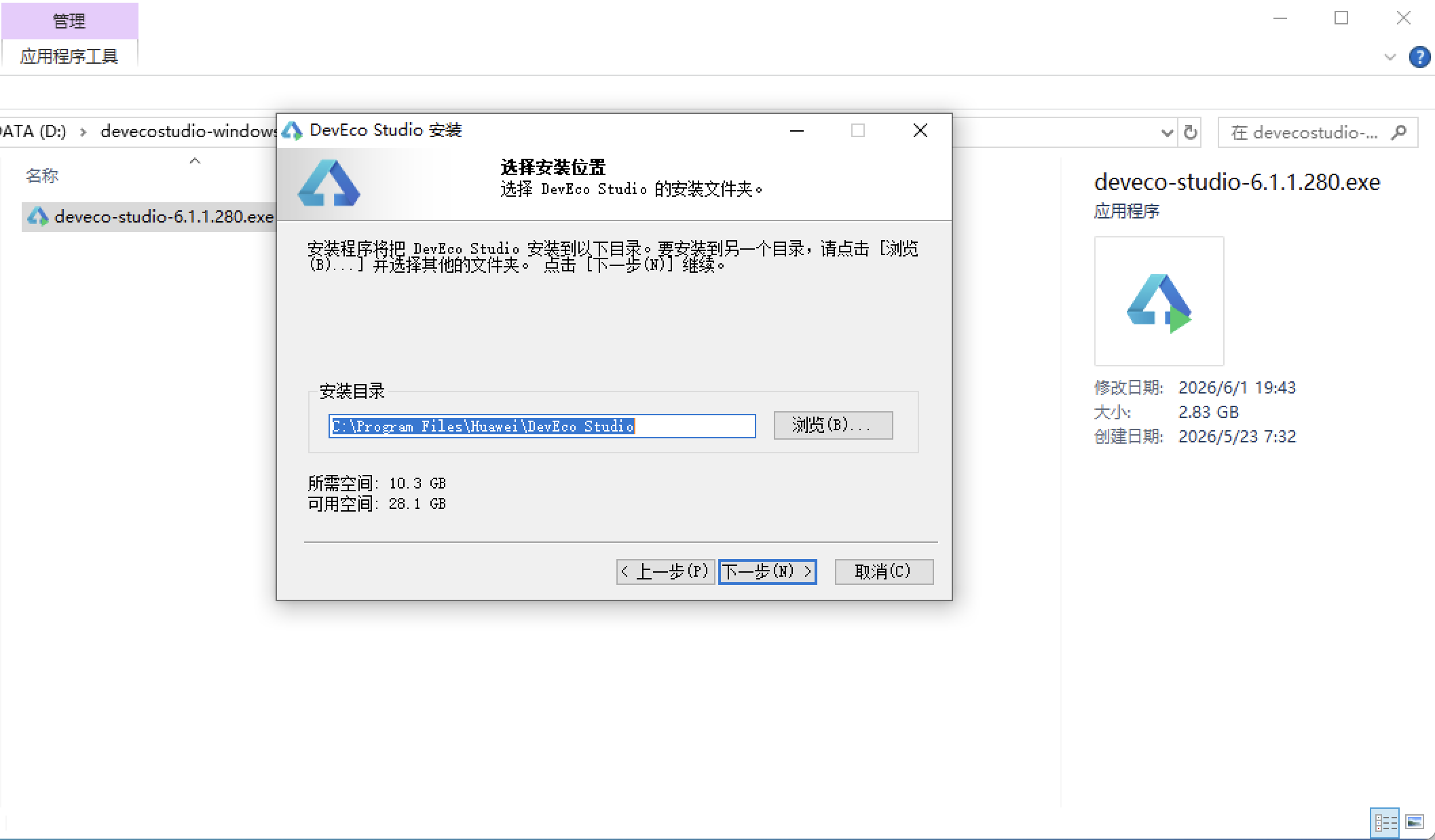
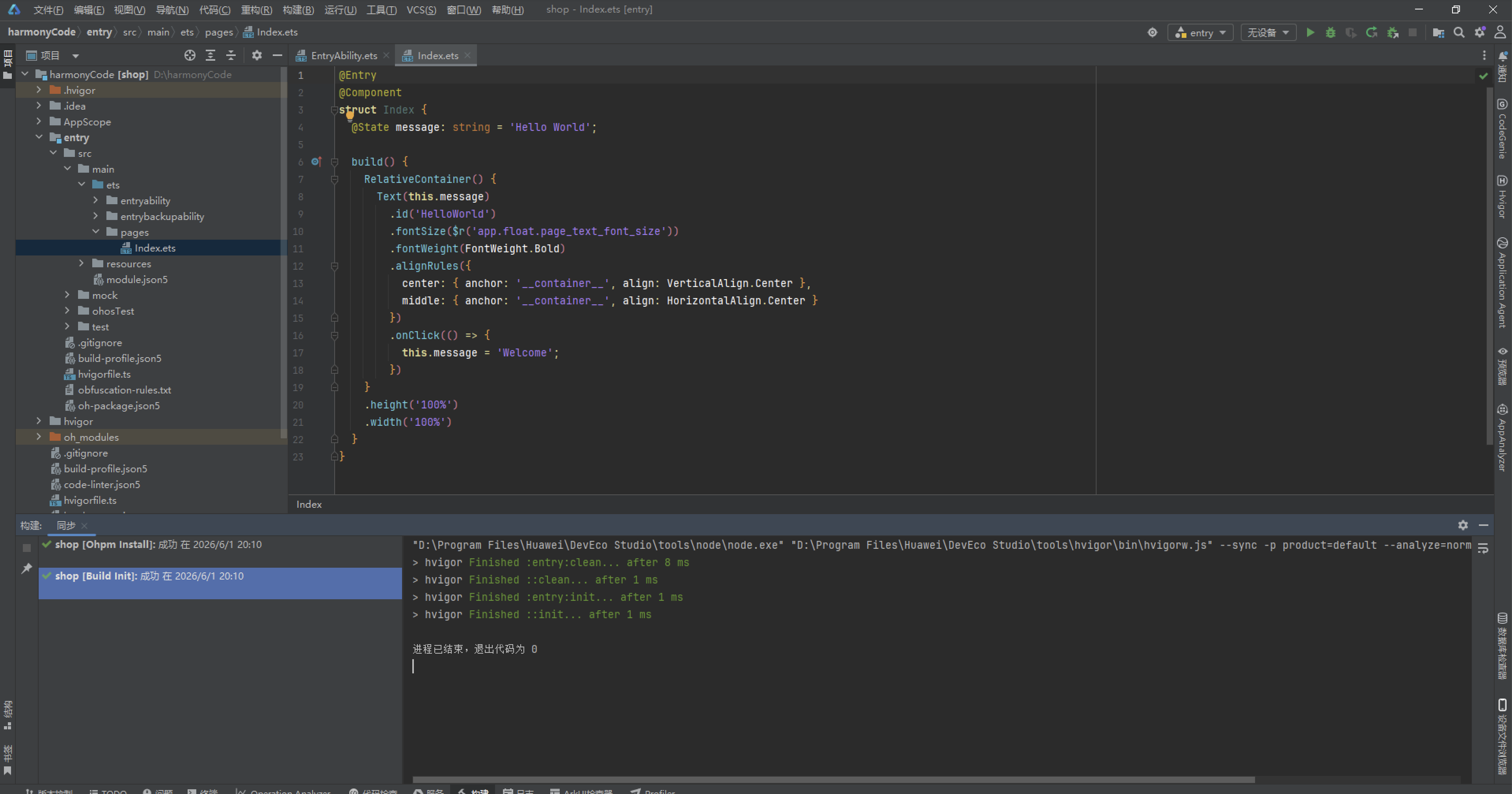
安装DevEco Studio程序
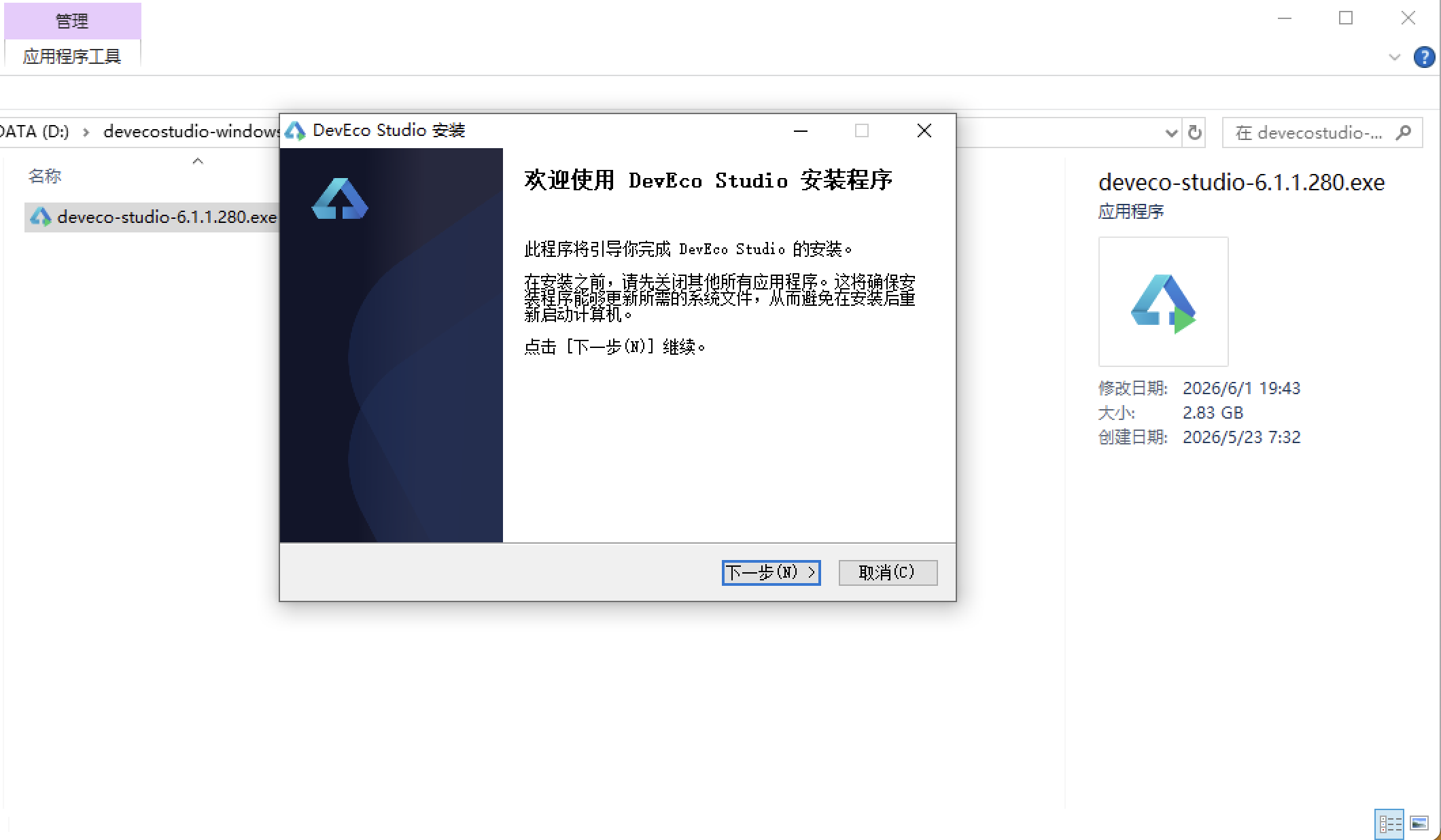
选择目标安装目录:
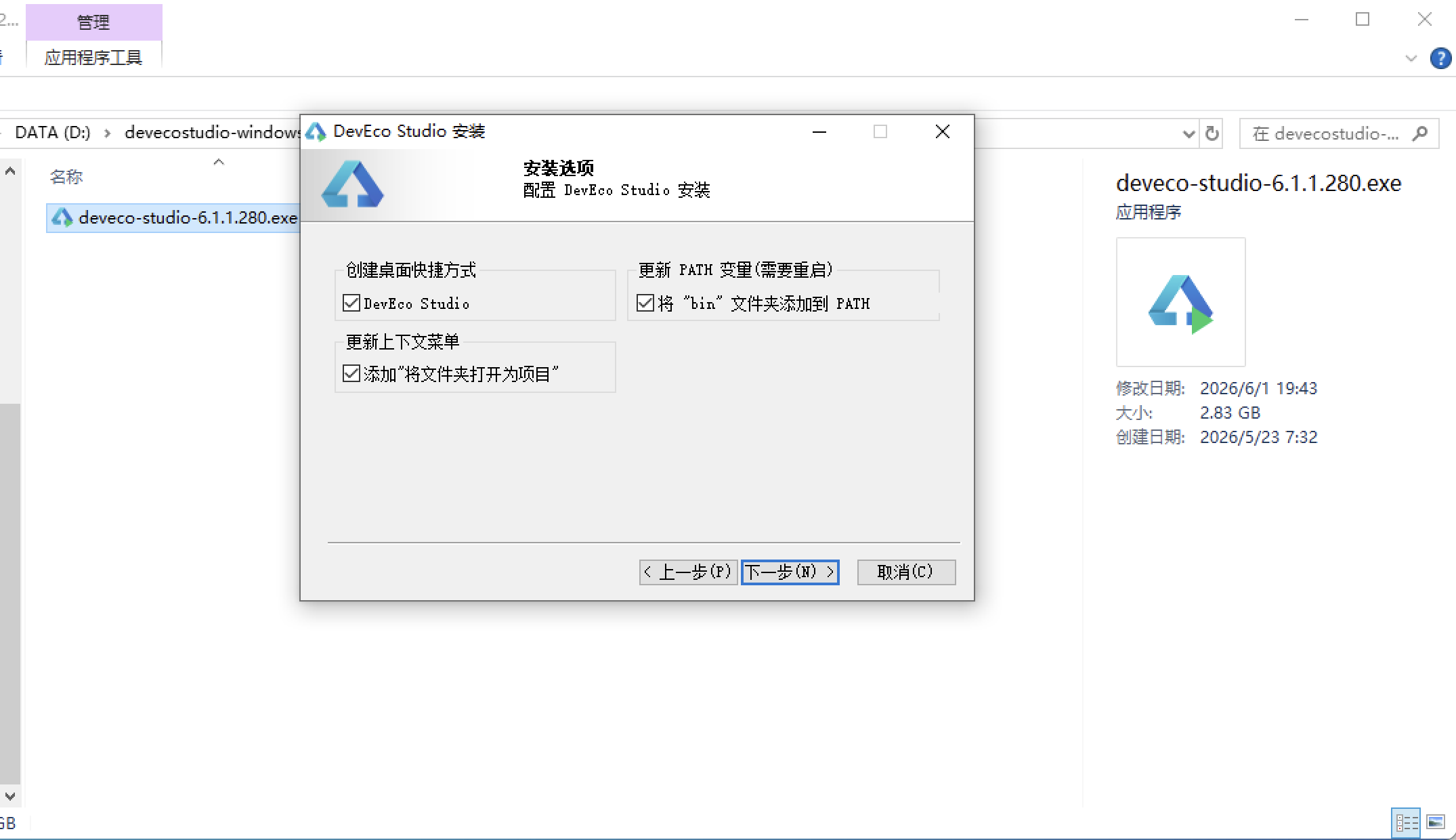
设置环境变量,但是需要重启一下:
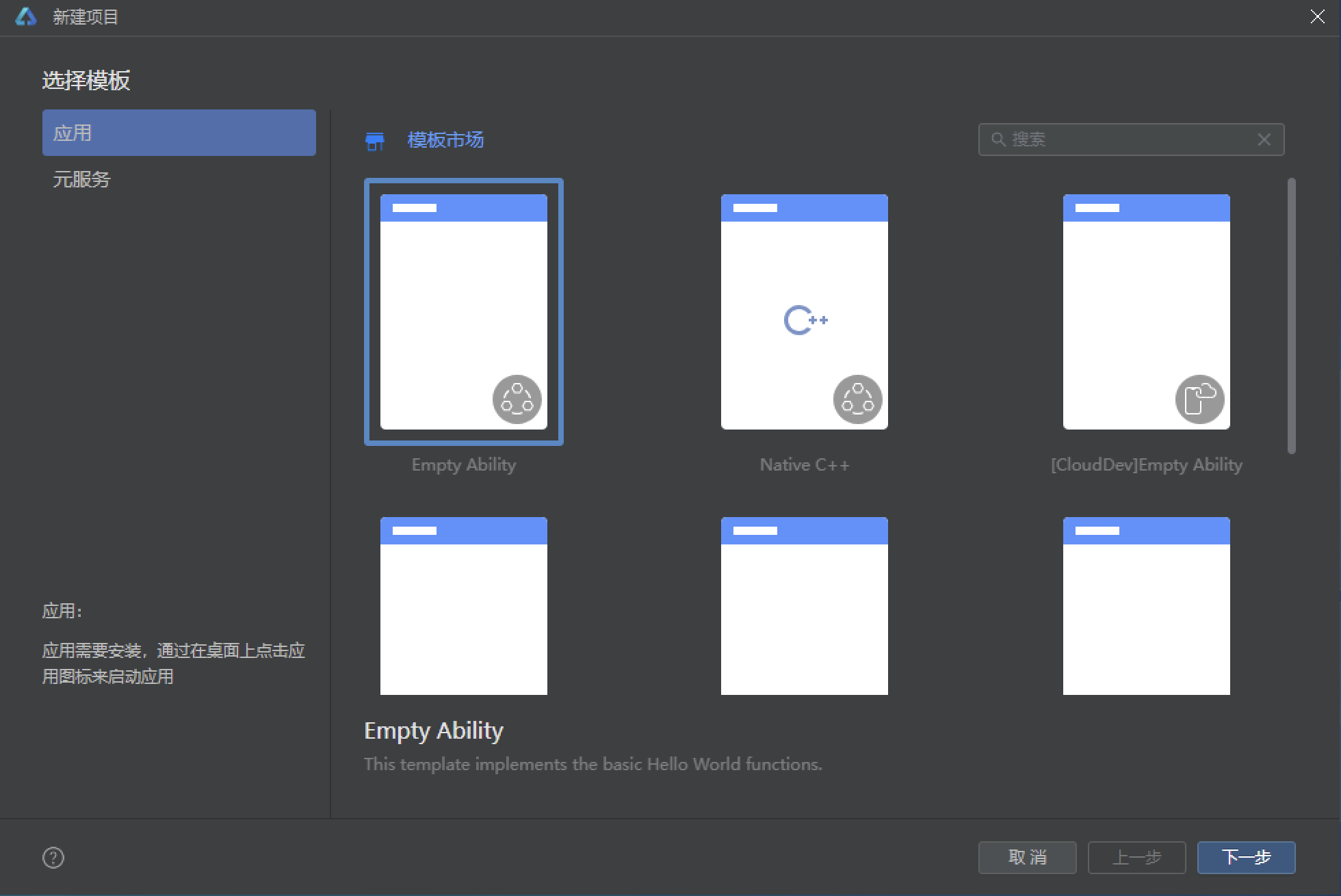
新建一个空白模板:
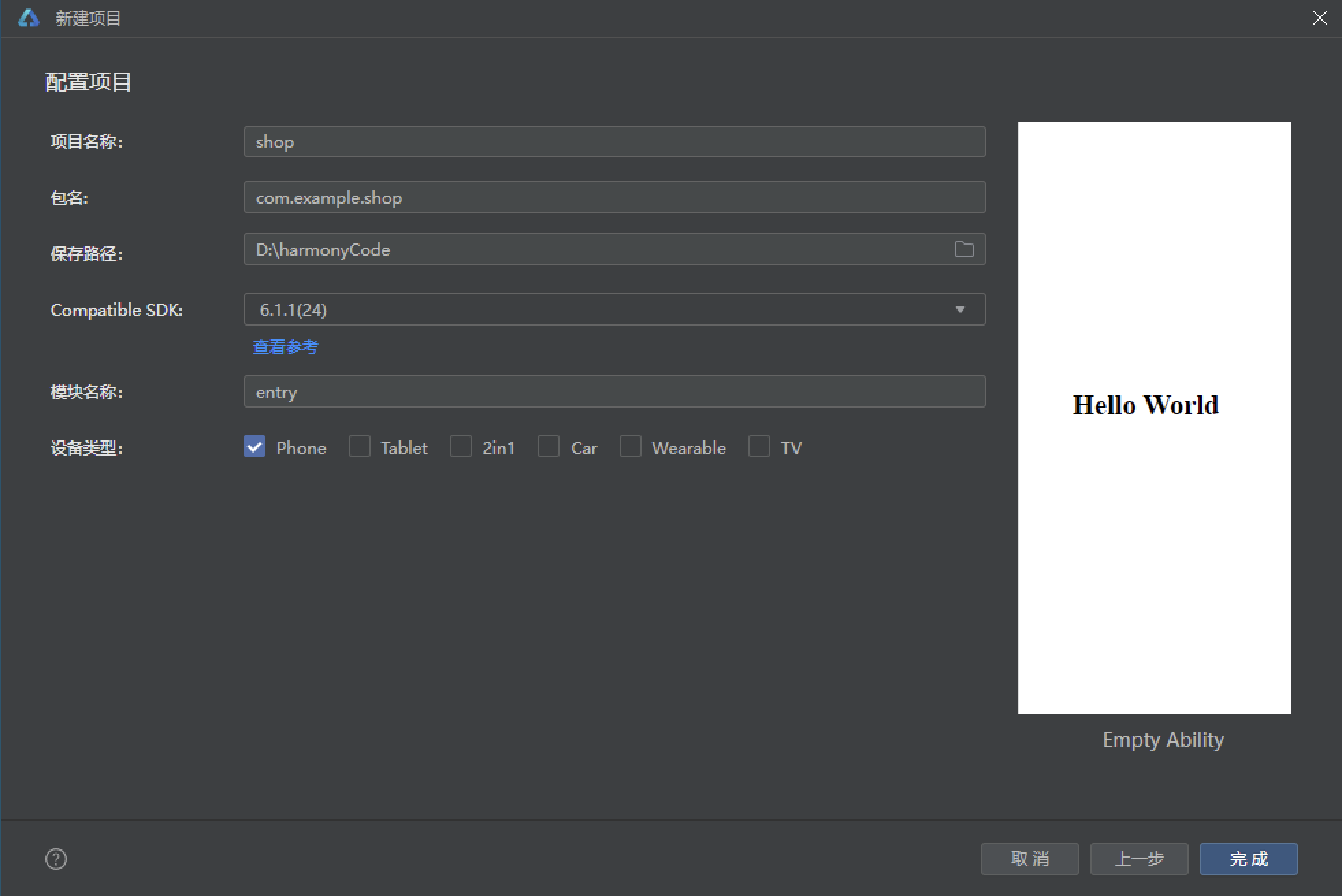
设置API为24的模板项目:
初始化项目,自动下载相关依赖:
完整代码:
// 152.ets - 时间记录/专注计时 (Focus Timer & Time Log)
// ============ 类型定义 ============
interface ProjectMeta {
label: string
icon: string
color: string
bg: string
}
interface TagMeta {
label: string
color: string
}
interface DailyStats {
day: string
hours: number
}
// ============ 时间记录数据模型 ============
@Observed
export class TimeLog {
id: number = 0
project: string = ''
task: string = ''
startTime: string = ''
duration: number = 0
date: string = ''
tags: string[] = []
notes: string = ''
isBillable: boolean = false
constructor(id: number, project: string, task: string, startTime: string, duration: number, date: string, tags: string[], notes: string, isBillable: boolean) {
this.id = id; this.project = project; this.task = task
this.startTime = startTime; this.duration = duration; this.date = date
this.tags = tags; this.notes = notes; this.isBillable = isBillable
}
}
// ============ 项目数据模型 ============
@Observed
export class ProjectItem {
id: number = 0
name: string = ''
icon: string = ''
color: string = ''
totalHours: number = 0
weeklyHours: number = 0
budgetHours: number = 0
isActive: boolean = false
constructor(id: number, name: string, icon: string, color: string, totalHours: number, weeklyHours: number, budgetHours: number, isActive: boolean) {
this.id = id; this.name = name; this.icon = icon; this.color = color
this.totalHours = totalHours; this.weeklyHours = weeklyHours
this.budgetHours = budgetHours; this.isActive = isActive
}
}
// ============ 设计令牌 ============
const PROJECT_CONFIG: Record<string, ProjectMeta> = {
'前端开发': { label: '前端开发', icon: '💻', color: '#D84315', bg: '#FBE9E7' },
'后端服务': { label: '后端服务', icon: '⚙️', color: '#1565C0', bg: '#E3F2FD' },
'UI设计': { label: 'UI设计', icon: '🎨', color: '#7B1FA2', bg: '#F3E5F5' },
'会议沟通': { label: '会议沟通', icon: '📞', color: '#00695C', bg: '#E0F2F1' },
'学习提升': { label: '学习提升', icon: '📚', color: '#2E7D32', bg: '#E8F5E9' },
'文档写作': { label: '文档写作', icon: '📝', color: '#E65100', bg: '#FFF3E0' },
'运维部署': { label: '运维部署', icon: '🚀', color: '#4527A0', bg: '#EDE7F6' }
}
const TAG_CONFIG: Record<string, TagMeta> = {
'开发': { label: '开发', color: '#D84315' },
'设计': { label: '设计', color: '#7B1FA2' },
'会议': { label: '会议', color: '#1565C0' },
'Bug修复': { label: 'Bug修复', color: '#C62828' },
'代码审查': { label: '代码审查', color: '#00695C' },
'学习': { label: '学习', color: '#2E7D32' },
'部署': { label: '部署', color: '#4527A0' },
'测试': { label: '测试', color: '#E65100' }
}
const PROJECTS: string[] = ['前端开发', '后端服务', 'UI设计', '会议沟通', '学习提升', '文档写作', '运维部署']
const DURATION_FILTER: string[] = ['全部', '<30分钟', '30-60分钟', '1-2小时', '>2小时']
// ============ 全局写死数据 ============
const mockTimeLogs: TimeLog[] = [
new TimeLog(1, '前端开发', '重构用户登录组件', '09:00', 90, '2026-07-24', ['开发'], '使用ArkTS重构LoginPage', true),
new TimeLog(2, '前端开发', '修复首页加载闪烁Bug', '10:30', 45, '2026-07-24', ['Bug修复'], '根因是状态更新时序问题', true),
new TimeLog(3, '会议沟通', '产品需求评审', '14:00', 60, '2026-07-24', ['会议'], '评审下一迭代需求池', false),
new TimeLog(4, '后端服务', 'API接口性能优化', '15:00', 120, '2026-07-24', ['开发'], '优化数据库查询,索引重建', true),
new TimeLog(5, '学习提升', '阅读HarmonyOS源码', '17:00', 60, '2026-07-24', ['学习'], '学习Ability启动流程', false),
new TimeLog(6, '前端开发', '实现暗色模式切换', '09:00', 150, '2026-07-23', ['开发', '设计'], '多主题系统设计', true),
new TimeLog(7, 'UI设计', '暗色模式设计稿', '11:30', 90, '2026-07-23', ['设计'], '确定色彩方案和间距规范', true),
new TimeLog(8, '会议沟通', '每日站会', '10:00', 15, '2026-07-23', ['会议'], '同步昨天进度和今天计划', false),
new TimeLog(9, '文档写作', '编写组件使用文档', '14:00', 120, '2026-07-23', ['开发'], '针对新组件库编写指南', false),
new TimeLog(10, '运维部署', '灰度发布v2.1.0', '16:00', 45, '2026-07-23', ['部署'], '10%流量灰度验证', true),
new TimeLog(11, '后端服务', '设计数据库分表方案', '09:30', 180, '2026-07-22', ['开发'], '用户表数据量突破千万级', true),
new TimeLog(12, '前端开发', '实现虚拟滚动列表', '13:00', 120, '2026-07-22', ['开发'], '大列表性能优化', true),
new TimeLog(13, '学习提升', '完成TypeScript泛型课程', '15:30', 90, '2026-07-22', ['学习'], '学完Advanced TypeScript模块', false),
new TimeLog(14, '会议沟通', '技术方案评审会', '10:00', 90, '2026-07-22', ['会议'], '微服务拆分方案讨论', false),
new TimeLog(15, 'UI设计', '交互原型设计', '14:00', 150, '2026-07-21', ['设计'], '使用Figma制作高保真原型', true),
new TimeLog(16, '前端开发', '编写E2E测试用例', '16:30', 60, '2026-07-21', ['测试'], '覆盖核心用户旅程', true),
new TimeLog(17, '后端服务', '实现消息队列服务', '10:00', 180, '2026-07-21', ['开发'], '基于RocketMQ的异步消息系统', true),
new TimeLog(18, '会议沟通', '跨部门协调会', '14:30', 45, '2026-07-21', ['会议'], '与市场部对接新功能上线', false),
new TimeLog(19, '文档写作', '技术方案设计文档', '15:30', 90, '2026-07-21', ['开发'], '新功能总体设计', false),
new TimeLog(20, '前端开发', '代码审查3个MR', '09:00', 60, '2026-07-20', ['代码审查'], '审查团队成员提交的MR', true),
new TimeLog(21, '前端开发', '实现状态管理模块', '10:00', 180, '2026-07-20', ['开发'], '全局状态管理方案设计', true),
new TimeLog(22, '运维部署', '修复线上告警', '14:00', 30, '2026-07-20', ['Bug修复', '部署'], 'API响应超时排查', true),
new TimeLog(23, '学习提升', '参加技术讲座', '15:00', 90, '2026-07-20', ['学习'], '分布式系统一致性协议', false),
new TimeLog(24, 'UI设计', '图标库设计', '09:30', 120, '2026-07-19', ['设计'], '定制应用内图标系统', true),
new TimeLog(25, '后端服务', '实现缓存层', '11:30', 120, '2026-07-19', ['开发'], 'Redis集群缓存方案', true),
new TimeLog(26, '会议沟通', 'Sprint复盘', '14:00', 90, '2026-07-19', ['会议'], '回顾迭代问题和改进', false),
new TimeLog(27, '前端开发', '性能监控接入', '16:00', 60, '2026-07-19', ['开发'], '接入性能监控SDK', true),
new TimeLog(28, '学习提升', '刷LeetCode 3题', '20:00', 60, '2026-07-18', ['学习'], '动态规划和回溯算法', false),
new TimeLog(29, '文档写作', 'API接口文档更新', '10:00', 90, '2026-07-18', ['开发'], '补充新接口说明', false),
new TimeLog(30, '前端开发', '组件单元测试编写', '14:00', 120, '2026-07-18', ['测试'], '达到80%覆盖率目标', true)
]
const mockProjects: ProjectItem[] = [
new ProjectItem(1, 'App V3.0 重构', '📱', '#D84315', 186, 32, 240, true),
new ProjectItem(2, '后端微服务拆分', '⚙️', '#1565C0', 124, 18, 160, true),
new ProjectItem(3, '设计系统建设', '🎨', '#7B1FA2', 89, 14, 120, true),
new ProjectItem(4, '知识库整理', '📚', '#2E7D32', 45, 8, 80, false)
]
// ============ 统计汇总函数 ============
function getTimeLogCount(): number { return 30 }
function getTotalHours(): number { return 58 }
function getTodayHours(): number { return 7 }
function getWeeklyHours(): number { return 32 }
function getAvgDuration(): number { return 96 }
function getDailyHours(dayIndex: number): number {
const dailyData: number[] = [6, 8.5, 9, 7.5, 8, 5.5, 3]
return dailyData[dayIndex]
}
function getProjectHours(project: string): number {
let total = 0
for (let i = 0; i < mockTimeLogs.length; i++) {
if (mockTimeLogs[i].project === project) { total += mockTimeLogs[i].duration }
}
return Math.round(total / 60)
}
// ============ 底部 Tab 枚举 ============
enum TimeTab {
TIMER = 0,
LOGS = 1,
STATS = 2,
PROJECTS = 3,
PROFILE = 4
}
// ============ 入口页面 ============
@Entry
@Component
struct FocusTimerApp {
@State activeTab: TimeTab = TimeTab.TIMER
@Builder contentArea() {
Column() {
if (this.activeTab === TimeTab.TIMER) {
TimerContent()
} else if (this.activeTab === TimeTab.LOGS) {
LogListContent()
} else if (this.activeTab === TimeTab.STATS) {
TimeStatsContent()
} else if (this.activeTab === TimeTab.PROJECTS) {
ProjectListContent()
} else {
TimeProfileContent()
}
}
.layoutWeight(1)
}
@Builder bottomTabItem(icon: string, label: string, tab: TimeTab) {
Column() {
Text(icon).fontSize(20).opacity(this.activeTab === tab ? 1.0 : 0.45)
Text(label).fontSize(9)
.fontColor(this.activeTab === tab ? '#D84315' : '#999999')
.fontWeight(this.activeTab === tab ? FontWeight.Bold : FontWeight.Normal)
.margin({ top: 1 })
if (this.activeTab === tab) {
Column().width(18).height(3)
.backgroundColor('#D84315').borderRadius(2).margin({ top: 2 })
}
}
.layoutWeight(1)
.alignItems(HorizontalAlign.Center)
.padding({ top: 5, bottom: 5 })
.onClick(() => { this.activeTab = tab })
}
build() {
Column() {
this.contentArea()
Row() {
this.bottomTabItem('⏱️', '计时', TimeTab.TIMER)
this.bottomTabItem('📋', '记录', TimeTab.LOGS)
this.bottomTabItem('📊', '统计', TimeTab.STATS)
this.bottomTabItem('📁', '项目', TimeTab.PROJECTS)
this.bottomTabItem('👤', '我的', TimeTab.PROFILE)
}
.width('100%')
.backgroundColor('#FFFFFF')
.padding({ top: 4, bottom: 6 })
.shadow({ radius: 8, color: '#1A000000', offsetY: -2 })
}
.width('100%').height('100%')
.backgroundColor('#FFF5F0')
}
}
// ============ 计时器页 ============
@Component
struct TimerContent {
@State elapsedSeconds: number = 0
@State isRunning: boolean = false
@State selectedProject: string = '前端开发'
@State taskDescription: string = ''
timerId: number = -1
build() {
Column() {
Text('专注计时').fontSize(18).fontWeight(FontWeight.Bold).fontColor('#D84315')
.width('100%').padding({ left: 16, top: 14, bottom: 6 })
Scroll() {
Column() {
Column() {
Text(PROJECT_CONFIG[this.selectedProject]?.icon ?? '💻')
.fontSize(48).margin({ top: 20 })
Text(this.selectedProject).fontSize(16).fontWeight(FontWeight.Bold)
.fontColor('#333333').margin({ top: 6 })
Text(formatTimeDisplay())
.fontSize(48).fontWeight(FontWeight.Bold).fontColor('#D84315')
.fontFamily('monospace').margin({ top: 16 })
}
.width('100%').padding({ top: 8, bottom: 20 })
.backgroundColor('#FFFFFF').borderRadius(16)
.margin({ left: 12, right: 12, top: 6 })
.alignItems(HorizontalAlign.Center)
Row() {
if (!this.isRunning) {
Text('▶ 开始').fontSize(16).fontColor('#FFFFFF')
.backgroundColor('#D84315').borderRadius(24)
.padding({ left: 28, right: 28, top: 12, bottom: 12 })
.onClick(() => { this.isRunning = true; this.elapsedSeconds = 0 })
} else {
Text('⏸ 暂停').fontSize(16).fontColor('#FFFFFF')
.backgroundColor('#FF9800').borderRadius(24)
.padding({ left: 28, right: 28, top: 12, bottom: 12 })
.onClick(() => { this.isRunning = false })
}
Text('■ 结束').fontSize(16).fontColor('#FFFFFF')
.backgroundColor('#757575').borderRadius(24)
.padding({ left: 28, right: 28, top: 12, bottom: 12 })
.margin({ left: 12 })
}
.width('100%').justifyContent(FlexAlign.Center).margin({ top: 16 })
Column() {
Text('选择项目').fontSize(13).fontWeight(FontWeight.Bold)
.fontColor('#555555').width('100%').padding({ left: 16, top: 12 })
Row() {
ForEach(PROJECTS, (p: string) => {
if (this.selectedProject === p) {
Text(PROJECT_CONFIG[p]?.icon + ' ' + p)
.fontSize(11).fontColor('#FFFFFF').backgroundColor('#D84315')
.padding({ left: 8, right: 8, top: 5, bottom: 5 }).borderRadius(10)
.margin({ left: 2, right: 2 })
} else {
Text(PROJECT_CONFIG[p]?.icon + ' ' + p)
.fontSize(11).fontColor('#D84315').backgroundColor('#FBE9E7')
.padding({ left: 8, right: 8, top: 5, bottom: 5 }).borderRadius(10)
.margin({ left: 2, right: 2 })
.onClick(() => { this.selectedProject = p })
}
})
}
.margin({ left: 12, right: 12, top: 4 })
}
.width('100%').backgroundColor('#FFFFFF').borderRadius(12)
.margin({ left: 12, right: 12, top: 12 })
Column() {
Text('任务描述').fontSize(13).fontWeight(FontWeight.Bold)
.fontColor('#555555').width('100%').padding({ left: 16, top: 12 })
TextInput({ placeholder: '正在做什么...' })
.placeholderColor('#BBBBBB').fontSize(14).width('100%')
.backgroundColor('#F5F5F5').borderRadius(8)
.margin({ left: 16, right: 16, bottom: 12 })
}
.width('100%').backgroundColor('#FFFFFF').borderRadius(12)
.margin({ left: 12, right: 12, top: 8 })
}
.padding({ bottom: 20 })
}
.layoutWeight(1).scrollBar(BarState.Off)
}
.width('100%').height('100%')
}
}
function formatTimeDisplay(): string {
// 模拟显示
const h = 0
const m = 25
const s = 14
return padZeroStr(h) + ':' + padZeroStr(m) + ':' + padZeroStr(s)
}
function padZeroStr(n: number): string {
if (n < 10) { return '0' + n.toString() }
return n.toString()
}
// ============ 时间记录列表页 ============
@Component
struct LogListContent {
@State searchKeyword: string = ''
@State showAddModal: boolean = false
@State showEditModal: boolean = false
@State showDeleteConfirm: boolean = false
@State selectedLog: TimeLog | null = null
@State formProject: string = '前端开发'
@State formTask: string = ''
@State formDuration: string = '60'
@State formDate: string = '2026-07-24'
@Builder modalOverlay(onClose: () => void) {
Column()
.width('100%').height('100%')
.backgroundColor('rgba(0,0,0,0.5)')
.onClick(onClose)
}
@Builder addLogModal() {
Column() {
this.modalOverlay(() => { this.showAddModal = false })
Column() {
Row() {
Text('🕐 添加时间记录').fontSize(18).fontWeight(FontWeight.Bold).fontColor('#212121')
Blank()
Text('✕').fontSize(18).fontColor('#999999')
.onClick(() => { this.showAddModal = false })
}
.width('100%').padding({ left: 20, right: 20, top: 18, bottom: 12 })
Divider().color('#F0F0F0')
Scroll() {
Column() {
Text('项目').fontSize(12).fontColor('#999999').margin({ top: 12, left: 20 })
Row() {
ForEach(PROJECTS, (p: string) => {
if (this.formProject === p) {
Text(PROJECT_CONFIG[p]?.icon + ' ' + p)
.fontSize(11).fontColor('#FFFFFF').backgroundColor('#D84315')
.padding({ left: 8, right: 8, top: 5, bottom: 5 }).borderRadius(10)
.margin({ left: 2, right: 2 })
} else {
Text(PROJECT_CONFIG[p]?.icon + ' ' + p)
.fontSize(11).fontColor('#D84315').backgroundColor('#FBE9E7')
.padding({ left: 8, right: 8, top: 5, bottom: 5 }).borderRadius(10)
.margin({ left: 2, right: 2 })
.onClick(() => { this.formProject = p })
}
})
}
.margin({ left: 16, right: 16, top: 4 })
Text('任务').fontSize(12).fontColor('#999999').margin({ top: 12, left: 20 })
TextInput({ placeholder: '任务描述...' })
.placeholderColor('#BBBBBB').fontSize(14).width('100%')
.backgroundColor('#F5F5F5').borderRadius(8)
.margin({ left: 20, right: 20, top: 4 })
Text('时长(分钟)').fontSize(12).fontColor('#999999').margin({ top: 12, left: 20 })
TextInput({ placeholder: '如:60' })
.placeholderColor('#BBBBBB').fontSize(14).width('100%')
.backgroundColor('#F5F5F5').borderRadius(8)
.margin({ left: 20, right: 20, top: 4 })
Text('日期').fontSize(12).fontColor('#999999').margin({ top: 12, left: 20 })
TextInput({ placeholder: '2026-07-24' })
.placeholderColor('#BBBBBB').fontSize(14).width('100%')
.backgroundColor('#F5F5F5').borderRadius(8)
.margin({ left: 20, right: 20, top: 4 })
}
}
.layoutWeight(1)
Row() {
Text('取消').fontSize(14).fontColor('#999999')
.backgroundColor('#F5F5F5').borderRadius(20)
.padding({ left: 24, right: 24, top: 10, bottom: 10 })
.onClick(() => { this.showAddModal = false })
Text('保存').fontSize(14).fontColor('#FFFFFF')
.backgroundColor('#D84315').borderRadius(20)
.padding({ left: 24, right: 24, top: 10, bottom: 10 })
.margin({ left: 12 })
.onClick(() => { this.showAddModal = false })
}
.width('100%').justifyContent(FlexAlign.Center)
.padding({ left: 20, right: 20, top: 16, bottom: 16 })
}
.width('90%').height('70%').backgroundColor('#FFFFFF').borderRadius(16)
.alignItems(HorizontalAlign.Center)
.position({ x: '5%', y: '14%' })
}
.width('100%').height('100%').position({ x: 0, y: 0 }).zIndex(999)
}
@Builder editLogModal() {
Column() {
this.modalOverlay(() => { this.showEditModal = false })
Column() {
Row() {
Text('✏️ 编辑记录').fontSize(18).fontWeight(FontWeight.Bold).fontColor('#212121')
Blank()
Text('✕').fontSize(18).fontColor('#999999')
.onClick(() => { this.showEditModal = false })
}
.width('100%').padding({ left: 20, right: 20, top: 18, bottom: 12 })
Divider().color('#F0F0F0')
Column() {
Text('任务').fontSize(12).fontColor('#999999').margin({ top: 12, left: 20 })
TextInput({ placeholder: this.selectedLog?.task ?? '' })
.placeholderColor('#BBBBBB').fontSize(14).width('100%')
.backgroundColor('#F5F5F5').borderRadius(8)
.margin({ left: 20, right: 20, top: 4 })
Text('时长(分钟)').fontSize(12).fontColor('#999999').margin({ top: 10, left: 20 })
TextInput({ placeholder: (this.selectedLog?.duration ?? 60).toString() })
.placeholderColor('#BBBBBB').fontSize(14).width('100%')
.backgroundColor('#F5F5F5').borderRadius(8)
.margin({ left: 20, right: 20, top: 4 })
}
.layoutWeight(1)
Row() {
Text('取消').fontSize(14).fontColor('#999999')
.backgroundColor('#F5F5F5').borderRadius(20)
.padding({ left: 24, right: 24, top: 10, bottom: 10 })
.onClick(() => { this.showEditModal = false })
Text('保存修改').fontSize(14).fontColor('#FFFFFF')
.backgroundColor('#FF9800').borderRadius(20)
.padding({ left: 24, right: 24, top: 10, bottom: 10 })
.margin({ left: 12 })
.onClick(() => { this.showEditModal = false })
}
.width('100%').justifyContent(FlexAlign.Center)
.padding({ left: 20, right: 20, top: 16, bottom: 16 })
}
.width('90%').height('50%').backgroundColor('#FFFFFF').borderRadius(16)
.alignItems(HorizontalAlign.Center)
.position({ x: '5%', y: '22%' })
}
.width('100%').height('100%').position({ x: 0, y: 0 }).zIndex(999)
}
@Builder deleteConfirmModal() {
Column() {
this.modalOverlay(() => { this.showDeleteConfirm = false })
Column() {
Text('⚠️').fontSize(48).margin({ top: 24 })
Text('确认删除此时间记录?').fontSize(18).fontWeight(FontWeight.Bold).fontColor('#212121')
Text('删除后总工时统计将更新').fontSize(13).fontColor('#D84315').margin({ top: 4 })
Row() {
Text(PROJECT_CONFIG[this.selectedLog?.project ?? '']?.icon ?? '🕐')
.fontSize(20)
Text(this.selectedLog?.task ?? '').fontSize(14).fontColor('#333333')
.fontWeight(FontWeight.Bold).margin({ left: 8 })
}
.backgroundColor('#FBE9E7').borderRadius(10)
.padding({ left: 16, right: 16, top: 10, bottom: 10 }).margin({ top: 16 })
Row() {
Text('取消').fontSize(14).fontColor('#999999')
.backgroundColor('#F5F5F5').borderRadius(20)
.padding({ left: 28, right: 28, top: 10, bottom: 10 })
.onClick(() => { this.showDeleteConfirm = false })
Text('确认删除').fontSize(14).fontColor('#FFFFFF')
.backgroundColor('#C62828').borderRadius(20)
.padding({ left: 28, right: 28, top: 10, bottom: 10 })
.margin({ left: 12 })
.onClick(() => { this.showDeleteConfirm = false })
}
.width('100%').justifyContent(FlexAlign.Center)
.padding({ left: 20, right: 20, top: 20, bottom: 20 })
}
.width('80%').backgroundColor('#FFFFFF').borderRadius(16)
.alignItems(HorizontalAlign.Center)
.position({ x: '10%', y: '38%' })
}
.width('100%').height('100%').position({ x: 0, y: 0 }).zIndex(999)
}
@Builder logItemBuilder(log: TimeLog) {
Column() {
Row() {
Column() {
Text(PROJECT_CONFIG[log.project]?.icon ?? '📌').fontSize(18)
}.width(36).alignItems(HorizontalAlign.Center)
Column() {
Text(log.task).fontSize(14).fontWeight(FontWeight.Medium).fontColor('#212121')
Row() {
Text(log.date).fontSize(10).fontColor('#999999')
Text(' ' + log.startTime).fontSize(10).fontColor('#999999')
if (log.isBillable) {
Text(' 💰').fontSize(10).fontColor('#D84315')
}
}
.margin({ top: 2 })
Row() {
Text(log.project).fontSize(9).fontColor(PROJECT_CONFIG[log.project]?.color ?? '#D84315')
.backgroundColor(PROJECT_CONFIG[log.project]?.bg ?? '#FBE9E7')
.padding({ left: 4, right: 4, top: 1, bottom: 1 }).borderRadius(4).margin({ top: 3 })
}
}
.layoutWeight(1).alignItems(HorizontalAlign.Start).padding({ left: 6 })
Column() {
Text(formatDurationStr(log.duration)).fontSize(16).fontWeight(FontWeight.Bold)
.fontColor(log.duration >= 120 ? '#D84315' : (log.duration >= 60 ? '#FF9800' : '#388E3C'))
Text('分钟').fontSize(9).fontColor('#999999')
}
.alignItems(HorizontalAlign.Center)
Text('>').fontSize(14).fontColor('#CCCCCC').margin({ left: 6 })
}
.width('100%').padding({ top: 10, bottom: 10, left: 12, right: 12 })
}
.width('100%').backgroundColor('#FFFFFF')
.borderRadius(10).margin({ left: 12, right: 12, top: 5 })
.onClick(() => { this.selectedLog = log; this.showEditModal = true })
}
build() {
Stack() {
Column() {
Row() {
Column() {
Text(getTotalHours().toString()).fontSize(20)
.fontWeight(FontWeight.Bold).fontColor('#D84315')
Text('总时数').fontSize(10).fontColor('#999999')
}.layoutWeight(1).alignItems(HorizontalAlign.Center)
Column() {
Text(getTodayHours().toString()).fontSize(20)
.fontWeight(FontWeight.Bold).fontColor('#FF9800')
Text('今日').fontSize(10).fontColor('#999999')
}.layoutWeight(1).alignItems(HorizontalAlign.Center)
Column() {
Text(getWeeklyHours().toString()).fontSize(20)
.fontWeight(FontWeight.Bold).fontColor('#388E3C')
Text('本周').fontSize(10).fontColor('#999999')
}.layoutWeight(1).alignItems(HorizontalAlign.Center)
Column() {
Text(getAvgDuration().toString()).fontSize(20)
.fontWeight(FontWeight.Bold).fontColor('#1565C0')
Text('平均/分').fontSize(10).fontColor('#999999')
}.layoutWeight(1).alignItems(HorizontalAlign.Center)
}
.width('100%').padding({ top: 14, bottom: 14 })
.backgroundColor('#FFFFFF')
Row() {
Text('🔍').fontSize(14).margin({ left: 10 })
TextInput({ placeholder: '搜索时间记录...' })
.placeholderColor('#BBBBBB').fontSize(13).layoutWeight(1)
.backgroundColor('#F5F5F5').borderRadius(8)
.margin({ left: 6, right: 6 })
.onChange((v: string) => { this.searchKeyword = v })
Text('+').fontSize(20).fontColor('#FFFFFF')
.backgroundColor('#D84315').width(30).height(30).borderRadius(15)
.textAlign(TextAlign.Center).margin({ right: 10 })
.onClick(() => { this.showAddModal = true })
}
.width('100%').padding({ top: 8, bottom: 6 })
Scroll() {
Row() {
ForEach(DURATION_FILTER, (s: string) => {
Text(s).fontSize(11).fontColor('#D84315').backgroundColor('#FBE9E7')
.padding({ left: 10, right: 10, top: 5, bottom: 5 }).borderRadius(14)
.margin({ left: 3, right: 3 })
})
}
.padding({ left: 8, right: 8 })
}
.scrollable(ScrollDirection.Horizontal).scrollBar(BarState.Off).height(38)
Scroll() {
Column() {
this.logItemBuilder(mockTimeLogs[0])
this.logItemBuilder(mockTimeLogs[1])
this.logItemBuilder(mockTimeLogs[2])
this.logItemBuilder(mockTimeLogs[3])
this.logItemBuilder(mockTimeLogs[4])
this.logItemBuilder(mockTimeLogs[5])
this.logItemBuilder(mockTimeLogs[6])
this.logItemBuilder(mockTimeLogs[7])
this.logItemBuilder(mockTimeLogs[8])
this.logItemBuilder(mockTimeLogs[9])
this.logItemBuilder(mockTimeLogs[10])
this.logItemBuilder(mockTimeLogs[11])
this.logItemBuilder(mockTimeLogs[12])
this.logItemBuilder(mockTimeLogs[13])
this.logItemBuilder(mockTimeLogs[14])
this.logItemBuilder(mockTimeLogs[15])
this.logItemBuilder(mockTimeLogs[16])
this.logItemBuilder(mockTimeLogs[17])
this.logItemBuilder(mockTimeLogs[18])
this.logItemBuilder(mockTimeLogs[19])
this.logItemBuilder(mockTimeLogs[20])
this.logItemBuilder(mockTimeLogs[21])
this.logItemBuilder(mockTimeLogs[22])
this.logItemBuilder(mockTimeLogs[23])
this.logItemBuilder(mockTimeLogs[24])
this.logItemBuilder(mockTimeLogs[25])
this.logItemBuilder(mockTimeLogs[26])
this.logItemBuilder(mockTimeLogs[27])
this.logItemBuilder(mockTimeLogs[28])
this.logItemBuilder(mockTimeLogs[29])
}
.padding({ bottom: 20 })
}
.layoutWeight(1).scrollBar(BarState.Off)
}
.width('100%').height('100%')
if (this.showAddModal) { this.addLogModal() }
if (this.showEditModal) { this.editLogModal() }
if (this.showDeleteConfirm) { this.deleteConfirmModal() }
}
}
}
function formatDurationStr(minutes: number): string {
if (minutes >= 60) {
const h = Math.floor(minutes / 60)
const m = minutes % 60
if (m === 0) { return h + 'h' }
return h + 'h' + m
}
return minutes.toString()
}
// ============ 统计页 ============
@Component
struct TimeStatsContent {
dayLabels: string[] = ['周一', '周二', '周三', '周四', '周五', '周六', '周日']
maxHours: number = 10
build() {
Column() {
Text('📊 时间统计').fontSize(18).fontWeight(FontWeight.Bold)
.width('100%').padding({ left: 16, top: 14, bottom: 8 })
Scroll() {
Column() {
Column() {
Text('📈 本周每日工时').fontSize(13).fontWeight(FontWeight.Bold)
.width('100%').padding({ left: 16, top: 12, bottom: 8 })
Row() {
ForEach([0, 1, 2, 3, 4, 5, 6], (d: number) => {
Column() {
Text(getDailyHours(d).toString() + 'h')
.fontSize(10).fontColor('#D84315').margin({ bottom: 2 })
Column()
.width(32)
.height((getDailyHours(d) / this.maxHours * 90).toFixed(0) + 'vp')
.backgroundColor(d < 5 ? '#D84315' : '#FFCCBC')
.borderRadius({ topLeft: 5, topRight: 5 })
Text(this.dayLabels[d]).fontSize(9).fontColor('#999999').margin({ top: 3 })
}
.layoutWeight(1).alignItems(HorizontalAlign.Center)
})
}
.padding({ left: 12, right: 12, bottom: 14 })
}
.width('100%').backgroundColor('#FFFFFF').borderRadius(12)
.margin({ left: 12, right: 12, top: 6 })
Column() {
Text('📁 项目时间分配').fontSize(13).fontWeight(FontWeight.Bold)
.width('100%').padding({ left: 16, top: 12, bottom: 8 })
ForEach(PROJECTS, (p: string) => {
Row() {
Text(PROJECT_CONFIG[p]?.icon ?? '📌').fontSize(12)
Text(p).fontSize(11).fontColor('#333333').layoutWeight(1)
.margin({ left: 6 })
Text(getProjectHours(p).toString() + 'h').fontSize(11)
.fontColor(PROJECT_CONFIG[p]?.color ?? '#D84315')
}
.width('100%').margin({ top: 3, bottom: 2 })
Row() {
Column()
.width((getProjectHours(p) / 30 * 100).toFixed(0) + '%')
.height(8).backgroundColor(PROJECT_CONFIG[p]?.color ?? '#D84315')
.borderRadius(4)
Column().layoutWeight(1)
}
.width('100%').height(8).backgroundColor('#F0F0F0')
.borderRadius(4).margin({ top: 2, bottom: 6 })
})
}
.width('100%').backgroundColor('#FFFFFF').borderRadius(12)
.margin({ left: 12, right: 12, top: 8 })
Row() {
Column() {
Text('📋').fontSize(20).margin({ top: 4 })
Text(getTimeLogCount().toString()).fontSize(20).fontWeight(FontWeight.Bold).fontColor('#D84315')
Text('总记录').fontSize(10).fontColor('#999999')
}.layoutWeight(1).alignItems(HorizontalAlign.Center)
.padding({ top: 12, bottom: 12 })
.backgroundColor('#FFFFFF').borderRadius(10).margin({ left: 6, right: 3, top: 8 })
Column() {
Text('🕐').fontSize(20).margin({ top: 4 })
Text((getTotalHours() / 5).toFixed(0)).fontSize(20).fontWeight(FontWeight.Bold).fontColor('#FF9800')
Text('日均/时').fontSize(10).fontColor('#999999')
}.layoutWeight(1).alignItems(HorizontalAlign.Center)
.padding({ top: 12, bottom: 12 })
.backgroundColor('#FFFFFF').borderRadius(10).margin({ left: 3, right: 6, top: 8 })
}
.width('100%').padding({ left: 6, right: 6 })
}
.padding({ bottom: 20 })
}
.layoutWeight(1).scrollBar(BarState.Off)
}
.width('100%').height('100%')
}
}
// ============ 项目管理页 ============
@Component
struct ProjectListContent {
@Builder projectCardBuilder(p: ProjectItem) {
Column() {
Row() {
Text(p.icon).fontSize(28)
Column() {
Text(p.name).fontSize(15).fontWeight(FontWeight.Bold).fontColor('#212121')
Row() {
Text('本周 ' + p.weeklyHours + 'h').fontSize(10).fontColor('#999999')
Text(' · 累计 ' + p.totalHours + 'h').fontSize(10).fontColor('#999999').margin({ left: 4 })
}
.margin({ top: 2 })
}.layoutWeight(1).alignItems(HorizontalAlign.Start).padding({ left: 10 })
if (p.isActive) {
Text('进行中').fontSize(10).fontColor('#4CAF50')
.backgroundColor('#E8F5E9').padding({ left: 6, right: 6, top: 2, bottom: 2 })
.borderRadius(6)
}
}
.width('100%')
Row() {
Column()
.width((p.totalHours / p.budgetHours * 100).toFixed(0) + '%')
.height(6).backgroundColor(p.color).borderRadius(3)
Column().layoutWeight(1)
}
.width('100%').height(6).backgroundColor('#EEEEEE')
.borderRadius(3).margin({ top: 8 })
Text('预算 ' + p.budgetHours + 'h · 进度 ' + (p.totalHours / p.budgetHours * 100).toFixed(0) + '%')
.fontSize(10).fontColor('#999999').margin({ top: 4 })
}
.width('100%').padding(14).backgroundColor('#FFFFFF')
.borderRadius(12).margin({ left: 12, right: 12, top: 6 })
}
build() {
Column() {
Row() {
Text('项目工时追踪').fontSize(18).fontWeight(FontWeight.Bold).fontColor('#212121')
Column().layoutWeight(1)
Text('+').fontSize(22).fontColor('#FFFFFF')
.backgroundColor('#D84315').width(32).height(32).borderRadius(16)
.textAlign(TextAlign.Center)
}
.width('100%').padding({ left: 16, right: 16, top: 14, bottom: 10 })
Scroll() {
Column() {
this.projectCardBuilder(mockProjects[0])
this.projectCardBuilder(mockProjects[1])
this.projectCardBuilder(mockProjects[2])
this.projectCardBuilder(mockProjects[3])
}
.padding({ bottom: 20 })
}
.layoutWeight(1).scrollBar(BarState.Off)
}
.width('100%').height('100%')
}
}
// ============ 我的页面 ============
@Component
struct TimeProfileContent {
build() {
Column() {
Column() {
Row() {
Column() {
Text('⏱️').fontSize(36)
}.width(60).height(60).backgroundColor('#FBE9E7').borderRadius(30)
.alignItems(HorizontalAlign.Center).justifyContent(FlexAlign.Center)
Column() {
Text('张明').fontSize(18).fontWeight(FontWeight.Bold).fontColor('#212121')
Text('全栈工程师 · 本周专注 32 小时').fontSize(11).fontColor('#999999').margin({ top: 3 })
}.layoutWeight(1).alignItems(HorizontalAlign.Start).padding({ left: 14 })
}
.width('100%').padding({ left: 16, right: 16, top: 16, bottom: 16 })
}
.width('100%').backgroundColor('#FFFFFF').margin({ left: 12, right: 12, top: 10 })
Column() {
Text('设置').fontSize(13).fontWeight(FontWeight.Bold)
.width('100%').padding({ left: 16, top: 12, bottom: 8 })
Column() {
Row() {
Text('🔔').fontSize(18)
Text('番茄钟提醒').fontSize(13).layoutWeight(1).margin({ left: 10 })
Text('25分钟').fontSize(11).fontColor('#D84315')
}
.width('100%').padding({ top: 10, bottom: 10, left: 4 })
Divider().color('#F0F0F0')
Row() {
Text('📤').fontSize(18)
Text('导出时间报告').fontSize(13).layoutWeight(1).margin({ left: 10 })
Text('>').fontColor('#CCCCCC')
}
.width('100%').padding({ top: 10, bottom: 10, left: 4 })
Divider().color('#F0F0F0')
Row() {
Text('🔗').fontSize(18)
Text('同步日历').fontSize(13).layoutWeight(1).margin({ left: 10 })
Text('已连接').fontSize(11).fontColor('#4CAF50')
}
.width('100%').padding({ top: 10, bottom: 10, left: 4 })
Divider().color('#F0F0F0')
Row() {
Text('🎯').fontSize(18)
Text('每周目标').fontSize(13).layoutWeight(1).margin({ left: 10 })
Text('40小时').fontSize(11).fontColor('#999999')
}
.width('100%').padding({ top: 10, bottom: 10, left: 4 })
}
.padding({ left: 16, right: 16 })
}
.width('100%').backgroundColor('#FFFFFF').borderRadius(12).margin({ left: 12, right: 12, top: 8 })
Column() {
Text('v1.3 · 专注计时器 · 高效每一天').fontSize(10).fontColor('#CCCCCC')
.alignSelf(ItemAlign.Center).margin({ top: 16, bottom: 16 })
}
}
.width('100%').height('100%')
}
}
总结
通过对这款 HarmonyOS ArkTS 专注计时与时间记录应用的源码逐段解析,我们可以清晰地看到 ArkUI 声明式开发范式在构建复杂移动应用时的强大表现力。从数据模型层的 @Observed 观察者模式,到状态管理层的 AppStorage 全局容器,再到 UI 层的 @Builder、@Extend、@Styles 样式复用体系,整个应用展现出了一套层次分明、职责清晰的架构设计。五个 Tab 页面各司其职又通过共享状态紧密协作,专注计时器产出数据、时间记录列表展示数据、统计页面分析数据、项目管理维护分类、个人中心聚合概览,构成了一个完整的数据生命周期闭环。这种"功能分治、数据共享"的架构模式,不仅使代码组织清晰可维护,也为后续功能扩展预留了充足的空间。
在技术实现层面,应用展现了多个值得借鉴的工程实践。计时器基于时间戳差值的精确计算策略,巧妙地解决了暂停-恢复场景下的时长统计问题;项目数据模型中冗余存储项目信息的做法,以空间换时间保障了历史记录的完整性和渲染性能;自定义模态弹窗系统替代系统默认弹窗,确保了视觉风格的一致性;纯 ArkUI 组件手绘柱状图和进度条,在零第三方依赖的前提下实现了数据可视化。同时,应用在交互细节上也做到了深思熟虑——删除操作的二次确认、危险操作的红色警示、颜色编码的项目标识、条件渲染的状态切换,每一处都体现了以用户体验为中心的产品思维。这些实践不仅适用于时间管理类应用,也为 HarmonyOS 生态下的其他应用开发提供了有价值的参考范式。
更多推荐
 8
8 0
0- 0


 已为社区贡献13条内容

所有评论(0)