
Mac安装Claude Code CLI
·
写在前边:直接按照官网给出的提示安装就行。
步骤一:命令行执行
curl -fsSL https://claude.ai/install.sh | bash如果执行不了,就访问https://claude.ai/install.sh,拷贝脚本到本地,在本地执行也行。
附脚本原文:
#!/bin/bash

set -e

# Parse command line arguments
TARGET="$1"  # Optional target parameter

# Validate target if provided
if [[ -n "$TARGET" ]] && [[ ! "$TARGET" =~ ^(stable|latest|[0-9]+\.[0-9]+\.[0-9]+(-[^[:space:]]+)?)$ ]]; then
    echo "Usage: $0 [stable|latest|VERSION]" >&2
    exit 1
fi

DOWNLOAD_BASE_URL="https://downloads.claude.ai/claude-code-releases"
DOWNLOAD_DIR="$HOME/.claude/downloads"

# Check for required dependencies
DOWNLOADER=""
if command -v curl >/dev/null 2>&1; then
    DOWNLOADER="curl"
elif command -v wget >/dev/null 2>&1; then
    DOWNLOADER="wget"
else
    echo "Either curl or wget is required but neither is installed" >&2
    exit 1
fi

# Check if jq is available (optional)
HAS_JQ=false
if command -v jq >/dev/null 2>&1; then
    HAS_JQ=true
fi

# Download function that works with both curl and wget
download_file() {
    local url="$1"
    local output="$2"

    if [ "$DOWNLOADER" = "curl" ]; then
        if [ -n "$output" ]; then
            curl -fsSL -o "$output" "$url"
        else
            curl -fsSL "$url"
        fi
    elif [ "$DOWNLOADER" = "wget" ]; then
        if [ -n "$output" ]; then
            wget -q -O "$output" "$url"
        else
            wget -q -O - "$url"
        fi
    else
        return 1
    fi
}

# Simple JSON parser for extracting checksum when jq is not available
get_checksum_from_manifest() {
    local json="$1"
    local platform="$2"

    # Normalize JSON to single line and extract checksum
    json=$(echo "$json" | tr -d '\n\r\t' | sed 's/ \+/ /g')

    # Extract checksum for platform using bash regex
    if [[ $json =~ \"$platform\"[^}]*\"checksum\"[[:space:]]*:[[:space:]]*\"([a-f0-9]{64})\" ]]; then
        echo "${BASH_REMATCH[1]}"
        return 0
    fi

    return 1
}

# Detect platform
case "$(uname -s)" in
    Darwin) os="darwin" ;;
    Linux) os="linux" ;;
    MINGW*|MSYS*|CYGWIN*) echo "Windows is not supported by this script. See https://code.claude.com/docs for installation options." >&2; exit 1 ;;
    *) echo "Unsupported operating system: $(uname -s). See https://code.claude.com/docs for supported platforms." >&2; exit 1 ;;
esac

case "$(uname -m)" in
    x86_64|amd64) arch="x64" ;;
    arm64|aarch64) arch="arm64" ;;
    *) echo "Unsupported architecture: $(uname -m)" >&2; exit 1 ;;
esac

# Detect Rosetta 2 on macOS: if the shell is running as x64 under Rosetta on an ARM Mac,
# download the native arm64 binary instead of the x64 one
if [ "$os" = "darwin" ] && [ "$arch" = "x64" ]; then
    if [ "$(sysctl -n sysctl.proc_translated 2>/dev/null)" = "1" ]; then
        arch="arm64"
    fi
fi

# Check for musl on Linux and adjust platform accordingly
if [ "$os" = "linux" ]; then
    if [ -f /lib/libc.musl-x86_64.so.1 ] || [ -f /lib/libc.musl-aarch64.so.1 ] || ldd /bin/ls 2>&1 | grep -q musl; then
        platform="linux-${arch}-musl"
    else
        platform="linux-${arch}"
    fi
else
    platform="${os}-${arch}"
fi
mkdir -p "$DOWNLOAD_DIR"

# Always download latest version (which has the most up-to-date installer)
version=$(download_file "$DOWNLOAD_BASE_URL/latest")

# Reject non-version content (e.g. an HTML error page) before it reaches the manifest URL
if [[ ! "$version" =~ ^[0-9]+\.[0-9]+\.[0-9]+ ]]; then
    echo "Failed to get a valid version from downloads.claude.ai (got unexpected content)." >&2
    echo "This can happen if the download service is unreachable or not available in your region - see https://www.anthropic.com/supported-countries" >&2
    exit 1
fi

# Download manifest and extract checksum
manifest_json=$(download_file "$DOWNLOAD_BASE_URL/$version/manifest.json")

# Use jq if available, otherwise fall back to pure bash parsing
if [ "$HAS_JQ" = true ]; then
    checksum=$(echo "$manifest_json" | jq -r ".platforms[\"$platform\"].checksum // empty")
else
    checksum=$(get_checksum_from_manifest "$manifest_json" "$platform")
fi

# Validate checksum format (SHA256 = 64 hex characters)
if [ -z "$checksum" ] || [[ ! "$checksum" =~ ^[a-f0-9]{64}$ ]]; then
    echo "Platform $platform not found in manifest" >&2
    exit 1
fi

# Download and verify
binary_path="$DOWNLOAD_DIR/claude-$version-$platform"
if ! download_file "$DOWNLOAD_BASE_URL/$version/$platform/claude" "$binary_path"; then
    echo "Download failed" >&2
    rm -f "$binary_path"
    exit 1
fi

# Pick the right checksum tool
if [ "$os" = "darwin" ]; then
    actual=$(shasum -a 256 "$binary_path" | cut -d' ' -f1)
else
    actual=$(sha256sum "$binary_path" | cut -d' ' -f1)
fi

if [ "$actual" != "$checksum" ]; then
    echo "Checksum verification failed" >&2
    rm -f "$binary_path"
    exit 1
fi

chmod +x "$binary_path"

# Run claude install to set up launcher and shell integration
echo "Setting up Claude Code..."
"$binary_path" install ${TARGET:+"$TARGET"}

# Clean up downloaded file
rm -f "$binary_path"

echo ""
echo "✅ Installation complete!"
echo ""
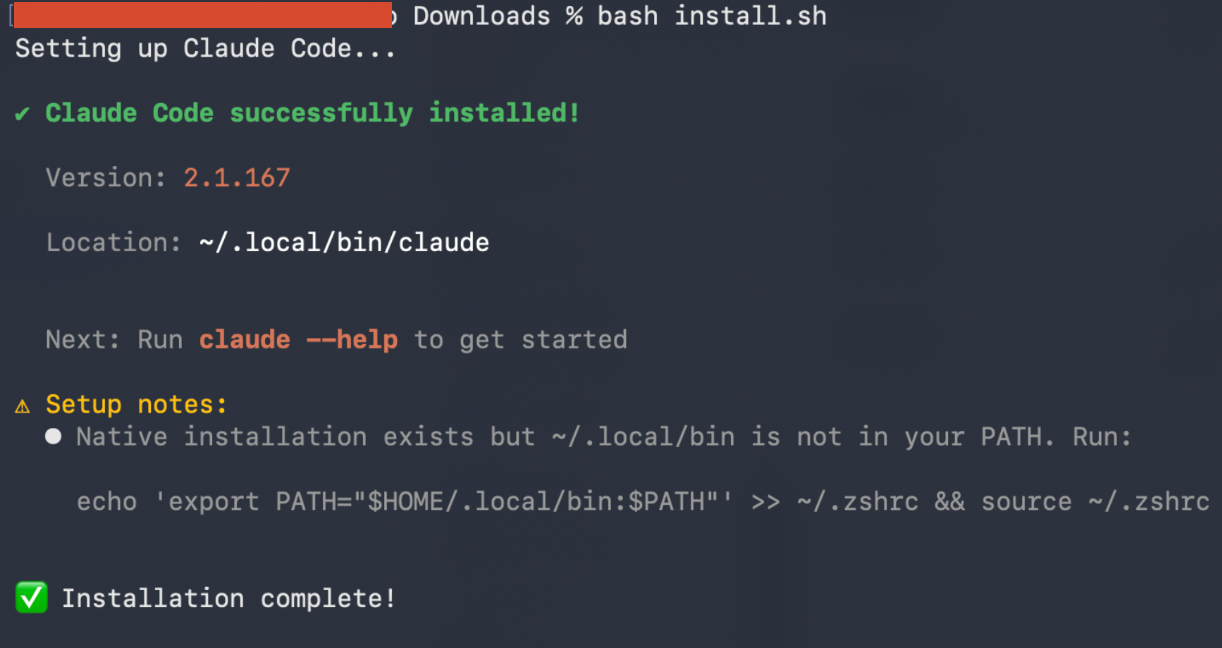
执行完的结果是:
步骤二:添加环境变量
根据上面执行完后的提示添加环境变量,并设置启动加载。
echo 'export PATH="$HOME/.local/bin:$PATH"' >> ~/.zshrc && source ~/.zshrc以上就是安装过程。
步骤三:配置模型
这里配置glm的模型:
{
  "env": {
    "ANTHROPIC_BASE_URL": "https://open.bigmodel.cn/api/anthropic",
    "ANTHROPIC_AUTH_TOKEN": "YOUR_API_KEY",
    "ANTHROPIC_DEFAULT_OPUS_MODEL": "glm-5.1",
    "ANTHROPIC_DEFAULT_SONNET_MODEL": "glm-5-turbo",
    "ANTHROPIC_DEFAULT_HAIKU_MODEL": "glm-4.5-air"
  },
  "enabledPlugins": {
    "superpowers@claude-plugins-official": true
  },
  "theme": "dark"
}
步骤四:安装superpowers
superpowers是本人比较推荐安装的插件,在命令行输入claude进入界面后可以执行安装:
/plugin install superpowers@claude-plugins-official 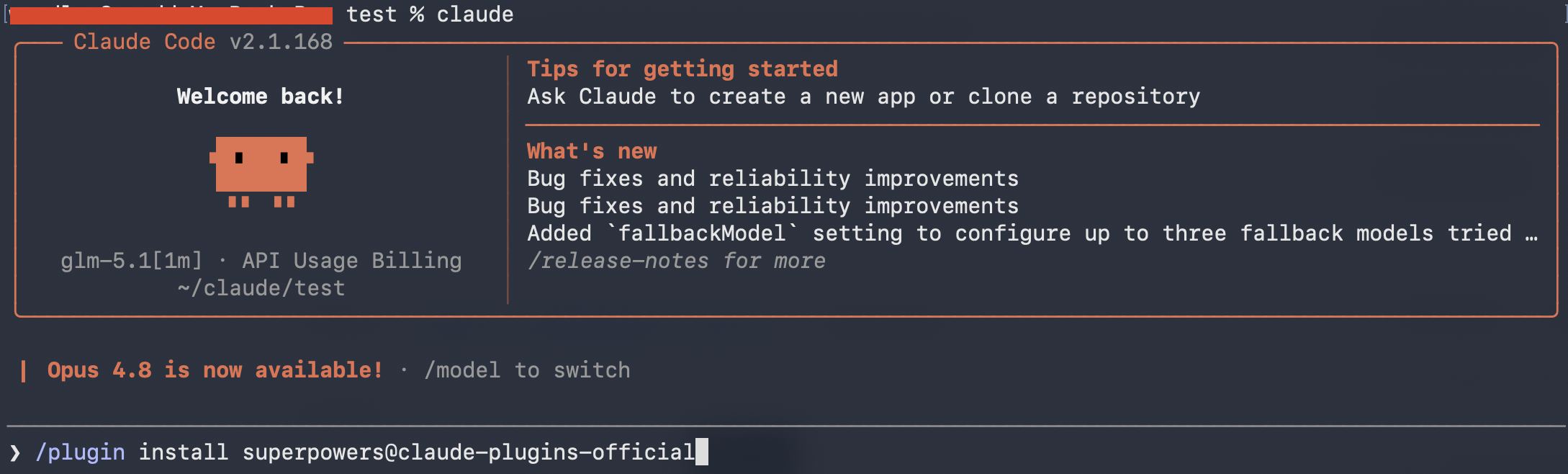
步骤五:执行验证
可以在窗口输入任意内容,查看是否有内容返回:

更多推荐
 4
4 0
0- 0


 已为社区贡献1条内容

所有评论(0)