
【python】Windows环境安装多个python版本(zip压缩包解压使用,非exe安装非anaconda)
·
为什不用anaconda?
- 首次使用无法再离线环境下使用
- 庞大
- 不方便拷贝迁移
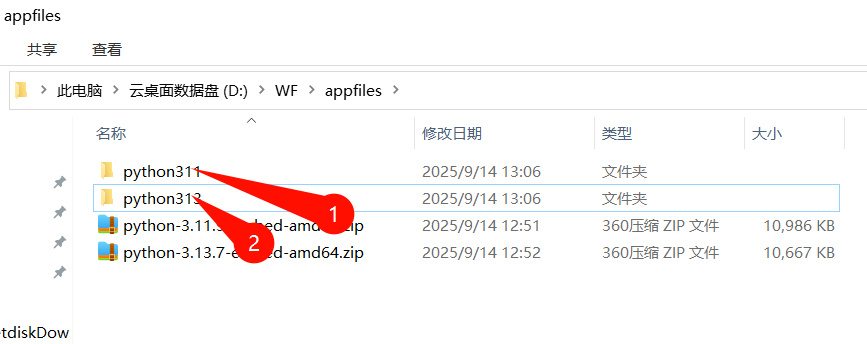
本文以同时安装python3.11.9和python3.13.7为例
下载python
https://www.python.org/downloads/
这里全部下载免安装的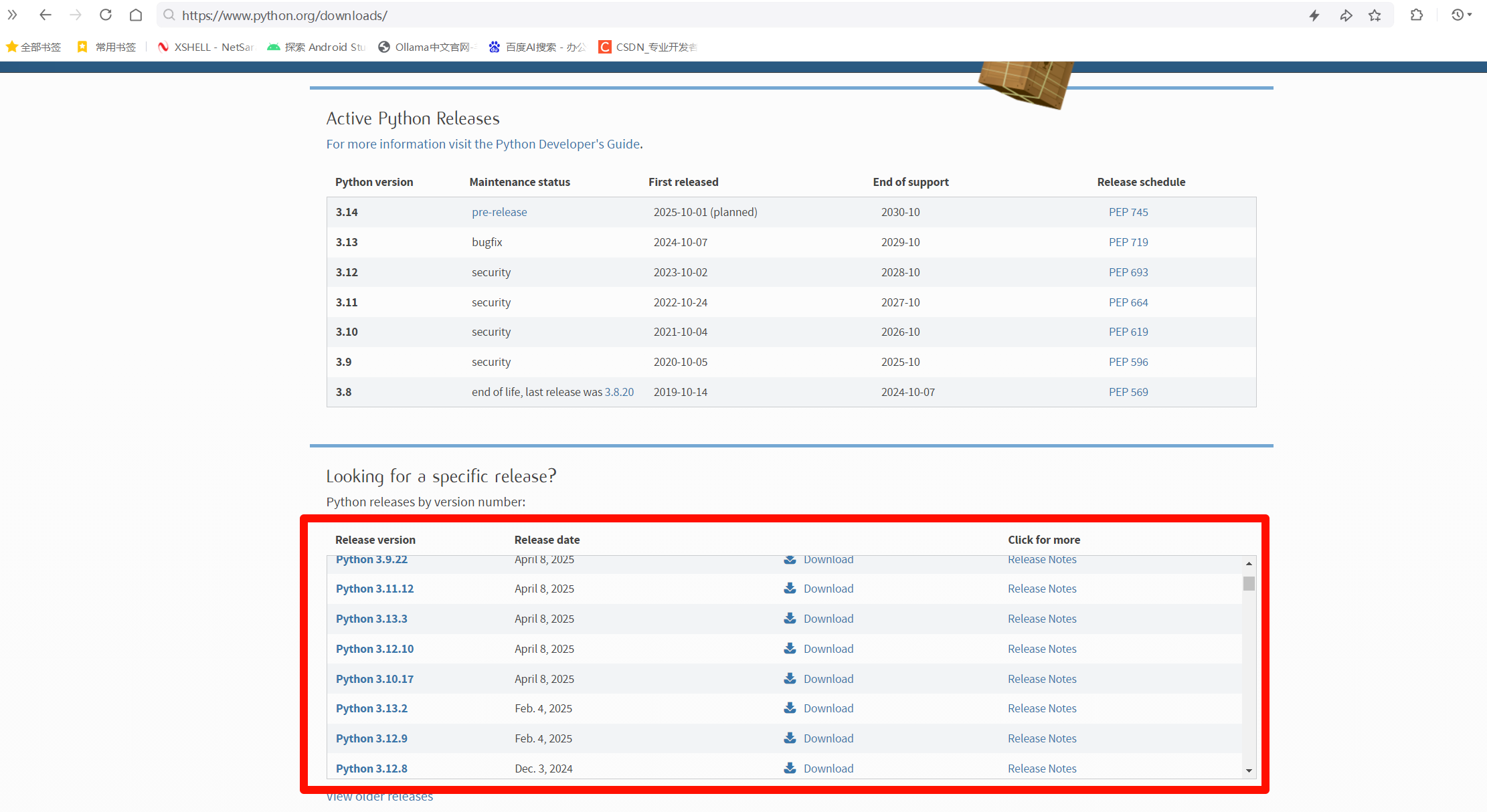
解压python
下载pip
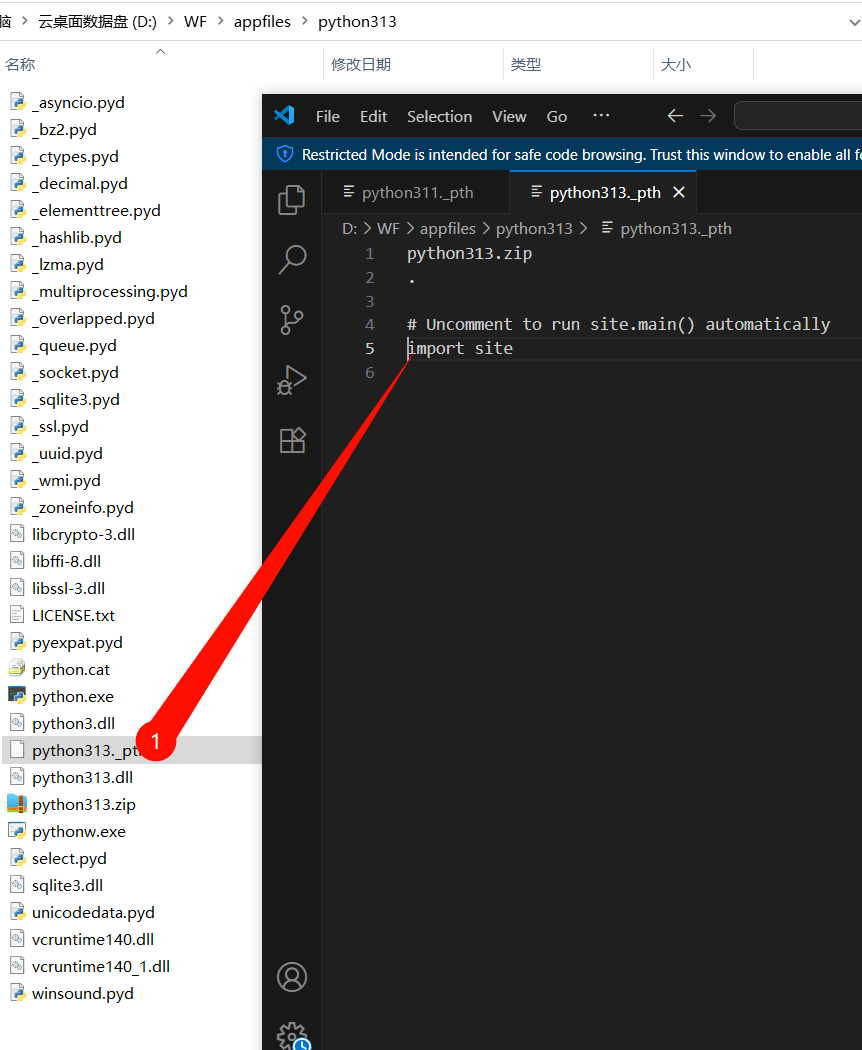
- 分别取消如下文件中
import site的注释
https://bootstrap.pypa.io/get-pip.py
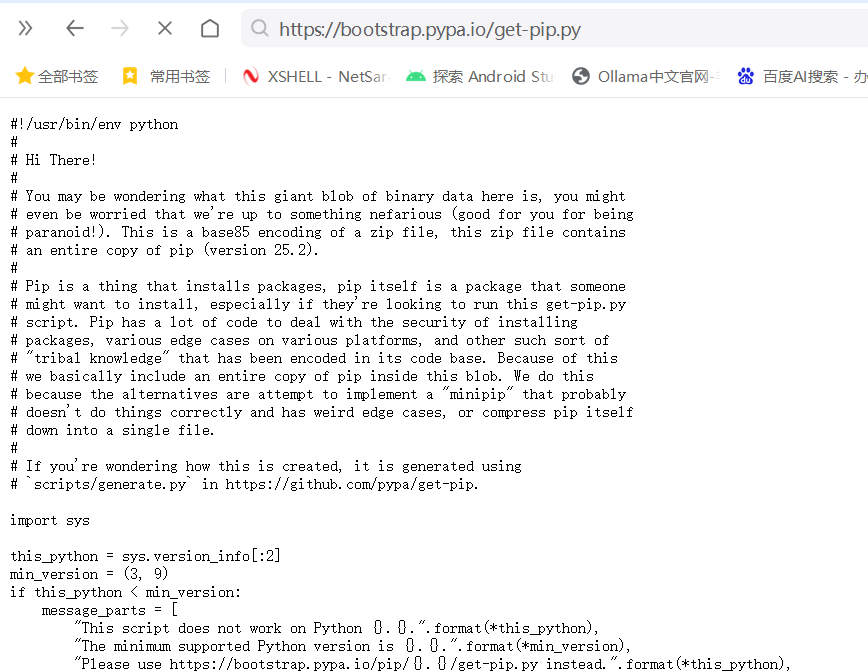
另存为或下载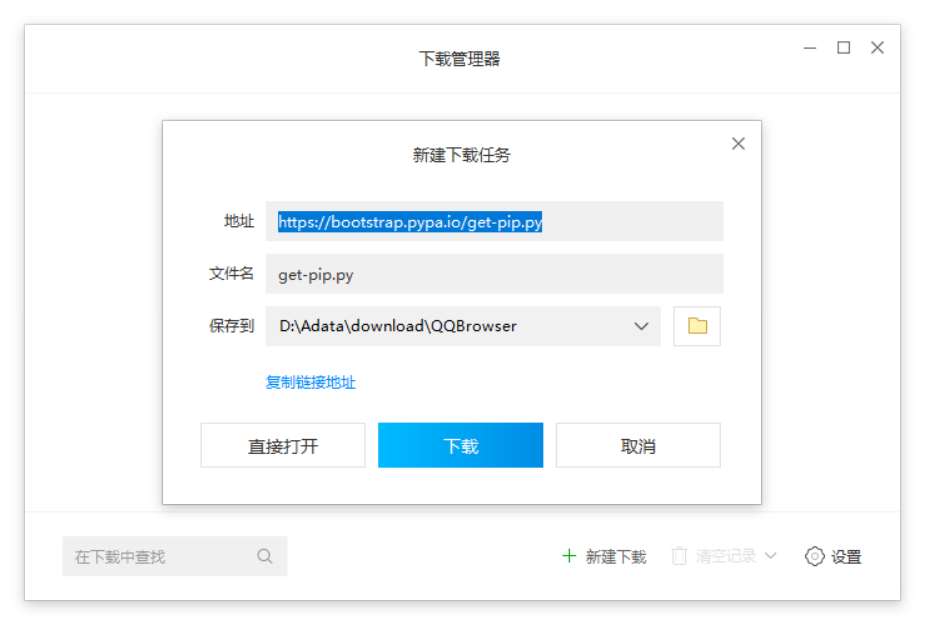
复制到D:\WF\appfiles\python311和D:\WF\appfiles\python313内
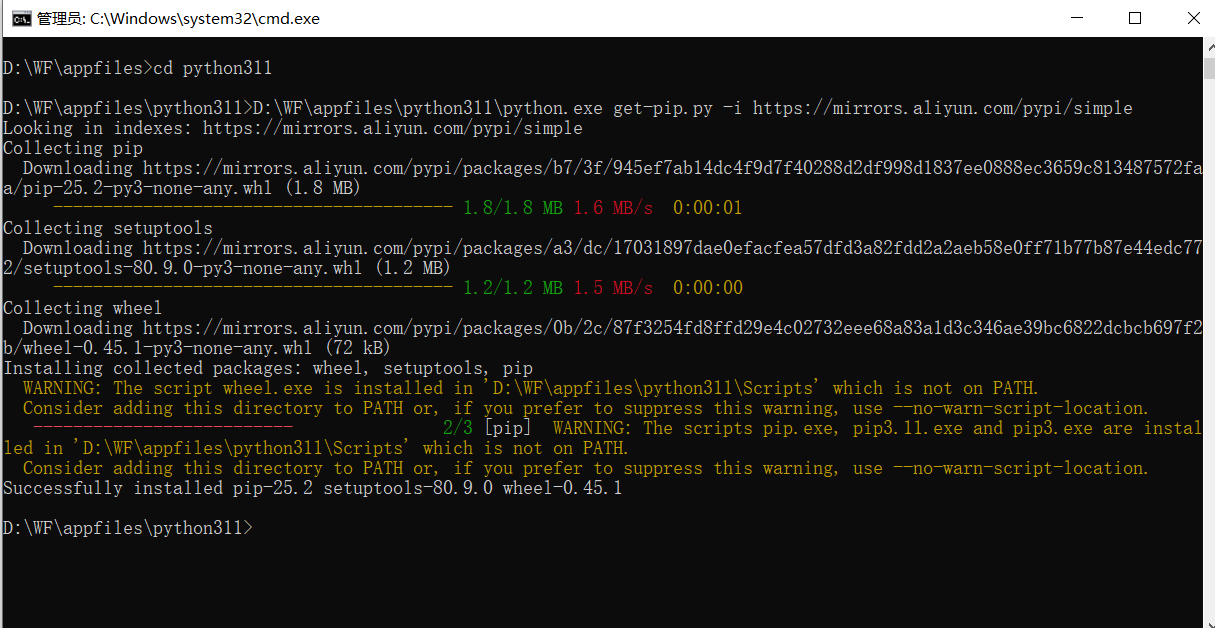
cd D:\WF\appfiles\python311
python.exe get-pip.py -i https://mirrors.aliyun.com/pypi/simple
cd ..\python313
python.exe get-pip.py -i https://mirrors.aliyun.com/pypi/simple
或者直接写一个bat脚本
以下目录比上面多了个“python”,因为笔者后面有考虑会装很多版本的python于是有了修改目录的想法,记保存为gb2312编码,不然运行时会乱码
@echo off
if not exist "D:\WF\appfiles\python\python311" (
    mkdir "D:\WF\appfiles\python\python311"
    echo 目录 D:\WF\appfiles\python\python311 已创建
) else (
    echo 目录 D:\WF\appfiles\python\python311 已存在
)
cd /d "D:\WF\appfiles\python\python311"
python.exe get-pip.py -i https://mirrors.aliyun.com/pypi/simple
cd ..\python313
python.exe get-pip.py -i https://mirrors.aliyun.com/pypi/simple
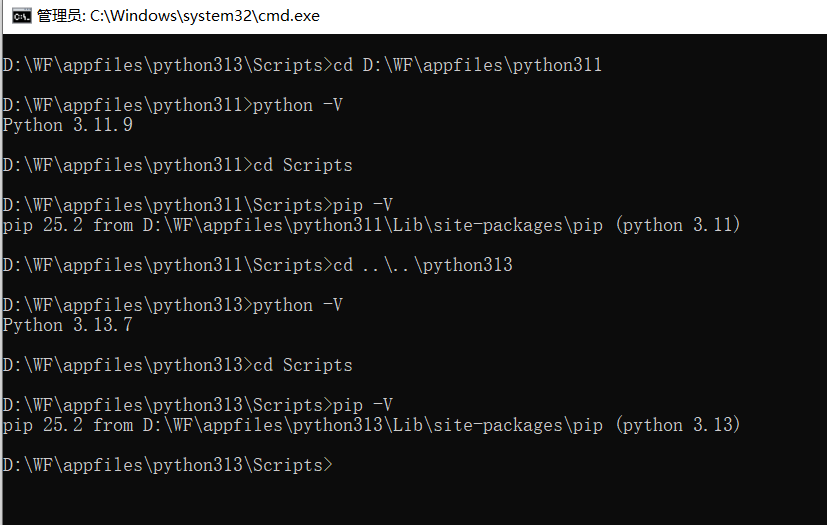
通过查看版本检测安装情况
cd D:\WF\appfiles\python311
python -V
cd Scripts
pip -V
cd ..\..\python313
python -V
cd Scripts
pip -V
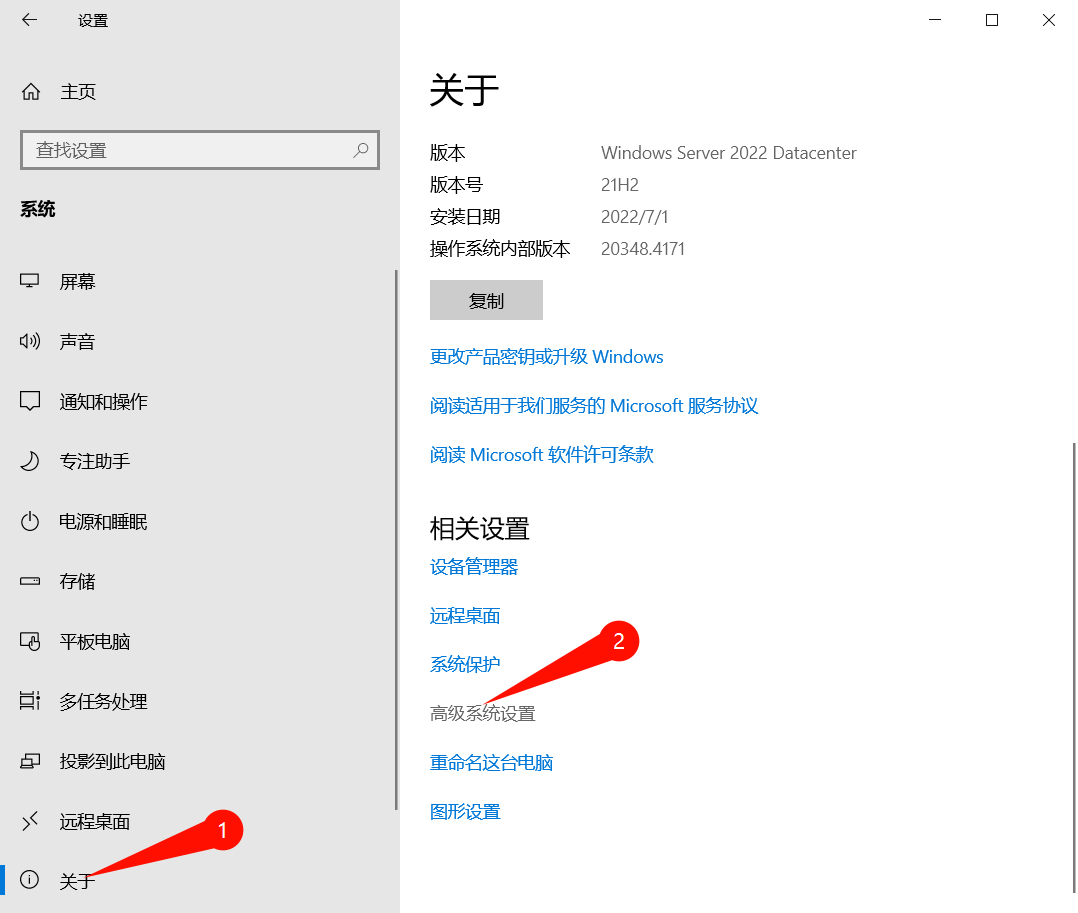
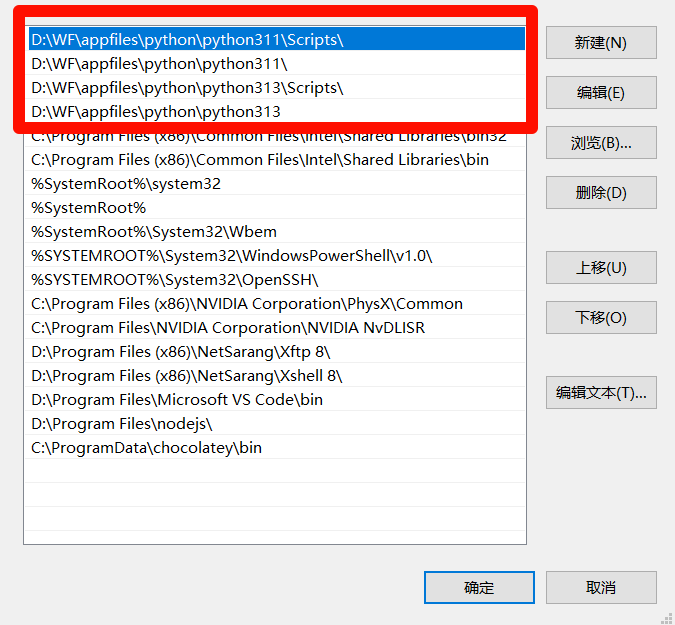
配置环境变量
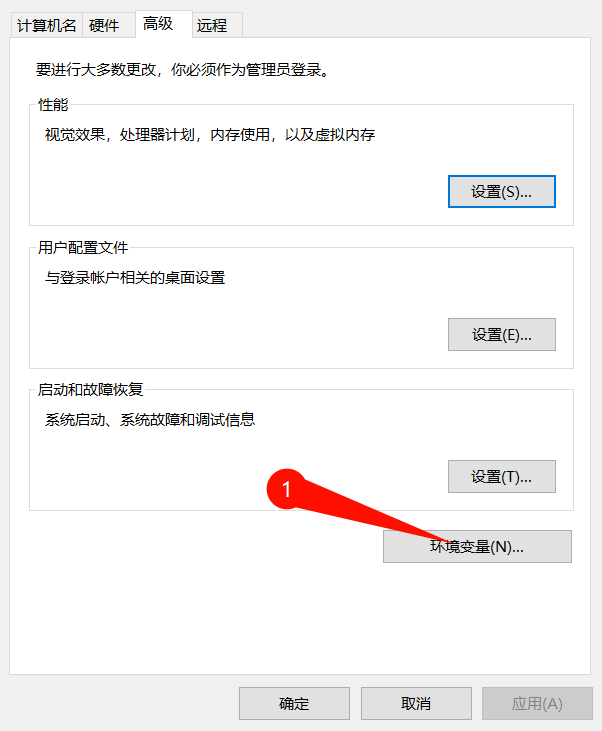
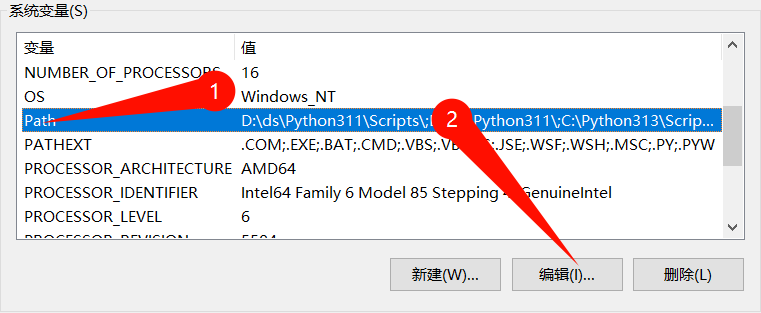
考上优先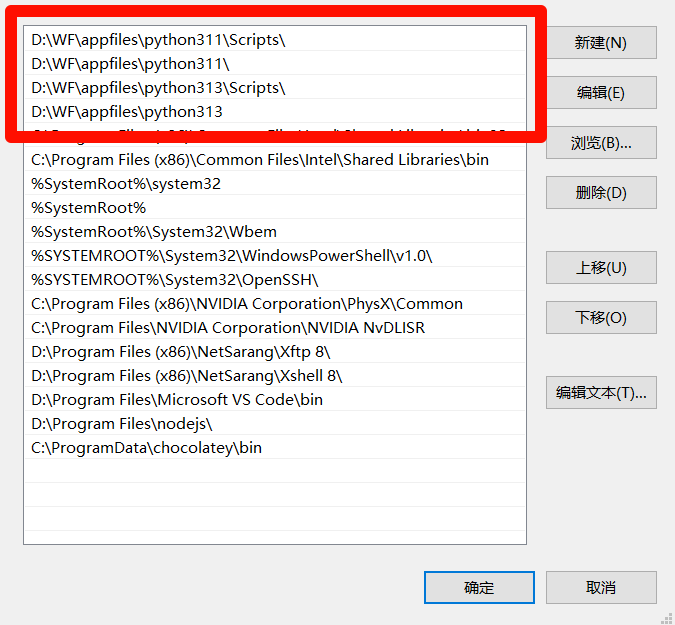
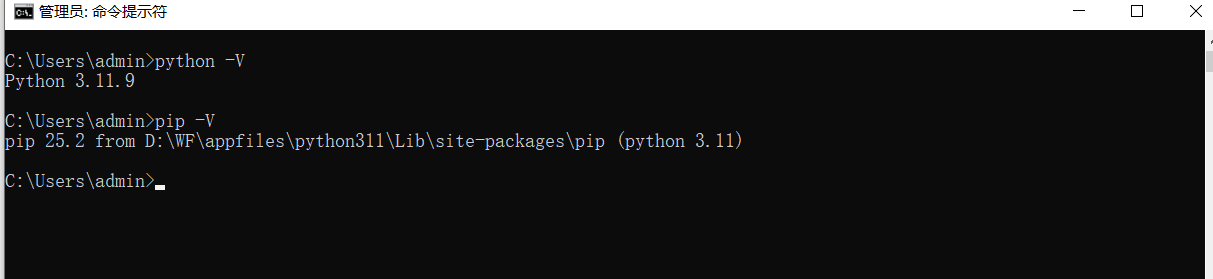
验证
- cmd验证
按WIN+R键,输入cmd
python -V
pip -V
- code开发环境验证
依次输入>python: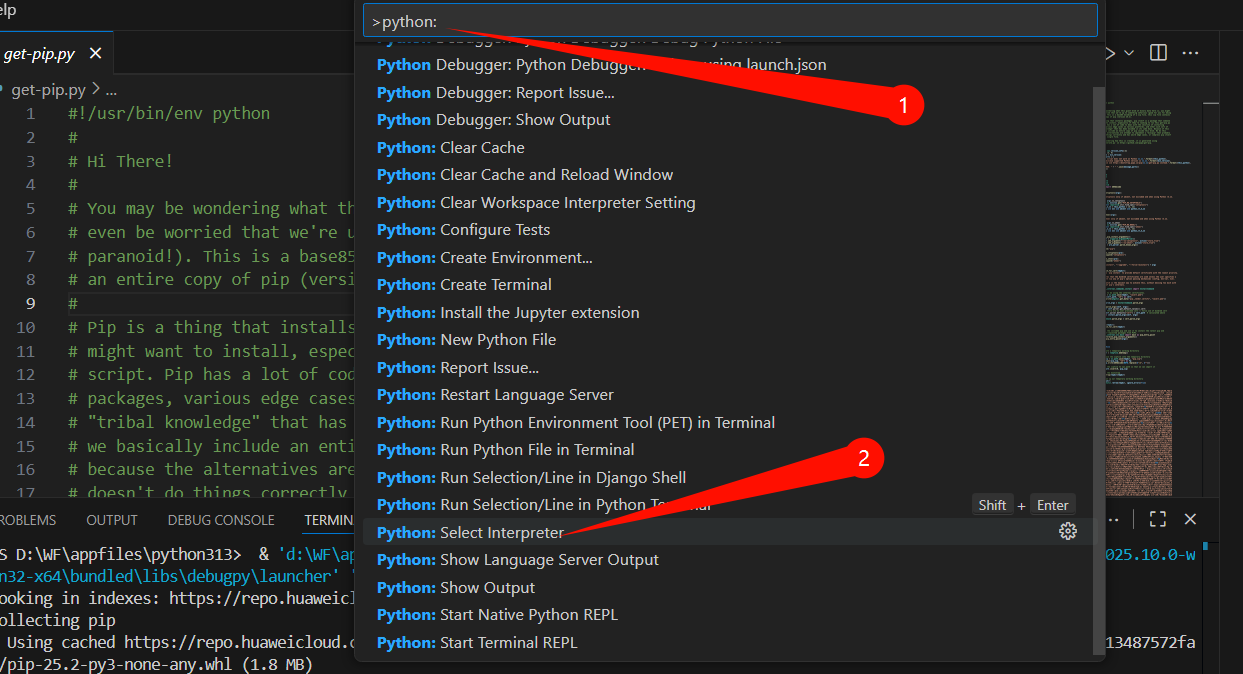
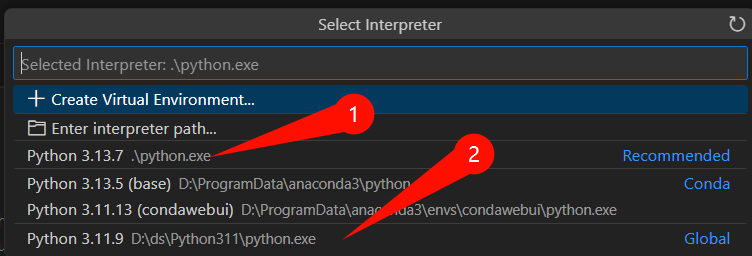
运行程序时可选cmd或powershell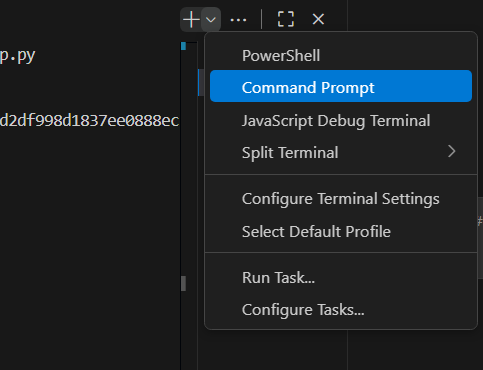
扩展-下载笔者写好的bat文件(未下载pip)
分别取消如下文件中import site的注释
下载地址:包含python311和python313ZIP文件
https://download.csdn.net/download/xzzteach/91940958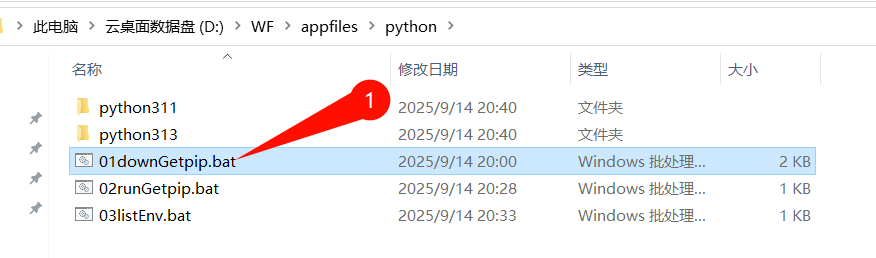
如果弹出安全提醒,不用担心。能看明白bat的看看bat源码就放心了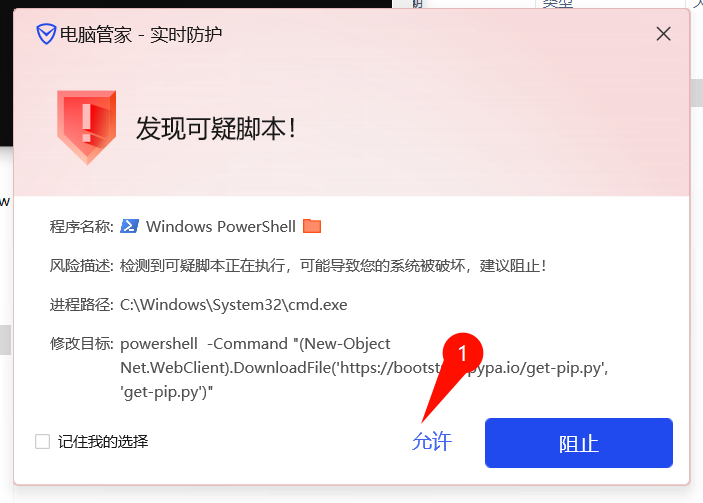
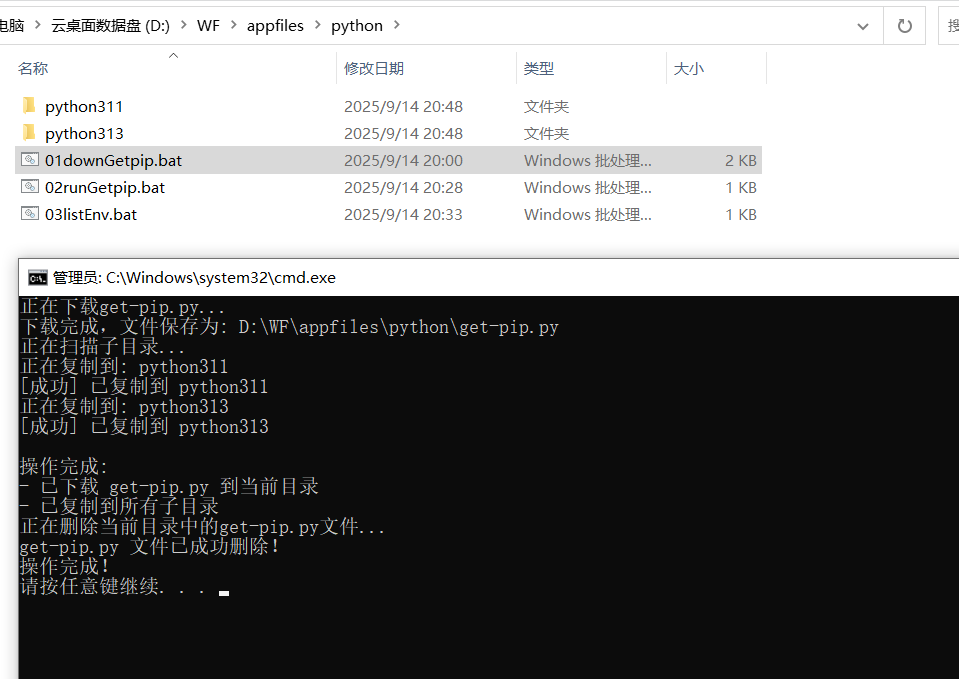
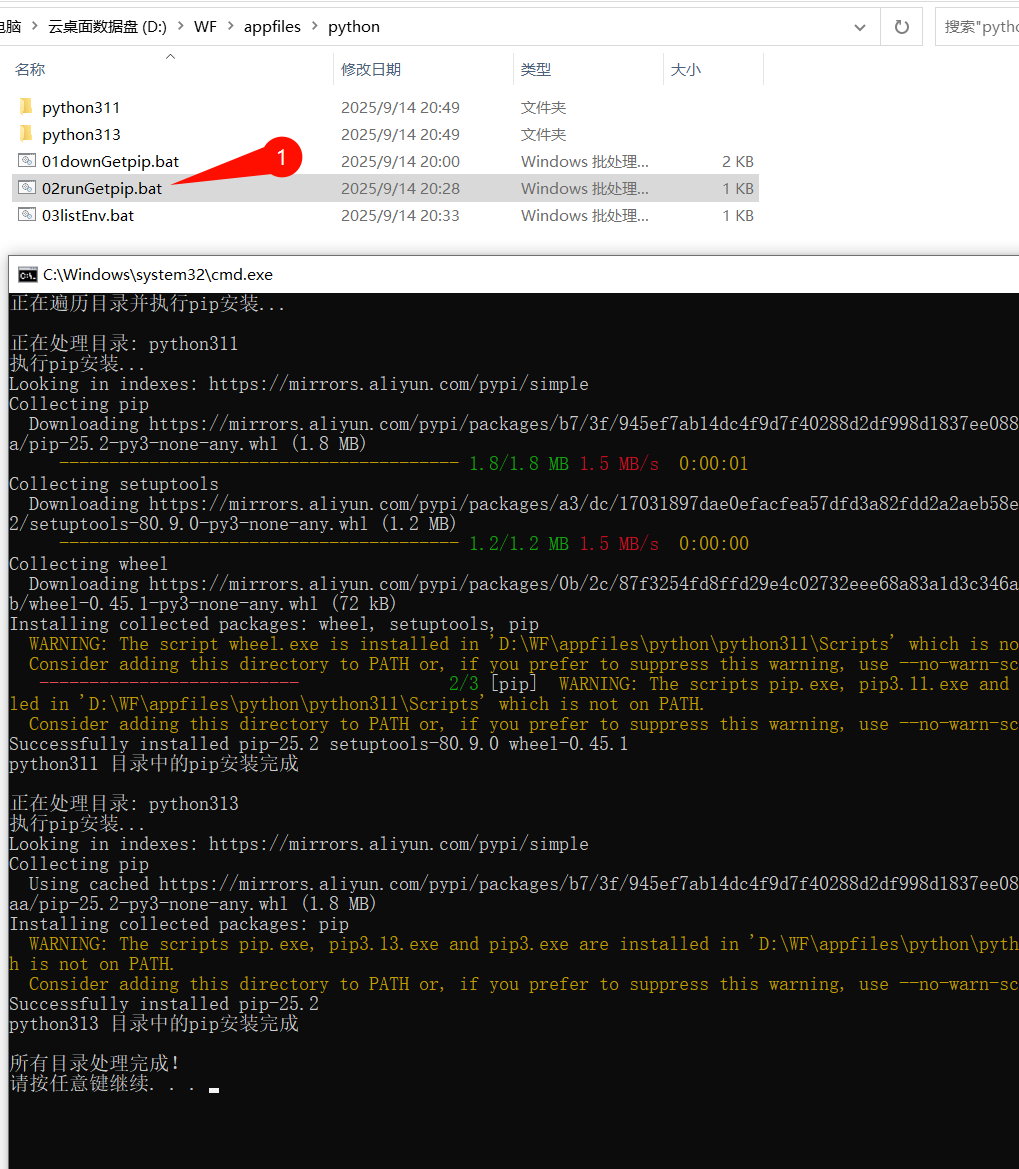
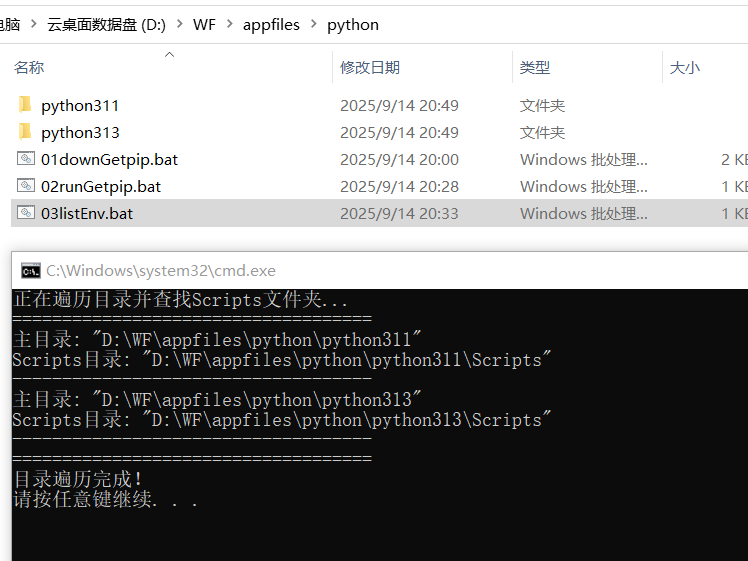
最后将上图所有几个路径手动添加到系统的环境变量中
扩展-下载笔者写好的bat文件(已下载并配置pip)
https://download.csdn.net/download/xzzteach/92130621
最后将上图所有几个路径手动添加到系统的环境变量中
更多推荐
 10
10 0
0- 0


 已为社区贡献2条内容

所有评论(0)