
【uniapp/vue3】H5项目 调起摄像头扫描二维码并获取二维码信息
·
一、效果展示
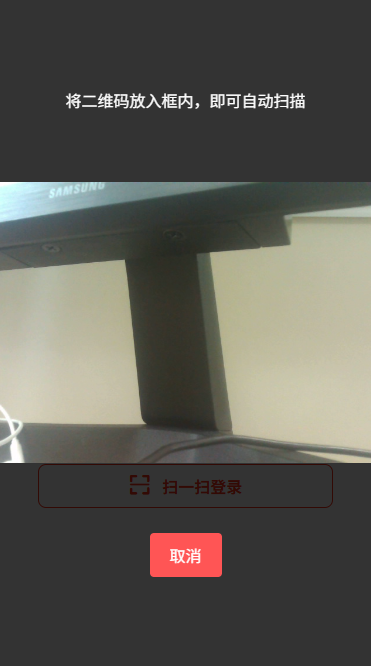
二、核心代码实现
<template>
  <view class="login-container container">
   <wd-button
          plain
          class="login-button"
          :round="false"
          size="large"
          @tap="scanQRCode"
        >
          <wd-icon name="scan" size="22px" class="m-r-2"></wd-icon>
          扫一扫登录
        </wd-button>
  </view>
</template>

<script setup lang="ts">
import { onLoad, onShow } from "@dcloudio/uni-app";
import { ref, onMounted } from "vue";
import { login } from "@/api/user.ts";
import VersionInfo from "@/components/VersionInfo.vue";
import { App_CONFIG } from "@/config/appConfig.ts";
// 引入jsQR库
import jsQR from "jsqr";

 // 通过环境判断平台类型
function scanQRCode() {

  const isH5 = typeof window !== "undefined";

  if (isH5) {
    try {
      if (!navigator.mediaDevices || !navigator.mediaDevices.getUserMedia) {
        uni.showToast({
          title: "当前浏览器不支持此功能",
          icon: "fail",
        });
        return;
      }

      scanQRCodeOnH5(); // H5环境使用自定义扫码实现
    } catch (error) {}
  } else {
    scanQRCodeOnApp(); // App环境使用uni.scanCode
  }
}

// H5环境下扫描二维码实现
function scanQRCodeOnH5() {
  // 创建视频和画布元素
  const video = document.createElement("video");
  const canvas = document.createElement("canvas");
  const canvasContext = canvas.getContext("2d");

  video.style.cssText = `

    width: 100%;
    height: 60%;

  `;
  // 创建扫码弹窗
  const scanContainer = document.createElement("div");
  scanContainer.style.cssText = `
    position: fixed;
    top: 0;
    left: 0;
    width: 100%;
    height: 100%;
    background: rgba(0, 0, 0, 0.8);
    z-index: 9999;
    display: flex;
    flex-direction: column;
    justify-content: center;
    align-items: center;
    color: white;
  `;

  const scanTip = document.createElement("div");
  scanTip.innerText = "将二维码放入框内,即可自动扫描";
  scanTip.style.cssText = `
    margin-bottom: 10px;
    font-size: 16px;
  `;

  const closeBtn = document.createElement("button");
  closeBtn.innerText = "取消";
  closeBtn.style.cssText = `
    margin-top: 10px;
    padding: 10px 20px;
    background: #ff5555;
    color: white;
    border: none;
    border-radius: 4px;
    font-size: 16px;
  `;

  scanContainer.appendChild(scanTip);
  scanContainer.appendChild(video);
  scanContainer.appendChild(closeBtn);
  document.body.appendChild(scanContainer);

  // 关闭扫码界面
  closeBtn.onclick = () => {
    if (stream) {
      stream.getTracks().forEach((track) => track.stop());
    }
    document.body.removeChild(scanContainer);
  };

  let stream: MediaStream | null = null;

  // 获取摄像头权限
  navigator.mediaDevices
    .getUserMedia({ video: { facingMode: "environment" } })
    .then((mediaStream) => {
      var videoTracks = mediaStream.getVideoTracks();
      let hasCamera = false;
      videoTracks.forEach((track) => {
        if (track.kind == "video" && track.label !== "Intel Virtual Camera") {
          hasCamera = true;
        }
      });
      if (!hasCamera) {
        uni.showToast({
          title: "请检查是否已打开摄像头权限",
          icon: "fail",
        });
        return;
      }

      video.setAttribute("autoplay", "");
      video.setAttribute("muted", ""); /*静音播放属性,微信环境中可删除*/
      video.setAttribute("playsinline", "true"); /*IOS微信浏览器支持小窗内播放*/
      video.setAttribute("preload", "auto"); /*是否自动播放*/
      video.setAttribute(
        "webkit-playsinline",
        "true"
      ); /*这个属性是ios 10中设置可以让视频在小窗内播放,即不全屏播放*/

      stream = mediaStream;
      video.srcObject = mediaStream;
      video.play();

      // 设置画布尺寸
      video.addEventListener("loadedmetadata", () => {
        canvas.width = video.videoWidth;
        canvas.height = video.videoHeight;

        // 开始扫描
        scanFrame();
      });
    })
    .catch((err) => {
      console.error("无法访问摄像头:", err);
      let errorMsg = "无法访问摄像头";
      let showPermissionGuide = false;

      if (
        err.name === "NotAllowedError" ||
        err.name === "PermissionDeniedError"
      ) {
        errorMsg = "摄像头权限被拒绝";
        showPermissionGuide = true;
      } else if (err.name === "NotReadableError") {
        errorMsg = "摄像头无法读取,请检查权限设置";
        showPermissionGuide = true;
      } else if (
        err.name === "NotFoundError" ||
        err.name === "OverconstrainedError"
      ) {
        errorMsg = "未找到可用的摄像头设备";
      } else if (err.name === "AbortError") {
        errorMsg = "摄像头访问被中断";
      }

      if (showPermissionGuide) {
        uni.showModal({
          title: "需要摄像头权限",
          content: "扫码功能需要访问摄像头,请在系统设置中找到本应用并开启相机权限",
          confirmText: "去设置",
          cancelText: "取消",
          success: function (res) {
            if (res.confirm) {
              gotoAppPermissionSetting();
            }
          },
        });
      } else {
        uni.showToast({
          title: errorMsg,
          icon: "fail",
        });
      }

      if (scanContainer && document.body.contains(scanContainer)) {
        document.body.removeChild(scanContainer);
      }
    });
  // 添加跳转到应用权限设置的函数
  function gotoAppPermissionSetting() {
    // 判断平台
    const platform = uni.getSystemInfoSync().platform;

    // Android平台
    if (platform === "android") {
      // uni-app 提供的打开系统设置方法
      plus.runtime.openURL("package:" + plus.runtime.appid);
    }
    // iOS平台
    else if (platform === "ios") {
      // iOS需要通过特定方式打开设置
      plus.runtime.openURL("app-settings:");
    }
    // 其他情况提示用户手动设置
    else {
      uni.showToast({
        title: "请在系统设置中找到本应用并开启相机权限",
        icon: "none",
        duration: 3000,
      });
    }
  }
  // 扫描帧
  function scanFrame() {
    if (video.readyState === video.HAVE_ENOUGH_DATA) {
      canvasContext.drawImage(video, 0, 0, canvas.width, canvas.height);
      const imageData = canvasContext.getImageData(
        0,
        0,
        canvas.width,
        canvas.height
      );

      // 使用jsQR解析二维码
      const code = jsQR(imageData.data, imageData.width, imageData.height);

      if (code) {
        // 扫码成功
        handleQRCodeResult(code.data);
        // 停止摄像头并关闭界面
        if (stream) {
          stream.getTracks().forEach((track) => track.stop());
        }
        document.body.removeChild(scanContainer);
        return;
      }
    }

    // 继续扫描下一帧
    requestAnimationFrame(scanFrame);
  }
}
function scanQRCodeOnApp() {
  uni.scanCode({
    success: (res) => {
      console.log("扫码结果:", res.result);
      handleQRCodeResult(res.result); // 处理扫码结果
    },
    fail: (err) => {
      console.error("扫码失败:", err);
      uni.showToast({
        title: "扫码失败",
        icon: "none",
      });
    },
  });
}
// 处理二维码扫描结果
function handleQRCodeResult(result: string) {
  console.log("二维码内容:", result);

}

function getUserMediaCompatible() {
  // 老的浏览器可能根本没有实现 mediaDevices,所以我们可以先设置一个空的对象
  if (navigator.mediaDevices === undefined) {
    navigator.mediaDevices = {};
  }

  // 一些浏览器部分支持 mediaDevices。我们不能直接给对象设置 getUserMedia
  // 因为这样可能会覆盖已有的属性。这里我们只会在没有 getUserMedia 属性的时候添加它。
  if (navigator.mediaDevices.getUserMedia === undefined) {
    navigator.mediaDevices.getUserMedia = function (constraints) {
      // 首先,如果有 getUserMedia 的话,就获得它
      var getUserMedia =
        navigator.webkitGetUserMedia || navigator.mozGetUserMedia;

      // 一些浏览器根本没实现它 - 那么就返回一个 error 到 promise 的 reject 来保持一个统一的接口
      if (!getUserMedia) {
        return Promise.reject(
          new Error("getUserMedia is not implemented in this browser")
        );
      }

      // 否则,为老的 navigator.getUserMedia 方法包裹一个 Promise
      return new Promise(function (resolve, reject) {
        getUserMedia.call(navigator, constraints, resolve, reject);
      });
    };
  }
}
onMounted(() => {
  getUserMediaCompatible();
});
</script>
三、遇到的问题及解决方案
在IOS浏览器中摄像头没有成功调起,设置以下属性即可解决
      video.setAttribute("playsinline", "true"); /*IOS微信浏览器支持小窗内播放*/
      video.setAttribute("preload", "auto"); /*是否自动播放*/
      video.setAttribute(
        "webkit-playsinline",
        "true"
      ); /*这个属性是ios 10中设置可以让视频在小窗内播放,即不全屏播放*/
更多推荐

 3
3 0
0- 0


 已为社区贡献1条内容

所有评论(0)