
UniApp 微信小程序地图电子围栏功能实现
·
文章目录
一、电子围栏是什么?
电子围栏 = 地图上画一个多边形区域
核心功能
- 在地图上手动绘制围栏
- 获取围栏的所有经纬度坐标
- 传入一个坐标(如设备 GPS、人员定位)
- 自动判断该坐标是否在围栏内
- 支持围栏编辑、回显、保存
适用场景
- 考勤打卡范围限制
- 电动车 / 设备电子围栏报警
- 物流车辆区域限制
- 智慧工地人员越界告警
- 巡检范围限定
二、核心技术说明
- 框架:UniApp
- 平台:微信小程序
- 组件:uni-map 地图组件(小程序原生 map)
- 核心算法:射线法(点是否在多边形内)
- 能力:地图展示、多点连线、多边形绘制、坐标计算
三、前置准备
1.开启小程序地图权限
微信公众平台 → 开发 → 开发设置
2.配置 manifest.json
在 微信小程序配置 → 权限配置 → 位置接口 里添加描述
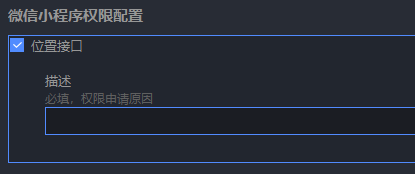
3.使用真机调试
地图、定位在浏览器 / 模拟器定位会出现偏移(非当前定位)!
四、页面代码
<template>
  <!-- 微信小程序地图电子围栏 -->
  <view class="map-container">
    <!-- 地图组件 -->
    <map
      id="myMap"
      ref="mapRef"
      class="map-box"
      :longitude="centerLong"
      :latitude="centerLat"
      :scale="16"
      :polygons="polygons"
      @tap="mapTap"
      show-location
    >
    </map>

    <!-- 工具栏 -->
    <view class="tool-bar">
      <button type="primary" size="mini" @click="startDrawFence">
        {{ isDraw ? '绘制中...' : '开始绘制围栏' }}
      </button>
      <button type="warn" size="mini" @click="clearFence">清空围栏</button>
      <button type="default" size="mini" @click="saveFence">保存围栏</button>
      <button type="primary" size="mini" @click="testPointInFence">
        测试:当前位置是否在围栏内
      </button>
    </view>

    <!-- 结果提示 -->
    <view class="tip" v-if="tipMsg">{{ tipMsg }}</view>
  </view>
</template>

<script>
export default {
  data() {
    return {
      // 地图中心点
      centerLong: 116.39748,
      centerLat: 39.90882,

      // 绘制围栏
      isDraw: false,
      pointList: [], // 围栏点集合

      // 地图多边形
      polygons: [],

      // 提示
      tipMsg: ''
    }
  },
  onReady() {
    this.getMyLocation()
  },
  methods: {
    // 获取当前定位
    getMyLocation() {
      uni.getLocation({
        type: 'gcj02',
        success: res => {
          this.centerLong = res.longitude
          this.centerLat = res.latitude
        }
      })
    },

    // 开始绘制围栏
    startDrawFence() {
      this.isDraw = true
      this.pointList = []
      this.polygons = []
      this.tipMsg = '点击地图绘制围栏点'
    },

    // 点击地图添加点
    mapTap(e) {
      if (!this.isDraw) return

      const { longitude, latitude } = e.detail
      this.pointList.push({
        longitude: Number(longitude),
        latitude: Number(latitude)
      })

      // 至少3个点才构成围栏
      if (this.pointList.length >= 3) {
        this.updatePolygon()
      }
    },

    // 更新地图多边形
    updatePolygon() {
      this.polygons = [
        {
          points: this.pointList,
          strokeWidth: 2,
          strokeColor: '#1890ff',
          fillColor: 'rgba(24,144,255,0.2)'
        }
      ]
    },

    // 清空围栏
    clearFence() {
      this.isDraw = false
      this.pointList = []
      this.polygons = []
      this.tipMsg = '围栏已清空'
    },

    // 保存围栏(可上传后端)
    saveFence() {
      if (this.pointList.length < 3) {
        uni.showToast({ title: '至少3个点', icon: 'none' })
        return
      }

      // 围栏坐标点(传给后端存储)
      const fenceData = {
        points: this.pointList,
        center: {
          longitude: this.centerLong,
          latitude: this.centerLat
        }
      }

      console.log('电子围栏数据:', fenceData)
      uni.setStorageSync('myFence', fenceData)

      this.tipMsg = '围栏保存成功'
      this.isDraw = false
    },

    // 测试:当前位置是否在围栏内
    testPointInFence() {
      if (this.pointList.length < 3) {
        uni.showToast({ title: '请先绘制围栏', icon: 'none' })
        return
      }

      uni.getLocation({
        type: 'gcj02',
        success: res => {
          const point = {
            longitude: res.longitude,
            latitude: res.latitude
          }

          // 核心算法:判断点是否在多边形内
          const isIn = this.isPointInPolygon(point, this.pointList)

          if (isIn) {
            this.tipMsg = '✅ 当前位置在围栏内'
          } else {
            this.tipMsg = '❌ 当前位置不在围栏内'
          }
        }
      })
    },

    // ====================
    // 核心算法:射线法
    // ====================
    isPointInPolygon(point, polygon) {
      let inside = false
      const x = point.longitude
      const y = point.latitude

      for (let i = 0, j = polygon.length - 1; i < polygon.length; j = i++) {
        const xi = polygon[i].longitude, yi = polygon[i].latitude
        const xj = polygon[j].longitude, yj = polygon[j].latitude

        const intersect = ((yi > y) != (yj > y))
          && (x < (xj - xi) * (y - yi) / (yj - yi) + xi)

        if (intersect) inside = !inside
      }
      return inside
    }
  }
}
</script>

<style scoped>
.map-container {
  width: 100%;
  height: 100vh;
  position: relative;
}
.map-box {
  width: 100%;
  height: 80vh;
}
.tool-bar {
  padding: 15rpx;
  display: flex;
  flex-wrap: wrap;
  gap: 10rpx;
}
.tip {
  padding: 20rpx;
  text-align: center;
  font-size: 30rpx;
  color: #1890ff;
}
</style>
五、功能模块详解
1.地图组件配置
<map
  :longitude="centerLong"
  :latitude="centerLat"
  :polygons="polygons"
  @tap="mapTap"
  show-location
/>
- show-location 显示自身定位蓝点
- polygons 渲染多边形围栏
- @tap 点击地图添加点
2.绘制围栏逻辑
流程:
1.点击【开始绘制】
2.点击地图添加坐标点
3.≥3 个点自动生成围栏
4.蓝色半透明区域就是围栏
3.绘制围栏逻辑
{
  points: 坐标数组,
  strokeWidth: 边框宽度,
  strokeColor: 边框颜色,
  fillColor: 填充色
}
4.射线法
原理:从点向右发射射线,与多边形边相交次数为奇数 → 在内部
支持:
- 凸多边形
- 凹多边形
- 复杂围栏
- 小程序 / APP/H5 通用
六、电子围栏常见业务用法
1.后端保存围栏
saveFence() {
  // 直接把 pointList 传给后端
  // 格式:[{latitude,longitude}, ...]
}
2.回显围栏(编辑模式)
onLoad() {
  const fence = uni.getStorageSync('myFence')
  if (fence) {
    this.pointList = fence.points
    this.updatePolygon()
  }
}
3.实时监控是否越界
// 定时获取定位判断是否在围栏内
setInterval(() => {
  uni.getLocation({
    success: res => {
      const inFence = this.isPointInPolygon(res, this.pointList)
      if (!inFence) {
        uni.showModal({ title: '警告', content: '已超出电子围栏' })
      }
    }
  })
}, 5000)
七、常见问题
1.地图不显示、不定位
- 必须真机调试
- 必须开启位置权限
- 必须配置 manifest.json 权限
2.绘制围栏不显示
- 至少需要 3 个点
- 坐标必须是 Number 类型
3.判断是否在围栏内不准确
- 地图必须用 gcj02 坐标系(国测局)
- uni.getLocation 必须指定 type: ‘gcj02’
4.小程序审核被拒
描述写:
用于考勤/设备管理/区域限制功能,获取位置用于判断是否在电子围栏范围内
总结
本篇完整实现了 UniApp 微信小程序电子围栏功能,包含:
- 地图绘制多边形围栏
- 点是否在多边形内核心算法
- 围栏保存、编辑、回显、清空
- 越界告警 / 考勤判断全套逻辑
更多推荐
 12
12 0
0- 0


 已为社区贡献6条内容

所有评论(0)