Persisting React State using Local/SessionStorage
When developing in React, one of the most common hooks we’ll use is the useState hook whenever we want a dynamically updatable value. A problem, however, is that the updated value will not persist as soon as the browser is refreshed, but luckily for us, we have options that allow us to hold our values inside storage for as long as we need.
LocalStorage and SessionStorage
If we inspect developer tools for any website and look at the Application tab, there is a section called Storage that contains Local Storage and Session Storage.
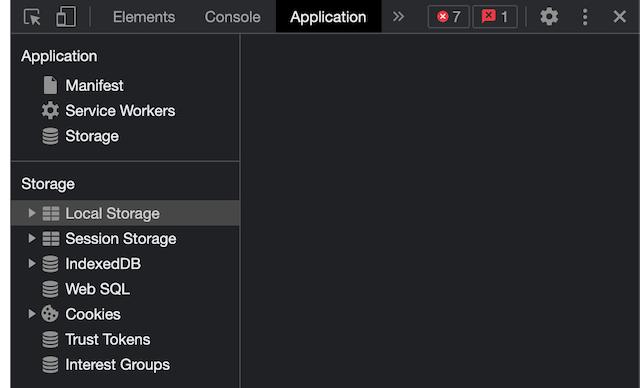
Local Storage and Session Storage found inside Application
The Storage interface is part of the Web Storage API that allows browsers to store key/value pairs more intuitively than cookies. Local and Session Storage are the two mechanisms of web storage; essentially, they do the same thing where both mechanisms maintain a separate storage area with some limitations.
The biggest difference between the two is that sessionStorage only stores data per session, meaning the data will be maintained until the browser (or tab) is closed, whereas localStorage will persist even when the browser is closed and reopened.
Implementing storage to state
For this blog, I built out a very simple app that adds or subtracts 1 from a counter. Without any storage mechanisms, the code for the app looks like this:
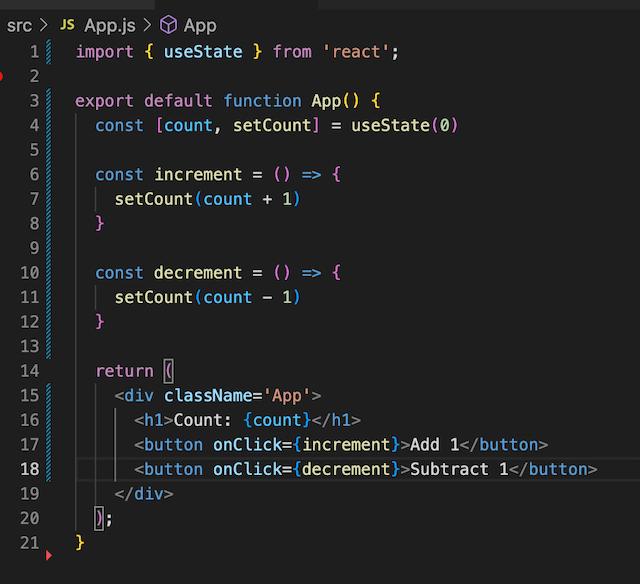
Code for simple counter without using Web Storage API.
Right now, whenever a button is clicked the count will increment or decrement by 1. However, if the page is refreshed the count will revert back to 0. So how do I add store state so that count persists after refreshing?
For this example, I will add sessionStorage to this app (to use localStorage, just replace sessionStorage with localStorage). To send data to storage I can use the .setItem() method, the syntax for .setItem() is:
sessionStorage.setItem('key', 'value');
Going back to my app’s code, I’ll have to modify the increment and decrement functions to include the new method. One way to write this will be:
const increment = () => {
setCount(oldCount => {
let newCount = Number(oldCount) + 1;
sessionStorage.setItem("PageCount", newCount);
return newCount;
})
}
Whenever the Add 1 button is clicked, I update our count state variable to be our old count + 1, then set that new count to the sessionStorage value and return the new count. If I want to see the count update in real-time, I can add a console.log to see updates in the inspect element Console:
console.log(sessionStorage.getItem("PageCount"));
You might’ve noticed that within the console.log there is another method, .getItem(‘key’). It does as it sounds like by getting the value from whichever key is passed into the method.
With the updated functions, I am able to update data inside sessionStorage, but the page’s counter still reverts back to 0 on refresh. In order for the app to maintain count after the refresh, I can again use the .getItem() method but this time inside of a useEffect hook so that I get the item on every rerender. One way to write the method is:
useEffect(() => {
const initialValue = sessionStorage.getItem("PageCount");
if (initialValue) setCount(initialValue);
}, []);
On every render, I am assigning the value of the PageCount key inside sessionStorage to an initialValue variable, then updating the count state variable to whatever that value is. Now, whenever the browser is refreshed, the counter will display whatever the value of PageCount is, controlled by the increment and decrement functions.
The entire code for the app now looks like this:
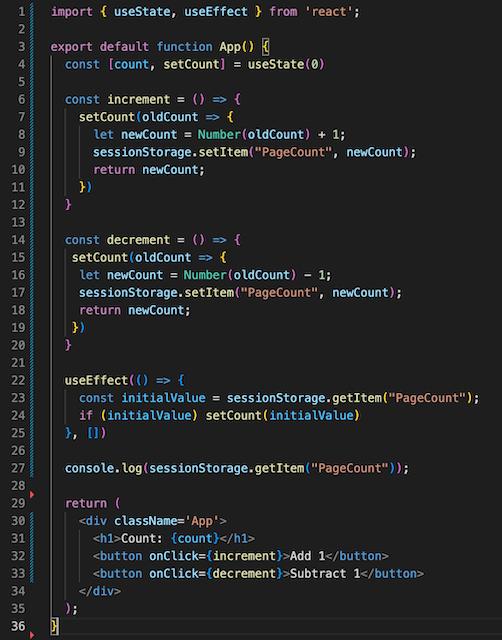
Code for simple counter using Web Storage API
Uses for local/session storage
This was just a very simple example of storing state, any time you want a state variable to persist you can use these methods. To keep it short, the times you should use local or sessionStorage are when you want to store non-sensitive data in the browser that does not need to be used in a high-performance app, and is not larger than 5MB. When trying to store objects you will need to stringify() data when setting the value as you would with other APIs which also means that when you are getting the data back you need to JSON.parse() to get a JavaScript object.
Resources
Web Storage API - Web APIs | MDN
The Web Storage API provides mechanisms by which browsers can store key/value pairs, in a much more intuitive fashion…
developer.mozilla.org
[
Storage - Web APIs | MDN
Here we access a Storage object by calling localStorage. We first test whether the local storage contains data items…
developer.mozilla.org
](https://developer.mozilla.org/en-US/docs/Web/API/Storage)
[
Window.localStorage - Web APIs | MDN
The keys and the values stored with localStorage are always in the UTF-16 string format, which uses two bytes per…
developer.mozilla.org
](https://developer.mozilla.org/en-US/docs/Web/API/Window/localStorage)

React社区为您提供最前沿的新闻资讯和知识内容
更多推荐
 0
0 0
0- 0


 已为社区贡献29247条内容

所有评论(0)