Easy-Peasy 状态管理使用 React Easy Peasy
作者财富池池
在构建 React 应用程序时,开发人员最重要的问题之一是有效地管理状态。在本教程中,我们将学习如何使用Easy Peasy来管理 React 应用程序中的状态。我们将了解 Easy Peasy 的核心概念、它的一些用例、为什么要将它用于您的下一个应用程序并构建一个简单的示例。 Easy Peasy 是开源的,在GitHub 上有超过 4100 颗星。
本教程将有益于有兴趣学习如何在其 React 应用程序中使用 Easy Peasy 管理状态,或在 React 应用程序中寻找有关状态管理的替代方案的读者。本文需要对 React 和 JavaScript 有基本的了解。
什么是 Easy Peasy?
Easy Peasy 是一个状态管理器,其工作方式与 Redux 类似,但代码和复杂性都比 Redux 少。 Easy Peasy 的构建目标是提供与 Redux 和其他状态管理器相同的性能。
Easy Peasy 的核心概念包括以下钩子和方法。
-
Store: 与 Redux 类似,Easy Peasy 需要一个由 React Context 提供支持的存储,它将向您的逻辑的某些部分公开应用程序状态。
-
State: 这是 Easy Peasy 的重要组成部分,因为它使用状态或模型来定义您的应用程序商店。
-
Tunk Action: 这在 Easy Peasy 中用于执行被称为副作用的操作,例如进行 API 调用。
-
Actions:用于更新应用商店的操作。
-
useStoreState:这是来自 Easy Peasy 的自定义钩子,可让我们的组件访问应用程序的存储状态。
-
useStoreActions:顾名思义,这个钩子让我们的组件可以访问商店的操作。
-
Provider:与 Redux 类似,Easy Peasy 带有一个 Provider 方法,该方法将 store 暴露给我们的 React 应用程序,这样做是为了让我们的组件能够使用 React hooks 消费 store。
Easy Peasy 可以使用任何包管理器(例如 NPM)通过以下命令进行安装
npm install easy-peasy
进入全屏模式 退出全屏模式
或者这个命令用于纱线包管理器
yarn add easy-peasy
进入全屏模式 退出全屏模式
为什么选择 Easy Peasy?
Easy Peasy 的主要目标是改进 React 开发人员的状态管理,并以更少的代码和样板文件提供更简单的应用程序状态管理方法。 Easy Peasy 去除了 Redux 的抽象,并通过更简单的过程简化了状态管理,使任何人都可以更轻松地在 React 应用程序中使用。
Easy Peasy 还提供了对基于 React Hooks 的 API 和 Redux 中间件的支持,例如开箱即用的 Redux thunk。有了这个,Easy Peasy 可以设置为使用 thunk 操作执行 API 请求作为副作用。让我们看看下面的 API 调用示例,该请求删除用户并通过用户的id获取用户。
import { action, computed, createContextStore, thunk } from 'easy-peasy';
import { getUserById } from './user';

const UserStore = createContextStore({
  getUsers: thunk(async actions => {
    actions.setIsLoading();
    try {
      const { data } = await getUsers();
      actions.setUsers(data);
    } catch (e) {
      actions.setError(e);
    }
    actions.setIsLoading();
  }),
  getUserById: thunk(async (actions, id) => {
    actions.setIsLoading();
    try {
      const { data } = await getUserById(id);
      actions.setUser(data);
    } catch (e) {
      actions.setError(e);
    }
    actions.setIsLoading();
  })
});
进入全屏模式 退出全屏模式
在上面的代码块中,我们通过id从 API 获取单个用户,该 API 具有getUserthunk并使用动作将用户设置为我们的当前状态。
Easy Peasy 上的thunk用于调度可以修改或更新应用程序状态的操作,同时为我们提供处理副作用的能力。 Thunks 可以在一个简单的 peasy 应用程序中定义,方法是从eay-peasy导入它,如下所示
import { thunk } from 'easy-peasy';
进入全屏模式 退出全屏模式
Easy Peasy 与 Redux/MobX/HookState
与 Redux 和 MobX 等其他状态管理器类似,Easy Peasy 使用单个存储来处理应用程序状态,并且它还赞赏使用操作作为我们应用程序存储的数据源。需要注意的是,Easy Peasy 在内部使用 Redux 来管理状态。
与 Redux 和 MobX 不同,Easy Peasy 几乎不需要使用样板代码,Easy Peasy 在后台使用Immer,这使开发人员能够与数据交互,同时保持不可变数据的好处。
Easy Peasy 允许开发人员通过使用 Redux 中间件和其他自定义挂钩来扩展应用程序商店以提高性能。
与 React HookState 相比,Easy Peasy 通过单个存储提供更轻松的管理和更新状态,并使用自定义钩子(例如 Easy Peasy 开箱即用的useStoreState和useStoreAction)与组件共享信息。
凭借其简单和零样板代码,Easy Peasy 可用于管理从简单的 React 待办应用程序到大型应用程序的状态。 Easy Peasy 还提供了开箱即用的 TypeScript 支持。
带有 Easy Peasy 的 Building Notes 应用程序
现在我们了解了 Easy Peasy 的核心概念,我们将构建一个笔记应用程序并使用 Easy Peasy 管理状态。该应用程序将允许用户使用切换按钮添加、删除和临时取消注释。
设置您的环境
首先,让我们创建一个新的 React 应用程序,在终端上编写下面的代码块
npx create-react-app easy-peasy-notes-app
进入全屏模式 退出全屏模式
上面的代码将使用create-react-app包创建一个裸 React 应用程序。进入项目目录并添加我们应用程序所需的依赖项。
cd easy-peasy-notes-app
进入全屏模式 退出全屏模式
yarn add easy-peasy uuid
进入全屏模式 退出全屏模式
在上面的代码块中,我们安装了
-
**easy-peasy:**我们应用程序的状态管理器
-
uuid: 这是为我们的应用程序创建唯一的注释字符串
如果您已完成此操作,请使用以下命令启动项目服务器
yarn start
进入全屏模式 退出全屏模式
接下来,让我们在src目录中创建一个components文件夹,我们将为我们的应用程序创建三个组件和一个应用商店。
创建应用商店
如上所述,Easy Peasy 使用store来保存应用程序状态。有了这个,我们可以访问应用商店并更新状态。在商店中,我们需要设置一个函数来在我们的应用程序中添加、切换和删除笔记。
要创建我们的应用商店,首先在我们项目的src目录下创建一个Store.js文件,接下来让我们在我们的商店中添加逻辑:
import { action } from "easy-peasy";
import uuid from "uuid";

export default {
  notes: [],
  setNote: action((state, notes) => {
    state.notes = notes;
  }),
  addNote: action((state, note) => {
    note.id = uuid.v4();
    state.notes.push(note);
  }),
  toggleNote: action((state, id) => {
    state.notes.forEach((note) => {
      return note.id === id ? (note.completed = !note.completed) : note;
    });
  }),
  removeNote: action((state, id) => {
    state.notes = state.notes.filter((note) => note.id !== id);
  })
};
进入全屏模式 退出全屏模式
在上面的代码中,我们从easy-peasy导入了actions,这些操作将用于更新我们的应用程序商店,我们导入uuid以便在创建笔记时为我们的笔记提供唯一的ids。我们将 notes 初始化为一个空数组,并创建了一个函数setNote,它接受 state 和 note 参数,并将当前 note 设置为state.notes的值。
addNote函数接受两个参数,一个初始的state和一个note,接下来我们将音符id分配给uuid.v4()自动提供的一个,并将新音符推入state.notes数组。
toggleNote接受状态和id参数,并使用原生 JavaScriptforEach对象通过切换note.completed的值来划掉已完成的注释,removeNote对象使用过滤器对象删除注释。
在下一节中,我们将使用上面的逻辑来创建我们的应用程序组件。
构建 Note 组件
在这里,我们将构建我们的 note 组件,它将成为每个列表在我们的应用程序中的外观的基本组件,为此,让我们在项目的src目录中创建一个组件文件夹,并在其中创建一个新文件Note.jsx,编写下面的代码块。
import React from "react";
import { useStoreActions } from "easy-peasy";
const Note = ({ note }) => {
const { completed } = note;
const removeNote = useStoreActions(actions => actions.removeNote);
const toggleNote = useStoreActions(actions => actions.toggleNote);
return (
<li className="d-flex justify-content-between align-items-center mb-2">
<span
className="h2 mr-2"
style={{
textDecoration: completed ? "line-through" : "",
cursor: "pointer"
}}
onClick={() => toggleNote(note.id)}
>
{note.title}
</span>
<button
onClick={() => removeNote(note.id)}
className="btn btn-danger btn-lg"
>
×
</button>
</li>
);
};
export default Note;
进入全屏模式 退出全屏模式
在这里,来自 easy-peasy 的useStoreActions钩子让我们的Note组件可以访问商店中的操作,在本例中,toggleNote用于划掉已完成的注释,而addNote用于添加新注释。我们返回了包含新注释的li标签。
接下来,我们为我们的应用程序添加了一个删除按钮,类似于切换笔记,我们添加了一个onClick事件,该事件接受removeNote操作,如果我们正确执行此操作,我们的应用程序应该如下图所示。
[ ](https://res.cloudinary.com/practicaldev/image/fetch/s--INPkXeJQ--/c_limit%2Cf_auto%2Cfl_progressive%2Cq_auto%2Cw_880/https://dev-to- uploads.s3.amazonaws.com/uploads/articles/i6lcom7zvfmd2jn9p6yf.png)
建筑注释组件
这个组件将作为我们笔记的渲染,在这里我们将为我们的应用程序名称添加一个标题组件,并在这个组件中渲染我们所有的笔记,让我们在下面这样做
import React from "react";
import { useStoreState } from "easy-peasy";
import Note from "./Note";
const Notes = () => {
  const notes = useStoreState((state) => state.notes);
  return (
    <>
      <h1 className="display-4">Notes</h1>
      {notes.length === 0 ? (
        <h2 className="display-3 text-capitalize">Please add note</h2>
      ) : (
        notes.map((note) => <Note key={note.id} note={note} />)
      )}
    </>
  );
};
export default Notes;
进入全屏模式 退出全屏模式
在这里,我们从 easy-peasy 导入了100115 useStoreState 100116 100114钩子,useStoreState授予我们的组件访问商店状态的权限,接下来我们创建了一个功能组件注释,并使用useStorestate将notes分配给商店中找到的应用程序的状态。
作为使用三元运算符的边缘案例,我们将删除一个文本供用户添加注释(如果他们没有添加注释),如果他们添加注释则呈现注释。您可以在此处了解有关三元运算符的更多信息。
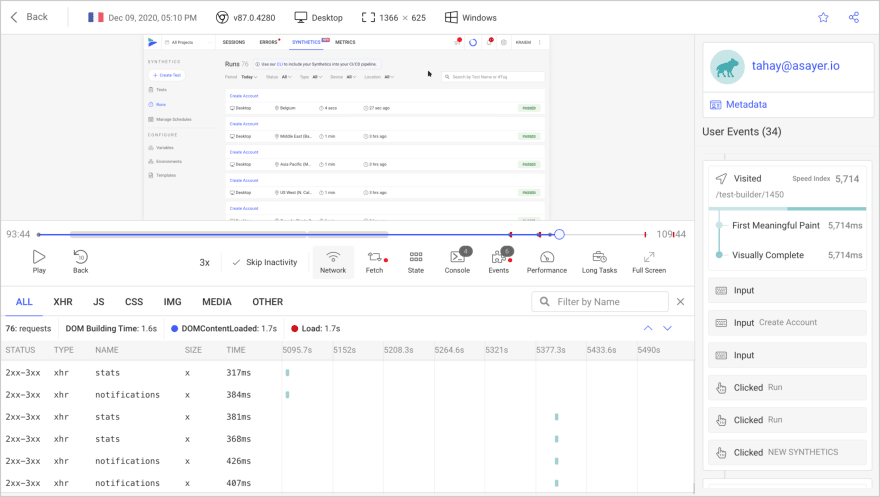
开源会话重放
在生产环境中调试 Web 应用程序可能具有挑战性且耗时。OpenReplay是 FullStory、LogRocket 和 Hotjar 的开源替代品。它允许您监控和回放用户所做的一切,并显示您的应用程序在每个问题上的表现。
这就像在查看用户的肩膀时打开浏览器的检查器。
OpenReplay 是目前唯一可用的开源替代方案。
[ ](https://res.cloudinary.com/practicaldev/image/fetch/s--MvoFt7Qf--/c_limit%2Cf_auto%2Cfl_progressive%2Cq_auto%2Cw_880/https://raw.githubusercontent.com /openreplay/openreplay/main/static/replayer.png)
快乐调试,现代前端团队 -开始免费监控您的 Web 应用程序。
建筑笔记表单组件
该组件将是我们应用程序的主体,这里将处理提交我们的注释并将其设置为我们应用程序状态的更新值。让我们构建下面的组件
import React, { useState } from "react";
import { useStoreActions } from "easy-peasy";
const NotesForm = () => {
const [title, setTitle] = useState("");
const [err, setErr] = useState(false);
const addNote = useStoreActions(actions => actions.addNote);
const handleSubmit = e => {
e.preventDefault();
if (title.trim() === "") {
setErr(true);
} else {
setErr(false);
addNote({
title,
completed: false
});
}
setTitle("");
};
return (
<>
<form onSubmit={handleSubmit} className="d-flex py-5 form-inline">
<input
type="text"
placeholder="Add Todo Title"
value={title}
className="form-control mr-sm-2 form-control-lg"
onChange={e => setTitle(e.target.value)}
/>
<button type="submit" className="btn btn-success btn-lg rounded">
Add Note
</button>
</form>
{err && (
<div className="alert alert-dismissible alert-danger">
<button
type="button"
className="close"
data-dismiss="alert"
onClick={() => setErr(false)}
>
×
</button>
<strong>Oh oh!</strong>{" "}
<span className="alert-link">please add a valid text</span></div>
)}
</>
);
};
export default NotesForm;
进入全屏模式 退出全屏模式
在这个组件中,首先为了访问我们项目在商店中的操作对象,我们导入了useStoreActions并初始化了addNote用于在我们的组件中添加注释的操作,接下来我们创建了一个输入表单,其中包括添加注释的输入,提交注释当用户尝试使用输入添加空笔记时,将添加一个按钮以用于提醒。
最后一步是设置我们的App.js文件并使用Provider包装我们的应用程序并重新启动我们的服务器以查看我们的最终应用程序,让我们在下面的代码块中执行此操作。
import React from "react";
import "./styles.css";
import Notes from './components/Notes';
import NotesForm from './components/NotesForm'

import { StoreProvider, createStore } from "easy-peasy";
import store from "./Store";

const Store = createStore(store);
function App() {
  return (
    <StoreProvider store={Store}>
      <div className="container">
        <NotesForm />
        <Notes />
      </div>
    </StoreProvider>
  );
}
进入全屏模式 退出全屏模式
在这里,我们导入了StoreProvider和createStore,``StoreProvider将store暴露给我们的应用程序,以便我们的组件能够使用钩子来消费商店,而类似于 Redux 的createStore基于我们提供的模型创建一个全局store,接下来我们使用 store 作为StoreProvider的参数来包装我们的 App 组件。
正确完成后,我们的应用程序应如下图所示
[ ](https://res.cloudinary.com/practicaldev/image/fetch/s--Jb4WxqkO--/c_limit%2Cf_auto%2Cfl_progressive%2Cq_auto%2Cw_880/https://dev- to-uploads.s3.amazonaws.com/uploads/articles/39rp2anfdu8ll8tgno6n.png)
API 请求与 Easy Peasy
在本节中,我们将研究使用 Easy peasy 处理 API 请求,为了更好地理解这一点,我们将使用 React、TypeScript 和 Easy peasy 构建一个货币转换器来管理应用程序的状态。在我们的应用程序中,用户应该能够将美元兑换成任何货币,用户可以输入他们想要兑换的金额和兑换的货币。
首先,我们将使用以下命令创建一个 React 应用程序
npx create-react-app currency-converter
进入全屏模式 退出全屏模式
我们将使用 Yarn 包管理器添加 typescript 支持和 reactstrap 样式
yarn add @testing-library/jest-dom @testing-library/react @testing-library/user-event @types/jest @types/node @types/react @types/react-dom axios bootstrap easy-peasy reactstrap typescript
进入全屏模式 退出全屏模式
为了支持 TypeScript,在我们项目的根目录下创建一个tsconfig.json文件并将下面的代码块复制到其中
{
  "compilerOptions": {
    "target": "es5",
    "lib": [
      "dom",
      "dom.iterable",
      "esnext"
    ],
    "allowJs": true,
    "skipLibCheck": true,
    "esModuleInterop": true,
    "allowSyntheticDefaultImports": true,
    "strict": true,
    "forceConsistentCasingInFileNames": true,
    "noFallthroughCasesInSwitch": true,
    "module": "esnext",
    "moduleResolution": "node",
    "resolveJsonModule": true,
    "isolatedModules": true,
    "noEmit": true,
    "jsx": "react-jsx"
  },
  "include": [
    "src"
  ]
}
进入全屏模式 退出全屏模式
添加上面的代码后,为了完成我们项目的 TypeScript 配置,在我们项目的根目录中创建一个名为react-app-env.d.ts的新文件,该文件将引用我们在项目中拥有的 react-scripts 的类型,你可以在这里了解更多信息。
/// <reference types="react-scripts" />
进入全屏模式 退出全屏模式
建立我们的应用商店
为了开始我们的项目,在项目的src目录中,为我们的应用程序商店创建一个store文件夹,并在其中创建两个文件,index.ts和typehook.ts.我们的index.ts文件将包含我们的 API 函数和应用程序的 TypeScript 接口存储操作,而我们的typehook.ts将包含来自 Easy peasy 的 Typed hooks。在下面的代码块中,我们将为我们的 API 请求创建接口
import { createStore, Action, action, Thunk, thunk } from "easy-peasy";
import axios from "../axios";

export interface ICurrency {
  currency_name: string;
  currency_code: string;
  decimal_units: string;
  countries: string[];
}
interface IAllCurrencies {
  data: ICurrency[];
  updateResult: Action<IAllCurrencies, ICurrency[]>;
  getAllCurrencies: Thunk<IAllCurrencies>;
}
interface ICurrencyRates {
  rates: { [key: string]: string };
  updateRates: Action<ICurrencyRates, any>;
  getCurrencyRates: Thunk<ICurrencyRates>;
}
interface IConversion {
  data: {
    to: string;
    amount: string;
  };
  updateTo: Action<IConversion, string>;
  updateAmount: Action<IConversion, string>;
}
export interface IStore {
  allCurrencies: IAllCurrencies;
  currencyRates: ICurrencyRates;
  conversion: IConversion;
}

const store = createStore<IStore>({
  allCurrencies: {
    data: [],
    updateResult: action((state, payload) => {
      state.data = Object.values(payload);
    }),
    getAllCurrencies: thunk(async (actions) => {
      try {
        const res = await axios.get(`/currencies`);
        actions.updateResult(res?.data?.response?.fiats);
      } catch (error) {
        console.log(error);
      }
    }),
  },
  currencyRates: {
    rates: {},
    updateRates: action((state, payload) => {
      state.rates = payload;
    }),
    getCurrencyRates: thunk(async (actions) => {
      try {
        const res = await axios.get(`/latest`);
        actions.updateRates(res?.data?.response?.rates);
      } catch (error) {
        console.log(error);
      }
    }),
  },
  conversion: {
    data: {
      to: "",
      amount: "",
    },
    updateTo: action((state, payload) => {
      state.data.to = payload;
    }),
    updateAmount: action((state, payload) => {
      state.data.amount = payload;
    }),
  },
});
export default store;
进入全屏模式 退出全屏模式
在这里,我们创建了接口,它定义了我们拥有的属性的合约,例如在ICurrency中,我们将名称、代码、十进制单位和国家强制为string类型。
在IAllCurrencies中,我们将从 API 获取的数据定义为包含我们在ICurrency中定义的对象的数组,我们还基于IAllCurrencies的接口强制执行updateResult工作,并在数组中接受ICurrency的有效负载,而getAllCurrencies方法使用Thunk来执行异步功能。
我们为ICurrencyRates添加了一个接口,我们定义了速率来接收带有键的对象,该键必须是字符串,并且还接受字符串有效负载,并且updateRates将使用数据和任何数据类型,getCurrencyRates使用 Thunk 执行异步函数并返回数据。
为了创建一个 store,我们首先调用了 easy-peasy store,在我们的例子中,我们将 store 构造为使用IStore接口,接下来我们从IStore中调用allCurrencies对象,在其中我们将以数组的形式接收数据。
与 Redux 类似,要轻松更新状态,您需要使用操作。我们定义了动作updateResult,它充当reducer并接收我们当前的状态和用户的有效负载,并使用我们从用户有效负载中获得的值设置当前状态。您可以了解有关更新存储和createStore的更多信息。
对于getAllCurrencies,我们使用axios执行异步操作以获取所有货币并使用操作将数据设置为响应,在出现错误的情况下,我们使用try…catch方法包装整个应用程序。我们在currencyRate对象中执行了类似的功能,通过操作更新状态并执行异步操作以从 API 获取最新费率,并使用我们收到的数据设置状态。
Conversion 对象将用户输入的金额从美元转换为用户选择的任何货币,以显示我们定义的金额,该操作更新并呈现转换给用户的金额。
构建我们的商店类型挂钩
将 Easy Peasy 与 TypeScript 一起使用时,通常建议使用带有类型的钩子,这通常是通过在项目商店中定义的接口来完成的。在本节中,我们将向我们将在应用程序中使用的钩子添加类型。
为此,在我们的 store 目录中,创建一个名为typehook.ts的新文件,并在其中编写以下代码块。
import { createTypedHooks } from "easy-peasy";
import { IStore } from "./index";

const typedHooks = createTypedHooks<IStore>();

export const useStoreActions = typedHooks.useStoreActions;
export const useStoreDispatch = typedHooks.useStoreDispatch;
export const useStoreState = typedHooks.useStoreState;
进入全屏模式 退出全屏模式
在上面的代码块中,我们将类型添加到我们的useStoreActions、useStoreDispatch和useStoreState钩子中,我们将其配置为我们在IStore中定义的接口。通过这样做,我们在此处调度的任何操作都将来自来自商店的行动。
建筑标题组件
在本节中,我们将向我们的应用程序添加一个Header,应用程序标题将包含我们的标题,输入字段供用户添加他们希望转换的金额和货币。首先,在我们的src目录中,创建一个components文件夹,在该文件夹中,我们将创建一个header文件夹,其中将包含一个header.tsx文件。让我们为此添加逻辑。
import { useState } from "react";
import { Button, Form, FormGroup, Input, Jumbotron } from "reactstrap";
import { ICurrency } from "../../store";
import { useStoreState, useStoreActions } from "../../store/typehook";

const Header = () => {
  const allCurrencies = useStoreState((state) => state.allCurrencies.data);
  const setAmountToConvert = useStoreActions((actions) => actions.conversion.updateAmount);
  const setCurrencyToConvertTo = useStoreActions((actions) => actions.conversion.updateTo);
  const [to, setTo] = useState<string>("");
  const [amount, setAmount] = useState<string>("");

  const onSubmitHandler = (e: { preventDefault: () => void }) => {
    e.preventDefault();
    (to && amount) && setAmountToConvert(amount);
    (to && amount) && setCurrencyToConvertTo(to);
  };
进入全屏模式 退出全屏模式
在上面的代码块中,我们从 store 中导入了ICurrency对象,我们还从自定义类型的 hooks 中导入了useStoreState和useStoreActions。
我们将 Header 初始化为一个函数组件,接下来我们创建一个常量allCurrencies来获取我们 store 中allCurrencies的状态。使用setAmountToConvertTo,我们调用了一个动作,我们调用的动作是来自商店的updateAmount动作。
使用 ReactuseState,我们定义了我们想要更新的状态,我们添加了一个<string>来让我们的应用程序知道我们正在更新和定义的状态是字符串类型的。
为了处理提交,我们创建了一个函数onSubmitHandler来转换用户在提交时输入的金额和货币。
为了完成我们的 Header 组件,让我们使用react strap为我们的组件和bootstrap为样式渲染输入字段,为此,我们将下面的代码块附加到我们在开头定义的函数中本节。
return (
    <div className="text-center">
      <Jumbotron fluid>
        <h1 className="display-4">Currency Converter</h1>
        <div className="w-50 mx-auto">
          <Form id='my-form' onSubmit={onSubmitHandler}>
            <FormGroup className="d-flex flex-row mt-5 mb-5">
              <Input
                type="number"
                value={amount}
                onChange={(e) => setAmount(e.target.value)}
                placeholder="Amount in Number"
              />
              <Input
                type="text"
                value="from USD ($)"
                className='text-center w-50 mx-4'
                disabled
              />
              <Input
                type="select"
                value={to}
                onChange={(e) => setTo(e.target.value)}
              >
                <option>Converting to?</option>
                {allCurrencies.map((currency: ICurrency) => (
                  <option
                    key={currency?.currency_code}
                    value={currency?.currency_code}
                  >
                    {currency?.currency_name}
                  </option>
                ))}
              </Input>
            </FormGroup>
          </Form>
          <Button
            color="primary"
            size="lg"
            block
            className="px-4"
            type="submit"
            form='my-form'
          >
            Convert
          </Button>
        </div>
      </Jumbotron>
    </div>
  );
};
export default Header;
进入全屏模式 退出全屏模式
在这里,我们为我们的应用程序构建了输入字段,其中一个是要转换的金额和货币,如果正确完成,我们的应用程序应该类似于下图。
[ ](https://res.cloudinary.com/practicaldev/image/fetch/s--EY0OXXJ9--/c_limit%2Cf_auto%2Cfl_progressive%2Cq_auto%2Cw_880/https://dev-to- uploads.s3.amazonaws.com/uploads/articles/4w17uymljhr6shrxr66u.png)
添加货币API
为了获得最新的转换率和国家,我们将使用快速 API 货币 API。首先,首先在我们的src目录中创建一个新文件夹axios,在此文件夹中创建一个新文件index.tsx。
接下来是访问Rapid API并注册以获取 apiKey,当我们这样做时,将您的 API 基本 URL 和 API 密钥粘贴到我们的index.tsx中,格式如下
import axios from "axios";
export default axios.create({
  baseURL: "https://currencyscoop.p.rapidapi.com",
  headers: {
    "your api key goes here",
    "x-rapidapi-host": "currencyscoop.p.rapidapi.com",
  },
});
进入全屏模式 退出全屏模式
为了完成我们的应用程序,让我们在下一节中配置我们的App.tsx
配置App.tsx
首先,我们从typedhooks导入所有动作和状态,在App.tsx中初始化它们。让我们在下面这样做。
import { useEffect } from "react";
import { useStoreActions, useStoreState } from "./store/typehook";
import Header from "./components/header/Header";

const App = () => {
  const getAllCurrencies = useStoreActions(
    (actions) => actions.allCurrencies.getAllCurrencies
  );
  const getCurrencyRates = useStoreActions(
    (actions) => actions.currencyRates.getCurrencyRates
  );
  const currencyRates = useStoreState((state) => state.currencyRates.rates);
  const amountToConvert = useStoreState(
    (state) => state.conversion.data.amount
  );
  const currencyConvertingTo = useStoreState(
    (state) => state.conversion.data.to
  );

  useEffect(() => {
    getAllCurrencies();
    getCurrencyRates();
  }, [getAllCurrencies, getCurrencyRates]);

  const equivalence = () => {
    const val = Number(currencyRates[currencyConvertingTo]);
    return val * parseInt(amountToConvert);
  };

  return (
    <div
      style={{ background: "#E9ECEF", height: "100vh" }}
      className="container-fluid"
    >
      <Header />
      <div className="w-50 mx-auto">
        {amountToConvert && currencyConvertingTo ? <h2>Result:</h2> : null}
        {amountToConvert ? (
          <h3>
            ${amountToConvert} = {equivalence()}
          </h3>
        ) : null}
      </div>
    </div>
  );
};
export default App;
进入全屏模式 退出全屏模式
与我们在typedhooks文件中所做的类似,在上面的代码块中,我们初始化了该组件中的所有存储功能,例如getAllCurrencies和getCurrencyRates。我们使用 ReactuseEffect挂钩从我们的商店调用操作getAllCurrencies和getCurrencyRates。
接下来,我们初始化了一个函数equivalence,它从一个对象转换货币汇率并返回我们从 API 获得的值,并将其乘以用户输入的整数值。
总而言之,我们使用 bootstrap 和 react strap 为我们的输入构建组件。如果正确完成,我们的应用程序应该如下所示
[ ](https://res.cloudinary.com/practicaldev/image/fetch/s--TsmD37fx--/c_limit%2Cf_auto%2Cfl_progressive%2Cq_auto%2Cw_880/https://dev- to-uploads.s3.amazonaws.com/uploads/articles/ib19sw66tn9vrh5p7psz.png)
结论
在本文中,我们了解了 Easy-Peasy,它是 React 应用程序的状态管理器,专注于为开发人员提供更好的体验。我们还完成了使用 Easy-Peasy 创建笔记应用程序以管理状态的过程,并详细介绍了使用 Easy-peasy 为您的下一个应用程序管理状态的优点。为您的下一个 React 应用程序使用 easy-peasy 玩得开心。可以在Codesandbox上找到笔记应用程序的工作版本,可以在此处找到货币转换器的工作版本。
资源
-
Easy Peasy 文档
-
Easy Peasy GitHub 页面
-
Easy Peasy React Redux Wrapper
-
使用 React Hooks 的 Easy Peasy 全局状态
-
Easy Peasy TypeScript## Pull Quotes
-
Easy Peasy 是 Redux 的抽象,提供了一个重新构想的 API,专注于开发人员体验
-
使用 Easy Peasy,开发人员可以在使用 redux 架构保证的同时管理状态而无需样板代码。

React社区为您提供最前沿的新闻资讯和知识内容
更多推荐
 0
0 0
0- 0



 已为社区贡献7744条内容

所有评论(0)