

by Daniel Ita
Mantine is a feature-rich React component framework that lets you quickly create fully functional and accessible online applications. It has several custom components and hooks that can be dynamically utilized in a project. Some of the features of Mantine include theming, reusable components, and some unique hooks for managing the state and UI, which can be used to create custom components.
In this article, we will focus on quite a few of the core elements of Mantine and use them for our Next.js app.
Why use Mantine?
Mantine offers so many exciting features. Let's look at some of its major features:
- Theming: Mantine theme is an object that can be subscribed to via context in any application area and used to create custom components.
- Mantine Component: Mantine's components can be reused. Some components include typography, modals, inputs, buttons, etc.
- Mantine Hooks: More than 30 hooks are included with Mantine to assist you to manage state and UI while creating custom components.
- Dark Theme: another interesting feature of Mantine is its Dark theme. With Mantine, you can add a dark theme to your application with just a few lines of code.
- Notification System: Mantine has a fully-featured notifications system that integrates effortlessly with your Mantine theme.
What we are Building
In our article, we will recreate the interface of Llamalife, a task manager website, using Mantine. However, we will be naming our Demo project "Alpaca activity". The interface of Llamalife looks like this:

And we will be building something a bit similar to this interface.
What we are Covering
Before we talk about what we are covering, let's quickly head over to the get started page on Mantine, which looks like this:
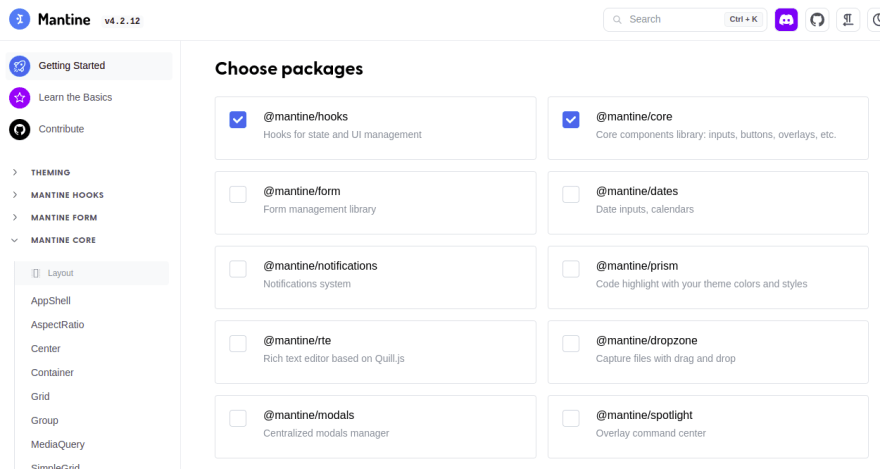
For this article, we are going to be focusing on quite a few of Mantine's core:
- AppShell: Mantine's Appshell gives you a responsive shell for your applications. It allows you to build a frame that you can use on every page of your website or application.
- Group: Group is essentially flex in a container we will use throughout this article.
- ActionIcon: the ActionIcon allows you to essentially create a button from an Icon or a form of text
- Button: in the button section, we will use an "unstyled button". The unstyled button ultimately allows us to create completely custom buttons.
Creating our Next app
Scaffolding a Next app is pretty straightforward. All you have to do is go to your terminal and run the command:
npx create-next-app@latest
You will then be prompted to give your project a name. Once your Next app is done installing, open the file up in your code editor. The directory should look like this.

And that's it! We are done creating our Next project.
Adding Mantine to our Next app
To add Mantine to our Next app, we need to run the following command to install all the necessary dependencies.
#yarn
yarn add @mantine/hooks @mantine/core @mantine/next

#npm
npm install @mantine/hooks @mantine/core @mantine/next
Once you run the command successfully, Mantine will be added to our Next app.
Setting up Mantine
The first thing we want to do is to create a folder in our directory named "component". Now inside the component folder is where we want to store our appshell, so we will create a file in our component folder named ApplicationContainer.js. But before we start writing any code in our ApplicationContainer.js file, let's head straight to our "Pages" folder and create a file named _document.js, where we will first include the following code:
import Document from "next/document";
import { createGetInitialProps } from "@mantine/next";

const getInitialProps = createGetInitialProps();
export default class _Document extends Document {
    static getInitialProps = getInitialProps;
}
The code above holds all our initial props that need to be loaded from Mantine. The next thing is to go into our _app.js file and type in the following code:
import '../styles/globals.css'
import {MantineProvider} from "@mantine/core"

function MyApp({ Component, pageProps }) {
  return(
    <MantineProvider
      withGlobalStyles
      withNormalizeCSS
      theme={{colorScheme: "light"}}
      >
        <Component {...pageProps}/>
      </MantineProvider>
  )
}
export default MyApp
In the code, we first imported MantineProvider from @mantine/core, then wrapped our component in Mantine. Then we set some global styles, normalized our CSS, and even set the theme to our preference.
Creating our Application Container
Our application container is the top and bottom sections, then the children inside. To build out our top and bottom section, we have to go into our ApplicationContainer.js file, and modify the code:
import {
    AppShell,
    Footer,
    Group,
    Header,
    Text
} from "@mantine/core"
export const ApplicationContainer = ({children}) => {
    return(
        <AppShell
        styles={{
            main: {
                background: '#FFFFFF',
                width: "100vw",
                height: "100vh",
                paddingLeft: '0px',
            }
        }}
        fixed
        footer={
            <Footer height={60} p="md">
                <Group position="apart" spacing="xl">
                    <Text size="sm"><span style={{fontWeight: "bolder"}}
                    >🕛 List Time: </span>0h 25m</Text>
                    <Text size="sm"><span style={{fontWeight: "bolder"}}
                    >🎆 End Time: </span>5:36pm</Text>
                </Group>
            </Footer>
        }
        header={
            <Header height={70} p="md">
                <div style={{display: "flex", alignItems: 'center', height: "100%"}}>
                    <Text size="lg" weight="bolder">Alpaca Activity</Text>
                </div>
            </Header>
        }

        >
          {children}
        </AppShell>
    )
}
The first thing we did with our AppShell was adding some styles. Then, we set a boolean of fixed, which allows us to have our UI on every page. Then we created a footer that contains our "List time and "End time". We also added emojis to our "List time and "End time" for better UI.
When we run the code using the npm run dev command on our terminal, we will see this:

As you can see, we have our "Alpaca activity" at the top, and at the footer, we have our "List time and "End time".
Open Source Session Replay
OpenReplay is an open-source, session replay suite that lets you see what users do on your web app, helping you troubleshoot issues faster. OpenReplay is self-hosted for full control over your data.

Start enjoying your debugging experience - start using OpenReplay for free.
Modifying the Rest of our Project
To get started, the first thing we need to do is to go into our index.js file and edit it:
import { ActionIcon, Box, Group, Text, Title, UnstyledButton, useMantineTheme } from "@mantine/core"
import { PlayerPlay, Settings, PlaylistAdd, Plus } from "tabler-icons-react";


export default function Home() {
  const theme = useMantineTheme();
  return (
    <Group direction="column" mt="-20px">
      <Group style={{backgroundColor: theme.colors.gray[0], width:"500px", height:"100vh"}} mx="auto" direction="column">

      </Group>
    </Group>
  )
}
Before editing the file, let's first install a package known as Tabler Icon React:
# npm
npm install tabler-icons-react

# yarn
yarn add tabler-icons-react
Tabler Icon React is an open-source icon library that gives users high-quality SVGs. In our code above, we imported our icons from tabler-icons-react; then we returned Group, which contains some styling for our UI. If you rerun the code, you will get this:

For the rest of our project, we added the following code to our index.js file:
export default function Home() {
  const theme = useMantineTheme();
  return (
    <Group direction="column" mt="-20px">
      <Group style={{backgroundColor: theme.colors.gray[0], width:"500px", height:"100vh"}} mx="auto" direction="column">
        <Group position="apart" style={{width: "100%"}}>
          <ActionIcon color="gray" size="xl" m="sm" variant="transparent">
            <Settings/>
          </ActionIcon>
          <ActionIcon color="gray" size="xl" m="sm" variant="transparent">
            <PlaylistAdd/>
          </ActionIcon>
        </Group>
        <Group spacing="none" mt="sm" position="center" mx="auto" direction="column" height="175px">
          <Title order={1} style={{fontWeight: "900", fontSize: "4rem"}}>11:00</Title>
          <Text>Read Mantine turotial</Text>
        </Group>
        <Group mt="sm" position="center" mx="auto" direction="row" height="200px" mb="md">
          <ActionIcon color="dark" size="xl" variant="transparent">
            -5
          </ActionIcon>
          <ActionIcon radius="xl" color="dark" size="xl" variant="filled">
            <PlayerPlay/>
          </ActionIcon>
          <ActionIcon color="dark" size="xl" variant="transparent">
            +5
          </ActionIcon>
        </Group>
        <Group mt="sm" mb="sm" position="center" mx="auto" direction="column" height="90px">
          <UnstyledButton style={{height:"100%", width: "250px"}}>
            <Group spacing="none" p="lg" direction="column" mt="sm" mx="auto" position="center" style={{background:"rgb(238,238,238)", border: "1px dashed rgb(189,189,189)"}}>
              <Box size="md" radius="xs">
                <Plus style={{color: "gray"}}/>
              </Box>
              <Text variant="light" size="xs" color="gray">Add Task</Text>
            </Group>
          </UnstyledButton>
        </Group>
        <Group mx="auto" style={{width: "260px", justifyContent: "space-between"}} position="right">
          <Text size="xs">⬇️Hide completely</Text>
          <Text size="xs">🎊Clear completely</Text>
          <Text size="xs">🧹Clear all</Text>
        </Group>
      </Group>
    </Group>
  )
}
Here, we use ActionIcon to create our top buttons. ActionIcon is essentially just buttons that are presented in a way that makes them look like icons. We also used ActionIcon to create our +5, -5, and Play buttons. For our Add Task button, we used the UnstyledButton, a cool feature in Mantine that wraps whatever you put inside it as a button.
This is what our final project looks like:

We are now done building our replica task manager UI using Mantine features.
Conclusion
Hopefully, with this article, you understood the use of Mantine and how it can be used to create a beautiful UI when building your Next.js project or website.
With the unique hooks and components on Mantine, building out a beautiful interface for a project becomes a lot easier for developers.


 已为社区贡献7744条内容

所有评论(0)