
Dual boot Pop OS! the right way.
If you are currently coding or used to code or just interested in computers, there's a very high chance that you thought to yourself, "I should also try Linux." but then it hit you that things might go wrong, and you were worried that you might somehow break your system. This tutorial will also show how to fix something if you somehow break some software (meager chances).
There are many Distributions (flavors) when it comes to Linux. Some are very hard to install (Vanilla Arch, Gentoo). Some are very beginner-friendly (Ubuntu, Pop OS!, Elementary OS).
Pop OS! is the most beginner-friendly distribution I have found yet. It will have all the drivers, including Nvidia's drivers. So all you need to do is follow the following guide, and everything would be working fine.
There are many guides and videos over the internet, but somehow, they all miss some crucial steps. You can find the solution if you search a little. But as a beginner, it can be very overwhelming. That's why I decided to write this very comprehensive guide.
So here's the guide. I suggest you read steps 4 and 5 multiple times and keep them open while installing if you are a newbie/beginner.
Some of the guides I found showed a way to install windows on the side, i.e., pop OS was already installed on the system. But that's not very user-friendly. Windows is not flexible and has to manage partitions and its bootloader on its own terms. As this is a beginner's guide, we will assume that you have only windows installed on your system as it came out of the box.
I also assume that your system runs on UEFI boot mode. If you don't know what that is and have bought your laptop in the last ten years, there's a 99.9999% chance that you do run UEFI
So here are the steps you need to go through:
- Manage partitions.
- Create a bootable USB.
- Add bios settings to show bootable USB first.
- Boot up the flash drive and setting up the installer.
- Set up the bootloader.
- Enjoy.
1. Managing partitions:
Some basic things.
- Linux will need a root partition and a boot partition.
- The root partition must have at least 10 GB and stores the operating system, and the boot partition should be given 500 MB.
- There are two extra optional partitions. The Home partition and the swap partition.
- The home partition is where your extra files can be stored.
- The swap partition is the slower version of ram. It keeps the passive background processes running without loading them on the ram, but on the storage drive—Suggested:4 to 8 GB, OPTIONAL.
- Here are some optional but essential suggestions. Keep your Root, Boot, and Swap partitions on an SSD if you have one. Otherwise, everything can be done on a Hard Disk.
-
Boot is boot/efi. EFI requires FAT32 type viz known as ESP(EFI system partition) which tells the ram which OS to load.
Now the steps.
-
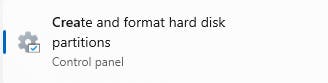
Search for "create and format hard disk partitions" in the windows search bar.
-
You will see your drives(C, D, E...) and some extra partitions. Do NOT touch the extra partitions.
-
shrinking image
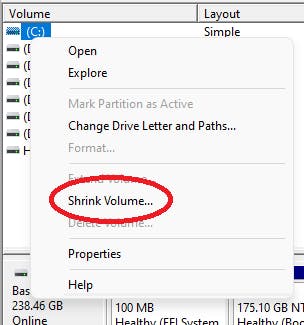
Now there are two ways to go about this:
A. If you have SSD+HDD setup
-
Here's what you do, Right-click on the SSD drive(C:) and shrink it. Set the shrinking space to be anything from 20 GB (Root And Boot) to as much as possible. If you have extra storage, shrink an additional 2 to 8 GB for the swap partition. The rest of it will be kept for your C drive. Make sure you do not shrink the C drive too much, or your windows will start to lag.
-
(Optional but suggested) Shrink the HDD drive and give it whatever storage you like. (Home)
-
My scheme- I gave 50 GB from C drive and 50 GB from HDD. I have 256GB SSD and 1 TB HDD.
B. If you only have SSD or HDD:
- Shink the combined storage (Boot, Root, Home, Swap)
Now you will have some unallocated space; leave it that way. We will set this up in step 4.
2. Creating a bootable device:
Some things to understand:
- Flash drives(or pen drives) must be flashed with proper file formats. (iso, img...)
- This can be done using multiple softwares. (rufus, balenaEtcher, Ventoy)
- Usually, only one iso can be flashed at once. (windows, pop, or any but only 1)
- Not everyone has multiple flash drives lying around. So we take care of this issue using Ventoy.
Download links
-
Ventoy
-
Pop OS! 21.04 iso without nvidea drivers
-
Pop OS! 21.04 iso with Nvidia drivers
-
Windows Tool. Make sure you do select the iso option and not the write to USB, or it will remove pop and ventoy from it. Optional. In case you ever want to remove everything and clean install windows. comes in handy
Side Note: Use latest isos if available using Pop OS
Steps:
-
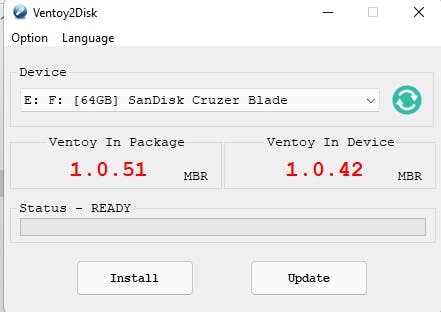
Extract the zip of ventoy, run Ventoy2Disk.exe, select your drive and click Install. Running this step will erase all data from your flash drive.
-
After completing the above step successfully, you will see your drive names as Ventoy. Transfer the isos to it.
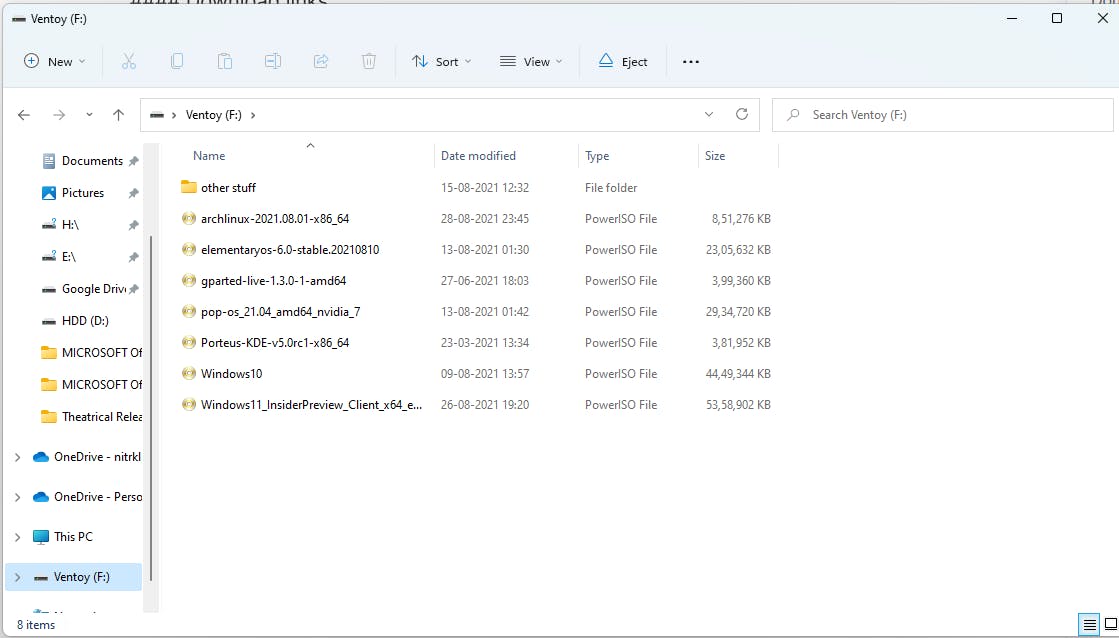
As you can see, there are multiple isos on my drive, but you only need to transfer the pop os iso.
3. bios settings
This step will take some research of your own. You will have to find out what key is required to go into bios settings. Each brand has its own. Just google "{laptop model} UEFI settings". Don't worry if you can't find it; leave a comment below, and I will reply with the key.
Assuming that the key is F12
- Turn off fast startup.
To disable Fast Startup, press the Windows Key + R to bring up the Run dialog, type powercfg.cpl, and hit Enter. The Power Options window should appear. Click "Choose what the power buttons do" from the column on the left.
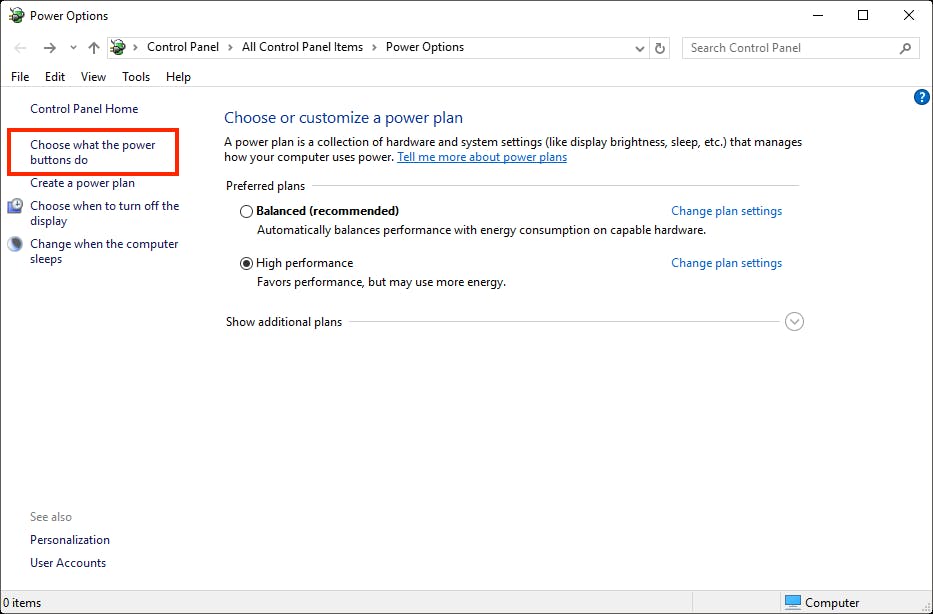
Scroll down to "Shutdown settings" and uncheck the box for "Turn on fast startup."
Note: If these options are greyed out, then you may need to click "Change settings that are currently unavailable."
- Shut down and start your machine. When it is starting, spam F12(your key).
- You should now enter UEFI settings.
- Find safe boot option and disable it.
- Find boot menu settings and put your flash drive above windows boot manager.
- Save settings and restart.
- Ventoy should boot now. Select Pop OS!...iso
4. Setting up the installer
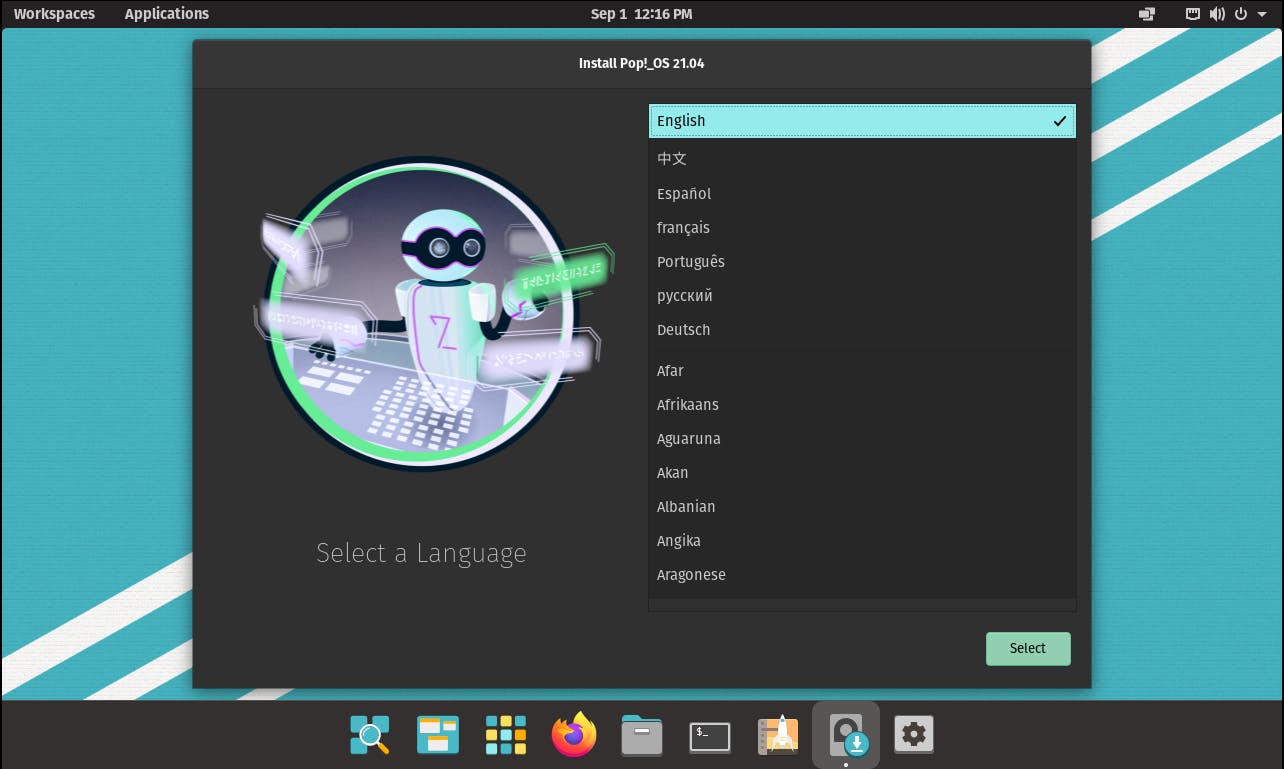 This is the screen you will be greeted with. It might take a lil for the first time, do not worry.
After selecting Language and keyboard, you will be given two options:
-
Clean install. This is for those who do not want windows. It will format your storage drive and install it without choosing any partitions.
-
For dual-booting, you need to select the 2nd (advanced) option.
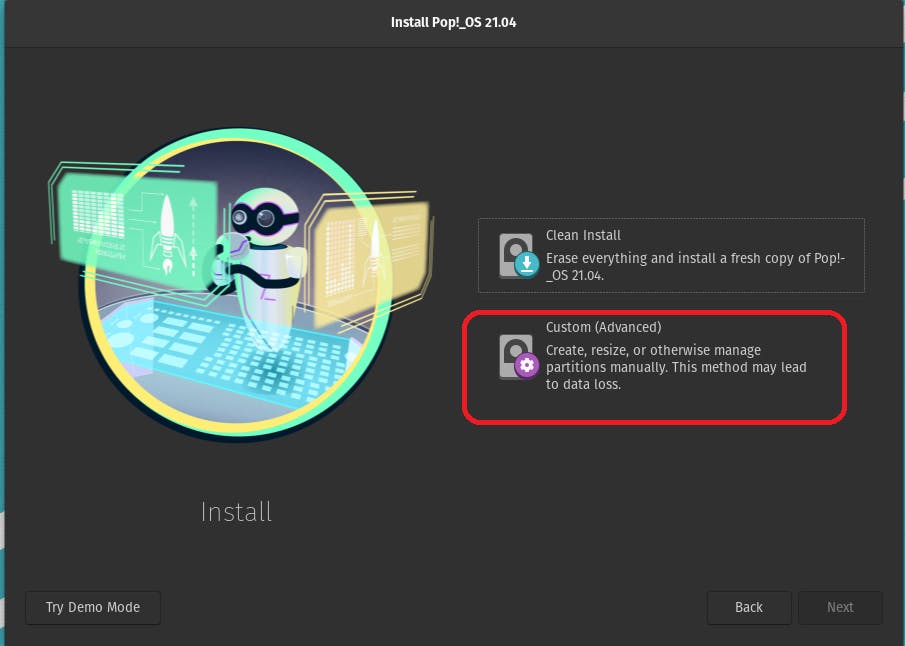
After selecting this, you will see your different drives with your windows partitions and the unallocated space. As I am using VMware, you will only see unallocated space, but you only have to use the unallocated space and not touch the windows partitions. So just do what I am doing with your drives.
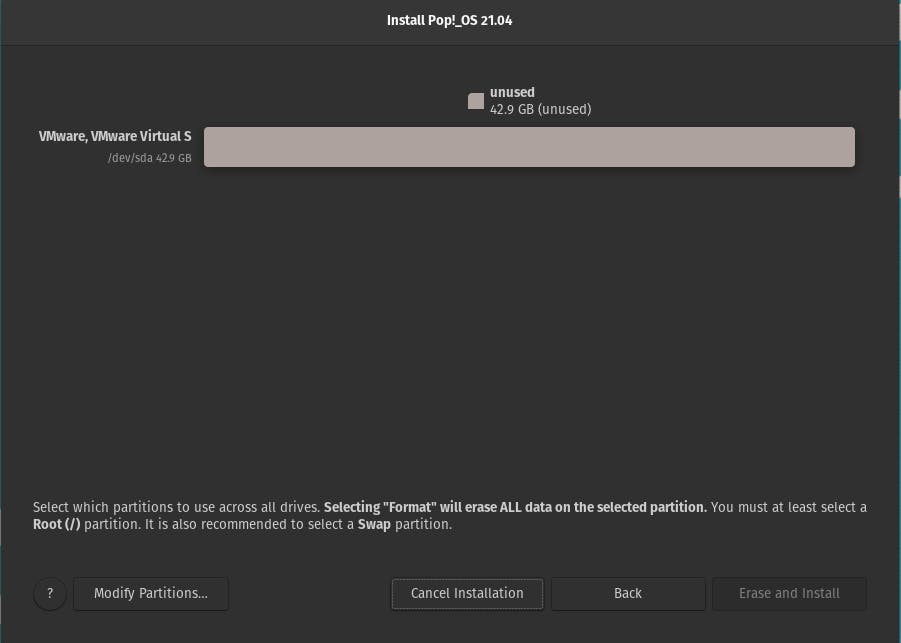
Select the modify partitions option on the bottom left of the installer.
Now GParted will open. If you have multiple drives(HDD+SSD), you can select them from the drop-down list. 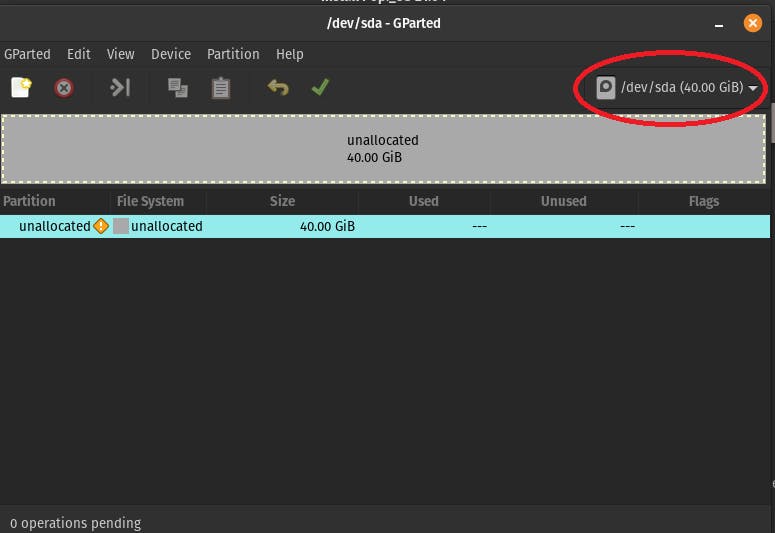
In GParted, you will see multiple partitions. Don't worry about them; just let them be. -Right-click on the unallocated space and select new.
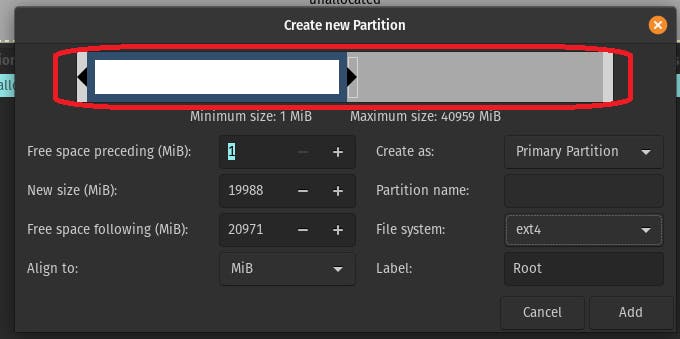 Use the slider and select the space for your partition.
- I am giving ~20 GB to root. label it as /. [Ext4]
- 1 GB for boot (ESP) and label it as boot/efi. [Fat32] select file-system as fat32 instead of Ext4
- 4 GB for the swap partition. [linux-swap]. Make sure you select file-system as Linux swap
- rest for /home. [Ext4]
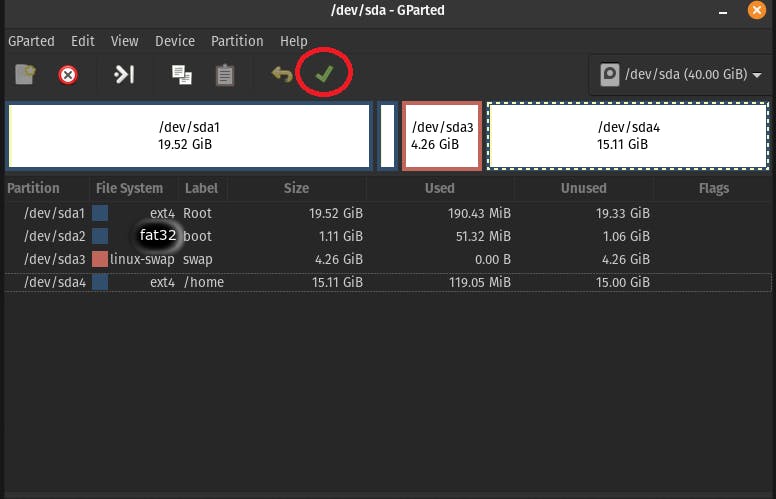
Use the green tick to confirm changes.
Some points to note.
- In this image, there are no other partitions, but if you are dual booting, there will be other windows partitions as well. Make sure you do NOT confuse them for the ones you created. Use labels.
- There is only one drive used in this screenshot as it is VMware. Your scheme can have multiple drives. Make sure you keep your Root, Swap, and Boot on SSD and Home on HDD if you have multiple drives.
- The above sizes are just for example. You can change them however as you like. They don't need to be proportionate. Just keep your root>20 GB and boot>500MB. Rest 2 can also be 0.
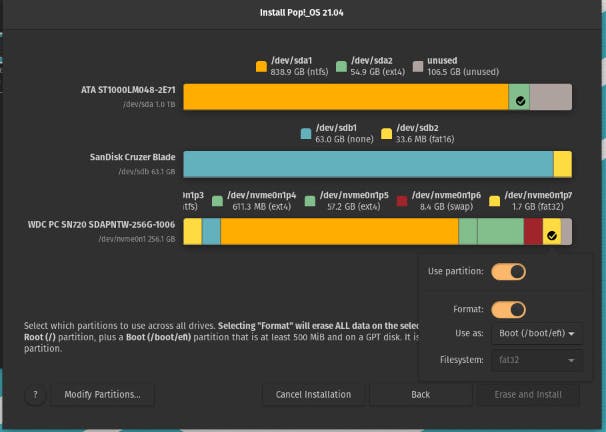
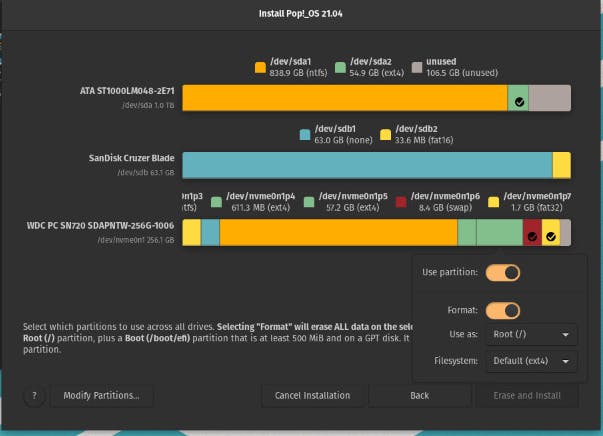
I add my own partitioning system for better clarification in the below images.
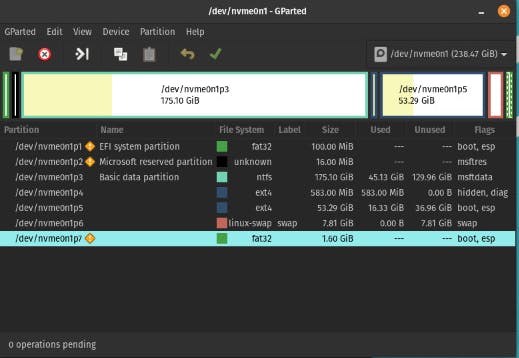
See the last 3 partitions in my SSD in the above image.
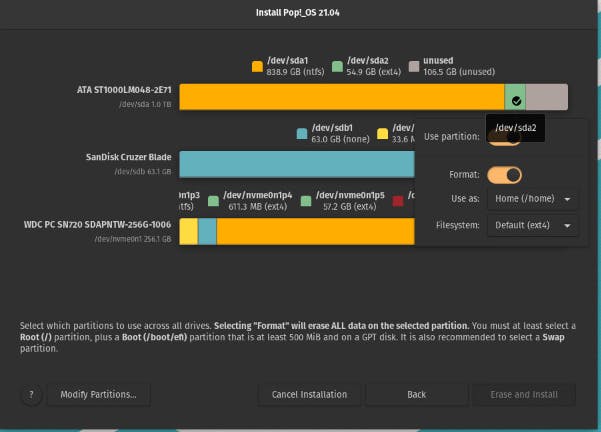
- First Drive(HDD) --> Green(50 gb) is home(ext4)
- Last drive(SSD)-->Green (57 gb) is root(ext4), Red(8 gb) is swap(linux-swap) and yellow is ESP(fat32)
- Click on different partitions. and select the partitions as above images. Again, sizes can be different and you can skip swap and home. Ignore the rest of the windows partitions.
- Click on erase and install.
- Set username and password.
- Install.
- Re-boot after installing. Remove flash drive only after installation is complete.
Setting Up Boot-Loader
After rebooting, did it just boot into Pop OS! without asking about which OS to boot? This is because Pop OS! uses systemd bootloader. It has 0 seconds time out, so it does not ask for any OS options and chooses the default OS (Pop-OS).
Now, we can edit the configuration file of the systemd bootloader and change the time out to 10 sec or 20 sec but we are not going to as it is not for beginners.
EDIT: after consulting with some good folks at r/pop_os, it is to be noted that grub might not be the best choice as it can break in the future updates, instead we'll use rEFInd.
- Open up Terminal.
- Type the following command
sudo apt update
sudo apt install -y refind
- Select yes and hit enter when it asks for it to be added automatically to esp. If yes or no is not highlighted, please use the tab key to select.
- Wait for an error-free installation.
for an advanced guide of multibooting, please refer to Linux Multi-boot with refind
DO NOT INSTALL GRUB IF YOU HAVE INSTALLED rEFInd
Very Important: Do not skip any step or reboot in between. DO NOT DO ANY OF THIS IF YOU HAVE DONE THE FOUR STEPS(rEFInd) ABOVE. THIS IS FOR ADVANCED USERS WHO WANT TO USE GRUB KNOWING THAT IT MIGHT BREAK.
Same thing, more details
- Open terminal.
- Type
sudo apt update && sudo apt upgrade -y - Enter your password. It will not show anything typed, but it will work if you type the correct password and hit enter.
- Type
sudo apt install grub-efi grub2-common grub-customizer - Type
sudo grub-install - Make sure it says no errors.
- Type
sudo cp /boot/grub/x86_64-efi/grub.efi /boot/efi/EFI/pop/grubx64.efi - Open grub-customizer (it will be available in the app drawer ), go to file (top bar), and select change environment.
- In the OUTPUT_FILE, change value to
/boot/efi/EFI/pop/grub.cfg - Save this.
- Open a terminal again and type
sudo update-grub
You are all done now.
When you reboot now, you will be given the option to choose the OS you want to boot. Thank you for reading.
Special thanks to wisdomy folks at r/pop_os and Rishabh Nayaran from the pop_OS telegram group.
If you have any doubts or suggestions or any discussion, don't hesitate to comment.
更多推荐


 0
0 0
0- 0



 已为社区贡献12493条内容

所有评论(0)