
运维|devops|docker部署安装和部署openobserve
·
- 运维|devops|docker部署安装和部署openobserve
运维|devops|docker部署安装和部署openobserve
部署openobserve
docker指令部署(注意用户名和密码规则)
sudo docker run -d \
  --name openobserve \
  -p 5080:5080 \
  -v $PWD/data:/data \
  -e ZO_ROOT_USER_EMAIL="admin@example.com" \
  -e ZO_ROOT_USER_PASSWORD="YourP@ssw0rd#123" \
  public.ecr.aws/zinclabs/openobserve:latest
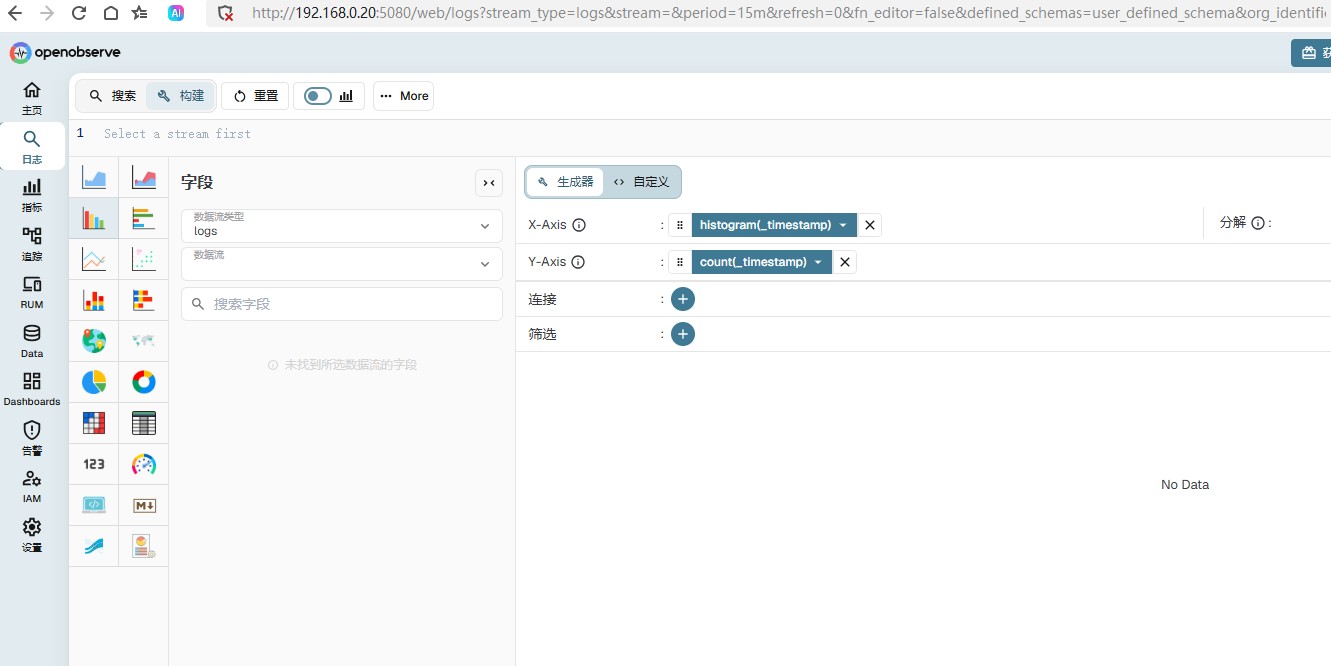
访问
http://192.168.0.20:5080/web/
数据采集
Fluent Bit(Ubuntu)
- 下载安装
curl https://packages.fluentbit.io/fluentbit.key | gpg --dearmor > /usr/share/keyrings/fluentbit-keyring.gpg
- 查询系统代号
lsb_release -sc
- 添加APT软件源(CODENAME 为上面查询代号替换)
echo "deb [signed-by=/usr/share/keyrings/fluentbit-keyring.gpg] https://packages.fluentbit.io/ubuntu/${CODENAME} ${CODENAME} main" | sudo tee /etc/apt/sources.list.d/fluent-bit.list
- 更新包和安装
sudo apt-get update
sudo apt-get install fluent-bit
日志采集器配置
- 配置文件位置
/etc/fluent-bit/fluent-bit.conf
- 详情如下
[SERVICE]
    flush        1
    daemon       Off
    log_level    info
    parsers_file parsers.conf
    plugins_file plugins.conf
    http_server  Off
    http_listen  0.0.0.0
    http_port    2020
    storage.metrics on

[INPUT]
    Name        cpu
    Tag         cpu.local
    interval_sec 1

[INPUT]
    Name        tail
    Path        /data/test/log/api-gateway.log
    Tag         api-gateway
    Refresh_Interval 10
    Read_from_Head true

[INPUT]
    Name        tail
    Path        /data/test/log/core.log
    Tag         core
    Refresh_Interval 10
    Read_from_Head true

[INPUT]
    Name        tail
    Path        /data/test/log/test-mqtt.log
    Tag         test-mqtt
    Refresh_Interval 10
    Read_from_Head true

[OUTPUT]
    Name        http
    Match       *
    Host        192.168.0.20
    Port        5080
    URI         /api/default/${TAG}/_json          # 使用 ${TAG} 动态替换为日志的 Tag
    Format      json
    HTTP_User   admin@example.com
    HTTP_Passwd YourP@ssw0rd#123
    Compress    gzip
启动采集器
- 启动
-- 启动服务
sudo systemctl start fluent-bit

-- 设置开机自启
sudo systemctl enable fluent-bit
- 检查运行状态
sudo systemctl status fluent-bit
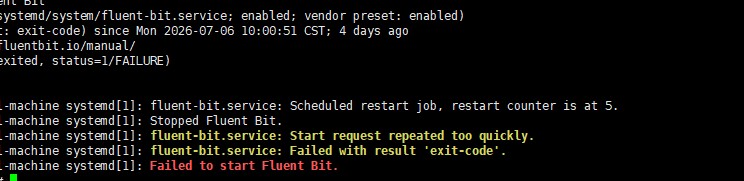
错误检查
- 通过如下命令查看失败原因
sudo journalctl -u fluent-bit -n 50 --no-pager
- 场景1
root@zqa-virtual-machine:~# sudo systemctl status fluent-bit
× fluent-bit.service - Fluent Bit
     Loaded: loaded (/lib/systemd/system/fluent-bit.service; enabled; vendor preset: enabled)
     Active: failed (Result: exit-code) since Mon 2026-07-06 10:00:51 CST; 15s ago
       Docs: https://docs.fluentbit.io/manual/
   Main PID: 626756 (code=exited, status=1/FAILURE)
        CPU: 15ms

7月 06 10:00:51 zqa-virtual-machine systemd[1]: fluent-bit.service: Scheduled restart job, restart counter is at 5.
7月 06 10:00:51 zqa-virtual-machine systemd[1]: Stopped Fluent Bit.
7月 06 10:00:51 zqa-virtual-machine systemd[1]: fluent-bit.service: Start request repeated too quickly.
7月 06 10:00:51 zqa-virtual-machine systemd[1]: fluent-bit.service: Failed with result 'exit-code'.
7月 06 10:00:51 zqa-virtual-machine systemd[1]: Failed to start Fluent Bit.
查看安装位置
- cat fluent-bit | grep ExecStart

根据错误排查,重新执行启动命令
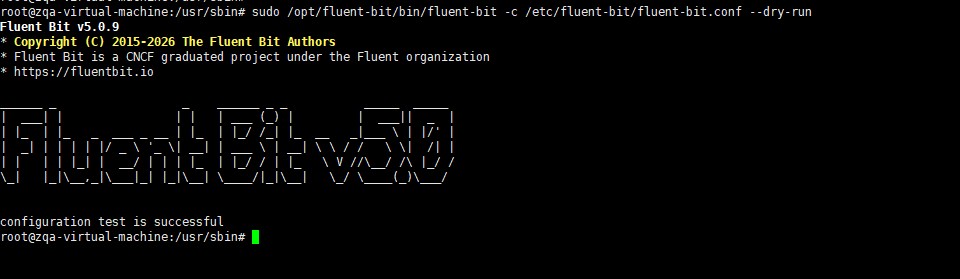
- 校验配置是否正确
sudo /opt/fluent-bit/bin/fluent-bit -c /etc/fluent-bit/fluent-bit.conf --dry-run
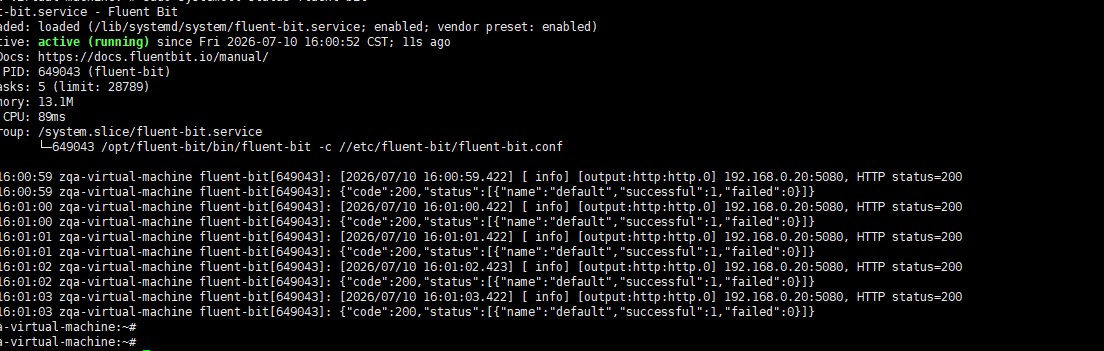
- 重启命令
sudo systemctl restart fluent-bit
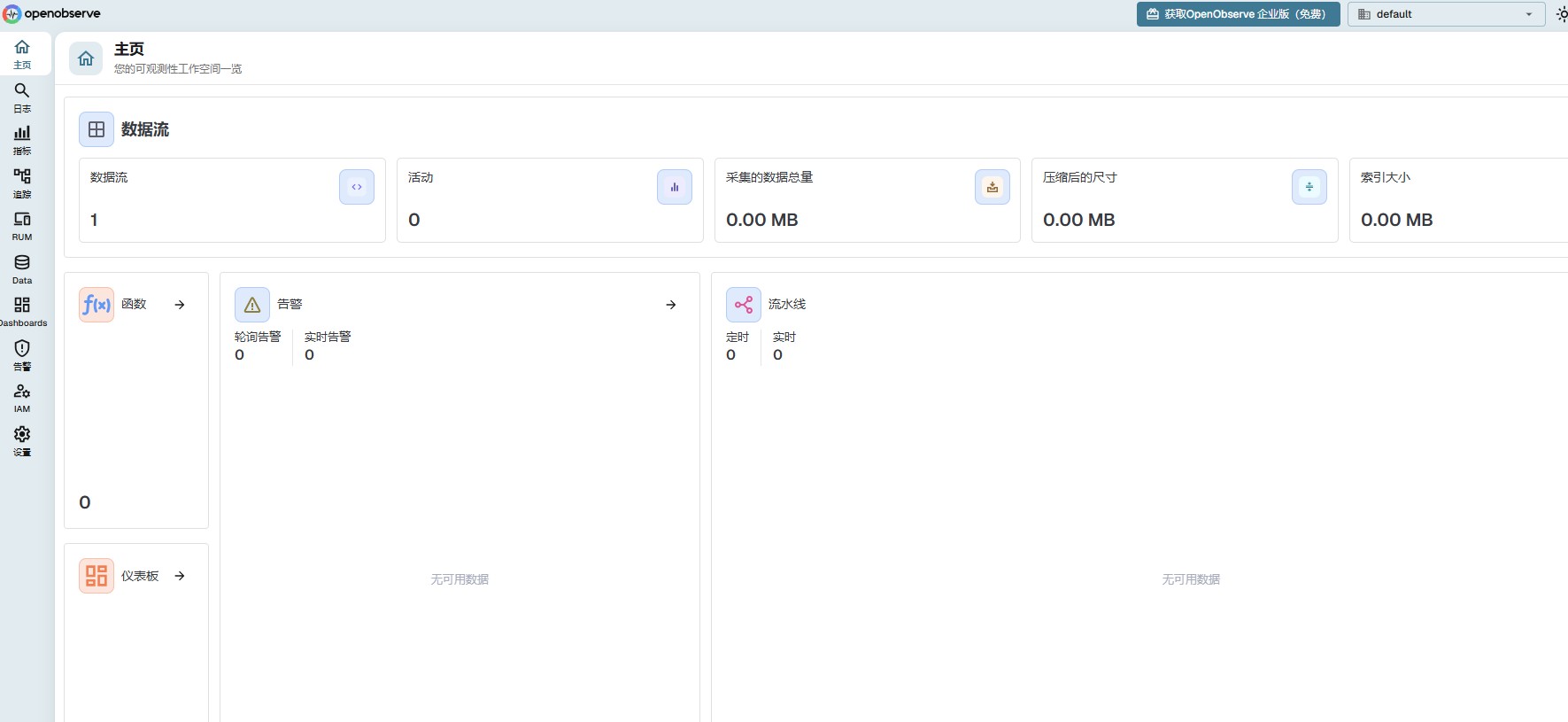
临时验证模拟应用端推日志脚本
curl -u admin@example.com:YourP@ssw0rd#123 \
  -H "Content-Type: application/json" \
  -X POST "http://192.168.0.20:5080/api/default/api-gateway/_json" \
  -d '[{"test":"hello"}]'
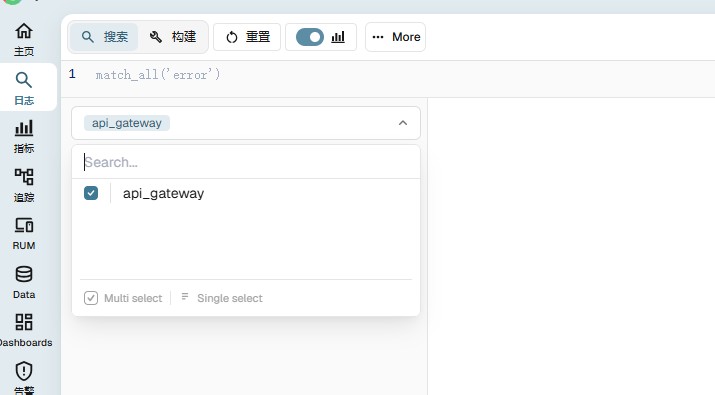
前台模式实时观察日志
/opt/fluent-bit/bin/fluent-bit -c /etc/fluent-bit/fluent-bit.conf -vv
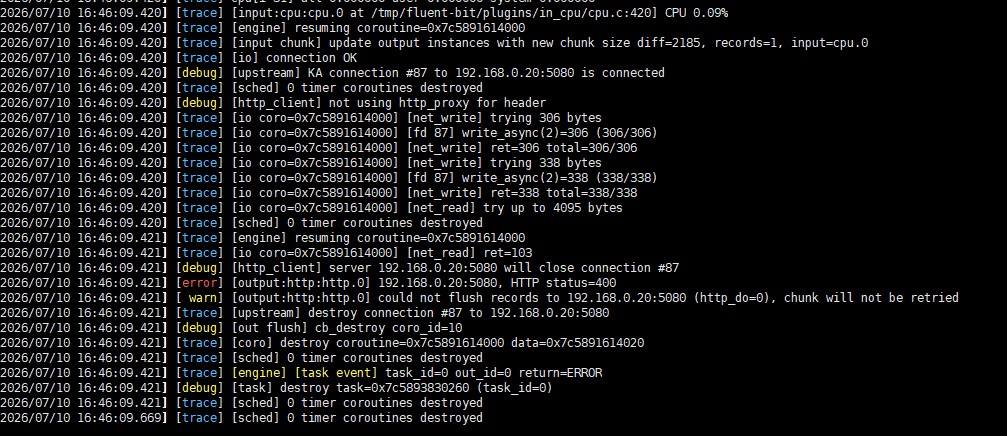
调整可运行的配置
[SERVICE]
    flush        1
    daemon       Off
    log_level    info
    parsers_file parsers.conf
    plugins_file plugins.conf
    http_server  Off
    http_listen  0.0.0.0
    http_port    2020
    storage.metrics on

[INPUT]
    Name        cpu
    Tag         cpu.local
    interval_sec 1

[INPUT]
    Name        tail
    Path        /data/test/log/*.log
    Tag         raw
    Path_Key    file_path
    Refresh_Interval 10
    Read_from_Head true

[FILTER]
    Name        rewrite_tag
    Match       raw
    Rule        $file_path ^/data/test/log/([^/]+)\.log$ $1 false

[OUTPUT]
    Name        http
    Match       *
    Host        192.168.0.20
    Port        5080
    URI         /api/default/$TAG/_json
    Format      json
    json_date_key   timestamp
    json_date_format iso8601
    HTTP_User   admin@example.com
    HTTP_Passwd YourP@ssw0rd#123
    header      Content-Type application/json
# Compress 参数已删除,默认不压缩更多推荐

 5
5 0
0- 0


 已为社区贡献14条内容

所有评论(0)