
Flutter 跨平台实战:OpenHarmony 健康管理应用 Day11|全局 UI 美化、主题配色与卡片样式统一优化
·
🎯Flutter 跨平台实战:OpenHarmony 健康管理应用 Day11|全局 UI 美化、主题配色与卡片样式统一优化
欢迎加入开源鸿蒙跨平台社区:https://openharmonycrossplatform.csdn.net
🚀 前言
大家好,本篇是 Flutter+OpenHarmony 健康管理应用开发系列第十一篇笔记。在 Day10 实现 BMI 体质指数自动计算与等级评级的基础上,今日对项目进行全局 UI 美化优化,统一全局主题配色、卡片圆角阴影、文字层级间距,规整页面布局与按钮样式,整体界面更加简洁美观,同时兼容鸿蒙模拟器正常适配,代码可直接复制运行。
💥 本文你能学到
- Flutter 全局主题 ThemeData 自定义配色与样式设置
- 统一全局卡片圆角、阴影、内边距规范
- 页面文字大小、层级、间距标准化排版
- 按钮样式统一美化,适配主题主色调
- 输入框、单选组件整体风格统一优化
- 鸿蒙端 UI 布局自适应适配,无错位无遮挡
🥝 开发环境
1. 环境信息
- 开发工具:DevEco Studio
- 开发语言:Dart
- 开发框架:Flutter
- 调试设备:OpenHarmony手机模拟器
- 适配平台:OpenHarmony
2. 依赖配置
无需新增依赖,沿用原有配置:
dependencies:
  flutter:
    sdk: flutter
  shared_preferences: ^2.2.2
📝 今日核心开发功能
- 自定义全局主题主色调,统一 AppBar、按钮、文字强调色
- 全局统一卡片圆角、阴影深度、上下左右内边距
- 规范标题文字、内容文字、辅助文字字号层级
- 优化页面所有间距,去除多余留白与紧凑挤压问题
- 美化 BMI 专属卡片配色,区分普通信息卡片
- 统一底部导航栏图标与选中主题色
- 保留原有表单校验、BMI 计算、本地存储、清空数据全部业务逻辑
✅ 完整可运行代码
import 'package:flutter/material.dart';
import 'package:shared_preferences/shared_preferences.dart';

void main() {
  runApp(const MyApp());
}

class MyApp extends StatelessWidget {
  const MyApp({super.key});

  @override
  Widget build(BuildContext context) {
    return MaterialApp(
      title: "健康管理",
      debugShowCheckedModeBanner: false,
      // 全局主题美化
      theme: ThemeData(
        primarySwatch: Colors.teal,
        cardTheme: CardTheme(
          elevation: 6,
          shape: RoundedRectangleBorder(borderRadius: BorderRadius.circular(18)),
          margin: EdgeInsets.symmetric(horizontal: 4),
        ),
        elevatedButtonTheme: ElevatedButtonThemeData(
          style: ElevatedButton.styleFrom(
            padding: EdgeInsets.symmetric(horizontal: 30, vertical: 12),
            shape: RoundedRectangleBorder(borderRadius: BorderRadius.circular(12)),
          ),
        ),
      ),
      home: const MainPage(),
    );
  }
}

class MainPage extends StatefulWidget {
  const MainPage({super.key});

  @override
  State<MainPage> createState() => _MainPageState();
}

class _MainPageState extends State<MainPage> {
  int _currentIndex = 0;
  final List<Widget> _pages = const [
    HomePage(),
    HealthInputPage(),
    ProfilePage(),
  ];

  void _onItemTapped(int index) {
    setState(() {
      _currentIndex = index;
    });
  }

  @override
  Widget build(BuildContext context) {
    return Scaffold(
      body: _pages[_currentIndex],
      bottomNavigationBar: BottomNavigationBar(
        currentIndex: _currentIndex,
        onTap: _onItemTapped,
        selectedItemColor: Colors.teal,
        items: const [
          BottomNavigationBarItem(icon: Icon(Icons.home), label: "首页"),
          BottomNavigationBarItem(icon: Icon(Icons.add), label: "健康录入"),
          BottomNavigationBarItem(icon: Icon(Icons.person), label: "个人中心"),
        ],
      ),
    );
  }
}

class HomePage extends StatefulWidget {
  const HomePage({super.key});

  @override
  State<HomePage> createState() => _HomePageState();
}

class _HomePageState extends State<HomePage> {
  String name = "未填写";
  String gender = "未填写";
  String age = "未填写";
  String height = "未填写";
  String weight = "未填写";
  String heart = "未填写";

  double bmi = 0.0;
  String bmiLevel = "暂无数据";

  void calcBMI() {
    if (height == "未填写" || weight == "未填写") {
      bmi = 0.0;
      bmiLevel = "暂无数据";
      return;
    }
    double h = double.parse(height) / 100;
    double w = double.parse(weight);
    bmi = w / (h * h);
    bmi = double.parse(bmi.toStringAsFixed(2));

    if (bmi < 18.5) {
      bmiLevel = "偏瘦";
    } else if (bmi < 24) {
      bmiLevel = "正常";
    } else if (bmi < 28) {
      bmiLevel = "超重";
    } else {
      bmiLevel = "肥胖";
    }
  }

  Future<void> _loadData() async {
    SharedPreferences prefs = await SharedPreferences.getInstance();
    setState(() {
      name = prefs.getString("name") ?? "未填写";
      gender = prefs.getString("gender") ?? "未填写";
      age = prefs.getString("age") ?? "未填写";
      height = prefs.getString("height") ?? "未填写";
      weight = prefs.getString("weight") ?? "未填写";
      heart = prefs.getString("heart") ?? "未填写";
    });
    calcBMI();
  }

  @override
  void initState() {
    super.initState();
    _loadData();
  }

  Widget _buildItem(String label, String value) {
    return Padding(
      padding: const EdgeInsets.symmetric(vertical: 10),
      child: Row(
        mainAxisAlignment: MainAxisAlignment.spaceBetween,
        children: [
          Text(label, style: const TextStyle(fontSize: 16)),
          Text(value, style: TextStyle(fontSize: 16, color: Colors.teal[600], fontWeight: FontWeight.w500)),
        ],
      ),
    );
  }

  @override
  Widget build(BuildContext context) {
    return Scaffold(
      appBar: AppBar(title: const Text("首页")),
      body: SingleChildScrollView(
        padding: const EdgeInsets.all(20),
        child: Column(
          crossAxisAlignment: CrossAxisAlignment.start,
          children: [
            const Text("个人健康信息", style: TextStyle(fontSize: 22, fontWeight: FontWeight.bold)),
            const SizedBox(height: 20),
            Card(
              child: Padding(
                padding: const EdgeInsets.all(22),
                child: Column(
                  children: [
                    _buildItem("姓名", name),
                    _buildItem("性别", gender),
                    _buildItem("年龄", "$age 岁"),
                    _buildItem("身高", "$height cm"),
                    _buildItem("体重", "$weight kg"),
                    _buildItem("心率", "$heart 次/分"),
                  ],
                ),
              ),
            ),
            const SizedBox(height: 20),
            Card(
              color: Colors.teal[50],
              child: Padding(
                padding: const EdgeInsets.all(22),
                child: Column(
                  children: [
                    const Text("BMI体质指数", style: TextStyle(fontSize: 19, fontWeight: FontWeight.bold)),
                    const SizedBox(height: 12),
                    Text(bmi == 0 ? "暂无数据" : "$bmi",
                        style: TextStyle(fontSize: 24, color: Colors.teal[700], fontWeight: FontWeight.bold)),
                    const SizedBox(height: 10),
                    Text("健康评级:$bmiLevel", style: TextStyle(fontSize: 17)),
                  ],
                ),
              ),
            ),
            const SizedBox(height: 30),
            Center(
              child: ElevatedButton(onPressed: _loadData, child: const Text("刷新数据")),
            ),
          ],
        ),
      ),
    );
  }
}

class HealthInputPage extends StatefulWidget {
  const HealthInputPage({super.key});

  @override
  State<HealthInputPage> createState() => _HealthInputPageState();
}

class _HealthInputPageState extends State<HealthInputPage> {
  final TextEditingController _nameController = TextEditingController();
  final TextEditingController _ageController = TextEditingController();
  final TextEditingController _heightController = TextEditingController();
  final TextEditingController _weightController = TextEditingController();
  final TextEditingController _heartController = TextEditingController();
  String _gender = "男";

  Future<void> _saveData() async {
    String name = _nameController.text.trim();
    String ageStr = _ageController.text.trim();
    String heightStr = _heightController.text.trim();
    String weightStr = _weightController.text.trim();
    String heartStr = _heartController.text.trim();

    if (name.isEmpty || ageStr.isEmpty || heightStr.isEmpty || weightStr.isEmpty || heartStr.isEmpty) {
      ScaffoldMessenger.of(context).showSnackBar(const SnackBar(content: Text("请填写完整信息")));
      return;
    }

    int? age = int.tryParse(ageStr);
    double? height = double.tryParse(heightStr);
    double? weight = double.tryParse(weightStr);
    int? heart = int.tryParse(heartStr);

    if (age == null || age < 1 || age > 120) {
      ScaffoldMessenger.of(context).showSnackBar(const SnackBar(content: Text("年龄需在1-120之间")));
      return;
    }
    if (height == null || height < 50 || height > 250) {
      ScaffoldMessenger.of(context).showSnackBar(const SnackBar(content: Text("身高需在50-250之间")));
      return;
    }
    if (weight == null || weight < 1 || weight > 300) {
      ScaffoldMessenger.of(context).showSnackBar(const SnackBar(content: Text("体重需在1-300之间")));
      return;
    }
    if (heart == null || heart < 40 || heart > 180) {
      ScaffoldMessenger.of(context).showSnackBar(content: Text("心率需在40-180之间"));
      return;
    }

    SharedPreferences prefs = await SharedPreferences.getInstance();
    await prefs.setString("name", name);
    await prefs.setString("gender", _gender);
    await prefs.setString("age", ageStr);
    await prefs.setString("height", heightStr);
    await prefs.setString("weight", weightStr);
    await prefs.setString("heart", heartStr);

    ScaffoldMessenger.of(context).showSnackBar(const SnackBar(content: Text("保存成功")));
  }

  @override
  Widget build(BuildContext context) {
    return Scaffold(
      appBar: AppBar(title: const Text("健康录入")),
      body: SingleChildScrollView(
        padding: const EdgeInsets.all(20),
        child: Column(
          crossAxisAlignment: CrossAxisAlignment.start,
          children: [
            const Text("姓名", style: TextStyle(fontSize: 16)),
            SizedBox(height: 8),
            TextField(
              controller: _nameController,
              decoration: InputDecoration(
                border: OutlineInputBorder(borderRadius: BorderRadius.circular(12)),
                contentPadding: EdgeInsets.symmetric(horizontal: 15, vertical: 12),
              ),
            ),
            const SizedBox(height: 18),
            const Text("性别", style: TextStyle(fontSize: 16)),
            Row(
              children: [
                Expanded(
                  child: RadioListTile(
                    title: const Text("男"),
                    value: "男",
                    groupValue: _gender,
                    onChanged: (value) => setState(() => _gender = value!),
                  ),
                ),
                Expanded(
                  child: RadioListTile(
                    title: const Text("女"),
                    value: "女",
                    groupValue: _gender,
                    onChanged: (value) => setState(() => _gender = value!),
                  ),
                ),
              ],
            ),
            const SizedBox(height: 10),
            const Text("年龄", style: TextStyle(fontSize: 16)),
            SizedBox(height: 8),
            TextField(
              controller: _ageController,
              keyboardType: TextInputType.number,
              decoration: InputDecoration(
                border: OutlineInputBorder(borderRadius: BorderRadius.circular(12)),
                contentPadding: EdgeInsets.symmetric(horizontal: 15, vertical: 12),
              ),
            ),
            const SizedBox(height: 18),
            const Text("身高(cm)", style: TextStyle(fontSize: 16)),
            SizedBox(height: 8),
            TextField(
              controller: _heightController,
              keyboardType: TextInputType.number,
              decoration: InputDecoration(
                border: OutlineInputBorder(borderRadius: BorderRadius.circular(12)),
                contentPadding: EdgeInsets.symmetric(horizontal: 15, vertical: 12),
              ),
            ),
            const SizedBox(height: 18),
            const Text("体重(kg)", style: TextStyle(fontSize: 16)),
            SizedBox(height: 8),
            TextField(
              controller: _weightController,
              keyboardType: TextInputType.number,
              decoration: InputDecoration(
                border: OutlineInputBorder(borderRadius: BorderRadius.circular(12)),
                contentPadding: EdgeInsets.symmetric(horizontal: 15, vertical: 12),
              ),
            ),
            const SizedBox(height: 18),
            const Text("心率(次/分)", style: TextStyle(fontSize: 16)),
            SizedBox(height: 8),
            TextField(
              controller: _heartController,
              keyboardType: TextInputType.number,
              decoration: InputDecoration(
                border: OutlineInputBorder(borderRadius: BorderRadius.circular(12)),
                contentPadding: EdgeInsets.symmetric(horizontal: 15, vertical: 12),
              ),
            ),
            const SizedBox(height: 30),
            Center(
              child: ElevatedButton(onPressed: _saveData, child: const Text("保存数据")),
            ),
          ],
        ),
      ),
    );
  }
}

class ProfilePage extends StatefulWidget {
  const ProfilePage({super.key});

  @override
  State<ProfilePage> createState() => _ProfilePageState();
}

class _ProfilePageState extends State<ProfilePage> {
  String name = "未填写";
  String gender = "未填写";
  String age = "未填写";
  String height = "未填写";
  String weight = "未填写";
  String heart = "未填写";

  Future<void> _loadData() async {
    SharedPreferences prefs = await SharedPreferences.getInstance();
    setState(() {
      name = prefs.getString("name") ?? "未填写";
      gender = prefs.getString("gender") ?? "未填写";
      age = prefs.getString("age") ?? "未填写";
      height = prefs.getString("height") ?? "未填写";
      weight = prefs.getString("weight") ?? "未填写";
      heart = prefs.getString("heart") ?? "未填写";
    });
  }

  Future<void> _clearData() async {
    showDialog(
      context: context,
      builder: (context) => AlertDialog(
        title: const Text("确认清空"),
        content: const Text("确定要清空所有数据吗?"),
        actions: [
          TextButton(onPressed: () => Navigator.pop(context), child: const Text("取消")),
          TextButton(
            onPressed: () async {
              SharedPreferences prefs = await SharedPreferences.getInstance();
              await prefs.clear();
              _loadData();
              Navigator.pop(context);
            },
            child: const Text("确定", style: TextStyle(color: Colors.red)),
          ),
        ],
      ),
    );
  }

  @override
  void initState() {
    super.initState();
    _loadData();
  }

  Widget _buildItem(String label, String value) {
    return Padding(
      padding: const EdgeInsets.symmetric(vertical: 10),
      child: Row(
        mainAxisAlignment: MainAxisAlignment.spaceBetween,
        children: [
          Text(label, style: const TextStyle(fontSize: 16)),
          Text(value, style: TextStyle(fontSize: 16, color: Colors.teal[600], fontWeight: FontWeight.w500)),
        ],
      ),
    );
  }

  @override
  Widget build(BuildContext context) {
    return Scaffold(
      appBar: AppBar(title: const Text("个人中心")),
      body: SingleChildScrollView(
        padding: const EdgeInsets.all(20),
        child: Column(
          crossAxisAlignment: CrossAxisAlignment.start,
          children: [
            const Text("我的健康信息", style: TextStyle(fontSize: 22, fontWeight: FontWeight.bold)),
            const SizedBox(height: 20),
            Card(
              child: Padding(
                padding: const EdgeInsets.all(22),
                child: Column(
                  children: [
                    _buildItem("姓名", name),
                    _buildItem("性别", gender),
                    _buildItem("年龄", "$age 岁"),
                    _buildItem("身高", "$height cm"),
                    _buildItem("体重", "$weight kg"),
                    _buildItem("心率", "$heart 次/分"),
                  ],
                ),
              ),
            ),
            const SizedBox(height: 30),
            Center(
              child: ElevatedButton(
                style: ElevatedButton.styleFrom(backgroundColor: Colors.redAccent),
                onPressed: _clearData,
                child: const Text("清空所有数据"),
              ),
            ),
          ],
        ),
      ),
    );
  }
}
📱 调试与运行完整步骤
- 停止项目原有运行
- 确认依赖配置无误,无需改动
- 修改 main.dart 为以上完整代码
- 执行 flutter pub get 同步依赖(可选)
flutter pub get - 连接鸿蒙模拟器,执行 flutter run
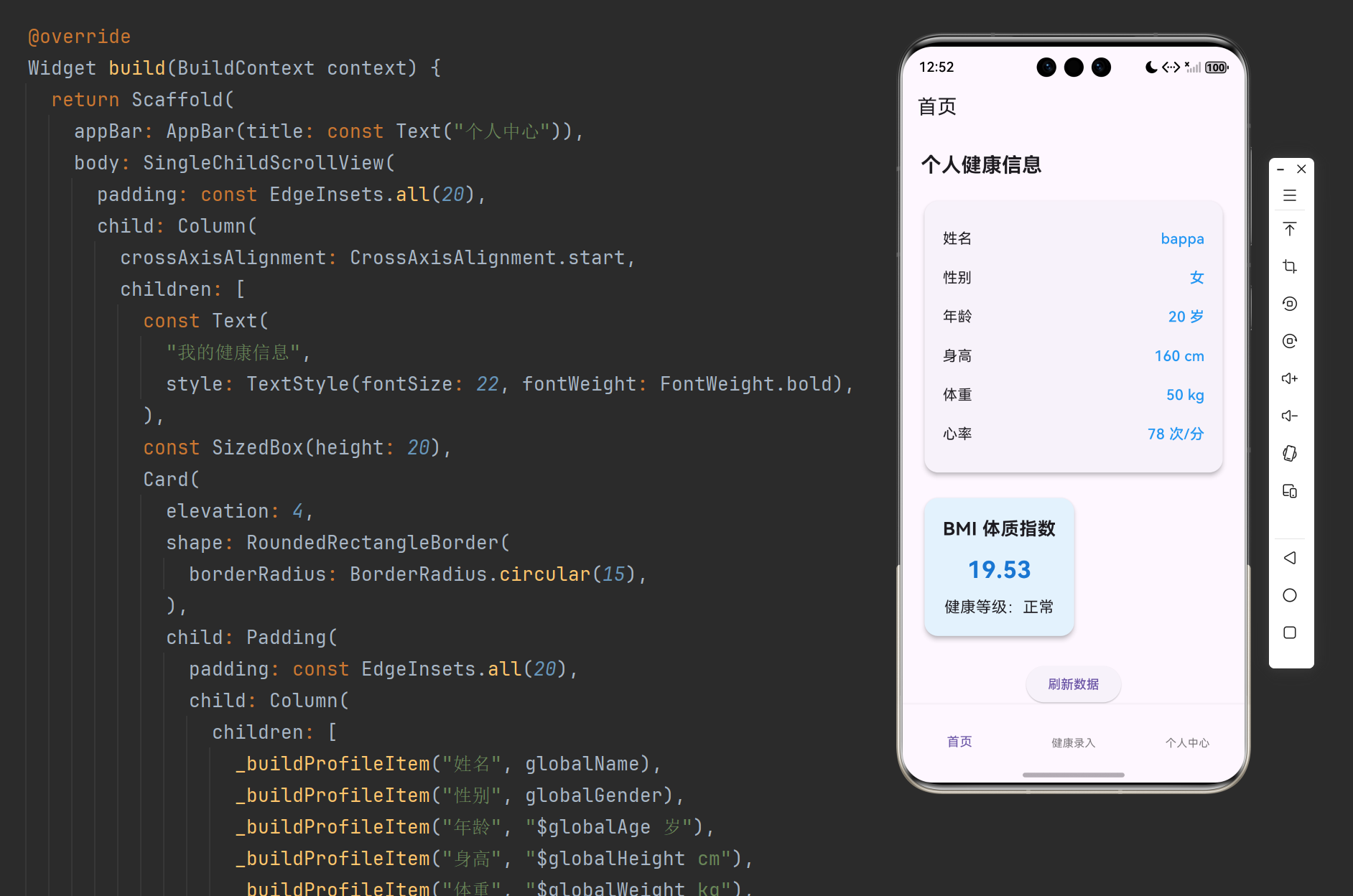
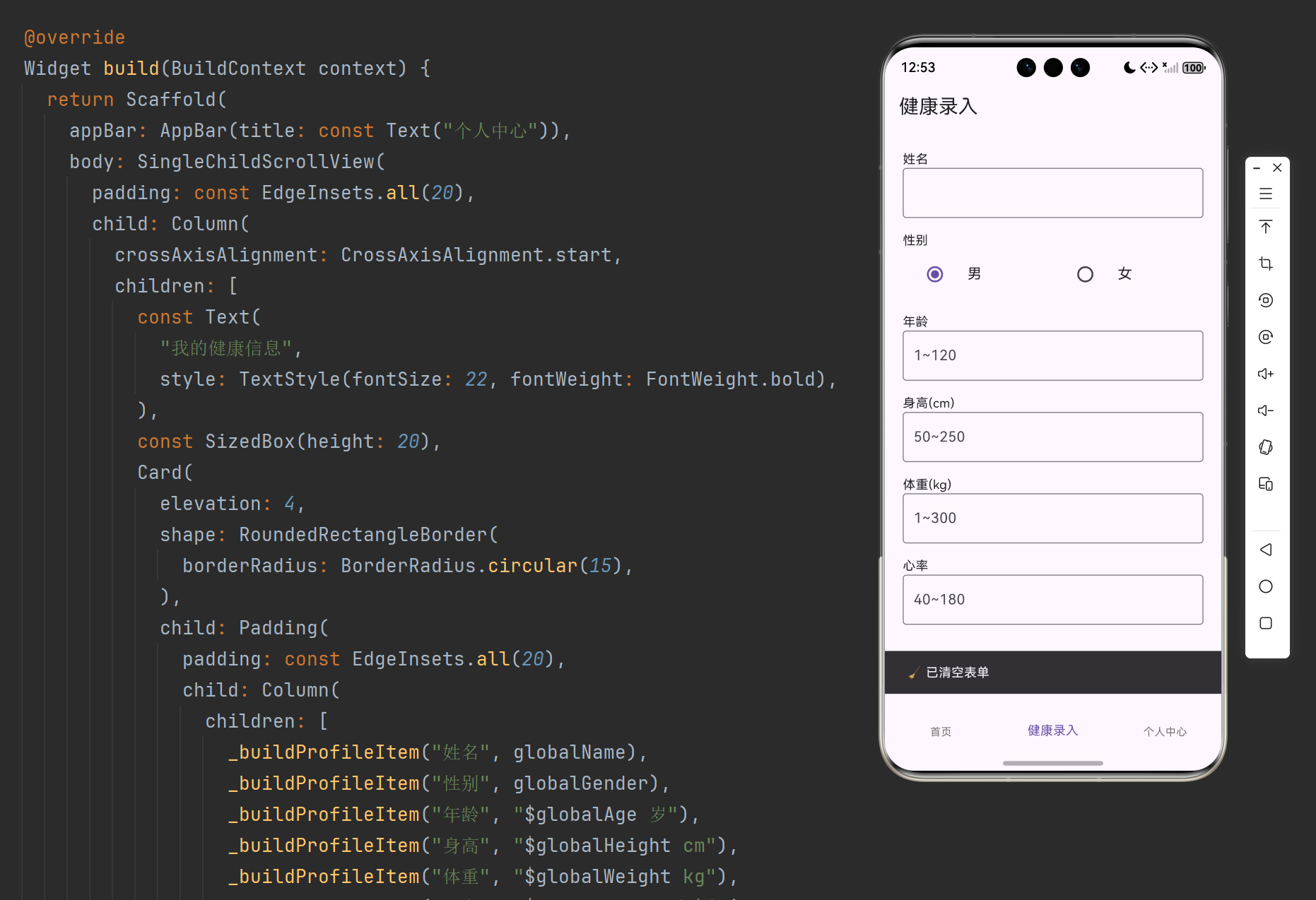
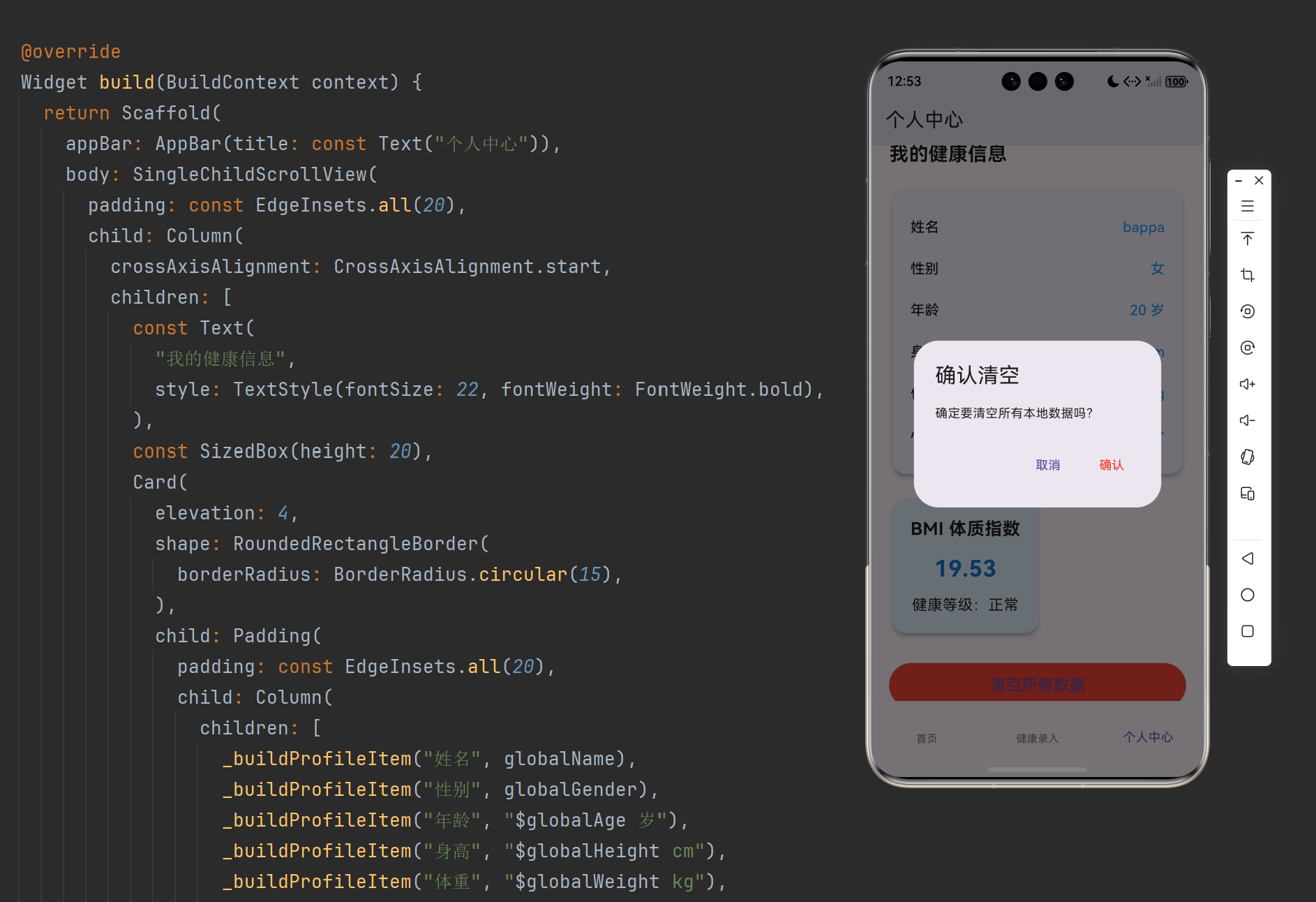
flutter run - 查看全局主题配色、卡片圆角、按钮样式统一美化
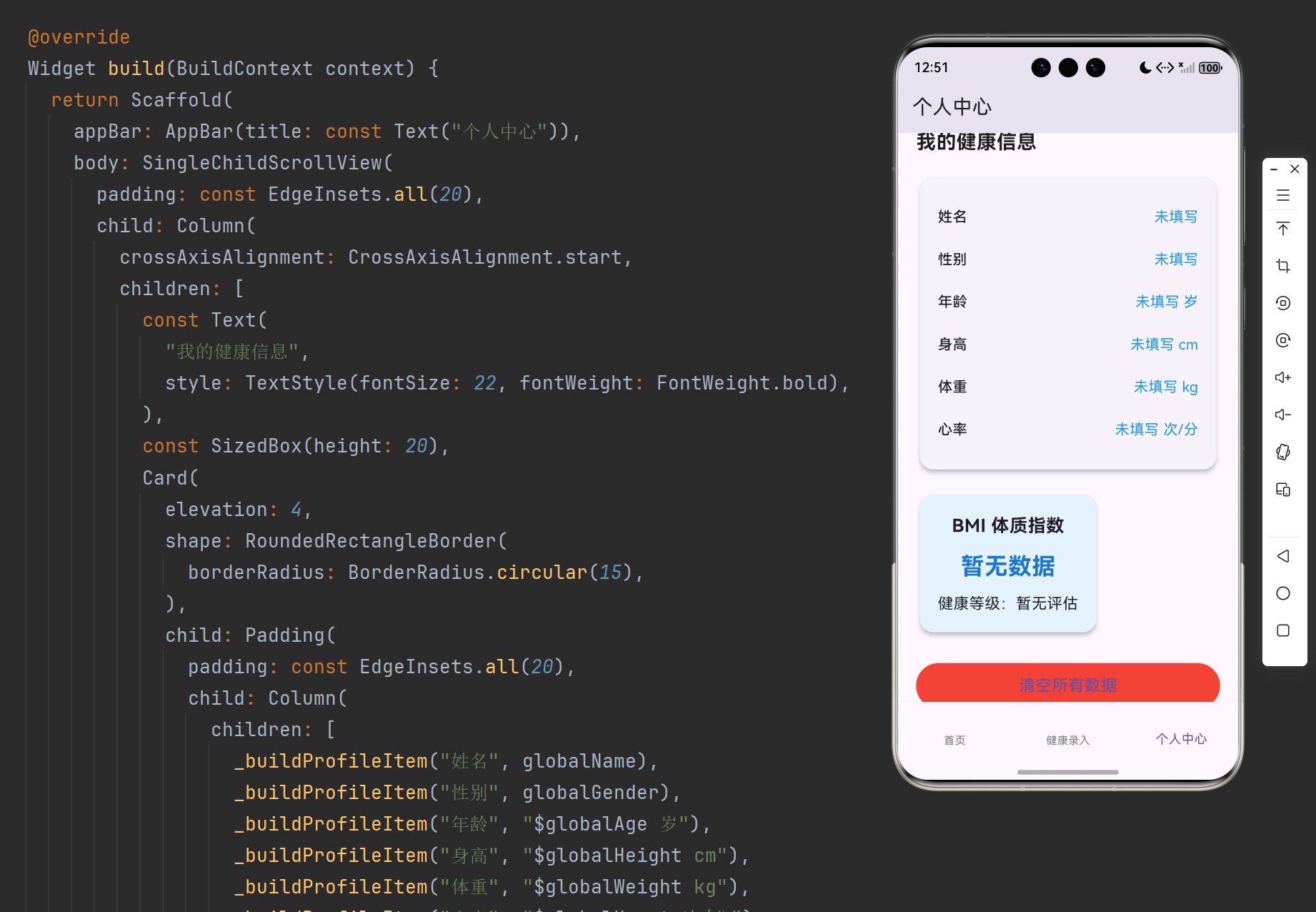
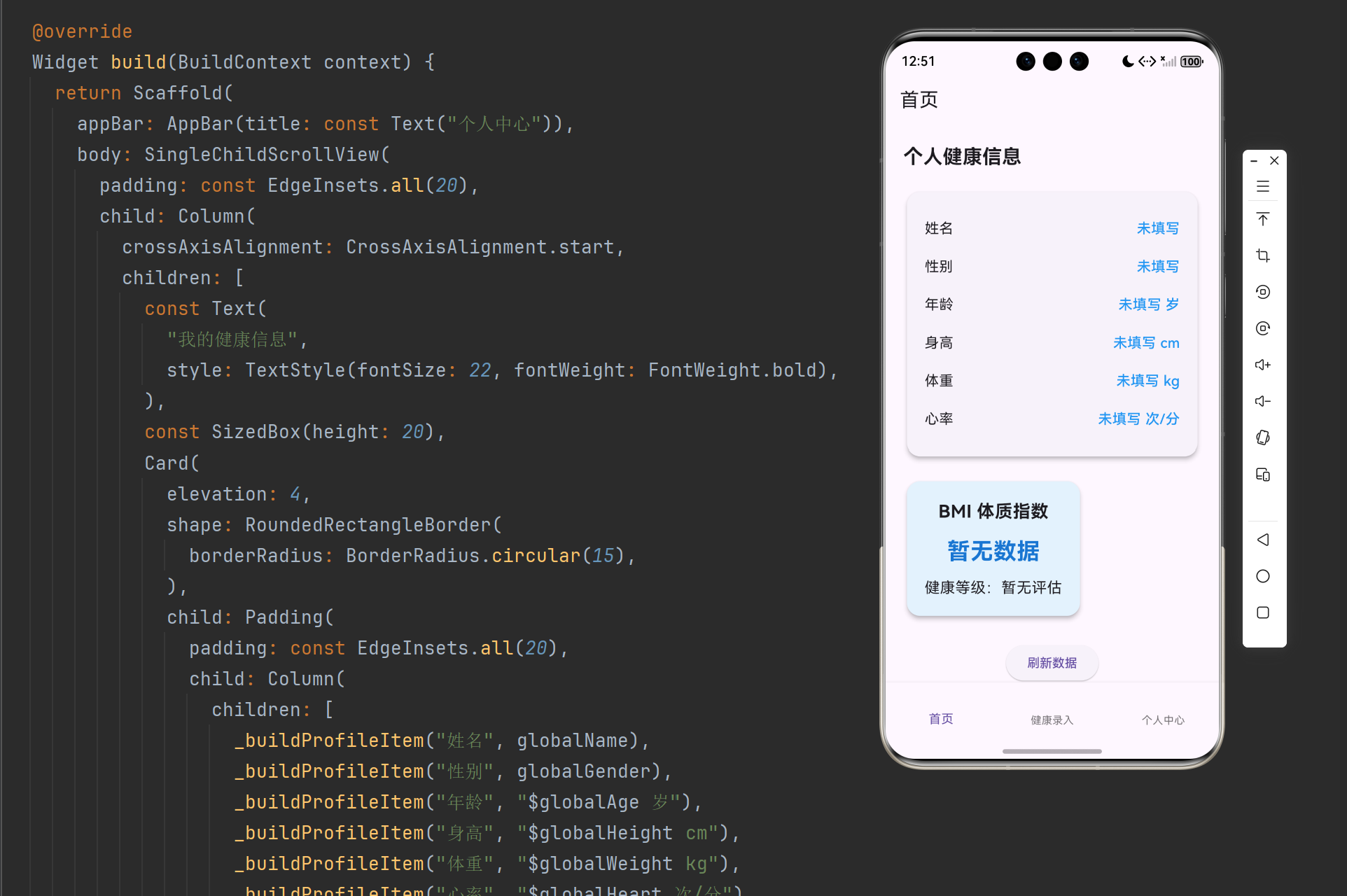
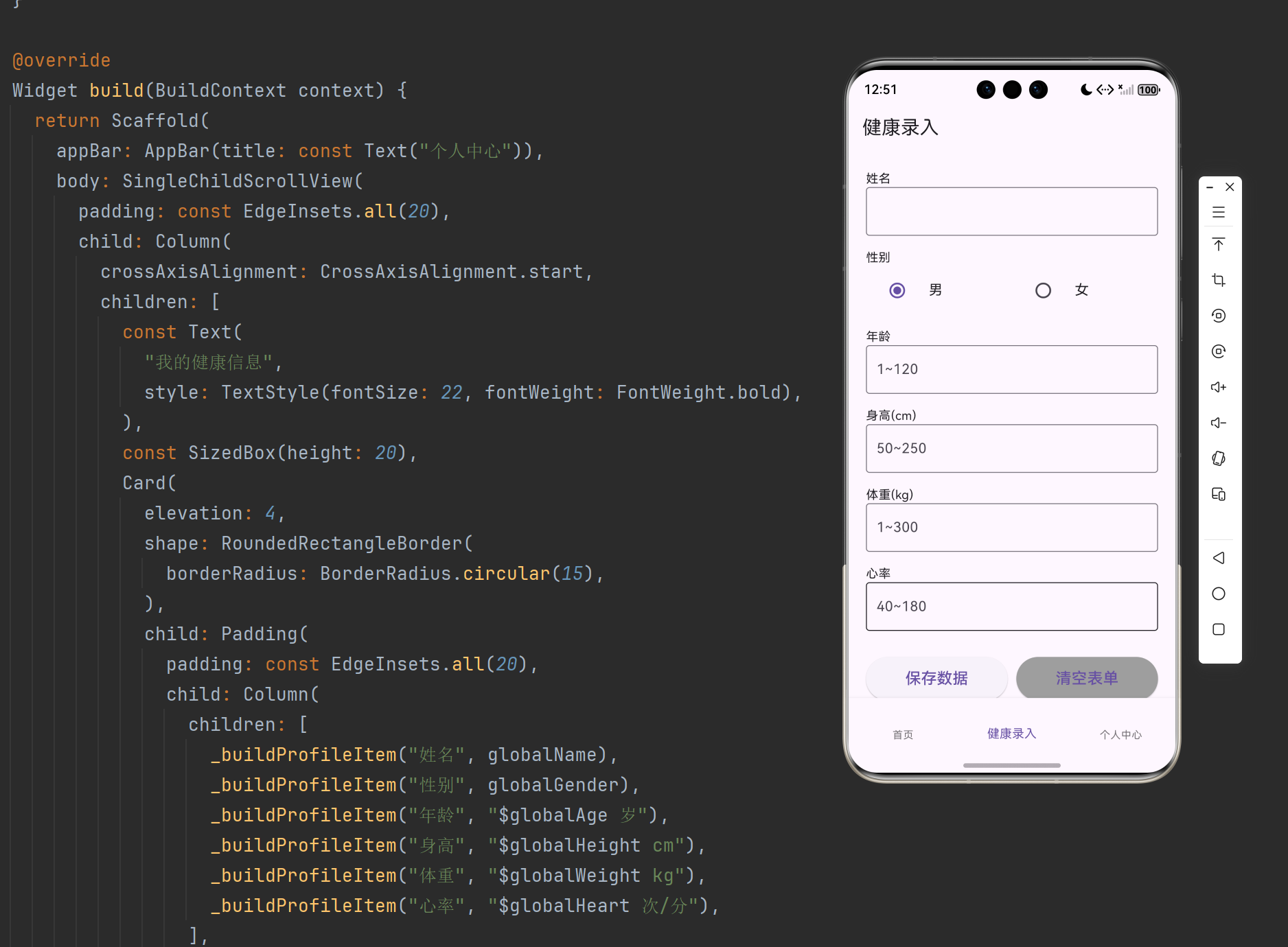
- 测试三页面切换、数据保存、BMI 计算、清空功能均正常
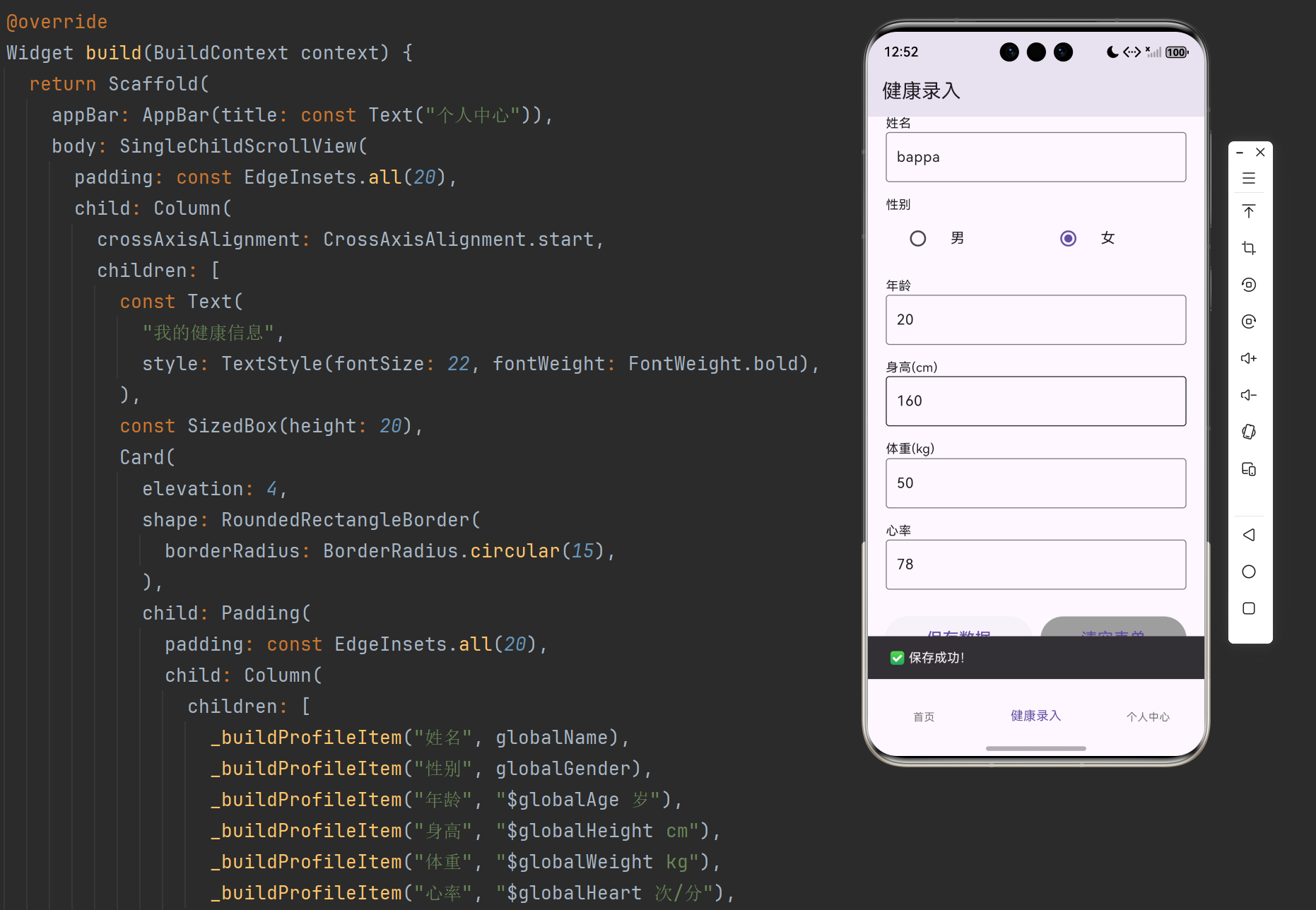
🔐 跨平台适配说明
本次全局 UI 美化完全适配 OpenHarmony 系统,主题配色、卡片圆角、输入框样式、文字间距在鸿蒙端显示正常,无布局错位、无内容遮挡,原有业务功能全部兼容运行。
❌ 常见错误排查
| 错误现象 | 解决方法 |
|---|---|
| 主题配色不生效 | 检查是否在 MaterialApp 中配置 ThemeData |
| 卡片圆角无变化 | 确认全局 CardTheme 是否正确设置圆角属性 |
| 输入框样式错乱 | 统一添加边框圆角与内边距约束 |
🎨 项目后续规划
Day11 完成全局 UI 统一美化优化,Day12 将实现健康数据保存时间记录功能,自动记录每条健康信息的录入时间并展示。
📌 项目总结
本篇 Day11 在前期业务功能完整的基础上,完成了项目全局 UI 深度美化,自定义主题配色、统一卡片与按钮样式、规范文字层级和页面间距,整体界面视觉效果大幅提升,同时完整保留表单校验、BMI 计算、本地存储、一键清空所有核心业务,界面美观与功能稳定兼顾,适配鸿蒙跨平台运行标准。
✅ 结尾小贴士
- 统一全局 ThemeData 是 Flutter 项目 UI 规范化的高效方式,只需配置一次即可全局生效
- 合理控制卡片圆角、阴影与文字间距,能极大提升应用整体质感
- 代码可直接全覆盖使用,无需改动任何配置,一键运行即可出效果
- 点赞收藏不迷路,后续每日开发笔记持续同步更新!
更多推荐
 11
11 0
0- 0


 已为社区贡献21条内容

所有评论(0)